
Creating high-quality videos and audio no longer requires expensive software or professional editing skills. In 2026, free AI tools for video and audio can help creators, YouTubers, marketers, students, freelancers, and small businesses generate, edit, enhance, and repurpose content faster—often with little technical experience.
From AI video generators and automatic video editors to voice generators, audio enhancement tools, transcription platforms, and background-noise removers, there are now many free and freemium options available. Some tools can turn text into videos, automatically add captions, clean up recorded audio, generate voiceovers, or transform existing content into short-form videos.

In this guide, we’ll explore the best free AI tools for video and audio in 2026, including what each tool does, its key features, free-plan limitations, ideal use cases, and who should consider using it. Whether you want to create YouTube videos, TikToks, Instagram Reels, podcasts, voiceovers, or professional marketing content, this list will help you choose the right tool for your needs.
Quick answer: If you need free tools for video and audio creation in 2026, start by comparing options based on video generation, editing, voice quality, audio enhancement, export limits, watermarks, commercial-use rights, and ease of use. Free plans can be excellent for beginners, but advanced features may require a paid upgrade.
Video and audio content is everywhere in 2026. Whether you’re posting on social media, starting a podcast, or creating training materials, the demand for quality content has never been higher. The good news? You don’t need expensive software or a massive budget to create professional-looking content anymore.
This guide covers the best free tools available right now for video editing and audio production. I’ve tested dozens of options, talked to creators who use them daily, and compiled everything you need to know to get started without spending a penny.
Let me walk you through the tools that actually work, the ones that waste your time, and how to choose what’s right for your projects.
What’s Changed in 2026 for Free Content Tools
The landscape of free tools has shifted dramatically in the past year. Cloud-based editing has become standard, meaning you can edit from almost any device. Storage limits have increased across most platforms. And the line between “free” and “paid” features has blurred—many tools now offer genuinely useful features without forcing you to upgrade.
What hasn’t changed? The need for reliability. Nothing kills a creative flow like a tool that crashes constantly or exports low-quality files. I’ve focused on tools that deliver consistent results.
- Check now – Best AI Tools for Video and Audio in 2026
Best Free AI Tools for Video and Audio in 2026
CapCut
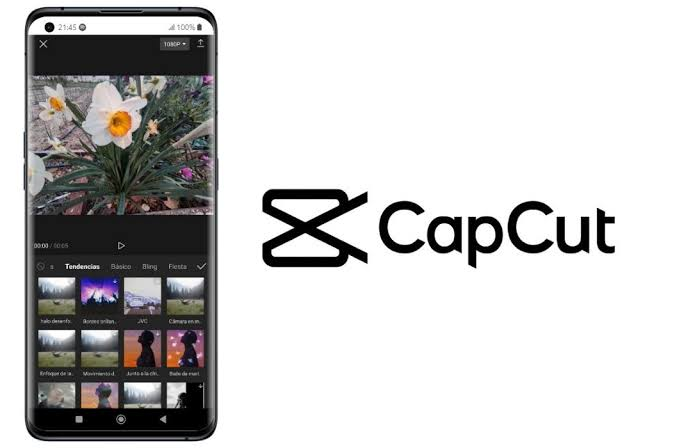
Still the most popular free video editor in 2026, and for good reason. CapCut combines ease of use with features that used to require expensive software.
What makes it stand out:
- Intuitive interface that works well on both phones and computers
- Auto-captions that save hours of manual work
- A huge library of effects and transitions
- 4K export with no watermarks
- Cloud backup for projects
The mobile app is particularly polished, but the desktop version has caught up significantly. If you’re creating short-form content for social media, this should be your first stop.
Example from a real user: Mikaela, a cooking content creator, uses CapCut to speed up her editing workflow. She records her recipes in real-time, then uses the speed adjustment tool to create fast-paced recipe videos. The auto-caption feature handles subtitles in multiple languages, helping her reach viewers in different countries.
DaVinci Resolve
This is the gold standard for serious creators who don’t want to pay for Adobe Premiere or Final Cut Pro. The free version is genuinely professional-grade software.
What makes it stand out:
- Industry-standard color grading tools
- Advanced audio editing with Fairlight built in
- Multi-user collaboration features
- Support for 4K and higher resolutions
- Visual effects capabilities
The learning curve is steeper than CapCut, but the power you get is unmatched for free software. It’s used by actual film studios and YouTube professionals.
Example from a real user: Carlos runs a small production company. He uses DaVinci Resolve for client projects where color accuracy is essential. The tools in the free version have won him jobs that previously required expensive software.
Clipchamp
Microsoft’s web-based editor has matured nicely since its earlier versions. It’s now a solid option for quick edits and web-friendly content.
What makes it stand out:
- Works entirely in your browser
- Deep integration with Microsoft products
- Screen recording built in
- Simple text-to-video creation
- Easy sharing to social platforms
If you need to create corporate or educational content quickly, Clipchamp’s web interface makes collaboration simple. No downloads, no installation hassles.
Example from a real user: A marketing team uses Clipchamp to create weekly updates for their company’s internal communications. Multiple team members can access projects from their browsers, making revisions painless.
OpenShot
OpenShot has been around for years, and it continues to improve. It’s a solid choice if you want a traditional timeline editor without the complexity of DaVinci Resolve.
What makes it stand out:
- Open-source and completely free
- Works on Windows, Mac, and Linux
- Good selection of transitions and effects
- Drag-and-drop functionality
- Regular updates from the community
Example from a real user: Leo teaches video production to high school students. He uses OpenShot because it runs on the school’s older computers without issues, and the interface helps students understand basic editing concepts.
Best Free Audio Tools
Audio quality often makes or breaks content. Viewers might forgive poor video, but bad audio drives people away quickly. These tools help you get professional sound without professional equipment.
Audacity
The veteran of free audio tools, Audacity has been around since 2000, and it’s still the go-to for basic audio editing. The recent updates have made it more reliable than ever.
What makes it stand out:
- Complete audio recording capabilities
- Noise reduction and removal
- Multiple track editing
- Support for most audio formats
- Active community for support
The interface feels dated, but it works. For podcasters and voice-over artists, Audacity remains essential.
Example from a real user: Rama records voice-overs for his YouTube videos using Audacity. He uses the noise reduction tool to remove room echo and the compression feature to balance his audio levels. The results sound studio-quality despite recording in his home office.
OBS Studio
While OBS is primarily known for live streaming, its audio capabilities are impressive. Many creators use it for recording high-quality audio and video simultaneously.
What makes it stand out:
- Professional-grade audio capture
- Multiple audio source mixing
- Real-time noise suppression
- Filter effects for voice enhancement
- Integration with other tools
The learning curve is steep, but once configured, OBS is remarkably powerful.
Example from a real user: Nita records her weekly podcast episodes using OBS. She captures audio from multiple microphones, adds background music, and records video simultaneously. The setup took a few hours initially, but she’s been using the same configuration for over a year.
BandLab
If you’re making music, BandLab has become the go-to free tool. It works in your browser and on mobile, with features that compete with paid DAWs (digital audio workstations).
What makes it stand out:
- Full music production capabilities
- Built-in mastering tools
- Collaboration features
- Large library of royalty-free sounds
- Active community of musicians
Example from a real user: Diego started creating background music for his videos on BandLab. He now has a catalog of tracks that he uses across all his content, giving his brand a consistent sound.
Voice.ai
Voice-related tools have evolved significantly. This platform offers voice modulation and cloning features that were impossible just a few years ago.
What makes it stand out:
- Voice changing and modulation
- Text-to-speech with natural voices
- Integration with other audio tools
- Simple interface
- Regular updates
Example from a real user: Anna needed male and female voices for an animated short. She recorded her own dialogue and used the modulation feature to create different character voices for the entire cast. The tool saved her thousands in voice actor costs.
Specialized Tools for Specific Needs
Descript
Descript combines audio/video editing with transcription and text-based editing. You edit by editing the text transcript of your recording—as simple as deleting words.
What makes it stand out:
- Text-based editing interface
- Automatic transcription
- Studio sound quality
- Screen recording
- Template creation
Example from a real user: Kai creates educational videos for an online learning platform. He records his lessons, Descript transcribes them automatically, and he edits by deleting words and phrases. The process is faster than traditional timeline editing.
Canva (Video Features)
Canva expanded beyond design into video in a big way. The video editing features are now substantial and improving monthly.
What makes it stand out:
- Huge library of templates
- Easy animation creation
- Social media optimization
- Team collaboration
- Integration with other tools
Example from a real user: An agency team creates client videos entirely in Canva. They start with templates, customize colors and fonts for branding, and export videos in social media formats. The process takes an hour instead of a day.
HitPaw
HitPaw focuses on specific tasks rather than full editing. It’s excellent for removing backgrounds, enhancing old videos, and fixing audio issues.
What makes it stand out:
- Simple, focused tools
- Good results with minimal effort
- Works quickly
- Integration with other workflows
Example from a real user: Tomas needed to clean up old family footage for a reunion. HitPaw’s enhancement tools brightened the colors and reduced graininess, making decades-old videos watchable again.
AI-Powered Assistance in Free Tools
The latest wave of free tools includes assistance that saves time on repetitive tasks. You won’t find standalone “AI tools” here—instead, these features are woven into the editing software themselves.
Smart Editing
Many video editors now offer automatic content generation. You can drop in raw footage and get a rough cut, music suggestions, and style recommendations. CapCut excels at this, turning hours of raw footage into shareable clips in minutes.
Auto-Transcription and Captions
Manually adding captions is tedious and time-consuming. Modern tools handle this automatically. YouTube Studio has built-in transcription that’s surprisingly accurate, and CapCut’s auto-captions support dozens of languages. DaVinci Resolve also offers captioning tools that work well for longer projects.
Audio Enhancement
Noise reduction has become standard. Audacity’s built-in tools are excellent, and OBS Studio’s real-time filters work well. Some tools now adjust audio levels automatically, balancing voice over background music without manual intervention.
Content Suggestions
Some platforms suggest effects, transitions, and music based on your content. These recommendations save time and help you discover options you might have overlooked.
Color Matching
Professional-looking color grading is easier than ever. Tools analyze your footage and suggest corrections or apply consistent color across clips. DaVinci Resolve’s color tools are industry-standard, and CapCut’s automatic corrections work well for quick projects.
Comparison Table: Top Free Tools at a Glance
| Tool | Best For | Platform | Learning Curve | Limitations |
|---|---|---|---|---|
| CapCut | Social media videos | Mobile, Desktop, Web | Easy | Some advanced features require paid version |
| DaVinci Resolve | Professional video | Desktop | Steep | Performance requires good hardware |
| Clipchamp | Quick web videos | Web | Easy | Export limits on free plan |
| OpenShot | Basic editing | Desktop | Moderate | Occasional stability issues |
| Audacity | Audio editing | Desktop | Moderate | Dated interface |
| OBS Studio | Recording/Streaming | Desktop | Steep | Complex setup |
| BandLab | Music creation | Web, Mobile | Moderate | Some features require social sharing |
| Descript | Transcription editing | Desktop, Web | Easy | Free version has time limits |
| Canva | Template-based video | Web, Mobile | Easy | Watermark on some free elements |
Common Problems and Solutions
Tool is Too Slow
Free tools often struggle with high-resolution footage. Work at a lower resolution during editing, then export at full quality. CapCut and DaVinci Resolve both offer proxy editing for smoother performance.
Export Quality Issues
Sometimes free tools compress exports heavily. Check your export settings carefully—most tools have quality options that aren’t selected by default. YouTube Studio handles processing differently than other platforms.
Storage Limits
Cloud-based free tools have storage caps. Download projects locally when possible. For desktop tools, ensure your computer has enough space for large video files.
Learning Curve Frustration
Professional tools like DaVinci Resolve have steep learning curves. Start with simpler tools like CapCut or Clipchamp, then graduate to advanced software. Many creators find they don’t need the advanced features for most projects.
Watermark Annoyance
Some free tools add watermarks to exports. CapCut and DaVinci Resolve don’t add watermarks, making them better choices for client work. If you use tools with watermarks, consider the paid upgrade or use alternative tools.
Practical Workflow for Different Projects
Social Media Shorts
Use CapCut or Canva for fast results. Record short clips, use auto-captions, add trending effects, and export in the correct aspect ratio. Total time: under an hour for a week’s worth of content.
Long-Form YouTube Videos
Start with CapCut for simplicity or DaVinci Resolve for professional polish. Import footage, cut and arrange clips, add transitions, and adjust audio. Don’t worry about color grading unless your footage requires it. Export in 4K for future-proofing.
Podcast Production
Record using OBS Studio for video and audio. Edit in Audacity for cleanup and leveling. Export as MP3 and upload to your podcast host. For video versions, sync with your recorded video and export both formats.
Music Production
BandLab handles most needs. Start with loops and samples, add instruments, arrange tracks, and use the built-in mastering tools. Export as high-quality audio for distribution.
Business Content
Clipchamp integrates with Microsoft products, making it easy for corporate users. Create training videos, product demos, and internal communications without fancy editing skills.
Pros and Cons of Free Tools
Pros
Zero Cost
The obvious advantage. You can create professional content without spending anything, making it accessible for beginners and hobbyists.
Low Barrier to Entry
Free tools are easier to start with. Most have simpler interfaces than professional software, helping new creators learn the basics quickly.
Cloud Features
Many free tools offer cloud storage and collaboration, features that were once exclusive to paid products.
Regular Updates
Popular free tools receive frequent updates, often adding features that rival paid alternatives.
Community Support
Free tools have large user communities. Problems get solved quickly because many people share the same issues.
Cons
Feature Limitations
Free versions restrict some advanced features. You might need to upgrade for specific tools or export options.
Performance Issues
Free tools sometimes run slower than paid alternatives, especially with high-resolution content.
Learning Curve
Some free professional tools are actually more complex than paid consumer software.
Privacy Concerns
Free tools might collect and use your data. Read the privacy policies carefully, especially for cloud-based services.
Storage Limits
Many free plans restrict storage or cloud usage, requiring you to manage files carefully.
Which Tools Should You Choose?
Your choice depends on your needs and experience level:
If you’re completely new to video editing: Start with CapCut. The mobile app is intuitive, and you can create impressive results within your first hour.
If you want professional quality: Learn DaVinci Resolve. The free version has all the features you’ll need for professional work, though the learning curve is steeper.
If you create business content: Use Clipchamp or Canva. The templates and integration with business tools make sense for corporate environments.
If you’re a podcaster: Combine Audacity for editing with OBS for recording. This combination handles everything from simple episodes to complex productions.
If you make music: BandLab is the clear choice. The feature set rivals paid software, and the community is active and helpful.
If you need quick, automated editing: Descript’s text-based editing saves massive amounts of time, especially for longer recordings.
Tips for Getting the Most from Free Tools
Start Simple
Don’t try to learn everything at once. Focus on basic cuts, audio leveling, and simple transitions first. Add complexity as you become comfortable.
Use Templates
Most free tools offer templates. Use them to understand structure and pacing, then customize to make them your own.
Practice with Purpose
Create practice projects that mirror your actual needs. If you make cooking videos, practice editing cooking footage. If you make tutorials, practice explaining concepts.
Upgrade When Necessary
Free tools are great, but sometimes upgrading is worth the cost. If you’re spending hours struggling with limitations, consider whether a paid version saves you time.
Watch Tutorials
Every tool has tutorials online. Search for your specific version and problem. The solution is often simple once you know where to look.
Frequently Asked Questions
Which free video editor is best for beginners?
CapCut is the most beginner-friendly tool. The interface is intuitive, there’s no watermark, and the mobile app works great for quick edits. Clipchamp is also excellent for web-based editing, especially if you already use Microsoft products.
Can I create professional content with free tools?
Absolutely. Many successful YouTubers and content creators use free tools exclusively. DaVinci Resolve is used in actual film production. The main limitation is your skill level and creativity, not the software.
Do free tools add watermarks?
Some do, but many don’t. CapCut and DaVinci Resolve export without watermarks. Clipchamp adds a small watermark in the free version. Check the tool’s exporting policy before you start editing.
What’s the best free audio editor?
Audacity remains the most capable free audio editor. It handles everything from basic recording to advanced editing. For music creation, BandLab is excellent. For voice work with transcription, Descript is worth exploring.
Can I edit 4K video with free tools?
Yes. CapCut, DaVinci Resolve, and Clipchamp all support 4K editing. However, performance depends on your device. Older computers might struggle with 4K footage, so consider using proxy editing or lower-resolution working files.
How do free tools compare to paid alternatives?
Free tools are surprisingly competitive. CapCut offers features that rival paid mobile editors. DaVinci Resolve is genuinely professional-grade. The main differences are advanced features, customer support, and performance consistency. For most creators, free tools are sufficient.
Which tools work best on mobile?
CapCut has the best mobile video editor. BandLab works well for mobile audio production. Canva has a solid mobile app for quick template-based videos. Most desktop tools have companion mobile apps, but CapCut leads the pack.
Are cloud-based free tools safe?
Generally yes, but read the privacy policy. Cloud tools store your files on their servers, which might be a concern for sensitive content. Many creators use cloud tools for convenience and store important files locally after exporting.
Can I use free tools for commercial projects?
Check the terms of service. DaVinci Resolve and CapCut allow commercial use in their free versions. Clipchamp has restrictions on the free plan for commercial use. Always verify before using free tools for client work.
How often do free tools update?
Popular free tools update regularly. CapCut receives major updates every few weeks. DaVinci Resolve has annual major releases with periodic patches. Web-based tools like Clipchamp update continuously in the background.
Future Trends for Free Tools
The next year will bring more integration across tools. Expect better cross-platform compatibility, more cloud features, and even simpler interfaces. Free tools will continue to gain capabilities that were once paid-only.
The mobile editing space will keep evolving. Phones now have enough processing power for complex edits, and the best free tools are mobile-first.
Collaboration features will expand. Multiple creators working on the same project will become standard, even in free tiers.
Storage will increase. Cloud storage costs keep dropping, meaning free tools can offer more generous space without raising costs.
Conclusion
Free tools for video and audio have never been better. In 2026, you can create professional-quality content without spending money on software. The tools are accessible, powerful, and improving rapidly.
The best approach is to start with one or two tools and master them. CapCut is excellent for video beginners, while Audacity handles most audio needs. As your skills grow, you can explore specialized tools like DaVinci Resolve for advanced color grading or Descript for transcription-based editing.
Remember that the tool is secondary to your creativity and storytelling ability. The best video in the world means nothing without a compelling message. Focus on telling good stories and delivering value to your audience.
Pick a tool, start creating, and improve gradually. The resources are free, the communities are helpful, and the possibilities are endless. Your next video project is waiting.

