
Editing used to be the slowest part of making a video. You’d record an hour of footage, then spend three or four hours cutting it down, removing dead air, adding captions, and reformatting it for whatever platform you were posting to. That math has flipped in 2026. The tools available now can strip out filler words, reframe a horizontal video into vertical clips, generate captions that actually match your speech, and turn one long recording into a week’s worth of short clips, often before you’ve finished your coffee.
The challenge isn’t whether these tools work anymore. It’s picking the right one, since most platforms are built around a specific type of editing rather than doing everything equally well. This guide breaks down the tools worth using in 2026, what each one is actually built for, and where each one falls short, so you can skip the trial-and-error.
AI-powered video editing tools have transformed the way creators produce content in 2026. Tasks that once required hours of manual editing—such as trimming clips, removing backgrounds, generating subtitles, improving audio, color correction, and adding visual effects—can now be completed in minutes with the help of intelligent automation. Whether you’re editing YouTube videos, social media content, online courses, marketing campaigns, or business presentations, AI video editors make the process faster, easier, and more efficient.
Best AI Tools for Video Editing in 2026. Today’s leading AI video editing platforms offer features like automatic scene detection, text-based editing, AI-powered object removal, voice enhancement, background noise reduction, motion tracking, smart transitions, and one-click video optimization. Many also support cloud-based collaboration, making it simple for teams to edit projects from anywhere. With both beginner-friendly interfaces and professional-grade tools, AI video editors cater to everyone from first-time creators to experienced filmmakers.
In this guide, we’ll explore the best AI tools for video editing in 2026, comparing their features, pricing, strengths, and ideal use cases. Whether you’re looking for a free editor for basic projects or an advanced platform for professional video production, these tools can help you create polished, high-quality videos in less time.
What’s Different About Editing Tools This Year
A few years back, most “smart” editing features were limited to auto-captions and maybe a filler-word remover. That’s changed quite a bit. Today’s better platforms can take a full-length podcast or webinar and automatically pull out the strongest moments as standalone short clips, reframe horizontal footage into vertical without cropping out the speaker’s face, clean up background noise and inconsistent audio levels, and let you edit a video by editing its transcript instead of scrubbing through a timeline.
The other shift is speed. Auto-features that used to need a heavy manual cleanup pass now need only a light review. That difference matters if you’re editing daily or producing content at volume, since a tool that gets you 90% of the way there in minutes is worth far more than one that needs the same manual effort as before.
The Best AI Tools for Video Editing in 2026
1. Descript
Descript is still the most well-known name in transcript-based editing. Instead of cutting clips on a timeline, you edit the written transcript of your video, and the footage updates automatically to match. Delete a sentence from the text, and the matching video segment disappears with it. Its Studio Sound feature also cleans up rough audio, background hiss, uneven volume, and room echo without needing a separate audio tool.
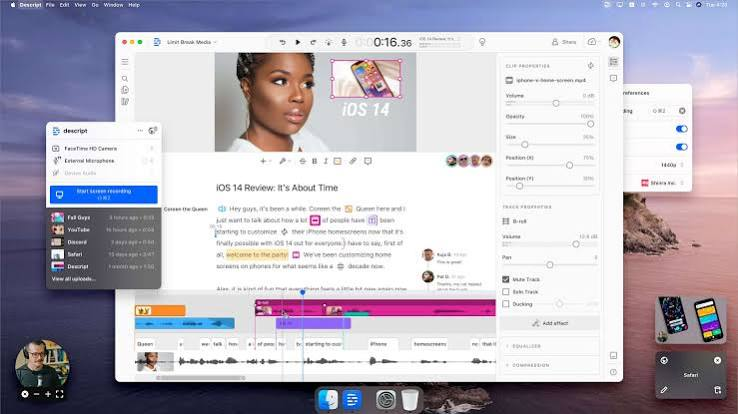
Descript is one of the most innovative AI video editing tools in 2026, offering a unique text-based editing workflow that makes video production as simple as editing a document. Instead of manually cutting clips on a timeline, users can edit the automatically generated transcript, and Descript instantly updates the video to match. This approach saves time and makes video editing accessible to beginners while still providing advanced features for professionals.
One of Descript’s standout capabilities is its AI-powered transcription, which delivers highly accurate speech-to-text conversion in multiple languages. Once a transcript is generated, users can remove filler words like “um” and “uh,” delete sections by removing text, and rearrange content without complicated editing. This makes it especially useful for podcasts, interviews, webinars, tutorials, and YouTube videos.
Descript also includes powerful AI tools for improving audio and video quality. Its Studio Sound feature enhances voice recordings by reducing background noise and balancing audio levels, while AI-generated captions improve accessibility and engagement. The platform also supports screen recording, webcam recording, multi-track editing, and automatic subtitle generation, making it an all-in-one solution for content creators.
Another standout feature is Overdub, which allows users to create a realistic AI voice model for correcting mistakes or adding new dialogue without re-recording entire sections. Combined with AI eye-contact correction, background removal, and automatic clip generation, Descript helps creators produce polished content quickly.
The platform works on Windows, macOS, and through the web, with cloud-based collaboration that allows teams to review, edit, and share projects efficiently. While the free plan includes basic editing and transcription, premium plans unlock longer transcription limits, advanced AI features, higher export quality, and expanded collaboration tools.
Practical example: If you’re editing a 45-minute interview and need to trim rambling tangents, scanning and deleting text is dramatically faster than scrubbing back and forth on a timeline trying to find the exact cut point.
Pros
- Transcript-based editing genuinely speeds up talking-head content
- Built-in audio cleanup saves a separate editing step
- Filler word removal works reliably out of the box
- Good for podcasters, interviewers, and course creators
Cons
- Less suited for highly stylized or visually complex edits
- Some advanced features are locked behind higher-tier plans
- Doesn’t handle short-form repurposing as well as dedicated clipping tools
2. CapCut
CapCut remains the dominant editor for mobile-first, short-form content. It handles the basics extremely well: cutting, captions, transitions, and sound syncing, and its free tier is unusually generous compared to most competitors. The template library updates constantly, which makes it easy to match whatever editing style is trending without building an effect from scratch. Projects also sync between phone and desktop, so you can start an edit on your phone and finish it later on a bigger screen.
CapCut is one of the most popular AI video editing tools in 2026, offering a feature-rich platform for beginners, content creators, marketers, and professionals. Available on Windows, macOS, Android, iPhone, and the web, CapCut combines traditional editing tools with powerful AI features, making it easy to create polished videos for YouTube, TikTok, Instagram Reels, Facebook, and other platforms.
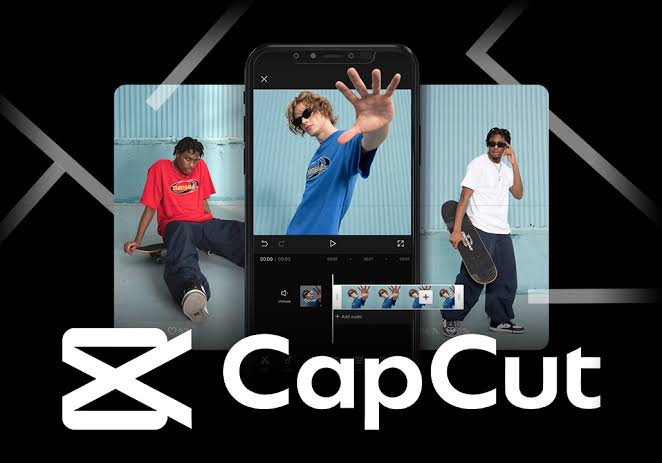
One of CapCut’s biggest advantages is its AI-assisted editing workflow. The platform can automatically trim clips, detect highlights, generate captions, remove background noise, and apply transitions with minimal user input. Its AI Auto Cut feature analyzes footage and creates a professionally edited video, while Auto Captions generate accurate subtitles in multiple languages, improving accessibility and viewer engagement.
CapCut also includes advanced AI tools such as background removal, object erasing, AI image enhancement, and portrait beautification. Users can replace backgrounds without a green screen, improve video quality with one click, and use motion tracking to attach text or graphics to moving objects. The built-in AI voice changer, text-to-speech, and voice enhancement features make it an excellent choice for tutorials, gaming videos, product reviews, and educational content.
For creators who want greater control, CapCut offers multi-track timeline editing, keyframe animation, masking, chroma key, speed ramping, color correction, and a large collection of transitions, filters, effects, stickers, and royalty-free music. Its cloud synchronization feature allows users to start editing on one device and continue seamlessly on another.
CapCut provides a generous free plan with access to many AI-powered editing features. The Pro subscription unlocks premium templates, advanced AI tools, expanded cloud storage, and higher-quality exports, making it suitable for professional workflows.
Practical example: If you’re editing daily Reels or TikToks for a client, CapCut lets you drop in a clip, apply a caption style, sync a trending sound, and export in well under half an hour.
Pros
- Free tier is genuinely usable, not just a trial
- Strong, accurate auto-captioning
- Constantly updated template and effects library
- Syncs smoothly across mobile and desktop
Cons
- Templates can make content look similar to everyone else using them
- Less depth for longer-form or narrative editing projects
- Some regulatory uncertainty around the app in certain regions has made a few teams cautious about relying on it long-term
3. VEED
VEED runs entirely in the browser, which makes it a strong pick for teams that need to collaborate without installing anything or worrying about device compatibility. It handles captioning, subtitle translation, background removal, and basic color correction well, and its collaboration tools make it easier for a team to review and comment on an edit before publishing.

Practical example: A content team spread across different cities can review the same in-progress edit, leave comments on specific timestamps, and approve it without exporting and re-sharing files back and forth.
Pros
- Browser-based, no software installation needed
- Strong team collaboration and review features
- Good subtitle and translation support
- Works well across different devices without compatibility issues
Cons
- Browser performance can lag on longer or higher-resolution projects
- Free tier is more limited than CapCut’s
- Advanced color and audio tools aren’t as deep as dedicated desktop software
4. DaVinci Resolve Studio
DaVinci Resolve has long been respected for color grading and professional-grade editing, and its smart features have caught up considerably. Tools like automatic masking for selective color or blur, voice isolation for cleaning up dialogue, and smart reframing for different aspect ratios now sit alongside its traditional editing suite. The base version is free, and the Studio upgrade is a one-time purchase rather than a subscription, which is worth knowing if you’re trying to avoid recurring costs.
Practical example: A creator producing a short film who needs precise color grading alongside dialogue cleanup can do both in one application instead of bouncing footage between three different programs.
Pros
- Professional-grade color grading and editing depth
- One-time purchase option instead of a subscription
- Smart masking and reframing tools save real time
- Free base version is genuinely capable, not just a demo
Cons
- Steeper learning curve than mobile-first editors
- Overkill if you only need quick social clips
- Higher system requirements for smooth performance
5. OpusClip
OpusClip focuses on one job and does it well: turning long-form video, podcasts, webinars, interviews, into multiple short, publish-ready clips. It scans a long recording, identifies the strongest moments, and outputs them as separate clips with captions and vertical framing already applied.
Practical example: A podcaster who records a 60-minute episode weekly can upload the full recording and get several short clips back, ready to post, instead of manually scrubbing through the whole episode looking for good moments.
Pros
- Saves significant time on short-form repurposing
- Captioning and vertical reframing are handled automatically
- Good at identifying genuinely engaging segments, not just random cuts
- Useful for anyone sitting on a backlog of long-form content
Cons
- Narrower focus means it’s not a full editing suite on its own
- Clip selection still benefits from a manual review pass
- Best used alongside another tool for final polish
6. Submagic
Submagic is built specifically around captions and short-form styling, think bold animated captions, emoji placement, and the kind of punchy on-screen text that performs well on TikTok and Reels. It’s a narrower tool than most on this list, but if captions are the piece of your workflow eating the most time, it’s worth using on its own.
Practical example: A creator who already edits their own clips but hates mtiming and styling captions manually can drop a finished clip into Submagic and get polished, trend-matching captions back in a couple of minutes.
Pros
- Fast, high-quality caption styling
- Templates match current short-form trends closely
- Simple, focused workflow with a short learning curve
Cons
- Not a full editing tool, mainly a captioning and styling layer
- Limited usefulness if your content isn’t caption-heavy
- Works best paired with a separate editor for the actual cut
How to Pick the Right One for Your Workflow
Rather than trying to find one tool that does everything, it’s usually smarter to match the tool to the specific bottleneck in your process.
If your biggest time sink is trimming talking-head footage, Descript’s transcript editing will save you the most hours.
If you’re producing daily short-form content on a tight budget, CapCut covers captions, trends, and quick exports without much cost.
If you’re working with a team and need review and approval built in, VEED’s browser-based collaboration solves that better than desktop software.
If color grading and professional polish matter for your project, DaVinci Resolve Studio offers the most depth, at the cost of a steeper learning curve.
If you’re sitting on hours of long-form content and need short clips out of it, OpusClip will save you the most time on repurposing.
If captions specifically are your weak point, Submagic is worth adding to whatever editor you already use.
Common Mistakes to Avoid
Relying entirely on automated cuts without reviewing them. Auto-clipping tools like OpusClip are good at spotting strong moments, but they occasionally miss context or cut mid-sentence. A quick review before publishing catches these before your audience does.
Using default caption styles without adjusting for your brand. Bold, trendy captions work, but if every video you post looks exactly like a template, it starts to blend in rather than stand out. Small tweaks to font, color, or timing go a long way.
Skipping the audio pass. Visual editing tends to get the most attention, but uneven audio levels or background noise will hurt watch time more than most people expect. Tools like Descript’s Studio Sound take just a few extra minutes and noticeably improve the final result.
Editing on the wrong tool for the job. Trying to force a full narrative edit through a short-form clipping tool, or trying to do quick social captions through a heavyweight color-grading suite, wastes time either way. Match the tool to the task before you start.
Not testing free tiers before committing to a paid plan. Most of the tools above offer some kind of free tier or trial. Testing your actual footage on a free plan before subscribing saves you from paying for features you don’t end up using.
Frequently Asked Questions
Do I need editing experience to use these tools?
Not really. CapCut, Descript, and VEED are all built with non-editors in mind, using guided interfaces rather than a traditional complex timeline. DaVinci Resolve rewards experience but is still learnable for beginners willing to put in some time.
Which tool is best for someone just starting with a small budget?
CapCut’s free tier covers most beginner needs, including captions and basic effects. If you’re mostly editing talking-head content, Descript’s free tier is also worth trying before upgrading.
Can these tools fully replace a professional editor?
For repeatable, straightforward content like social clips or podcast highlights, largely yes. For complex, highly creative projects with a specific narrative or visual vision, a skilled editor still brings judgment these tools can’t fully replicate on their own.
How long does editing actually take with these tools compared to before?
It varies by project, but many creators report cutting editing time by half or more for repetitive formats like weekly podcast clips or daily social content. Complex narrative edits still take real time regardless of the tool.
Are captions from these tools accurate enough to skip manual checking?
They’re generally quite accurate for clear audio in common languages, but names, technical terms, and heavy accents can still trip up auto-captions. A quick read-through before publishing is worth the extra few minutes.
Is it better to use one all-in-one tool or combine a few specialized ones?
It depends on your volume and workflow. If you edit occasionally, one all-in-one tool like CapCut or VEED is simpler to manage. If you produce content at higher volume, combining a repurposing tool like OpusClip with a captioning tool like Submagic often gets better results than forcing one tool to do both jobs.
Do these tools work well for content in Hindi or other Indian languages?
Caption and transcription accuracy for Hindi and other regional languages has improved but still varies by tool and audio quality. It’s worth testing a short clip first, since accented or mixed-language speech (Hinglish, for example) can be harder for auto-captioning to handle cleanly than single-language audio.
Conclsion
The right editing tool depends entirely on what’s actually slowing you down. If it’s trimming footage, transcript-based editing solves that. If it’s turning long content into short clips, a dedicated repurposing tool solves that. If it’s captions, styling, or color, there’s a tool built specifically for that piece too. Start by identifying your actual bottleneck rather than picking whatever tool is most talked about, test it on a real project, and build your workflow around what genuinely saves you time rather than what looks impressive in a demo.

