
Creating professional-quality videos no longer requires expensive software or advanced editing skills. In 2026, a wide range of free AI-powered video creation tools makes it easy for beginners, content creators, marketers, educators, and businesses to produce engaging videos in minutes. Whether you’re creating YouTube videos, TikTok clips, Instagram Reels, product promotions, or presentations, these tools can help you generate scripts, edit footage, add captions, create voiceovers, and even produce videos from simple text prompts.
Many of the best AI video creation platforms offer generous free plans, allowing users to experiment with powerful features before upgrading. While free versions may include usage limits or watermarks, they still provide excellent value for creators who want to produce high-quality content without a large budget.
In this guide, we’ll explore the top free AI tools for video creation in 2026, comparing their key features, strengths, limitations, and ideal use cases. Whether you’re looking for an all-in-one video editor, a text-to-video generator, or a tool for creating social media content, you’ll find an option that matches your needs and helps you create videos faster and more efficiently.
Top AI Tools for Video Creation (Free) 2026. If you’ve ever tried to make a video without spending a rupee on software, you know the struggle. Half the “free” tools want your credit card details before you can export anything. The other half slap a giant watermark right across your footage. It’s frustrating, especially when you’re just starting or testing whether video content is even worth your time.
The good news is that 2026 has been a genuinely great year for free video-making software. Whether you’re a small business owner making product demos, a student putting together a class project, a YouTuber testing the waters, or someone who just wants to turn vacation clips into something watchable, there’s a free option that fits your needs. You just have to know where to look.
This guide walks you through the best free video creation tools available right now, what each one is actually good at, where they fall short, and how to pick the right one for your specific project.
Why Free Tools Are Finally Worth Using
A few years ago, “free video editor” usually meant clunky software with a two-minute export limit or a logo burned into every clip. That’s changed a lot. Competition among software companies has pushed free tiers to become genuinely usable, not just teaser versions designed to frustrate you into paying.
Most tools on this list let you create full-length videos, add captions, use stock footage, and export in decent quality without paying anything. Some limits still exist — usually around video length, storage space, or premium templates — but for everyday content creation, the free versions hold up surprisingly well.
Top AI Tools for Video Creation (Free) 2026:-
1. CapCut
CapCut has become the go-to choice for short-form content creators, and for good reason. It started as a mobile app but now has a solid desktop version too, which makes it flexible depending on how you like to work.
CapCut remains one of the best free AI-powered video editors in 2026, offering an easy-to-use platform for beginners and experienced creators alike. Available on Windows, Mac, Android, iPhone, and the web, CapCut combines traditional editing tools with AI-powered features that help users create professional-looking videos in less time. Whether you’re producing YouTube videos, TikTok clips, Instagram Reels, Facebook posts, or business promotions, CapCut provides everything needed in one place.
The free plan includes a wide range of editing tools, including trimming, splitting, transitions, animations, filters, text overlays, and a large library of royalty-free music and sound effects. AI-powered features such as automatic captions, background removal, object tracking, AI script generation, text-to-speech, speech-to-text, and smart video enhancement make editing faster and more accessible, even for beginners.
CapCut also offers ready-made templates that let users create polished videos in just a few clicks. Its cloud-based workflow allows projects to sync across devices, making it convenient to start editing on one device and finish on another.
Although some advanced AI features, premium templates, and high-end effects require a paid subscription, the free version is powerful enough for most personal, educational, and social media projects.
What it’s good for: Quick edits, trendy transitions, text animations, and anything destined for Instagram Reels, YouTube Shorts, or TikTok. If you’re making short, punchy videos, CapCut’s template library will save you hours.
Practical example: Say you run a small bakery and want to post a 30-second video of your morning baking process. CapCut lets you drag in your clips, auto-sync them to trending music, add bold captions, and export in under 15 minutes — no design background needed.
Pros:
- Huge library of free templates and effects
- Auto-captions that are surprisingly accurate
- Works well on both phone and desktop
- No watermark on free exports
Cons:
- Can feel overwhelming with so many features packed in
- Some newer effects are locked behind a paid plan
- Mobile version can lag on older phones
2. DaVinci Resolve
If you want editing power that rivals what professional studios use, DaVinci Resolve’s free version is hard to beat. It’s not the easiest tool to learn, but once you get comfortable, there’s very little you can’t do with it.
DaVinci Resolve is one of the most powerful free video editing software options available in 2026. Trusted by professional filmmakers, YouTubers, and video editors, it offers advanced editing, color grading, visual effects, motion graphics, and audio post-production in a single application. Available for Windows, macOS, and Linux, the free version includes many of the same professional tools found in the paid Studio edition, making it an excellent choice for creators who want high-quality results without spending money.
The free edition features a professional non-linear editing timeline, multi-camera editing, advanced trimming tools, and support for high-resolution video projects. It also includes the industry-leading Color page for precise color correction and grading, the Fusion page for creating visual effects and motion graphics, and the Fairlight page for professional audio editing and mixing.
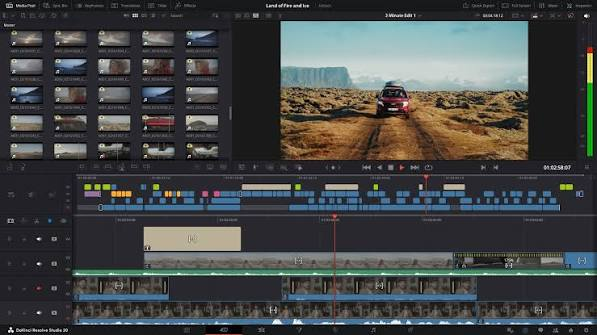
In 2026, DaVinci Resolve continues to incorporate AI-powered features through its DaVinci Neural Engine. While some advanced AI capabilities are reserved for the Studio version, the free edition still provides intelligent editing tools, automatic project organization, and a smooth editing workflow that significantly improves productivity.
Although the interface has a steeper learning curve than beginner-focused editors, users who invest time in learning DaVinci Resolve gain access to a professional editing environment capable of producing feature films, documentaries, commercials, and high-quality YouTube content.
What it’s good for: Serious editing projects — color grading, multi-camera edits, detailed audio work. This is the tool for people who want to grow past basic editing.
Practical example: A wedding videographer editing footage from three different cameras can sync all the angles, color-correct each clip to match lighting conditions, and mix audio from separate microphones — all without paying for software.
Pros:
- Professional-grade features completely free
- Excellent color correction tools
- Handles large, complex projects well
Cons:
- Steep learning curve for beginners
- Needs a fairly powerful computer to run smoothly
- Interface can feel cluttered at first
3. Canva Video Editor
Canva isn’t just for posters and social media graphics anymore. Its video editor has quietly become one of the easiest ways to put together a polished video without any editing background.
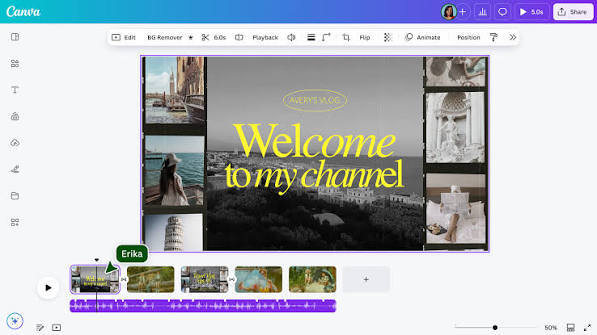
What it’s good for: Marketing videos, presentations, simple explainer content, and anything where design consistency matters more than fancy transitions.
Practical example: A freelance consultant putting together a service overview video can pull from Canva’s brand kit to keep fonts, colors, and logos consistent across the whole video, then add stock clips and music without leaving the platform.
Pros:
- Extremely beginner-friendly drag-and-drop layout
- Massive stock library of clips, music, and graphics
- Great for maintaining brand consistency
Cons:
- Limited fine-tuned control compared to dedicated editors
- Free plan restricts access to premium stock content
- Exports can take a while during busy hours
4. Clipchamp
Clipchamp comes built into Windows now, which makes it one of the most accessible options if you’re already on a Windows machine. It sits in a nice middle ground — more capable than a basic trimmer, but far simpler than DaVinci Resolve.
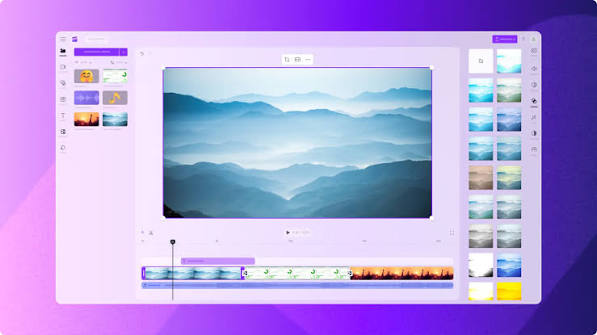
What it’s good for: Everyday editing tasks like trimming clips, adding text overlays, combining multiple videos, and basic transitions.
Practical example: A teacher recording lesson videos for students can quickly trim out mistakes, add a title slide, and export the final version — all using software that was already sitting on their laptop.
Pros:
- Pre-installed on Windows, no extra download needed
- Clean, simple interface
- Decent selection of templates for common video types
Cons:
- Fewer advanced features than dedicated editors
- Some templates and stock assets require a subscription
- Less flexibility for creative or unusual edits
5. VEED
VEED has built a strong reputation for one thing in particular: captions. If subtitles and accessibility matter for your content, this tool makes the process almost effortless.
What it’s good for: Adding auto-generated subtitles, translating captions into other languages, and quick browser-based editing without installing anything.
Practical example: A podcaster who wants to repurpose audio episodes into video clips for social media can upload the recording, generate accurate captions automatically, and add simple visuals — all from a browser tab.
Pros:
- Accurate automatic subtitles in multiple languages
- No software installation required, works entirely online
- Simple enough for total beginners
Cons:
- Free plan includes a small watermark
- Limited export length on the free tier
- Fewer advanced editing tools compared to desktop software
6. Kapwing
Kapwing is another browser-based editor that’s built around collaboration. If you’re working with a team or need to get quick feedback from someone else, this is worth trying.
What it’s good for: Team projects, meme-style content, quick social clips, and situations where multiple people need to work on the same video.
Practical example: A small marketing team creating a product launch video can all log into the same project, leave comments on specific clips, and make edits together in real time instead of emailing files back and forth.
Pros:
- Real-time collaboration features
- Works directly in the browser, no downloads
- Good range of templates for social content
Cons:
- Export length limited on free plan
- Watermark included unless upgraded
- Can run slowly with longer or heavier projects
7. InVideo
InVideo leans heavily into templates, which makes it a strong pick for people who want a finished-looking video fast, without building everything from scratch.
What it’s good for: Marketing videos, product showcases, and social media ads where a polished look matters more than custom editing.
Practical example: An online store owner launching a new product can pick a template built for e-commerce promos, swap in their own product photos and pricing, and have a shareable ad video ready the same day.
Pros:
- Huge template library organized by use case
- Easy text-to-video features for turning scripts into visuals
- Good stock media selection
Cons:
- Free plan has watermark and export limits
- Less flexibility for fully custom projects
- Can feel template-locked rather than truly creative
8. Pictory
Pictory takes a slightly different approach — it’s built around turning long-form content like blog posts or scripts into short videos automatically. It’s especially popular with people repurposing written content.
What it’s good for: Turning articles, scripts, or long videos into short, digestible clips for social media.
Practical example: A blogger who writes long recipe posts can convert the written steps into a short cooking video with visuals and captions pulled straight from the text, without filming anything themselves.
Pros:
- Saves huge amounts of time on repurposing content
- Good stock footage matching based on your script
- Useful for people without filming equipment
Cons:
- Less control over fine visual details
- Free trial is limited compared to other tools on this list
- Best suited for specific use cases, not general editing
How to Pick the Right One
With so many options, it helps to narrow things down based on what you actually need:
- For short social clips: CapCut is hard to beat.
- For serious, professional-level editing: DaVinci Resolve is worth the learning curve.
- For quick, design-consistent marketing videos: Canva is the simplest path.
- For everyday trims and basic edits on Windows: Clipchamp works well since it’s already installed.
- For captions and accessibility: VEED handles this better than most.
- For team collaboration: Kapwing keeps everyone on the same page.
- For fast, template-based promos: InVideo gets you there quickly.
- For turning written content into video: Pictory does the heavy lifting.
Most creators end up using two or three of these tools together rather than relying on just one. For example, editing raw footage in DaVinci Resolve, then using VEED just for captions before posting to social media, is a common workflow.
A Few Practical Tips Before You Start
Check the export limits first. Some free plans restrict you to a certain number of exports per month or a maximum video length. It’s frustrating to finish editing and then discover you can’t actually download your work.
Watch out for watermarks. Not every “free” plan is watermark-free. If your video is for a client or public-facing content, double-check this before investing hours into editing.
Save your work often. Browser-based tools especially can be prone to losing progress if your connection drops. Get into the habit of saving or exporting drafts as you go.
Start simple. It’s tempting to want every feature at once, but a clean, well-timed video with basic cuts often performs better than an overly busy one packed with effects.
Frequently Asked Questions
Are these tools really free, or is there a hidden catch?
Most of them offer a genuinely usable free tier, though limitations like export length, watermark, or storage space are common. Read the fine print on each platform’s pricing page before committing to a project.
Which tool is best for someone with zero editing experience?
Canva and Clipchamp are the easiest starting points. Both use simple drag-and-drop layouts that don’t require any prior editing knowledge.
Can I use these tools on my phone?
Yes, most of them — CapCut, Canva, VEED, and Kapwing all have solid mobile experiences. DaVinci Resolve is really built for desktop use, though.
Do free plans include stock music and footage?
Many do, though the selection is usually smaller than what’s available on paid plans. Canva and InVideo tend to have the most generous free stock libraries.
What’s the best tool for making YouTube videos specifically?
DaVinci Resolve gives you the most control for longer-form YouTube content, while CapCut works well if your channel focuses on shorter videos or Shorts.
Is it worth upgrading to a paid plan eventually?
It depends on your output. If you’re posting regularly and need to remove watermarks or unlock longer export limits, upgrading can save time. But for occasional use, the free versions of most tools here are more than enough.
Can I edit videos without downloading any software?
Yes. VEED, Kapwing, Canva, and InVideo all run entirely in your browser, so there’s nothing to install if you’d rather keep things lightweight.
Conclsion
There’s no single “best” tool on this list — it really comes down to what kind of videos you’re making and how much control you want over the process. The best approach is to pick one or two that match your workflow, spend a little time getting comfortable with them, and build from there. Video creation doesn’t need a big budget anymore, just the right free tool and a bit of patience.

