
free VPN for Windows can be challenging, especially when many services limit data, reduce speeds, or compromise user privacy. In 2026, several reputable VPN providers continue to offer free plans that deliver strong security, encrypted connections, and user-friendly Windows apps without requiring a paid subscription.
Whether you want to protect your privacy on public Wi-Fi, browse the web securely, access geo-restricted websites, or safeguard your personal information from online tracking, the right free VPN can provide essential protection. While free VPNs typically have some limitations—such as fewer server locations, speed restrictions, or limited advanced features—they are an excellent choice for casual browsing, remote work, and everyday online security.
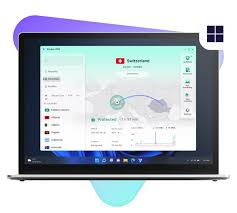
In this guide, we’ve rounded up the best free VPN software for Windows in 2026, comparing each option based on security, privacy, performance, ease of use, data limits, and overall value. Whether you’re looking for unlimited data, fast connection speeds, or a trusted provider with a strict no-logs policy, you’ll find a free Windows VPN that suits your needs.
If you’re on a Windows laptop or desktop and looking for a free VPN, you’ve probably already noticed the problem: search results are flooded with apps that all claim to be “the best,” but half of them barely work once you install them. Some throttle your speed to a crawl, others bombard you with ads, and a few are honestly just data-collection tools wearing a VPN costume.
This guide cuts through that noise. Below you’ll find the free VPN apps that genuinely hold up on Windows in 2026, what each one is actually good for, how to set them up, and the trade-offs you should know about before you commit to one.
Why Windows Users Specifically Need to Be Careful
Windows is the most widely used desktop operating system in the world, which makes it the biggest target for both legitimate VPN providers and shady clones. A few things make choosing carefully extra important on Windows:
- Third-party download sites often bundle extra software. Downloading a VPN from anywhere other than the official website or Microsoft Store increases your risk of picking up unwanted extras.
- Windows Defender sometimes flags lesser-known VPN apps, which is worth paying attention to rather than ignoring.
- Battery life isn’t usually a concern (unlike mobile), so free Windows VPNs tend to focus their limits on data caps and speed instead.
- Work laptops often have restrictions. If you’re using a company device, check your organization’s policy before installing any VPN, since some IT departments block VPN traffic entirely.
What Makes a Free VPN Actually Good on Windows
Not all “free” labels mean the same thing. Here’s what separates a solid free VPN from one that’s just free in name:
- A real no-data-cap or generous cap — some free VPNs give you barely enough data for an hour of browsing
- A no-logs policy, ideally backed by an independent audit
- A working kill switch, which cuts your internet if the VPN connection drops, so your real IP doesn’t leak
- Decent speeds, even if slower than the paid tier
- A clean, native Windows app rather than a clunky browser-only extension
- Clear information about how the company makes money, since running servers isn’t free for them either
Best Free VPN Software for Windows in 2026
1. Proton VPN Free
Proton VPN‘s free plan remains one of the strongest options for Windows users, mainly because it doesn’t cap your data — a rarity among free VPNs. The Windows app is clean, easy to navigate, and includes a working kill switch even on the free tier. Server choice is limited to a handful of countries, and speeds can dip when traffic is high, but for daily browsing and privacy on public networks, it holds up well.
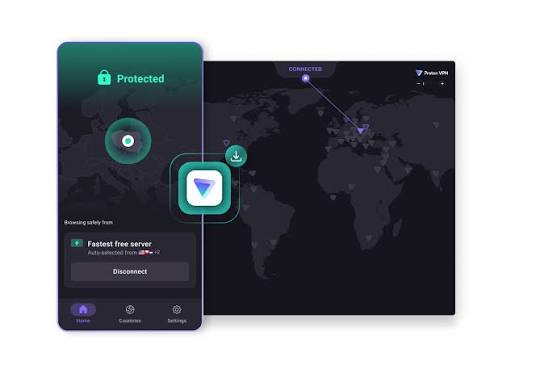
Proton VPN Free is widely regarded as one of the best free VPNs for Windows in 2026 because it offers something many competitors do not—unlimited data. Developed by the team behind Proton Mail, the VPN is based in Switzerland, a country known for its strong privacy laws. It follows a strict no-logs policy, meaning your browsing activity is not tracked, stored, or sold to advertisers. This makes it an excellent choice for users who value online privacy and security.
The Windows application is easy to install and features a clean, beginner-friendly interface. With a single click, you can connect to a secure VPN server and encrypt your internet traffic using industry-standard AES-256 encryption and modern VPN protocols such as WireGuard and OpenVPN. Proton VPN Free also includes DNS leak protection and a kill switch, helping keep your real IP address protected if the VPN connection drops unexpectedly.
Unlike many free VPNs, Proton VPN Free does not display ads or impose monthly bandwidth limits. While the free plan provides access to a limited number of server locations and does not include premium features like streaming-optimized servers, Secure Core, or the fastest available speeds, it is more than sufficient for everyday browsing, online banking, email, and protecting your connection on public Wi-Fi.
Practical example: You’re working from a co-working space with shared Wi-Fi and want to check your bank account without worrying about who else is on the network. Opening Proton VPN, connecting to the nearest server, and doing your banking takes less than a minute of setup.
2. Windscribe Free
Windscribe gives Windows users about 10GB of data a month, along with access to roughly 10 server locations. The Windows app also bundles in an ad and tracker blocker, which is a nice bonus most free VPNs skip entirely.
Windscribe Free is one of the most feature-rich free VPNs for Windows in 2026, offering a generous free plan with strong security, reliable performance, and access to multiple server locations. Unlike many free VPN services that limit users to a single location, Windscribe Free provides servers in several countries, making it a great option for secure browsing and accessing region-specific websites. New users receive up to 10 GB of free data per month by verifying their email address, while users who do not verify receive a smaller monthly allowance.

The Windows desktop application is simple to install and includes a clean interface suitable for both beginners and advanced users. It protects your internet traffic with AES-256 encryption and supports modern VPN protocols such as WireGuard, OpenVPN, and IKEv2, ensuring fast and secure connections. The app also includes a built-in firewall (kill switch) that blocks internet traffic if the VPN connection unexpectedly drops, helping prevent IP address leaks.
One of Windscribe’s standout features is ROBERT, its customizable DNS-based blocker that can block ads, trackers, malware domains, phishing websites, and unwanted content before they load. This improves both privacy and browsing speed without requiring additional browser extensions.
Although the free plan has a monthly data limit and fewer server locations than the premium version, it offers excellent value for everyday browsing, online privacy, public Wi-Fi protection, and occasional streaming.
Practical example: You want to read an article from a foreign news outlet that’s geo-restricted. Switching Windscribe to a server in that country and refreshing the page usually gets you in without any extra steps.
3. hide.me Free
hide.me offers a clean, well-designed Windows client with 10GB of monthly data and five server locations to pick from. It’s built with a strict no-logs approach and has actually undergone independent audits to back that claim up, which not every free provider bothers doing.
Practical example: You’re downloading a large but legal file and want a bit of extra privacy from your internet provider while doing it. hide.me’s decent free data cap makes this workable without hitting a wall halfway through.
4. TunnelBear Free

TunnelBear‘s Windows app is one of the friendliest around for beginners, with a simple map-based interface for picking your server. The catch is a fairly small 2GB monthly cap, so it’s really built for occasional use rather than daily browsing.
Practical example: You’re traveling for a week and need occasional access to home-region content on your laptop. TunnelBear’s cap is enough to cover short, infrequent sessions without needing a paid plan.
5. Cloudflare WARP
WARP isn’t a traditional VPN with country-switching, but it’s a free, no-cap option that encrypts your traffic and speeds up DNS lookups. On Windows, it runs quietly in the background without much fuss.
Practical example: You mainly want faster, more private browsing rather than unlocking region-specific content — WARP handles that well without any data limit to worry about.
Comparison Table
| VPN | Monthly Data | Server Locations | Kill Switch | Best For |
|---|---|---|---|---|
| Proton VPN Free | Unlimited | ~5 countries | Yes | Daily privacy browsing |
| Windscribe Free | ~10GB | ~10 countries | Yes | Ad-blocking plus VPN |
| hide.me Free | 10GB | 5 countries | Yes | Audited no-logs privacy |
| TunnelBear Free | 2GB | Multiple countries | Yes | Occasional/travel use |
| Cloudflare WARP | Unlimited | No country selection | N/A | Faster, private browsing |
How to Download and Install a Free VPN on Windows
The setup process is nearly identical across these apps:
- Go to the official website. Avoid third-party download hubs — stick to the provider’s own site or the Microsoft Store.
- Download the Windows installer. It’s usually a small .exe file that installs in under a minute.
- Create a free account. Most just need an email address, and some don’t even require a credit card for the free tier.
- Open the app and sign in.
- Choose a server location. Pick based on what you’re trying to access — your home country if you’re traveling, or a specific country if you need that region’s content.
- Click Connect. You’ll usually see a status indicator turn green or show “connected” once it’s active.
- Verify it worked. Search “what’s my IP” in your browser to confirm your location has changed.
Common Windows-Specific Issues and Fixes
- VPN won’t connect: Check if your antivirus or firewall is blocking the app — this happens more often than people expect on Windows, especially with newer VPN apps that haven’t built up trust yet.
- Slow speeds: Try switching servers, since free tiers often route many users through the same limited set of servers, causing congestion.
- App keeps disconnecting: Update to the latest Windows version and make sure the VPN app itself is updated, since older versions sometimes have compatibility bugs.
- Can’t access certain websites even when connected: Some sites detect and block known VPN IP ranges, which is more common with free VPNs since their server IPs are widely known and often blacklisted.
Pros and Cons of Free VPN Software on Windows
Pros
- Zero cost, making it accessible for students, freelancers, and casual users
- Simple installation, usually under five minutes from download to connection
- Solid basic privacy for everyday browsing and public Wi-Fi use
- Good way to test a provider before committing to a paid subscription
- Some options offer unlimited data, which is more generous than most people expect from a free tier
Cons
- Data caps on most providers, which rules out heavy streaming or large downloads
- Fewer server locations compared to paid plans, so you might not find the specific country you need
- Speeds can lag during high-traffic periods since free users often get lower priority.
- Streaming platforms frequently block free VPN IPs, since they’re widely known and easy to flag
- Some lesser-known free VPNs log and sell data, which is the opposite of what you’re trying to achieve by using one — always check the privacy policy first.t
Free vs Paid: When Should You Upgrade?
Free VPN software works fine for browsing, checking geo-restricted news, or adding a layer of protection on public Wi-Fi. But if you fall into any of these categories, a paid plan is probably worth it:
- You stream shows or sports regularly from other regions
- You work with sensitive files and need consistent encryption
- You torrent or download large files frequently
- You want more than one or two server location options
- You need multiple devices connected at the same time
Paid VPN plans on Windows typically run $3 to $10 a month on annual billing, and most reputable providers offer a 30-day money-back guarantee if you want to test the full version risk-free.
Safety Tips Before You Install Anything
- Only download from the official website or a verified app store listing
- Read the last few reviews before installing, since sudden ad injections or performance drops are usually flagged quickly by other users
- Check if the provider publishes a transparency report or has undergone an independent audit
- Avoid VPN apps that ask for permissions unrelated to their function, like access to your contacts or files
- If an app is completely free with no premium tier at all and no clear business model, treat that as a red flag rather than a bonus
FAQs
Is it safe to use free VPN software on Windows?
Yes, as long as you stick to reputable providers like the ones listed above. The risk comes from unknown apps downloaded from random third-party sites, which is where most malware-laced VPNs hide.
Which free VPN gives the most data on Windows?
Proton VPN Free and Cloudflare WARP both currently offer unlimited data, making them the top picks if you don’t want to worry about hitting a monthly cap.
Do free VPNs slow down my Windows PC?
The VPN itself has minimal impact on your computer’s performance, but your internet speed may slow down somewhat due to the encryption process and server congestion during busy hours.
Can I use a free VPN for streaming on Windows?
It’s inconsistent. Most streaming platforms actively detect and block known VPN IP addresses, and free VPNs tend to get flagged faster since so many users share the same limited server pool.
Do I need to restart my Windows PC after installing a VPN?
Usually not, but it can help resolve occasional connection issues if the app isn’t behaving properly right after installation.
Is a VPN legal to use in most countries?
Yes, VPNs are legal in most countries, including the US, UK, India, and across Europe. A few countries like China, Russia, and the UAE have restrictions, so it’s worth checking local laws if you’re traveling.
What’s the difference between a VPN and a proxy on Windows?
A proxy changes your visible IP address but usually skips encryption. A VPN does both, encrypting your traffic while also masking your IP, which makes it the safer choice for anything involving passwords or personal data.
Can I use more than one free VPN at the same time on Windows?
Technically yes, but running two VPN apps simultaneously often causes conflicts and connection issues. It’s better to stick with one reliable option at a time.
Conclsion
Finding solid free VPN software for Windows in 2026 doesn’t have to be a gamble. Providers like Proton VPN, Windscribe, and hide.me have built genuinely trustworthy free tiers that cover everyday privacy and browsing needs without costing anything. The trick is matching the provider’s limits — data caps, server choices, speed — to how you actually plan to use it.
If your needs are light, one of the free options above should serve you well. But if you find yourself constantly running into data caps or blocked servers, that’s usually a sign it’s time to consider a paid plan that fits your budget and actually keeps up with how you use the internet.

