
Video content has completely taken over — YouTube, Instagram Reels, TikTok, LinkedIn, even email newsletters now include short clips. And if you’re trying to produce videos consistently without a full production team or a big budget, the tools available in 2026 have genuinely changed what’s possible.
This isn’t a list of tools to impress you. It’s a practical guide for real people — content creators, marketers, small business owners, educators — who want to make good videos faster without burning out or spending a fortune.
The AI Tools for video creation have changed dramatically in 2026. What once required expensive cameras, editing software, and hours of manual work can now be completed in minutes using intelligent video creation platforms. However, with hundreds of new tools launching every year, it’s becoming increasingly difficult to separate genuinely useful software from products that rely more on marketing than real performance.
The best video creation tools are those that save time while still producing high-quality results. They offer practical features such as text-to-video generation, realistic avatars, automatic subtitles, voiceovers, background removal, image animation, AI-powered editing, and social media optimization. More importantly, they provide consistent output, fast rendering speeds, and easy-to-use interfaces suitable for both beginners and professionals.
On the other hand, many tools generate excitement through impressive demos but struggle in real-world use. Common issues include poor video quality, limited customization, slow rendering, expensive subscription plans, intrusive watermarks, and inconsistent results. Some platforms advertise “one-click professional videos,” yet still require extensive editing before the content is ready for publishing.
Why Video Creation Tools Have Become Essential in 2026
A few years ago, creating a decent video meant shooting footage, hiring a voiceover artist, doing your own editing, sourcing background music, and hoping the final cut didn’t look amateurish. That workflow still exists — but now there’s a middle path.
Modern video creation tools let you:
- Turn a blog post or script into a narrated video in minutes
- Generate realistic voiceovers in multiple languages and accents
- Create faceless YouTube videos without ever appearing on camera
- Edit footage automatically based on mood, pacing, or captions
- Produce short-form clips from long-form content at scale
Whether you’re running a YouTube channel about finance, creating product demos for an e-commerce store, or building a faceless content business, there’s likely a tool that fits your workflow.
Here’s an honest look at what’s out there in 2026.
The AI Tools for Video Creation 2026
1. Synthesia — Best for Professional Talking-Head Videos Without a Camera
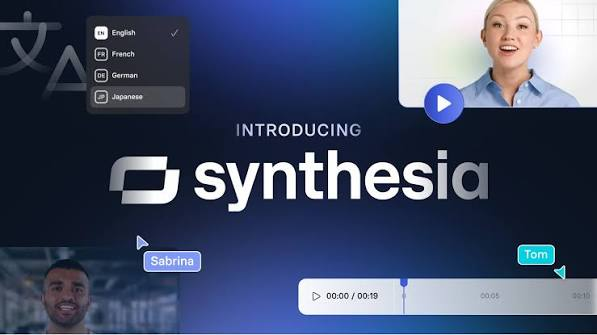
Synthesia lets you create videos featuring digital avatars that speak your script. You type out what you want said, pick an avatar (or use your own custom one), choose a language and accent, and the tool generates a video with a realistic presenter delivering your content.
Who it’s for: Corporate training teams, educators, online course creators, marketers making product explainers.
Practical example: A software company in Bangalore wants to create onboarding videos for new employees in English, Hindi, and Tamil. Instead of booking a studio and a trilingual presenter, they type the script three times and generate three videos in under an hour.
Pricing: Starts around $22/month (Starter plan). Free trial available with limited slides.
What works well:
- Over 230 avatars across different ethnicities and styles
- 140+ languages and accents
- No camera, no studio, no recording required
- Clean, professional output that works for corporate use
What doesn’t:
- The avatars, while improving, still look slightly “off” if viewers pay close attention
- Not ideal for entertainment or personality-driven content — the human touch is missing
- Limited creative control over gestures and facial expressions
2. Runway ML — Best for Editing and Visual Effects
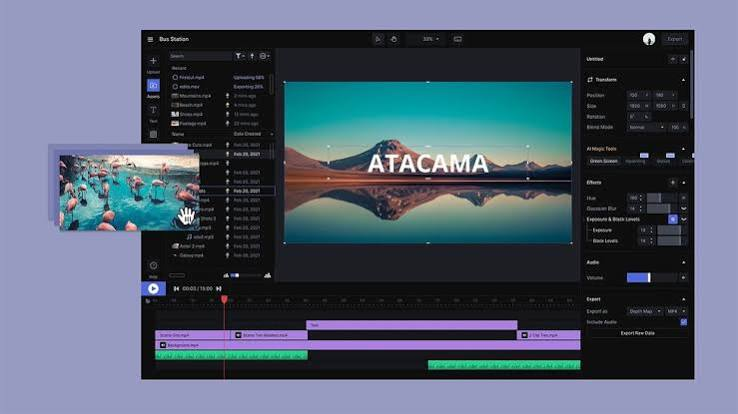
Runway is a video editing and generation platform used by filmmakers, YouTubers, and creative professionals. It’s known for its generative video features — where you describe what you want in text, and it creates or modifies footage accordingly.
Who it’s for: Video editors, content creators, filmmakers, social media teams.
Practical example: You have a talking-head video, but the background is a cluttered room. Runway can remove the background and replace it with a clean office setting — no green screen required. Or you can generate a short cinematic clip (say, “a monsoon rain over Mumbai at night”) to use as a B-roll intro.
Pricing: Free plan with 125 credits. Standard plan starts at $15/month.
What works well:
- Background removal without green screen
- Text-to-video generation for B-roll and intros
- Motion tracking and masking tools
- Actively updated with new features regularly
What doesn’t:
- Generated video quality is good but not photorealistic for close-up subjects
- The credit system on free/basic plans runs out fast
- Has a learning curve if you’re new to video editing
3. Pictory — Best for Turning Written Content Into Videos
Pictory takes your long-form content — a blog post, a podcast transcript, a Word document — and converts it into a short, shareable video. It pulls out key sentences, matches them with stock footage, and adds captions and music automatically.

Who it’s for: Bloggers, content marketers, podcasters, newsletter writers repurposing content.
Practical example: You’ve written a 2,000-word article about the best travel destinations in Rajasthan. Paste it into Pictory, and within a few minutes you have a 2-minute video summarising the highlights, with relevant visuals and background music — ready to post on Instagram or YouTube Shorts.
Pricing: Starts at $19/month (Standard). Limited free trial.
What works well:
- Very fast turnaround from text to video
- Large stock footage library built in
- Auto-captions that are reasonably accurate
- Great for content repurposing at scale
What doesn’t:
- The stock footage matching isn’t always accurate — you’ll often need to manually swap clips
- Doesn’t work well for highly technical or niche content where stock visuals don’t exist
- Output style can feel generic without customisation
4. HeyGen — Best for Personalised Video at Scale
HeyGen is similar to Synthesia but with a focus on personalisation and video outreach. You can create a video where the avatar addresses each viewer by name — useful for sales outreach, customer onboarding, or HR communication.
Who it’s for: Sales teams, recruiters, customer success managers, online educators.
Practical example: A recruiter wants to send personalised video messages to 200 candidates shortlisted for a role. Using HeyGen, they record one base video and personalise the opening line (“Hi Rahul, I came across your profile…”) for each recipient — without re-recording anything.
Pricing: Free plan with 1 credit/month. Creator plan at $29/month.
What works well:
- Strong personalisation features for outreach
- Good avatar quality with natural lip sync
- Supports custom avatars (record yourself once, reuse forever)
- Growing template library
What doesn’t:
- Personalisation features are limited on lower plans
- Not built for entertainment or storytelling content
- Can feel impersonal if overused in customer-facing communications
5. InVideo — Best for Social Media and YouTube Content Creators
InVideo is a browser-based video editor with a massive template library — over 5,000 templates across categories like YouTube intros, Instagram Reels, product promos, news-style videos, and more. It also has a text-to-video feature and a voiceover generator.
Who it’s for: Social media managers, YouTube creators, small business owners, freelancers.
Practical example: A food blogger wants to create a 60-second Instagram Reel promoting a new recipe. They open InVideo, pick a food-category Reel template, swap in their photos, add a voiceover script, and export in vertical format — all in about 20 minutes without any video editing experience.
Pricing: Free plan available (with watermark). Business plan at $30/month.
What works well:
- Huge template library that covers almost every use case
- Beginner-friendly interface
- Built-in stock footage, photos, and music
- Good for batch content creation
What doesn’t:
- Free plan adds a watermark to all exports
- The editor can feel sluggish in the browser on older devices
- Advanced customisation is limited compared to desktop editors like Premiere Pro
6. Descript — Best for Editing Video Like a Document
Descript takes a completely different approach to editing. It transcribes your video automatically, and then you edit the video by editing the text. Delete a sentence from the transcript, and that part of the video is removed. It also has an “Overdub” feature that lets you fix spoken mistakes by typing corrections — your cloned voice reads them out.
Who it’s for: Podcasters, interviewers, YouTubers, educators, documentary makers.
Practical example: You’ve recorded a 45-minute interview, but it has long pauses, filler words (“um,” “uh”), and one section where the audio cut out. In Descript, you remove filler words with one click, delete the dead sections by selecting them in the transcript, and type a correction for the audio gap using Overdub. What would take hours in traditional editing takes 20–30 minutes.
Pricing: Free plan (limited). Creator plan at $24/month.
What works well:
- Transcript-based editing is genuinely faster for long-form content
- Filler word removal works very well
- Overdub voice cloning is impressive and accurate
- Good for collaborative editing (multiple team members can work on the same project)
What doesn’t:
- Transcription accuracy drops with heavy accents or technical jargon
- Not ideal for heavily visual or cinematic content
- Overdub requires you to train your voice — takes time upfront
7. CapCut (Pro) — Best for Short-Form Mobile and Desktop Editing
Originally a mobile app, CapCut has grown into a serious desktop editor for short-form content. It has a large effects library, auto-captions, background removal, and an ever-growing set of trend-based templates pulled from viral content.
Who it’s for: TikTok creators, Instagram Reels makers, anyone making short-form content.
Practical example: A fitness trainer wants to post daily workout clips on Instagram. Using CapCut’s mobile app, they shoot the clip, apply auto-captions, add trending music, and export in under 10 minutes — all from their phone.
Pricing: Free with generous features. Pro plan at $9.99/month.
What works well:
- Excellent for short-form content trends
- Auto-captions are accurate and easy to style
- Templates pull from trending formats, keeping content current
- Free plan is genuinely usable without watermark restrictions (at time of writing)
What doesn’t:
- Not suitable for long-form content editing
- Owned by ByteDance — data privacy concerns have been raised in some regions
- Desktop version is newer and less polished than the mobile app
Pros and Cons of Using Video Creation Tools
Pros
- Speed — What used to take days can now take hours. For content-heavy businesses, that’s a significant advantage.
- Lower cost — No need to hire videographers, editors, or voiceover artists for every project.
- Consistency — Templates and brand kits let you produce videos that look uniform across your channel or brand.
- Accessibility — People who aren’t video editors can now create decent-looking content without a learning curve.
- Scale — You can produce more content more frequently, which matters for SEO and social media algorithms.
- Multilingual output — Several tools support dozens of languages, making it easier to reach global audiences.
Cons
- Quality ceiling — Tools have a cap on how polished or creative the output can be. Truly great video still benefits from human creative direction.
- Generic output — Over-reliance on templates can make your content look like everyone else’s.
- Learning curve per tool — Each platform has its own interface and quirks. Switching between tools takes time.
- Subscription costs add up — If you’re using three or four tools at once, the monthly cost approaches what a part-time editor would charge.
- Copyright questions — Not all stock footage or music included in these tools is cleared for commercial use. Always check licensing.
- Data and privacy concerns — Some tools process your footage and voice on their servers. Read the privacy policies, especially for client work.
How to Pick the Right Tool for Your Needs
Here’s a simple way to decide:
| Your Use Case | Recommended Tool |
|---|---|
| Corporate training or explainer videos | Synthesia or HeyGen |
| Repurposing blog/podcast content | Pictory |
| Long-form interview or podcast editing | Descript |
| Short-form social media content | CapCut or InVideo |
| Creative video with effects and B-roll generation | Runway ML |
| YouTube content with templates and voiceover | InVideo |
If you’re just starting, InVideo or CapCut are the lowest-friction entry points. If you’re producing content professionally, Descript and Runway ML offer deeper control.
Frequently Asked Questions
Q: Can I create a YouTube channel using only these tools — without appearing on camera?
Yes, and many people do. The typical faceless YouTube workflow combines Pictory or InVideo (to create the video from a script), a voiceover tool or built-in narration feature, and stock footage. Channels covering finance, history, tech reviews, and motivational content use this approach extensively.
Q: Are the videos created by these tools good enough for professional use?
It depends on the tool and the context. Synthesia and HeyGen produce videos that are genuinely used in corporate training, customer onboarding, and e-learning. Runway ML is used by independent filmmakers. The output quality has improved significantly — though for high-stakes brand campaigns, human-led production still delivers a different quality of result.
Q: Do I need any video editing experience to use these tools?
For most tools on this list — no. Pictory, InVideo, and HeyGen are designed for people with zero editing background. Descript and Runway ML have more features and take a bit longer to get comfortable with, but neither requires traditional editing knowledge.
Q: Can I use the videos commercially (for client work or ads)?
Usually yes, but check the plan you’re on. Most tools allow commercial use on paid plans. Stock footage and music included in these platforms often have licensing restrictions on free tiers. Always verify before using content for paid ads or client deliverables.
Q: Which tool is best for making videos in Hindi or regional Indian languages?
Synthesia and HeyGen both support Hindi and several other Indian languages for voiceover. InVideo also has a growing library of Indian language templates. For regional languages like Tamil, Telugu, or Bengali, check the specific language support before subscribing.
Q: How much does it realistically cost to run a video content operation using these tools?
A lean setup for a solo creator might look like: InVideo Business ($30/month) for YouTube content + CapCut Pro ($10/month) for short-form clips. That’s $40/month, or roughly ₹3,300 — less than one hour of a professional editor’s time. A more full-featured stack for a team (Descript + Synthesia + Runway) could run $70–$100/month.
Q: Is Synthesia better than HeyGen?
They’re close, and the answer depends on your use case. Synthesia has more avatars and is often preferred for formal corporate content. HeyGen has stronger personalisation features for outreach and a slightly more natural avatar appearance in recent updates. Both offer free trials — test them with your actual script before committing.
Q: Will using templates make my content look generic?
It can, if you don’t customise. The fix is simple: change fonts, colours, and intro/outro styles to match your brand. Use your own footage wherever possible, and write scripts that reflect your voice. Templates are a starting point, not the final product.
Conclsion
The best tool is the one you’ll actually use consistently. A lot of creators get caught up testing every new platform and never actually ship content.
Pick one tool that fits your main use case, spend a week learning it properly, and start producing. You’ll refine the workflow as you go — and the tools themselves are updated frequently, so features that feel limited today might be solved in the next update.
If you’re building a content business in 2026 and not using any of these tools, you’re working harder than you need to. The gap between a polished video and a mediocre one isn’t equipment anymore — it’s consistency, good scripting, and choosing the right platform for the job.

