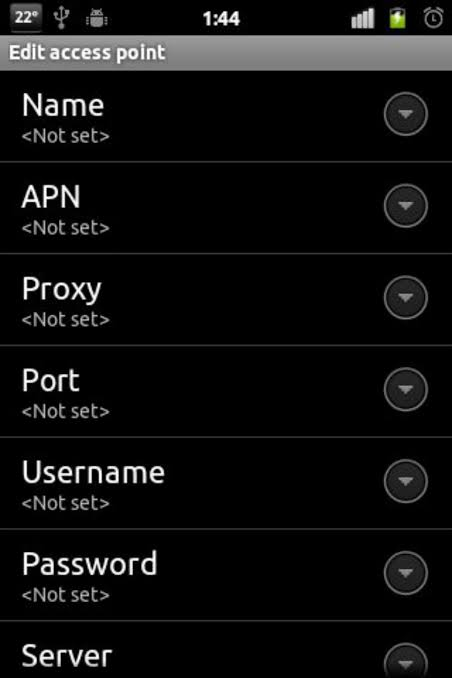
APN — Access Point Name — is one of the most important but least understood settings on your Android phone. It is the configuration that tells your phone how to connect to your carrier’s mobile data network. When APN settings are wrong or missing, your mobile data simply does not work — no internet, no WhatsApp, no apps.
In 2026, most Android phones configure APN settings automatically when you insert a SIM card. But automatic configuration does not always work — especially on new SIM cards, after network outages, on imported phones, or when switching between carriers. Knowing the correct APN settings for Indian carriers can save hours of frustration.
This guide covers the best and most current APN settings for all major Indian carriers on Android in 2026 — Jio, Airtel, Vi, and BSNL — plus troubleshooting steps for common data connection problems.
What Is APN and Why Does It Matter?
An Access Point Name (APN) is a gateway between your carrier’s mobile network and the internet. It defines:
- Network connection type — how your phone connects to the carrier’s data network
- IP address type — IPv4, IPv6, or both
- Authentication method — how your phone authenticates with the network
- MMS settings — how multimedia messages are sent and received
- Network speed type — LTE, 4G, 5G configuration
When you need to manually set APN:
- Mobile data not working after new SIM insertion
- After factory reset — APN settings sometimes cleared
- Imported or secondhand phone from a different country
- After carrier switch or plan change
- MMS not working despite active data plan
- Slower than expected data speeds
- After Android update that reset network settings
How to Access APN Settings on Android
APN settings location varies slightly by Android version and manufacturer:
Stock Android (Pixel, Motorola):
Settings → Network & Internet → Mobile Network → Advanced → Access Point Names
Samsung One UI:
Settings → Connections → Mobile Networks → Access Point Names
Xiaomi/Redmi MIUI:
Settings → SIM cards & Mobile Networks → [Select SIM] → Access Point Names
OnePlus OxygenOS:
Settings → Wi-Fi & Network → SIM & Network → [Select SIM] → Access Point Names
Realme/OPPO:
Settings → Connections → Mobile Network → [Select SIM] → Access Point Names
VIVO FunTouch OS:
Settings → Mobile Network → SIM Management → [Select SIM] → Access Point Names
Best APN Settings for Jio 4G/5G Android 2026
Jio is India’s largest telecom operator — and its APN settings are among the simplest to configure.
Jio 4G LTE APN Settings
| Field | Value |
|---|---|
| Name | Jio 4G |
| APN | jionet |
| Proxy | (leave blank) |
| Port | (leave blank) |
| Username | (leave blank) |
| Password | (leave blank) |
| Server | (leave blank) |
| MMSC | http://mmsc.jio.com |
| MMS Proxy | (leave blank) |
| MMS Port | (leave blank) |
| MCC | 404 |
| MNC | 70 |
| Authentication Type | None |
| APN Type | default,supl,mms |
| APN Protocol | IPv4/IPv6 |
| APN Roaming Protocol | IPv4 |
| Bearer | LTE |
Jio 5G APN Settings
| Field | Value |
|---|---|
| Name | Jio 5G |
| APN | jionet |
| APN Type | default,supl,mms |
| APN Protocol | IPv4/IPv6 |
| APN Roaming Protocol | IPv4/IPv6 |
| Bearer | NR, LTE |
Note: Jio 5G uses the same APN (jionet) as 4G — the difference is in the Bearer setting (NR for 5G) and your phone’s 5G capability.
How to Enter Jio APN on Android
- Settings → Connections → Mobile Networks → Access Point Names
- Tap + or Add APN
- Enter all fields from the table above
- Tap Save (three-dot menu or save button)
- Select the new Jio APN by tapping the radio button
- Toggle mobile data off and on
Best APN Settings for Airtel 4G/5G Android 2026
Airtel 4G LTE APN Settings
| Field | Value |
|---|---|
| Name | Airtel 4G |
| APN | airtelgprs.com |
| Proxy | (leave blank) |
| Port | (leave blank) |
| Username | (leave blank) |
| Password | (leave blank) |
| Server | (leave blank) |
| MMSC | http://100.1.201.171:10021/mmsc |
| MMS Proxy | 100.1.201.171 |
| MMS Port | 8799 |
| MCC | 404 |
| MNC | 10 |
| Authentication Type | None |
| APN Type | default,supl,mms |
| APN Protocol | IPv4 |
| APN Roaming Protocol | IPv4 |
| Bearer | LTE |
Airtel 5G APN Settings
| Field | Value |
|---|---|
| Name | Airtel 5G |
| APN | airtelgprs.com |
| APN Type | default,supl,mms |
| APN Protocol | IPv4/IPv6 |
| APN Roaming Protocol | IPv4/IPv6 |
| Bearer | NR, LTE |
Alternative Airtel APN (If Primary Fails)
| Field | Value |
|---|---|
| Name | Airtel Internet |
| APN | airtelnxt.com |
| APN Type | default,supl |
| APN Protocol | IPv4 |
Note: Some Airtel circles use airtelnxt.com instead of airtelgprs.com — try both if one does not work.
Best APN Settings for Vi (Vodafone Idea) Android 2026
Vi 4G LTE APN Settings
| Field | Value |
|---|---|
| Name | Vi 4G |
| APN | portalnmms |
| Proxy | (leave blank) |
| Port | (leave blank) |
| Username | (leave blank) |
| Password | (leave blank) |
| Server | (leave blank) |
| MMSC | http://mms1.live.vodafone.in/mms/ |
| MMS Proxy | 10.10.1.100 |
| MMS Port | 9401 |
| MCC | 404 |
| MNC | 20 |
| Authentication Type | None |
| APN Type | default,supl,mms |
| APN Protocol | IPv4 |
| APN Roaming Protocol | IPv4 |
Alternative Vi APN Settings
| Field | Value |
|---|---|
| Name | Vi Internet |
| APN | vi.vodafone.in |
| APN Type | default,supl |
| APN Protocol | IPv4/IPv6 |
Note: Vi (Vodafone Idea) APN varies slightly by circle. If primary settings do not work, try the alternative or contact Vi customer care (199) for circle-specific APN.
Best APN Settings for BSNL Android 2026
BSNL 4G APN Settings
| Field | Value |
|---|---|
| Name | BSNL 4G |
| APN | bsnlnet |
| Proxy | (leave blank) |
| Port | (leave blank) |
| Username | (leave blank) |
| Password | (leave blank) |
| MMSC | http://10.254.7.170/mm1/ |
| MMS Proxy | 10.254.7.172 |
| MMS Port | 8799 |
| MCC | 404 |
| MNC | 20 |
| Authentication Type | None |
| APN Type | default,supl,mms |
| APN Protocol | IPv4 |
Alternative BSNL APN
| Field | Value |
|---|---|
| Name | BSNL Internet |
| APN | bsnlnet |
| APN Type | default |
| APN Protocol | IPv4 |
APN Settings Quick Reference Table
| Carrier | APN Name | APN Protocol | 5G Bearer |
|---|---|---|---|
| Jio 4G | jionet | IPv4/IPv6 | LTE |
| Jio 5G | jionet | IPv4/IPv6 | NR, LTE |
| Airtel 4G | airtelgprs.com | IPv4 | LTE |
| Airtel 5G | airtelgprs.com | IPv4/IPv6 | NR, LTE |
| Vi 4G | portalnmms | IPv4 | LTE |
| Vi Internet | vi.vodafone.in | IPv4/IPv6 | LTE |
| BSNL 4G | bsnlnet | IPv4 | LTE |
MMS APN Settings for Indian Carriers
MMS (Multimedia Messaging Service) requires separate APN configuration from regular internet data. If MMS is not working but data is fine, check these settings:
Jio MMS APN
| Field | Value |
|---|---|
| Name | Jio MMS |
| APN | jionet |
| MMSC | http://mmsc.jio.com |
| APN Type | mms |
| APN Protocol | IPv4 |
Airtel MMS APN
| Field | Value |
|---|---|
| Name | Airtel MMS |
| APN | airtelmms.com |
| MMSC | http://100.1.201.171:10021/mmsc |
| MMS Proxy | 100.1.201.171 |
| MMS Port | 8799 |
| APN Type | mms |
Vi MMS APN
| Field | Value |
|---|---|
| Name | Vi MMS |
| APN | portalnmms |
| MMSC | http://mms1.live.vodafone.in/mms/ |
| MMS Proxy | 10.10.1.100 |
| MMS Port | 9401 |
| APN Type | mms |
How to Reset APN Settings to Default on Android
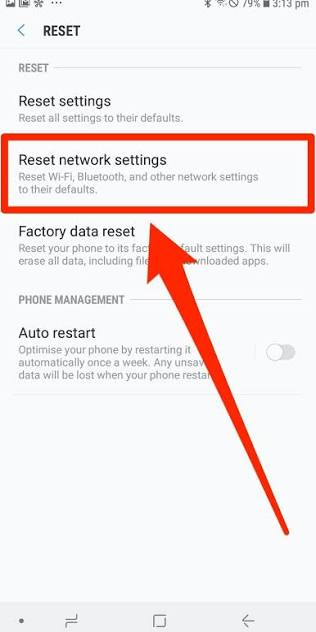
If you have accidentally changed APN settings and broken your data connection:
Method 1 — Reset to Default (Recommended):
- Settings → Connections → Mobile Networks → Access Point Names
- Tap the three-dot menu (⋮) in the top right
- Select Reset to Default
- Confirm reset
- Toggle mobile data off and on
Method 2 — Delete Custom APN:
- Settings → Mobile Networks → Access Point Names
- Tap the problematic custom APN
- Tap the three-dot menu → Delete APN
- Carrier default APNs remain
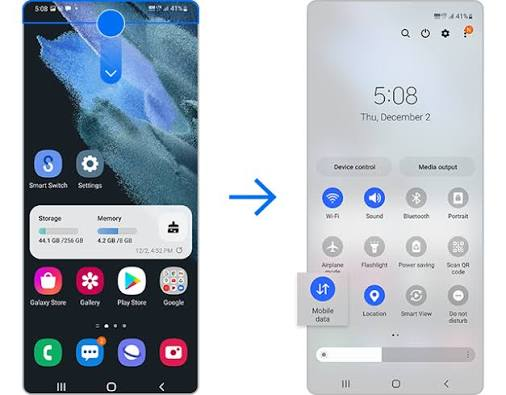
Method 3 — Toggle Airplane Mode:
- Pull down the notification panel
- Enable Airplane Mode → wait 10 seconds
- Disable Airplane Mode
- Phone re-registers on network with correct APN
Troubleshooting Mobile Data Issues on Android
If data is not working even after entering the correct APN:
Step 1 — Verify SIM is Active
Call 1800-XXX-XXXX (carrier helpline) from another phone to confirm your number is active and data plan is valid.
Step 2 — Check Mobile Data Toggle
Settings → Connections → Data Usage → confirm Mobile Data is enabled.
Step 3 — Check Network Mode
Settings → Connections → Mobile Networks → Network Mode:
- For 4G: Select LTE/3G/2G (Auto connect)
- For 5G: Select NR/LTE/3G/2G (Auto connect)
Step 4 — Verify APN Selection
Settings → Mobile Networks → Access Point Names → confirm the correct APN is selected (radio button filled).
Step 5 — Restart Phone
A simple restart resolves many network registration issues — restarts the radio and re-registers with the carrier.
Step 6 — Remove and Reinsert SIM
Power off phone → remove SIM → wait 30 seconds → reinsert → power on → check data.
Step 7 — Clear Phone App Cache
Settings → Apps → Phone → Storage → Clear Cache → Clear Data → restart.
Step 8 — Network Settings Reset
Settings → General Management → Reset → Reset Network Settings:
- Resets Wi-Fi, Bluetooth, and mobile network settings
- Does NOT delete personal data
- Fixes most persistent network issues
Warning: Network reset clears saved Wi-Fi passwords — note them before resetting.
APN Settings for Specific Android Models
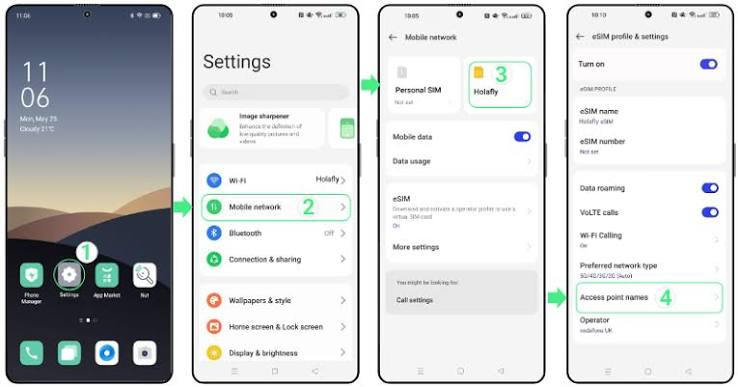
Samsung Galaxy (One UI)
Finding APN on Samsung:
Settings → Connections → Mobile Networks → Access Point Names
Samsung-specific issue: Samsung One UI sometimes shows an “APN changes not supported by carrier” error. Fix:
- Dial *#*#4636#*#* → Phone Information
- Scroll to “Set preferred network type”
- Select NR/LTE/TDSCDMA/GSM → back
- Try adding APN again
Xiaomi/Redmi (MIUI)
Finding APN on Xiaomi:
Settings → SIM cards & Mobile Networks → Preferred SIM for data → SIM settings → Access Point Names
MIUI-specific issue: Some MIUI versions lock APN editing. Fix:
- Update MIUI to the latest version
- Or use dual SIM slot and add APN to second SIM slot
OnePlus (OxygenOS)
Finding APN on OnePlus:
Settings → Wi-Fi & Network → SIM & Network → [SIM name] → Access Point Names
Realme/OPPO (ColorOS)
Finding APN on Realme:
Settings → Connections → Mobile Network → SIM 1/SIM 2 → APN
APN Settings for International SIM Cards on Indian Android
If you have an imported Android phone with an international SIM or are using an Indian phone abroad:
For Indian Phone Abroad (Roaming)
Keep your Indian APN settings — roaming uses your home carrier’s APN with international roaming enabled. Contact Jio/Airtel/Vi to activate international roaming before travel.
For an international SIM in an Indian Android
If using a foreign SIM (e.g., UAE, US, UK SIM) in an Indian Android:
- Contact the foreign carrier for their APN settings
- Enter manually following the same steps
- MCC/MNC codes will differ from Indian codes
Speed Optimization Through APN Settings
Some APN tweaks can improve data speeds on Indian networks:
IPv4/IPv6 Protocol Selection
For faster speeds (where supported):
Set APN Protocol to IPv4/IPv6 — allows phone to use either protocol for optimal routing.
Jio 5G specifically: Ensure both APN Protocol AND APN Roaming Protocol are set to IPv4/IPv6 for maximum speed benefit.
Bearer Mode Optimization
For 4G-only mode (more stable):
Set Bearer to LTE only — prevents phone from dropping to slower 3G/2G networks.
For 5G optimization:
Set Bearer to NR, LTE — allows both 5G (NR) and 4G (LTE) connectivity.
DNS Optimization (Additional Step)
While DNS is not part of APN settings, changing DNS improves browsing speed alongside the correct APN:
Samsung: Settings → Connections → More Connection Settings → Private DNS → Enter 1.1.1.1
Stock Android: Settings → Network & Internet → Advanced → Private DNS → one.one.one.one
Frequently Asked Questions
What is the best APN for Jio on Android in 2026?
The correct Jio APN is jionet — this is the only APN name Jio uses for both 4G and 5G data. Set APN Protocol to IPv4/IPv6 for best performance. Leave username and password blank.
Why is my mobile data not working after entering APN settings?
Most common causes: incorrect APN name (check spelling exactly), wrong APN type (should be default,supl,mms), or SIM not properly seated. Try toggling Airplane Mode after saving APN settings to force network re-registration.
Can wrong APN settings damage my phone?
No — incorrect APN settings only affect mobile data connectivity. They cannot damage hardware or software. You can always reset to default or re-enter correct values.
Which APN protocol is faster — IPv4 or IPv6?
IPv6 is theoretically faster on modern networks. Set APN Protocol to IPv4/IPv6 to allow the network to use whichever is optimal. Pure IPv6 may cause issues with older apps — IPv4/IPv6 combined is the safest setting.
Do APN settings affect call quality?
No — APN settings only affect mobile data (internet). Voice calls use a separate network layer not configured through APN. VoLTE (voice over LTE) settings are separate from APN.
Should I use the same APN for both SIM slots on dual SIM Android?
Each SIM slot can have its own APN settings. Set the correct APN for each carrier in the respective SIM slot settings. They do not interfere with each other.
My Airtel data was working but stopped after a software update — what happened?
Android updates sometimes reset network settings, including APN. Re-enter Airtel APN settings (airtelgprs.com) after any major Android update if data stops working.
Conclusion
Correct APN settings are the foundation of reliable mobile data on Android. For Indian users, the settings are straightforward:
- Jio: APN = jionet — works for both 4G and 5G
- Airtel: APN = airtelgprs.com — standard across most circles
- Vi: APN = portalnmms — check circle-specific alternatives if needed
- BSNL: APN = bsnlnet — standard 4G setting
If your data stops working — check APN first before calling customer care. In most cases, simply re-entering the correct APN and toggling mobile data resolves the issue in minutes.
Keep this guidebook marked — correct APN settings are one of those things you do not need often but are invaluable when you do.