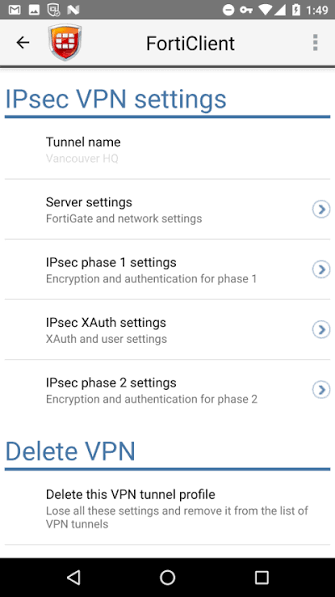
Using a VPN on your Android phone is one of the smartest things you can do for your online privacy. Whether you want to secure your connection on public Wi-Fi, access region-restricted content, or simply browse without being tracked, a VPN handles all of it.
VPN Settings for Android Mobile. The good news? You do not need to spend money to get started. Several VPN services offer genuinely usable free plans for Android — and Android itself has a built-in VPN client that works with manual configurations at zero cost.
This guide walks you through everything: the best free VPN apps for Android in 2026, how to manually configure VPN settings, and tips to get the best performance out of a free plan.
What Is a VPN and Why Do You Need One on Android?
A VPN (Virtual Private Network) creates an encrypted tunnel between your phone and the internet. All your traffic passes through this tunnel, hiding your activity from your internet service provider, network admin, or anyone else trying to monitor your connection.
For Android users in India, a VPN is useful for:
- Public Wi-Fi security — Coffee shops, airports, and malls have unsecured networks. A VPN keeps your data safe.
- Privacy from ISPs — Jio, Airtel, and Vi can see everything you do online without a VPN.
- Accessing geo-restricted content — Some streaming platforms and websites limit content based on your location.
- Bypassing network restrictions — Office or college networks sometimes block certain apps and websites.
Built-in VPN Settings on Android — How It Works
Android has a native VPN client built directly into the operating system. This means you can connect to any VPN server manually without installing a third-party app — as long as you have the server details.
How to Access VPN Settings on Android
- Open Settings
- Tap Network & Internet (or Connections on Samsung)
- Tap VPN
- Tap the + or Add VPN button
- Enter the VPN details provided by your service
- Save and connect
Android supports three VPN protocols natively:
- PPTP — Oldest and fastest but weakest security. Not recommended.
- L2TP/IPSec — Better security than PPTP. Still usable for basic needs.
- IPSec Xauth RSA / PSK — More secure, used by corporate and enterprise VPNs.
For most free VPN services, you will use their app rather than manual configuration — the apps handle all settings automatically.
Best Free VPN Apps for Android in 2026 -VPN Settings for Android Mobile
1. Proton VPN (Free — Unlimited Data)
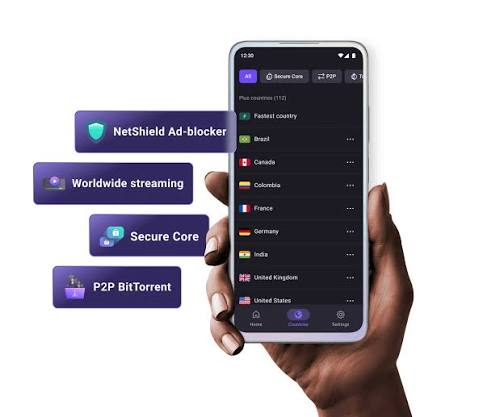
Proton VPN is the only genuinely trustworthy free VPN with no data limit. It is based in Switzerland and has a strict no-logs policy that has been independently audited.
Free plan includes:
- Unlimited data
- Servers in 3 countries (USA, Netherlands, Japan)
- One device connection
- Medium speed (free servers are shared)
How to set up:
- Download Proton VPN from the Google Play Store
- Create a free account at proton.me
- Open the app and tap Quick Connect
- The app automatically selects the best free server
Settings to configure:
- Enable Kill Switch — cuts internet if VPN drops, preventing data leaks
- Turn on DNS leak protection under Settings
- Protocol: Set to WireGuard for best speed on free servers
Best for: Daily privacy use, secure browsing, and users who need unlimited free data.
2. Windscribe (Free — 10GB/Month)
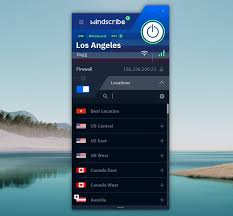
Windscribe offers one of the most generous free plans available — 10GB of data per month, which increases to 15GB if you confirm your email address.
Free plan includes:
- 10–15GB data per month
- Servers in 10+ countries
- Ad and tracker blocking built in
- Works on unlimited devices simultaneously
How to set up:
- Download Windscribe from Google Play
- Sign up for a free account
- Open the app and select a server location
- Tap Connect
Settings to configure:
- Enable R.O.B.E.R.T. — Windscribe’s built-in blocker for ads and malware
- Set protocol to WireGuard for speed or IKEv2 for stability
- Enable Firewall mode for kill switch protection
Best for: Light users who browse, stream occasionally, and want built-in ad blocking.
3. hide.me (Free — 10GB/Month)

hide.me is a Malaysia-based VPN with a clean free plan and a strong reputation for privacy. It does not log any user activity, and the free plan is genuinely usable.
Free plan includes:
- 10GB data per month
- 5 server locations
- One simultaneous connection
- No registration required for basic use
How to set up:
- Download hide.me VPN from Google Play
- Open the app — no account needed for free plan
- Select a server and tap Connect
Settings to configure:
- Protocol: Use WireGuard for best performance
- Enable Stealth Guard (kill switch) under Security settings
- Turn on DNS leak protection
Best for: Users who want a no-registration free VPN for occasional secure browsing.
4. Hotspot Shield (Free — 500MB/Day)
Hotspot Shield is one of the most downloaded VPN apps globally. The free version gives you 500MB of data per day — roughly 15GB per month — which is enough for moderate use.
Free plan includes:
- 500MB per day (resets daily)
- US server only on free plan
- Fast speeds using proprietary Hydra protocol
How to set up:
- Download Hotspot Shield from Google Play
- Open the app and tap Connect without signing in
- Free plan connects automatically to a US server
Best for: Users who need a quick, no-setup VPN for daily light browsing.
5. TunnelBear (Free — 2GB/Month)
TunnelBear is popular for its simple interface and fun design. The free plan is limited to 2GB per month, but it is one of the most trustworthy free VPNs available — independently audited every year.
Free plan includes:
- 2GB data per month
- Servers in 47 countries
- One connection at a time
How to set up:
- Download TunnelBear from Google Play
- Create a free account
- Select a country and tap the toggle to connect
Settings to configure:
- Enable VigilantBear — TunnelBear’s kill switch feature
- Turn on GhostBear if you are on a restricted network (makes VPN traffic harder to detect)
Best for: Occasional use and users who prioritize trust and transparency over data limits.
Manual VPN Configuration on Android Using Free Servers
If you do not want to install any app, you can manually configure a VPN on Android using free public servers. Websites like vpngate.net publish free VPN server lists updated daily.
Using OpenVPN Manual Setup
- Download OpenVPN for Android from Google Play (free, open source)
- Visit vpngate.net on your phone
- Download a .ovpn config file from any server in the list
- Open the OpenVPN app → tap + → import the downloaded config file
- Tap the profile and connect
Using WireGuard Manual Setup
- Download WireGuard from Google Play
- Get a free config from a provider like PrivadoVPN or generate one via wg-easy if you have your own server.
- Open WireGuard → tap + → import config
- Toggle on to connect
Note: Free public servers from VPN Gate are maintained by volunteers. Speed and reliability vary. Use them for occasional access only, not for sensitive activity.
Recommended VPN Settings for Android in 2026
Regardless of which free VPN you use, these settings will improve your security and performance:
Protocol Selection
- WireGuard — Best choice in 2026. Fast, modern, and very secure. Use this whenever available.
- OpenVPN (UDP) — Good alternative. Slightly slower but widely supported.
- IKEv2 — Stable on mobile networks. Good for switching between Wi-Fi and mobile data.
- Avoid PPTP — It is outdated and not secure.
Always Enable These Features
- Kill Switch — Cuts your internet connection if the VPN drops unexpectedly. Prevents accidental data exposure.
- DNS Leak Protection — Ensures your DNS queries go through the VPN tunnel, not your ISP.
- Auto-connect on untrusted networks — Automatically activates VPN when you join a public Wi-Fi network.
Split Tunneling (If Available)
Split tunneling lets you choose which apps use the VPN and which use your regular connection. For example, you can route your browser through the VPN while keeping banking apps on your regular network to avoid authentication issues.
On Android: Settings → VPN app → Split Tunneling → select apps to exclude or include.
How to Set VPN as Always-On on Android
Android has a built-in Always-On VPN feature that keeps your VPN active at all times — even after a reboot.
- Go to Settings → Network & Internet → VPN
- Tap the gear icon next to your VPN
- Enable Always-on VPN
- Enable Block connections without VPN for maximum security
This is especially useful if you use public Wi-Fi regularly or want consistent privacy without remembering to connect manually.
Free VPN Limitations You Should Know
Free VPNs are useful, but they come with trade-offs:
Data caps — Most free plans limit your monthly usage. Proton VPN is the only major exception with truly unlimited free data.
Slower speeds — Free servers are shared among many users. Peak hours can feel sluggish.
Fewer server locations — Free plans typically restrict you to 3–10 countries. Paid plans offer 50–90+ locations.
No streaming support — Most free VPNs are blocked by Netflix, Hotstar, and other streaming platforms. Paid plans are needed for reliable streaming access.
One device at a time — Most free plans allow only one simultaneous connection.
For regular browsing and privacy, free VPNs work well. For streaming, torrenting, or heavy daily use, a paid plan is a better investment.
Is It Safe to Use a Free VPN in India?
Not all free VPNs are trustworthy. Some collect and sell your browsing data — which defeats the entire purpose.
Stick to these safe choices:
- Proton VPN — Swiss-based, audited, no logs
- Windscribe — Canadian, transparent privacy policy
- hide.me — Malaysia-based, independently verified
- TunnelBear — Annual security audits published publicly
Avoid: Random free VPN apps with no clear company behind them, especially ones that ask for excessive permissions on your phone.
In India, VPN use is legal for individuals. However, the government requires VPN providers with Indian servers to store user logs. Most premium providers have responded by removing their Indian servers. This does not affect your ability to use a VPN — it just means your traffic will route through servers in other countries like Singapore or the Netherlands.
Frequently Asked Questions
Which is the best free VPN for Android in India?
Proton VPN is the top choice for most users because it offers unlimited free data with no logs and strong security. For users who want more server options, Windscribe is a strong alternative with 10–15GB free data per month.
Can I use a free VPN for YouTube and Instagram?
Yes. Most free VPNs work fine for YouTube, Instagram, and general browsing. Speeds may be slower on free servers, but the experience is usable.
Will a VPN slow down my internet?
Yes, slightly. Any VPN adds a small amount of overhead. WireGuard protocol minimizes this. On a good connection (Jio 5G or Airtel fiber), you will barely notice the difference.
Can I use a free VPN for online banking?
It is not recommended. Banking apps sometimes flag VPN connections and may block access or trigger extra verification. Use split tunneling to exclude your banking app from the VPN.
How do I know if my VPN is working?
Visit ipleak.net while connected to your VPN. It should show the VPN server’s IP address and location — not your real IP or ISP details.
Is Proton VPN really free forever?
Yes. Proton VPN’s free plan has no time limit and no data cap. The free servers are slower than paid servers, but they are permanently free.
Conclusion
Setting up a free VPN on Android in 2026 takes less than five minutes. Proton VPN remains the best all-around free option for Indian users — unlimited data, trustworthy privacy policy, and a simple app that anyone can use.
If you need more server locations or built-in ad blocking, Windscribe is worth trying alongside it. For users comfortable with manual configuration, OpenVPN with VPN Gate servers offers a completely free, app-independent solution.
Start with Proton VPN, enable the kill switch, set your protocol to WireGuard, and you are protected. It really is that simple.