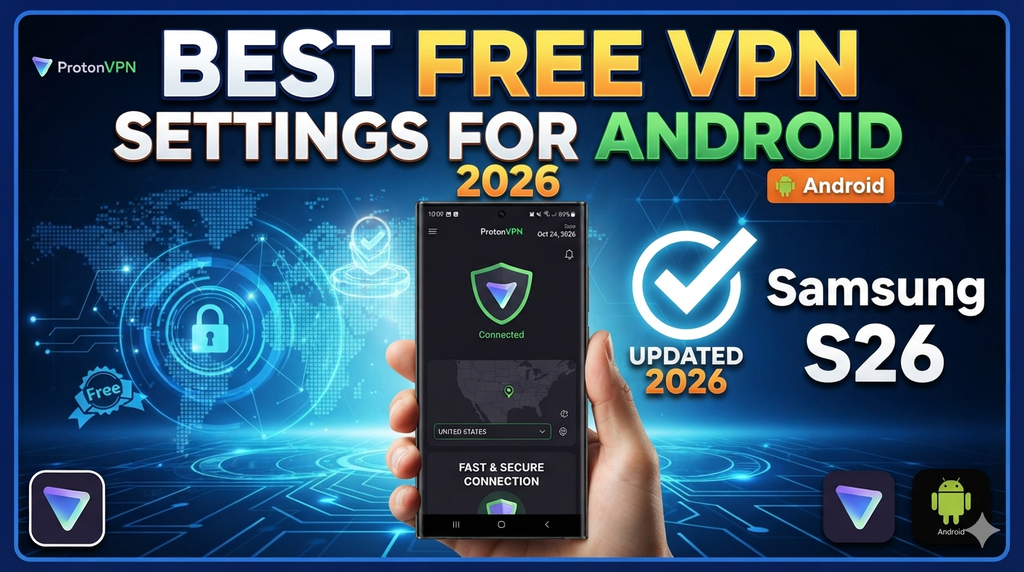
Samsung Galaxy phones run One UI on top of Android — and while the core VPN functionality is the same as stock Android, Samsung adds several layers that change how VPN settings work, where to find them, and how to get the best performance.
Whether you own a Galaxy S25, S24, S23, or an A-series budget phone, setting up a free VPN on your Samsung device in 2026 is straightforward once you know where to look. This guide covers the best free VPN apps for Samsung, exactly where to find VPN settings in One UI, Samsung-specific features that interact with VPN, and the optimal configuration for security and speed.
Does Your Samsung Galaxy Support VPN?
Every Samsung Galaxy phone running Android 10 or above supports VPN natively through One UI. This includes:
| Series | Models | VPN Support |
|---|---|---|
| Galaxy S25 Series | S25, S25+, S25 Ultra, S25 Edge | ✅ Full support |
| Galaxy S24 Series | S24, S24+, S24 Ultra | ✅ Full support |
| Galaxy S23 Series | S23, S23+, S23 Ultra, S23 FE | ✅ Full support |
| Galaxy A Series | A55, A35, A25, A15 | ✅ Full support |
| Galaxy M Series | M55, M35, M15 | ✅ Full support |
| Galaxy F Series | F55, F35 | ✅ Full support |
Best Free VPN Settings for Android Samsung Mobile: Where to Find VPN Settings on Samsung One UI
Samsung’s One UI places VPN settings differently from stock Android. Many users struggle to find it the first time.
One UI 6 and 7 (Galaxy S24, S25 series):
- Open Settings
- Tap Connections
- Tap More connection settings
- Tap VPN
- Tap Add VPN (+ icon top right)
One UI 5 (Galaxy S23 series):
- Open Settings
- Tap Connections
- Tap More connection settings
- Tap VPN
One UI 4 (Galaxy S22 and older):
- Open Settings
- Tap Connections
- Tap More networks
- Tap VPN
Quick access shortcut: Pull down the notification panel → tap the three-dot menu or pencil icon → add VPN tile to quick settings for one-tap access.
Built-in VPN Protocols Supported on Samsung One UI
Samsung’s native VPN client supports these protocols without any third-party app:
- PPTP — Outdated, weak encryption. Avoid.
- L2TP/IPSec PSK — Moderate security. Usable for basic needs.
- L2TP/IPSec RSA — Better than PSK. Used by enterprise VPNs.
- IPSec Xauth PSK — Good security. Common in corporate environments.
- IPSec Xauth RSA — Strong security for enterprise use.
- IPSec Hybrid RSA — Advanced enterprise option.
For free VPN services, you will almost always use a dedicated app rather than manual configuration — apps handle protocol selection automatically and offer better options like WireGuard and OpenVPN that are not built into Samsung’s native client.
Best Free VPN Apps for Samsung Galaxy in 2026
1. Proton VPN (Free — Best for Samsung)
Proton VPN is the strongest free VPN for Samsung Galaxy devices in 2026. It offers unlimited data on the free plan — unique among genuinely trustworthy free VPNs — and its Android app is optimized for One UI.
Proton VPN is one of the strongest free VPN choices for Samsung Galaxy phones in 2026, especially if your priority is privacy, unlimited usage, and simple setup.
Best Samsung Settings
For most Samsung users, a good starting configuration is:
Protocol: Smart Protocol
Kill Switch: ON
Always-on VPN: ON if you want continuous VPN protection
DNS leak protection: Enabled
Server: Fastest available free server
You can simply open the Proton VPN Android app and use Quick Connect/Fastest country to connect automatically.
Key Features
- Unlimited data: The Free plan has no data or time limits.
- No ads: Proton says the free Android service does not show privacy-invading ads.
- No-logs policy: Proton states that it does not log your online activity.
- Strong protocols: Android supports protocols including WireGuard, OpenVPN, and Stealth.
- Kill Switch: Helps prevent internet traffic from going outside the VPN if the connection drops.
- Samsung compatibility: The Android app supports Android 6.0 and later, so it works with a wide range of Samsung Galaxy devices.
- Free server locations: Free users are automatically connected to available free servers in countries including the Netherlands, Japan, Romania, Poland, and the United States.
Free plan:
- Unlimited data — no monthly cap
- Servers in 3 countries (USA, Netherlands, Japan)
- One device at a time
- No logs — Swiss law protection
- Kill switch included
- WireGuard protocol available
Samsung-specific setup:
- Download Proton VPN from Galaxy Store or Google Play
- Create a free account at proton.me
- Open app → tap Quick Connect
- Go to Settings inside the app:
- Protocol: Set to WireGuard
- Enable Kill Switch
- Enable DNS leak protection
- Enable Always-on VPN (syncs with Samsung’s native always-on setting)
Best for: Daily privacy, secure browsing on Jio/Airtel networks, and Samsung users who need unlimited free data.
2. Windscribe (Free — 15GB/Month)
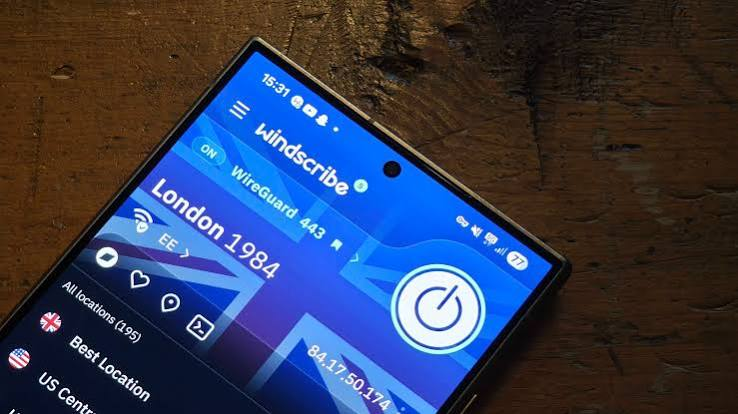
Windscribe works exceptionally well on Samsung devices and offers one of the most generous free data allowances available — 15GB per month with email confirmation.
Windscribe is a popular free VPN option for Samsung Android users who want more control over server locations and VPN settings. Its free plan can be useful for browsing, public Wi-Fi protection, and occasional streaming.
Recommended Samsung Settings
For everyday Samsung browsing, you can start with:
| Setting | Recommended option |
|---|---|
| VPN Protocol | Automatic |
| Location | Fastest available free location |
| Firewall | ON when using public Wi-Fi |
| Connection | Auto/Automatic |
| Data usage | Monitor monthly allowance |
Key Features
- 15GB monthly data: The free plan can provide up to 15GB of data per month when the account is confirmed by email.
- Free server locations: Free users can connect to a selection of Windscribe locations rather than getting access to the complete premium network.
- Android app: Windscribe offers an Android app that can be installed and configured on Samsung Galaxy devices.
- Multiple VPN protocols: Users can choose between supported connection protocols depending on their device and network.
- Firewall: Windscribe’s Firewall feature can help block unwanted connections when enabled.
- Privacy-focused: Windscribe markets its service around privacy and does not require extensive personal information to create an account.
Free plan:
- 10GB/month (15GB with email confirmation)
- Servers in 10+ countries
- Unlimited simultaneous devices — connect all your Samsung devices on one account
- Built-in ad and tracker blocker (R.O.B.E.R.T.)
- Works on Galaxy phones, tablets, and watches
Samsung-specific setup:
- Download Windscribe from Google Play
- Sign up and confirm email for 15GB
- Open app → select server location → connect
- In app Settings:
- Protocol: WireGuard for speed, IKEv2 for stability when switching between Jio 4G and Wi-Fi
- Enable Firewall (kill switch)
- Enable R.O.B.E.R.T. for ad blocking
One UI tip: Windscribe’s unlimited device policy means you can use the same free account on your Galaxy phone, Galaxy Tab, and Galaxy Watch simultaneously.
Best for: Samsung users with multiple Galaxy devices who want one free VPN account covering everything.
3. hide.me (Free — 10GB/Month)
hide.me is a privacy-focused VPN that works cleanly on Samsung One UI without any compatibility issues. No registration required for basic use.
Free plan:
- 10GB data per month
- 5 server locations
- One simultaneous connection
- No registration needed
- Strict no-logs policy
Samsung-specific setup:
- Download hide.me VPN from Google Play
- Open app — tap Connect without creating an account
- Select server location
- In Settings:
- Enable Stealth Guard (kill switch)
- Protocol: WireGuard
- Enable DNS leak protection
Best for: Samsung users who want a no-account, no-registration VPN for occasional secure browsing.
4. TunnelBear (Free — 2GB/Month)
TunnelBear is the most independently verified free VPN available — annual security audits with published results. Its Samsung app is clean, simple, and beginner-friendly.
Free plan:
- 2GB data per month
- All server locations accessible (47 countries)
- Annual independent security audits
- No activity logs
Samsung-specific setup:
- Download TunnelBear from Google Play
- Create free account
- Select country → toggle ON
- In Settings:
- Enable VigilantBear (kill switch)
- Enable GhostBear if on restricted college or office Wi-Fi (makes VPN traffic look like regular HTTPS)
Best for: Samsung users who prioritize trust and transparency — especially on college or office networks with VPN restrictions.
5. Hotspot Shield (Free — 500MB/Day)
Hotspot Shield gives 500MB of free data daily — resetting every 24 hours — using its proprietary Hydra protocol optimized for speed on mobile networks.
Free plan:
- 500MB per day (~15GB/month)
- US server on free plan
- Fast speeds via Hydra protocol
- No account needed
Samsung-specific setup:
- Download Hotspot Shield from Google Play or Galaxy Store
- Open app → tap Connect (no sign-in needed)
- Free plan connects automatically
Best for: Samsung users who need a quick, no-setup VPN for daily light browsing with daily data reset.
Optimal VPN Settings for Samsung Galaxy — Complete Configuration
Here are the recommended settings for maximum security and performance on any Samsung Galaxy device:
Protocol Settings
- Best choice: WireGuard — fastest modern protocol, lowest battery drain on Galaxy devices
- Alternative: IKEv2 — more stable when switching between Wi-Fi and mobile data (Jio/Airtel)
- Avoid: PPTP — outdated and insecure
Security Settings (Enable All)
- ✅ Kill Switch — cuts internet if VPN drops
- ✅ DNS Leak Protection — prevents ISP from seeing your DNS queries
- ✅ IPv6 Leak Protection — blocks IPv6 traffic that could expose your real IP
- ✅ Auto-connect on untrusted Wi-Fi — activates VPN automatically on public networks
Performance Settings
- Set protocol to WireGuard for best battery and speed balance
- Choose server location closest to India (Singapore or Japan typically fastest from India)
- Avoid ultra-distant servers (US/EU) unless you specifically need that country’s IP
How to Enable Always-On VPN on Samsung One UI
Always-On VPN keeps your Samsung phone protected at all times — even after restart.
- Go to Settings → Connections → More connection settings → VPN
- Tap the gear icon next to your VPN app
- Toggle on Always-on VPN
- Toggle on Block connections without VPN
Samsung Knox integration: On Galaxy devices with Knox security (S and A series), Always-On VPN works alongside Knox to provide enterprise-grade connection security even on personal accounts.
Samsung-Specific VPN Features You Should Know
Secure Folder + VPN
Samsung’s Secure Folder is an encrypted space on your Galaxy device for sensitive apps and files. VPN traffic from apps inside Secure Folder routes through the same VPN tunnel as your main profile — meaning your Secure Folder browsing is also protected when VPN is active.
Samsung DeX + VPN
If you use your Galaxy phone with Samsung DeX (desktop mode via USB-C or wireless), your VPN connection stays active in DeX mode. This means you can browse securely on a full desktop setup using your phone’s free VPN connection.
Galaxy Watch VPN
Some VPN apps — including Windscribe — can be configured to protect traffic from connected Galaxy Watch devices when routed through your phone. This is not a true standalone VPN on the watch, but it protects watch data that passes through your phone’s connection.
Split Tunneling on Samsung One UI
Split tunneling lets you choose which apps use the VPN and which connect directly. This is especially useful on Samsung devices where banking apps (like SBI YONO or HDFC Mobile Banking) may block VPN connections.
How to set up split tunneling:
- Open your VPN app (Proton VPN, Windscribe, etc.)
- Go to Settings → Split Tunneling
- Select apps to exclude from VPN (banking apps, UPI apps)
- All other apps will continue using VPN
Recommended apps to exclude on Indian Samsung devices:
- YONO SBI
- HDFC Bank
- ICICI iMobile
- Google Pay / PhonePe / Paytm (if they show errors with VPN)
- Jio / Airtel / Vi carrier apps
Samsung Galaxy A-Series VPN Tips
Budget Samsung A-series phones (A15, A25, A35, A55) fully support VPN but have less RAM and processing power than flagship models. Here are tips for smooth VPN performance:
Use WireGuard protocol — It uses significantly less battery and processing power than OpenVPN on budget hardware.
Choose nearby servers — Singapore servers from India minimize latency and reduce processing overhead compared to distant US or EU servers.
Avoid always-on VPN on very low RAM devices — On 4GB RAM models like Galaxy A15, always-on VPN can slow the device. Use auto-connect on untrusted Wi-Fi instead.
Close background apps — Before connecting VPN, close unused apps to free RAM for smoother VPN performance.
Common VPN Problems on Samsung Galaxy and Fixes
VPN connects, but internet stops working
Fix: Go to Settings → Connections → More connection settings → VPN → tap the gear icon next to VPN → disable Block connections without VPN temporarily. Reconnect VPN and re-enable the setting.
VPN keeps disconnecting on Samsung
Fix: Go to Settings → Battery → Background usage limits → find your VPN app → set to No restrictions. Samsung’s aggressive battery optimization kills background VPN connections on some models.
VPN not working on Jio network
Fix: Some Jio network configurations block certain VPN protocols. Switch from OpenVPN to WireGuard or IKEv2 in your VPN app settings. These protocols are less likely to be filtered.
Banking app not working with VPN.
Fix: Use split tunneling to exclude your banking app from the VPN tunnel. See split tunneling instructions above.
VPN icon showing but no protection
Fix: Test at ipleak.net — if your real IP shows, the VPN is leaking. Enable IPv6 leak protection in your VPN app settings and reconnect.
Always-On VPN not staying connected after restart.
Fix: Go to Settings → Apps → your VPN app → Battery → Allow background activity. Also disable Adaptive battery for the VPN app under Battery settings.
How to Test If Your VPN Is Working on Samsung Galaxy
- Connect to your free VPN
- Open Chrome or Samsung Internet browser
- Visit ipleak.net
- Check the IP address shown:
- Should show VPN server location — not your real Indian IP
- DNS servers should show VPN provider — not Jio/Airtel/Vi
- IPv6 section should show no leaks
If your real IP appears anywhere on the page, your VPN leaks. Enable DNS and IPv6 leak protection in your VPN app settings and retest.
Free VPN Data Usage Guide for Samsung Users
Knowing how far your free data goes helps you plan usage:
| Activity | Data per Hour | Proton VPN (Unlimited) | Windscribe (15GB) | hide.me (10GB) |
|---|---|---|---|---|
| General browsing | ~50MB | ✅ Unlimited | ~300 hours | ~200 hours |
| YouTube (480p) | ~300MB | ✅ Unlimited | ~50 hours | ~33 hours |
| YouTube (720p) | ~700MB | ✅ Unlimited | ~21 hours | ~14 hours |
| Video calls | ~400MB | ✅ Unlimited | ~37 hours | ~25 hours |
| Instagram/Reels | ~200MB | ✅ Unlimited | ~75 hours | ~50 hours |
Key takeaway: For streaming and heavy use, Proton VPN’s unlimited free plan is the only genuinely practical choice. For light browsing, 10–15GB per month from Windscribe or hide.me is sufficient.
Frequently Asked Questions
Which free VPN is best for Samsung Galaxy in India?
Proton VPN is the best overall free VPN for Samsung Galaxy in India — unlimited data, WireGuard support, kill switch, and clean One UI integration. For users who want more server options, Windscribe is the strongest alternative.
Why does my Samsung keep disconnecting from VPN?
Samsung’s battery optimization aggressively closes background apps,s including VPN clients. Go to Settings → Battery → Background usage limits → set your VPN app to No restrictions to fix this.
Does VPN work on Samsung Galaxy A-series?
Yes. All Samsung Galaxy A-series phones running One UI 4 or above fully support VPN apps. Use WireGuard protocol for best performance on budget A-series hardware.
Can I use VPN on Samsung Galaxy without installing an app?
Yes. Samsung One UI has a built-in VPN client under Settings → Connections → More connection settings → VPN. You can manually enter server details for L2TP/IPSec or IPSec protocols without installing any app.
Does VPN affect Samsung Pay or Google Pay?
Some payment apps detect VPN connections and may show errors. Use split tunneling to exclude payment apps from your VPN tunnel while keeping other apps protected.
Is using a VPN on Samsung Galaxy legal in India?
Yes. VPN use is completely legal in India for individuals. VPN providers operating Indian servers are required to store user logs under Indian law — most premium providers have responded by removing Indian servers. This does not affect your right to use a VPN.
Conclusion
Setting up a free VPN on your Samsung Galaxy is straightforward once you know where One UI hides the settings and which apps work best with Samsung’s ecosystem.
Proton VPN remains the clear winner for Samsung users in 2026 — unlimited free data, WireGuard support, and seamless One UI integration make it the obvious starting point. Enable the kill switch, set protocol to WireGuard, and configure split tunneling to exclude your banking apps.
For Samsung users with multiple Galaxy devices, Windscribe’s unlimited device policy on the free plan is worth adding alongside Proton VPN — 15GB of data per month across all your Galaxy devices at zero cost.
Install Proton VPN, run the ipleak.net test to confirm it is working, and your Samsung Galaxy is protected.