
Creating high-quality videos has never been easier. In 2026, AI-powered video generation tools enable anyone—from content creators and marketers to educators and small business owners—to produce professional-looking videos in minutes. Whether you need YouTube videos, social media reels, product demonstrations, training materials, or promotional ads, today’s AI video generators can transform text prompts, scripts, or images into engaging videos with realistic visuals, voiceovers, subtitles, and animations.
The rapid advancement of AI has significantly reduced the time, cost, and technical skills required for video production. Many platforms now offer features such as text-to-video generation, AI avatars, automatic editing, background removal, multilingual voiceovers, and cinematic effects, making them ideal for both beginners and professionals. Several tools also provide generous free plans or free trials, allowing users to explore their capabilities before upgrading.
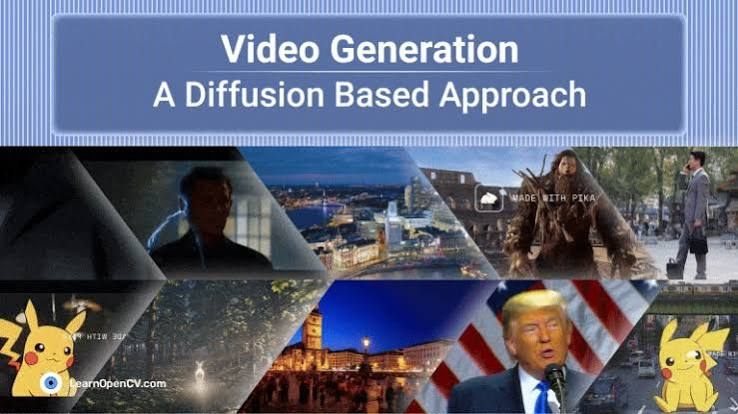
In this guide, we’ll explore the best AI tools for video generation in 2026, comparing their key features, strengths, pricing, and ideal use cases. Whether you’re looking for a free AI video generator, a powerful tool for YouTube content, or an advanced platform for business videos, you’ll find an option that matches your needs and budget.
Making a video used to mean cameras, lighting, editing software, and a lot of patience. That’s changed fast. In 2026, you can type out an idea and watch a finished clip come together in minutes. Whether you’re a small business owner making product videos, a content creator posting daily on Instagram or YouTube Shorts, or someone running ads for a client, there’s now a tool built for almost every video need.
But here’s the catch — there are dozens of these platforms now, and they’re not all built the same. Some are made for realistic, cinematic footage. Others are better for talking-head style corporate videos. Some are dirt cheap and great for quick social posts, while others cost a small fortune but deliver results that look like they came out of a film studio.
In this guide, we’ll walk through the best video generation tools available right now, what each one is actually good at, what it costs, and where it falls short. No fluff, just what you need to pick the right one for your project.
What Changed in Video Generation This Year
A few years back, these tools produced shaky, dream-like clips that were fun to look at but not usable for real work. That’s no longer the case. The newer generation of tools now handles realistic human movement, matching sound effects, lip-syncing, and camera control that actually behaves the way a real camera would.
Most platforms still cap individual clips at somewhere between 5 and 15 seconds, though several now offer ways to stitch multiple clips into a longer sequence. Sound has also become a bigger deal — instead of adding music afterward in a separate app, many tools now generate audio that matches the action inside the same clip.
If you’re picking a tool for business use, one thing to check carefully is the commercial usage policy. Several free plans are strictly for personal projects, so read the fine print before you publish anything client-facing.
The Best Video Generation Tools in 2026
1. Runway
Runway has built a strong reputation for camera control. If you need a shot that pans, zooms, or tracks a subject the way a real cinematographer would plan it, Runway handles this better than most competitors.
It’s less of a single generator and more of a full creative workspace — you get upscaling, scene extension, restyling, and the ability to chain different tools together into a workflow. That makes it a favorite among filmmakers and creative directors who are mocking up concepts or building out visual storyboards.
Runway remains one of the leading AI video generation platforms in 2026, offering powerful tools that help creators produce cinematic-quality videos with minimal effort. Designed for filmmakers, marketers, designers, and content creators, Runway combines advanced AI video generation with professional editing features in a user-friendly interface.
One of Runway’s standout capabilities is text-to-video generation, allowing users to create entirely new video clips simply by describing a scene in natural language. It also supports image-to-video, enabling users to animate static images with realistic camera movements, character motion, and visual effects. These features make it ideal for creating YouTube intros, social media content, advertisements, concept videos, and short films.
Beyond video generation, Runway includes a complete suite of AI-powered editing tools. Users can remove backgrounds without a green screen, erase unwanted objects, replace backgrounds, generate slow-motion effects, track motion, and enhance video quality with just a few clicks. These capabilities significantly reduce editing time while delivering professional-looking results.
Runway also supports collaborative workflows, making it a great choice for creative teams. Projects can be edited and shared online, eliminating the need for high-end hardware or complex editing software. Since the platform runs in the cloud, users can access their projects from virtually any modern web browser.
Good for: Camera movement, creative workflows, storyboarding Pricing: Free plan available with limited one-time credits; paid plans scale up from there
Pros
- Excellent camera direction and motion control
- Strong ecosystem of editing tools around the core generator
- Clean, beginner-friendly interface despite the advanced features
Cons
- No built-in sound generation, so you’ll need a separate tool for audio
- Best suited to visual concept work rather than finished, polished output on its own
2. Kling
Kling has quickly become known for producing some of the most realistic human faces and body movement on the market. If your project involves people — walking, talking, interacting with objects — Kling tends to handle it with fewer of the odd glitches you see elsewhere.
The newer version also supports multi-shot sequences, meaning it can generate several connected scenes in a single pass rather than one isolated clip at a time. That’s a big deal if you’re trying to tell a short story rather than just produce a single moving image.
Kling has become one of the most impressive AI video generation tools in 2026, earning attention for its ability to create highly realistic videos from simple text prompts or images. Powered by advanced generative AI models, Kling produces smooth character movements, cinematic camera angles, and detailed environments that closely resemble professionally filmed footage. It has quickly become a favorite among content creators, marketers, filmmakers, and social media influencers looking to generate high-quality videos without traditional production equipment.
One of Kling’s biggest strengths is its text-to-video capability. Users simply describe a scene, and the platform generates a short video complete with realistic motion, lighting, and visual effects. It also supports image-to-video generation, allowing creators to animate photos, artwork, or illustrations into dynamic video clips. This makes Kling an excellent choice for storytelling, product promotions, educational content, advertisements, and YouTube videos.
The platform is designed to produce natural-looking human movement and consistent object behavior, addressing common issues found in earlier AI video generators. Kling also offers creative controls that let users adjust camera movement, scene composition, animation style, and video duration for more customized results. As the technology continues to evolve, video quality and generation speed have improved significantly, making it practical for both personal and commercial projects.
Good for: Realistic people, social content, short storytelling. Pricing: Free tier with daily credits; paid tiers unlock higher resolution and longer clips
Pros
- Best-in-class realism for human movement and expression
- Multi-shot sequences save time compared to stitching clips manually
- Reasonably priced compared to some premium competitors
Cons
- Walking and running motion can still look slightly off in complex scenes
- Higher resolution outputs eat through credits quickly
3. Google’s Veo (via Flow)
Google’s video model, accessed through its Flow app, is widely considered the strongest all-around option for realism combined with sound. It sticks closely to your prompt and reference images, and it generates audio and video together instead of treating them as separate steps.
You can start a project in a few different ways — a plain text description, a set of reference frames, or even a still image generated separately and then brought to life. The main limitation is that each individual clip is capped at 8 seconds, so longer scenes mean planning out and stitching multiple shots together.
Good for: All-around realism, projects needing matched sound and visuals.s Pricing: Bundled with Google’s subscription plans; also available through third-party creative platforms
Pros
- Strong prompt accuracy — what you describe is close to what you get
- Native sound generation that actually matches on-screen action
- Backed by a large company, so it’s actively and frequently improved
Cons
- 8-second clip limit means more planning for longer content
- Full access often requires a paid subscription tier
4. Luma Dream Machine
Luma’s tool, Ray3, stands out for atmosphere over strict realism. If you’re going for a calm, moody, nature-based scene, or something with strong lighting and color, this is one of the more visually pleasing options available.
The interface itself deserves a mention — it’s one of the cleaner, more intuitive designs among these platforms, with useful extras like start/end frame control and a “Boards” feature for organizing multiple generations into one project.
Good for: Atmospheric scenes, artistic projects, ease of use. Pricing: Free plan with limited monthly generations; paid plans for higher volume
Pros
- Genuinely beautiful, well-designed interface
- Strong color, lighting, and composition
- Good for creators who aren’t chasing hyper-realism
Cons
- Less reliable for fast action or complex human movement
- Free tier generation limits are fairly tight for regular use
5. Synthesia
Synthesia takes a completely different approach from the tools above. Instead of generating imaginative scenes, it’s built around presenter-style videos — think training material, onboarding videos, and corporate presentations, where a digital presenter speaks directly to camera.
It supports bulk video creation and multilingual voiceovers, which makes it especially useful for companies producing the same training content across different regions or languages.
Good for: Corporate training, onboarding, multilingual business content.ent Pricing: Subscription-based, with plans scaling by number of videos and minutes needed
Pros
- Purpose-built for business and training use, not just creative experiments
- Multilingual voiceover support saves a lot of time for global teams
- Bulk personalization for training or internal communications
Cons
- Not designed for cinematic or story-driven content
- Presenter-style output can feel repetitive across many videos
6. HeyGen
HeyGen has carved out its space with a huge library of digital presenters and strong multilingual support. It’s a popular pick for marketers who want to localize the same video message across multiple countries without reshooting anything.
A newer addition, still in testing, lets the platform handle more of the video assembly process on its own — turning a slide deck or a web page directly into a finished video.
Good for: Multilingual marketing, presenter-led videos, quick localiza.tion Pricing: Tiered subscription plans based on video minutes and features
Pros
- Large library of presenters to choose from
- Strong translation and localization tools
- Can convert existing documents or slides into video format
Cons
- Presenter videos can feel less personal than original footage
- More expensive tiers needed to unlock the full presenter library
7. Pixverse
Pixverse is a solid budget-friendly option, especially if you’re producing short, snappy clips for social platforms. You describe a scene in plain language, and it generates motion, lighting, and transitions around it. It also supports turning still photos into short moving clips.
Free sign-up credits and small daily bonuses make it easy to test without committing money upfront, though the free plan does add a watermark to your downloads.
Good for: Quick social clips, budget projects, image-to-video conversion Pricing: Credit-based; free credits on sign-up plus small daily top-ups
Pros
- Cheap way to get started and test different ideas
- Multiple visual styles, including anime and 3D looks
- Fast turnaround, often just a few minutes per clip
Cons
- Free plan outputs carry a visible watermark
- Complex human movement can still look distorted at times
8. Canva (Magic Media)
If you’re already using Canva for design work, its built-in video generation tools are a natural extension. It’s not trying to compete with the cinematic realism of Runway or Kling — instead, it fits into a workflow where you’re designing social posts, ads, and presentations, and just need a short video element to drop in.
Good for: All-in-one design and video work, small business marketing.eting Pricing: Add-on to Canva’s existing paid plans
Pros
- Seamlessly fits into an existing Canva workflow
- Smart resizing for different platforms (Reels, Shorts, Stories)
- Affordable if you’re already paying for Canva
Cons
- Not built for longer or more complex video projects
- Fewer advanced controls compared to dedicated video generation platforms
How to Pick the Right One for You
There’s no single “best” tool here — the right pick depends entirely on what you’re making.
- Making product ads or marketing content? Look at tools with commercial licensing built into their paid plans, and prioritize realism and sound.
- Building training or onboarding material? A presenter-based platform will save you far more time than a scene generator.
- Posting daily on social media? Go for something fast and cheap, even if the output isn’t perfectly polished — speed matters more than perfection here.
- Working on a passion project or short film concept? Prioritize camera control and visual style over speed.
A lot of creators end up using more than one tool — one for realistic footage, another for presenter-style clips, and a design tool for putting the final piece together. That’s normal. These platforms are still fairly specialized, and very few try to do everything well.
A Quick Word on Pricing
Free plans are genuinely useful for testing but usually come with limits — daily credit caps, watermarks, or personal-use-only licensing. If you’re producing content regularly, budget for a paid tier from at least one platform. Many creators find that paying for one solid subscription works out cheaper than juggling multiple free accounts and constantly hitting credit walls.
Frequently Asked Questions
Is it hard to learn these tools? Not really. Most of them are built around simple text prompts, similar to a search bar. You type what you want to see, and the tool does the heavy lifting. The learning curve comes more from figuring out how to phrase your prompts clearly, not from the software itself.
Can I use these videos for my business without any legal issues? It depends on the plan you’re using. Free tiers on many platforms are limited to personal use only. If you’re making content for a client or your own business, check the commercial usage terms on the specific plan you’ve paid for.
Do these tools work well for realistic human movement? Some do better than others. Kling and Veo currently lead in this area, especially for faces and natural gestures. Walking and running motion is still the trickiest thing for most tools to get exactly right.
How long can a single generated clip be? Most platforms cap individual clips somewhere between 5 and 15 seconds. For longer content, you’ll typically generate multiple clips and stitch them together, either within the same platform or using a separate editor.
Do I still need traditional editing software? For simple social posts, often no. But for anything longer or more polished — ads, YouTube videos, training series — you’ll likely still bring your clips into an editor to trim, add captions, and combine everything into a final piece.
Which tool is best for someone just starting with a tight budget? Pixverse or Canva’s built-in tools are good starting points. Both offer free credits to experiment with, and neither requires much of a learning curve before you get usable results.
Final Thoughts
Video generation tools have moved well past the novelty stage. They’re now genuinely useful for marketers, small business owners, trainers, and everyday creators who don’t have the budget or time for a full production setup. The trick isn’t finding the single “best” tool — it’s matching the right tool to the specific kind of video you’re trying to make. Start with a free plan, test it against your actual use case, and scale up once you know exactly what you need.

