
The way we make videos has changed. If you are a marketer, business owner, educator, or creator, you have likely faced the same challenge: video content is essential, but producing it takes time, money, and skills that not everyone has.
That is where text-to-video tools come in. In 2026, these services have matured to a point where turning a script or idea into a watchable video is quicker than ever. But with new models launching constantly, finding the right one for your needs can be tricky.
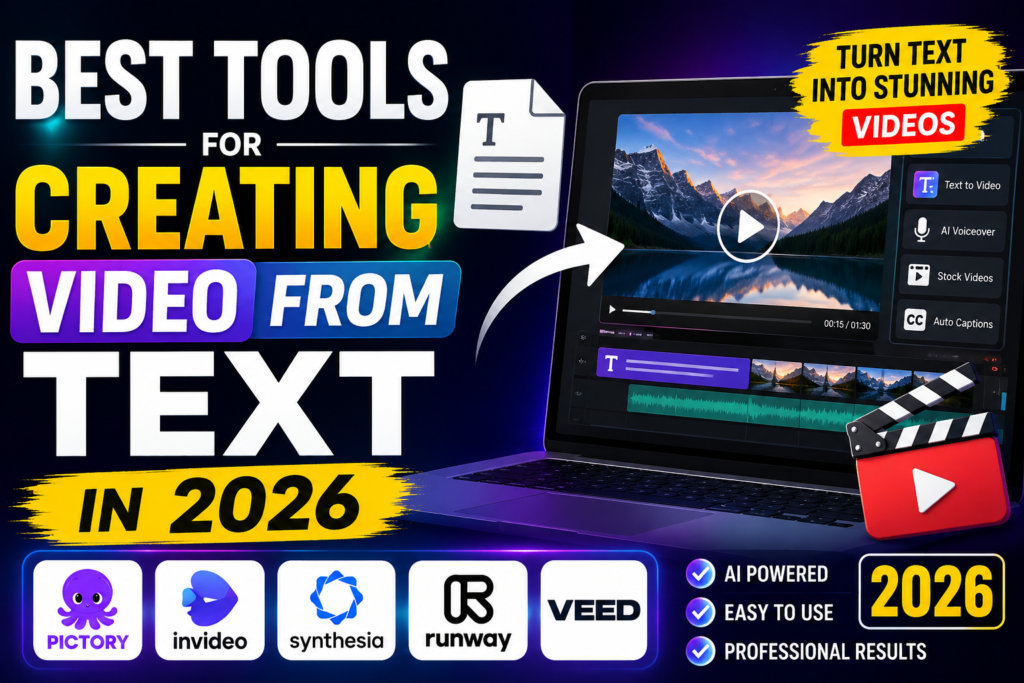
This article breaks down the best options available in 2026. Instead of focusing on the technology behind them, we look at what each tool does well, where it falls short, and who should use it.
Creating Video from Text: Creating a professional video from nothing more than a script, blog post, or text prompt has become much easier in 2026. Modern text-to-video platforms can automatically turn written content into scenes, add visuals, generate voiceovers, create captions, and help produce videos for YouTube, Instagram, TikTok, marketing campaigns, courses, and business presentations.
The best tool depends on the type of video you want to create. Pictory is particularly useful for converting scripts, articles, and URLs into complete videos, while InVideo focuses on template-based creation and flexible editing. Synthesia is better suited to presenter and training videos, while Runway is a stronger choice for generating cinematic and creative visual clips.
In this guide, we’ll compare the best tools for creating video from text in 2026, focusing on ease of use, video quality, text-to-video capabilities, voiceovers, templates, editing features, pricing, and the type of creator each tool is best suited for. Whether you’re a beginner, YouTube creator, marketer, educator, or business owner, the goal is to help you choose the right platform for turning your written ideas into engaging videos faster.
How Text-to-Video Tools Work Today
Before we look at specific tools, it helps to understand what these services actually do. At their core, they take written prompts—which can be a simple description, a full script, or even an article—and generate video clips that match the text.
The results vary widely. Some tools focus on short, cinematic clips that look like they came from a movie. Others specialise in talking-head videos with avatars that explain concepts. Some tools can take a blog post and turn it into a complete social media video with stock footage and music.
The field moves fast. New models in 2026 show significant improvements in how well they understand physical movements, how they handle multiple characters across different scenes, and how they generate audio that syncs with the on-screen action.
The Top Text-to-Video Tools in 2026: Creating Video from Text
Here is a breakdown of the standout options, each suited to different types of video projects.
1. Seedance 2.0: The Storyteller for Consistent Characters
Best for: Narrative videos, ads, and explainers where characters need to look the same across multiple scenes.
Seedance 2.0 has carved out a specific role for itself. If your video has a recurring character or needs to maintain a consistent visual style, this model is worth a serious look. It is designed to keep characters and scenes looking the same from one shot to the next, which is a common weak point in this space.
For example, if you are making a short ad series with a brand mascot or an animated character, Seedance can hold that character’s identity through multiple scenes without needing additional fine-tuning. One production team reportedly kept a character visually consistent across an entire episode with just five generations.
Pros:
- Excellent at maintaining character consistency across scenes
- Handles multi-shot storytelling well
- Supports reference inputs like character sheets and location images
Cons:
- Does not generate synced dialogue natively
- May not be the best choice for purely photorealistic, single-shot clips
Key Features
- Consistent characters: Helps preserve a character’s appearance and clothing across shots.
- Multi-modal references: Supports text, images, videos, and audio as creative references.
- Camera-motion control: Reference videos can guide camera movement and choreography.
- Multi-shot storytelling: Useful for short narratives where the same characters appear in different scenes.
- Audio integration: The model supports audio generation and can use uploaded audio to guide rhythm and mood.
- Multiple aspect ratios: Suitable for formats such as YouTube, Shorts, TikTok, Reels, and other social platforms.
2. Veo 3.1: The Realism Leader for Dialogue
Best for: Photorealistic videos with people talking, where synced audio is critical.
Veo 3.1 is the model to use when you need a realistic scene with someone speaking. Its standout feature is generating lip-synced audio along with the video in a single go. This is a game-changer because many other tools give you a silent video, and you have to add the voiceover later, often struggling to get the timing right.
If you need a character to give a speech, explain a concept on camera, or have a conversation, Veo 3.1 delivers a complete package. It saves you time and gives you a more natural-looking performance.
Key Features
- Native dialogue: Generate spoken character dialogue directly with the video.
- Audio generation: Creates dialogue, ambient sounds, and sound effects alongside the visuals.
- Improved lip synchronization: Designed to better align spoken dialogue with character movement.
- Realistic physics: Strong performance in scenes involving natural movement and physical interactions.
- Better prompt adherence: More accurately follows detailed scene and storytelling instructions.
- Character and scene consistency: Reference images can help control characters, objects, and visual style.
- Vertical video: Veo 3.1 supports native 9:16 generation, making it useful for Shorts, Reels, and TikTok-style content.
- High-resolution output: Available workflows support upscaling to 1080p and 4K.
Pros:
- Generates video and synced audio together
- Produces highly realistic, photorealistic visuals
- Available for use through various platforms
Cons:
- Primarily designed for single-performance clips, less suited for complex multi-shot narratives
- Pricing can vary; 4K output is more expensive.
3. Kling 3.0: The Action Director for Motion and Coverage
Best for: Action scenes, fast motion, and videos that need a variety of shots.
Kling 3.0 excels where other models often fail: motion. It understands how things move in the real world, including gravity and fluid dynamics, which makes it a strong choice for action-packed videos or complex scenes with lots of movement.
Its “multi-shot” capability sets it apart. With a single prompt, Kling can generate a sequence with multiple cuts, like a mini-storyboard. This can save a lot of time compared to generating each shot one by one. It is geared towards creators who want stronger control over the camera movement and scene direction.
Pros:
- Superior handling of motion and complex physics
- Can generate sequences with multiple shots from one prompt
- Offers strong controls for camera movement
Cons:
- May not be as strong as Seedance at maintaining character consistency across unrelated generations
- It can be one of the more expensive options depending on the tier
4. Gemini Omni Flash: The Conversational Editor
Best for: Iterative editing, projects starting from multiple types of input (text, image, video), and YouTube Shorts creators.
Google’s Gemini Omni Flash is a new type of video model. It is not just about generating a video from a single prompt; it is about having a conversation with the tool to create your video.
You can give it a combination of things—a text prompt, a reference image, a short video clip—and use natural language to tell it what to do. For instance, you could say, “Take this shot of a city street, make it look like a rainy night scene, and add a person with a red umbrella walking through it.” Each instruction builds on the last one, allowing for fine control without starting over.
It is also being integrated into YouTube Shorts and YouTube Create at no cost, making it very accessible for social media creators.
Pros:
- Takes multiple types of input (text, image, audio, video)
- Supports iterative, conversational editing
- Free to use on YouTube Shorts
- Backed by Google’s world knowledge for more accurate complex scenes
Cons:
- Clip lengths are currently capped at 10 seconds for the “Flash” tier
- Newer model, so it may not be as polished or feature-rich as more established ones
- General audio and speech editing is limited for safety reasons
5. Sora 2 Pro: The Long-Form Specialist
Best for: Longer scenes, up to 20 seconds, with consistent audio and visuals.
Sora 2 Pro is designed for generating longer, more coherent video clips. It can create up to 20 seconds of footage in one go, which is significant compared to many models that stop at 5 or 10 seconds.
It also handles synced audio well, making it a good option for scenes where you need both the visual and the sound to work together seamlessly. It also supports “named character IDs” to help keep characters consistent, though it may not be as specialised for this as Seedance 2.0.
Pros:
- Generates longer video clips (up to 20 seconds)
- Includes synced audio
- Good for consistent character presence
Cons:
6. InVideo: The Business-Friendly All-in-One
Best for: Marketing videos, explainers, and presentations, especially for teams with little video experience.
InVideo takes a different approach. Instead of just generating raw clips, it is a full video creation platform. You describe the video you want, and InVideo builds a complete project. It selects stock footage, adds text overlays, suggests music, and even generates a voiceover. It is designed for businesses that need to produce polished content quickly without learning complex editing software.
If you want to turn a blog post into a YouTube video or create a professional ad in under 30 minutes, InVideo is built for this.
Pros:
- Complete end-to-end video creation from a script or idea
- Massive library of stock media
- Industry-specific templates
- Strong for teams with a need for consistent branding
Cons:
- Can look generic without heavy customisation
- The editing timeline is basic compared to professional editing software
- Relies heavily on stock footage, which limits original content
7. CapCut: The Social Media Speedster
Best for: Editing existing footage for TikTok, Instagram Reels, and YouTube Shorts.
CapCut is a powerful, free-to-use editing tool that is best known for its social media features. While it is not primarily a text-to-video generator, its AI tools are excellent for quickly creating viral-style content.
Its standout feature is auto-captions, which are essential for social videos that are often watched without sound. CapCut creates animated subtitles that sync perfectly with the audio, keeping viewers engaged. It also has smart tools for reframing videos and removing backgrounds.
Pros:
- Excellent for fast editing of short-form social content
- Best-in-class auto-captions
- Free to use (with a Pro plan for extra features)
- Mobile-first interface is intuitive and fast
Cons:
- Does not generate complete videos from text as well as InVideo or other dedicated tools
- Limited longer-form editing features
- Lacks a large stock media library
8. Synthesia and VEED: The Avatar Experts
Best for: Training videos, corporate communications, and educational content with AI presenters.
For many businesses, the need is to create videos of someone talking to the camera, explaining a product or process. This is where avatar-based tools shine.
Synthesia is a leader in this space. It allows you to create videos with realistic AI avatars that speak your script. You can choose from a range of avatars or create a custom one. It is widely used for onboarding, training, and customer support videos.
VEED offers a similar workflow. You can start with a script, pick an avatar and voice, and generate a complete video. VEED stands out as more of an all-in-one editor, allowing you to then add branding, captions, and resize your video for different platforms without switching apps.
Pros:
- No need for a camera, actor, or studio
- Fast and scalable for high-volume content
- Professional-looking results
- VEED offers a more integrated editing experience
Cons:
- Can feel less personal than a real human presenter
- Limited to talking-head style videos
- Advanced features require a paid subscription
Choosing the Right Tool for Your Project
The “best” tool depends entirely on what you are making. Here is a quick guide:
- For a product ad with a brand mascot: Use Seedance 2.0 to keep the character consistent.
- For a tutorial with a talking head: Use Synthesia, VEED, or Veo 3.1 for a realistic presenter.
- For a social media video from a blog post: Use InVideo or VEED to put the whole package together.
- For a cinematic short film: Consider using a combination of Kling 3.0 for action and Seedance 2.0 for narrative sequences.
- For quickly editing a TikTok: Use CapCut for its speed and auto-caption features.
Frequently Asked Questions
Are these tools difficult to use?
No, most of these services are designed for beginners. They focus on simple interfaces where you can enter a text prompt or script to get a result. Platforms like InVideo and VEED offer drag-and-drop editing, making the process straightforward.
Can I generate audio along with the video?
Yes, many tools now offer this. Veo 3.1, Sora 2 Pro, and VEED can all generate synced audio with their video outputs. This is a key feature to look for if you need your characters to speak in the clip.
How long are the videos I can create?
It depends on the tool. Some, like Kling 3.0, generate clips of around 5-10 seconds, while Sora 2 Pro can handle up to 20 seconds. For longer videos, like explainers, you would use a tool like InVideo or VEED that combines multiple clips or uses avatars to create a continuous narrative.
Are these services expensive?
Costs vary. There are free tiers available, like the free version of CapCut or YouTube Shorts access to Gemini Omni Flash. Paid plans range from around $8 per month for CapCut Pro to more expensive credit-based systems for high-end models like Veo or Seedance.
How do I keep my videos from looking generic?
The key is customisation. While these tools can generate a good first draft, you should always personalise the output. Add your own branding, choose specific colours and fonts, and swap out generic stock footage for clips that are more unique to your message. Tools like VEED are built to help you do this easily.
Conclsion
Creating video from text has become a practical reality in 2026. The tools have moved beyond being experimental novelties to becoming valuable assets in a creator’s or marketer’s toolkit.
Your choice should be guided by your specific need. If you value narrative and character consistency, look into Seedance 2.0. For realistic talking heads and synced audio, Veo 3.1 or avatar-based platforms are the way to go. For a fast, all-in-one solution for marketing videos, InVideo and VEED are strong contenders.
The best approach is to use the free trials most of these services offer. Run a real project through a couple of them and see which one fits best with your workflow. The technology is here to help, and with the right tool, the only limit is your imagination.

