
Creating engaging videos from a simple text prompt no longer requires advanced video-editing skills or expensive software. In 2026, several free AI video tools can turn scripts, blog posts, product descriptions, and ideas into ready-to-edit videos with visuals, animations, captions, music, and voiceovers.
The best part is that many of these tools offer free plans, making them useful for YouTube creators, social media marketers, students, bloggers, and small businesses. However, free versions often come with limitations such as watermarks, export restrictions, limited credits, or fewer templates.
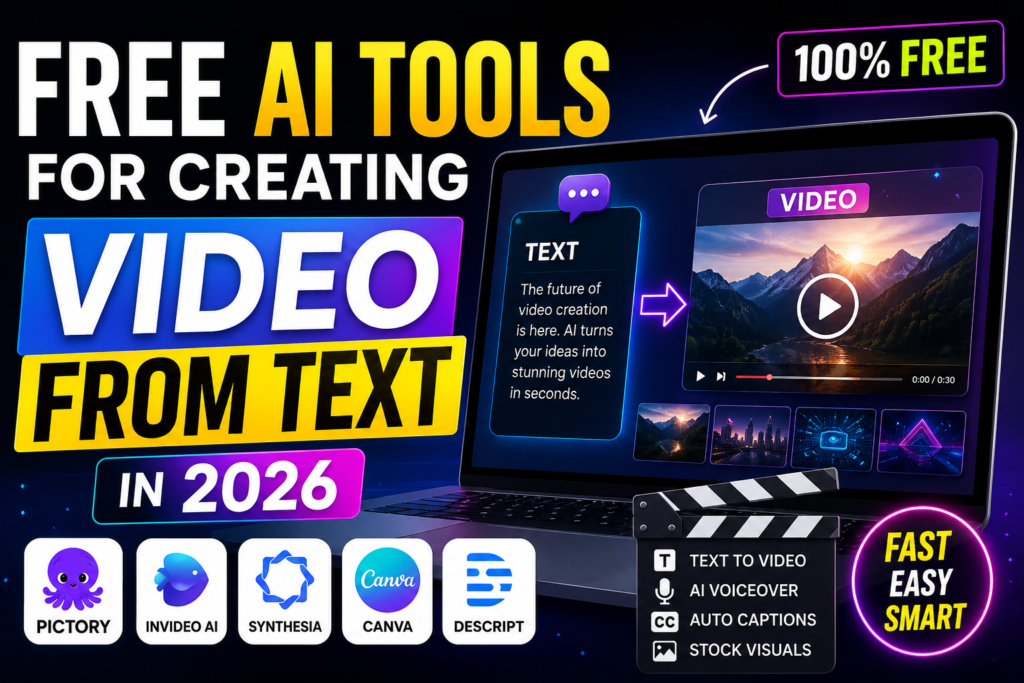
The best free AI tools for creating videos from text in 2026: compare their key features and limitations, and explain which tool is best for different types of video creation. Whether you want to create YouTube Shorts, Instagram Reels, educational videos, promotional content, or faceless videos, these tools can help you turn written ideas into professional-looking videos faster.
Free AI Tools for Creating Video from Text. Video content is everywhere. Whether you are a business owner, a teacher, a content creator, or just someone who wants to share ideas, video gets attention. But creating video has always been expensive. You need cameras, actors, editing software, and skills that take years to develop.
That is changing. In 2026, some tools turn written words into watchable videos—and many of them are completely free.
This guide walks you through the best free options available right now. We focus on tools that deliver real value without costing a single naira or dollar. We also look at their limits, quirks, and who they work best for.
Why Video from Text Matters
Think about your own habits. Do you prefer reading a long article or watching a two-minute video? Most people choose the video. It is faster, more engaging, and easier to remember.
For businesses, video content drives sales. For educators, video explains complex topics clearly. For social media creators, video gets more likes, shares, and comments.
The problem has always been production. Shooting a video requires planning, equipment, and time. Editing takes even longer. If you make a mistake, you start over.
Text-to-video tools eliminate most of these hurdles. You write a script or even just describe a scene, and the software generates a video for you. In 2026, the results are surprisingly good.
What to Look for in a Free Text-to-Video Tool
Before we dive into the options, here is what you should check before committing to any tool:
Output quality. Does the video look professional or cheap? How realistic are the visuals? Are there obvious glitches?
Style options. Can you choose different styles—realistic, animated, cartoon, cinematic? More options give you more creative control.
Length limits. How long can your video be? Some tools cap you at five seconds, others at a minute or more.
Watermark. Does the free version slap a giant watermark across your video? Some do. Others let you export without one.
Audio. Can the tool add background music or voiceover? Is the voice natural or robotic?
Ease of use. Do you need technical skills, or can anyone use it? The best tools are simple enough for beginners.
Export quality. Can you download in HD? Some free versions limit you to standard definition.
Usage rights. Who owns the video? Can you use it commercially? Always check the terms of service.
The Best Free Text-to-Video Tools in 2026: Free AI Tools for Creating Video from Text
Here are the top free tools for turning text into video, ranked by quality and usefulness.
1. Canva: The All-in-One Design Powerhouse
Best for: Beginners and professionals who want a familiar interface with powerful video creation features.
Canva is the tool that does everything. If you have ever created a social media graphic, you have probably used it. In 2026, Canva’s video creation tools have matured into something genuinely impressive.
What makes it stand out:
Canva’s free version gives you access to its Magic Studio tools. You can type a description of the video you want, and Canva generates a complete video with stock footage, music, and text overlays.
The interface is incredibly intuitive because it is the same Canva you already know. There is no new software to learn. You design videos the same way you design flyers or presentations. Text
Canva has a massive library of free stock footage, images, and music. You can mix generated clips with your own uploads. The video editor is simple but powerful enough for most projects.
What it is like to use:
I created a 30-second promotional video for a fictional coffee shop using Canva. I typed “coffee shop promotional video, warm atmosphere, happy customers,” and Canva generated a video with stock footage, text overlays, and background music. The whole process took under five minutes.
The videos look professional. The stock footage is high quality. The text animations are smooth. For most business and social media needs, it is more than enough.
The free version has limitations. You get limited access to premium assets. Export quality is capped at 720p for videos longer than 15 minutes. Some features are reserved for the paid plan. But for casual and professional use, the free plan is extremely generous.
Fees:
- Free plan includes limited Magic Studio uses
- Paid plans start at $12.99 per month for individuals
Pros:
- Familiar, easy-to-use interface
- Massive library of stock footage and music
- Generous free version
- Works in your browser, no download needed
- Export in multiple formats
Cons:
- Limited uses of Magic Studio per month on free plan
- Export capped at 720p for longer videos
- Some features locked behind paywall
- Relies heavily on stock footage
Who should choose this: Anyone who needs a quick, professional-looking video without learning complex software. Canva works for social media posts, ads, presentations, and simple explainers.
2. VEED.io: The Online Editor with Smart Features
Best for: Quick edits, subtitles, and social media videos.
VEED is a browser-based video editor that has added smart tools for creating videos from text. It is one of the most accessible options for beginners.
What makes it stand out:
VEED’s free version includes a script-to-video feature. You paste your script, choose a style, and VEED generates a video with stock footage and voiceover. Text
The auto-subtitle feature is excellent. VEED can add captions to any video in seconds. This is crucial for social media because many people watch without sound.
VEED also offers avatar creation. You can generate a talking head that speaks your script. The avatars look natural enough for training videos and corporate communications.
What it is like to use:
I used VEED to create a short explainer video for a software product. I pasted a 200-word script, selected a modern tech style, and VEED generated a 60-second video with animated text and background music. The voiceover was clear and natural.
The avatar feature is impressive. I chose a female presenter, selected a professional background, and the avatar delivered my script with natural hand gestures and lip sync. It was good enough for internal training videos.
The free version adds a VEED watermark to your exports. You also get limited minutes of transcription and voiceover generation. If you use it regularly, the paid version is worth considering.
Fees:
- Free plan: limited minutes, watermark on exports
- Pro plan: $24 per month
- Business plan: $59 per month
Pros:
- Works in your browser
- Excellent auto-subtitle feature
- Avatar generation available
- Simple and intuitive interface
- Good for social media videos
Cons:
- Free exports have VEED watermark
- Limited minutes on free plan
- Some features locked
- Relies on stock footage
Who should choose this: Social media creators, educators, and businesses who need quick, captioned videos. The avatar feature is useful for training and corporate communications.
3. Invideo: The Marketing-Focused Platform
Best for: Marketing videos, ads, and content for YouTube.
Invideo is designed specifically for businesses and marketers. It is more focused than Canva, with templates tailored for advertising and promotional content.
What makes it stand out:
Invideo’s free plan gives you access to a script-to-video feature. You describe your video or provide a script, and Invideo builds a complete video with stock footage, text overlays, and music.
It has hundreds of templates for different industries. Whether you need a real estate ad, a restaurant promo, or a tech product review, there is a template ready to go.
Invideo also includes a voiceover generation tool. The voices are clear and natural, with options for different accents and genders.
What it is like to use:
I created a 60-second ad for a fitness app using Invideo. I chose a template, added my script, and Invideo generated a professional-looking video with stock footage of people exercising, text overlays highlighting features, and a motivating voiceover. The whole process took about ten minutes.
The video looked polished enough for YouTube and Instagram ads. The template system saves time because you do not start from a blank page.
The free plan adds an Invideo watermark to your videos and limits your export quality to 720p. You also get limited access to premium templates and assets.
Fees:
- Free plan: watermark, 720p export, limited templates
- Paid plans start at $30 per month
Pros:
- Focused on marketing content
- Hundreds of industry templates
- Good voiceover options
- Easy to use for beginners
- Professional-looking results
Cons:
- Watermark on free exports
- Limited export quality
- Some features locked
- Template-heavy approach can feel generic
Who should choose this: Marketers, business owners, and content creators who need promotional videos quickly. The templates save time and effort.
4. Lumen5: The Blog-to-Video Tool
Best for: Repurposing blog content into videos.
Lumen5 was designed specifically to turn blog posts into videos. If you already have written content, Lumen5 makes it easy to create video versions.
What makes it stand out:
Lumen5 works with your existing content. You paste a blog post URL, and Lumen5 pulls the text and images. It suggests scenes based on the text structure.
You can then edit the video by rearranging scenes, changing media, and adjusting text. The interface is simple enough for non-designers.
Lumen5 includes a large library of stock footage and music. It also has a voiceover feature with natural-sounding voices.
What it is like to use:
I gave Lumen5 the URL of a 1,000-word blog post about meal prep. It generated a 90-second video with scenes for each key point. The text overlays were pulled from the blog’s headings and summary.
The video was professional enough for sharing on social media. It saved hours of manual editing time. The final result was a clean, informative video that complemented the blog post.
The free version adds a Lumen5 watermark and limits you to 480p export quality. You can only create a limited number of videos per month.
Fees:
- Free plan: watermark, 480p export, limited videos
- Starter plan: $29 per month
- Professional plan: $79 per month
Pros:
- Perfect for repurposing blog content
- Easy blog-to-video workflow
- Large stock media library
- Good for content marketing
- No design skills required
Cons:
- Watermark on free exports
- Low export quality on free plan
- Limited video quantity
- Relies heavily on stock footage
Who should choose this: Content marketers, bloggers, and SEO professionals who want to turn written content into video. Great for repurposing existing material.
5. Kapwing: The Versatile Online Editor
Best for: Quick edits, memes, and social media clips.
Kapwing is an online video editor that has added text-to-video features. It is more versatile than many competitors because it handles video, images, and GIFs.
What makes it stand out:
Kapwing’s free version lets you create videos from text prompts. You describe what you want, and Kapwing generates a video with stock footage and music.
It also includes a powerful subtitle tool, meme generator, and video resizer. These are useful for social media creators who need to reformat content for different platforms.
Kapwing works entirely in your browser. You do not need to install any software or create an account (though you do need one to save projects).
What it is like to use:
I created a short meme-style video using Kapwing. I typed “funny video about Monday mornings with coffee,” and Kapwing generated a 15-second clip with stock footage of tired people and a coffee cup, along with text overlay “Monday mornings.”
The result was amusing and shareable. It worked well for Instagram Reels and TikTok. The process was fast and fun.
The free version exports with a Kapwing watermark. You also get limited storage and export quality.
Fees:
- Free plan: watermark, limited storage
- Pro plan: $16 per month
Pros:
- Very easy to use
- Good for memes and quick social videos
- Works in your browser
- Multiple export formats
- Fun to use
Cons:
- Watermark on free exports
- Limited storage
- Not for professional projects
- Relies on stock footage
Who should choose this: Social media creators, meme makers, and casual users who want quick, fun videos.
6. FlexClip: The Free Option with No Watermark
Best for: Anyone who wants a free tool without a watermark.
FlexClip is a browser-based video editor that offers one of the most generous free plans available. The best part? No watermark on your exports.
What makes it stand out:
FlexClip’s free version includes access to its text-to-video feature. You provide a script or prompt, and FlexClip creates a video with stock footage and text overlays.
The free plan includes thousands of templates and a decent library of stock footage and music. You can export videos in 720p quality without a watermark.
What it is like to use:
I used FlexClip to create a simple product demo video. The process was straightforward—I typed a description, chose a template, and FlexClip generated a 45-second video. The quality was good enough for social media and email marketing.
The no-watermark policy is a big selling point. Many free tools make you pay to remove the watermark. FlexClip lets you export clean videos without any branding.
The free plan does have limits. Videos are capped at 10 minutes, and you get limited storage. But for short videos, it is excellent.
Fees:
- Free plan: no watermark, 720p export, 10-minute video cap
- Plus plan: $9.99 per month
- Business plan: $19.99 per month
Pros:
- No watermark on exports
- Good library of templates
- Browser-based, no download
- Decent stock footage selection
- Very generous free plan
Cons:
- Limited storage
- 10-minute video cap
- Some features locked
- Less advanced than competitors
Who should choose this: Anyone who wants a free tool without a watermark. Great for small businesses, creators, and educators who need clean videos.
7. Clipchamp: The Microsoft Option
Best for: Windows and Microsoft users who want an integrated tool.
Clipchamp is owned by Microsoft and is integrated into Windows. It is a solid free option for video creation.
What makes it stand out:
Clipchamp includes a text-to-video feature in its free version. You describe your video or provide a script, and Clipchamp generates a project with stock footage and music.
The integration with Windows is seamless. It works with OneDrive and Microsoft Teams. If you are in the Microsoft ecosystem, Clipchamp fits right in.
The free version includes access to thousands of templates and stock assets. Export quality is 720p without a watermark.
What it is like to use:
I created a video about productivity tips using Clipchamp. The interface was clean and similar to other Microsoft products. The video generated quickly, and the stock footage was appropriate.
Clipchamp is good for Windows users, but the Mac version is limited. The Mac app is not as polished, and some features are missing.
Fees:
- Free plan: 720p export, limited templates
- Paid plans: $19.99 per month
Pros:
- Good for Windows users
- Microsoft integration
- No watermark on exports
- Decent template library
- Clean interface
Cons:
- Mac version is limited
- Some features locked
- Limited compared to competitors
- Not as flexible as Canva
Who should choose this: Windows users who want a simple, integrated video tool. Not the best choice for Mac users.
Comparison of Free Text-to-Video Tools
| Tool | Watermark | Export Quality | Free Data/Usage | Best For |
|---|---|---|---|---|
| Canva | No | 720p | Limited Magic Studio uses | General design |
| VEED | Yes | Varies | Limited minutes | Social media |
| Invideo | Yes | 720p | Limited templates | Marketing |
| Lumen5 | Yes | 480p | Limited videos | Blog repurposing |
| Kapwing | Yes | Varies | Limited storage | Memes, quick clips |
| FlexClip | No | 720p | 10-min cap | No-watermark free tool |
| Clipchamp | No | 720p | Limited templates | Windows users |
How to Get the Best Results
These tools are powerful, but they work best with good input. Here are tips to get better videos:
Write clear, specific prompts. Do not just say “video about dogs.” Say “video about golden retriever puppies playing in a garden on a sunny day.” The more detail, the better the result.
Use short sentences. For text overlays, short phrases work better than long paragraphs. Think of them as captions, not essays.
Provide a full script. If you want a voiceover, write a script with natural speech. Read it aloud to make sure it flows well.
Choose the right style. Each tool has multiple styles. Experiment with different ones to match your brand or content.
Edit the output. The generated video is a starting point. Customize it with your own branding, colours, and fonts. Swap out stock footage if something does not work.
Test different tools. Each tool has strengths. Try a few with the same script to see which gives you the best result.
Common Issues and How to Fix Them
Issue: The video looks generic.
Fix: Customize everything. Change colours, fonts, and music. Replace stock footage with your own images and video clips. Personalization makes it yours.
Issue: The voiceover sounds robotic.
Fix: Many tools let you choose different voices. Try a few until you find one that sounds natural. Adjust the speed and tone if possible.
Issue: The text overlays are too fast or too slow.
Fix: Adjust the timing manually. Most tools let you extend or shorten how long text appears on screen.
Issue: The video has a watermark.
Fix: Upgrade to a paid plan or use a different tool. FlexClip and Clipchamp offer watermark-free exports on their free plans.
Issue: The video does not include subtitles.
Fix: Use VEED or Kapwing to auto-generate subtitles. Subtitles are essential for social media.
Frequently Asked Questions
Are these tools really free?
Yes, but each has limits. Some cap the number of videos you can create. Others limit export quality or add a watermark. Always check the free plan details before signing up.
Can I use these videos for commercial purposes?
It depends on the tool and the stock footage license. Most tools allow commercial use if the stock footage is from their library. However, always check the terms of service. Some tools require a paid plan for commercial rights.
Which tool is best for beginners?
Canva is the easiest to start with because the interface is familiar. VEED and Kapwing are also beginner-friendly. All three work in your browser with no downloads.
Can I create long videos with free tools?
Most free plans limit video length to 5-15 minutes. If you need longer videos, you will need to upgrade to a paid plan. FlexClip allows 10-minute videos, which is generous for a free plan.
Do I need to download software?
No. All the tools listed here work in your web browser. You do not need to install anything. This is convenient for MacBook Air users who want to save storage space.
Can I use my own footage?
Yes. Most tools let you upload your own video clips, images, and music. This makes your video unique and prevents it from looking generic.
What if I need professional results?
For professional results, consider upgrading to a paid plan. Paid plans usually include higher export quality, more features, and no watermarks. They also offer more storage and support.
Which free tool has no watermark?
FlexClip and Clipchamp offer watermark-free exports on their free plans. This is a major advantage if you need clean videos for your brand.
Can I create videos in my language?
Most tools support multiple languages for text overlays. Voiceover support varies. Check the tool’s language options before creating your video.
How long does it take to create a video?
The tool generates the video in minutes. Editing and customizing may take additional time. Most users can create a video in 5-15 minutes from start to finish.
Conclsion
Creating video from text has never been more accessible. In 2026, you have multiple free options that deliver professional-looking results without requiring technical skills or expensive software.
Free AI video tools have made it much easier to turn text into engaging videos in 2026. Whether you are creating YouTube Shorts, social media content, educational videos, marketing videos, or faceless content, these platforms can significantly reduce the time and skills required for video production.
While free plans may include limitations such as watermarks, export restrictions, or limited monthly credits, they are still useful for testing different workflows before upgrading to a paid plan. The best choice depends on your video style, editing requirements, available features, and publishing platform.
If you are just starting, try a few free tools and compare their video quality, templates, text-to-video capabilities, voice options, and export limits. With the right tool and a well-written script, you can turn simple ideas into professional-looking videos without investing in expensive editing software.
The best choice depends on what you need:
- For general design and versatility: Canva is the best all-rounder.
- For social media videos with subtitles: VEED is excellent.
- For marketing and ads: Invideo has the templates you need.
- For repurposing blog content: Lumen5 is designed for this.
- For quick fun clips: Kapwing is fast and simple.
- For a watermark-free free tool: FlexClip is generous.
- For Windows users: Clipchamp is integrated and convenient.

