Making a presentation used to mean hours of work — researching the topic, writing the content, designing slides, finding images, and then tweaking everything until it looked professional. Most people still dread it.
In 2026, AI has completely changed this process. You can now go from a blank screen to a complete, well-designed presentation in under five minutes — using tools that handle content, design, and structure automatically.
But knowing which tool to use, how to prompt it correctly, and how to refine the output makes the difference between a generic AI-generated deck and a genuinely impressive presentation. This guide covers the complete process — step by step — for making a presentation with AI in 2026.
Presentation with AI means using AI-powered tools to create professional presentations faster. Instead of designing every slide manually, you can provide a topic, outline, or simple prompt, and the tool can generate slide structure, text, layouts, visuals, and presentation themes.
How AI Helps Create Presentations
- Generate slide content – Creates titles, bullet points, explanations, and summaries.
- Design slides automatically – Applies layouts, fonts, spacing, and visual styles.
- Create visuals – Helps generate or suggest images, icons, charts, and diagrams.
- Convert text into slides – Turns an article, notes, or document into a presentation.
- Improve existing presentations – Rewrites text, reorganizes slides, and makes content easier to understand.
- Create presentations quickly – Often produces a complete draft in minutes instead of starting from a blank slide.
- Check now Actical – Best AI Tools for Presentation PPT in 2026
What You Can Make with AI in 2026
Before diving into the process, understand what AI can realistically produce:
AI handles well:
- Complete slide structure and outline
- Written content for each slide
- Professional design — colors, fonts, layouts
- Speaker notes for every slide
- Image suggestions and generation
- Export to PowerPoint, PDF, or shareable link
You still need to provide:
- Your specific data, numbers, and real facts
- Your personal insight and expertise
- Brand-specific elements — your logo, exact brand colors
- Final review for accuracy — AI can hallucinate facts
- The human judgment about what to emphasize
Step-by-Step: How to Make a Presentation with AI
Step 1 — Define Your Presentation Goal
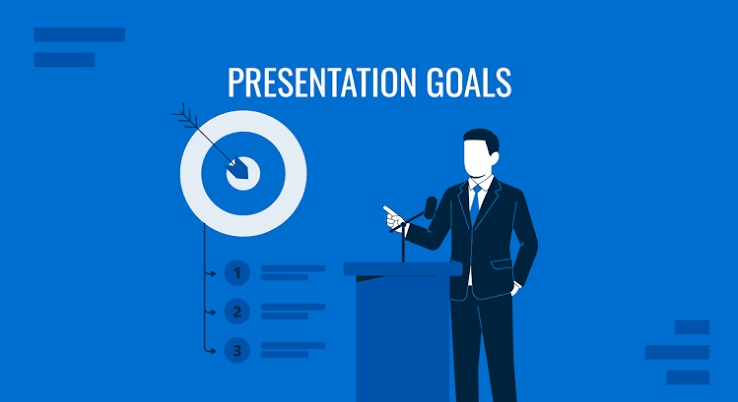
Before opening any AI tool, answer these three questions:
Who is the audience?
A presentation for investors requires different content than one for college professors or clients. AI produces better output when you specify the audience precisely.
What is the single key message?
Every good presentation has one central point. Write it in one sentence: “This presentation will convince [audience] to [action] by showing [evidence].”
How long is the presentation?
10-minute presentation needs approximately 8–12 slides. 20-minute presentation needs 15–20 slides. Knowing this before generating prevents over- or under-producing content.
Step 2 — Choose the Right AI Tool
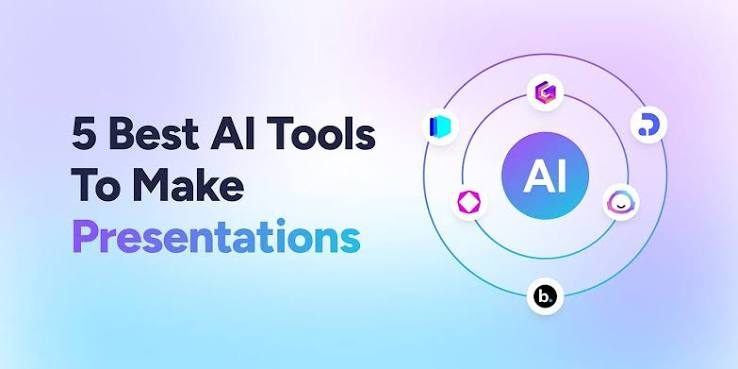
Different tools excel at different presentation types:
For fastest generation (any topic): Gamma — type topic, click generate, complete deck in 90 seconds
For PowerPoint output (.pptx file): Canva — free PPT export, AI-assisted design
For investor pitch decks: Pitch or Tome — startup-specific templates and analytics
For data-heavy presentations: Visme — best charts and infographics
For Microsoft 365 users: Copilot in PowerPoint — native, no export needed
For Google Workspace users: SlidesAI — works inside Google Slides
Step 3 — Write an Effective AI Prompt
The quality of your AI-generated presentation depends almost entirely on your prompt. Here is a framework that consistently produces better results:
Complete prompt template:
“Create a [number]-slide presentation about [topic] for [specific audience]. The goal is to [specific outcome]. Include: [list key sections or points]. Use a [tone]. Add speaker notes for each slide.”
Example — Business presentation:
“Create a 12-slide presentation about our new HR software product for decision-makers at mid-size Indian companies (500–2000 employees). The goal is to convince them to request a demo. Include: current HR problems, our solution, key features, pricing overview, customer testimonials, and next steps. Use a professional but conversational tone. Add detailed speaker notes for each slide.”
Example — Academic presentation:
“Create a 10-slide presentation about climate change impact on Indian agriculture for a college seminar audience. Include: current data on temperature changes, effects on major crops, regional variations, adaptation strategies, and policy recommendations. Use an informative, evidence-based tone. Add speaker notes with additional data points.”
Example — Sales deck:
“Create an 8-slide sales presentation for a digital marketing agency targeting restaurant owners in Mumbai. The goal is to get them to sign a 3-month contract. Include: their current online visibility problem, our services, results from similar clients, pricing, and call to action. Use a confident, results-focused tone.”
Step 4 — Generate with Gamma (Fastest Method)

Gamma is the fastest way to get from prompt to complete presentation:
- Go to gamma.app → Sign up for free
- Click New → Generate with AI
- Choose Presentation
- Paste your complete prompt from Step 3
- Select number of slides
- Choose a visual theme
- Click Generate
- Wait 60–90 seconds — complete deck appears
Reviewing Gamma output:
- Click any slide to edit text directly
- Click any image to replace with a different image or AI-generated image
- Click Themes to change color scheme
- Click + between slides to add a new slide
- Click … on any slide to delete or duplicate
Export from Gamma:
- Share via link (free) — anyone can view in browser
- Export to PDF (free)
- Export to PowerPoint .pptx (Gamma Plus — $10/month)
Step 5 — Generate with Canva (Best Free PPT Export)
For users who need a free PowerPoint file:
- Go to canva.com → Sign up for free
- Search Presentation → click Create blank presentation
- Click Apps → Magic Design
- Paste your topic or content
- Canva generates a themed presentation
- Edit each slide — click to change text, images, colors
- Export: Share → Download → Microsoft PowerPoint (.pptx)
Alternative — Canva AI from scratch:
- Create blank presentation
- Click any text block → type
/for AI commands - Select Magic Write → describe what you want on this slide
- AI generates content for individual slides
Step 6 — Generate with ChatGPT + PowerPoint (Manual Method)
For users who want maximum control over content:
Part A — Generate outline with ChatGPT:
- Open chatgpt.com
- Prompt: “Create a detailed outline for a [number]-slide presentation about [topic] for [audience]. For each slide, provide: slide title, 3–4 bullet points of content, and speaker notes.”
- Copy the complete outline.
Part B — Generate content slide by slide:
For each slide in the outline:
“Write the full content for slide [number]: [slide title]. The audience is [audience]. Keep it concise — maximum 4 bullet points. Include a powerful opening sentence.”
Part C — Build in PowerPoint:
- Open PowerPoint
- Use AI outline as structure
- Paste ChatGPT content into each slide
- Use PowerPoint Designer (free with Microsoft 365) for automatic layout suggestions
- Add images from Unsplash or Bing Image Creator
Part D — Enhance with Copilot (if available):
If you have Microsoft 365 Copilot:
“Review this presentation and improve the clarity of slide [number]. Make the language more compelling for [audience].”
Step 7 — Generate with Google Slides + SlidesAI (Google Workspace)
For users inthe Google ecosystem:
- Install the SlidesAI add-on: slidesai.io → Add to Google Slides
- Open a new Google Slides presentation
- Extensions → SlidesAI → Generate Slides
- Paste your content or topic
- Select theme → click Generate
- Slides generated inside Google Slides
- Edit normally in Google Slides
- File → Download → Microsoft PowerPoint if PPT needed
Step 8 — Refine and Customize Your AI Presentation
AI generates a starting point — not a finished presentation. Here is how to refine it:
Replace placeholder content:
- Remove every generic statistic and replace with real data
- Add your actual company name, product, and specifics
- Include real case studies and examples — not AI-generated ones
Improve the design:
Colors: Match your brand colors — enter exact hex codes in design settings
Fonts: Replace default fonts with your brand fonts or professional alternatives from Google Fonts
Images: Replace AI placeholder images with real photos — use Unsplash for free professional photography
Logo: Add your organization logo to every slide header or footer
Reduce text:
AI generates too much text. Cut each slide to a maximum of 4 bullet points — move detail to speaker notes.
Add data visualizations:
Replace text-heavy data slides with charts:
- Paste data into ChatGPT → ask for chart recommendations
- Build chart in Excel or Google Sheets
- Screenshot or embed chart into presentation
Check flow:
Read through all slides sequentially — ensure narrative logic. Each slide should answer: “Why does the audience need to see this?”
Step 9 — Generate Images for Your Presentation
AI can generate custom images for your slides:
Bing Image Creator (Free — Best quality):
- Visit bing.com/images/create
- Describe the image you need for your slide
- Generate → download → insert into presentation
Example prompts for presentation images:
- “Professional Indian businesswoman presenting to team in modern office, photorealistic, warm lighting”
- “Clean infographic showing upward growth arrow, blue and white color scheme, minimal design”
- “Technology concept showing connected devices, dark background, blue glowing lines, futuristic”
Canva AI Image Generator (Free — Integrated):
Inside Canva presentation: Apps → AI Image Generator → describe image → generate → insert directly
Step 10 — Add Speaker Notes with AI
Speaker notes make presenting significantly easier — and AI generates them faster than writing manually:
In Gamma: Notes automatically generated — edit in notes panel below each slide
In PowerPoint with Copilot:
Select all slides → Copilot → “Add detailed speaker notes to every slide based on the content”
With ChatGPT:
“Write 2-minute speaker notes for a slide with this content: [paste slide text]. The audience is [audience]. Include: key talking point, supporting detail, transition to next slide.”
Step 11 — Present or Share Your AI Presentation
Option 1 — Present directly from browser (Gamma/Canva):
Click Present button → full-screen presentation in browser — no downloads needed
Option 2 — Share via link:
Generate shareable link → audience opens in browser on any device
Option 3 — Export and present from PowerPoint:
Download .pptx → open in PowerPoint → present normally
Advantage: Works offline, no internet dependency during presentation
Option 4 — Export to PDF:
Best for email distribution — recipient cannot accidentally edit slides
Complete Workflow Summary
| Step | Action | Tool | Time |
|---|---|---|---|
| 1 | Define goal and audience | Your thinking | 5 minutes |
| 2 | Write detailed prompt | Text editor | 5 minutes |
| 3 | Generate base presentation | Gamma or Canva | 2 minutes |
| 4 | Replace placeholder content | Manual | 15 minutes |
| 5 | Improve design | Canva/PowerPoint | 10 minutes |
| 6 | Generate custom images | Bing Image Creator | 10 minutes |
| 7 | Add speaker notes | ChatGPT | 5 minutes |
| 8 | Final review | Manual | 10 minutes |
| Total | Complete presentation | Multiple tools | ~60 minutes |
Compare to traditional method: 4–8 hours for the same quality output.
AI Presentation Tips by Presentation Type
Academic Presentations
- Use Perplexity AI to research facts before prompting
- Cite sources — AI generates plausible-sounding but sometimes incorrect citations
- Keep design minimal — academic audiences focus on content
- Gamma or Google Slides + SlidesAI works well
Business/Client Presentations
- Start with your real data — build AI content around actual numbers
- Use Pitch for collaborative editing with team
- Brand colors and logo on every slide
- Export to PPT for client — not everyone can open browser links
Investor Pitch Decks
- Use Tome or Pitch for startup-specific templates
- Standard pitch structure: Problem → Solution → Market → Business Model → Traction → Team → Ask
- Replace every AI-generated metric with real traction data
- Keep to 10–12 slides maximum
Sales Presentations
- Focus on client’s problem — customize for each client
- Use ChatGPT to generate client-specific pain point sections
- Include real case studies — not AI-generated ones
- Call to action on final slide must be specific and clear
Common Mistakes When Making Presentations with AI
Mistake 1 — Using AI output without editing
AI generates generic content. Presenting unedited AI slides shows immediately — specific, real details always outperform generic AI language.
Mistake 2 — Too much text on slides
AI generates more text than slides should contain. Cut ruthlessly — maximum 4 bullet points per slide, move detail to speaker notes.
Mistake 3 — Not fact-checking
AI confidently generates incorrect statistics. Verify every number, claim, and citation before presenting to any audience.
Mistake 4 — Ignoring design consistency
When combining multiple AI tools, design can become inconsistent. Pick one primary tool and stay within it for consistent fonts, colors, and spacing.
Mistake 5 — Generic images
AI-selected stock images look generic. Replace with real photos from Unsplash or custom AI-generated images that match your specific content.
Mistake 6 — Not rehearsing
AI makes creating the deck faster — but does not replace rehearsal. Practice with speaker notes before presenting to any important audience.
Benefits
Time-saving: Create the first draft much faster.
Beginner-friendly: You don’t need advanced design skills.
Professional design: Automatic layouts can make slides look polished.
Easy editing: You can regenerate or improve individual slides.
Content assistance: Useful when you know the topic but don’t know what to put on each slide.
Best Use
AI presentation tools are especially useful for students, teachers, marketers, business owners, freelancers, and content creators who regularly need to create presentations but want to spend less time on manual design.
Frequently Asked Questions
Which AI tool makes the best presentations in 2026?
Gamma produces the fastest, most visually impressive AI presentations — 90 seconds from prompt to complete deck. For PowerPoint output specifically, Canva’s free .pptx export is the strongest option. For Microsoft 365 users, Copilot in PowerPoint is the most seamless experience.
Can I make a presentation with AI completely free?
Yes. Gamma’s free plan generates complete presentations. Canva free exports to PowerPoint. ChatGPT free generates content. Bing Image Creator generates free images. The entire workflow from Step 1 to Step 11 is achievable at zero cost.
How long does it take to make an AI presentation?
With AI tools, a professional 10–12 slide presentation takes approximately 60 minutes — from defining your goal to final review. Without AI, the same presentation typically takes 4–8 hours.
Is AI-generated presentation content original?
AI generates new content combinations — it is not copied from specific sources. However, AI language has recognizable patterns. Always edit AI output to add your specific voice, real data, and personal insight before presenting.
Can I make a Hindi language presentation with AI?
Yes — Google Gemini and Canva both support Hindi (Devanagari) well. For Gamma, type your prompt in Hindi — output quality varies but improves with specific prompts. Google Slides with SlidesAI handles Hindi through the Google Slides Devanagari font support.
Conclusion
Making a presentation with AI in 2026 is genuinely fast — and genuinely good when done right. The tools have matured to the point where the AI handles the parts of presentation-making that consume the most time: structure, design, and first-draft content.
Your job is the parts that only you can do — the real data, the specific examples, the personal insight, the accurate facts, and the knowledge of your specific audience that makes a presentation actually land.
Start with Gamma for speed — type your topic, generate, and you have a working deck in 90 seconds. Refine from there. Add your real content, check every fact, reduce the text, and you have a professional presentation ready in under an hour.