A presentation can have great content and still fail to land — because design matters. Poorly designed slides distract, confuse, and undermine the credibility of even the strongest ideas. On the flip side, a well-designed presentation makes information easier to absorb, looks more professional, and leaves a lasting impression.
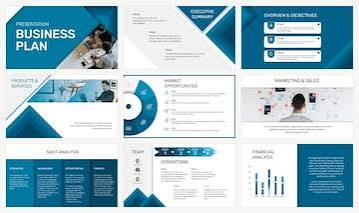
The challenge has always been that great presentation design requires either expensive software, design skills most people do not have, or both. In 2026, free AI tools have changed this completely. Whether you need the right color palette, a professional layout, beautiful typography, or custom visuals — AI handles the design decisions automatically so you can focus on your content.
This guide covers the best free AI tools specifically for presentation design in 2026 — not just slide generators, but tools that make your presentations look genuinely beautiful.
What Makes Presentation Design Different from Content
Most people confuse presentation content with presentation design. They are separate disciplines:
Content — What you say. The ideas, data, narrative, and arguments in your slides.
Design — How it looks. The visual hierarchy, typography, color scheme, spacing, imagery, and layout that determine whether your content is easy to understand and visually compelling.
AI tools for presentation content generation are widely covered. This guide focuses specifically on the design layer — the tools that make slides look professional, consistent, and visually impressive.
Good presentation design achieves five things:
- Visual hierarchy — guides the viewer’s eye to what matters most
- Consistency — same fonts, colors, and spacing across every slide
- Readability — text and visuals that are easy to process quickly
- Brand alignment — colors and fonts that match your identity
- Visual interest — enough variety to maintain attention without creating distraction
Best Free AI Tools for Presentation Design in 2026
1. Canva (Free Plan) — Best Overall Design Tool
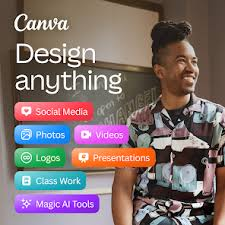
Canva is the world’s most popular free design tool — and for presentation design specifically, nothing on this list matches its combination of AI design features, template quality, and ease of use.
AI design features on free plan:
- Magic Design — upload your content or describe your topic and Canva generates a complete themed presentation with matching colors, fonts, and layouts
- Background Remover — removes backgrounds from images instantly for cleaner slide visuals
- Magic Eraser — removes unwanted objects from photos used in slides
- Color Palette Generator — generates harmonious color schemes from any uploaded image
- Font Pairing Suggestions — AI recommends complementary font combinations
- AI Image Generation — creates custom visuals from text prompts directly inside slides
Design-specific strengths:
- 3,000+ professionally designed presentation templates
- Every template built around proven design principles — visual hierarchy, color theory, typography
- Brand Kit — maintain consistent colors, fonts, and logos across all slides (limited on free)
- One-click design resizing for different presentation formats
- Real-time design suggestions as you edit
How to use for design:
- Go to canva.com → New design → Presentation
- Browse templates by style — Minimal, Bold, Corporate, Creative
- Select template → customize content
- Use Magic Design to regenerate layouts if needed
- Export as PDF or present directly in browser
Best for: Anyone who wants the widest template selection and most design control — from complete beginners to experienced creators who want AI to accelerate their workflow.
2. Gamma — Best AI-Generated Design
Gamma does not just generate content — it applies sophisticated design systems automatically. Every presentation Gamma produces follows consistent design principles including visual hierarchy, spacing rhythm, and color harmony.
AI design features:
- Automatic theme application — generates complete visual identity (colors, fonts, spacing) from a single prompt
- Smart image placement — AI chooses where visuals go based on content type
- Layout variation — generates multiple layout options for each slide type
- Dark and light theme toggle — switches entire presentation aesthetic instantly
- Custom color palette input — match your brand colors in generated design
- Template refinement — regenerate design while keeping content
Design-specific strengths:
- Modern card-based layout system that looks fresh compared to traditional slide decks
- Consistent visual rhythm across all slides automatically
- Smooth transitions built into design
- Embedded visual content — AI adds relevant images without manual searching
Free plan design limits:
- 400 AI credits on signup
- Full design regeneration uses credits
- Manual editing unlimited after generation
- Gamma watermark on free shared presentations
Best for: Users who want AI to handle the entire design system — color, typography, layout, and imagery — from a single prompt without any manual design decisions.
3. Adobe Express (Free Plan) — Best for Visual Design Quality
Adobe Express is Adobe’s free, browser-based design tool — and it brings Adobe’s design DNA to presentation creation. The template quality and visual output are noticeably more polished than most free alternatives.
AI design features on free plan:
- Generative Fill — AI extends, replaces, or adds to images on slides
- Background Remover — one-click background removal from any photo
- Text to Image — generates custom visuals from text prompts
- Color Theme Generator — creates branded color palettes from uploaded images or brand colors
- Quick Actions — AI-powered design shortcuts for common tasks
Design-specific strengths:
- Adobe’s professionally designed template library — significantly higher design quality than most free tools
- Access to Adobe Fonts — thousands of professional typefaces
- Consistent Adobe design standards across all templates
- Integration with Adobe Stock for premium imagery (some free)
Free plan:
- Limited storage (2GB)
- Access to thousands of free templates
- Core AI features available
- Adobe Express branding on some exports
Best for: Users who want Adobe-quality design standards without paying for the full Creative Cloud suite — particularly those who already work with Adobe tools.
4. Beautiful.ai (Trial) — Best for Intelligent Layout Design
Beautiful.ai is built around a core insight: most bad presentation design comes from manually adjusting layouts. Its Smart Slides technology eliminates layout decisions entirely — the AI handles all spacing, sizing, and arrangement as you add content.
AI design features:
- Smart Slides — layouts automatically rebalance as content changes — text boxes resize, images reposition, spacing adjusts
- DesignerBot — AI generates complete visual presentations from prompts
- Theme Engine — generates consistent visual identity across entire presentation
- Smart templates — layout suggestions based on content type (timeline, comparison, list, chart)
- Color harmony — automatic color balance across slides
Design-specific strengths:
- Eliminates the most common design problem — misaligned, unbalanced slides
- Every slide maintains professional proportions regardless of how much content is added
- Consistent design system applied automatically across all slides
Free access:
- Trial available — limited slides and features
- DesignerBot requires paid plan (~$12/month)
- Core Smart Slide design functionality available in trial
Best for: Users whose biggest design challenge is layout consistency — slides that look professionally arranged without manual adjustment.
5. Visme (Free Tier) — Best for Designed Data Visualization
Visme specializes in making data beautiful — charts, infographics, and statistics presented with strong visual design. For presentations where data is central, Visme’s design capabilities are unmatched among free tools.
AI design features:
- AI Design Generator — creates complete presentations with design-appropriate layouts for data
- Smart Charts — automatically selects the right chart type and visual style for your data
- Color schemes — generates branded color palettes applied consistently
- Icon and illustration library — professionally designed visual elements
- Animation designer — adds visual motion to data reveals
Design-specific strengths:
- Data visualization design is core competency — charts look significantly better than Excel or Google Slides defaults
- Infographic-style layouts for data-heavy slides
- Consistent brand design across data and text slides
- Interactive design elements for digital presentations
Free plan:
- 5 projects
- Basic templates and design elements
- Visme branding on exports
- Core AI features available
Best for: Presentations where data, charts, and statistics need to look as good as the text slides — reports, financial presentations, and research-heavy decks.
6. Pitch (Free Plan) — Best for Modern Minimal Design
Pitch has built its reputation on template quality — its design team produces presentation templates that consistently look more modern and sophisticated than what competitors offer.
AI design features:
- AI layout suggestions based on content type
- Smart image suggestions from Unsplash integration
- Consistent design system across all template slides
- Color palette customization with real-time preview
Design-specific strengths:
- Template library designed by professional designers — quality noticeably higher than most competitors
- Minimal, modern aesthetic that works for startups, creative agencies, and professional services
- Consistent typographic hierarchy across all template slides
- Real-time collaboration preserves design consistency when multiple editors are involved
Free plan:
- Unlimited presentations
- Full template library access
- Basic AI features
- PDF and PowerPoint export
Best for: Users who want modern, minimal design without any AI design work — Pitch templates are strong enough to use as-is with content substitution only.
7. Microsoft Designer (Free) — Best AI Image Creation for Slides
Microsoft Designer is a free AI design tool from Microsoft that excels at generating custom visual content — images, banners, and graphics that can be used directly in presentations.
AI design features:
- Text-to-image generation — create custom slide visuals from text prompts
- Presentation graphic generation — social-media-style graphics suitable for slide backgrounds and headers
- Layout suggestions for generated content
- Style consistency across multiple generated images
Design-specific use case:
Microsoft Designer is not a full presentation tool — it is best used alongside PowerPoint or Google Slides to generate custom visual content:
- Generate custom background images for title slides
- Create branded section divider graphics
- Generate custom icons and illustrations
- Create data visualization backgrounds
Free plan: Fully free with Microsoft account. Daily generation limits apply but reset every 24 hours.
Best for: Users who want custom-generated visual content for slides — backgrounds, graphics, and illustrations that make presentations look uniquely designed rather than template-based.
8. Coolors (Free) — Best for Presentation Color Design
Coolors is the most popular free color palette generator available — essential for anyone who wants to design a presentation color scheme that looks professional and harmonious.
AI design features:
- Generate random harmonious color palettes instantly
- Extract color palettes from uploaded images (match your brand photography)
- Color accessibility checker — ensures text is readable against background colors
- Gradient generator for modern slide backgrounds
- Export palettes in hex codes ready to enter into any presentation tool
How to use for presentations:
- Go to coolors.co
- Press spacebar to generate palettes until you find one that fits
- Lock colors you like → continue generating for remaining colors
- Export hex codes
- Enter colors into Canva, Google Slides, or PowerPoint brand settings
Free plan: Core palette generation completely free. Premium features (saves, collaboration) require paid plan.
Best for: Anyone who struggles with choosing professional color combinations for presentations — generates and refines palettes in seconds.
9. Google Fonts (Free) — Best for Presentation Typography
Typography is one of the most impactful design decisions in any presentation — and Google Fonts provides access to 1,500+ professional typefaces completely free.
How Google Fonts improves presentation design:
- Choose professional font pairs instead of defaulting to Arial or Calibri
- Filter by category — Serif, Sans-serif, Display, Handwriting, Monospace
- Preview fonts at different weights and sizes before choosing
- Pair tool — Google Fonts suggests complementary font combinations
Best free font pairs for presentations in 2026:
| Heading Font | Body Font | Style |
|---|---|---|
| Playfair Display | Source Sans Pro | Elegant/Editorial |
| Montserrat | Open Sans | Modern/Corporate |
| Raleway | Lato | Clean/Professional |
| Oswald | PT Sans | Bold/Impact |
| Merriweather | Roboto | Readable/Balanced |
How to use in presentations:
- Google Slides: Google Fonts are available directly in the font selector
- Canva: Many Google Fonts available in free plan
- PowerPoint: Download fonts from fonts.google.com → install on Windows → available in PowerPoint
Free plan: All 1,500+ fonts completely free forever.
Best for: Anyone who wants to immediately elevate presentation typography beyond default system fonts at zero cost.
10. Unsplash (Free) — Best for Presentation Photography
High-quality photography transforms presentation design — and Unsplash provides over 3 million professional photographs completely free for any use including commercial presentations.
Design-specific strengths:
- 3 million+ high-resolution professional photographs
- Completely free — no attribution required for most uses
- Searchable by subject, color, and mood
- API integration — many presentation tools (Canva, Pitch) pull Unsplash images directly
- Collections — curated photo sets for specific themes
How to use for presentation design:
- Full-bleed background images for title slides
- Section divider slides with atmospheric photography
- Supporting visuals for conceptual points
- People photography for human-interest slides
Color-matched search tip: Search Unsplash for images that match your presentation’s color palette — a warm amber palette pairs with golden hour photography, a cool blue palette with architectural or technology imagery.
Free plan: Completely free. 10 downloads per month on Unsplash+ for exclusive content — regular library unlimited.
Best for: Transforming text-heavy presentations with professional photography that matches your design color scheme and content theme.
Complete Presentation Design Toolkit — Free
Here is how to combine these free tools into a complete design workflow:
Step 1 — Choose Color Palette
Tool: Coolors.co
Generate 3–5 color palette options → choose one that matches your brand or topic tone → note hex codes
Step 2 — Select Typography
Tool: Google Fonts
Choose heading and body font pair → preview at presentation sizes → note font names
Step 3 — Generate Base Design
Tool: Canva or Gamma
Enter color palette and font preferences → generate presentation design → review layout and spacing
Step 4 — Create Custom Visuals
Tool: Microsoft Designer or Canva AI
Generate custom images for title slide, section dividers, and key concept slides → match visual style to color palette
Step 5 — Source Photography
Tool: Unsplash
Search for photography matching your palette and topic → download high-resolution images → add to slides
Step 6 — Refine Data Slides
Tool: Visme
Import or recreate data slides with professional chart design → export as images → insert into main presentation
Step 7 — Final Design Review
Check these design elements before sharing:
- ✅ Consistent fonts across all slides
- ✅ Color palette applied consistently
- ✅ Sufficient contrast between text and background
- ✅ Images properly sized — no stretching or pixelation
- ✅ Consistent spacing and alignment
- ✅ Visual hierarchy clear on every slide
Presentation Design Principles AI Tools Apply Automatically
Understanding what AI design tools are doing helps you get better results from them:
60-30-10 Color Rule
60% dominant color (usually background), 30% secondary color (headers, accents), 10% accent color (call-to-action elements, highlights). AI tools like Canva and Gamma apply this automatically.
Visual Hierarchy
The most important element on each slide should be visually largest, boldest, or highest contrast. AI layout tools apply size and weight hierarchy to guide the viewer’s eye automatically.
Whitespace
Empty space is a design element — not wasted space. AI tools with Smart Slide technology maintain appropriate whitespace even as content changes, preventing the cluttered look that plagues manually designed slides.
Font Size Hierarchy
Title: 36–44pt minimum. Subtitle: 24–28pt. Body: 18–22pt minimum. Never below 18pt for anything in a projected presentation. AI tools set these scales automatically based on slide content type.
Image-Text Balance
Full slides of text are harder to process than text paired with a supporting visual. AI presentation tools automatically suggest image placement to break up text-heavy slides.
Design Tips for Specific Presentation Types
Corporate / Business Presentations
- Use minimal color palette — 2 colors maximum plus white and black
- Canva’s Corporate templates or Pitch’s minimal templates
- Stick to sans-serif fonts — Montserrat, Open Sans, or Lato
- Photography: professional, clean, people-focused from Unsplash
Creative / Portfolio Presentations
- Use Gamma for bold, modern design system
- Full-bleed images on section slides
- Display fonts for headers — Playfair Display, Raleway
- Coolors for unique, on-brand color palette
Educational / Academic Presentations
- High readability priority — larger fonts, strong contrast
- Google Slides with Google Fonts for accessibility
- Visme for data and chart slides
- Unsplash for concept-supporting photography
Startup / Pitch Deck Design
- Pitch templates — specifically designed for startup aesthetics
- Dark backgrounds for title and section slides — light for content
- Single accent color for call-to-action elements
- Microsoft Designer for custom product mockup backgrounds
Frequently Asked Questions
Which free AI tool makes the best-designed presentations?
Canva produces the strongest overall design output on a free plan — combining AI layout generation, the largest template library, custom color palettes, and AI image generation in one tool. For AI-automated design with no manual decisions required, Gamma generates visually consistent presentations fastest.
Can I create a professional presentation design without any design skills?
Yes. Canva’s Magic Design, Gamma’s AI generation, and Beautiful.ai’s Smart Slides all produce professional-quality designs automatically. Select a template, enter your content, and the AI handles all design decisions.
Which free tool is best for presentation color design?
Coolors.co is the best dedicated free tool for generating presentation color palettes. Inside presentation tools, Canva’s color palette generator (extract from image) is the most practical — generate a palette from your brand photography or a reference image.
How do I make my slides look less template-like?
Three changes make the biggest difference: custom photography from Unsplash matching your color scheme, a unique font pair from Google Fonts instead of default system fonts, and custom AI-generated visuals from Microsoft Designer or Canva for key slides.
Do these design tools work for Hindi language presentations?
Canva supports Devanagari script and includes Hindi fonts in its library. Google Fonts includes several high-quality Devanagari typefaces including Noto Sans Devanagari and Poppins (Latin with Hindi support). Microsoft Designer and Gamma have limited Hindi typography support.
Conclusion
Great presentation design in 2026 does not require a graphic designer, expensive software, or years of design training. The combination of free AI tools available today handles every design decision — color, typography, layout, imagery, and data visualization — automatically and at zero cost.
Canva is the essential starting point — its free plan covers the majority of presentation design needs with AI assistance throughout. Gamma is the best alternative when you want AI to own the entire design system from a single prompt. Coolors and Google Fonts add professional color and typography in minutes. Unsplash transforms visual quality with professional photography.
Use all five together and your presentations will look like they were designed by a professional — because in 2026, they effectively were.