
Whether you are making YouTube videos, Instagram Reels, short films, or corporate presentations, the tool you edit with makes a real difference. The best video editing tool is not always the most expensive one. It is the one that fits your skill level, your device, and what you are actually trying to create.
In this guide, we break down the top video editing tools available right now, who they are best suited for, and what to watch out for before you commit to one.
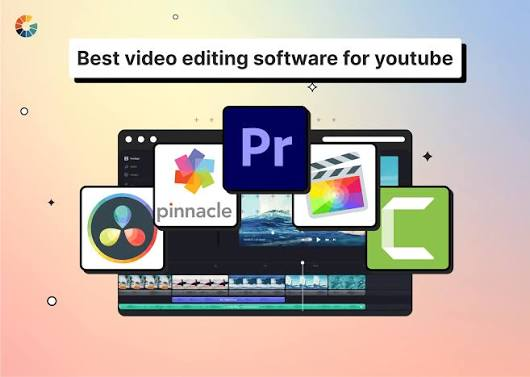
Video content continues to dominate the internet in 2026, making high-quality editing more important than ever. Whether you’re a YouTuber, content creator, marketer, filmmaker, or business owner, choosing the best video editing tool can significantly improve your workflow, creativity, and final results.
What is the Best Video Editing Tool 2026? Modern video editing software now includes powerful AI features such as automatic cutting, background removal, voice enhancement, color correction, subtitle generation, and even text-to-video capabilities. These tools help creators produce professional-quality videos faster and with less effort than traditional editing methods.
In this guide, we’ll explore the best video editing tools available in 2026, comparing their features, pricing, ease of use, and ideal use cases. Whether you’re looking for a beginner-friendly editor or a professional-grade solution, you’ll find the perfect video editing software to match your needs and budget.
Why Choosing the Right Tool Matters
Most people pick a video editor based on what they see someone else using. That is not always the smartest move. A filmmaker working on a feature film does not need the same tools as someone cutting together a five-minute product review.
Using the wrong software can slow you down, overwhelm you with features you do not need, or limit you with features you do need. The goal here is to match the right tool to the right person.
The Top Video Editing Tools Compared: Best Video Editing Tool 2026
1. DaVinci Resolve — Best Free Professional Editor
DaVinci Resolve is one of the most powerful video editing tools available, and the free version is genuinely feature-rich. Professional colorists and Hollywood editors use it, but it is also accessible enough for serious beginners.
DaVinci Resolve is widely regarded as the best free professional video editing software available in 2026. Developed by Blackmagic Design, it combines advanced video editing, color correction, visual effects, motion graphics, and audio post-production into a single powerful platform. Unlike many free editors that limit features or add watermarks, DaVinci Resolve offers a comprehensive professional-grade toolkit at no cost.
One of the software’s biggest strengths is its industry-leading color grading capabilities. Filmmakers, YouTubers, and video professionals use DaVinci Resolve to achieve cinematic color correction and create visually stunning content. The integrated Fusion page allows users to create complex visual effects and motion graphics, while the Fairlight page provides professional audio editing and mixing tools.
DaVinci Resolve also supports 4K and higher-resolution projects, multi-camera editing, advanced transitions, AI-powered tools, and collaboration features for team-based workflows. Recent AI enhancements help automate tasks such as object selection, voice isolation, scene detection, and subtitle generation, saving creators valuable editing time.
Although the software has a steeper learning curve than beginner-focused editors, its extensive features make it an excellent choice for users who want professional results without paying expensive subscription fees. For content creators, filmmakers, and businesses seeking a powerful free editing solution, DaVinci Resolve remains one of the top video editing tools available today.
What makes it stand out: The color grading tools in DaVinci Resolve are industry-leading. If you care about how your footage looks and feels, no other free tool comes close. It also includes Fairlight, a full audio post-production suite, built right in.
Practical example: Say you shoot a travel vlog on your phone and the footage looks washed out. DaVinci Resolve lets you use Color Wheels, Curves, and even automatic scene detection to make every clip look consistent without needing any third-party plugins.
Pros: The free
- The EE version is extremely capable
- Professional-grade color correction
- Supports multi-cam editing
- No watermark on exports
- Available on Windows, Mac, and Linux
Cons:
- Steep learning curve for total beginners
- Requires a reasonably powerful computer
- Some advanced features are locked behind the paid Studio version (~$295 one-time)
Best for: Filmmakers, content creators serious about quality, and anyone who wants to grow their skills without paying upfront.
2. Adobe Premiere Pro — Best for Professionals and Teams
Adobe Premiere Pro is the industry standard in broadcast, film, and social media production. It integrates deeply with other Adobe tools like After Effects, Audition, and Photoshop — making it a complete ecosystem for video production.
Adobe Premiere Pro remains one of the most popular video editing tools for professional creators, production studios, marketing agencies, and collaborative teams in 2026. As part of the Adobe Creative Cloud ecosystem, it offers a powerful editing environment that integrates seamlessly with applications such as After Effects, Photoshop, Audition, and Illustrator, making it a complete solution for professional content production.
One of Premiere Pro’s greatest advantages is its flexibility. The software supports everything from short-form social media videos and YouTube content to feature films, documentaries, commercials, and corporate productions. Editors can work with high-resolution footage, multi-camera projects, HDR content, and advanced color grading tools while maintaining a smooth and efficient workflow.
Adobe has also expanded its AI-powered features through Adobe Sensei and generative AI technologies. These tools help automate repetitive editing tasks, generate captions, improve audio quality, extend clips, remove unwanted objects, and accelerate content creation. Such features allow creators and teams to produce high-quality videos faster without sacrificing creative control.
For organizations and production teams, Premiere Pro offers robust collaboration capabilities, including shared projects, cloud-based workflows, version control, and seamless asset management across multiple users. This makes it especially valuable for businesses managing large volumes of video content.
While Premiere Pro requires a paid subscription and may feel complex for beginners, its professional-grade features, industry-standard workflows, and extensive integration with the Adobe ecosystem make it one of the best video editing solutions for professionals and teams looking to create high-quality video content at scale.
What makes it stand out: The timeline is flexible and powerful. You can edit multi-cam footage, mix audio tracks, add dynamic graphics, and publish directly to platforms like YouTube and Facebook. If you are working in a team, Premiere’s collaboration features are hard to beat.
Practical example: A marketing agency handling video ads for multiple clients can use Premiere’s shared project features so that two editors work on the same project simultaneously without overwriting each other’s changes.
Pros:
- Seamless integration with Adobe Creative Cloud
- Huge library of tutorials and community support
- Strong timeline and multi-format support
- Direct export to major platforms
Cons:
- Subscription-based — costs around ₹1,675/month (or ~$55/month) for the full Creative Cloud.
- Can be slow on older machines
- Overkill for casual creators
Best for: Professional editors, agencies, and YouTubers who already use Adobe tools.
3. Final Cut Pro — Best for Mac Users
If you are on a Mac and serious about video editing, Final Cut Pro is hard to ignore. It is optimized for Apple hardware, meaning it runs smoothly even on MacBook Air models. The magnetic timeline is unique and makes it faster to assemble footage once you get used to it.
Final Cut Pro is one of the best video editing tools available for Mac users in 2026. Developed by Apple, the software is optimized specifically for macOS and Apple Silicon chips, delivering exceptional performance, fast rendering speeds, and a smooth editing experience. Whether you’re a YouTuber, filmmaker, content creator, or business professional, Final Cut Pro provides powerful editing capabilities in a user-friendly package.
One of the biggest advantages of Final Cut Pro is its performance optimization. The software takes full advantage of Apple’s hardware, allowing editors to work with 4K, 6K, and even 8K footage efficiently. Features such as the Magnetic Timeline help streamline editing workflows by automatically organizing clips and reducing the complexity often associated with traditional timeline editing.
Final Cut Pro also includes professional-grade tools for color correction, motion graphics, audio enhancement, multicam editing, and HDR video production. Built-in effects, transitions, and title templates enable creators to produce polished videos without relying heavily on third-party plugins. Recent AI-powered features further improve workflow efficiency through smart scene analysis, automatic captioning, and enhanced media organization.
Unlike many competing professional editors that require monthly subscriptions, Final Cut Pro is available through a one-time purchase, making it a cost-effective long-term investment for Mac users. While it is limited to the Apple ecosystem and unavailable on Windows, its combination of speed, reliability, and professional features makes Final Cut Pro an excellent choice for creators who want high-performance video editing software designed specifically for Mac.
What makes it stand out: Final Cut Pro handles large files and multi-cam projects very well on Mac. It is a one-time purchase of $299.99, which becomes cost-effective over time compared to subscriptions.
Practical example: A wedding videographer who shoots 4K footage across multiple cameras can use Final Cut’s multicam sync feature to automatically match all footage by audio waveform — cutting the syncing process from hours to minutes.
Pros:
- Extremely fast on Mac hardware
- One-time purchase
- Great for 4K and 360° footage
- Easy to learn compared to Premiere
Cons:
- Mac only
- Not ideal for collaboration across operating systems
- No Windows or Linux version
Best for: Mac-based creators, wedding and event videographers, and solo YouTubers.
4. CapCut — Best Free Tool for Short-Form Content
CapCut is free, simple, and built for creators making content for TikTok, Instagram Reels, and YouTube Shorts. It started as a mobile app but now has a solid desktop version too.
What makes it stand out: CapCut makes it very easy to add text animations, trending transitions, captions, and background music. For short-form creators, it is one of the fastest workflows available.
Practical example: A fitness creator wants to post a 60-second transformation video with auto-generated subtitles, a trending audio track, and a few dynamic text overlays. In CapCut, this whole project can be done in under 30 minutes.
Pros:
- 100% free (desktop and mobile)
- Templates for quick editing
- Auto-captions with decent accuracy
- Easy to use for beginners
Cons:
- Limited for long-form content
- Not suitable for professional film work
- Fewer color grading options
- Export resolution limits in some versions
Best for: TikTok/Instagram creators, beginners, mobile-first editors.
5. iMovie — Best for Apple Beginners
iMovie comes pre-installed on every Mac and iPhone. It is the simplest video editor on this list and is perfect for someone who has never edited a video before.
What makes it stand out: The interface is clean, drag-and-drop, and there are zero settings to configure. You can cut a video, add music, apply a theme, and share it in about 20 minutes with zero prior experience.
Practical example: A teacher wants to create a short explainer video for their students. They record on iPhone, open iMovie, trim the clips, add a title slide, and export — all in one sitting without needing any tutorial.
Pros:
- Completely free
- Very beginner-friendly
- Works well with iPhone footage
- Clean, no-clutter interface
Cons:
- Very limited features for anything complex
- Mac and iOS only
- No professional color tools
- Cannot handle multi-cam or advanced audio
Best for: Absolute beginners, students, casual home video editors.
6. Filmora — Best Budget-Friendly Option for Beginners
Wondershare Filmora sits between CapCut and Premiere in terms of complexity. It has a clean interface, solid features, and a growing library of effects and templates. It is paid, but more affordable than Adobe.
What makes it stand out: Filmora is designed to be approachable. The effects panel is drag-and-drop, the timeline is familiar to anyone who has used basic editing software, and there are plenty of export presets for different platforms.
Practical example: A food blogger wants to make professional-looking recipe videos but does not want to spend months learning Premiere Pro. Filmora lets them add motion graphics, color filters, and smooth transitions without a steep learning curve.
Pros:
- Simple interface
- Good range of built-in effects and transitions
- Available on Windows and Mac
- Regular updates with new features
Cons:
- Free version adds a watermark
- Paid plans can get expensive (~$49.99/year)
- Not used by professional studios
- Limited advanced color tools
Best for: Bloggers, small business owners, students wanting more than iMovie.
Quick Comparison Table
| Tool | Price | Platform | Best For | Difficulty |
|---|---|---|---|---|
| DaVinci Resolve | Free / $295 one-time | Win/Mac/Linux | Professional quality on budget | Intermediate |
| Adobe Premiere Pro | ~$55/month | Win/Mac | Professionals, agencies | Advanced |
| Final Cut Pro | $299.99 one-time | Mac only | Mac-based professionals | Intermediate |
| CapCut | Free | Win/Mac/Mobile | Short-form content | Beginner |
| iMovie | Free | Mac/iOS only | Absolute beginners | Beginner |
| Filmora | Free (watermark) / Paid | Win/Mac | Beginners wanting more control | Beginner–Intermediate |
How to Pick the Right One for You
Here is a simple way to think through your decision:
If you are just starting, go with CapCut (if you are making short videos) or iMovie (if you are on a Mac). Do not pay for anything yet.
If you want to grow your skills, start with DaVinci Resolve’s free version. It has a learning curve, but the skills you build are transferable to any professional environment.
If you are on a Mac and want speed, Final Cut Pro is worth the one-time cost if you are editing regularly.
If you work with a team or already use Adobe tools, Premiere Pro is the natural choice despite its subscription model.
If you are a small creator on a budget, Filmora is a fair middle ground that gives you more than free tools without overwhelming complexity.
Things to Check Before You Download
Before committing to any editor, run through this quick checklist:
System requirements: Some editors — especially DaVinci Resolve and Premiere Pro — need a dedicated GPU and at least 16GB of RAM to run smoothly. Check your computer specs first.
Export formats: Make sure the editor exports in the format you need (MP4, MOV, ProRes, etc.) at the resolution you want (1080p, 4K).
Trial availability: Most paid tools offer a free trial. Use it. Export a real project before paying.
Learning resources: The best tool is the one you can actually figure out. Check if there are good YouTube tutorials or documentation for your shortlisted options.
FAQs
Q: What is the best free video editing tool?
For professional-level output, DaVinci Resolve’s free version is unmatched. For short-form social content, CapCut is the easiest and most capable free option.
Q: Is Adobe Premiere Pro worth the cost?
If you are editing professionally or already use other Adobe Creative Cloud apps, yes. The integration between Premiere, After Effects, and Audition alone saves hours on a complex project. For a casual creator, it is more than you need.
Q: Can I use a video editor on my phone?
Yes. CapCut and iMovie (iOS) both work well on mobile. CapCut, in particular, has nearly identical features between its mobile and desktop versions.
Q: What do most YouTubers use?
It varies widely. Beginner and mid-level YouTubers often use CapCut, Filmora, or DaVinci Resolve. Larger channels and professional setups tend to use Premiere Pro or Final Cut Pro.
Q: Is DaVinci Resolve hard to learn?
It has more depth than most beginner tools, but the cut page (a simplified editing workspace inside DaVinci) makes it easier to get started. Most people can learn basic cuts, transitions, and exports within a week of regular practice.
Q: Does the video editing tool affect quality?
Indirectly, yes. The tool does not change the resolution of your source footage, but it affects how well you can color grade, stabilize, and mix audio — all of which directly affect how professional the final video looks.
Q: What is the best tool for editing YouTube Shorts?
CapCut is built for exactly this kind of content. Its vertical templates, auto-captions, and trending effects make it ideal for quick, attention-grabbing short-form content.
Conclsion
There is no single best video editing tool for everyone. The right choice depends on what you create, how often you edit, what device you use, and how much you are willing to spend.
If you are starting fresh, DaVinci Resolve or CapCut are both excellent zero-cost starting points. If you are a growing creator who wants to invest in a long-term workflow, Final Cut Pro (for Mac) or Adobe Premiere Pro (for cross-platform professionals) is worth serious consideration.
The best strategy: pick one, stick with it long enough to actually learn it, and upgrade only when you hit a genuine limitation. Hopping between tools is one of the most common reasons creators stay stuck at a beginner level.

