
The MacBook Air M1 is still one of the best laptops Apple has made — fast, silent, and genuinely great for everyday use. But if you’re trying to access geo-blocked content, stay private on public Wi-Fi, or get around regional restrictions, you’ll want a VPN running alongside it.
The problem: most free VPNs are either painfully slow, cap your data at 500 MB, or aren’t properly optimized for Apple Silicon. Some just flat-out don’t work well on macOS Ventura or Sonoma.
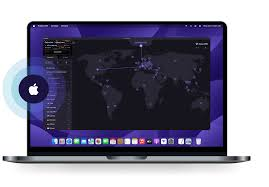
This guide covers the best free VPNs that actually run well on the MacBook Air M1 — what they offer, where they fall short, and how to pick the right one for your situation.
The MacBook Air M1 remains one of Apple’s most popular laptops thanks to its impressive performance, long battery life, and efficient Apple Silicon architecture. Whether you’re browsing the web, streaming content, working remotely, or accessing public Wi-Fi networks, using a reliable VPN can help protect your privacy and secure your online activities. Fortunately, several free VPN services are fully compatible with the MacBook Air M1 and offer strong security features without requiring a paid subscription.
A good free VPN for MacBook Air M1 should provide fast connection speeds, strong encryption, a strict no-logs policy, and native support for macOS. Some providers also offer additional features such as malware protection, ad blocking, split tunneling, and access to servers in multiple countries. While free VPNs often come with limitations such as data caps or fewer server locations, the best options still deliver excellent privacy and performance for everyday users.
In this guide, we’ll explore the best free VPNs for MacBook Air M1 in 2026, comparing their features, security, speed, and ease of use to help you find the right VPN for your needs.
Why MacBook Air M1 Users Need a VPN
Let’s be honest — not everyone needs a VPN. But there are some pretty common situations where having one makes a real difference:
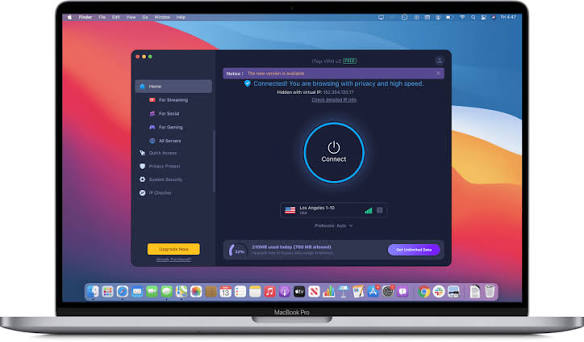
Public Wi-Fi at cafés or airports: Your MacBook Air is great for working from anywhere, but open networks are easy to snoop on. A VPN encrypts your connection so no one on the same network can see your traffic.
Accessing content from other countries: Traveling abroad and can’t access your usual streaming services? A VPN lets you connect through a server back home. The same thing works in reverse — if you want to browse content available in the US, UK, or Japan from India, a VPN handles that.
Avoiding ISP tracking: Your internet provider can see every site you visit. A VPN hides that activity from them.
Bypassing workplace or college restrictions: Some networks block social media or certain websites. A VPN routes around those blocks.
Now, free VPNs come with real limitations. Most cap your data, limit server locations, and throttle speeds. If you need a VPN for heavy use, a paid plan will always serve you better. But for light, occasional use — free options can absolutely work.
What to Look for in a Free VPN for MacBook Air M1
Before jumping to the list, here’s what actually matters:
Native macOS app with Apple Silicon support: Some older VPN apps still run under Rosetta (the compatibility layer for Intel apps). This isn’t a disaster, but a native M1 app will run faster and use less battery.
Data limit: Free tiers typically offer 500MB to 10GB per month. If you’re just checking emails and browsing on public Wi-Fi, 500MB might be fine. For streaming, you’ll need more.
Server locations: More servers mean more options for accessing content from different countries.
No-logs policy: The VPN shouldn’t be storing records of your browsing activity. Look for providers that have had their no-logs claims independently audited.
Speed: Free VPNs are almost always slower than paid ones — shared servers, congestion, bandwidth limits. But some are noticeably better than others.
Best Free VPNs for MacBook Air M1
1. Proton VPN Free
Data limit: Unlimited | Servers: 3 countries (US, Netherlands, Japan)
Proton VPN‘s free tier is genuinely different from most free VPNs — it gives you unlimited data. That’s rare. The catch is you’re limited to servers in three countries, and speeds are slower than the paid plan, since free users are deprioritized during peak hours.
For the MacBook Air M1, the macOS app works natively and is well-maintained. Setup takes under five minutes: download from the Proton VPN site, create a free account, and connect. Done.
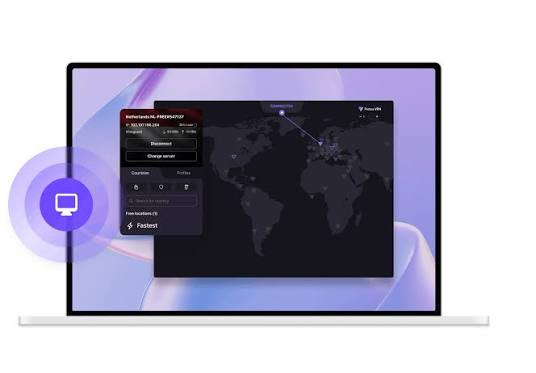
Proton VPN Free is widely regarded as one of the best free VPN services for MacBook Air M1 users in 2026. Developed by the team behind Proton Mail, the VPN focuses heavily on privacy, security, and transparency while offering a genuinely useful free plan. Unlike many free VPN providers, Proton VPN does not impose monthly data limits, allowing users to browse, stream, and work online without worrying about running out of bandwidth.
The VPN uses strong AES-256 encryption, secure VPN protocols, and a strict no-logs policy to help protect user data from hackers, advertisers, and other third parties. Its native macOS application is fully optimized for Apple’s M1 chip, ensuring smooth performance, low battery consumption, and easy setup on MacBook Air devices.
One of Proton VPN Free’s biggest advantages is its unlimited data allowance, a feature rarely found in free VPN services. Users can securely browse public Wi-Fi networks, access geo-restricted websites, and protect their online privacy without paying for a subscription. The app also includes important security features such as a Kill Switch, DNS leak protection, and Always-On VPN functionality to maintain a secure connection.
The user interface is clean and beginner-friendly, making it easy for new VPN users to connect to a server with just a few clicks. While the free plan offers fewer server locations and lower priority speeds than the premium version, it still delivers reliable performance for everyday browsing, remote work, and general internet use.
For MacBook Air M1 owners looking for a trustworthy, secure, and unlimited free VPN, Proton VPN Free remains one of the strongest choices available in 2026 due to its excellent privacy protections, unlimited bandwidth, and strong reputation in the cybersecurity industry.
Practical example: You’re working from a coffee shop and want to check your bank account or log into work tools without worrying about the open Wi-Fi. Proton VPN Free handles this well — unlimited data means you can keep it running the entire session without hitting a cap.
Pros:
- Unlimited data — no monthly cap
- Strong privacy credentials (based in Switzerland, open-source apps)
- No ads in the free tier
- Native macOS app with M1 support
Cons:
- Only 3 server locations on the free plan
- Speeds can be slow during peak hours
- No access to streaming-optimized servers
- One device at a time on the free plan
2. Windscribe Free
Data limit: 10GB/month (15GB if you confirm email) | Servers: 11 countries
Windscribe is one of the most generous free VPNs available when it comes to server choice. You get access to servers in 11 countries on the free plan, which is significantly more than most competitors. The macOS app works on M1 and has a clean, straightforward interface.
The 10GB monthly limit is enough for general browsing, light streaming, and secure Wi-Fi sessions. If you confirm your email during signup, you get an extra 5GB, bringing it to 15GB.
Practical example: You’re in India and want to watch a YouTube video that’s blocked in your region, or access a US-only website. Connect to Windscribe’s US server, refresh the page, and you’re in. The 10GB limit gives you enough room for a few sessions like this per month.
Pros:
- 10–15GB monthly data (generous for a free tier)
- Servers in 11 countries
- Built-in ad blocker and firewall (called ROBERT)
- No session time limits
Cons:
- Data cap resets monthly — no rollover
- Speeds aren’t always consistent
- Some streaming platforms detect and block Windscribe
- Customer support is limited on the free plan
3. TunnelBear Free
Data limit: 500MB/month | Servers: 47 countries
TunnelBear has the most server locations of any free VPN on this list — 47 countries. The macOS app is clean, friendly, and has been independently audited multiple times (rare in the VPN space). The problem is the data limit: 500MB per month is genuinely not much.
Where TunnelBear shines is occasional, specific use — you need to quickly check something on a blocked site, you’re on airport Wi-Fi for 30 minutes, or you want to verify what a website looks like from a different country. For that kind of use, 500MB is fine.
Practical example: You’re at an international airport on a layover, and the Wi-Fi seems sketchy. You just need 20–30 minutes of secure browsing to check emails and read the news. TunnelBear’s 500MB covers that session easily.
Pros:
- 47 server countries — best coverage on this list
- Clean, well-designed macOS app
- Independently audited (security taken seriously)
- No speed throttling on the free tier
Cons:
- 500MB/month is very low for regular use
- No streaming or torrenting on the free tier
- You’ll upgrade quickly if you use it regularly
4. Hide.me Free
Data limit: 10GB/month | Servers: 5 locations
Hide.me‘s free plan gives you 10GB per month across 5 server locations. It supports multiple VPN protocols, including WireGuard, which is the fastest modern protocol and works particularly well on the MacBook Air M1. The macOS app is stable and doesn’t require Rosetta.
One thing that stands out: Hide.me has a genuine no-logs policy and doesn’t require you to create an account to use the free tier. You download the app, pick a server, and connect — no email, no sign-up.
Practical example: You want to use a VPN on your MacBook Air M1 without handing over your email to another company. Hide.me is one of the only legitimate options that lets you do this. Just download, connect, and done.
Pros:
- WireGuard protocol support (fast on M1)
- No account required for the free tier
- 10GB monthly data
- No logs policy
Cons:
- Only 5 server locations
- Free tier limited to 1 simultaneous connection
- Speeds can vary depending on server load
5. Hotspot Shield Free
Data limit: ~500MB/day | Servers: 1 location (US only)
Hotspot Shield gives you around 500MB per day instead of a monthly cap, which works out to roughly 15GB a month — one of the higher limits available. The catch is you’re stuck with US servers only on the free plan.
The macOS app runs fine on M1 hardware. Speed is actually decent compared to other free options, partly because Hotspot Shield uses its own Hydra protocol, which is optimized for performance.
Practical example: You’re working on a project that involves US-based sites or tools with regional access restrictions. With a daily 500MB limit and US-only servers, Hotspot Shield works well for light US-browsing tasks spread across the week.
Pros:
- Daily data cap (not monthly) — more flexible for daily use
- Decent speeds for a free tier
- Simple, no-fuss macOS app
Cons:
- US servers only — no international access
- Free version shows ads
- Not ideal for privacy-focused users (Pango/Aura parent company has had privacy concerns in the past)
- No streaming on the free plan
Side-by-Side Comparison
| VPN | Data Limit | Server Countries | M1 App | Speed | Best For |
|---|---|---|---|---|---|
| Proton VPN Free | Unlimited | 3 | ✅ Native | Moderate | Privacy, daily use |
| Windscribe Free | 10–15GB/mo | 11 | ✅ Native | Good | Browsing, light streaming |
| TunnelBear Free | 500MB/mo | 47 | ✅ Native | Good | Occasional / travel use |
| Hide.me Free | 10GB/mo | 5 | ✅ Native | Good | No-account privacy |
| Hotspot Shield | ~500MB/day | 1 (US) | ✅ | Good | US access, daily light use |
How to Set Up a Free VPN on MacBook Air M1
Setting up any of the VPNs above follows roughly the same process:
- Go to the official website of the VPN you’ve chosen. Don’t download from third-party sites — only the official source.
- Create a free account (not required for Hide.me, but needed for others).
- Download the macOS app. For M1 Macs, look for “Apple Silicon” or “Universal” in the download options if given a choice.
- Open the app, log in, and choose a server. For most free plans, just pick the fastest available server or let the app auto-select.
- Click Connect. Your connection is now encrypted.
To verify it’s working, go to a site like whatismyip.com — your IP address should now show the VPN server’s location, not your real one.
A note on macOS privacy settings: When you first open a new VPN app, macOS may ask you to approve a VPN configuration in System Settings → Privacy & Security → VPN. This is normal — approve it, and the VPN will connect correctly going forward.
Free VPN vs Paid VPN: When Should You Upgrade?
Free VPNs work for light, occasional use. Here’s when it makes sense to consider a paid plan:
Upgrade if you want to stream: Netflix, Disney+, and most major platforms actively block free VPN IP addresses. Paid VPNs rotate servers specifically to get around this.
Upgrade if you travel frequently: You’ll need more server locations and more reliable connections than free tiers offer.
Upgrade if you use a VPN daily: Free tiers are designed to upsell you. If you’re hitting data caps regularly, the frustration isn’t worth it — a basic paid plan from Proton or Windscribe costs around ₹250–₹500/month.
Upgrade if you need multiple devices: Most free plans allow only one device. A paid plan typically covers 5–10 devices.
For occasional café browsing, travel layovers, or checking geo-locked content a few times a month, free is absolutely fine.
Frequently Asked Questions
Is it safe to use a free VPN on my MacBook Air M1?
It depends on which one. The VPNs listed here — Proton VPN, Windscribe, Hide.me, and TunnelBear — are from reputable companies with transparent privacy policies. Avoid random free VPNs you find through Google ads or the App Store with no reviews — many of those collect and sell your data, which defeats the whole purpose.
Will a free VPN slow down my MacBook Air M1?
Yes, some slowdown is expected. Many users share free VPN servers, so speeds are typically lower than your normal connection. Proton VPN and Hide.me (using WireGuard) tend to have less noticeable slowdown than others on this list.
Can I use a free VPN to watch Netflix on my MacBook?
Generally, no — Netflix is very good at detecting and blocking VPN IP addresses, especially from free services. If streaming is your main goal, you’ll need a paid VPN with dedicated streaming servers.
Does using a VPN on MacBook Air M1 affect battery life?
A small amount, yes. Encrypting and routing traffic does use some processing power. That said, the M1 chip is highly efficient,t and the difference in real-world battery life is minimal — you won’t notice it during normal use.
Is Proton VPN really unlimited on the free plan?
Yes — Proton VPN is one of the only VPN providers that offers unlimited data on its free tier. The trade-off is slower speeds and access to only 3 server locations. For privacy-focused browsing without data anxiety, it’s the best free option available.
Can I use these VPNs on multiple Apple devices? Most free plans limit you to one device at a time. If you want to cover your iPhone or iPad simultaneously with your MacBook Air, you’d need to upgrade to a paid plan.
Do I need to change any settings on my MacBook Air M1 to use a VPN?
No special configuration is needed. Just download the app, approve the VPN profile when macOS asks, and connect. The VPN handles everything at the software level — you don’t need to touch network settings manually.
Conclsion
If you want one recommendation: Proton VPN Free is the best overall choice for MacBook Air M1 users. Unlimited data, a solid privacy track record, and a clean native macOS app make it the easiest pick for anyone who wants a VPN running in the background without constantly hitting limits.
If you need more server countries, go with Windscribe — the 10–15GB monthly limit is enough for regular light use, and 11countries gives you real flexibility.
For travelers who just need a quick, occasional secure connection, TunnelBear works well despite the 500MB cap.
None of these will replace a premium paid VPN for serious use. But for day-to-day security on public networks, occasional geo-bypassing, and protecting your privacy without spending anything — these options get the job done on your MacBook Air M1.

