
Video content is everywhere right now — YouTube, TikTok, Instagram Reels, LinkedIn. Whether you’re a content creator, a small business owner, or someone who just wants to put together a clean travel vlog, you need a solid video editing tool to make your footage look professional.
The good news? You don’t have to be a Hollywood editor or spend hundreds of dollars to get great results. In 2026, there are more options than ever — from completely free tools with surprisingly strong features to professional-grade software used by studios.
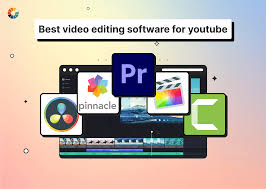
This guide walks you through the best video editing tools available right now, which one is best suited for you, and what you should know before picking one.
Video editing tools are software applications that help you create, edit, and enhance videos for different purposes, such as YouTube, social media, marketing, or filmmaking. These tools allow you to cut clips, add music, apply effects, adjust colors, and export high-quality videos in various formats.
Modern video editing tools range from beginner-friendly apps to professional-grade software. For example, simple tools like CapCut are perfect for quick social media edits, while advanced platforms like DaVinci Resolve offer professional features like color grading and visual effects.
One of the most important features of video editing tools is the timeline-based editing system, where users can arrange video clips, audio, and effects in sequence. Many tools now include AI-powered features, such as auto subtitles, background removal, scene detection, and smart transitions. These features save time and make editing easier, especially for beginners.
Best Video Editing Tools in 2026. Video editing tools also provide access to filters, transitions, and visual effects, allowing creators to enhance their videos creatively. Some tools include built-in libraries of music, stock footage, and templates, which are especially useful for content creators who want to produce videos quickly.
Another key aspect is export quality and format support. Good video editing tools allow you to export videos in high resolution (1080p, 4K) and optimize them for platforms like YouTube, Instagram, or TikTok.
However, not all tools are the same. Beginner tools are easy to use but may lack advanced features, while professional software offers more control but comes with a learning curve and higher system requirements.
- Check now –Best AI Video Tools in 2026
What to Look for in a Video Editing Tool
Before jumping into the list, here’s what actually matters when choosing a video editor:
Ease of use — If you spend two hours just figuring out how to trim a clip, that’s not the right tool for you. Look for something with a clean interface that matches your skill level.
Export quality — Can it export in 1080p or 4K without forcing you to upgrade? Some free tools put a watermark on your video or cap resolution unless you pay.
Features vs. price — Some paid tools cost $30/month and aren’t meaningfully better than a free option for casual use. Think about what you actually need.
Platform compatibility — Are you editing on Windows, Mac, or your phone? Not all tools work across all platforms.
Speed — If your computer slows to a crawl every time you add a transition, that’s a problem. Some editors are more optimized than others.
Best Video Editing Tools in 2026-Best Free Video Editing Tools in 2026
1. DaVinci Resolve (Free Version)
DaVinci Resolve is the go-to recommendation for anyone who wants professional-quality editing without spending a rupee. The free version is genuinely impressive — it’s not a watered-down trial but a fully capable editor used by working professionals.
DaVinci Resolve (Free Version) is one of the most powerful professional video editing tools available at no cost. Developed by Blackmagic Design, it combines video editing, color correction, visual effects, and audio post-production in a single platform. Unlike many free editors, it offers advanced features that are often found only in premium software.

One of its biggest strengths is professional-grade color correction. DaVinci Resolve is widely used in the film industry because of its advanced color grading tools, allowing creators to achieve cinematic visuals. The free version includes the same core color tools used in Hollywood productions, making it ideal for YouTubers, filmmakers, and content creators.
The software also provides a non-linear editing (NLE) system, which means you can edit clips freely on a timeline without affecting the original footage. Its interface includes multiple workspaces such as Cut, Edit, Fusion (for VFX), Color, and Fairlight (for audio editing). This all-in-one approach saves time and eliminates the need for multiple tools. Video Editing
Another powerful feature is Fusion, a built-in visual effects tool that allows you to create motion graphics, animations, and compositing effects. Even in the free version, users get access to node-based editing, which gives more control compared to traditional layer-based editing systems.
For audio, the Fairlight panel offers professional sound editing features. You can mix multiple audio tracks, reduce noise, and enhance sound quality without using external software.
Despite being free, DaVinci Resolve does have some limitations. Advanced features like AI-based tools, 3D tools, and certain high-end effects are only available in the paid Studio version. It also requires a powerful computer, especially for smooth playback and rendering.
Best for: Intermediate to advanced editors, color grading enthusiasts, filmmakers on a budget
What it does well:
- Industry-leading color grading tools
- Multi-track timeline editing
- Built-in audio mixing panel (Fairlight)
- Supports 4K exports for free
Practical example: A freelance wedding videographer can use DaVinci Resolve’s free version to color grade an entire wedding film, apply LUTs for a cinematic look, and export a clean 4K deliverable — all without paying anything.
Pros:
- Professional-grade color tools available for free
- No watermarks on exports
- Regular updates and strong community support
- Works on Windows, Mac, and Linux
Cons:
- Steep learning curve for beginners
- Requires a decent GPU to run smoothly
- The interface can feel overwhelming at first
2. CapCut (Free)
CapCut has grown massively over the past few years, especially among short-form content creators. It started as a mobile app but now has a solid desktop version too.
CapCut (Free) is one of the most popular and beginner-friendly video editing tools available today. Developed by ByteDance, it is widely used by content creators, especially those making videos for short-form platforms like TikTok, Instagram Reels, and YouTube Shorts.
The biggest advantage of CapCut Video Editing is its simple and intuitive interface. Even if you have zero editing experience, you can quickly create high-quality videos using drag-and-drop features, ready-made templates, and automatic editing tools. This makes it ideal for beginners and social media creators who want fast results.
CapCut also offers a wide range of AI-powered features in its free version. These include auto captions, background removal, text-to-speech, and smart cut tools that help speed up the editing process. You can also apply trending effects, filters, and transitions with just one click, making your videos more engaging.
Another key feature is its rich media library. CapCut provides access to free music, sound effects, stickers, and fonts, which helps creators produce professional-looking content without needing external resources. It also supports high-resolution exports, including 1080p and even 4K in some cases.
For more advanced users, CapCut includes features like keyframe animation, speed ramping, and multi-layer editing. While it’s not as powerful as professional tools like DaVinci Resolve, it still offers enough flexibility for most social media content needs.
However, CapCut does have some limitations. Some advanced features and assets are locked behind a premium version. Also, since it is optimized for quick editing, it may not be suitable for complex, long-form video projects.
Best for: TikTok creators, Instagram Reels editors, beginners
What it does well:
- Pre-built trending templates
- Auto-captions with reasonable accuracy
- Easy-to-use timeline
- Built-in effects and transitions
Practical example: A food blogger shooting quick recipe videos on their phone can open CapCut, apply an auto-caption, add a trending sound, and export a finished Reel in under 20 minutes.
Pros:
- Very beginner-friendly
- Great mobile experience
- Constantly updated with trending styles
- Free with no watermark (on most exports)
Cons:
- Not suitable for long-form professional content
- Some features push you toward the paid plan
- Less control over advanced settings
3. Kdenlive (Free & Open Source)
Kdenlive is an open-source video editor that’s been around for years. It’s not the flashiest tool, but it’s genuinely powerful and completely free — forever. Video Editing
Best for: Linux users, budget-conscious editors who want full control
What it does well:
- Multi-track editing
- Keyframe animations
- Good codec support
- Customizable interface
Pros:
- Completely free, no paid tier
- Works on Linux, Mac, and Windows
- Actively maintained
Cons:
- Interface feels dated compared to modern tools
- Can be unstable on some systems
- Less intuitive than options like CapCut
4. iMovie (Free for Mac/iOS Users)
If you’re on a Mac or iPhone, iMovie is already sitting there waiting to be used. It’s simple, polished, and works beautifully within the Apple ecosystem.
Best for: Mac users, beginners, simple personal projects
What it does well:
- Clean drag-and-drop interface
- Syncs across iPhone and Mac
- Good built-in music and sound effects
- Easy sharing to YouTube and Vimeo
Practical example: A parent who wants to create a birthday highlight reel from iPhone clips can have a finished, shareable video in under an hour using iMovie — no learning curve required.
Pros:
- Free for all Apple users
- Very beginner-friendly
- Decent export quality
Cons:
- Mac and iOS only
- Limited advanced features
- Not suitable for anything complex
Best Paid Video Editing Tools in 2026
5. Adobe Premiere Pro
Adobe Premiere Pro is the industry standard for professional video editing. It’s used by YouTube creators, filmmakers, news teams, and marketing agencies worldwide. Video Editing
Price: Around $23–$55/month (varies by plan and region)
Best for: Professional editors, content teams, anyone producing high-volume or complex content
What it does well:
- Seamless integration with After Effects and Photoshop
- Advanced multi-cam editing
- Strong collaboration features for teams
- Excellent plugin ecosystem
Practical example: A YouTube channel that posts weekly documentary-style videos can use Premiere Pro to manage a full editing workflow — from rough cut to color grade to export — with multiple team members working on the same project.
Pros:
- Industry-standard with massive community support
- Regular feature updates
- Works with almost every format and codec
- Strong integration with other Adobe apps
Cons:
- Expensive, especially for solo creators
- Heavy on system resources
- Can be overkill for simple projects
6. Final Cut Pro
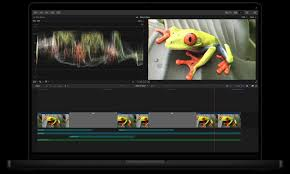
For Mac users who’ve outgrown iMovie, Final Cut Pro is the natural next step. It’s a one-time purchase (around $300) rather than a subscription, which makes it more cost-effective over time.
Price: One-time purchase (~$299.99)
Best for: Mac-based professional editors, YouTubers, indie filmmakers
What it does well:
- Very fast rendering thanks to Apple Silicon optimization
- Magnetic timeline (unique and efficient once you learn it)
- Strong multicam support
- Great for long-form projects
Practical example: A travel YouTuber who edits 20-minute videos every week will find Final Cut Pro significantly faster than subscription-based tools — and the one-time cost pays for itself within a year compared to a monthly plan. Video Editing
Pros:
- No subscription — own it outright
- Extremely fast on Apple Silicon Macs
- Clean, well-organized interface
- Good library management
Cons:
- Mac only — no Windows version
- The magnetic timeline takes getting used to
- High upfront cost
7. Descript
Descript is one of the more unique tools on this list. It lets you edit video by editing the transcript — delete a word from the text, and it removes it from the video too. Video Editing is the best editing tool.

Price: Free tier available; paid plans from ~$12–$24/month
Best for: Podcasters, interview-based content, talking-head videos
What it does well:
- Transcript-based editing
- Filler word removal (removes “um,” “uh” automatically)
- Screen recording built in
- Collaboration features
Practical example: A business coach who records hour-long Zoom interviews can upload the recording to Descript, clean up all the filler words in seconds, and trim the interview down to a tight 15-minute clip — all by editing text rather than scrubbing through footage. Video Editing
Pros:
- Genuinely unique editing approach
- Huge time-saver for dialogue-heavy content
- Great for non-editors
Cons:
- Not ideal for cinematic or highly visual content
- Less precise control over cuts compared to traditional editors
- Some advanced features locked behind paid plans
8. Filmora
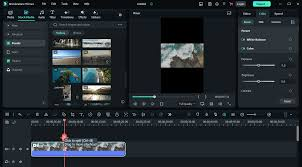
Filmora strikes a good balance between ease of use and real capability. It’s not as powerful as Premiere Pro, but it’s much more approachable and has a reasonable price. Video Editing
Price: Around $50–$80/year or one-time purchase option
Best for: Beginners to intermediate creators, social media content, vlogs
What it does well:
- Large library of effects and transitions
- Clean interface
- Good export options
- Regular updates with new templates
Pros:
- More accessible than professional-grade tools
- Reasonably priced
- Works on Windows and Mac
Cons:
- Watermark on exports with the free version
- Not suitable for highly technical or complex productions
- Some features feel gimmicky
Quick Comparison Table
| Tool | Price | Best For | Platform | Export Quality |
|---|---|---|---|---|
| DaVinci Resolve | Free / $300 (Studio) | Professionals, color grading | Win/Mac/Linux | Up to 4K (free) |
| CapCut | Free / Paid tiers | Short-form, beginners | Win/Mac/Mobile | Up to 4K |
| Kdenlive | Free | Budget editors, Linux users | Win/Mac/Linux | Up to 4K |
| iMovie | Free | Mac/iOS beginners | Mac/iOS | Up to 4K |
| Adobe Premiere Pro | ~$23–$55/month | Professionals, teams | Win/Mac | Up to 8K |
| Final Cut Pro | ~$300 one-time | Mac professionals | Mac only | Up to 8K |
| Descript | Free / ~$12–$24/month | Podcasters, interviews | Win/Mac | Up to 4K |
| Filmora | ~$50–$80/year | Intermediate creators | Win/Mac | Up to 4K |
Which Tool Should You Actually Pick?
Here’s a simple way to think about it:
If you’re just starting out and on a budget: CapCut (mobile/short-form) or DaVinci Resolve (longer-form) — both are free and actually good.
If you’re a Mac user who wants to go professional without a subscription, Final Cut Pro is worth the one-time investment.
If you’re part of a creative team or agency, Adobe Premiere Pro is the safest choice for collaboration and workflow compatibility.
If you do a lot of interview or talking-head content, Descript will save you an enormous amount of time.
If you’re a Linux user or open-source advocate, Kdenlive is your best bet.
FAQs
Q: Is DaVinci Resolve really good enough for professional work?
Yes, absolutely. Many independent filmmakers, colorists, and YouTube creators use the free version of DaVinci Resolve for professional projects. The paid Studio version adds some advanced features, but the free version covers the needs of most users.
Q: Can I edit 4K videos on a budget laptop?
4K editing is resource-intensive. If your laptop has a mid-range processor and at least 16GB of RAM, you can manage — but you may need to use proxy files (lower-resolution versions for editing) that the software then replaces with the original quality on export. DaVinci Resolve and Premiere Pro both support proxy workflows.
Q: What’s the difference between CapCut free and paid?
The free version of CapCut covers most basic needs, including auto-captions, effects, and HD exports. The paid plan unlocks things like cloud storage, more premium templates, and some advanced editing features. For casual creators, the free tier is usually enough.
Q: Do I need a powerful computer to use these tools?
It depends on the tool. CapCut and iMovie are quite light on system resources. DaVinci Resolve and Premiere Pro require a reasonably modern computer — ideally with a dedicated GPU. If you’re on an older machine, Filmora or Kdenlive tend to be more forgiving.
Q: Is there a good video editing app for Android?
CapCut is the strongest option for Android right now. It’s free, regularly updated, and handles short-form content very well. For more control, InShot and VN Video Editor are also worth looking at.
Q: Can I switch from one editor to another without losing my work?
Project files are not usually compatible across different software. A Premiere Pro project won’t open in Final Cut Pro, for example. However, your raw video files are always usable in any editor — so switching tools means you’d be starting your edit fresh, not losing your footage.
Q: Is Final Cut Pro worth the price if I’m not a professional?
If you’re a Mac user who edits regularly — even as a serious hobby — the one-time price tends to be worth it over the long run compared to paying monthly for Premiere Pro. If you only edit once in a while, iMovie or a free option is the smarter call.
Conclsion
There’s no single “best” video editing tool — it depends entirely on what you’re making, where you’re making it, and how often you edit. The free options in 2026 are genuinely impressive and good enough for most people. You don’t need to spend money to create polished content. Video Editing
Start with a free tool, get comfortable, and upgrade only when you feel you’ve genuinely hit the limits of what it can do. That’s almost always the smarter approach than jumping straight into an expensive subscription you might not fully use. Video Editing

