Windows Server VPN configuration in 2026 serves fundamentally different purposes than consumer PC VPN — IT administrators and developers use VPN on Windows Server for securing server-to-server communications, protecting remote server management sessions, routing server traffic through specific exit nodes for geo-testing, and bypassing network restrictions in development environments.
Windows Server (2019, 2022) supports multiple VPN configurations — from built-in RRAS (Routing and Remote Access Service) acting as a VPN server itself, to client-mode VPN connecting the server to external VPN providers for outbound traffic protection.

This guide covers the best free VPN solutions for Windows Server in 2026 — for IT administrators and developers needing VPN on server infrastructure.
Running a VPN on a Windows Server can be useful when you need a more private connection, secure remote access, or a different IP address for specific online tasks. However, choosing a free VPN for Windows Server is not as simple as installing a regular VPN app on a personal computer. Windows Server editions can have different compatibility, networking, and configuration requirements, so some free VPN services may not work properly or may offer limited features.
In 2026, there are several free and freemium VPN options worth considering, including services that support manual OpenVPN or WireGuard configurations. The best choice depends on what you need—such as unlimited data, stronger security, easier setup, server locations, connection speed, or support for multiple devices.
This guide explains the best free VPNs for Windows Server in 2026, how they work, what features to look for, and the limitations you should understand before connecting your server. We’ll also cover manual VPN configuration, performance considerations, security settings, and common connection problems.
Whether you are managing a personal Windows Server, testing a networking setup, accessing services remotely, or simply looking for a free way to improve connection privacy, this guide will help you choose an option that fits your requirements without paying for a premium VPN immediately.
- Check now– Best VPN Software for Windows Free 2026
Windows Server VPN — Two Different Use Cases
Use Case 1 — Windows Server as a VPN Server
Windows Server hosting VPN for remote users:
- RRAS (Routing and Remote Access)
- SSTP VPN server
- IKEv2 VPN server
- L2TP/IPSec VPN server
Free option: Windows Server license includes RRAS → VPN server capability built-in → no additional cost.
Use Case 2 — Windows Server AS VPN Client
Windows Server connecting to an external VPN:
- Protect outbound server traffic
- Route through a specific country for geo-testing
- Bypass restrictions in cloud environment
- Secure development server communications
This guide covers: Use Case 2 — connecting Windows Server to free VPN providers.
Windows Server VPN Compatibility
Supported VPN Protocols on Windows Server
| Protocol | Windows Server 2019 | Windows Server 2022 | Notes |
|---|---|---|---|
| WireGuard | ✅ (install required) | ✅ | Best performance |
| IKEv2/IPSec | ✅ Native | ✅ Native | Built-in support |
| L2TP/IPSec | ✅ Native | ✅ Native | Legacy |
| SSTP | ✅ Native | ✅ Native | Microsoft protocol |
| OpenVPN | ✅ (install required) | ✅ | Most flexible |
| PPTP | ⚠️ Deprecated | ❌ | Insecure — avoid |
Best Free VPNs for Windows Server 2026
1. Proton VPN Free — Best Free VPN for Windows Server
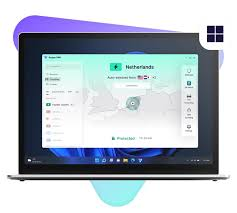
Proton VPN’s unlimited free tier works on Windows Server — most suitable for server use due to no data limits. Proton AG offers Proton VPN Free as one of the better-known free VPN options for users who want basic privacy without paying for a subscription.
For Windows Server users, however, the important point is that server compatibility and setup can differ from using Proton VPN on a normal Windows desktop. Depending on your Windows Server version and setup, a manual VPN configuration may be more practical than relying on a standard desktop application.
Why consider Proton VPN Free?
One of its biggest advantages is that the free plan does not impose a traditional monthly data cap. This can make it useful for testing VPN connections or running occasional privacy-focused workloads where data consumption would otherwise become a problem. Proton VPN also uses modern VPN protocols and provides strong encryption designed to protect traffic between your server and the VPN network.
Key features include:
- Free VPN service with no traditional monthly data allowance
- Support for modern VPN protocols
- Strong encrypted connections
- No requirement to purchase a premium subscription for basic use
- Multiple free server locations, although availability can vary
- Suitable for testing VPN configurations on Windows Server
- Established privacy-focused provider
Windows Server compatibility:
Windows Server 2019/2022: ✅ Full support
Installation: Standard Windows installer → works on Server OS
Protocol: WireGuard, IKEv2, OpenVPN
Unlimited data: ✅ Essential for server use
Installation on Windows Server:
powershell
# Download Proton VPN installer
# Run on Windows Server — same as desktop

# Or command-line install:
winget install ProtonTechnologies.ProtonVPN

# Verify installation
protonvpn-cli --version
Proton VPN CLI for Windows Server (headless):
powershell
# Install Proton VPN CLI
# Connect to free server
protonvpn-cli connect --fastest

# Connect to specific free server
protonvpn-cli connect --cc JP  # Japan
protonvpn-cli connect --cc NL  # Netherlands
protonvpn-cli connect --cc US  # USA

# Check status
protonvpn-cli status

# Disconnect
protonvpn-cli disconnect
Windows Server headless use:
Proton VPN CLI → no GUI required → perfect for headless Windows Server installations → command-line VPN management.
Free servers: USA, Netherlands, Japan.
Best for: IT administrators wanting unlimited free VPN on Windows Server — Proton’s unlimited data is essential for server environments where data caps are impractical.
2. Windscribe Free — Best Multi-Server Windows Server VPN

Windscribe provides a Windows Server-compatible client with 15GB free monthly across 14+ locations.
Windscribe is a popular option for users who want a free VPN with access to multiple locations. For Windows Server users, Windscribe can be interesting because it offers both an application-based approach and configuration options that can be useful for more technical setups.
Unlike some free VPNs that provide only a very small selection of locations, Windscribe’s free service gives users access to a selection of server locations. This makes it useful when you need to test how a Windows Server connection behaves through different geographic regions.
Why Choose Windscribe Free for Windows Server?
The biggest attraction is location flexibility. If your goal is to test websites, applications, networking behavior, or regional connections from a Windows Server, having multiple available VPN locations can be helpful.
Windscribe also supports modern VPN technologies and provides security features designed to protect network traffic. However, free-plan limits and available locations can change, so check the current plan details before deploying it for regular server use.
Windows Server compatibility:
Server 2019/2022: ✅
Installation: Standard Windows installer
CLI support: ✅ Windscribe CLI available
Windscribe CLI on Windows Server:
powershell
# Install Windscribe
winget install Windscribe.Windscribe

# Login
windscribe login

# Connect to server
windscribe connect best
windscribe connect SG  # Singapore
windscribe connect JP  # Japan
windscribe connect US  # USA

# Check status
windscribe status

# Firewall (kill switch)
windscribe firewall on

# Disconnect
windscribe disconnect
Server use cases:
- Geo-testing from 14+ country exit nodes
- Dev server traffic routing
- API testing from different regions
Best for: Developers needing Windows Server VPN with multiple geographic exit points for testing.

3. WireGuard on Windows Server — Best Performance Free VPN
WireGuard installed directly on Windows Server with a free provider config delivers the best performance.
WireGuard is a lightweight, modern VPN technology that can be an excellent choice for Windows Server users who prioritize speed, low latency, and simple configuration. Unlike Proton VPN or Windscribe, WireGuard itself is not a traditional VPN provider. It is a VPN protocol and software that can connect a Windows Server to a compatible VPN server.
This distinction is important: WireGuard is free and open-source, but you still need a VPN server or VPN provider to create the actual connection. You can connect to a free WireGuard-compatible VPN endpoint, use your own VPN server, or use a commercial VPN provider that supports WireGuard.
Why Use WireGuard on Windows Server?
WireGuard is designed to be simpler and more lightweight than many older VPN technologies. Its relatively small codebase and modern cryptographic design make it attractive for servers where performance and reliability matter.
For example, if you have a Windows Server and want to route selected traffic through a VPN, WireGuard can provide a straightforward way to establish an encrypted tunnel.
Installation:
powershell
# Download WireGuard for Windows Server
# wireguard.com/install/

# Or winget
winget install WireGuard.WireGuard

# Verify
wg --version
Free WireGuard config sources:
- Proton VPN free account → Downloads → WireGuard → download .conf
- Windscribe free account → Config Generator → WireGuard
Import config:
powershell
# Method 1 — GUI (if available)
# WireGuard → Import tunnel from file → select .conf

# Method 2 — Command line
wg-quick up C:\WireGuard\proton_nl.conf

# Check status
wg show

# Disconnect
wg-quick down C:\WireGuard\proton_nl.conf
Windows Server WireGuard service:
powershell
# Install as Windows Service
wg-quick install proton_nl

# Start service
net start WireGuardTunnel$proton_nl

# Stop service
net stop WireGuardTunnel$proton_nl

# Auto-start on boot
sc config WireGuardTunnel$proton_nl start=auto
Best for: Performance-critical Windows Server VPN — WireGuard as a Windows Service provides a persistent, auto-starting server VPN.
4. hide.me Free — No-Registration Windows Server VPN
hide.me provides a Windows Server-compatible client without an account requirement. hide.me is a privacy-focused VPN service that offers a free plan and can be considered by Windows Server users who want a simple way to test VPN connectivity without immediately paying for a subscription. One of its notable advantages is that the free service can be used without requiring a traditional paid subscription.
For Windows Server, however, compatibility should be checked for your specific Server edition. A VPN application designed primarily for desktop Windows may not work the same way on Windows Server, so manual configuration may be preferable in some environments.
Why Choose hide.me Free?
hide.me Free is appealing because it is designed to provide basic VPN protection without requiring users to commit to a premium plan. This makes it useful for beginners who want to experiment with VPN connections or for users who need a temporary VPN connection for lightweight tasks.
It can also be useful when you want to test how your Windows Server behaves when its outbound traffic is routed through a different VPN location.
Windows Server compatibility:
Server 2019/2022: ✅
No account: ✅
Free data: 10GB monthly
Servers: India, Singapore, USA, Netherlands, Germany, Canada
Installation:
powershell
# Download hide.me Windows client
# hide.me/en/software/windows

# Run installer on Windows Server
# No account required — open and connect
Best for: Quick no-registration VPN on Windows Server — hide.me India server is useful for India-based server geo-testing.
Windows Server RRAS — Built-in VPN Server (Free)
Setting Up Windows Server as a Free VPN Server
Windows Server’s RRAS provides completely free VPN server capability — no third-party software needed.
Enable RRAS:
powershell
# Install RRAS role
Install-WindowsFeature RemoteAccess -IncludeManagementTools
Install-WindowsFeature -Name Routing -IncludeManagementTools

# Configure RRAS
Install-RemoteAccess -VpnType Vpn
Configure via Server Manager:
- Server Manager → Tools → Routing and Remote Access
- Right-click server → Configure and Enable
- Select VPN access
- Configure IP pool for VPN clients
- Enable
SSTP VPN on Windows Server (Free)
SSTP is Microsoft’s VPN protocol — runs over port 443 → bypasses most firewalls.
Requirements:
- SSL certificate (Let’s Encrypt free)
- Public IP or domain name
- RRAS configured
powershell
# Configure SSTP with Let's Encrypt certificate
# Install Win-ACME for free SSL
# Configure RRAS to use certificate
# Open port 443 in firewall
IKEv2 VPN on Windows Server (Free)
powershell
# Configure IKEv2 VPN server
Add-VpnConnection -Name "Company VPN" `
  -ServerAddress "vpn.company.com" `
  -TunnelType IKEv2 `
  -AuthenticationMethod MSCHAPv2 `
  -EncryptionLevel Required `
  -PassThru

# Allow IKEv2 in firewall
New-NetFirewallRule -DisplayName "IKEv2" `
  -Direction Inbound `
  -Protocol UDP `
  -LocalPort 500,4500 `
  -Action Allow
OpenVPN on Windows Server (Free)
OpenVPN Community Edition is completely free for Windows Server.
OpenVPN Server Setup
powershell
# Install OpenVPN
winget install OpenVPN.OpenVPN

# Generate certificates (use Easy-RSA)
# Configure server.ovpn
# Start OpenVPN service
net start OpenVPNService
OpenVPN Client on Windows Server
Connect Windows Server to an external OpenVPN provider:
powershell
# Install OpenVPN
winget install OpenVPN.OpenVPN

# Download .ovpn config from provider
# VPNBook free: us1.vpnbook.com configs

# Connect via command line
"C:\Program Files\OpenVPN\bin\openvpn.exe" --config server.ovpn

# Run as service
openvpn --service OpenVPN --start
Windows Server VPN — PowerShell Management
Complete PowerShell VPN Commands
powershell
# Add VPN connection
Add-VpnConnection -Name "Free VPN NL" `
  -ServerAddress "node-nl-36.protonvpn.net" `
  -TunnelType IKEv2 `
  -AuthenticationMethod MSCHAPv2 `
  -EncryptionLevel Required

# Connect
rasdial "Free VPN NL" username password

# Disconnect
rasdial "Free VPN NL" /disconnect

# Check all VPN connections
Get-VpnConnection

# Remove VPN connection
Remove-VpnConnection -Name "Free VPN NL" -Force

# View connection status
Get-VpnConnection -Name "Free VPN NL" | Select-Object ConnectionStatus
Windows Server VPN Use Cases
Use Case 1 — Geo-Testing APIs
Development server → test API responses from different countries:
powershell
# Connect Windscribe Singapore
windscribe connect SG

# Test API from Singapore IP
Invoke-WebRequest "https://api.service.com/geo" | Select-Object Content

# Switch to Germany
windscribe disconnect
windscribe connect DE

# Test same API from Germany
Invoke-WebRequest "https://api.service.com/geo" | Select-Object Content
Use Case 2 — Secure Remote Management
Protect RDP/SSH sessions with VPN:
powershell
# Connect VPN before accepting management connections
# All management traffic encrypted through VPN
# Reduces attack surface on Windows Server

# Connect Proton VPN
protonvpn-cli connect --cc NL

# Verify IP changed
Invoke-WebRequest "https://api.ipify.org" | Select-Object Content
Use Case 3 — Cloud Server Privacy
Azure/AWS Windows Server → route traffic through VPN exit node:
powershell
# Install WireGuard on cloud Windows Server
winget install WireGuard.WireGuard

# Import Proton free config
wg-quick up C:\VPN\proton_jp.conf

# All server outbound traffic now exits via Japan
# Useful for: privacy, geo-specific API testing
Troubleshooting Windows Server VPN
VPN App Won’t Install on Windows Server
Cause: Some VPN apps check for desktop OS.
Fix:
powershell
# Skip OS check during install
# Run installer with /S flag or compatibility mode

# Alternative: Use CLI version
# Proton VPN CLI doesn't check OS type
winget install ProtonTechnologies.ProtonVPN.CLI
WireGuard Service Won’t Start
powershell
# Check service status
Get-Service WireGuardTunnel*

# Check event log
Get-EventLog -LogName System -Source WireGuard -Newest 10

# Verify config file path
Test-Path "C:\WireGuard\config.conf"

# Restart service
Restart-Service WireGuardTunnel$config
Windows Server Firewall Blocking VPN
powershell
# Allow WireGuard through Windows Firewall
New-NetFirewallRule -DisplayName "WireGuard" `
  -Direction Outbound `
  -Protocol UDP `
  -RemotePort 51820 `
  -Action Allow

# Allow IKEv2
New-NetFirewallRule -DisplayName "IKEv2 Out" `
  -Direction Outbound `
  -Protocol UDP `
  -RemotePort 500,4500 `
  -Action Allow
Frequently Asked Questions
Which free VPN works on Windows Server in 2026?
Proton VPN free works on Windows Server 2019/2022 — unlimited data, CLI available for headless use, WireGuard/IKEv2/OpenVPN protocols. Windscribe free is also compatible — 15GB monthly, CLI support, 14+ locations. WireGuard with free provider configs (Proton/Windscribe) delivers best performance on Windows Server. All three install via standard Windows installer or winget.
Can I use a free VPN on Windows Server headless (no GUI)?
Yes — Proton VPN CLI and Windscribe CLI both work on headless Windows Server without a GUI. Install via winget → command-line connection management → works in Server Core installations. WireGuard Windows Service provides a permanent headless VPN connection that auto-starts with server boot.
How do I set up a free VPN as a Windows Service?
WireGuard: wg-quick install [config-name] → sc config WireGuardTunnel$[config-name] start=auto → auto-starts on boot. OpenVPN: Install OpenVPN service → net start OpenVPNService → runs in the background. Proton VPN CLI: Task Scheduler → create task → run protonvpn-cli connect at startup → automated connection.
What is the difference between Windows Server as a VPN server vs. a VPN client?
VPN server (RRAS): Windows Server hosts VPN → remote users connect TO the server → free with Windows Server license → SSTP, IKEv2, L2TP supported. VPN client: Windows Server connects TO external VPN → server’s outbound traffic through VPN exit node → use Proton VPN/Windscribe/WireGuard → for geo-testing, privacy, traffic routing.
Can I run VPN on Azure/AWS Windows Server?
Yes — install WireGuard or Proton VPN CLI on a cloud Windows Server → all outbound traffic routes through the VPN exit node → useful for API geo-testing and privacy. Note: Cloud providers (Azure/AWS) may have egress traffic costs → VPN adds overhead → monitor bandwidth. Proton VPN unlimited free is most practical for cloud server use.
Conclusion
Windows Server VPN in 2026 serves IT infrastructure needs beyond consumer PC use — and free solutions adequately cover most server administrator and developer use cases.
Best free VPN for Windows Server:
For unlimited server use: Proton VPN free — unlimited data essential for server environments, CLI for headless management, WireGuard protocol, USA/NL/Japan servers.
For multi-region geo-testing: Windscribe free — 15GB monthly, 14+ exit locations, CLI support, most geographic variety.
For best performance: WireGuard as a Windows Service — native kernel-level performance, auto-starts with the server, permanent VPN connection.
For built-in free VPN server: Windows RRAS — completely free with Windows Server license, SSTP/IKEv2/L2TP server capability, no third-party software.
Recommended Windows Server VPN stack:
Proton VPN CLI (unlimited outbound privacy) + WireGuard Service (performance-critical connections) + RRAS (remote access for team) = complete free Windows Server VPN infrastructure at zero additional cost.