
best free video editing software for Windows in 2026? Whether you are a beginner making your first YouTube video or an experienced creator editing 4K footage, the right free editor can save you hundreds of dollars without sacrificing quality. In this guide, we test and rank the top 6 genuinely free video editors for Windows 11/10/7, including DaVinci Resolve, Clipchamp, Shotcut, and more. You will find honest pros and cons, system requirements, and practical examples to help you pick the perfect tool for your projects—all without watermarks or hidden costs.
If you are looking for a free video editor for your Windows PC, the short answer is DaVinci Resolve for advanced users who want professional tools without paying, and Clipchamp for beginners who need something simple and built into Windows.
Choosing the right tool depends on your skill level, system specs, and what kind of videos you plan to make. Below is a detailed breakdown of the top options, their pros and cons, and practical advice to help you pick the right one.
Top Picks at a Glance
| Software | Best For | Watermark | Max Export (Free) | Learning Curve |
|---|---|---|---|---|
| DaVinci Resolve | Professional editing, color grading | No | 4K | Steep |
| Clipchamp | Beginners, quick social videos | No | 1080p | Easy |
| Shotcut | Open-source, cross-platform | No | 4K | Moderate |
| OpenShot | Simple projects, unlimited tracks | No | 4K | Easy |
| VSDC Free | Non-linear editing, effects | No | 4K | Moderate |
| Lightworks Free | Pro-style workflow | No | 720p | Steep |
1. DaVinci Resolve – Best Overall Free Editor
DaVinci Resolve is widely considered the best free video editing software for Windows in 2026. It is used by professionals for films, TV, and YouTube, and the free version includes most of the tools you will ever need.
Key Features
- Professional-grade color correction and audio post-production (Fairlight)techradar
- Multi-track timeline with support for 4K, HDR, and RAW footageilmora.
- Visual effects and motion graphics via the Fusion pageyoutube
- No watermark, no time limits, and exports up to 4Kyoutubevibrantsnap
Pros
- Hollywood-level tools for freetechradar
- Regular updates (Version 20 adds keyframe editor, better text tools)techradar
- Works on Windows, Mac, and Linuxtechradar
Cons
- Steep learning curve – not ideal for absolute beginnerstechradaryoutube
- Requires a powerful PC (good GPU and 16GB+ RAM recommended)techradar
- Some advanced AI features require the paid Studio version ($295 one-time)techradar
Who Should Use It?
- YouTubers, filmmakers, and creators who want pro-level control
- Users with mid-to-high-end PCs
- Anyone willing to invest time in learning
Download: blackmagicdesign.com/products/davinciresolvetechradar
2. Clipchamp – Best for Beginners (Built into Windows)
Clipchamp is Microsoft’s official free video editor, now built into Windows 10 and 11. It is perfect for quick edits, social media videos, and marketing clips.

Key Features
- Drag-and-drop interface with pre-made templates for Instagram, TikTok, YouTubetechradar
- Screen recording, webcam capture, and stock media libraryyoutube
- Exports up to 1080p without watermarkfilmora.wondershareyoutube
- Browser-based version available (no installation needed)techradar
Pros
- No watermark on free exportsyoutube
- Integrated into Windows (no download required for most users)
Cons
- Limited advanced features (no multi-cam, basic color tools)techradar
- Stock assets and some effects require paid subscription
- Best for short-form content, not long projects
Who Should Use It?
- Beginners, students, and small business owners
- Users with low-spec PCs
- Anyone making social media or marketing videos
Download: Pre-installed on Windows 11 or download from
3. Shotcut – Best Open-Source Editor
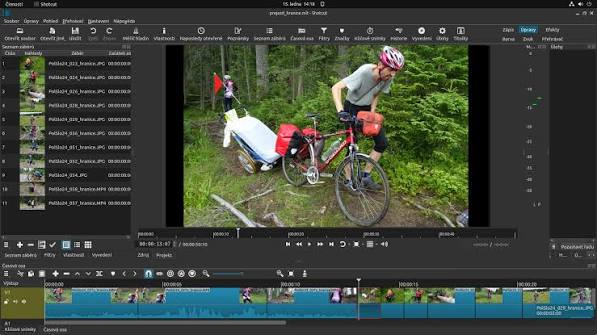
Shotcut is a free, open-source video editor that works on Windows, Mac, and Linux. It offers a good balance of features and simplicity.
Key Features
- Supports a wide range of formats (no need to convert files first)
- Timeline editing with filters, transitions, and keyframing
- 4K export support, no watermark
- Portable version available (run from USB drive)
Pros
- Completely free with no hidden costs
- Lightweight and works on older PCs
- Active community and regular updates
Cons
- Interface feels dated and less intuitive
- Some users report occasional crashes (especially on Mac)
- Fewer built-in effects compared to DaVinci or Clipchamp
Who Should Use It?
- Users who prefer open-source software
- Intermediate editors who want more control than Clipchamp
- People with older or low-spec machines
Download: shotcut.orgyoutube
4. OpenShot – Best for Simple Projects
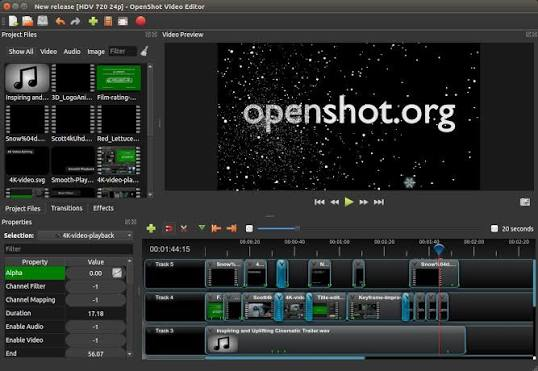
OpenShot is another open-source option that is easy to learn and use. It is ideal for basic edits, slideshows, and home videos.
Key Features
- Unlimited video and audio tracks
- Drag-and-drop interface with pre-set templates
- Supports 4K, 3D animations, and slow-motion effects
- Available in 70+ languages
Pros
- Very beginner-friendly – minimal learning curve
- No watermark, no export limits
- Regular updates and community support
Cons
- Slower rendering compared to paid software
- Limited advanced features (no professional color grading)
- Some transition effects can be buggy
Who Should Use It?
- Complete beginners
- Users making family videos, school projects, or simple YouTube content
- Anyone who wants a free alternative to Windows Movie Maker
Download: openshot.orgopenshot
5. VSDC Free Video Editor – Best for Effects and Non-Linear Editing
VSDC is a free Windows-only editor that offers surprising power for a no-cost tool. It is great for users who want more creative control.filmora.
Key Features
- Non-linear editing (place clips anywhere on the timeline)
- Advanced color correction, filters, and visual effects
- Supports 4K, HDR, and 360-degree video
- Built-in screen recorder and video converter
Pros
- More features than most free editors
- No watermark, unlimited exports
- Works on low-spec PCs (optimized for performance)
Cons
- Interface can feel cluttered for beginners
- Free technical support is limited
- Some advanced tools require the paid Pro
Who Should Use It?
- Gamers and action camera users (GPS speedometer overlay)
- Intermediate editors who want VFX and color tools
- Users who need to edit 4K footage on modest hardware
Download: videosoftdev.comvideosoftdev
6. Lightworks Free – Best for Pro Workflow (With Limits)
Lightworks has been used to edit Hollywood films and offers a professional-grade free version. However, it has one major limitation.techradaryoutube
Key Features
- Professional timeline and real-time effects
- Multi-cam editing and advanced trimming tools
- Supports 4K (with proxy editing)
- Available on Windows, Mac, and Linux
Pros
- Used in professional film production
- Intuitive workflow once you learn i
- Regular updates and active development
Cons
- Free version limited to 720p exports (1080p requires subscription)
- Steep learning curve for beginners
- Some best features locked behind paywall
Who Should Use It?
- Aspiring professionals who want to learn industry-standard tools
- Users who plan to upgrade to the paid version eventually
- Not recommended if you need 1080p exports for free
How to Choose the Right Free Video Editor
1. Consider Your Skill Level
- Beginner: Clipchamp, OpenShot, or VSDC
- Intermediate: Shotcut, VSDC, or Lightwork
- Advanced: DaVinci Resolve or Lightworks
2. Check Your PC Specs
Video editing is resource-intensive. If you have a low-end PC (4GB RAM, no dedicated GPU), stick with Clipchamp, OpenShot, or VSDC. For high-end systems (16GB+ RAM, dedicated GPU), DaVinci Resolve will run smoothly.
3. Think About Export Needs
- Need 4K exports? Choose DaVinci Resolve, Shotcut, OpenShot, or VSDC.
- Only need 1080p? Clipchamp is sufficient.
- Can work with 720p? Lightworks Free is an option.
4. Watermark Policy
All the editors listed above are watermark-free in their free versions, except some online tools. Avoid software that adds logos or intro/outro clips unless you are okay with it.
Practical Examples: Which Editor for Which Project?
| Project Type | Recommended Software | Why |
|---|---|---|
| YouTube vlog | DaVinci Resolve or Clipchamp | Resolve for color grading; Clipchamp for quick edits |
| TikTok/Reels | Clipchamp or VSDC | Templates and fast export for social media |
| Short film | DaVinci Resolve | Professional color, audio, and VFX tools |
| Gaming highlights | VSDC or Shotcut | Good performance, supports 4K and game capture |
| Family slideshow | OpenShot or Clipchamp | Easy to use, drag-and-drop simplicity |
| Marketing video | Clipchamp | Built-in templates and stock assets |
FAQs About Free Video Editing Software for Windows
1. Is free video editing software good enough?
Yes, for most users. Free tools like DaVinci Resolve and Clipchamp can produce professional-quality videos. However, paid software often offers better performance, more effects, and priority support.
2. What do YouTubers use to edit videos?
Many YouTubers use DaVinci Resolve, Adobe Premiere Pro, or Final Cut Pro. For free options, Lightworks, Shotcut, and Clipchamp are popular choices.
3. Does Windows 11 have a free video editor?
Yes, Clipchamp comes pre-installed on Windows 11, and the Photos app also has basic editing features.
4. Can I edit 4K videos for free?
Yes, DaVinci Resolve, Shotcut, OpenShot, and VSDC all support 4K exports without watermarks.
5. Are there any hidden costs with free editors?
Some free editors offer paid upgrades for advanced features (e.g., DaVinci Resolve Studio, Clipchamp premium). However, the core features remain free forever.
6. Which is the easiest free video editor for beginners?
Clipchamp is the easiest to learn, followed by OpenShot and VSDC.
7. Can I use free editors for commercial projects?
Yes, most free editors (including DaVinci Resolve, Shotcut, and Clipchamp) allow commercial use without watermarks. Always check the licensing terms for stock assets.
Conclusion
There is no single “best” free video editor for everyone. Your choice depends on your needs:
- Want professional tools? Go with DaVinci Resolve.
- Need something simple and fast? Use Clipchamp.
- Prefer open-source? Try Shotcut or OpenShot.
- Have a low-spec PC? VSDC or Clipchamp are your best bets
All of these options are genuinely free, watermark-free, and capable of producing high-quality videos. Start with one, practice, and upgrade only when you need more advanced features.

