
You’re in the middle of a project. You need a quick summary of a long article, or you want to clean up a paragraph you just wrote. You find a tool online that looks perfect — and then it asks you to sign up. Enter your email. Verify it. Create a password. Sometimes, even pick a plan.

That’s frustrating. Especially when all you needed was 30 seconds of help.
The good news? In 2026, there are dozens of powerful free tools that let you jump straight in — no account, no email, no credit card. Just open the page and start working.
This guide covers the best ones, what they’re actually good for, and what you should watch out for.
Why “No Login” Actually Matters
It’s not just about convenience. When you create an account somewhere, you’re agreeing to terms, handing over your email address, and often giving a company permission to track your usage. For quick tasks — especially if you’re pasting in sensitive text — that’s a bigger deal than most people realize.
No-login tools keep things clean. You use them, close the tab, and move on. Nothing stored, no follow-up emails trying to upsell you to a Pro plan.
They’re also great for:
- One-off tasks you won’t repeat
- Trying something before committing to a paid product
- Quick help on a shared or work device
- Situations where you just don’t want another account in your inbox
Best Free AI Tools Without Login: The Best Free Tools You Can Use Right Now — No Login Needed
1. ChatPDF (for reading and summarizing PDFs)
ChatPDF is a simple yet powerful tool designed to help you read, understand, and summarize PDF documents instantly. It works like a chat interface: you upload a PDF and then ask questions about it—just like chatting with a human assistant. This makes it extremely useful for students, researchers, and professionals who deal with long or complex documents.
One of the biggest advantages of ChatPDF is its ability to quickly break down large PDFs into easy-to-understand summaries. Instead of reading hundreds of pages, you can ask for key points, explanations, or even specific sections of the document. For example, if you upload a research paper, you can ask for the main findings, methodology, or conclusion, and get instant answers.
Another useful feature is its interactive nature. You are not limited to one summary—you can ask follow-up questions, request clarification, or dive deeper into specific topics within the PDF. This makes learning faster and more efficient, especially when dealing with technical or academic content.
ChatPDF is also helpful for business use. You can upload reports, contracts, or manuals and quickly extract important information without spending hours reading. However, like most free tools, it may have some limitations, such as file size restrictions or limited daily usage.
Overall, ChatPDF is an excellent tool for anyone who wants to save time and improve productivity when working with PDF files, all while making complex information easier to understand.
What it does: Drop in any PDF and ask questions about it. Great for research papers, contracts, or long reports you don’t have time to read cover to cover.
Practical example: You’ve got a 40-page lease agreement. Instead of reading every clause, you upload it and ask: “What are the penalties for breaking the lease early?” You get a direct answer in seconds.
Pros:
- No account needed for basic use
- Works with academic papers, business documents, and legal files
- Handles multi-page documents well
Cons:
- File size limits on the free version
- Can sometimes miss nuance in complex legal language
- Not ideal for scanned/image-only PDFs
Best for: Students, freelancers, anyone drowning in documents.
2. QuillBot (for rewriting and paraphrasing)
QuillBot is a popular writing tool designed to help users rewrite and improve their text quickly and effectively. It is widely used by students, bloggers, freelancers, and professionals who want to enhance clarity, avoid repetition, or make their writing more engaging without starting from scratch.
The main feature of QuillBot is its paraphrasing tool, which allows you to paste any sentence or paragraph and instantly generate a rewritten version. It uses different modes such as standard, fluency, and creative styles to adjust the tone and structure of the text. This makes it useful for everything from academic writing to casual content creation.
Another strong advantage is its ability to improve readability. If your content sounds too complex or confusing, QuillBot can simplify it while keeping the original meaning intact. It also helps users avoid plagiarism by rephrasing content in a unique way, which is especially helpful for students and content writers.
In addition to paraphrasing, QuillBot offers features like grammar checking and sentence enhancement, making it a multi-purpose writing assistant. Many users also appreciate its speed—it delivers results in seconds, saving time and effort.
However, the free version does come with some limitations, such as word count restrictions and fewer writing modes compared to the premium version. Sometimes, the output may require minor editing to sound more natural.
Overall, QuillBot is a reliable and easy-to-use tool for rewriting and paraphrasing content, helping users create clearer, more polished, and original text with minimal effort.
What it does: Paste in a paragraph, and QuillBot rewrites it. You can adjust the tone — more formal, simpler, more creative — using different modes.
Practical example: You’ve written a product description that sounds a bit stiff. Paste it in, choose “Fluency” mode, and get a smoother version in one click.
Pros:
- The paraphraser is fully free without a login
- Multiple writing modes
- Works fast even for long paragraphs
Cons:
- Word limit on the free version (around 125 words per paraphrase)
- Some modes are locked behind a premium plan
- Doesn’t always preserve your original meaning perfectly
Best for: Writers, students polishing essays, and non-native English speakers.
3. Hemingway Editor (for improving readability)
Hemingway Editor is a simple yet effective tool designed to make your writing clear and easy to read. It highlights complex sentences, passive voice, and unnecessary adverbs, helping you improve the overall readability of your content. This is especially useful for bloggers, students, and content creators who want their writing to be concise and impactful.
One of its key features is the readability score, which shows the grade level needed to understand your text. It also uses color-coded highlights to point out areas that need improvement, making editing quick and straightforward. You can instantly see which sentences are too long or difficult and simplify them.
The tool works directly in your browser and doesn’t require a login for basic use, making it fast and convenient. However, it focuses mainly on readability, so it may not catch all grammar or spelling errors.
What it does: Paste your writing in, and it highlights sentences that are too long, passive voice, adverbs that weaken your writing, and overall readability score.
Practical example: You write a blog post intro, and it looks fine to you. Hemingway shows you that three of your sentences are “very hard to read” and flags four instances of passive voice. You simplify them. The result is sharper.
Pros:
- Completely free, no login, no limits
- Works in real time as you type or paste
- Color-coded highlights make it easy to scan
Cons:
- No grammar correction — it’s about style, not spelling
- Can flag creative choices as errors (like long sentences used intentionally)
- No saving or exporting — you copy out what you need
Best for: Bloggers, copywriters, and anyone who wants their writing to land harder.
4. Remove.bg (for removing image backgrounds)
Remove.bg is a fast and user-friendly tool designed to remove image backgrounds in just a few seconds. You simply upload your photo, and the tool automatically detects the subject and removes the background with impressive accuracy. This makes it ideal for e-commerce sellers, graphic designers, and social media users who need clean, professional-looking images without manual editing.

One of the biggest advantages of Remove.bg is its simplicity—no design skills are required. It works directly in your browser, and you can get instant results without logging in for basic use. The tool is especially useful for product photos, profile pictures, and marketing visuals.
However, the free version may offer lower-resolution downloads and limited edits. For high-quality images or advanced features, a paid plan might be needed.
What it does: Upload a photo, and it removes the background automatically — in seconds.
Practical example: You took a photo of yourself in front of a messy desk. Upload it, and you get a clean cutout of yourself you can drop onto any background for a LinkedIn photo or presentation slide.
Pros:
- One of the best background removers out there
- Works on people, products, and pets
- No login needed for standard use
Cons:
- Free version downloads at a lower resolution
- Occasional errors with complex backgrounds (hair, transparent objects)
- Doesn’t let you choose a new background in the free version
Best for: E-commerce sellers, job seekers, and anyone needing quick product or profile photos.
5. TinyWow (for pretty much everything)
TinyWow is an all-in-one platform that offers a wide range of free tools for everyday digital tasks. It covers everything from PDF editing and file conversion to image processing and basic writing assistance. The biggest advantage of TinyWow is that it allows users to access these tools instantly without requiring a login, making it perfect for quick and hassle-free use.
You can compress PDFs, convert files, remove backgrounds, generate text, and even edit videos—all in one place. This makes it especially useful for students, freelancers, and content creators who need multiple tools without switching between different websites.

The interface is simple and beginner-friendly, so anyone can use it easily. However, since it’s completely free, some tools may have limitations or slower processing speeds compared to premium alternatives.
What it does: TinyWow is a collection of free tools — a PDF editor, an image converter, a video trimmer, a file compressor, and more. No login required.
Practical example: You need to merge two PDFs into one before emailing them. Go to TinyWow, choose “Merge PDF,” upload your files, and download the merged version in under a minute.
Pros:
- Huge range of tools in one place
- Completely free, no account needed
- Clean and easy interface
Cons:
- File size limits
- Processes files on their servers (worth knowing if the content is sensitive)
- Some tools are slower during peak times
Best for: Anyone who needs a random utility tool and doesn’t want to install software.
6. Explain the paper (for understanding academic content)
ExplainPaper is a helpful tool designed to make academic papers easier to understand. It is especially useful for students, researchers, and beginners who struggle with complex research language and technical terms. Instead of reading an entire paper line by line, you can upload the document or paste a section and get simple explanations instantly.

One of its key features is the ability to highlight difficult sentences or concepts and receive clear, easy-to-understand explanations. This helps break down complicated ideas into plain language, saving time and improving comprehension. It’s particularly useful for scientific, technical, or research-heavy content.
The tool works quickly and often doesn’t require a login for basic use, making it convenient for fast learning. However, it may not always capture deep context or nuanced interpretations in highly specialized papers.
What it does: Upload or paste in academic text — especially research papers — and it explains complicated sections in plain language.
Practical example: You’re reading a paper on machine learning. You highlight a paragraph full of jargon and click “Explain.” It breaks it down as a tutor would.
Pros:
- No login needed to use core features
- Actually useful for complex scientific language
- Helps non-experts understand specialist content
Cons:
- Works best with English-language papers
- Explanations can sometimes be a bit surface-level
- Limited to text — doesn’t help with charts or equations directly
Best for: Students, researchers, curious people who hit a wall with dense reading.
7. Wordtune (for rephrasing single sentences)
Wordtune is a focused writing tool designed to improve and rephrase individual sentences quickly. It is ideal for students, professionals, and content creators who want to make their writing clearer, more engaging, or better suited to a specific tone. Instead of rewriting entire paragraphs, Wordtune helps refine one sentence at a time with smart suggestions.
The tool offers multiple rewriting options, allowing you to choose between casual, formal, shorter, or more detailed versions of the same sentence. This makes it especially useful for emails, social media posts, and short-form content where wording matters.
Wordtune is easy to use and works directly in your browser, often without requiring a login for limited usage. However, the free version has restrictions on the number of rewrites per day, and some advanced features are only available in the paid version.
What it does: Paste a sentence and get multiple rewritten versions. You pick the one that fits best.
Practical example: Your email opener sounds flat: “I wanted to reach out about the project.” Wordtune suggests several alternatives — some more direct, some warmer — and you pick the best one.
Pros:
- Free to use without logging in (limited rewrites per day)
- Multiple suggestions per sentence
- Context-aware — suggestions usually make sense
Cons:
- Daily limit on free rewrites
- Better for sentences than full paragraphs
- Occasional suggestions miss the point entirely
Best for: Professionals polishing emails and short communications.
8. Summarize. tech (for YouTube video summaries)
Summarize. tech is a handy tool that helps you quickly understand long YouTube videos without watching them بالكامل. You simply paste the video link, and it generates a clear, structured summary of the content. This is especially useful for lectures, podcasts, interviews, and long-form educational videos.
One of its biggest advantages is time-saving. Instead of spending 30–60 minutes on a video, you can get the key points in just a few seconds. It breaks down the content into easy-to-read sections, making it simple to scan and understand.
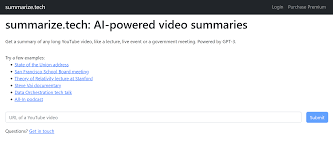
The tool works directly in your browser and often doesn’t require a login for basic use, making it fast and convenient. However, summaries may sometimes miss subtle details or context from the original video, so it’s best used for quick insights rather than deep understanding.
What it does: Paste in a YouTube URL and get a written summary of the video. No need to watch the whole thing.
Practical example: You find a 45-minute YouTube tutorial on a topic you’re half-interested in. Paste the URL in, get a 5-paragraph summary, and decide in two minutes whether it’s worth watching.
Pros:
- No login, free to use
- Works on most public YouTube videos with captions
- Summaries are usually accurate enough to be useful
Cons:
- Doesn’t work well on videos without auto-generated captions
- Summaries can be vague for dense tutorial content
- No audio processing — relies entirely on subtitles
Best for: Researchers, learners, and anyone curating content.
9. Cleanup.pictures (for removing objects from photos)
Cleanup.pictures is a simple yet powerful tool that helps you remove unwanted objects, people, or text from photos in seconds. It works by letting you upload an image and then brush over the area you want to erase. The tool automatically fills in the space with realistic background details, making the edit look natural.

This is especially useful for photographers, designers, and social media users who want clean, distraction-free images. Whether you’re removing strangers from a travel photo or fixing small imperfections, Cleanup.pictures makes the process quick and easy without needing advanced editing skills.
The tool runs directly in your browser and often allows basic use without login, making it very convenient. However, the free version may have limits on image quality or editing precision compared to premium plans.
What it does: Upload a photo, brush over the thing you want removed (a person in the background, a logo, an unwanted object), and it fills in the space naturally.
Practical example: You have a great outdoor photo, but there’s a parked car ruining the background. Brush over it, download the cleaned version.
Pros:
- No login needed
- Surprisingly good results on simple backgrounds
- Fast processing
Cons:
- Struggles with complex textures or busy backgrounds
- Free downloads are limited in resolution
- Doesn’t work perfectly every time — may need a few tries
Best for: Photographers, content creators, and real estate listings.
10. Perplexity.ai (for quick research without rabbit holes)
Perplexity AI is a powerful research tool designed to give quick, clear answers without sending you into endless browsing loops. Instead of opening multiple websites, it provides concise responses with sources, helping you find reliable information faster. This makes it ideal for students, writers, and professionals who need accurate insights without wasting time.
One of its standout features is real-time search with summarized results. You can ask questions in natural language, and it delivers direct answers along with references, so you can verify the information easily. It also allows follow-up questions, making research feel more like a conversation.
Perplexity AI works smoothly in your browser and often offers limited access without requiring a login. However, deeper features and extended usage may require an account.
What it does: Ask a question and get a sourced, up-to-date answer. It’s like a search engine that actually answers your question directly, with citations.
Practical example: You need a quick overview of how a concept like “compound interest” works to explain it to someone. Ask Perplexity. You get a clear, sourced explanation in seconds — no clicking through ten different websites.
Pros:
- No login needed for standard use
- Gives cited answers, not just links
- Updated with current information
Cons:
- Occasional errors or outdated sources
- Complex or niche questions may get shallow answers
- Heavy use eventually prompts you to sign up
Best for: Quick research, fact-checking, getting a starting point on any topic.
A Few Things to Keep in Mind
Free tools have limits. Almost every tool listed here has some kind of cap — daily usage, file size, download resolution. That’s fair. They’re free. Just know the limit before you’re halfway through something important.
Be careful with sensitive information. Pasting private documents, client data, or confidential business content into any third-party tool — free or paid — carries some risk. Read the privacy policy if it matters. For anything truly sensitive, stick to offline tools.
Quality varies. These tools are impressive, but they’re not perfect. Always review the output. A rewritten paragraph might lose a key point. A PDF summary might skip a crucial section. Use them as a starting point, not a final product.
Quick Comparison Table
| Tool | Best Use | Login Needed? | Biggest Limit |
|---|---|---|---|
| ChatPDF | Reading PDFs fast | No | File size |
| QuillBot | Rewriting text | No | 125 words/paraphrase |
| Hemingway Editor | Readability checks | No | No saving |
| Remove.bg | Background removal | No | Low-res download |
| TinyWow | Misc file tasks | No | File size |
| Explainpaper | Academic papers | No | English only |
| Wordtune | Sentence rewriting | No | Daily limit |
| Summarize.tech | YouTube summaries | No | Needs captions |
| Cleanup.pictures | Object removal | No | Low-res download |
| Perplexity.ai | Quick research | No | Limited heavy use |
Frequently Asked Questions
Are these tools really free — or is there a catch?
They’re genuinely free for basic use. The catch is usually a usage limit (X tasks per day or per session) or lower quality output (like smaller file downloads). None of the tools on this list require a credit card just to try them.
Is it safe to paste my documents into these tools?
It depends on how sensitive the content is. For general writing tasks — blog posts, school essays, publicly available documents — it’s fine. For anything containing personal data, financial records, or confidential business information, be cautious. Check the tool’s privacy policy and consider whether you’re comfortable with your data being processed on their servers.
Do these tools work on mobile?
Most of them work in a mobile browser, though some are better on a desktop. Remove.bg, TinyWow, and Perplexity work especially well on mobile. Hemingway Editor is easier to use on a bigger screen.
What’s the best tool for students?
ChatPDF for reading papers, Explainpaper for understanding them, QuillBot for polishing writing, and Hemingway for making essays cleaner. Used together, they cover most of what a student needs day-to-day.
Will I eventually be forced to create an account?
Some tools nudge you toward signing up after heavy use, especially Perplexity and Wordtune. You can often get around this by using a new browser tab or private/incognito mode. But for consistent daily use, a free account (even without a paid plan) sometimes unlocks more usage without costing anything.
Are there any tools for language translation without a login?
DeepL offers a limited but high-quality translation tool without an account. Google Translate also works without a login and handles a wider range of languages. Both are solid for quick translations.
Can I use these tools for commercial work?
Generally, yes, but check each tool’s terms. Most free tiers allow personal and commercial use. If you’re using them for client work or publishing, it’s worth a quick look at the terms of service to make sure there are no restrictions.
Conclsion
The best tool is the one that gets out of your way. All of these do that. No forms to fill in, no inbox to watch, no subscription to justify. Just open, use, and move on.
Bookmark two or three that match what you do most. The next time you’re stuck on a task that would take you ten minutes to do manually, there’s a good chance one of these can do it in thirty seconds.
That’s the point of tools — to save time. These ones actually do.

