
Video content has become the backbone of digital communication. Whether you are a professional filmmaker, a marketing team, a small business owner, or someone who just wants to create engaging social media content, having the right tools makes all the difference. The landscape of video editing software has evolved tremendously. In 2026, we have access to tools that can handle everything from simple clip trimming to complex visual effects, all while being more intuitive than ever before.
Let me walk you through the best options available right now, breaking them down by what they do best and who they are for.
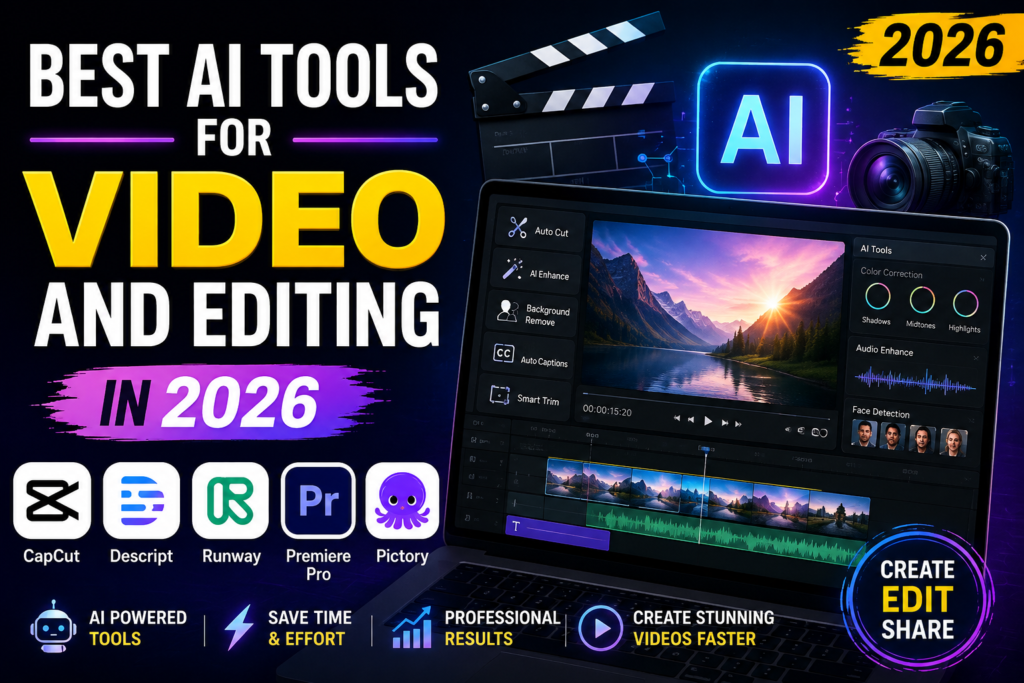
Video creation and editing are becoming faster and more accessible in 2026, thanks to powerful AI-powered tools that can automate many time-consuming tasks. From generating videos and removing backgrounds to creating captions, cutting long recordings into short clips, enhancing audio, and producing social-media-ready content, these tools can significantly simplify the editing workflow.
Whether you are a YouTube creator, social media marketer, filmmaker, podcaster, or beginner, choosing the right tool depends on your specific workflow. CapCut is widely suited to short-form and social content, Descript focuses on transcript-based editing, Runway is useful for generative visuals and effects, while Adobe Premiere Pro remains a strong choice for professional production.
We compare the best AI tools for video and editing in 2026, covering their key features, strengths, limitations, pricing considerations, and ideal use cases. Whether your goal is to create YouTube videos, Shorts, Reels, marketing videos, or professional productions, you’ll find options to match your editing needs and budget.
How Video Tools Have Changed
Think back to video editing just a few years ago. You needed a powerful computer, expensive software, and months of training just to create something decent. Today? Things are very different.
Modern video tools are built around the idea of helping you work faster. They handle repetitive tasks, suggest improvements, and even help you find the best moments in your footage. The goal is simple: let you focus on telling your story instead of wrestling with complex settings.
In 2026, the smartest creators don’t rely on just one tool. They use a mix of specialized software for different parts of their workflow. You might generate a rough cut with one program, clean up audio with another, and polish the final product with a professional editor. This approach gives you the best of everything.
Best AI Tools for Video and Editing in 2026:-
Professional-Grade Video Editors
When you need total control over your project, these are the tools that professionals trust. They require some learning, but the results are worth it.
DaVinci Resolve: The Complete Studio
DaVinci Resolve is one of the most powerful video editing platforms for creators who want professional-level editing, color correction, visual effects, motion graphics, and audio production in one application. Its free version provides an impressive range of features, making it a strong choice for YouTubers, filmmakers, content creators, and advanced editors.
One of its biggest advantages is its professional color grading system. Editors can precisely adjust colors, contrast, exposure, skin tones, and cinematic looks. The software also includes Fusion for visual effects and motion graphics and Fairlight for advanced audio editing.
For creators working with AI-assisted workflows, DaVinci Resolve also includes intelligent features that can speed up tasks such as transcription, object selection, audio processing, and editing. The Studio version adds more advanced tools and features for professional production.
If there is one piece of software that stands above the rest in terms of value, it is DaVinci Resolve. This is the tool used in Hollywood for color grading, and the incredible part is that the free version is powerful enough for most professionals.
Who should use it?
Editors who want professional-grade tools without paying a subscription. It is perfect for documentaries, short films, commercials, and any project where color quality matters.
What makes it special?
The color grading tools are unmatched. You can adjust the look of every single frame with precision that other editors simply cannot match. The Magic Mask feature lets you isolate a person in your video and apply effects just to them, which is amazing for quick corrections.
But DaVinci Resolve is more than just color. It includes Fairlight, a complete audio workstation built right in. You can mix dozens of audio tracks, remove background noise, and add effects without leaving the program. Fusion handles visual effects and motion graphics, so you can create titles, animations, and even complex visual effects all in one place.
The good side:
- The free version gives you more than most paid software
- One-time payment of $295 for the Studio version is excellent value
- No subscription fees eating into your budget
- Industry-standard tools used by professionals worldwide
The challenges:
- The learning curve is steep, especially if you are new to editing
- You need a powerful computer to run it smoothly
- The interface can feel overwhelming at first
Adobe Premiere Pro: The Reliable Standard
Adobe Premiere Pro is a professional video editing software designed for filmmakers, YouTubers, content creators, agencies, and production teams. It combines a powerful timeline editor with advanced effects, audio tools, color correction, and AI-assisted features, making it suitable for everything from short social media videos to full-length professional productions.
One of Premiere Pro’s biggest strengths is its AI-powered editing workflow. Features such as automatic transcription, text-based editing, speech enhancement, and intelligent tools can help reduce repetitive editing work. Editors can quickly find sections of dialogue, create captions, improve voice quality, and make precise adjustments without manually performing every task.
Premiere Pro also works well with other Adobe applications, including After Effects for motion graphics and visual effects and Photoshop for graphics and thumbnails. This makes it particularly useful for creators who already use the Adobe Creative Cloud ecosystem.
Adobe Premiere Pro has been the go-to professional editor for years, and it remains a top choice in 2026. Its biggest strength is how well it works with other Adobe tools.

Who should use it?
Professional editors working in teams, newsrooms, and agencies where collaboration and compatibility are essential.
What makes it special?
The integration with Adobe Creative Cloud is its superpower. You can create graphics in After Effects, edit photos in Photoshop, and adjust audio in Audition, and everything flows together perfectly. This is why big production houses stick with Adobe.
The text-based editing feature is a game changer for interviews. The software generates a transcript of your video, and you can edit by simply cutting and pasting text. The video updates automatically to match your changes. This alone saves hours on talking-head content.
Motion tracking has also improved significantly. You can attach text or graphics to moving objects with just a few clicks.
The good side:
- Works with almost every video format you can throw at it
- Huge library of plug-ins for extra features
- Industry standard means lots of tutorials and help available
- Regular updates with new features
The challenges:
- Subscription costs over $400 per year, which adds up
- Steep learning curve for beginners
- Can be resource-heavy on older computers
Tools for Marketing Teams and Businesses
Marketing departments need to produce content quickly and consistently. They cannot afford to spend days on a single video. These tools are built for speed and brand consistency.
InVideo: Marketing Videos Made Simple
InVideo is designed for one purpose: getting marketing videos out the door fast. If you have a script or a blog post, InVideo can turn it into a polished video in minutes.
Who should use it?
Marketing teams, small business owners, and content managers who need to create professional-looking videos without spending hours on editing.
How it works
You start by pasting in your script or describing what you need. The system then finds suitable stock footage, adds text overlays, picks background music, and puts together a complete video. You can make adjustments, but most of the work happens automatically.
The brand kit feature is particularly useful. You can save your logos, colors, and fonts, and every video you create will match your brand identity. This consistency is crucial for building recognition.
The good side:
- Extremely fast way to create marketing content
- Access to millions of stock videos and images
- Brand kits ensure consistency across all your content
- No editing experience required
The challenges:
- Videos can look generic if you do not customize them enough
- The editing timeline is basic compared to professional editors
- Heavy reliance on templates limits creative freedom
Opus Clip: Extract Social Media Gold
Creating one long video is only the first step. The real work is turning that video into dozens of short clips for social media. Opus Clip handles this automatically.
Who should use it?
Social media managers and content creators who need to produce many short clips from long-form videos.
How it works
You upload a long video, and the tool analyzes it to find the most engaging moments. It identifies high-energy sections, interesting quotes, and key points. Then it creates short clips formatted perfectly for TikTok, Instagram Reels, and YouTube Shorts. Each clip includes captions, proper sizing, and the best layout for the platform.
The good side:
- Saves hours of manual clip extraction
- Makes it easy to maintain a consistent social media presence
- Clips are formatted correctly for each platform
- Great for turning podcasts and interviews into social content
The challenges:
- Limited creative control
- Not a replacement for a full video editor
- Works best with talking-head content
Vizard.ai: Similar but Different
Who should use it?
Agencies and creators who need to produce large volumes of social content from a single source.
Vizard.ai offers similar repurposing features with some unique strengths. It excels at creating multiple versions of the same clip for different audiences.
The good side:
- Fast processing times
- Good customization options for branding
- Multiple output formats
The challenges:
- Can miss subtle moments that require human judgment
- Best for specific types of content
Social Media Creation Tools
Short-form video has taken over social media. These tools are built specifically for creators who need to produce content quickly, often directly from their phones.
CapCut: The Social Media Champion
CapCut has become the default choice for social media creators. It is free, powerful, and designed for speed. Whether you are making TikTok videos, Instagram Reels, or YouTube Shorts, CapCut does what you need.
Who should use it?
Anyone creating short-form video content. From influencers to small businesses, if you are on social media, you need CapCut.
What makes it special?
The auto-caption feature is the best in the business. In 2026, captions are essential for social media videos. Viewers often watch without sound, and captions keep them engaged. CapCut generates captions quickly and offers animated styles that make your videos pop.
The effects library is constantly updated with trending options. You can apply effects, transitions, and filters with a single tap. This keeps your content fresh and aligned with what is popular on each platform.
Cross-platform support is another huge advantage. You can start editing on your phone and finish on your computer without losing any work.
The good side:
- Completely free for most features
- Very easy to learn, even for beginners
- Best auto-captioning available
- Regular updates with new effects and transitions
The challenges:
- Limited to a 15-minute maximum video length
- Not suitable for long-form content or complex projects
- Advanced features require the Pro version
Quik: Highlights in Minutes
Quik comes from the makers of GoPro, and it shows. It is built for speed, taking your clips and creating highlight reels with minimal effort.
Who should use it?
Casual creators and action sports enthusiasts who want to share quick videos without fuss.
How it works
You select your clips, choose a theme and soundtrack, and Quik does the rest. It mixes your footage, adds transitions, and creates a finished video in minutes.
The good side:
- Incredibly fast
- Very simple to use
- Great for beginners
The challenges:
- Lacks advanced features
- Not suitable for professional work
Enhancing and Restoring Footage
Sometimes you have footage that is almost perfect, but needs help. Maybe it is shaky, blurry, or grainy. Specialized tools can save these clips and make them look professional.
Topaz Video AI: The Restoration Specialist
Topaz Video AI is the best option for improving poor-quality footage. It feels less like editing and more like restoration.
Who should use it?
Anyone working with low-quality footage. This includes editors who need to upscale old footage, creators who shoot on phones in low light, and anyone dealing with shaky handheld videos.
What it does
The software processes your video frame by frame to enhance quality. It can upscale standard definition to 4K while maintaining sharp detail. It removes grain and noise from dark footage. It stabilizes shaky shots to make them look smooth and professional.
The good side:
- Professional-grade results
- Can save footage that would otherwise be unusable
- Works with many different file formats
The challenges:
- Processing is slow because it works frame by frame
- Expensive for a single-purpose tool
- Does not include editing features
Building Your Personal Toolkit
The best approach in 2026 is not to pick one tool and stick with it. Instead, build a toolkit that handles different parts of your workflow.
For professional editors:
Start with DaVinci Resolve for its color grading and audio tools. Add Adobe Premiere Pro if you work in teams or need Adobe integration. Keep Topaz Video AI for restoring difficult footage.
For marketing teams:
Use InVideo to generate videos from scripts quickly. Use Opus Clip or Vizard to turn those videos into social media clips. CapCut works well for quick adjustments on mobile.
For social media creators:
CapCut is your primary tool. It handles everything you need for short-form content. Add Topaz Video AI if you shoot in challenging conditions.
For beginners:
Start with CapCut or Quik. They are easy to learn and produce good results quickly. As you grow, explore DaVinci Resolve for more control.
Practical Examples of Tool Combinations
Let me give you some real-world scenarios to show how these tools work together.
Example 1: A marketing manager creating a campaign
You have a product announcement. You write a script and paste it into InVideo. The tool finds relevant stock footage, adds your brand colors, and creates a one-minute promotional video. You export the video and upload it to Opus Clip, which creates ten short clips for social media. You post these clips throughout the week, maintaining a consistent presence with minimal effort.
Example 2: A YouTuber with an interview channel
You record a one-hour interview. The lighting was not great, and the audio is a bit noisy. You run the footage through Topaz Video AI to clean it up. You import the improved footage into DaVinci Resolve. You use Fairlight to remove background noise and enhance the voices. You use text-based editing to cut the interview from one hour to fifteen minutes by removing pauses and mistakes. You export the final video and upload it to Opus Clip for social media snippets.
Example 3: A social media influencer
You shoot several clips on your phone during a day out. You import them into CapCut and quickly trim the best moments. You add the auto-caption feature with animated captions that match your style. You add trending transitions and music. The entire video is finished in under thirty minutes and ready for Instagram.
Making the Right Choice
The abundance of tools can feel overwhelming. Here is how to decide what is right for you.
Consider your skill level:
If you are new to editing, start with CapCut or Quik. They are forgiving and easy to learn. Move to more advanced tools as you gain confidence.
Consider your content type:
Short-form social content demands speed. CapCut is perfect for this. Long-form content needs more control. DaVinci Resolve and Premiere Pro are better choices.
Consider your budget:
CapCut is free and excellent. DaVinci Resolve has a powerful free version. Premiere Pro requires a subscription. Topaz Video AI is a one-time purchase. Choose based on what you can afford.
Consider your computer:
Professional editing software needs powerful hardware. If you have an older computer, stick with lighter tools like CapCut.
Future Trends to Watch
Video tools continue to evolve. Here are some trends that will shape the future of video editing.
Real-time collaboration is becoming more common. Soon, multiple editors will work on the same project simultaneously, similar to how Google Docs works for text.
Voice-controlled editing is emerging. You may soon be able to say “cut this clip” or “add a transition here” and have it happen automatically.
Automated storyboarding will help you plan videos before you start editing. This will save time and reduce the need for reshoots.
Better mobile editing will continue to close the gap between phone and computer editing. Mobile apps like CapCut are already powerful and will only get better.
Frequently Asked Questions
1. What is the best free video editing software in 2026?
DaVinci Resolve offers the most complete free version. It includes professional color grading, audio mixing, and visual effects tools. CapCut is excellent for social media content and is completely free for most features.
2. Which video editor is easiest for beginners?
CapCut is the easiest to learn. Its mobile-first design and template-driven approach make it accessible to anyone. Clipchamp, built into Windows 11, is also very straightforward for basic editing.
3. What is the best tool for editing vertical videos for social media?
CapCut is the top choice for vertical videos. It was built for this format and offers the best auto-captioning, effects, and transitions for platforms like TikTok, Instagram Reels, and YouTube Shorts.
4. What is the best video editing software for professionals?
Professionals typically choose between Adobe Premiere Pro and DaVinci Resolve. Premiere Pro is preferred for its ecosystem and collaboration features. DaVinci Resolve is the choice for projects requiring the highest quality color grading and audio mixing.
5. What is the best video editing software for marketing teams?
InVideo is excellent for marketing teams because it creates videos from scripts quickly. Opus Clip and Vizard are valuable for turning those videos into social media content. The combination of these tools allows marketing teams to produce large volumes of content efficiently.
6. How can I improve the quality of my footage?
Topaz Video AI can upscale resolution, remove noise, and stabilize shaky footage. It is the best option for salvaging poor-quality video and making it look professional.
7. Do I need multiple video tools?
In most cases, yes. Different tools excel at different tasks. Using a combination of tools gives you the best results and saves time. For example, you might use InVideo to generate a video, Opus Clip to create social clips, and DaVinci Resolve for final polish.
8. Can I edit video on my phone?
Yes, absolutely. CapCut and Quik are powerful mobile editors that can handle most social media content. Many creators now edit entirely on their phones.
9. How much does video editing software cost?
Prices vary widely. CapCut is free. DaVinci Resolve has a free version and a $295 one-time purchase for the Studio version. Adobe Premiere Pro costs over $400 per year on subscription. Topaz Video AI is a one-time purchase. Choose based on your needs and budget.
10. What should I look for in a video editing tool?
Consider your skill level, the type of content you create, your budget, and your computer’s capabilities. The best tool is the one that helps you create content efficiently without unnecessary complexity.
Conclsion
Video creation in 2026 is more accessible than ever. You do not need to be a professional to create great content. The tools available today handle the technical details so you can focus on storytelling.
Start with what feels comfortable. As you grow, add new tools to your toolkit. Experiment and find what works best for your specific needs. The most important thing is to start creating.
Remember, the best tool is the one you actually use. Do not get overwhelmed by options. Pick something that matches your current skill level and begin. You will learn and improve as you go.

