
Adding subtitles used to mean hours of manual work — listening, typing, timestamping, correcting. Or paying someone else to do it. Neither option was particularly fun or cheap.
Best AI Tools for Subtitles in 2026. That’s changed significantly. Subtitle tools powered by speech recognition and transcription technology can now do in minutes what used to take hours. But “can do it in minutes” and “does it well” are two different things — and the gap between the best and worst tools on the market is wider than most people realise.
This guide covers the best subtitle tools available in 2026, each of which is built for, what they actually cost, and where they fall short. Whether you’re a YouTuber, a corporate video team, a filmmaker, or someone who just needs subtitles on one video, there’s a tool here that fits.
Why Subtitles Matter More Than Ever in 2026
Before getting into the tools, it’s worth understanding why subtitles have become non-negotiable for most video content:
Accessibility — Subtitles make content accessible to people who are deaf or hard of hearing. In many countries, this is a legal requirement for broadcast content.
Silent viewing — Studies consistently show that a large proportion of social media videos is watched without sound — on commutes, in offices, in waiting rooms. Without subtitles, you lose that audience entirely.
SEO and discoverability — Platforms like YouTube index subtitle text, which can improve search rankings for your videos.
Non-native speakers — Subtitles help viewers who speak your language as a second language follow along more easily.
Engagement — Videos with subtitles consistently show higher watch time and completion rates across platforms.
What to Look for in a Subtitle Tool
Transcription accuracy — The foundation of any subtitle tool. Accuracy varies a lot between providers, especially with accents, technical terminology, and background noise.
Language support — If you create content in Hindi, Tamil, or any language other than English, check whether the tool supports it — and how well.
Editing interface — Auto-generated subtitles always need some editing. A good tool makes this easy: click on a word to edit it, adjust timings by dragging, and fix errors quickly.
Export formats — You need the right format for your platform. SRT is the most universal. VTT is used by many web players. Some platforms need ASS or SBV files. Check what your destination platform requires.
Burn-in vs. separate file — Some tools embed subtitles permanently into the video (burn-in). Others give you a separate subtitle file. Both have uses — knowing which you need matters.
Translation — If you want subtitles in multiple languages, look for tools with built-in translation.
Pricing model — Per minute, per month subscription, or one-time purchase. The right model depends on how much video you produce.
Best AI Tools for Subtitles in 2026:-
1. Descript
Best for: Video editors who want subtitles as part of a full editing workflow
Descript is a video and podcast editor built around transcription. You edit the transcript and the video changes accordingly — delete a sentence from the text, and it cuts that segment from the video. Subtitles are generated automatically from the transcript.
What works well: The editing experience is unlike anything else. If you’re already editing in Descript, subtitles are essentially a free byproduct — they’re generated from the same transcription you’re using to edit. Accuracy is strong for clear English audio. The Studio Sound feature improves audio quality before transcription, which helps accuracy.
Language support: English is the strongest. Other languages are supported, but accuracy drops compared to dedicated transcription tools.
Export options: SRT, VTT, and burned-in captions in the exported video.
Practical example: A podcast host in Bengaluru records a 45-minute interview, uploads it to Descript, and has a full transcript within minutes. She edits out the filler words and tangents by deleting text, then exports the video with subtitles already embedded. Total time for a task that used to take half a day: about 90 minutes.
Pricing: Free tier (1 hour transcription/month). Creator plan at $24/month (~₹2,000).
2. Kapwing
Best for: Social media creators, beginners, quick subtitle jobs
Kapwing is a browser-based video editor with a strong subtitle feature. You upload your video, it transcribes the audio automatically, and you can edit the subtitles in a clean interface — adjusting text, timing, font, and style before exporting.
What works well: No software installation required — everything runs in the browser. The auto-subtitle feature is fast and reasonably accurate for clear audio. Style options are solid: you can choose fonts, colours, sizes, and placement. It’s probably the easiest tool on this list for a complete beginner to pick up.
Language support: 70+ languages, including Hindi and several other Indian languages.
Export options: Export as MP4 with burned-in subtitles, or download an SRT file.
Practical example: A fitness instructor in Delhi records workout videos for Instagram Reels. She uploads each video to Kapwing, reviews the auto-generated subtitles (usually only 5–8 corrections per 60-second video), picks a bold font style, and exports with captions burned in. The whole process takes under 15 minutes per video.
Pricing: Free tier available (watermark on exports). Pro plan at $24/month (~₹2,000). Team plans available.
3. Submagic
Best for: Short-form video creators — Reels, TikToks, YouTube Shorts
Submagic is built specifically for short-form video content. It generates subtitles with animated, stylised captions — the kind you see on viral videos where words pop in one at a time, highlighted as they’re spoken. If you’ve watched trending content on Instagram or TikTok, you’ve seen this style.
What works well: The default caption styles are genuinely good — no design skill needed. Word-by-word highlighting, emoji insertion, and animated effects are all built in. For short-form content, it produces a polished result faster than any other tool on this list.

Language support: 48 languages.
Export options: MP4 with burned-in captions.
Practical example: A personal finance creator in Mumbai makes 60-second educational clips for Instagram. He uploads each video to Submagic, picks a caption style, reviews the transcript for errors, and exports. The captions look like something a designer spent time on — but the whole process takes about 8 minutes.
Pricing: Free trial available. Pro plan starts at $20/month (~₹1,670).
4. Whisper (OpenAI) — via apps like MacWhisper or Whisper Transcription
Best for: Privacy-conscious users, offline transcription, technical or multilingual content
Whisper is an open-source transcription model that runs locally on your device — meaning your audio never gets uploaded to anyone’s server. It’s available through apps like MacWhisper (Mac) and Whisper Transcription (iOS), and can be run from the command line for more technical users.
What works well: Accuracy is outstanding, especially for technical vocabulary, mixed-language audio (common in India, where conversations often blend English with Hindi or regional languages), and accented speech. Since it runs offline, there are no data privacy concerns and no per-minute charges once you have the app.
Language support: 99 languages with impressive accuracy across all of them.
Export options: SRT, VTT, TXT, and others, depending on the app you use.
Practical example: A medical education channel creates videos with heavy technical terminology — drug names, anatomy terms, clinical procedures. Other tools misread these words repeatedly. Running the audio through MacWhisper produces a near-perfect transcription that needs only minor editing. The local processing also means patient-related content stays private.
Pricing: Whisper itself is free and open-source. MacWhisper costs ~$29 one-time (~₹2,420) for the Pro version. No subscription required.
5. Otter.ai
Best for: Meeting recordings, interviews, multi-speaker content
Otter.ai is best known as a meeting transcription tool, but it works well as a subtitle generator for interview-format videos. It identifies different speakers automatically and timestamps everything precisely — making it easy to generate subtitles for content where multiple people are talking.
What works well: Speaker identification is one of Otter’s standout features. For interview videos, podcasts, or panel discussions, having each speaker’s words attributed correctly saves significant editing time. Integration with Zoom, Google Meet, and Teams makes it easy to capture meeting content for later captioning.
Language support: Primarily English. Limited support for other languages.
Export options: SRT, DOCX, TXT, PDF.
Practical example: A corporate communications team in Chennai creates internal training videos with two presenters. They record the session via Zoom with Otter connected. After the call, they download the SRT file, make minor corrections, and upload it alongside the video to their internal LMS. No manual transcription required.
Pricing: Free (300 minutes/month). Pro at $16.99/month (~₹1,415). Business plan at $30/user/month.
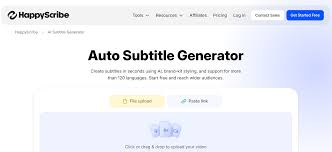
6. HappyScribe
Best for: Professional subtitle work, multiple languages, agencies
HappyScribe offers both automated transcription and a human transcription service — useful when accuracy is critical. It’s particularly strong for multilingual content, with support for 120+ languages and a clean subtitle editor.
What works well: The subtitle editor is one of the best available — you can see the waveform alongside the text, making it easy to fine-tune timing. The human transcription option (where a real person reviews the output) is a useful option for content where accuracy cannot be compromised, like legal or medical videos.
Language support: 120+ languages, including strong support for European, Asian, and several Indian languages.
Export options: SRT, VTT, STL, EBU-STL, TTML, and more — good for broadcasters and professional workflows.
Practical example: A documentary production company based in Kochi creates content in Malayalam and English. They use HappyScribe for automated subtitles on rough cuts, then send the final version for human review before broadcast. The combination of automation and human check keeps costs manageable while meeting broadcast accuracy standards.
Pricing: Pay-as-you-go from $0.20/minute (~₹17/minute) for automated. Subscription plans from $23/month (~₹1,920). Human transcription from $1.90/minute (~₹159/minute).
7. Zubtitle
Best for: Repurposing long-form video into social media clips with captions
Zubtitle focuses on adding captions to videos for social media distribution. It auto-generates subtitles, lets you style them, and handles aspect ratio changes for different platforms — turning a 16:9 YouTube video into a 9:16 Instagram Reel format, for example.
What works well: The aspect ratio conversion combined with automatic captioning is genuinely useful for creators who repurpose content across platforms. The caption editor is simple and clean. Progress bars and video headers can be added to make content look more native to social platforms.
Language support: 50+ languages.
Export options: MP4 with burned-in captions.
Practical example: A business coach posts long-form interviews on YouTube and repurposes clips for LinkedIn and Instagram. She uploads each clip to Zubtitle, which auto-captions it and converts the format for each platform simultaneously. What used to require a video editor now takes about 20 minutes per clip.
Pricing: Free tier (limited exports). Basic plan at $19/month (~₹1,585).
Quick Comparison Table
| Tool | Best For | Languages | Free Tier | Starting Price |
|---|---|---|---|---|
| Descript | Full video editing workflow | English (best) | ✅ 1hr/month | $24/month |
| Kapwing | Beginners, social media | 70+ | ✅ (watermark) | $24/month |
| Submagic | Short-form video (Reels, Shorts) | 48 | ✅ Trial | $20/month |
| Whisper (MacWhisper) | Privacy, offline, technical terms | 99 | ✅ Open-source | ~$29 one-time |
| Otter.ai | Meetings, interviews | English | ✅ 300 min/month | $16.99/month |
| HappyScribe | Professional, multilingual | 120+ | ❌ Pay-per-use | $0.20/min |
| Zubtitle | Cross-platform repurposing | 50+ | ✅ Limited | $19/month |
Pros and Cons of Using Subtitle Tools
Pros
Saves hours of manual work — What used to take 3–4 hours of typing and timestamping now takes 10–30 minutes of reviewing and editing. The time saving is real and consistent.
Accessible to non-technical users — Most tools on this list require no video editing experience. Upload, review, export. That’s the whole process.
Multilingual reach — Translation features on tools like HappyScribe and Kapwing let you generate subtitles in multiple languages from one recording — without hiring translators for every language.
Better viewer retention — Subtitled videos consistently outperform unsubtitled ones on watch time. The investment pays off in engagement.
Affordable — Even paid tools are a fraction of the cost of hiring a human transcriptionist. At ₹1,500–2,000/month, most tools pay for themselves after the first few videos.
Cons
Accuracy isn’t perfect — Every tool makes mistakes, especially with accents, background noise, technical jargon, or audio that isn’t clear. You always need to review and edit the output.
Language support varies — English accuracy is strong across all tools. Hindi, Tamil, and other Indian languages are supported on some tools, but not always with the same accuracy level.
Per-minute pricing adds up — If you produce a lot of long-form video, per-minute pricing models (like HappyScribe’s) can get expensive quickly. Subscription models are usually more cost-effective for regular producers.
Burn-in vs. file flexibility — Tools that only offer burned-in captions don’t give you flexibility to update subtitles later or add new language versions. Separate SRT files are more versatile.
Free tiers are limited — Most free tiers have meaningful restrictions — watermarks, minute limits, or reduced accuracy. For professional use, a paid plan is usually necessary.
Tips for Better Subtitle Results
Record clean audio first. No subtitle tool compensates for poor audio quality. Use a decent microphone, reduce background noise, and speak clearly. Better input means fewer corrections.
Edit before exporting. Always review auto-generated subtitles before publishing. Even the best tools produce 3–8 errors per minute of audio. A quick read-through catches most of them.
Match subtitle timing to speech rhythm. Default timing isn’t always natural. Short subtitles that appear and disappear quickly are harder to read than subtitles that stay on screen for 1.5–3 seconds.
Keep line length readable. Aim for subtitles of 1–2 lines maximum, with no more than 42 characters per line. Longer subtitles are harder to read, especially on mobile screens.
Use SRT files where possible. Burned-in subtitles can’t be turned off by the viewer and can’t be updated without re-exporting the whole video. An SRT file gives both you and the viewer more flexibility.
Frequently Asked Questions
Which subtitle tool is most accurate for English content?
Whisper (accessed through MacWhisper or similar apps) and Descript both deliver excellent accuracy for clear English audio. For content with heavy accents or technical terminology, Whisper tends to outperform the others.
Which tools support Hindi subtitles?
Kapwing, Whisper, and HappyScribe all support Hindi. Whisper has the broadest language accuracy overall. For Indian regional languages like Tamil, Telugu, or Malayalam, HappyScribe and Whisper are the strongest options currently.
What subtitle format should I use for YouTube?
YouTube accepts SRT, VTT, and SBV files. SRT is the most universally compatible and the easiest to edit. Upload it as a separate file rather than burning it in — this lets viewers toggle subtitles on and off, and YouTube can use the text for search indexing.
Can I translate subtitles into multiple languages automatically?
Yes. Kapwing, HappyScribe, and Zubtitle all offer translation features. You generate subtitles in the original language, then translate to additional languages within the same tool. Quality varies — translations work best for common language pairs like English to Spanish or French.
Is Whisper really free?
The Whisper model itself is free and open-source. To use it without a technical setup, you’ll need an app like MacWhisper (one-time cost of ~$29 for Pro features) or Whisper Transcription on iOS. There’s no ongoing subscription — pay once and use it indefinitely.
What’s the best tool for Instagram Reels and TikTok?
Submagic is purpose-built for this format and produces the most visually polished results for short-form content. Kapwing is a strong second option if you want more control over styling.
Do these tools work for videos in Indian languages?
Some do, with varying accuracy. Whisper handles Indian languages better than most, including mixed-language audio (Hindi-English code-switching, for example). HappyScribe supports several Indian languages with good accuracy. For the most critical content in regional languages, combining automated subtitles with a manual review step is the safest approach.
Conclsion
The best subtitle tool depends on what you’re making and where it’s going.
- YouTube long-form or podcasts → Descript or Otter.ai
- Instagram Reels, TikTok, Shorts → Submagic or Kapwing
- Privacy-sensitive or technical content → Whisper via MacWhisper
- Professional or broadcast work → HappyScribe
- Repurposing video across platforms → Zubtitle
Start with the free tier of whichever tool fits your format, run a few test videos through it, and check the accuracy on your specific type of audio. That 15-minute test will tell you more than any review can.

