
Creating videos from written scripts has become faster and easier than ever. In 2026, advanced script-to-video platforms can automatically transform blog posts, marketing scripts, educational content, and social media ideas into professional-looking videos within minutes. These tools help content creators, marketers, educators, and businesses save time while producing engaging visual content without requiring advanced video editing skills.
The best AI-powered script-to-video tools can generate scenes, voiceovers, subtitles, animations, stock footage, and transitions automatically. Whether you’re creating YouTube videos, TikTok clips, Instagram Reels, product demonstrations, or training materials, these platforms can streamline the entire production process from script to final export.
In this guide, we’ll explore the best AI tools for script-to-video creation in 2026, comparing their features, strengths, pricing, and ideal use cases. Whether you’re a beginner looking for a simple solution or a professional creator seeking advanced customization, you’ll find the right tool to turn your ideas into high-quality videos efficiently.
You’ve got a script ready. Maybe it’s for a YouTube explainer, a product demo, a training video, or a faceless channel you’re building. The problem? Turning that script into an actual watchable video used to take hours — recording, editing, syncing voiceovers, finding B-roll.
Not anymore.
Script to Video In 2026, some tools take your written script and handle almost everything else: the visuals, the voiceover, the transitions, even the subtitles. You paste in your text and get back a ready-to-publish video in minutes.
But not all of these tools are equal. Some are built for corporate training. Some are better for YouTube content. Some give you a realistic avatar on screen. Others just stitch together stock clips with a voiceover. Knowing which one fits your workflow makes a huge difference.
This guide covers the best script-to-video tools in 2026 — what each one actually does well, where it falls short, and who it’s best suited for.
How Script-to-Video Tools Actually Work
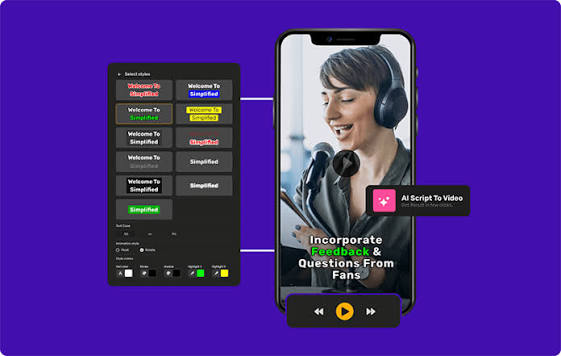
The basic process is simple:
- You paste your script into the tool
- It breaks the script into scenes
- Each scene gets matched with a visual (stock footage, generated video, or an avatar presenter)
- A voiceover is added — either a synthetic voice or your own recorded voice
- Captions, transitions, and background music are layered in
- You export a finished MP4
The difference between tools comes down to how they handle steps 3 and 4. Some pull from stock footage libraries. Some generate original video clips from your text. Some put a realistic avatar on screen that delivers your script like a presenter. Depending on your use case, one approach will work better than the others.
Best Script-to-Video Tools in 2026
1. Pictory — Best for Content Repurposing
If you already have written content — blog posts, articles, podcast transcripts — Pictory is one of the most efficient tools for turning it into video. You paste your script or drop in a URL, and it automatically pulls relevant stock footage, adds an AI voiceover, and builds a complete video.
There’s no timeline to drag clips around on. Pictory handles the assembly for you. The result looks clean and professional, even if you’ve never edited a video before.

Practical example: You’ve written a 1,500-word blog post about personal finance tips. Paste it into Pictory, choose a voiceover, and it turns the article into a 3-minute narrated video with matching visuals — ready to post on YouTube or Instagram.
Key features:
- Script or blog post to video in minutes
- Access to millions of licensed stock clips
- AI voiceover with multiple voice styles
- Auto-captions and subtitles
- Brand kit support (colors, fonts, logos)
- URL-to-video feature
Pricing: Starter plan from around $25/month (billed annually). Higher tiers unlock 1080p export and larger stock libraries.
Pros:
- Very beginner-friendly — no editing skills needed
- Huge stock footage library
- Great for repurposing written content at scale
- Consistent, polished output
- Works well for faceless YouTube channels
Cons:
- Output relies on stock footage — not original generated visuals
- Limited creative control compared to manual editing
- Streaming output caps on lower plans
- Not ideal if you want an avatar or presenter on screen
Best for: Bloggers, content marketers, and YouTube channel owners who want to convert existing content into video quickly.
2. Synthesia — Best for Avatar-Led Training Videos
Synthesia is the go-to tool for professional, presenter-style videos. You write a script, pick an avatar (there are 125+ on paid plans), choose a language, and Synthesia renders a video of that presenter delivering your script — with synced lip movement, natural gestures, and your chosen background.
The result looks like someone actually recorded the video, but no camera, studio, or actor was needed.
It’s particularly popular for corporate training, onboarding videos, product walkthroughs, and explainer content. It also supports 160+ languages and accents, which makes it a powerful option for global teams who need the same video in multiple languages.
Practical example: You run a software company and need to create onboarding videos for new employees. Write one script in English, and Synthesia can generate the same video in French, Spanish, German, and Hindi — all from the same input, without re-recording anything.
Key features:
- 125–200+ realistic avatars on paid plans
- 160+ languages and accents
- Script assistant to help write and refine content
- Slide-based editor with templates
- PowerPoint-to-video conversion
- Free plan available (limited minutes)
Pricing: Free plan available. Starter plan from $18–$29/month (billed annually) with around 10 video minutes per month. Creator plan at $64–$89/month unlocks more avatar options and longer output.
Pros:
- Highly realistic avatars — looks like a real presenter
- Best-in-class multilingual support
- Very easy to use — no editing experience needed
- Templates for training, explainer, and marketing formats
- Strong option for businesses and teams
Cons:
- Priced per minute of video — can get expensive at volume
- Creative style is more corporate, less casual
- Limited to emotionally engaging or storytelling-style content
- Less flexibility for creators who want full control over visuals
Best for: Companies, educators, HR teams, and anyone who needs professional avatar-led videos at scale.
3. HeyGen — Best for Realistic Avatars + Faceless Content
HeyGen sits in a similar space to Synthesia, but with a few key differences that make it stand out for content creators (not just businesses). The avatars in HeyGen are notably lifelike in 2026 — the facial expressions, blinking, and head movement are more natural than most competing tools.
HeyGen also lets you clone your own face and voice to create a custom avatar that looks exactly like you. This is useful if you want to appear on camera without actually recording every video yourself.
On its Creator tier, HeyGen offers unlimited video creation, which removes the stress of minute-based limits that can rack up costs on other platforms.
Practical example: You run a YouTube channel reviewing tech products. You want to post a video every day, but can’t record that often. Clone your face and voice in HeyGen once, then feed it your script — it generates a video of “you” presenting the content without sitting in front of a camera.
Key features:
- 700+ avatars in various styles and backgrounds
- Custom face and voice cloning
- Unlimited video on Creator plan
- 175+ language support
- Realistic lip-sync
- Templates for marketing, social, and training content
Pricing: Free plan available. Starter at $19/month (limited credits). Creator plan at $29/month with unlimited video. Higher tiers for teams.
Pros:
- Most realistic avatars available in this price range
- Unlimited video on the Creator plan is an excellent value
- Face and voice cloning is a standout feature
- 1080p resolution even on starter plans
- Great for building personal brand content at scale
Cons:
- The free plan is quite limited
- Custom avatar cloning adds extra setup time
- Some avatar styles can still look slightly stiff in close-ups
- Less useful for purely faceless, stock-clip-style videos
Best for: Solo creators, YouTubers, and marketers who want presenter-style content without filming themselves every time.
4. InVideo — Best All-in-One for Creators
InVideo is the most versatile tool on this list for pure content creators. Where Pictory focuses on repurposing existing content and Synthesia/HeyGen focus on avatars, InVideo handles a much wider range of video types — social media clips, YouTube long-form, ads, promos, and more.
It gives you access to over 6,000 templates and 8 million+ stock media assets. You can paste in your script and let it auto-generate a video, or use the templates to build something more customized. InVideo also integrates advanced video generation models directly into its platform, so you’re not limited to just stock footage.
Practical example: You’re a digital marketer running ads for three different clients. With InVideo’s template library, you can quickly produce a 30-second ad, a 60-second explainer, and a YouTube thumbnail — all from the same script, adapted to different formats.
Key features:
- 6,000+ templates across all formats
- 8M+ stock media library
- Script-to-video with voiceover
- Integration with advanced video generation models
- Social media-ready export formats
- Text-to-video and blog-to-video
Pricing: Free plan available (adds watermark). Plus plan at around $35/month (billed annually). Max plan for heavier users.
Pros:
- Most versatile template library of any tool here
- Covers all content formats (YouTube, Instagram, TikTok, ads)
- Strong customer support — consistently well-reviewed
- Good for teams managing multiple projects
- BA Broadmedia Library reduces the need for external assets
Cons:
- The interface can feel overwhelming for first-time users
- The paid plan has gotten more expensive compared to a couple of years ago
- The free plan is limited by watermarks
- Not the best for photorealistically generated visuals
Best for: Marketers, agencies, and content creators managing multiple formats and clients.
5. Runway Gen-4 — Best for Cinematic, Generated Video
Runway is in a different category from the tools above. It’s not designed purely for script-to-video automation — it’s a powerful generative video engine. You describe a scene in words, and it generates original video footage — not stock clips, but newly created visuals that match your prompt.
Gen-4, Runway’s current model in 2026, delivers high visual quality with strong camera motion control. It’s particularly strong for cinematic-style content, stylized sequences, and anything where you want original visuals that don’t exist in a stock library.
The trade-off: Runway generates short clips (up to 10–16 seconds each). To build a full video from a script, you’d need to generate multiple clips and assemble them — either in Runway’s editor or a separate tool. This makes it less of a push-button solution and more of a creative production engine.
Practical example: You’re creating a short film or a high-end brand commercial, and you need unique visuals that don’t look like generic stock footage. Runway lets you generate custom cinematic clips — a product floating in a minimal studio, a city street in a specific lighting style — that you then edit into your final cut.
Key features:
- Text-to-video and image-to-video generation
- Up to 10–16 seconds per clip
- Camera motion controls (zoom, pan, push)
- Character consistency across scenes
- Gen-4 and Gen-4 Turbo models available
- Works with Runway’s editing tools
Pricing: Free plan with limited credits. Standard plan from $15/month. Pro and Unlimited plans for heavier use.
Pros:
- Highest visual quality for generated (non-stock) footage
- Strong camera control and cinematic feel
- Backed by top tech investors — platform stability is high
- Regular model updates — Gen-4 Turbo is notably fast
- Best for original, non-stock visual production
Cons:
- Not a complete script-to-video solution — requires manual assembly
- Clips are short; building a full video takes time
- No built-in voiceover or avatar features
- Credit-based pricing can add up quickly
- Steeper learning curve than other tools here
Best for: Filmmakers, brand agencies, and advanced creators who want original cinematic visuals and are comfortable with a more hands-on workflow.
Quick Comparison Table
| Tool | Best For | Avatars | Stock/Generated | Free Plan | Starting Price |
|---|---|---|---|---|---|
| Pictory | Content repurposing | No | Stock footage | No | ~$25/mo |
| Synthesia | Corporate/training videos | Yes (125+) | Avatar presenter | Yes (limited) | $18/mo |
| HeyGen | Personal brand, creators | Yes (700+) | Avatar presenter | Yes (limited) | $19/mo |
| InVideo | All-format content | Limited | Stock + generated | Yes (watermark) | ~$35/mo |
| Runway Gen-4 | Cinematic video production | No | Generated visuals | Yes (limited) | $15/mo |
Which Tool Should You Pick?
Here’s a simple way to think about it:
Use Pictory if you have a lot of existing written content — blogs, articles, scripts — and want to turn them into videos quickly without worrying about avatars or editing.
Use Synthesia if you need polished, professional presenter-led videos for training, onboarding, or corporate communication — especially in multiple languages.
Use HeyGen if you want a realistic person on screen (your own face or a virtual avatar) for your content and want unlimited video without per-minute charges.
Use InVideo if you’re creating across multiple formats — ads, YouTube videos, social clips — and want the most flexible template library with strong stock media support.
Use Runway Gen-4 if you want visually stunning, original generated footage,, ag,e and you’re comfortable assembling the video yourself. Best for high-end creative work.
Tips for Getting Better Results from Script-to-Video Tools
A few things that genuinely improve output regardless of which tool you use:
Write short sentences. Long, complex sentences don’t translate well to voiceover pacing. Keep sentences under 20 words where possible. Think of how a news anchor talks — short, punchy, clear.
Add scene cues in your script. Notes like [cut to product] or [show graph] help tools that support manual scene editing. Even if the tool auto-generates scenes, these cues give you a clear plan for reviewing.
Pick a voice that matches your audience. Most tools offer dozens of voice options. Spend a few minutes testing them. A casual tech tutorial sounds better with a conversational voice; a legal or financial explainer sounds more credible with a measured, formal tone.
Review before you export. These tools are fast, but auto-generated videos sometimes mismatch visuals with context. Always do a quick preview pass before exporting — especially for professional use.
Frequently Asked Questions
Can I use my own voice in these tools?
Yes, most of them support voiceover upload. HeyGen and Synthesia also let you clone your voice to use it in future videos without re-recording. InVideo and Pictory both allow you to upload a recorded voiceover and sync it with the video.
Which tool is best for YouTube faceless channels?
Pictory and InVideo are the strongest for this use case. Both are designed to take a script, pair it with relevant stock footage, and output a narrated video that doesn’t require a face on screen. HeyGen also works if you want a virtual presenter.
Do these tools own the videos I create?
No — for paid plans, the video content you create is yours. Always check the specific terms of each platform, but generally, these tools don’t claim ownership of your output. Make sure you’re on a commercial license plan if you’re monetizing the content.
How long does it take to generate a video from a script?
Most tools produce a rough draft in 2–5 minutes once you’ve pasted your script and set preferences. Runway takes longer per clip because it’s generating original footage. Synthesia and HeyGen typically render a 2–3 minute video in under 5 minutes.
Are these videos good enough for professional use?
Yes, for most use cases — training videos, explainers, social media, and YouTube. Synthesia and HeyGen produce output that is used regularly in enterprise environments. If you need broadcast-quality cinematic production, Runway gives you the best raw footage quality, but requires more work to assemble.
Can I add my own branding?
Yes. Most tools support logos, color schemes, custom fonts, and intro/outro screens. Pictory and InVideo have dedicated brand kit features. Synthesia supports custom backgrounds and branded templates on higher plans.
Which tool has the best free plan?
Synthesia’s free plan is fairly generous — it gives you a meaningful sample of the platform, including avatar access and MP4 downloads. HeyGen’s free tier also lets you create videos without paying. InVideo’s free plan adds a watermark, which limits professional use. Runway gives free credits for testing,g but runs out quickly.
Conclsion
Script-to-video tools have gotten genuinely impressive in 2026. A year ago, outputs could look robotic or oddly paced. Now, the best tools produce videos that are clean, professional, and in many cases indistinguishable from traditionally produced content.
The key is matching the tool to your actual use case. For most solo creators and small teams, HeyGen or Pictory will cover 90% of what you need. For companies producing training content at scale, Synthesia is hard to beat. For original high-end visuals, Runway is in its own league.
Start with the free plan of whichever tool fits your workflow. Most of them give you enough to judge whether the output quality and ease of use are worth upgrading for.

