
Video editing is evolving faster than ever, and AI-powered tools are transforming how creators, marketers, educators, and businesses produce professional-quality videos. In 2026, learning video editing is no longer just about mastering timelines, transitions, and effects. Modern video editors are expected to understand how to use AI tools for tasks such as automatic editing, caption generation, background removal, color correction, voice cloning, script-to-video creation, and content repurposing.
An AI Tools for Video Editing Course can help beginners and professionals stay ahead in the rapidly changing digital landscape. These courses teach learners how to combine creativity with automation to produce high-quality videos in less time and with fewer technical challenges. Whether you’re a YouTuber, social media creator, freelancer, online educator, or digital marketer, AI-powered editing tools can significantly improve your productivity and content quality.
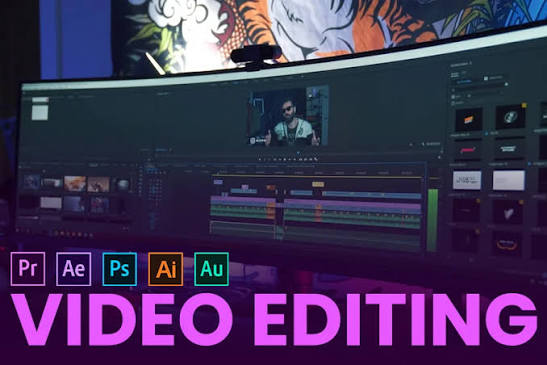
From platforms like Adobe Premiere Pro and DaVinci Resolve with built-in AI features to dedicated AI video tools such as Runway, Descript, CapCut, and Pika, the latest courses cover the most in-demand technologies shaping the future of video production. By learning these tools, students can streamline their workflows, reduce editing time, and create engaging content that stands out across YouTube, Instagram, TikTok, and other digital platforms.
In this guide, we’ll explore the best AI tools and courses for video editing in 2026, their key features, benefits, and how they can help you build valuable content creation skills for the future.
Video editing used to be one of the most time-consuming creative skills out there. You’d spend hours trimming clips, syncing audio, fixing colors, adding subtitles, and still feel like something was off. Today, that entire process has been compressed — and the tools doing it are smarter than ever.
Whether you’re a complete beginner, a content creator, or someone looking to sharpen their editing skills for freelance work or YouTube, taking a course focused on smart video editing tools in 2026 is one of the better investments you can make right now. This guide walks you through everything you need to know — which tools to learn, which courses to take, what to expect, and whether it’s worth the time.
Why Learning These Tools in 2026 Makes Sense
The demand for video content isn’t slowing down. Social media platforms like YouTube, Instagram, TikTok, and LinkedIn all reward creators who can produce clean, engaging content consistently. The problem has always been production time — good editing takes skill and patience.
The video editing job market is projected to grow 13% through 2026, and professionals with video editing expertise are commanding a 20–30% salary premium. Add the ability to use smart automation tools on top of that, and you’re in a strong position. AI Skillset Course
In 2026, these tools have moved beyond being just helpful accessories — they’ve become production infrastructure. The shift has happened across three key areas. Speed, quality, and accessibility. Things that used to require a professional studio — color grading, voice cleanup, background removal, subtitle generation — can now be done in minutes. Pixflow Blog
The Tools You’ll Learn in a Good Course
Most video editing courses in 2026 focus on a set of core tools, each built for a slightly different use case. Here’s a breakdown of what each one does and who it’s for.
1. Descript — Edit Video Like a Document
If your content is dialogue-heavy and you want to edit through text instead of a traditional timeline, Descript is one of the most efficient tools available in 2026. Manus
Here’s how it works: you upload your footage, Descript transcribes it, and then you edit the transcript like a Word document. Delete a sentence — the video cut happens automatically. It sounds strange until you try it, and then you never want to go back to scrubbing a timeline manually.
Editing via transcript is genuinely 3–5x faster than traditional timeline editing for interview-style content, podcasts, and tutorial videos.

Descript has transformed video editing by making the process as simple as editing a text document. Instead of working directly on a complex timeline, users can edit videos by modifying the automatically generated transcript. When you delete a word, sentence, or paragraph from the transcript, the corresponding video segment is removed instantly. This unique approach makes Descript one of the most beginner-friendly video editing tools available in 2026.
The platform is especially popular among YouTubers, podcasters, educators, and content marketers who regularly create talking-head videos, interviews, webinars, and tutorials. Its AI-powered transcription feature converts speech into highly accurate text within minutes, allowing creators to quickly find and edit specific sections without manually scrubbing through footage.
Descript also includes advanced AI features such as filler-word removal, automatic caption generation, screen recording, noise reduction, and voice cloning. The “Overdub” feature enables users to create realistic voice corrections without re-recording entire sections, saving significant time during production. Additionally, the software can automatically identify and remove awkward pauses, making videos sound more polished and professional.
For video editing courses in 2026, Descript is often recommended because it reduces the technical learning curve associated with traditional editing software. Students can focus on storytelling and content quality rather than spending hours learning complex editing workflows. The platform supports collaborative editing, making it ideal for teams, agencies, and remote content creators.
Practical example: Say you record a 10-minute talking-head video for your YouTube channel. You open it in Descript, read through the transcript, delete all the “umms,” long pauses, and rambling sections, and you’ve got a tight 6-minute video — in maybe 15 minutes total.
Descript’s Studio Sound feature is one of the fastest and most effective options available for voice cleanup and dialogue noise removal. Pixflow Blog
Pricing: Free tier available. Paid plans start around $24–33/month.
2. CapCut — The Fastest Path to Social-Ready Content
CapCut is the king of the “fast-turnaround” era. It is the best tool for TikTokers, YouTubers, and small business owners who need high-impact content without the high-end cost. Aiarty
CapCut’s auto captions, background removal, AI styling tools, text-to-speech, auto reframe, beat syncing, templates, and mobile-to-desktop flexibility make it one of the most feature-packed free tools available.
If you produce content for Instagram Reels, YouTube Shorts, or TikTok, this is the tool most courses will recommend you start with. CapCut was the fastest path to a social-ready vertical version in hands-on testing, outperforming most other tools in terms of raw speed from raw footage to final export.
Practical example: You film a 20-minute product demo on your phone. CapCut automatically detects scenes, generates captions, reformats the video to vertical, and gives you a 60-second Reel — without you manually trimming a single frame.
Pricing: CapCut’s free tier is genuinely usable for professional social media content. The main limitation is watermarks on some template-based exports. The $7.99/month Pro plan removes all watermarks and expands the template library. Techno-Pulse
3. Runway — For Creators Who Want Creative Control
Runway is for the visionaries. If you want to go beyond standard editing and actually generate footage, transform visuals, or create cinematic effects from text prompts, Runway is the tool courses are building entire modules around right now. Aiarty
Runway ML offers features like background removal, motion tracking, text-to-video generation, and AI-powered visual effects. It is widely used by filmmakers, YouTubers, and digital creators because it reduces editing time significantly. Skillcure Academy
Runway Gen-4.5 supports concept visualization, cinematic B-roll generation, and footage transformation using text prompts. Pixflow Blog
Practical example: You’re making a travel video, and you don’t have footage of a sunset over the ocean. You type a prompt into Runway, generate a 4-second clip, and drop it into your timeline as B-roll. Viewers can’t tell the difference.
Pricing: Runway starts at $15–35/month, depending on how much generation time you need. Toolradar
4. DaVinci Resolve — For Serious Post-Production Work
DaVinci Resolve offers a remarkably complete free version with professional-grade color correction, editing, visual effects, and audio post-production. Its AI features include face tracking, speed warping, and smart reframing. ZSky AI
DaVinci Resolve owns color and post-production. If you’re learning video editing seriously — not just for social media but for proper films, documentaries, or branded content — DaVinci Resolve is the professional standard. Techno-Pulse
DaVinci Resolve 19’s Magic Mask automates rotoscoping and object isolation that previously required hours of manual work. That alone saves professionals enormous amounts of time on complex projects. Pixflow Blog
Pricing: The free tier alone beats most paid alternatives, and the $295 Studio upgrade is the best one-time investment in video software available today. Techno-Pulse
5. Adobe Premiere Pro — The Industry Standard
Adobe Premiere Pro, with its AI-powered features, remains the industry standard for professional video post-production. AI scene detection, auto reframe for different aspect ratios, and automated captioning streamline professional workflows. The learning curve and monthly cost are higher, but the capability ceiling is unmatched for complex projects. ZSky AI
Generative Extend uses Adobe Firefly’s video model to analyze the motion, lighting, and content of the last few frames of a clip, then synthesizes additional frames to extend it. It’s particularly useful for b-roll and holding a shot slightly longer without needing to reshoot. Techno-Pulse
If you’re aiming for a career in film, TV, or agency work, Premiere Pro is what employers expect you to know.
6. OpusClip / Pictory — Long-Form to Short-Form, Automated
These tools are built for one specific job: taking a long video and automatically cutting it into short clips.
OpusClip was the most focused on automatically generating shorts from a long clip in testing. You upload a 45-minute podcast episode, and OpusClip identifies the best moments, cuts them into 60-second clips, adds captions, and formats them for Reels and Shorts. Manus
Pictory and Synthesia remain useful for script-led production and avatar-based explainers, particularly for educators and marketers who produce a lot of course content or product walkthroughs. Vizard
Which Course Should You Take?
Here’s a quick look at some of the best options available right now:
FindSkill.ai — AI Video Editing Course (2026) This course covers 8 hands-on lessons, including editing, generation, and content workflows. It covers Descript, Adobe Premiere Pro, CapCut, DaVinci Resolve, Runway, Sora, Veo, Kling, HeyGen, Opus Clip, and Topaz Video AI — and helps you pick the right tools for your use case rather than overwhelming you with all of them at once. Find Skill.ai
Udemy — CapCut & Veo 3 Course This course combines CapCut and Google Veo 3 to help you master both short-form viral content and cinematic video production. It’s perfect for content creators, beginners, entrepreneurs, and aspiring filmmakers who want to grow on social media or explore filmmaking without a steep learning curve. Udemy
Coursera — AI for Video Production (by AI CERTs) This is a beginner-friendly, practical course that teaches you how to use modern tools to accelerate editing, simplify workflows, and strengthen storytelling — without technical expertise. Great if you want a structured certification to add to a resume or LinkedIn profile. Coursera
Future Media Concepts Workshop. This workshop is designed for video editors specializing in news, documentaries, broadcasting, and VOD. It covers tools like Descript, Runway, Premiere Pro, and Firefly, blending technical understanding with creative applications and highlighting how automation can open new career opportunities. Fmctraining
Pros and Cons of Taking a Video Editing Tools Course
Pros
- Save hundreds of hours — Learning these tools properly from day one means you’re not spending weeks figuring things out on your own.
- Stay current — Tools update fast. A good course keeps you on the right version with the right workflows.
- Beginner-friendly entry points — Several of the tools covered require zero prior experience, and courses walk through every tool step by step. Find Skill.ai
- Freelance and career upside — Video editing professionals are seeing a 20–30% salary premium as demand for quality content skyrockets. AI Skillset Course
- Multiple niches covered — Whether you’re into social media, documentaries, YouTube, or corporate videos, there’s a tool and a course path for you.
Cons
- Tool overload — There are too many options. Without guidance, it’s easy to spend weeks jumping between tools without actually producing anything good.
- Subscription costs add up — If you end up paying for Descript, Runway, CapCut Pro, and Premiere Pro simultaneously, costs can reach $80–100/month.
- Not a replacement for storytelling skills — Judgment, taste, pacing, and storytelling still matter. The tools can swing the hammer. They still don’t know where the cathedral goes. Vizard
- Frequent updates — Courses can go out of date quickly as tools release new features. Always check the last updated date before enrolling.
- Free tiers have limits — Most tools offer a free version, but watermarks, export limits, and reduced generation time are common restrictions.
Who Should Take These Courses?
- Content creators running YouTube channels, Instagram pages, or TikTok accounts who want to produce better content in less time
- Freelancers looking to add video editing to their service offering
- Small business owners who want to create product demos, explainers, or social ads without hiring a production company
- Students building a media or marketing portfolio
- Educators creating online course content or tutorials
You don’t need to know how to edit already. With the latest tools, you can edit videos with a single click — and it’s not just limited to editing. You can also produce brand new videos just by writing text prompts. Udemy
How to Choose the Right Tool for Your Workflow
Don’t try to learn everything at once. Here’s a simple decision guide:
- Podcasts, interviews, talking-head content → Start with Descript
- Short-form social content (TikTok, Reels, Shorts) → Start with CapCut
- Long videos you want to repurpose into clips → Start with OpusClip
- Professional color grading or film projects → Start with DaVinci Resolve
- Creative visual effects and video generation → Start with Runway
- Career-level professional editing → Learn Adobe Premiere Pro
Long-form with editorial control: Premiere Pro and DaVinci Resolve held up best in testing. Spoken content like podcasts and interviews: Descript was the clearest match. Short-form as the main output: CapCut was the fastest path to a social-ready vertical version. Manus
FAQs
Q: Do I need any prior editing experience to take these courses?
No. Most courses in 2026 are built for complete beginners. If you’ve ever trimmed a clip in your phone’s camera roll, you have enough background. Courses walk through every tool step by step. Find Skill.ai
Q: Which is the best free tool to start with?
CapCut’s free tier is excellent for social content creators who need fast turnaround on Reels, Shorts, and TikTok formats. DaVinci Resolve is the best free option if you want professional-grade editing without paying monthly fees. Pixflow Blog
Q: How accurate are auto-generated captions?
Most tools are 90–95% accurate for clear audio with standard accents. Technical terms, names, and accents reduce accuracy. Always review before publishing — caption errors reflect poorly on content. Toolradar
Q: Will learning these tools replace the need for editing skills?
Not entirely. These tools automate tedious tasks, but storytelling, pacing, and creative decisions still require human judgment. Understanding what these tools can do is itself becoming part of editing expertise. Toolradar
Q: How much should I budget for tools alongside a course?
Many professionals use a combination of free and paid tools totaling $20–50 per month. DaVinci Resolve’s free version covers editing at zero cost. Adding paid tiers for specific tools like CapCut Pro or Descript Standard typically costs $10–25 monthly. ZSky AI
Q: Can I use these tools on a phone, or do I need a desktop?
Most tools have mobile versions. CapCut was originally built for mobile and works well on both iOS and Android. Descript and Runway work best on a project for more complex projects.
Q: Are these courses worth it for business owners who aren’t full-time creators?
Yes. You can create brand new videos just by writing text prompts and produce professional-sounding audio without any background in editing. For a small business owner, a few hours of learning can eliminate the need to outsource simple video work entirely. Udemy
Conclsion
The gap between someone who knows how to use these tools and someone who doesn’t is getting larger every month. Learning these tools isn’t just about keeping up — it’s about unlocking a creative output that used to require a full team and a serious budget.
Pick one tool based on what you create most, take a focused course on it, and get to work. Once you’ve got that first workflow down, adding the next tool becomes significantly easier. The learning curve is shorter than it looks from the outside.

