
Short answer: Clipchamp is the best free video editing app built into Windows. DaVinci Resolve is the best free video editing app for Windows if you want professional quality. CapCut is the best if you make social media content.
The right answer depends on what you are making, how much experience you have, and what your Windows PC can handle. This guide breaks it all down.
best free video editing app for Windows in 2026, you’re not alone. Whether you’re creating YouTube videos, TikTok clips, Instagram Reels, online courses, or business presentations, having a powerful video editor can make a huge difference. The good news is that you don’t have to spend hundreds of dollars on expensive software to produce professional-quality videos.
Today’s free video editing apps for Windows include advanced features such as 4K video editing, AI-powered editing tools, motion graphics, color correction, screen recording, audio enhancement, and direct social media export—all without requiring a paid subscription for basic editing. From beginner-friendly editors to professional-grade software, there are excellent free options available for every type of creator.
In this guide, we’ll compare the best free video editing apps for Windows in 2026 based on ease of use, features, performance, export quality, and overall value. Whether you’re a complete beginner or an experienced video editor, you’ll find the right software to create high-quality videos without spending a penny.
Quick Decision Guide
| Your Situation | Best App |
|---|---|
| Complete beginner on Windows 11 | Clipchamp (already installed) |
| YouTube long-form content | DaVinci Resolve |
| Reels, Shorts, TikTok | CapCut |
| Older or low-spec Windows PC | Shotcut |
| Privacy-first, open-source | Kdenlive |
| Faceless AI-generated videos | InVideo AI |
| Advanced Windows features, no learning curve | VSDC Free |
| Absolute beginner learning to edit | OpenShot |
Best free video editing app for Windows in 2026
1. Clipchamp — Best Free Video App Built Into Windows
Clipchamp is Microsoft’s free video editor built directly into Windows 10 and Windows 11. You do not need to download or install anything — it is already on your PC.

Available on: Windows 10/11 (built-in), browser (all platforms)
Free version includes:
- Multi-track timeline editing
- AI auto-compose — creates video from your clips automatically
- Text-to-speech with natural-sounding voices
- Built-in stock footage and music library
- Auto-captions
- Green screen support
- Templates for YouTube, TikTok, Instagram Reels
- 1080p export — no watermark, completely free
- Direct export to YouTube, TikTok, and OneDrive
How to open Clipchamp on Windows: Press the Start button → type Clipchamp → press Enter. That is it. No download required.
What it does well: Clipchamp is the only major free Windows video editor that exports clean 1080p without a watermark and requires zero installation. For Windows users who have never edited video before, this is the obvious starting point. The interface is clean, intuitive, and designed for non-technical users. Text-to-speech voices are among the most natural-sounding in any free editor.
Limitations: No 4K export on free plan. Less powerful than DaVinci Resolve for professional editing. AI features are more limited than CapCut. Stock library smaller than paid alternatives.
Best for: Windows beginners, office workers creating training or presentation videos, anyone who needs a quick clean video without installing software.
Verdict: Best free video editor that comes with Windows — zero setup, zero watermark, zero cost.
2. DaVinci Resolve — Best Free Professional Video Editor for Windows
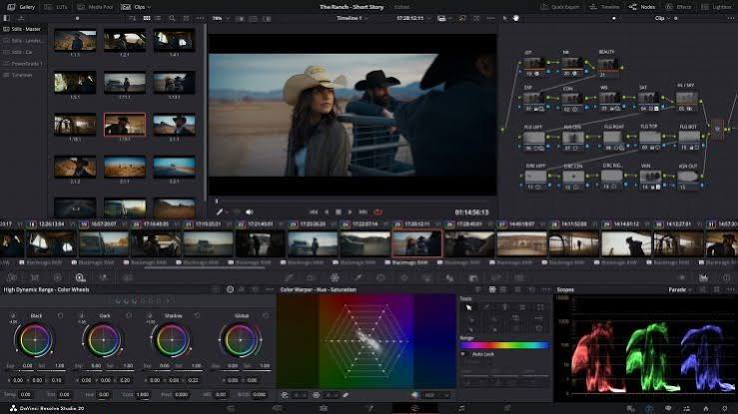
DaVinci Resolve is Hollywood-grade video editing software available completely free for Windows. The same software used on major films and Netflix productions runs on your Windows PC at zero cost.
Available on: Windows 10/11 (64-bit), Mac, Linux
Free version includes:
- Full professional multi-track timeline with unlimited tracks
- Fairlight — complete audio mixing and mastering suite built in
- Fusion — visual effects and motion graphics built in
- Color grading tools used in professional film production
- AI tools: Magic Mask, Speed Warp, noise reduction, face refinement
- 4K export — no watermark
- No project limits, no time limits, no subscription
- Collaboration features for team editing
Download: blackmagicdesign.com/products/davinciresolve → download free version → install on Windows
Minimum Windows specs:
- Windows 10 or 11 (64-bit)
- 16GB RAM (8GB minimum)
- Dedicated GPU with 2GB VRAM
- 2.5GB storage for installation
What it does well: DaVinci Resolve’s color grading tools are the industry benchmark. The Fairlight audio suite eliminates the need for separate audio software. For Windows users making serious YouTube content or any video where quality matters and you are willing to invest time learning, DaVinci Resolve is in a different league from every other free option.
Limitations: Steep learning curve — plan on weeks of practice before feeling comfortable. Resource-intensive — older Windows PCs struggle with real-time 4K playback. Not ideal for quick social media content.
Best for: Serious YouTube creators, film students, video production professionals, anyone who wants cinema-quality results from free Windows software.
Verdict: Best free video editing software for Windows when quality is the priority.
3. CapCut for Windows — Best Free Editor for Social Media Content
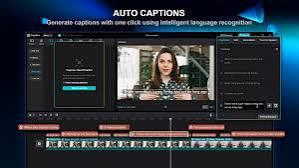
CapCut’s Windows desktop app is the most powerful free editor specifically designed for social media content — Reels, Shorts, TikTok, and fast-turnaround marketing videos.
Available on: Windows, Mac, browser, mobile
Free version includes:
- Multi-track timeline editing
- Auto-captions with high accuracy (supports Hindi and regional Indian languages)
- AI background removal
- Beat sync — automatically cuts footage to music rhythm
- Speed ramping and keyframe animation
- Text-to-speech in multiple voices
- Trending templates updated weekly
- AI video enhancer (upscales footage quality)
- Chroma key (green screen)
- 4K export — no watermark on standard exports
- AI noise reduction for audio
Download: capcut.com → Download for PC → install on Windows
Windows specs: Minimum 4GB RAM, Windows 10 or later. Runs well on most modern PCs.
What it does well: CapCut is built for the way people actually create and consume video in 2026. Auto-captions alone save hours per video. Beat sync produces polished edits without manual work. Templates match current trending formats — a real advantage for social media reach. AI features that cost money in other apps are free in CapCut.
Limitations: Developed by ByteDance (TikTok’s parent company) — data privacy concerns for some users. Premium effects require CapCut Pro. Not ideal for long-form professional production.
Best for: Social media creators, Indian YouTubers needing Hindi auto-captions, faceless content channels, marketers making Reels and Shorts at volume.
Verdict: Best free Windows video editor for social media content in 2026.
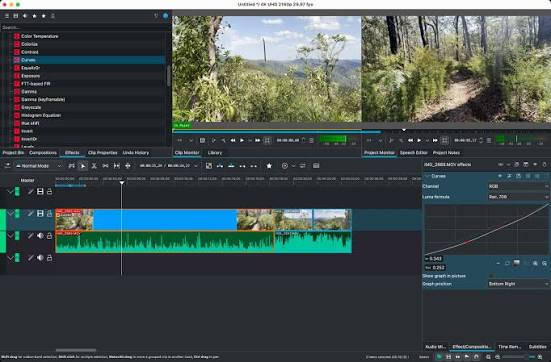
4. Kdenlive — Best Free Open-Source Video Editor for Windows
Kdenlive is a mature, open-source video editor for Windows with a professional timeline, no data collection, and no corporate ownership.
Available on: Windows, Linux, Mac
Free version includes:
- Multi-track timeline with unlimited tracks
- Keyframe animation and custom transitions
- Color correction with professional scopes
- Audio mixing and filters
- Proxy editing for smooth performance on older hardware
- Hundreds of built-in effects
- 4K export — no watermark
- No account required, no data collection
- Regular community updates
Download: kdenlive.org → Download for Windows → install
Windows specs: 4GB RAM minimum. Proxy editing helps on older hardware.
What it does well: Kdenlive is the strongest free open-source video editor for Windows users who care about privacy. Unlike CapCut (ByteDance) or Clipchamp (Microsoft), Kdenlive collects no user data. Proxy editing makes it usable on older Windows machines that would struggle with DaVinci Resolve.
Limitations: Interface is less polished than commercial alternatives. Occasional stability issues on some Windows configurations — save frequently. Fewer AI features than CapCut.
Best for: Privacy-conscious creators, Windows users with older hardware, open-source advocates who want a full professional timeline editor.
Verdict: Best free open-source video editor for Windows.
5. VSDC Free Video Editor — Best Windows-Only Free Editor with Advanced Features
VSDC is a free video editor built exclusively for Windows. It packs more advanced features into its free version than most paid alternatives — motion tracking, video stabilisation, masking, and colour grading all at zero cost.
Available on: Windows only
Free version includes:
- Non-linear timeline editor
- Motion tracking
- Video stabilisation
- Masking tools
- Colour grading and LUT support
- Audio editing and mixing
- Chroma key (green screen)
- Wide format support
- 4K export — no watermark
Download: videosoftdev.com → Download Free Video Editor → install on Windows
Windows specs: Works on Windows 7 and above. Very low RAM requirements — runs on older PCs.
What it does well: VSDC gives Windows users access to features that normally cost money — motion tracking and video stabilisation in particular. For Windows-only users who want advanced editing tools without DaVinci Resolve’s learning curve or hardware requirements, VSDC fills a clear gap.
Limitations: Windows only — no Mac or Linux version. Interface is dated compared to modern alternatives. Some export optimisations (hardware acceleration) are locked behind paid VSDC Pro ($19.99 one-time).
Best for: Windows users who want advanced features like motion tracking and stabilisation without paying, creators who find DaVinci Resolve too complex.
Verdict: Best Windows-exclusive free video editor with advanced tools.
6. Shotcut — Best Free Windows Video Editor for Older PCs
Shotcut is a lightweight open-source video editor that runs on almost any Windows PC — including very old machines that cannot handle DaVinci Resolve or CapCut.
Available on: Windows, Mac, Linux
Free version includes:
- Multi-track timeline
- Extremely wide format support (handles almost any video format natively)
- Audio filters and mixing
- Colour grading
- Keyframe animation
- 4K export — no watermark
- No account required
- Portable installation option (run from USB without installing)
Download: shotcut.org → Download for Windows → install or run portable version.
Windows specs: Runs on Windows 7 with as little as 2GB RAM. Works on very old hardware.
What it does well: Shotcut handles almost any video format without conversion — GoPro footage, phone recordings, drone video, mixed camera formats all import directly. The portable version runs from a USB drive without any installation — useful on shared or restricted Windows PCs. Extremely lightweight on system resources.
Limitations: Interface is functional but dated. Fewer AI features than modern alternatives. Learning curve for beginners.
Best for: Windows users with older or budget PCs, creators working with many different camera formats, anyone needing a portable editor on a USB drive.
Verdict: Best free video editor for older or low-spec Windows PCs.
7. OpenShot — Best Free Windows Video Editor for Absolute Beginners
OpenShot is an open-source video editor designed specifically for simplicity. If every other option on this list feels overwhelming, start here.
Available on: Windows, Mac, Linux
Free version includes:
- Simple drag-and-drop multi-track timeline
- Built-in transitions and effects
- Title and text overlays
- Animated titles
- Basic colour adjustments
- 4K export — no watermark
- No account required
Download: openshot.org → Download for Windows → install
Windows specs: 4GB RAM recommended. Works on most Windows PCs.
What it does well: OpenShot is the most beginner-accessible desktop video editor with a proper timeline. Drag clips in, trim them, add a title, export. The interface teaches the fundamentals of video editing without overwhelming new users with features they do not yet need.
Limitations: Rendering can be slow on complex projects. Feature set significantly less advanced than DaVinci Resolve or CapCut. Not suitable for professional production work.
Best for: People editing their very first video, students, casual personal project creators.
Verdict: Best free Windows video editor for complete beginners with no prior experience.
8. InVideo AI — Best Free Windows Tool for AI-Generated Videos
InVideo AI generates complete videos from a script or topic automatically. It runs in any Windows browser — no installation required.
Available on: Browser (works on any Windows PC)
Free version includes:
- 10 video exports per week
- AI script generation from a topic, keyword, or URL
- Automatic stock footage matching to script
- AI voiceover including Hindi
- Auto-captions
- 1080p export (InVideo watermark on free plan)
- Templates for YouTube, Instagram, and marketing
Access: invideo.io → open in browser on any Windows PC
What it does well: InVideo AI automates the entire video creation process. Paste a topic, choose a voice, and it generates a complete video with footage, voiceover, and captions in minutes. The fastest way to produce faceless YouTube content on a Windows PC — no editing skills required.
Limitations: Watermark on free exports. 10 exports per week cap. Less creative control than traditional editors.
Best for: Faceless YouTube channels, content marketers, anyone who needs to produce video content at volume on Windows without editing experience.
Verdict: Best free AI video generation tool for Windows users.
Full Comparison Table
| App | Watermark | Export Quality | Windows Built-In | AI Features | Skill Level |
|---|---|---|---|---|---|
| Clipchamp | None | 1080p | Yes (Win 10/11) | Basic | Beginner |
| DaVinci Resolve | None | 4K | No | Advanced | Advanced |
| CapCut | None (standard) | 4K | No | Strong | Beginner-Mid |
| Kdenlive | None | 4K | No | Limited | Intermediate |
| VSDC Free | None | 4K | No | Limited | Intermediate |
| Shotcut | None | 4K | No | Limited | Intermediate |
| OpenShot | None | 4K | No | Minimal | Beginner |
| InVideo AI | Yes (free plan) | 1080p | No (browser) | Full AI | Beginner |
Windows-Specific Tips for Free Video Editors
Use Windows Game Mode for rendering: Settings > Gaming > Game Mode > On. Allocates more CPU and GPU resources to the active application — speeds up video rendering in DaVinci Resolve and CapCut.
Set power plan to High Performance: Control Panel > Power Options > High Performance. Prevents CPU throttling during intensive editing sessions.
Disable startup programs: Task Manager > Startup tab. Disable everything except antivirus during editing sessions to free up RAM.
Use an SSD for project files: Editing from an NVMe SSD vs a traditional HDD makes a significant difference in render and load times. If you have both, always save projects to the SSD.
Clear browser cache if using InVideo AI: A bloated browser cache slows browser-based tools. Clear cache monthly in Chrome/Edge settings.
Update GPU drivers before installing DaVinci Resolve: DaVinci Resolve is GPU-dependent. Outdated drivers cause crashes. Update NVIDIA or AMD drivers before installation.
FAQs
Q: Which free Windows video editor has no watermark?
Clipchamp, DaVinci Resolve, CapCut, Kdenlive, VSDC Free, Shotcut, and OpenShot all export without watermarks on their free versions. Only InVideo AI adds a watermark on the free plan.
Q: Is Clipchamp really free and already on Windows?
Yes. Clipchamp is pre-installed on Windows 10 and Windows 11 and is completely free. Press Start, type Clipchamp, and it is ready to use — no download, no subscription.
Q: Which free Windows video editor is best for YouTube?
DaVinci Resolve for long-form YouTube content where quality and color grading matter. CapCut for YouTube Shorts and faster social media content.
Q: Can I edit 4K video for free on Windows?
Yes. DaVinci Resolve, CapCut, Kdenlive, VSDC Free, Shotcut, and OpenShot all support 4K editing and export at no cost. You need at least 16GB RAM and a dedicated GPU for smooth 4K playback in DaVinci Resolve.
Q: Which free Windows video editor works on old or low-spec PCs?
Shotcut runs on Windows 7 with 2GB RAM. VSDC Free also runs on very old Windows hardware. Both are significantly lighter than DaVinci Resolve or CapCut.
Q: Is CapCut safe to use on Windows?
CapCut is developed by ByteDance (TikTok’s parent company). It remains available in India and most markets in 2026. For privacy-sensitive content or if data privacy is a priority, Kdenlive or DaVinci Resolve are better alternatives.
Q: Which free Windows video editor is best for Hindi content creators in India?
CapCut supports Hindi auto-captions and has templates designed for Indian social media formats. InVideo AI has Hindi voiceover options. Both are widely used by Indian YouTube and Instagram creators.
Conclsion
For Windows users in 2026, the answer splits cleanly by use case:
Start with Clipchamp if you have never edited video before — it is already on your Windows PC and exports clean 1080p without any setup or watermark.
Switch to DaVinci Resolve when you are ready for professional quality — color grading, audio mixing, and 4K output that rivals software costing thousands of rupees.
Use CapCut if social media content is your focus — Reels, Shorts, and TikTok videos with AI captions, beat sync, and trending templates built for the platforms.
Choose Kdenlive or Shotcut if privacy matters or your PC is older — both are open-source, collect no data, and work on hardware that struggles with DaVinci Resolve.
The best free Windows video editor is the one that matches your skill level, your content type, and your hardware — not necessarily the most feature-rich one. Start simple, learn properly, and upgrade your software only when you have genuinely outgrown what you are using.

