
Creating high-quality videos no longer requires expensive software or years of editing experience. In 2026, modern AI-powered video tools can help you write scripts, generate visuals, edit footage, remove backgrounds, create voiceovers, add subtitles, and export professional videos in minutes. Whether you’re a YouTube creator, marketer, educator, freelancer, or business owner, these tools make video production faster, easier, and more affordable.
The best AI video creation and editing platforms combine automation with powerful editing features, allowing users to transform simple text, images, or raw clips into polished videos. Many also include advanced capabilities such as realistic avatars, automatic scene generation, AI-powered effects, motion tracking, and one-click translations, making them ideal for creating content for social media, online courses, advertisements, and presentations.
In this guide, we’ll explore the best AI tools for video creation and editing in 2026, comparing their features, strengths, pricing, and ideal use cases. Whether you’re looking for a beginner-friendly editor or a professional-grade AI video platform, you’ll find the right tool to match your workflow and budget.
Most people who start making videos quit within the first month. Not because they run out of ideas — but because the editing kills them.
You spend 40 minutes shooting a 3-minute video. Then you spend four hours editing it. By the time you’ve fixed the audio, cut the dead air, added captions, and exported three different aspect ratios for different platforms, the whole thing feels like a second job. A bad one.
That’s the problem the tools in this guide solve. Not all of them do the same thing — some generate footage from text, some clean up messy audio, some turn a 90-minute podcast into 12 ready-to-post clips. But all of them are built around the same idea: your time matters, and the boring parts of video production should be automated.
This is not a list of everything available. It’s the tools that are actually worth using in 2026 — with honest pros, cons, and real examples of how each one fits into a workflow.
What’s Actually Changed in Video Editing
For context: three years ago, if you wanted a clean background in your video, you needed a physical green screen, studio lighting, and a plugin that half the time still left green fringing around your hair. Today, you remove the background in one click, from footage shot in your kitchen under a ceiling fan.
The same story applies to captions, voiceovers, B-roll, scene cuts, and audio cleanup. What used to take training, experience, and expensive software now takes a few clicks inside tools that run in a browser tab.
This has levelled the field considerably. A solo creator with no editing background can now produce content that looks like it came out of a small production studio. The gap between “amateur” and “professional” video is narrower than it’s ever been — and the tools below are why.
Best AI Tools for Video Creation and Editing 2026:-
1. Runway ML — Best for Generating Footage Without a Camera
Runway ML is one of the most advanced AI video creation and editing platforms available in 2026. It is designed for content creators, filmmakers, marketers, and businesses that want to produce cinematic-quality videos without complex editing workflows. With its powerful generative AI models, Runway lets users create videos from text prompts, transform images into moving scenes, remove backgrounds, erase unwanted objects, generate realistic visual effects, and edit videos with just a few clicks.
One of Runway’s biggest strengths is its text-to-video and image-to-video technology. Simply describe the scene you want, and the platform generates high-quality video clips within minutes. This makes it ideal for creating YouTube videos, social media content, advertisements, short films, product demonstrations, and promotional campaigns.
Runway ML also includes professional editing features such as AI-powered motion tracking, automatic object removal, green screen effects without a physical green screen, background replacement, frame interpolation for smoother motion, and intelligent color correction. These tools significantly reduce editing time while maintaining excellent visual quality.
The platform integrates well with popular creative software, making it easy for professional editors to include AI-generated footage in their existing workflows. Whether you’re creating content from scratch or enhancing existing videos, Runway ML offers a fast and efficient solution.
There’s a version of video production that doesn’t involve filming anything. Runway ML is the closest thing to that right now.
Its Gen-3 Alpha model takes a text description and returns a short video clip. “Aerial shot of a neon-lit city street at night, slow camera push.” Type that in, and you’ll get exactly that — no location, no drone, no camera crew.
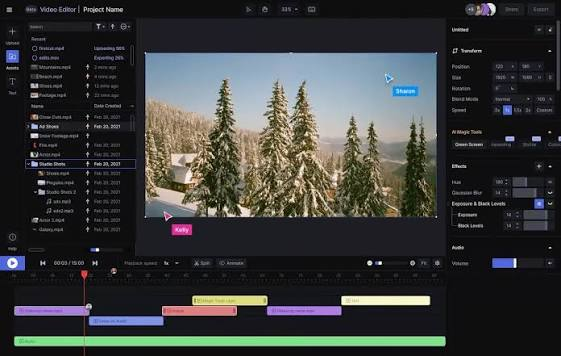
But Runway isn’t just a novelty generation tool. The editing suite underneath it is genuinely useful for working creators:
- Background removal works on regular footage without a green screen — useful for product reviews, tutorials, and talking-head videos where you want a cleaner look without a studio
- Inpainting lets you select and remove objects from video frames — a mic stand in the corner, a water bottle on a desk, an unwanted passerby in a shot
- Motion tracking pins text or graphics to moving subjects, so your product label or lower-third follows the action instead of floating in the frame
- Lip sync matches a generated or uploaded audio track to existing video, which makes dubbing far less painful
Real-world use: A travel creator shooting a destination video realises halfway through editing that they needed a cinematic establishing shot they forgot to capture on location. Instead of flying back or sourcing stock footage that doesn’t quite match, they generate a clip in Runway from a text prompt — matching the aesthetic of their existing footage. It fills the gap in minutes.
Pros:
- Most capable text-to-video generation currently available to the public
- Background and object removal works well without any green screen setup
- Full editing suite, not just a generation toy
- Browser-based — no heavy software to install
Cons:
- Free plan runs out of credits quickly; heavy users will hit limits fast
- Prompt quality matters enormously — vague prompts produce generic output
- Longer clips and high-resolution exports burn through credits at a steep rate
- Generated clips are usually 4–10 seconds — not suited to long-form video needs
Verdict: If you’re creating content where visuals are the centrepiece — travel, lifestyle, product, cinematic short-form — Runway belongs in your toolkit. If you’re mostly recording yourself talking, you probably don’t need it.
Pricing: Free plan available. Standard plan from $12/month.
2. Descript — Best for Anyone Who Edits Spoken-Word Video
Descript is a powerful AI-powered video and audio editing platform that makes editing as simple as editing a text document. Instead of manually cutting clips on a timeline, you can edit your video’s transcript, and Descript automatically updates the video. This unique approach makes it an excellent choice for YouTubers, podcasters, educators, marketers, and business professionals who want to create polished content quickly.
One of Descript’s standout features is its script-based editing, which allows users to remove mistakes, filler words, and unnecessary pauses by simply deleting text from the transcript. The platform also offers AI-generated subtitles, automatic transcription, screen recording, multi-track editing, and realistic AI voice cloning for correcting narration without re-recording audio.
Descript includes a complete set of editing tools for creating professional-quality videos. Users can add transitions, captions, images, music, and visual effects while collaborating with team members in real time. Its AI-powered features help speed up production, making it easy to create YouTube videos, online courses, tutorials, product demos, podcasts, and social media content.
Because it combines video editing, audio editing, transcription, and AI automation in one platform, Descript is a favorite among creators who want an efficient, all-in-one workflow.
Descript is the most genuinely clever tool in video editing right now, and it’s still underused by people who would benefit from it enormously.
The concept: your video is transcribed the moment you upload it. From that point, you edit the video by editing the text. Delete a sentence in the transcript — the corresponding video clip is removed. Cut a paragraph — that section is gone. It’s as intuitive as editing a Google Doc, and it fundamentally changes how long it takes to cut a talking-head video, podcast, or tutorial.
Beyond the transcript-based editing, Descript has several features that stand out:
Overdub is the one people always ask about. You record a sample of your voice — about 10 minutes of clean audio — and Descript trains a voice model on it. After that, if you misspoke, you just type the correction in the transcript and Descript regenerates the audio in your voice. It saves a full re-record for minor mistakes.
Studio Sound is a one-click audio cleanup tool that removes background noise, reduces room echo, and evens out levels. It won’t save a truly awful recording, but for standard home-office audio with some hiss or room noise, it makes a real difference.
Remove Filler Words does exactly what it says — scans the transcript for “um”, “uh”, “like”, “you know”, and similar words, and removes them from the video in bulk. On a 30-minute raw recording, this alone saves 20–30 minutes of manual trimming.
Real-world use: A software company records a weekly internal knowledge-sharing session — 45 minutes, multiple speakers, lots of crosstalk and tangents. With Descript, an editor can cut it down to the 12-minute version worth watching in about an hour: clean transcript, bulk filler word removal, section cuts, and a quick audio pass. Without Descript, that same edit takes three to four hours.
Pros:
- Fastest editing workflow available for interview, tutorial, or podcast-style video
- Overdub voice regeneration genuinely works for small fixes
- Studio Sound handles most common audio problems without manual EQ work
- Strong collaboration features — multiple editors can work on the same project
Cons:
- Not the right tool for music videos, cinematic edits, or anything that’s primarily visual rather than spoken
- Overdub requires a training recording and takes time to process
- The transcript-based interface can feel unfamiliar to editors who think visually on a timeline
- Higher-tier features like full Overdub usage require the paid plan
Verdict: For anyone who regularly edits videos where people are talking — podcasters, educators, interviewers, course creators, corporate video teams — Descript is the most time-efficient tool available. Nothing else comes close for this specific workflow.
Pricing: Free plan available. Creator plan from $24/month.
3. Synthesia — Best for Training and Explainer Videos at Scale
Synthesia answers a question a lot of companies have: how do you produce professional video content at scale without a studio, a presenter, or a production budget?
The answer is digital presenters. You write a script, choose from a library of realistic-looking human avatars, pick a language and accent, and Synthesia generates a video of that avatar delivering your content. No filming. No green screen. No presenter nerves.
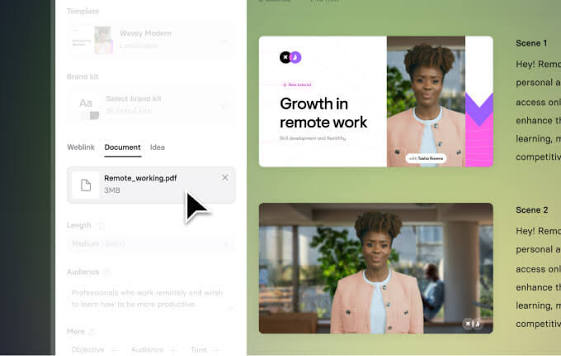
In 2026, Synthesia supports over 130 languages and has meaningfully improved the lip sync quality that made early versions feel slightly off. The avatars are not perfect — there’s still a slight uncanny quality on close inspection — but for training content, explainers, and product demos, the output is good enough that most viewers won’t think twice.
Where Synthesia earns its place is in volume and consistency. If you need to produce 40 onboarding videos across six languages, the economics of Synthesia compared to traditional video production are not even close.
Real-world use: An HR team at a mid-size company needs to update all employee compliance training videos after a policy change. The old videos were expensive to produce and now need to be re-recorded in four languages. With Synthesia, the script is updated, the avatar re-delivers the updated content, and the translated versions are generated from the same script — no studio, no presenter booking, no post-production house.
Pros:
- No camera, presenter, or studio required
- 130+ languages from a single script — genuinely powerful for global teams
- Consistent output quality across long-form content and large libraries
- Faster to update than traditional video when content changes
Cons:
- Avatars still feel slightly artificial under close scrutiny — not ideal for personal brand content
- Limited creative flexibility compared to real footage
- Not suitable for content where the personality of a real human is the point (vlogs, personal brand, interviews)
- No free plan — commitment required before testing properly
Verdict: Synthesia is a specialist tool, and it’s excellent at what it does. For corporate training, product explainers, and any situation where you need consistent, scalable video without a camera, it’s hard to beat. For personal or brand-personality content, look elsewhere.
Pricing: Starter plan from $22/month. Enterprise pricing on request.
4. CapCut Pro — Best for Short-Form Social Video
CapCut has had a fast rise from phone app to serious desktop editor, and in 2026 it’s become one of the most practical tools for anyone making content for TikTok, Instagram Reels, or YouTube Shorts.
The free version is genuinely capable — not crippled like some freemium tools. The paid Pro plan adds AI-driven features that make the biggest difference for regular creators.
Key features that actually get used:
Auto-captions generate subtitles from your audio and let you style them heavily — font, size, colour, animation, and positioning. The accuracy is high enough that you’re usually correcting one or two words per minute of content, not rebuilding from scratch.
Beat sync automatically cuts your footage to match the rhythm of the music track you’ve chosen. For fast-paced content like gym videos, travel reels, or product reveals, this cuts editing time dramatically and produces results that feel intentional.
Smart Cutout removes a subject from the background across an entire clip — not just a single frame. Useful for putting yourself in front of a graphic, a product shot, or a branded background without needing to film in a controlled environment.
Template library has hundreds of trending formats — you drop in your footage and the transitions, timing, and motion graphics are applied automatically. The risk is that popular templates start to look familiar quickly, so you need to customise enough to stand out.
Real-world use: A fitness coach is filming workout content on their phone — no camera crew, no editor. With CapCut, they can auto-caption the tutorial audio, drop the footage into a trending template, sync the cuts to a music track, and export a vertical Reel in 20 minutes. Start to finish. On their phone.
Pros:
- Free plan is among the most generous in the category
- Works on both mobile and desktop — same project across both
- Constantly updated with templates based on current trends
- Fast and intuitive for beginners without a steep learning curve
Cons:
- Not designed for long-form content — timeline tools are limited beyond 10–15 minutes
- Popular templates can make content feel generic if not customised
- CapCut watermark on exports unless you’re on Pro
- TikTok ownership of CapCut creates some uncertainty around long-term availability in certain markets
Verdict: For short-form social content, CapCut is the most accessible tool that doesn’t sacrifice quality. Start here if you’re new. Stay here if shorts and reels are your main format.
Pricing: Free. Pro plan from $10/month.
5. Pictory — Best for Turning Written Content Into Video
Most content creators have one problem in common: they produce content in one format and need it in another. A blogger needs video. A newsletter writer wants to post Reels. A podcast host needs social clips from a written summary.
Pictory is built for that exact problem. Paste in a blog post, article, or script — Pictory breaks it into key points, matches stock footage to each section, adds a voiceover, and outputs a finished video. The whole process takes less time than writing the content did.
The stock library covers most general topics well. The voiceover options have improved significantly — you’re no longer choosing between robotic-sounding options. And the customisation layer lets you swap out clips, adjust timing, change the voice, and edit the text before finalising.
Real-world use: A personal finance blogger publishes twice a week. Each post is around 1,200 words. With Pictory, each post becomes a 90-second social video posted the same day — extending the content’s reach without writing a word of new material. Over a month, that’s 8 extra pieces of video content from work that’s already done.
Pros:
- Fastest path from written content to finished video
- Good stock library built in — no separate subscription needed
- Voiceover quality has improved considerably in recent updates
- Logical workflow for content repurposing
Cons:
- Stock footage matching is imperfect — some clips feel misaligned with the text
- Heavy customisation is needed to avoid a generic output
- Not suitable for original footage editing — this is a repurposing tool, not an editing suite
- No free plan to test before paying
Verdict: If you already produce written content and want to add video without starting from scratch, Pictory is the clearest path. Don’t expect it to replace a full video editing workflow — it fills a different role.
Pricing: Plans from $25/month.
6. OpusClip — Best for Repurposing Long Videos Into Short Clips
Long-form video is underused content. Most creators upload a 60-minute podcast or video essay, it gets a few thousand views, and then the footage sits there doing nothing.
OpusClip is designed to fix that. You upload a long video, and it analyses the content for the best moments — based on speaking energy, pacing, completeness of thought, and what it calls a “Virality Score.” It returns a set of short clips — usually 8–15 of them — already trimmed, captioned, and formatted vertically for short-form platforms.
The clips aren’t always perfect. Occasionally the selection misses moments you’d have chosen, or cuts a thought off too early. But the time saved compared to manually reviewing an hour of footage and cutting clips by hand is enormous.
Real-world use: A business podcast publishes weekly episodes running around 75 minutes. Before OpusClip, the host spent about 90 minutes every week manually cutting three or four clips for social. Now they upload the episode, get 12 clips back in 20 minutes, discard three that aren’t quite right, schedule the rest, and the whole task takes 30 minutes instead of 90.
Pros:
- Dramatic time saving for long-form creators who want short-form presence
- Captions added automatically and styled reasonably well
- Virality Score is a useful starting point for deciding what to post
- Works across YouTube videos, podcast recordings, webinars, and Zoom calls
Cons:
- Clip selection quality depends heavily on the content type — talking-head and interview work best, lecture-style or technical content less so
- Clips almost always need at least minor editing before posting
- Free plan limits you to a small number of clips per month — only useful for testing
Verdict: If you produce long-form content and want to build a short-form presence without doubling your workload, OpusClip is probably the single highest-ROI tool on this list. The time it saves quickly justifies the cost.
Pricing: Free plan available. Paid plans from $15/month.
7. Adobe Firefly Video (Inside Premiere Pro) — Best for Professional Editors
If you’re already editing in Premiere Pro, Adobe has built generative video tools directly into the timeline — no tab-switching required.
The Firefly integration in Premiere Pro adds three features that professional editors use most:
Generative Extend adds frames to the beginning or end of a clip when you need just a little more footage to make a cut work. If a clip ends half a second too early for the edit you want, Generative Extend fills it — seamlessly enough that viewers won’t notice.
Object Remove takes unwanted elements out of video frames across the duration of a clip — not just a still image. A mic stand in a corner, a logo on a shirt, a distracting background object. It works well on static or slow-moving backgrounds and less reliably on complex moving scenes.
Generate B-roll lets you describe a clip you need and generates it from text. Useful for filling gaps in documentary or explainer content where you need visual coverage and don’t have the right footage.
An important advantage: Firefly is trained on licensed and public domain content, which means the output is commercially safe — important for professional projects where rights clearance matters.
Real-world use: An editor working on a brand documentary has an interview clip where the subject’s jacket has a competitor’s logo visible throughout. Object Remove handles the logo frame by frame — a fix that would have required either reshooting or lengthy manual masking now takes a few minutes.
Pros:
- Built into Premiere Pro — no workflow disruption or tool-switching
- Commercially safe output due to how Firefly’s training dataset was assembled
- Generative Extend genuinely solves a common editing problem
- Familiar interface for Premiere users
Cons:
- Requires an existing Adobe subscription — not a standalone option
- Generative features use Firefly credits, adding cost on top of the subscription
- Object removal quality drops on complex or fast-moving scenes
- Only relevant to existing Premiere Pro users — newcomers shouldn’t start here
Verdict: If Premiere Pro is already your editing home, the Firefly integration adds real value for fixing footage problems that would previously have required reshoots or workarounds. If you’re not already in the Adobe ecosystem, there’s no reason to start just for these features.
Pricing: Included with Premiere Pro. Full Creative Cloud starts around $55/month.
Side-by-Side Comparison
| Tool | Ideal For | Free Plan | Starts At |
|---|---|---|---|
| Runway ML | Generating footage, visual effects | Yes | $12/month |
| Descript | Podcast, tutorial, interview editing | Yes | $24/month |
| Synthesia | Training videos, multilingual content | No | $22/month |
| CapCut Pro | TikTok, Reels, YouTube Shorts | Yes | $10/month |
| Pictory | Blog-to-video repurposing | No | $25/month |
| OpusClip | Clipping long-form into short content | Yes | $15/month |
| Adobe Firefly Video | Professional Premiere Pro editing | No | $55/month |
Which Tool Should You Actually Start With?
Answer two questions: what format do you create, and what’s your biggest time drain?
If you’re making short-form content for social — CapCut handles it. It’s free, it’s fast, and you’ll have output by the end of the day.
If you record yourself talking — tutorials, podcasts, walkthroughs — Descript will cut your editing time in half within the first session.
If you need videos but don’t want to be on camera — Synthesia for polished explainers, Pictory if you’re starting from written content.
If you already have long-form content sitting unused — OpusClip is the highest-ROI move on this list.
If you want to generate footage or do visual effects work — Runway ML.
If you’re a working professional in Premiere Pro — Firefly is already there waiting.
Most people need one tool, not six. Pick the one that solves your biggest current problem, learn it properly, and add more only when you have a clear reason to.
FAQs
Do I need any editing experience to use these tools?
Not for most of them. CapCut, Descript, and Pictory are all built for people without a formal editing background. Runway ML has a small learning curve around writing good prompts. Adobe Firefly Video assumes you already know Premiere Pro. Start with whatever matches your current skill level.
Are these tools free?
Several have free plans — CapCut (most generous), Descript, Runway ML, and OpusClip. The free tiers are good for testing but limited in output volume. Synthesia, Pictory, and Adobe require a paid subscription from the start.
Can I use videos made with these tools commercially?
Generally yes on paid plans, but the specifics vary. Adobe Firefly is explicitly designed for commercial use. Runway and Synthesia allow commercial use on paid tiers. Always verify the licensing terms for your specific plan before monetising.
Which tool works best for YouTube?
For long-form YouTube: Descript for editing, OpusClip for generating Shorts from your existing content. For YouTube Shorts specifically: CapCut is the most practical choice.
Do these tools require a powerful computer?
Most are browser-based, so your computer specs are largely irrelevant — what matters is a stable internet connection. CapCut’s desktop app needs slightly more processing power, but works fine on most laptops from the last three or four years.
Is it safe to upload private footage to these platforms?
For sensitive content — internal business videos, client footage, anything confidential — review the privacy policy carefully before uploading. Synthesia and Adobe offer enterprise agreements with stronger data handling commitments. For consumer plans, assume your uploads are stored on the provider’s servers.
What if I need to make videos in multiple languages?
Synthesia is the clearest solution — 130+ languages from a single script. Descript also supports multilingual transcription. For short-form social content in multiple languages, CapCut has a translation feature that handles subtitles across several major languages.
Conclusion
The tools above have changed what’s possible for individual creators and small teams. But the technology doesn’t do the creative work — it removes the friction so you can focus on it.
The creators putting out the best content in 2026 aren’t the ones using the most tools. They’re the ones who found the one or two that fit how they work, went deep on them, and spent the time they saved on making better content.
Figure out where your time is going right now. Find the tool on this list that addresses that specific problem. Start there.
Everything else can wait.

