
Making videos used to mean expensive software, a steep learning curve, and hours of editing just to get something watchable. That’s changed a lot. In 2026, there are plenty of free tools that let you turn text, images, or simple ideas into finished videos in minutes — no editing background required.
Whether you’re a small business owner making product clips, a student working on a school project, or someone trying to grow a YouTube channel without spending money on software, this guide covers the best free video generator tools available right now, along with honest pros and cons for each.
AI Tools for Video Generators: Creating high-quality videos no longer requires expensive software or professional editing skills. In 2026, free AI video generator tools make it easier than ever to turn text, images, or simple ideas into engaging videos within minutes. Whether you’re a YouTuber, content creator, marketer, student, educator, or small business owner, these tools can help you produce professional-looking videos without a large budget.
The best free AI video generators now offer powerful features such as text-to-video creation, AI avatars, automatic subtitles, voiceovers, image animation, background music, and one-click editing. Many platforms also include free plans that are perfect for beginners, allowing you to create social media clips, YouTube videos, presentations, advertisements, and educational content before deciding whether to upgrade.
In this guide, we’ll explore the best free AI video generator tools available in 2026. We’ll compare their key features, free plan limitations, pricing options, and ideal use cases so you can choose the right tool for your video creation needs.
Why Free Video Generators Are Worth Trying in 2026
A few years ago, “free” video tools usually meant clunky software with a watermark slapped across every clip. That’s still true for some options, but the better ones today offer genuinely usable results — clean exports, decent voiceovers, and templates that don’t look like they were made in 2015.
The biggest shift is how much these tools can do on their own. You type in a script or upload a few photos, and the tool handles the pacing, transitions, and even background music. This is a huge time-saver for anyone who doesn’t want to learn traditional editing software like Premiere Pro or Final Cut.
What to Look for Before Choosing a Tool
Not every free video generator is built the same way. Here’s what matters most when picking one:
Export limits. Many free plans cap you at a certain number of videos per month or limit video length to under a minute.
Watermarks. Some tools remove the watermark only on paid plans — worth checking before you get attached to a specific tool.
Voice and music quality. A generated voiceover that sounds robotic can ruin an otherwise good video, so quality varies a lot between platforms.
Ease of use. If you’re not a professional editor, look for drag-and-drop interfaces and pre-built templates rather than tools built for advanced users.
Best AI Tools for Video Generators (free) in 2026:-Best Free Video Generator Tools in 2026
1. CapCut
CapCut remains one of the most popular free options, especially for short-form content aimed at platforms like Instagram Reels and YouTube Shorts. It offers auto-captions, background removal, and a huge library of templates and trending sounds.
CapCut is one of the most popular free AI-powered video creation platforms in 2026, offering an easy way to produce professional-looking videos for YouTube, TikTok, Instagram Reels, and other social media platforms. Available on the web, desktop, and mobile devices, CapCut combines traditional video editing with AI features that help creators save time and improve video quality.
With CapCut’s AI video generator, you can transform text prompts into videos, generate scripts, create AI voiceovers, add automatic captions, remove backgrounds, upscale video quality, and generate music or visual effects in just a few clicks. Its drag-and-drop interface makes it beginner-friendly, while advanced editing tools provide enough flexibility for experienced creators.
The free version includes many useful AI features, making it an excellent choice for students, content creators, freelancers, and small businesses. However, some premium AI tools, templates, cloud storage, and high-end effects require a CapCut Pro subscription.
Example use case: A small bakery owner filming a 15-second clip of frosting a cake on her phone, then using CapCut to add captions and trending music without touching a laptop.
Pros:
- Completely free with no watermark on most features
- Huge template and effects library
- Works well on both mobile and desktop
Cons:
- Some advanced features are locked behind a paid tier
- Can feel overwhelming for absolute beginners due to the sheer number of options
2. Canva Video
Canva expanded well beyond graphic design and now offers a solid free video-making feature. You can turn a script or a set of slides into a polished video using its template library, complete with stock footage, music, and simple animations.
Canva Video is one of the easiest AI-powered video creation tools available in 2026, making it an excellent choice for beginners, educators, marketers, and small businesses. Known for its intuitive drag-and-drop editor, Canva now includes a range of AI features that help users create professional-quality videos quickly without requiring advanced editing skills.
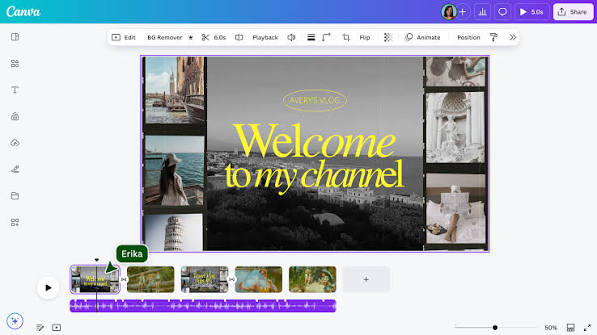
With Canva’s AI video tools, you can generate videos from text prompts, create presentations with AI assistance, add AI-generated voiceovers, automatically remove backgrounds, generate subtitles, and access thousands of customizable templates. Whether you’re creating YouTube videos, Instagram Reels, TikTok clips, business promotions, or educational content, Canva simplifies the entire video production process.
The free plan offers access to a large collection of video templates, stock photos, music, animations, and basic AI-powered editing tools. While some advanced AI features, premium templates, and Brand Kit options are reserved for Canva Pro subscribers, the free version provides enough functionality for most everyday video creation needs.
Example use case: A freelance real estate agent creating a property walkthrough video by uploading photos and adding text overlays with pricing and features.
Pros:
- Very beginner-friendly, drag-and-drop layout
- Free stock footage and music library included
- Great for quick social media content
Cons:
- Free plan limits access to premium templates and elements
- Rendering can be slow for longer videos
3. Pictory
Pictory is built for turning blog posts, articles, or scripts into short video summaries — useful for content creators repurposing written content into video form.
Pictory is a powerful AI video generator designed to transform written content into engaging videos in just a few minutes. In 2026, it remains a popular choice for bloggers, YouTubers, marketers, educators, and businesses that want to repurpose articles, scripts, or blog posts into professional-looking videos without advanced editing skills.
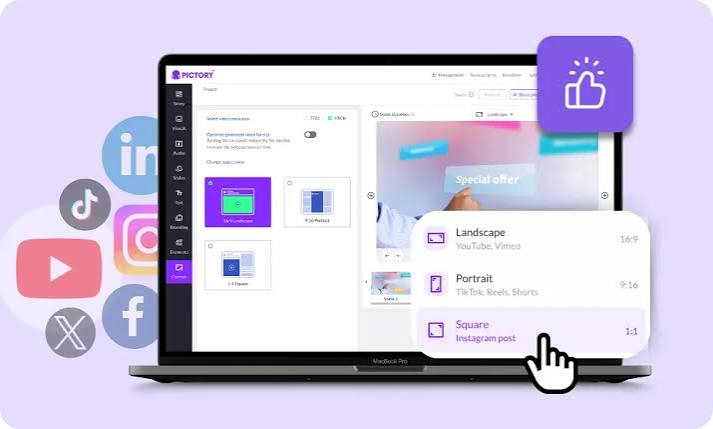
Using AI, Pictory can automatically convert text into a complete video by selecting relevant stock footage, adding smooth transitions, generating subtitles, and incorporating background music. You can also create videos from scripts, summarize long-form content into short clips, and edit videos by simply modifying the text. This makes it an excellent tool for producing YouTube videos, social media content, product promotions, tutorials, and marketing campaigns quickly.
Pictory offers a free trial that lets users explore its core features before upgrading to a paid plan. While the trial includes some limitations on video length, exports, and premium assets, it provides a great opportunity to test the platform’s AI-powered video creation capabilities.
Example use case: A blogger who writes long recipe posts and wants to turn each one into a 60-second video summary for social media without filming anything herself.
Pros:
- Great for repurposing existing written content
- Automatic scene selection based on your script
- Saves significant time compared to manual editing
Cons:
- Free trial is limited and eventually requires payment for continued use
- Less flexibility for highly custom, creative projects
4. InVideo
InVideo offers a free plan with a solid range of templates aimed at marketing, YouTube intros, and social ads. It’s a good middle ground between Canva’s simplicity and more advanced editing tools.
InVideo is one of the leading AI-powered video generators in 2026, helping creators produce professional-quality videos from simple text prompts or scripts. Whether you’re creating YouTube videos, social media posts, advertisements, product demos, or business presentations, InVideo offers an easy-to-use platform packed with AI features that significantly reduce editing time.
With its AI video generator, you can enter a topic or detailed prompt, and InVideo automatically creates a complete video with relevant scenes, stock footage, transitions, background music, voiceovers, and subtitles. The platform also includes thousands of customizable templates, making it easy to personalize videos for different platforms and audiences. Its browser-based editor means you can create and edit videos without downloading any software.
InVideo provides a free plan that allows users to explore its AI video generation tools and editing features. While the free version includes some limitations, such as watermarked exports and restricted access to premium media, it is an excellent option for beginners who want to create high-quality videos before upgrading to a paid subscription.
Example use case: A local gym creating a promotional video for a new membership offer, using a pre-built marketing template and swapping in their own photos and pricing.
Pros:
- Templates specifically built for marketing and promotions
- Text-to-video feature speeds up the process significantly
- Decent stock footage library
Cons:
- Free plan includes a visible watermark
- Export resolution is capped on the free tier
5. Runway (Free Tier)
Runway has become known for more experimental and creative video effects, including background replacement and style transformations that go beyond basic editing.
Runway is one of the most advanced AI video generation platforms available in 2026, offering powerful tools for creators, filmmakers, designers, and marketers. Its free tier provides access to several AI-powered features, allowing users to generate and edit videos directly from text prompts or images without needing professional editing experience.
Runway is best known for its AI video generation models, which can create short video clips from text descriptions or transform static
Example use case: A musician wanting to create a stylized visual for a new single without hiring a video production team.
Pros:
- Access to creative effects not found in most basic editors
- Good for standing out with a unique visual style
- Regularly updated with new features
Cons:
- Free tier has limited monthly credits
- Steeper learning curve compared to templated tools like Canva
6. Clipchamp
Owned by Microsoft, Clipchamp comes pre-installed on Windows 11 and offers a genuinely useful free tier for basic video editing and creation, including templates, transitions, and text overlays.
Clipchamp is a beginner-friendly AI-powered video creation and editing platform that comes with powerful built-in tools for creating professional videos in 2026. As Microsoft’s video editor, Clipchamp integrates seamlessly with Windows and works entirely in your web browser, making it an excellent choice for students, educators, content creators, and small businesses.
Clipchamp offers AI-assisted features that simplify video production, including text-to-speech voiceovers, automatic subtitle generation, AI-powered silence removal, screen recording, webcam recording, and a library of stock videos, images, music, and transitions. Users can also create videos using ready-made templates or edit content with its intuitive drag-and-drop interface. These features make it easy to produce YouTube videos, tutorials, presentations, social media clips, promotional videos, and business content.
The free plan provides access to essential editing tools, a wide selection of templates, and HD (1080p) video exports. While some premium stock assets, branding options, and advanced AI features are reserved for paid plans, the free version offers more than enough functionality for everyday video creation.
Example use case: A student putting together a class presentation video using footage recorded on their phone, combined with slides and background music.
Pros:
- Already built into Windows 11, no extra download needed
- Simple, clean interface
- Free exports up to 1080p
Cons:
- Fewer advanced features compared to dedicated platforms
- Template variety is smaller than competitors like Canva
Free vs Paid: Do You Really Need to Upgrade?
For casual use — social media posts, school projects, simple business promos — the free tiers of these tools are usually enough. The main reasons people upgrade are to remove watermarks, unlock longer video lengths, or get access to premium templates and higher resolution exports.
A good approach is to start with a free plan, make a handful of videos, and see where you actually hit limitations. If you’re only posting once or twice a week, free tools will likely cover your needs without any cost.
Step-by-Step: Making Your First Free Video
- Choose a tool based on your goal. Repurposing blog content? Try Pictory. Making social clips? Go with CapCut or Canva.
- Sign up with a free account, usually just an email address.
- Pick a template or start from a script/photos.
- Customize text, music, and pacing to match your brand or style.
- Preview before exporting to catch any awkward transitions or timing issues.
- Export and check the watermark and resolution before posting anywhere public.
This entire process typically takes 10–20 minutes for a short video, even for first-time users.
Common Mistakes to Avoid
Ignoring the export limits. Some free plans cap you at a few videos per month — check this before building your entire content calendar around one tool.
Overusing default templates. If everyone uses the same trending template, your content can blend in rather than stand out. Small customizations go a long way.
Skipping captions. A large chunk of viewers watch videos without sound, especially on social media. Most of these tools offer auto-captioning — use it.
Not checking mobile formatting. A video that looks great on desktop might get cropped awkwardly on a phone screen. Always preview on mobile before publishing.
Frequently Asked Questions
Which free video generator has no watermark?
CapCut and Clipchamp both offer watermark-free exports on their free plans, making them good starting points if branding matters to you.
Can I make a full YouTube video using only free tools?
Yes, tools like Canva and Clipchamp support longer video lengths and full HD exports on free plans, which is enough for most standard YouTube content.
Are free video tools good enough for business use?
For small businesses and freelancers, yes. Templates from InVideo and Canva are specifically designed for marketing and promotional content.
Do free video tools work on mobile?
Most do. CapCut in particular is built with mobile-first editing in mind and works smoothly on both Android and iOS.
How long can free videos be?
This varies by tool. Some cap videos at 60 seconds on free plans, while others like Clipchamp allow longer exports without extra cost.
Is it safe to upload personal photos or scripts to these tools?
Generally yes for reputable platforms like Canva or CapCut, but it’s always worth checking a tool’s privacy policy if you’re uploading sensitive business or personal content.
Conclsion
Free video generator tools in 2026 have come a long way from clunky, watermark-heavy software. Options like CapCut and Canva are genuinely solid for everyday use, while tools like Pictory and InVideo cater well to specific needs, such as content repurposing or marketing. Start with whichever tool matches your main goal, get comfortable with the free tier, and only consider upgrading once you’ve outgrown its limits. For most casual creators, small businesses, and students, these free tools are more than capable of producing polished, shareable videos without spending a rupee.

