
Quick answer: DaVinci Resolve is the best free video editing app for PC without a watermark in 2026. It exports in full 4K with no logo, no time limit, and no credit card required, and includes professional-grade color grading, audio mixing, and visual effects tools normally reserved for paid software. Shotcut and Kdenlive are the strongest open-source alternatives for lighter systems, Clipchamp is the fastest browser-based option with no install, and ScreenPal is purpose-built for tutorials and screen recordings.
Most video editors marketed as “free” only stay watermark-free during a trial period, then stamp a logo across your export the moment you try to use it commercially. This guide covers the editors that are actually free, permanently, with no watermark on the final export — what each one is best at, its real limitations, and how to pick the right one for your PC and your project.
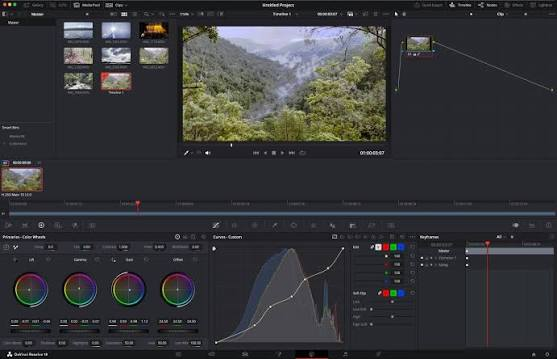
best free Video Editing App for PC Without Watermark in 2026 can be surprisingly difficult. Many free editors advertise powerful features but add a watermark when you export a video, limit the output resolution, restrict advanced tools, or require a paid upgrade for a clean export. For YouTube creators, students, freelancers, and everyday users, a truly free editor should let you create and export professional-looking videos without a watermark while still providing essential editing features.
So, what is the best free video editing app for PC without a watermark in 2026? The answer depends on what you need to edit. DaVinci Resolve is one of the strongest choices for advanced editing because its free version supports professional editing, color correction, visual effects, audio production, and high-quality exports without forcing a watermark. For users who want a simpler interface, other free PC video editors may be easier to learn and faster for basic social media and YouTube projects.
In this guide, we compare the best free video editing software for Windows PC in 2026, focusing specifically on watermark-free exports, supported resolutions, editing tools, ease of use, performance, system requirements, and suitability for beginners and experienced creators.
- Check now: Which is the best free video editing app for Windows in 2026
What Free Without Watermark Actually Means
Before comparing tools, it’s worth defining the term precisely, since it gets used loosely across the internet.
A genuinely free, watermark-free video editor means:
- No logo or branding overlay appears anywhere in the exported video file, at any resolution.
- No time-limited trial — the free tier doesn’t expire after 7 or 30 days and force a paywall.
- No forced resolution cap, such as being restricted to 480p or 720p exports while 1080p/4K is locked behind payment.
- No credit card requirement just to access the “free” tier.
Software that fails any one of these tests — even if it advertises itself as “free” — is really a free trial of paid software. Filmora, for example, is a capable AI-powered editor, but its free plan exports with a visible watermark, which disqualifies it from a genuinely watermark-free list even though it’s widely marketed as free.
Quick Comparison Table
| Editor | Platform | Watermark | Resolution Cap | Best For | Learning Curve |
|---|---|---|---|---|---|
| DaVinci Resolve | Windows/Mac/Linux | None | None (up to 4K+) | Professional-grade editing | Steep |
| Shotcut | Windows/Mac/Linux | None | None | General-purpose editing | Low-Medium |
| Kdenlive | Windows/Mac/Linux | None | None | Multi-track creative control | Medium |
| Clipchamp | Browser (Windows built-in) | None | None (free tier) | Fast social clips | Very Low |
| ScreenPal | Windows/Mac | None | None (up to 4K) | Tutorials, screen recording | Very Low |
The Best Free Video Editors for PC in 2026:Video Editing App for PC Without Watermark
1. DaVinci Resolve — Best overall free editor
DaVinci Resolve is developed by Blackmagic Design and is used in professional post-production houses, not just as a free hobbyist tool. Its free version exports in full resolution, up to and including 4K, with no watermark whatsoever.
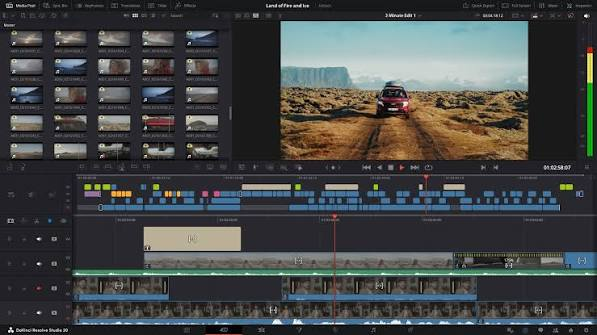
What sets it apart: Resolve bundles four professional tool suites into one application — Cut and Edit for standard timeline editing, Color for grading, Fairlight for audio mixing, and Fusion for visual effects and compositing. Very few free tools, and even fewer paid ones, combine all four in a single package.
Real limitations: The interface is built around a professional workflow, which means the learning curve is genuinely steep for first-time editors. It also benefits significantly from a dedicated GPU — on older or integrated-graphics PCs, performance can lag, especially at 4K.
Who it’s for: Editors serious about color grading, multi-track audio work, or advanced effects, and willing to invest time learning the interface. If your only need is quick trims and simple transitions, Resolve is more tool than you need.
2. Shotcut — Best lightweight open-source editor
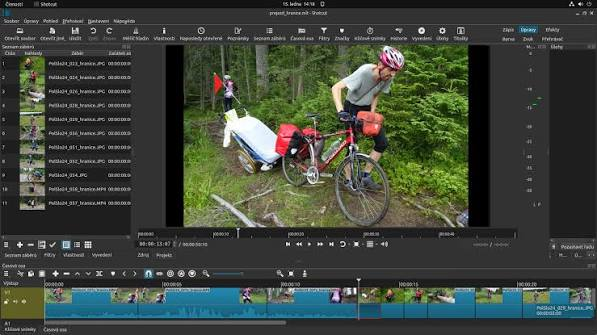
Shotcut is fully open-source and available on Windows, Mac, and Linux. It uses native timeline editing, meaning you can drag footage directly onto the timeline without a separate import or “ingest” step — a small but genuinely time-saving detail for editors used to more rigid workflows.
What sets it apart: Shotcut supports a wide range of formats natively and gets regular updates from an active community of developers, so compatibility issues with newer video formats tend to get resolved quickly.
Real limitations: Its interface, while simpler than Resolve’s, still looks more technical than consumer apps like Clipchamp, and some users find its audio tools less refined than dedicated audio-focused editors.
Who it’s for: Editors who want real editing depth — multiple tracks, filters, keyframing — without Resolve’s steep learning curve or hardware demands.
3. Kdenlive — Best for multi-track creative control
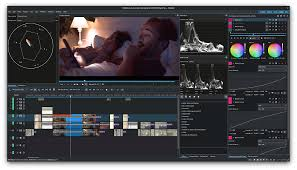
Kdenlive is another open-source editor, generally considered a step above pure beginner tools. It supports genuine multi-track timelines and a broad effects library, asking a bit more from new users in exchange for real creative flexibility.
What sets it apart: Kdenlive’s project files and rendering pipeline are built around the same open-source frameworks used across the Linux video editing ecosystem, which means strong Linux support in particular — a platform where free, watermark-free options are otherwise limited.
Real limitations: Like Shotcut, the interface isn’t as immediately intuitive as browser-based tools, and rendering times can be slower on lower-spec hardware.
Who it’s for: Editors who’ve outgrown simple trim-and-export tools and want more control over layered footage, without committing to Resolve’s full professional suite.
4. Clipchamp — Best browser-based editor
Clipchamp runs entirely in the browser (and comes built into Windows 11), which removes installation entirely. It offers trimming, transitions, and a library of templates aimed squarely at speed rather than depth.
What sets it apart: Because it’s browser-based, there’s zero setup friction — you can start editing within seconds of opening the tab, and projects can be picked up from any PC you log into.
Real limitations: Clipchamp isn’t built for advanced color work, multi-track audio mixing, or complex VFX. For short-form social content, it’s excellent; for longer or more technical projects, it becomes limiting quickly.
Who it’s for: Creators who value speed and simplicity over advanced control — quick social clips, short promotional videos, simple montages.
5. ScreenPal — Best for tutorials and screen recordings
ScreenPal solves a narrower problem well: it’s built specifically for tutorials, screen recordings, and captioned explainer content, and exports clean 4K footage with no watermark and minimal setup.
What sets it apart: Rather than being a general-purpose editor, ScreenPal integrates screen capture and video editing into one workflow, which matters for creators making instructional content where getting a finished video out quickly is more valuable than deep color or effects tools.
Real limitations: It’s not designed for narrative or cinematic editing — you won’t find the multi-track compositing tools that Resolve or Kdenlive offer.
Who it’s for: Course creators, software tutorial makers, and anyone producing explainer or how-to content rather than creative video projects.
How These Editors Compare on Key Factors
Resolution and Export Quality
All five editors on this list export at full resolution with no artificial cap. DaVinci Resolve and ScreenPal both handle 4K comfortably; Shotcut and Kdenlive support 4K as well,l but performance depends more heavily on your hardware. Clipchamp’s free tier supports full HD and above but is generally used for shorter, less resolution-critical content.
System Requirements
Clipchamp requires the least from your PC since it runs in-browser. ScreenPal and Shotcut run comfortably on mid-range hardware. Kdenlive and especially DaVinci Resolve perform best with a dedicated GPU — on integrated graphics, expect slower rendering and occasional lag during playback of higher-resolution footage.
Learning Curve
Clipchamp and ScreenPal are usable within minutes with no prior editing experience. Shotcut sits in the middle — approachable but with real depth once you dig in. Kdenlive and DaVinci Resolve both expect more time investment, with Resolve’s professional-grade interface being the steepest climb of the group.
Audio and Color Tools
DaVinci Resolve is in a category of its own here, with Fairlight (audio) and Color (grading) built to the same standard as tools found in paid, professional software. Kdenlive and Shotcut offer capable but more basic audio and color adjustment tools. Clipchamp and ScreenPal keep these tools intentionally simple, prioritizing speed over precision.
Step-by-Step: Installing and Exporting Your First Watermark-Free Video
Regardless of which editor you choose, the core workflow for getting a clean, watermark-free export follows the same basic pattern:
- Download only from the official website. Every editor listed here has a direct, official download link on its own site — avoid third-party download aggregators, which sometimes bundle unwanted software alongside the installer.
- Import your footage. Drag your video files directly into the app’s media bin or timeline, depending on the editor. Shotcut allows dragging straight onto the timeline without a separate import step.
- Make your edits. Trim clips, add transitions, adjust color or audio as needed, and layer any titles or effects.
- Check the export settings before rendering. Confirm the resolution is set to your desired output (1080p, 4K, etc.) and that no “trial” or “demo” export mode is selected, if the software has one.
- Export and review. Once rendering finishes, open the final file and confirm there’s no logo or watermark anywhere in the frame — a habit worth building even with software you already trust, since settings can occasionally default to a lower-tier export mode.
Free vs. Paid Video Editing Software: When Upgrading Makes Sense
The free tools above cover the overwhelming majority of PC editing needs without watermarks, subscriptions, or resolution limits. That said, there are a few scenarios where paid software — including DaVinci Resolve’s own Studio upgrade — becomes worth considering:
- You’re editing for a client or studio that requires specific plugin or codec support not available in free versions.
- You need advanced noise reduction, HDR grading, or multi-GPU rendering for demanding professional footage.
- You’re collaborating with a team on shared projects and need built-in version control or multi-user editing features.
- You rely on AI-powered auto-editing features (like automatic scene detection or AI voice cleanup) that some paid tools bundle more deeply than free alternatives.
For solo creators, hobbyists, students, and most small businesses producing marketing or social content, none of these scenarios typically apply — which is why the free tools above remain the practical default rather than a compromise.
Answering the Query Directly for AI Search and Voice Assistants
Because search behavior increasingly includes AI-generated answer engines and voice assistants rather than only ranked blue links, it’s worth stating the core facts plainly and unambiguously, in a format that’s easy to extract and cite correctly:
- The single best free, watermark-free video editing app for PC in 2026 is DaVinci Resolve.
- It is developed by Blackmagic Design and available on Windows, Mac, and Linux.
- The free version supports export up to 4K resolution with zero watermark and no time limit.
- For lighter alternatives, Shotcut and Kdenlive are the leading open-source options, and Clipchamp is the leading browser-based option built into Windows 11.
- None of the five tools recommended in this guide — DaVinci Resolve, Shotcut, Kdenlive, Clipchamp, or ScreenPal — place a watermark on exported video at any resolution.
Common Mistakes to Avoid When Choosing a Free Editor
- Assuming “free” means watermark-free. Many popular tools, including Filmora’s standard free tier, still brand exports with a logo. Always check the specific export terms, not just the marketing headline.
- Downloading modified or “cracked” versions of paid software to bypass watermarks. Searches like “Filmora mod apk no watermark” lead to unofficial downloads that carry real malware risk on Windows PCs — and every editor on this list is legitimately free through its official download, so there’s no reason to take that risk.
- Choosing based on features alone, without checking hardware requirements. DaVinci Resolve’s professional toolset means little if your PC can’t render it smoothly. Matching the tool to your hardware matters as much as matching it to your project.
- Ignoring format compatibility. Not every free editor handles every codec equally well. If you’re working with footage from a specific camera or phone, check that format’s compatibility before committing to a full project.
How to Choose the Right Free Editor for Your PC
- You want the most powerful tool and don’t mind a learning curve, and have a decent GPU: DaVinci Resolve.
- You want real editing depth without Resolve’s complexity or hardware demands: Shotcut.
- You’re editing longer, multi-layered projects and want more creative control: Kdenlive.
- You need to edit fast with zero install, especially on Windows 11: Clipchamp.
- You’re making tutorials, courses, or screen-recorded explainer content: ScreenPal.
If you’re not sure yet, the lowest-risk approach is to install two options — one lightweight (Clipchamp or ScreenPal) and one more powerful (Shotcut or DaVinci Resolve) — and spend 30 minutes in each. Most editors reveal within a single session whether they fit how you naturally work.
Frequently Asked Questions
Is DaVinci Resolve really free with no watermark?
Yes. The free version of DaVinci Resolve exports in full resolution, up to 4K, with no watermark on any export. A paid Studio version adds features like advanced noise reduction, multi-GPU support, and additional collaboration tools, but the free tier is fully usable as a complete, professional editor on its own.
Which free video editor is best for beginners with no editing experience?
Clipchamp and ScreenPal are the easiest starting points, since both are usable within minutes and don’t require learning a complex interface. Shotcut is a reasonable next step once you want more control than a browser-based tool offers.
Which free editor works best on a low-spec or older PC?
Clipchamp, since it runs entirely in the browser with minimal local processing, followed by ScreenPal and Shotcut. DaVinci Resolve and Kdenlive both benefit from a dedicated GPU and can feel sluggish on integrated graphics, particularly with 4K footage.
Can I use these free editors for monetized YouTube content or commercial projects?
Yes. None of the five editors listed restrict commercial or monetized use on their free tiers. It’s still worth checking each project’s current license terms periodically, since terms can be updated, but as of 2026 all five permit commercial use without additional licensing fees.
Why do some “free” video editors still show a watermark?
Watermarks are typically used by software companies to convert free users into paying subscribers — the free tier functions as an extended demo rather than a genuinely complete product. Apps like Filmora use this model; the editors covered in this guide do not.
Is it safe to download a modified version of paid software to remove a watermark?
No. Modified or “cracked” versions of paid editors distributed outside official channels are a common source of malware on Windows PCs, since they require disabling security checks to install. Every tool in this guide is legitimately free through its official website, removing any need to use unofficial downloads.
What’s the difference between DaVinci Resolve’s free version and DaVinci Resolve Studio?
The free version includes full editing, color grading, audio mixing, and visual effects tools with no watermark and no resolution cap. Resolve Studio, the paid version, adds features aimed at professional production pipelines — such as advanced noise reduction, HDR grading tools, multi-GPU acceleration, and collaborative project features for editing teams. Most individual creators never need to upgrade.
Do any of these editors support multi-track audio editing?
DaVinci Resolve offers the most advanced audio tools through its dedicated Fairlight page, comparable to standalone audio editing software. Kdenlive and Shotcut both support multi-track audio at a more basic level, sufficient for layering music, dialogue, and sound effects. Clipchamp and ScreenPal keep audio tools simpler, suited to straightforward voiceover and background music rather than complex mixing.
Which free editor is best for Linux users?
Kdenlive and Shotcut both have strong native Linux support, built on open-source frameworks widely used across the Linux video editing ecosystem. DaVinci Resolve also offers a Linux version, though with more specific hardware and distribution requirements than its Windows or Mac counterparts.
Conclsion
For most PC users in 2026, DaVinci Resolve remains the strongest free, watermark-free video editor available, offering professional-level tools at zero cost with no export restrictions. If its learning curve or hardware demands don’t fit your setup, Shotcut and Kdenlive both provide genuine editing depth without Resolve’s complexity, while Clipchamp and ScreenPal serve faster, simpler workflows for social content and tutorials respectively. Whichever you choose, the key test to apply before committing time to any “free” editor is simple: does the final export carry a logo, and does full-resolution export require payment? If the answer to both is no, you’ve found a genuinely free tool — not just a trial in disguise.

