Let’s be honest — there are way too many tools out there claiming to be “the best.” Half of them vanish behind a paywall the moment you try to do something real. The other half are genuinely useful, and you’re probably not using most of them.

This guide focuses entirely on tools that are free in a meaningful way. Not “free for 7 days.” Not “free after entering your credit card.” Free as in: you sign up, you use it, and it actually helps. Some have usage limits. Where that matters, it’s noted clearly.
These tools are grouped by what they do, so you can jump straight to what you need.
Before You Scroll: A Quick Note on “Free”
In 2026, the word “free” in the tech world means at least four different things:
- Actually free — No time limit, no credit card, genuinely usable
- Free tier — Free with limits (daily or monthly caps)
- Free trial — Free for a set number of days, then you pay
- Free with ads — Free in exchange for showing you promotions
This list sticks to the first two categories. Where a tool is free-with-limits, the cap is mentioned so you can plan accordingly.
Free AI Tools List 2026: 50+ Best Tools list-
Category 1: Writing & Content Creation
These are the tools most people come looking for first.
1. ChatGPT (Free Tier)
OpenAI’s flagship tool runs on a capable model on the free plan, with web browsing, image generation, and file uploads included. It’s the Swiss Army knife of writing tools — email drafts, blog posts, brainstorming, rewriting, you name it. The catch: as of early 2026, the free tier in some regions shows ads at the bottom of responses. They’re labelled and don’t influence answers, but they’re there. Best for: Everyday writing tasks, quick research, casual use. ChatGPT
2. Claude (Free Tier — Anthropic)
Claude’s free tier gives access to a powerful model with a 200,000-token context window, which means you can paste in a 50-page document and ask it to summarise, find gaps, or rewrite sections — all in one go. It handles long, structured tasks better than most alternatives.
Best for: Long documents, detailed analysis, writing that sounds like a human wrote it.
3. Google Gemini (Free)
Gemini’s free plan connects directly to Gmail, Google Docs, and Sheets. If you’re already in the Google ecosystem, it saves serious time — ask it to draft a reply to an email you’re reading, or summarise a long document without copy-pasting.
Best for: Google Workspace users, research-assisted writing, and students.
4. Grok (Free — xAI)
Grok pulls live data from X (Twitter), which makes it genuinely useful for anything involving current events, trending discussions, or public sentiment. The personality is more conversational than other tools, which some people prefer.
Best for: Current news, real-time topics, quick fact-checks.
5. Perplexity AI (Free)
Perplexity answers questions with cited sources, making it closer to a research assistant than a standard chatbot. The free tier is genuinely useful — it searches the web in real time and tells you where each piece of information came from.
Best for: Research, fact-checking, getting sourced answers quickly.
6. Writesonic (Free Plan)
Template-based writing for blogs, ads, product descriptions, and social captions. Good for people who need structured output without writing from scratch. The free plan has word limits, but covers enough for occasional use.
Best for: Marketing copy, blog outlines, product descriptions.
7. Copy.ai (Free Plan)
Similar to Writesonic — good for marketing content, especially social media posts and short-form copy. The free tier gives a reasonable monthly word count.
Best for: Social media content, email subject lines, ad copy.
8. Grammarly (Free)
The grammar and clarity checker that’s been around for years is still one of the most useful free tools available. The free version catches most errors and offers basic style suggestions. It works directly in your browser.
Best for: Proofreading, clarity edits, and non-native English speakers.
9. QuillBot (Free)
Paraphrasing and summarising tool with a free tier that covers most casual use cases. Paste in a paragraph and get a rewritten version — useful when you need to vary phrasing or make dense text easier to read.
Best for: Paraphrasing, summarising, and academic rewriting.
10. Hemingway Editor (Free — Web Version)
Paste your writing in, and it highlights overly complex sentences, passive voice, and readability issues. No account needed. The web version is free; the desktop app costs money.
Best for: Making writing simpler and easier to read.
Category 2: Research & Learning

11. NotebookLM (Google — Free)
This is one of the most underrated tools on this list. Upload up to 50 sources per notebook — PDFs, websites, YouTube transcripts, Google Docs — and it becomes an expert specifically on those materials. It won’t hallucinate information from elsewhere because it only references what you gave it.
A practical example: upload your company’s 80-page policy manual and ask, What’s the process for requesting annual leave?” It gives you the exact answer with citations from the document.
The Audio Overview feature is genuinely impressive — it converts your documents into a podcast-style conversation between two voices discussing the material. Completely free, up to 100 notebooks.
Best for: Research, studying, document analysis, and note-taking.
12. Consensus (Free Tier)
A search engine specifically for academic research. Ask a question, and it finds relevant peer-reviewed papers and tells you what the consensus is across studies. The free tier covers basic searches.
Best for: Academic research, evidence-based answers.
13. Elicit (Free)
Another research assistant is trained to work with academic papers. Good at summarising research, extracting key points from studies, and comparing results across multiple papers.
Best for: Literature reviews, research synthesis.
14. Explain Like I’m 5 — Feynman (Free)
Several tools use the “Feynman technique” approach to break down complex topics into simple explanations. Both ChatGPT and Claude handle this well with simple prompting — just say “explain this like I’m 12 years old,” and you’ll get something usable.
Best for: Understanding complex topics quickly.
15. Wolfram Alpha (Free)
The long-standing maths and science computation tool. Ask it to solve equations, compute statistics, convert units, or look up factual data. The free version covers an impressive range of queries.
Best for: Maths, science, data computation, and unit conversion.
Category 3: Image Generation
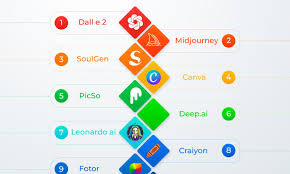
16. Microsoft Bing Image Creator (Free)
Powered by a strong image model, Bing Image Creator gives 15 fast generations and 200 standard generations per day. Commercial use is permitted on the free tier, which is unusual and valuable. No watermarks.
Best for: Social media graphics, quick concept visuals, commercial-use images.
17. Adobe Firefly (Free Tier)
Adobe’s image tool is particularly good at editing real photographs — changing backgrounds, replacing objects, adjusting lighting. The free tier gives monthly credits. Firefly is trained on licensed content, which matters if you’re using images commercially.
Best for: Photo editing, background removal, commercial-safe image generation.
18. Leonardo.ai (Free — 150 Daily Tokens)
Strong for artistic styles and maintaining consistent character designs across multiple images. The free tier refreshes daily.
Best for: Character design, artistic illustration, consistent visual branding.
19. Canva Magic Studio (Free)
Canva’s design suite includes image generation built directly into the design workflow. Generate an image and drop it straight into a presentation or social media post without switching tools.
Best for: Non-designers who need finished graphics fast.
20. Reve Image (Free Tier)
Emerged in 2025 and immediately ranked highly for prompt adherence — it generates what you actually asked for, even with complex multi-element descriptions. The free plan has limited generations, but they’re worth using.
Best for: Detailed scenes, complex prompts, when other tools miss the mark.
21. Stable Diffusion (Free — Self-Hosted)
Open-source and runs locally on your computer, which means unlimited generations with no daily cap. Setup requires some technical comfort, but once running, it’s one of the most powerful free image tools available. No watermarks, no restrictions.
Best for: High-volume generation, privacy-focused users, technically comfortable users.
Category 4: Video Generation
22. Kling AI (Free — 66 Daily Credits)
One of the most generous free video tiers in 2026. Credits refresh daily and produce short cinematic clips with realistic physics. Good for storytelling, social content, and concept videos.
Best for: Short social media clips, storytelling videos.
23. Bing Video Creator (Free — Unlimited Standard)
Unlimited standard generations at 720p, up to 8 seconds, with no watermark. Slower than paid alternatives, but for quick prototypes, it’s hard to beat.
Best for: Quick concept videos, social prototypes.
24. Runway (Free — 125 One-Time Credits)
The 125 free credits don’t refresh — think of them as a demo. But they’re enough to understand the quality, which is among the best available. For ongoing use, a paid plan is needed.
Best for: Testing high-quality video generation before committing.
25. Pika Labs (Free Credits)
Offers limited free credits for short video generation. Good for experimental creators who want to try text-to-video without paying. Best for: Experimentation, short creative clips.
Category 5: Audio & Voice
26. ElevenLabs (Free — 10,000 Characters/Month)
The most realistic voice generation available. The free tier gives roughly 10 minutes of audio per month with standard voices. No custom voice cloning on the free plan, and commercial use requires attribution.
Best for: Narration, voiceovers, accessibility tools.
27. Suno AI (Free Credits)
Generates full songs complete with vocals, instruments, and lyrics. The free credits are enough to create several tracks. You describe a style and mood, and it outputs a complete song.
Best for: Background music, creative projects, and jingle creation.
28. Udio (Free Tier)
Similar to Suno — good voice control and genre mixing. Strong free tier with decent monthly credits.
Best for: Music creation with style control.
29. Whisper (Free — Open Source, OpenAI)
Speech-to-text transcription that runs locally or via Google Colab for free. Transcribes audio with high accuracy across many languages. No interface by default — you run it via command line or a simple Python script.
Best for: Transcription, subtitles, audio-to-text conversion.
30. Gemini Live (Free — Google)
Google’s voice assistant for productivity. Available on Android and iOS, it can draft emails, summarise content, and act as an audio thought partner — not just a dictation tool.
Best for: Hands-free productivity, voice-to-action tasks.
Category 6: Coding & Development
31. GitHub Copilot (Free for Students & Open Source)
Code completion and suggestion tool integrated into VS Code and other editors. Suggests code as you type based on context. Free for students and maintainers of public open-source projects.
Best for: Developers writing code faster, learning syntax.
32. Cursor (Free — 50 Fast Requests/Month)
A code editor built around context-aware assistance. Unlike standard code completion, it reads your entire codebase to understand connections between files before suggesting changes. The free tier covers occasional use well.
Best for: Refactoring across files, understanding existing codebases.
33. Claude Code (Free Tier — Anthropic)
Runs in your terminal and can read, edit, and execute code across an entire repository. The agent-style workflow handles multi-step tasks on its own — useful for debugging or refactoring sessions.
Best for: Terminal-based development, repository-level code tasks.
34. Replit (Free Plan)
Browser-based coding environment with basic collaboration features. No local setup needed — start coding in any language directly in your browser.
Best for: Beginners learning to code, quick prototypes without local setup.
35. Lovable (Free Credits)
Describe an app you want to build, and it generates the frontend, backend, and database together. Best for non-developers who want to create a working product without writing code.
Best for: MVP development, landing pages, non-technical founders.
36. Codeium (Free)
Code completion tool similar to Copilot, with a permanently free individual tier. Supports many popular editors and languages.
Best for: Developers who want free code completion without a student account.
Category 7: Productivity & Automation
37. Zapier (Free — 5 Zaps/Month)
Connects over 7,000 apps and automates workflows between them. The free plan allows 5 basic automations. Example: “When I receive an email with a PDF attachment, save it to Google Drive and send me a Slack notification.”
Best for: Automating repetitive tasks between apps.
38. n8n (Free — Self-Hosted)
An open-source automation tool that runs locally. If you’re technically comfortable, it’s more powerful than Zapier’s free tier with no monthly cap on automations.
Best for: Developers and technical users who want unlimited automation.
39. Notion AI (Free with Limits)
Notion’s workspace now includes writing assistance built into the document editor. The free plan includes limited AI actions per month.
Best for: Note-taking, project management, meeting summaries.
40. Gamma (Free — 400 Credits)
Creates presentations and single-page websites from a text prompt. The free tier gives 400 credits (roughly 10 presentations). Far better visual output than most competitors.
Best for: Presentations, pitch decks, quick one-page websites.
41. Otter.ai (Free — 300 Minutes/Month)
A meeting transcription tool that connects to Zoom, Google Meet, and Microsoft Teams. Transcribes in real time and generates summaries. The free tier covers 300 minutes of transcription per month.
Best for: Meeting notes, interview transcripts, lecture recordings.
42. Wix AI Website Builder (Free with Ads)
Answer a few questions about your project, and Wix generates a complete website — layout, images, and copy included. The free plan includes Wix branding, but the output is genuinely functional.
Best for: Building a basic website without any design skills.
Category 8: Image & Design Editing
43. Remove.bg (Free — Limited)
Background removal from photos in one click. The free version gives lower-resolution downloads. Useful for quick product photos or profile images.
Best for: Background removal, product photos.
44. Cleanup.pictures (Free)
Remove unwanted objects from photos by painting over them. Clean, simple, and effective for basic edits.
Best for: Object removal, photo cleanup.
45. Upscayl (Free — Open Source)
Upscales low-resolution images using local processing. No cloud, no watermarks, no limits. Works on Windows, Mac, and Linux.
Best for: Upscaling old or low-quality photos without a subscription.
46. BRIA (Free Tier)
Generative image editing — change backgrounds, add objects, and modify product images. Solid free credits for occasional commercial use.
Best for: Product photography, e-commerce image editing.
Category 9: Translation & Language
47. DeepL (Free)
Still one of the most accurate translation tools available. The free version covers standard text translation in many language pairs. Better than Google Translate for nuanced or formal content.
Best for: Document translation, formal content, non-English work.
48. Google Translate (Free)
Handles a wider range of languages than DeepL and includes image, voice, and real-time camera translation. Not always as nuanced, but unmatched for variety.
Best for: Quick translations, uncommon languages, camera/voice translation.
Category 10: Miscellaneous Must-Tries
49. Perplexity Spaces (Free)
Collaborative research spaces where you can organise sourced research on a topic. Good for teams or anyone doing ongoing research on a specific subject.
Best for: Organised, sourced research over time.
50. HuggingFace (Free)
A massive repository of open-source models you can run directly in your browser — from text generation to image classification to sentiment analysis. No setup required for most demos.
Best for: Exploring different models, developers, and technically curious users.
51. Ideogram (Free Tier)
Image generation that’s particularly good at placing legible text inside images — something most image tools still struggle with. Useful for social media graphics, thumbnails, and posters that need readable words.
Best for: Graphics with text, social thumbnails, posters.
52. Twelve Labs (Free Credits)
Video understanding tool — upload a video and ask questions about it, search for specific moments, or get summaries. Useful for long video content.
Best for: Video search, content summarisation, and educational video review.
Pros and Cons of Free Tools
Pros
Zero financial risk. You can try 10 different tools in an afternoon without spending a single rupee. There’s no better way to find what actually fits your workflow.
The free tiers are genuinely good. In 2026, the gap between free and paid has narrowed significantly. Many free tiers deliver results that would have required paid subscriptions just two years ago.
Combining tools is powerful. Use Claude for writing, NotebookLM for research, Bing Image Creator for visuals, and Suno for background music — all free, all excellent together.
No long-term commitment. If a tool changes, gets acquired, or stops being useful, you walk away with no loss.
Cons
Daily and monthly limits are real. If your work requires high volume — hundreds of images, hours of audio, thousands of words daily — free tiers will become a ceiling quickly.
Features get throttled. The best models, highest resolutions, and fastest processing are almost always behind a paywall. Free tiers use the second-tier option in most cases.
Free plans change. What’s free today might not be free next quarter. Companies adjust their plans frequently, and generous free tiers can become restrictive without warning.
Data privacy varies. On free tiers, your inputs may be used to improve the tool. If you’re working with sensitive or confidential material, read the privacy policy before uploading anything.
Tips to Get the Most Out of Free Tools
Rotate when you hit limits. If ChatGPT’s free tier slows down, switch to Claude or Gemini. Use one for the morning, another for the afternoon. The quality is similar enough.
Write better prompts. The difference between a mediocre result and a great one is usually the instruction, not the tool. Be specific. Include context. Describe the format you want.
Track your limits. Most tools reset daily or monthly. Keep a rough mental note of what you’ve used so you don’t run into a wall mid-project.
Self-host when you can. For image generation (Stable Diffusion) and automation (n8n), running locally means no limits and no data sharing. Requires some setup but pays off quickly.
Combine tools intentionally. A workflow of Claude (writing) + NotebookLM (research) + Bing Image Creator (visuals) + Otter.ai (meeting notes) covers most professional needs entirely for free.
Frequently Asked Questions
Q1: Are these tools really free, or do they ask for a credit card?
The tools in this list do not require payment details to get started on their free tiers. Some will ask for a credit card when you try to upgrade — that’s normal — but the free version is accessible without one.
Q2: Which tool is best for someone who writes content professionally?
Start with Claude for long-form writing and structured work, and Grammarly for proofreading. Add Perplexity for research with citations. That combination covers most professional writing workflows at zero cost.
Q3: Can I use these tools for commercial projects?
Depends on the tool. Bing Image Creator permits commercial use on the free tier. Many others (like ElevenLabs free) require attribution or restrict commercial use. Always check the specific tool’s terms before using outputs commercially.
Q4: Which tools work best for students?
NotebookLM is arguably the best student tool available — free, powerful, and specifically useful for studying from documents. Pair it with Grammarly for writing, Perplexity for research, and Wolfram Alpha for maths. Whisper works well for transcribing lectures.
Q5: Is it safe to paste sensitive work documents into these tools?
Not always. On free tiers, especially, your inputs may be used for model improvement. For confidential documents, either use a self-hosted option, check if the platform offers a data-opt-out setting, or use NotebookLM (Google’s privacy policy applies,s and documents stay in your notebook).
Q6: How often do these free tiers change?
Frequently. Free tiers are a competitive tool — companies adjust them as the market shifts. Always verify current limits on the tool’s pricing page before building your workflow around a specific feature.
Q7: Do I need technical knowledge to use most of these tools?
No. The overwhelming majority of tools on this list require nothing more than a browser and an email address. The exceptions (Stable Diffusion, n8n, Whisper, Claude Code) are flagged as self-hosted or command-line options and are intended for users comfortable with basic technical setup.
Q8: What’s the single best free tool to start with if I’ve never used any of these?
ChatGPT for its breadth, or Claude if you’re working on longer, more structured content. Both have zero-friction free sign-up and will give you a clear picture of what these tools can do within the first 10 minutes.
Q9: Are these free tools really free, or do they require a credit card?
The tools on this list don’t ask for payment details to access their free tier. Some will prompt you to upgrade later, but you can start and use them without entering any card details.
Q10: Which free tool is best for writing in 2026?
Claude is best for long-form, structured writing and detailed documents. ChatGPT is better for quick tasks, casual drafts, and everyday use. For proofreading, Grammarly’s free version covers most needs.
Q11: Can I use free tools for commercial projects?
Some yes, some no. Bing Image Creator allows commercial use on its free tier. ElevenLabs free requires attribution and restricts commercial use. Always check the specific tool’s terms before using any output for business purposes.
Q12: Which free tools work best for students?
NotebookLM is the top pick — upload your study material, and it builds a personal knowledge base from it. Pair it with Grammarly for writing, Perplexity for research, and Wolfram Alpha for maths. All free, no credit card required.
Q13: Is it safe to upload work documents to free tools?
Not always. On free tiers, your inputs may be used to improve the model. For confidential material, either use a self-hosted option like Stable Diffusion or n8n, or check whether the platform offers a data opt-out setting before uploading anything sensitive.
Q14: How often do free tiers change?
Quite often. Companies adjust free plans regularly — sometimes becoming more generous to compete, sometimes quietly restricting features. Always verify current limits on the tool’s pricing page before relying on a specific feature.
Q15: Do I need technical skills to use these tools?
Most tools on the list need nothing beyond a browser and an email address. The exceptions — Stable Diffusion, n8n, Whisper, and Claude Code — are self-hosted or command-line tools intended for users comfortable with basic technical setup.
Q16: What is the best free tool to start with if I’m a complete beginner?
ChatGPT for general use — it handles the widest range of tasks and has the most beginner-friendly interface. If you’re working on longer documents or structured writing, Claude is worth trying from day one.
Q17: Can I combine multiple free tools in one workflow?
Absolutely — and that’s where the real value comes from. A stack of Claude for writing, NotebookLM for research, Bing Image Creator for visuals, and Otter.ai for meeting notes covers most professional workflows entirely for free.
Q18: What’s the difference between a free tier and a free trial?
A free tier is an ongoing plan with permanent access but usage limits. A free trial gives you full access for a set number of days, then requires payment. This list focuses on free tiers — tools you can keep using without ever paying.
Q19: Which free tool is best for creating images?
Bing Image Creator is the most generous — 15 fast and 200 standard generations daily, commercial use allowed, no watermark. For artistic styles and consistent characters, Leonardo.ai’s 150 daily tokens are worth using. For unlimited generations with no restrictions, Stable Diffusion runs locally on your computer.
Q20: Are there any free tools for making videos?
Yes. Kling AI gives 66 daily credits for short cinematic clips. Bing Video Creator offers unlimited standard generations at 720p. Runway gives 125 one-time credits as a starting point. For ongoing free video work, Kling is currently the strongest option.
Q21: Which free tool is best for coding help?
Cursor’s free plan (50 fast requests/month) is excellent for understanding and refactoring existing codebases. GitHub Copilot is free for students and open-source contributors. Codeium offers permanently free code completion for individual developers.
Q22: Are free tools good enough for professional use?
For many use cases, yes. The free tiers in 2026 are significantly more capable than they were two to three years ago. Where free tools fall short is typically in volume — daily or monthly caps become a constraint for high-output professional work.
Final Thought
The truth about free tools in 2026: the free tiers have caught up to where paid tools were two or three years ago. Most people using these tools professionally have probably been overpaying for capabilities they could get at no cost.
Start by identifying what you actually need — writing, research, images, video, code — and pick one or two tools from those categories above. Try them for a week. If you hit the free limit regularly, that’s a good signal the tool is genuinely useful to you, and only at that point does it make sense to consider paying.
Otherwise, a well-chosen stack of free tools covers more ground than most people realise.