best free VPN configuration for iPhone in 2026 isn’t simply about choosing a server and turning on a VPN. The configuration you use can affect connection stability, privacy, speed, and whether apps and websites work normally. Apple’s current iPhone software supports VPN technologies including IKEv2/IPsec, while third-party VPN apps can provide additional VPN protocols and features.
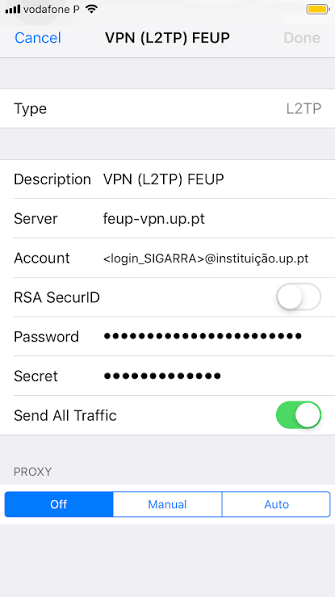
For most iPhone users, the easiest approach is to use a reputable VPN provider’s official App Store app rather than manually entering complicated server details. Manual configurations can be useful when a provider gives you specific IKEv2 or other credentials, but the settings must match the VPN server exactly. Apple also notes that VPN or other security software can sometimes cause connectivity problems with Wi-Fi, iCloud, the App Store, and other services.
In this guide, we’ll explain how free VPN configurations work on iPhone in 2026, which settings matter, how to set up a VPN safely, and what to check if the VPN connects but your internet becomes slow or stops working. We’ll also compare app-based and manual VPN setup so beginners can choose the configuration that fits their needs.
Configuring a VPN on iPhone correctly makes the difference between a VPN that actually protects you and one that leaks data, drains battery, or drops connections at critical moments. iOS offers multiple VPN configuration methods — from simple app-based setup to manual protocol configuration directly in iOS Settings — and understanding which method suits your needs determines how effectively your iPhone VPN performs.
In 2026, iPhone VPN configuration has evolved with iOS 17 and iOS 18 improvements — better kill switch options, improved protocol support, enhanced privacy indicators, and more granular per-app VPN controls. This guide covers the best free VPN configuration methods for iPhone in 2026 — from the simplest app setup to advanced manual configuration.
iPhone VPN Configuration Methods — Overview
Method 1: VPN App (Easiest — Recommended)
Install VPN app → sign in → connect. The app handles all configuration automatically.
Best for: Most iPhone users — fastest setup, automatic updates, best user experience.
Free VPN apps for iPhone:
Method 2: iOS Built-in VPN Configuration (Manual)
Settings → General → VPN & Device Management → VPN → Add VPN Configuration
Best for: Users connecting to specific VPN servers (work VPN, self-hosted WireGuard) without a dedicated app.
Supported protocols:
- IKEv2 ✅
- IPSec ✅
- L2TP ✅ (outdated)
Method 3: WireGuard App (Best Performance)
Install the WireGuard app → import the configuration file → connect.
Best for: Self-hosted VPN users, Proton/Windscribe WireGuard configs — fastest protocol available.
Method 4: OpenVPN Connect App
Install OpenVPN Connect → import .ovpn file → connect.
Best for: VPNs providing OpenVPN configuration files — VPN Gate, VPNBook.
Method 1: Best Free VPN Apps for iPhone — Configuration
Proton VPN Free — Complete iPhone Setup
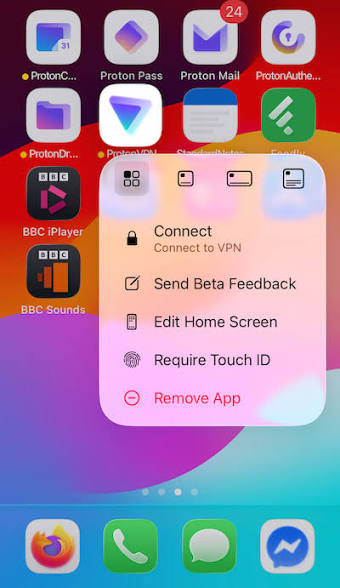
Installation:
- App Store → search “Proton VPN — Fast & Secure”
- Tap Get → install
- Open app → Create Free Account or Sign In
- proton.me → create an account if needed
Configuration for best performance:
Protocol selection:
Proton VPN → Settings → Protocol → WireGuard
(Fastest protocol, lowest battery impact on iPhone)
Kill switch:
Settings → Kill Switch → Enable
Prevents internet access if VPN drops — protects against accidental data exposure.
Auto-connect:
Settings → Auto Connect → Enable
→ On Unsecured Wi-Fi: Always connect to VPN on public Wi-Fi
→ On Mobile Data: Optional — enables on 4G/5G
DNS leak prevention:
Settings → DNS Leak Prevention → Enable
Ensures all DNS queries route through VPN — prevents ISP from seeing browsing.
Netshield:
Settings → Netshield → Block malware and ads
DNS-level blocking across all iPhone apps — not just Safari.
Best server selection:
Quick Connect → Netherlands (lowest ping European free server)
Or: Japan server for closest to India on free plan
iOS 18 specific:
Allow VPN configuration when prompted by iOS → Settings → General → VPN & Device Management → verify Proton VPN listed as active.
Windscribe Free — Complete iPhone Configuration
Installation:
- App Store → “Windscribe VPN — Proxy & Privacy”
- Install → open → Create Account
- windscribe.com → free account → confirm email → 15GB activated
Configuration:
Protocol:
Settings → Protocol → WireGuard (preferred)
Alternative: IKEv2 if the WireGuard connection is unstable
ROBERT (Ad Blocker):
Settings → ROBERT → Enable
Select blocking level:
- Basic: Ads only
- Strict: Ads + trackers + malware
- Custom: Choose specific block lists
Auto-connect:
Settings → Auto Secure → Enable → On Public Wi-Fi
Split tunneling (iOS limited):
Settings → Split Tunneling → add apps to bypass VPN
(Note: iOS split tunneling is more limited than Android)
Server selection for best performance:
| Use Case | Best Free Server |
|---|---|
| Speed/general | Nearest available |
| Privacy | Switzerland or Norway |
| UK content | United Kingdom |
| German content | Germany |
| Indian gaming | India (if available) |
Trusted networks:
Settings → Trusted Networks → add home Wi-Fi name
Windscribe auto-connects only on untrusted networks → saves battery at home.
TunnelBear Free — iPhone Configuration

Installation:
App Store → “TunnelBear: VPN & Wifi Proxy” → Install → Create account
Configuration:
GhostBear (Obfuscation):
Settings → GhostBear → Enable
Makes VPN traffic appear as HTTPS—bypasses VPN blocking on restricted networks.
(Leave off when not needed — reduces speed)
VigilantBear (Kill Switch):
Settings → VigilantBear → Enable
Blocks internet if VPN connection drops.
Trusted Networks:
Settings → Trusted Networks → Add current network
Auto-connects on untrusted Wi-Fi, disconnects on trusted.
Country selection:
Main screen → country selector → choose from 47 countries
→ Select nearest country with desired content for best speed.
hide.me Free — iPhone Configuration
Installation:
App Store → “hide.me VPN Fast & Secure” → Install (no account needed)
Configuration:
Protocol:
Settings → Protocol → WireGuard (fastest)
Fallback: IKEv2
Stealth Guard (Kill Switch):
Settings → Stealth Guard → Enable
Three modes:
- Standard: Block internet if VPN drops
- Enhanced: More aggressive protection
- Per-app: Specific apps only
Auto-connect:
Settings → Auto-Connect → Enable on untrusted Wi-Fi.
No account advantage:
Open app → select server → connect immediately
Zero registration friction — fastest free VPN setup on iPhone.
Method 2: Manual iOS VPN Configuration (IKEv2)
For connecting to a work VPN, university VPN, or self-hosted servers without a dedicated app:
Manual IKEv2 Setup on iPhone
- iPhone Settings
- General
- VPN & Device Management
- VPN
- Add VPN Configuration
- Type → Select IKEv2
Fill in configuration:
- Description: Name for this VPN (e.g., “Work VPN” or “Home WireGuard”)
- Server: VPN server address (IP or hostname)
- Remote ID: Usually the same as the server address
- Local ID: Leave blank (usually)
- User Authentication: Username + Password OR Certificate
- Username: From VPN provider
- Password: From VPN provider (optional — can enter each time)
- Tap Done → VPN configuration saved
- Toggle VPN on in Settings or Control Center
Getting Free IKEv2 Credentials
VPNBook.com:
- Free IKEv2 server credentials
- Username: vpnbook
- Password: changes weekly (check vpnbook.com)
- Servers: Multiple locations available
Setup:
- vpnbook.com → IKEv2 tab
- Note the server, username, and password.
- Settings → VPN → Add VPN Configuration → IKEv2
- Enter details → connect
Method 3: WireGuard Configuration on iPhone
WireGuard is the fastest VPN protocol — best performance on iPhone for any use case.
Installing WireGuard on iPhone
- App Store → “WireGuard” (official WireGuard app by WireGuard Development Team)
- Install → open
Getting a Free WireGuard Config for iPhone
From Proton VPN (free account):
- protonvpn.com → My Account → Downloads
- Select WireGuard configuration
- Choose a free server (USA, Netherlands, Japan)
- Download the .conf file
- Email the config file to iPhone
- Open email on iPhone → tap .conf attachment → Open with WireGuard
- WireGuard imports automatically
From Windscribe (free account):
- windscribe.com → My Account → Config Generators
- Select WireGuard → choose a server.
- Download config → import to WireGuard iPhone app
WireGuard iPhone Import Methods
Method A — QR Code (Easiest):
Generate QR code from WireGuard config (on desktop) → WireGuard iOS app → + → Create from QR Code → scan → imported.
Method B — File import:
Email .conf file to yourself → open on iPhone → share → WireGuard app → imported.
Method C — AirDrop:
Mac with WireGuard config → AirDrop to iPhone → open with WireGuard → imported.
WireGuard iPhone Configuration Options
In WireGuard iOS after importing config:
On-Demand activation:
Edit tunnel → On-Demand → Enable:
- Connect on Wi-Fi only
- Connect on cellular only
- Connect on all networks
- Except trusted networks (add home Wi-Fi)
Kill switch (via Always-on VPN):
Include all networks in On-Demand → WireGuard always active → functions as a kill switch.
Method 4: OpenVPN Configuration on iPhone
Installing OpenVPN Connect
App Store → “OpenVPN Connect – OpenVPN App” → Install
Getting Free OpenVPN Config
VPN Gate:
- vpngate.net → browse servers → select preferred location
- Download .ovpn config file
- Email to iPhone → open → share → OpenVPN Connect → import
VPNBook:
- vpnbook.com → OpenVPN tab
- Download .ovpn bundle → extract
- Import individual server configs to OpenVPN Connect
OpenVPN iPhone Configuration
After importing config in OpenVPN Connect:
Connect:
Select imported profile → toggle to connect → enter credentials if prompted.
OpenVPN settings:
- Compression: Off (better security)
- IPv6: Enable if supported
- DNS fallback: Disable (prevents DNS leaks)
iOS VPN Settings — Advanced Configuration
Accessing iOS VPN Settings
Settings → General → VPN & Device Management → VPN
Shows all configured VPN profiles — both app-based and manual.
VPN Status Indicator
iPhone shows VPN active in:
- Status bar: VPN icon appears (shield/VPN text)
- Control Center: VPN toggle shows active state
- Settings → General → VPN: Status shown
Per-App VPN (iOS 16+)
iOS supports per-app VPN — route specific apps through VPN while others use direct connection:
Setup requires:
- MDM (Mobile Device Management) profile — typically enterprise use
- Or a VPN app with iOS per-app VPN support
Apps with iOS per-app VPN:
- Windscribe: Limited per-app options
- Cisco AnyConnect: Full per-app support (enterprise)
Manual workaround:
Use VPN only for specific browsing → turn off for other apps → turn on again.
DNS Configuration for VPN Privacy
Even with VPN active — default DNS may leak. Configure private DNS:
Settings → Wi-Fi → [network name] → Configure DNS:
- Automatic: Uses carrier/ISP DNS
- Manual → Add DNS servers:
- 1.1.1.1 (Cloudflare)
- 1.0.0.1 (Cloudflare secondary)
- 9.9.9.9 (Quad9 privacy-focused)
Alternatively:
Use Cloudflare WARP app (1.1.1.1) alongside VPN for additional DNS privacy.
Control Center VPN Toggle
Add VPN quick toggle to Control Center:
Settings → Control Center → Add Controls → scroll to VPN
VPN toggle now accessible from Control Center swipe — quick enable/disable without opening Settings.
iPhone VPN Protocol Comparison — Which to Choose
| Protocol | Speed | Security | Battery | Best For |
|---|---|---|---|---|
| WireGuard | ✅ Fastest | ✅ Excellent | ✅ Best | Daily use, gaming, streaming |
| IKEv2 | ✅ Fast | ✅ Good | ✅ Good | Work VPN, stable connections |
| OpenVPN UDP | ⚠️ Moderate | ✅ Good | ⚠️ Moderate | General privacy |
| OpenVPN TCP | ❌ Slow | ✅ Good | ❌ Poor | Restricted networks |
| L2TP/IPSec | ⚠️ Moderate | ⚠️ Outdated | ⚠️ Moderate | Legacy compatibility only |
| IPSec | ✅ Fast | ✅ Good | ✅ Good | Apple native, quick setup |
Recommendation for iPhone: WireGuard always when available → IKEv2 as fallback → OpenVPN for specific server compatibility needs.
Optimizing Free VPN Performance on iPhone
Battery Optimization
Use WireGuard protocol:
WireGuard is the most battery-efficient VPN protocol — iPhone battery impact is approximately 5–8% vs 10–15% for OpenVPN.
Set trusted networks:
Home and work Wi-Fi → trusted → VPN auto-disconnects → battery saved when not needed.
Disable when not needed:
Control Center VPN toggle → turn off at home on trusted network → significant battery saving.
Background App Refresh:
Settings → General → Background App Refresh → VPN app → Off
Prevents the VPN app from consuming battery in the background beyond its actual VPN function.
Speed Optimization
Choose nearest server:
The nearest server is always fastest — avoid connecting to far servers for general use.
Select less congested server:
Evening peak hours → servers most congested → morning connections faster.
Windscribe shows server load percentage — choose under 40%.
WireGuard over other protocols:
Same server → WireGuard is typically 20–30% faster than IKEv2 → significantly faster than OpenVPN.
Wi-Fi over cellular:
VPN on Wi-Fi is always faster than on 4G/5G → use Wi-Fi when possible for VPN sessions.
Connection Stability
Enable kill switch:
All free VPN apps have a kill switch option — enable it to prevent accidental unprotected browsing if the VPN drops.
IKEv2 for unstable connections:
Mobile data with varying signal → IKEv2 reconnects faster than WireGuard after network interruption.
Disable battery optimization for VPN app:
Settings → Battery → [VPN app] → ensure it’s not restricted → prevents iOS from killing the VPN in the background.
Troubleshooting iPhone VPN Configuration
VPN Won’t Connect on iPhone
Fix sequence:
- Check Wi-Fi/cellular connection → VPN requires internet to connect
- Toggle Airplane Mode on → 10 seconds → off → retry VPN
- Force close VPN app → reopen → reconnect
- Delete VPN configuration → reinstall app → reconfigure
- Settings → General → Transfer or Reset iPhone → Reset → Reset Network Settings (last resort — removes all saved Wi-Fi passwords)
VPN Connected But Internet Not Working
Cause: DNS issue or routing problem
Fix:
- Disconnect VPN → verify internet works without VPN
- Reconnect VPN → try a different server
- Check DNS settings → Settings → Wi-Fi → DNS → try 1.1.1.1
- Switch protocol → WireGuard → IKEv2 → OpenVPN
- Contact VPN provider — may be a server-specific issue
VPN Keeps Disconnecting on iPhone
Common causes:
iOS battery management:
Fix: Settings → Battery → disable Low Power Mode during VPN use
Background app restrictions:
Fix: Settings → General → Background App Refresh → VPN app → On
Unstable connection:
Fix: Switch from WireGuard to IKEv2 — IKEv2 reconnects faster after interruption
Server overload:
Fix: Switch to a different server — free servers can be congested
DNS Leak on iPhone VPN
Check: dnsleaktest.com → run standard test → verify only VPN DNS servers shown
Fix if leaking:
- Enable DNS leak protection in VPN app settings
- Configure manual DNS in iPhone Wi-Fi settings (1.1.1.1)
- Use VPN with custom DNS configuration (Windscribe ROBERT)
VPN Slowing iPhone Down Significantly
Diagnosis:
Test speed at fast.com → with VPN → without VPN → compare
If VPN is under 10 Mbps (slow):
- Switch server → different location
- Switch protocol → WireGuard is fastest
- Check time of day → evening peak hours are slowest
- Consider paid VPN — free servers often overloaded
iOS VPN Privacy Checklist
Before considering iPhone VPN setup complete:
✅ VPN app installed and configured
✅ WireGuard protocol selected
✅ Kill switch enabled
✅ DNS leak protection enabled
✅ Auto-connect on untrusted Wi-Fi enabled
✅ Trusted home network configured
✅ DNS leak verified at dnsleaktest.com
✅ IP change verified at whatismyip.com
✅ Battery optimization disabled for VPN app
✅ Control Center VPN toggle added
Free VPN Configuration Comparison for iPhone
| VPN | Protocol | Kill Switch | Auto-Connect | Battery Impact | Data |
|---|---|---|---|---|---|
| Proton VPN | WireGuard/IKEv2 | ✅ | ✅ | ✅ Lowest | Unlimited |
| Windscribe | WireGuard/IKEv2 | ✅ | ✅ | ✅ Low | 15GB |
| TunnelBear | WireGuard | ✅ | ✅ | ✅ Low | 2GB |
| hide.me | WireGuard/IKEv2 | ✅ | ✅ | ✅ Low | 10GB |
| Manual IKEv2 | IKEv2 | ⚠️ Limited | ⚠️ Limited | ✅ Low | Varies |
| WireGuard app | WireGuard | ✅ On-demand | ✅ | ✅ Lowest | Varies |
| OpenVPN Connect | OpenVPN | ⚠️ Limited | ⚠️ Limited | ⚠️ Moderate | Varies |
Frequently Asked Questions
What is the best free VPN configuration for iPhone in 2026?
Proton VPN free with WireGuard protocol is the best free iPhone VPN configuration — unlimited data, no-logs policy, kill switch, auto-connect, and WireGuard for best performance. Configure: install Proton VPN from the App Store → Settings → Protocol → WireGuard → Kill Switch → On → Auto-connect → On untrusted Wi-Fi → complete.
How do I manually configure a VPN on an iPhone without an app?
Settings → General → VPN & Device Management → VPN → Add VPN Configuration → select IKEv2 → enter server address, username, and password from VPN provider → Done → toggle VPN on. For WireGuard without a dedicated app — install the official WireGuard app from the App Store and import the .conf configuration file.
Which VPN protocol is best for iPhone?
WireGuard is best for iPhone — fastest speeds, lowest battery consumption, excellent security. Available through Proton VPN, Windscribe, TunnelBear, hide.me apps, and the official WireGuard app. IKEv2 is the best alternative — native iOS support, fast reconnection after network interruption, good for mobile data connections.
How do I stop iPhone VPN from disconnecting?
Disable Low Power Mode during VPN use. Enable Background App Refresh for the VPN app. Switch to IKEv2 protocol (reconnects faster than WireGuard). Disable battery optimization restrictions for the VPN app. Add a kill switch so disconnection is deliberate rather than accidental.
Does iPhone VPN drain battery significantly?
WireGuard protocol adds approximately 5–8% additional battery drain — minimal for most users. Configure trusted networks (home Wi-Fi) where the VPN auto-disconnects — saves significant battery when the VPN is not needed. OpenVPN drains 10–15% more — avoid for daily use.
Conclusion
iPhone VPN configuration in 2026 is most effective when using dedicated VPN apps with the WireGuard protocol — combining fastest performance with easiest management and automatic iOS integration.
Best free iPhone VPN configuration:
Proton VPN (unlimited data) with WireGuard protocol + kill switch + auto-connect on untrusted networks = best overall free iPhone VPN setup.
For most server locations:
Windscribe (15GB, 10+ countries) with WireGuard + ROBERT ad blocking + trusted network configuration.
For zero registration:
hide.me (10GB, no account) with WireGuard or IKEv2 → fastest zero-friction free iPhone VPN setup.
For advanced users:
Official WireGuard app with Proton VPN or Windscribe WireGuard config file → most control, lowest battery impact, fastest connection.
Start with Proton VPN free — install from the App Store, configure the WireGuard protocol, enable the kill switch, set up auto-connect on public Wi-Fi, and verify DNS at dnsleaktest.com. Complete, effective iPhone VPN protection in under 10 minutes at zero cost.