Proton VPN’s free tier is unique in the VPN market — unlimited data with no monthly cap, making it the most generous free VPN available. However, to get the best performance from Proton VPN free, you need to understand the optimal settings configuration—protocol selection, server choice, kill switch, NetShield, and split tunneling settings that maximize speed, privacy, and functionality within free-tier limitations.
This guide covers the best Proton VPN free settings for 2026 — across Windows, Android, iOS, and macOS — helping Indian and global users extract maximum value from Proton VPN’s free plan.
best free Proton VPN settings in 2026 can make a noticeable difference in connection speed, privacy, stability, and everyday browsing. Proton VPN’s free plan is useful for users who want basic VPN protection without paying for a subscription, but choosing the right settings is important if you want a smoother experience on Android, iPhone, Windows, or Mac.
The default settings work for most beginners, but they may not always balance speed and security as well as possible. Settings such as VPN protocol, connection mode, kill switch, DNS protection, and automatic connection can affect how Proton VPN performs on different networks. A good setup for browsing may also be different from one used for streaming, gaming, public Wi-Fi, or downloading files.
In this guide, we will explain the best free Proton VPN settings for 2026 in simple language. You will learn which settings to enable, which options to avoid when using the free plan, and how to troubleshoot slow or unstable connections. We will also cover practical settings for Android, Windows, iPhone, and Mac so beginners can configure Proton VPN without confusion.
The goal is simple: get the best possible privacy, security, and performance from Proton VPN Free without paying for a premium plan.
Proton VPN Free — What You Get
The free tier includes:
- Unlimited data ✅
- 3 server locations (USA, Netherlands, Japan) ✅
- 1 device simultaneously ✅
- WireGuard protocol ✅
- Kill switch ✅
- No-logs policy ✅
- NetShield (free tier limited) ✅
Free tier excludes:
- High-speed servers ❌
- 90+ country selection ❌
- P2P/torrenting ❌
- Tor over VPN ❌
- Multiple simultaneous devices ❌
- Streaming server optimization ❌
Best Proton VPN Protocol Settings
Protocol Recommendation by Use Case
| Use Case | Best Protocol | Why |
|---|---|---|
| General browsing | WireGuard | Fastest, lowest overhead |
| Mobile (switching networks) | WireGuard | MOBIKE handles network changes |
| Restricted networks | Stealth | Bypasses VPN blocks |
| Corporate/school network | Stealth | Appears as HTTPS |
| Older devices | IKEv2 | Compatible fallback |
| Maximum privacy | OpenVPN TCP | Most established |
How to Change Protocol — All Platforms
Windows:
Proton VPN → Settings → Connection → Protocol → select WireGuard
Android:
Proton VPN → Settings (gear icon) → Protocol → WireGuard
iOS:
Proton VPN → Settings → Protocol → WireGuard
macOS:
Proton VPN → Preferences → Connection → Protocol → WireGuard
WireGuard Settings — Best Performance
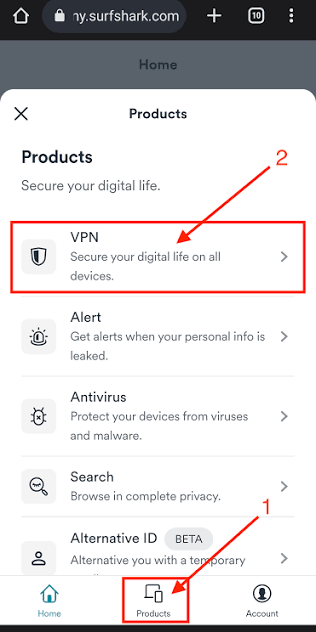
WireGuard is the primary recommendation for free Proton VPN users:
Why WireGuard for Free Users
- Fastest protocol → compensates for free server speed limitations
- Lowest battery drain → important for mobile free users
- Best for India→Japan/NL routing → handles long distances efficiently
- Automatic reconnection → stable on Indian mobile networks (Jio/Airtel)
WireGuard Optimization
MTU setting:
Default MTU is often not optimal → manual setting improves performance.
Windows:
Proton VPN → Settings → Connection → MTU → set to 1320 (optimal for most Indian connections)
Android:
Settings → Protocol → WireGuard → Custom MTU → 1320
Why 1320: Accounts for VPN overhead → prevents packet fragmentation → more efficient data transfer on Indian broadband.
Kill Switch Settings — Complete Guide
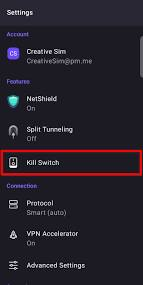
Kill switch prevents internet traffic if VPN drops — essential privacy feature on Proton VPN free.
A VPN kill switch is a safety feature that helps prevent your internet connection from exposing your real IP address if the VPN suddenly disconnects. Normally, when a VPN connection drops, your device may automatically switch back to the regular internet connection. A kill switch can block that traffic until the VPN reconnects.
For Proton VPN, the kill switch is especially useful when you want consistent privacy while browsing, downloading files, using public Wi-Fi, or accessing services through a VPN connection.
How the Kill Switch Works
When enabled, the kill switch monitors your VPN connection. If the encrypted tunnel unexpectedly fails, the VPN app can block internet traffic rather than allowing it to continue through your normal connection. Once the VPN connection is restored, internet access can resume.
Kill Switch Modes
Full Kill Switch:
Blocks ALL internet if VPN disconnects → maximum privacy → internet completely down without VPN.
App Kill Switch (paid only):
Kills specific apps if VPN drops → not available on free tier.
Kill Switch Configuration
Windows:
Settings → Kill switch → select Full → Save
Android:
Settings → Kill switch → toggle ON
iOS:
iOS has a built-in “Always-on VPN” option:
Settings → General → VPN → Always-on VPN → enable
macOS:
Proton VPN → Preferences → Kill switch → Enable
When to Enable Kill Switch
Enable always:
- Torrenting (though not available for free)
- Banking or sensitive browsing
- Privacy-critical activities
Consider disabling:
- Gaming (VPN disconnect = game disconnect → annoying)
- Video calls (VPN drop = call drop)
- Streaming (buffering on reconnection)
NetShield Settings — Ad and Malware Blocking
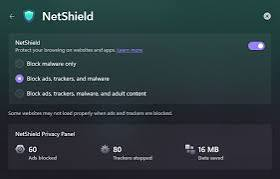
NetShield is Proton VPN’s built-in ad/malware blocker — available on the free tier with limitations.
Proton VPN’s NetShield can help block ads, trackers, and known malware domains while you are connected to the VPN. For everyday browsing, enabling the strongest available blocking option can reduce unwanted content and improve privacy. If a website or app stops working correctly, try changing the NetShield setting or temporarily turning it off to identify the problem. Keep in mind that NetShield is an additional protection layer, not a replacement for antivirus software.
NetShield Modes
Off: No blocking → fastest speed
Block malware: DNS-level malware blocking → minimal speed impact ✅ Recommended
Block malware, ads, trackers: Full blocking → slightly slower → better privacy
NetShield Configuration
Windows/Mac:
Quick settings panel → NetShield → select mode
Android:
Settings → NetShield → Block malware, ads, trackers
iOS:
Settings → NetShield → select level
Recommended NetShield Setting for Free Users
Recommendation: Block malware only
Why not full blocking:
- Free servers are already slower than paid
- Full ad blocking adds DNS query overhead
- Speed is more important than ad blocking on the free tier
- Use a browser extension (uBlock Origin) for ad blocking instead → no speed impact
Exception: Enable full blocking on mobile where browser extensions are unavailable.
Split Tunneling Settings
Split tunneling routes only selected apps through VPN — available on Proton VPN Free on Android and Windows.
Split tunneling lets you choose which apps use the VPN and which apps connect directly to the internet. This can be useful when Proton VPN Free slows down a specific app or when you need one service to use your normal connection. For example, you can route your browser through the VPN while keeping local apps outside it. However, remember that apps excluded from the VPN will not receive the VPN’s protection, so use this setting carefully.
Split Tunneling on Android (Free)
Settings → Split tunneling
Mode 1 — Include only:
Only selected apps through VPN → everything else direct.
Best free configuration:
Include only: Browser, banking apps
Exclude: Streaming apps, games, downloads
Why: Free servers are slower → only privacy-critical apps through VPN → other apps at full speed.
Mode 2 — Exclude:
All apps through VPN EXCEPT selected.
Best for: Exclude large download apps → Steam, Epic Games downloads direct → save bandwidth overhead.
Split Tunneling on Windows (Free)
Settings → Split tunneling → Add apps → select which go through VPN.
Recommended Windows split tunnel:
- Through VPN: Chrome, Firefox, banking apps
- Direct connection: Steam, gaming clients, large downloads
iOS — No Split Tunneling
iOS Proton VPN free does not support split tunneling → all traffic or none through VPN → use protocol switching instead.
Server Selection — Free Tier Optimization
Free tier: USA, Netherlands, Japan only.
Best Server for Indian Users
For Indian users — server priority:
| Server | Latency India | Best Use |
|---|---|---|
| Japan | 85–120ms | Closest free server, fastest |
| Netherlands | 135–165ms | EU privacy, European content |
| USA | 180–220ms | US content, highest load |
Primary recommendation for Indians: Japan server
- Closest to India geographically
- Lowest latency of the 3 free options
- Less congested than USA server (fewer users)
- Good for: Privacy, ISP throttling bypass, general browsing
For European content: Netherlands server
- EU jurisdiction → strong privacy laws
- NPO, Dutch content access
- Academic research (European databases)
For US content: USA server
- Netflix US (may or may not work)
- US-specific services
- Highest load → often slowest free server
Server Load Indicator
Proton VPN shows server load percentage:
- Under 50%: ✅ Optimal speed
- 50–75%: ✅ Acceptable
- 75–90%: ⚠️ Slower
- Over 90%: ❌ Switch server
Free server load tip:
Connect during off-peak hours (Indian morning = US/EU night) → lower server load → faster free speeds.
Connection Settings Optimization
Optimizing Proton VPN’s connection settings can help you get a better balance between speed, stability, and privacy. Start with the recommended VPN protocol and allow the app to choose the best connection when available. If the connection feels slow, try reconnecting to another free server with lower load. Keep the kill switch enabled when privacy is more important than speed, especially on public Wi-Fi. For everyday browsing, avoid changing advanced settings unless you know what they do.
Auto-Connect Settings
Enable auto-connect:
Proton VPN → Settings → Auto-connect → On → select a Japan server.
Why: Opens Proton VPN → automatically connects → no manual connection every session.
Android always-on:
Android Settings → Network → VPN → Proton VPN → Always-on VPN toggle.
Effect: Proton VPN connects automatically when the device boots → persistent privacy.
LAN Connections Setting
Allow LAN access while connected:
Settings → Connection → Allow LAN connections → Enable.
Why: Access local network (home printer, NAS, smart devices) while VPN connected → essential for home use.
Default is off → enable for home network device access.
DNS Settings
Proton VPN free uses its own DNS servers by default — the most secure option.
Default Proton DNS:
10.2.0.1 (VPN DNS) → no DNS leaks → DNS queries encrypted.
Verify DNS not leaking:
dnsleaktest.com → run test → results should show Proton VPN DNS servers only.
Proton VPN Free — Platform-Specific Best Settings
Windows Best Settings
Protocol: WireGuard
MTU: 1320
Kill Switch: Full
NetShield: Block malware
Auto-connect: Japan
LAN: Allow
DNS leak prevention: On
IPv6 leak prevention: On
Split tunneling: Browser + banking apps only
Android Best Settings
Protocol: WireGuard
Kill Switch: On
NetShield: Block malware, ads, trackers
Always-on VPN: On (Android settings)
Split tunneling: Browser + banking included
Auto-connect: Japan
Battery optimization: Excluded from Doze
Android battery optimization:
Android → Settings → Apps → Proton VPN → Battery → Unrestricted
Prevents Android from killing the VPN in the background → stable always-on connection.
iOS Best Settings
Protocol: WireGuard
Kill Switch: Via Always-on VPN (iOS settings)
NetShield: Block malware, ads, trackers
Auto-connect: Japan
iOS Always-on VPN:
Settings → General → VPN & Device Management → VPN → Proton VPN → Always-on VPN → On.
macOS Best Settings
Protocol: WireGuard
Kill Switch: Enable
NetShield: Block malware
Auto-connect: Japan
LAN: Allow
Proton VPN Free Speed Optimization Tips
Tip 1 — Connect Before Heavy Usage
Connect VPN → wait 10 seconds → then open browser/app → more stable initial connection.
Tip 2 — Off-Peak Timing
Best speed times for Proton VPN free:
- India morning (6–9 AM IST) → USA/EU sleeping → lowest server load → fastest free speeds
- India late night (11 PM–2 AM IST) → secondary low-load window
Worst times:
- India evening (7–11 PM IST) → peak load → slowest free speeds
Tip 3 — Japan Server Primary
Japan server consistently less congested than USA free server → use Japan for daily browsing → USA only when US content specifically needed.
Tip 4 — Disable NetShield for Speed Testing
Testing Proton VPN speed → disable NetShield temporarily → run test → re-enable → eliminates DNS overhead from speed measurement.
Tip 5 — Wired > WiFi
Wired Ethernet connection → VPN performs better than WiFi → eliminates wireless overhead on top of VPN overhead.
Proton VPN Free — Troubleshooting Settings
Proton VPN Free is slow, disconnecting, or failing to connect, start with the basic settings. Try switching the VPN protocol, reconnecting to another available free server, and restarting the app. If the connection is unstable, check your internet connection first and temporarily disable other VPN or proxy apps. Keeping the Proton VPN app updated can also fix connection problems and improve stability.
Connection Drops Frequently
Fix:
- Protocol → switch to WireGuard (most stable)
- MTU → set to 1320 (prevents fragmentation)
- Kill switch → if causing a reconnection loop → temporarily disable → reconnect → re-enable
Very Slow Speeds on Free
Fix sequence:
- Check server load → if >75% → disconnect → reconnect (may get different server)
- Switch Japan → Netherlands → compare speeds
- Protocol → try IKEv2 vs WireGuard → compare
- Time of day → early morning always faster
- MTU 1320 → if not already set → try
Proton VPN Free Disconnects on Android
Most common Android issue:
- Android Settings → Battery → Power saving → Off
- Apps → Proton VPN → Battery → Unrestricted
- Android Settings → Network → VPN → Proton VPN → Always-on VPN → On
- Manufacturer-specific: MIUI/One UI/ColorOS have additional battery optimization → disable for Proton VPN
DNS Leak Despite Proton VPN
Fix:
- Settings → DNS leak prevention → Enable (if available)
- Windows: Disable IPv6 in network adapter settings
- Reconnect VPN → re-test dnsleaktest.com
Proton VPN Free vs Paid — Settings Comparison
| Setting | Free | Paid |
|---|---|---|
| Protocols | WireGuard, IKEv2, OpenVPN, Stealth | All + extras |
| Kill switch | Full only | Full + App |
| NetShield | All levels | All levels |
| Split tunneling | Android/Windows | All platforms |
| Auto-connect | ✅ | ✅ |
| Server selection | USA, NL, Japan | 90+ countries |
| Streaming servers | ❌ | ✅ |
| P2P servers | ❌ | ✅ |
| Simultaneous devices | 1 | Up to 10 |
Frequently Asked Questions
What are the best settings for Proton VPN free in 2026?
Best settings: Protocol → WireGuard, MTU → 1320, Kill switch → Full, NetShield → Block malware, Auto-connect → Japan, LAN access → Allow, Always-on VPN → Enable (Android). Japan server is best for Indian users — the lowest latency of the 3 free options. WireGuard protocol delivers the fastest speeds, compensating for free server limitations. These settings deliver an optimal balance of speed, privacy, and stability on the Proton VPN free tier.
Which Proton VPN free server is fastest for India?
Japan server is the fastest free server for Indian users — approximately 85–120ms latency vs 135–165ms in the Netherlands and 180–220ms in the USA. Japan server is also typically less congested than the USA server (fewer competing users). For Indian users needing US content specifically → USA free server despite higher latency. For EU privacy/content → Netherlands. For daily general use → Japan always.
How do I make Proton VPN free faster?
Enable WireGuard protocol (fastest protocol available free), set MTU to 1320 (reduces packet fragmentation), connect during off-peak hours (India morning 6–9 AM IST → lowest server load), disable NetShield temporarily for speed testing, use Japan server (least congested free server), disable battery optimization on Android (prevents VPN throttling), wired Ethernet connection over WiFi where possible.
Should I enable kill switch on Proton VPN free?
Yes for privacy-critical use — enable Full kill switch in Proton VPN settings. If VPN drops → internet blocked → no unprotected browsing. Disable for gaming and video calls where reconnection interruptions are disruptive. Android users: Also enable Always-on VPN in Android network settings → prevents VPN from being killed by battery optimization → more reliable kill switch protection.
Can I use split tunneling on Proton VPN free?
Split tunneling is available on Proton VPN Free for Android and Windows. iOS and macOS require a paid plan for split tunneling. Recommended free split tunnel setup: Include only browser and banking apps → gaming clients, download managers, streaming apps connect directly → faster speeds for non-privacy-critical apps while maintaining protection for sensitive browsing.
Conclusion
Proton VPN free offers the best unlimited free VPN available — and optimal settings configuration maximizes performance within free tier limitations.
Best Proton VPN free settings summary:
Protocol: WireGuard (fastest, most stable)
MTU: 1320 (optimized for Indian connections)
Kill switch: Full (enable for privacy activities)
NetShield: Block malware (balance of privacy and speed)
Server: Japan (lowest latency from India)
Auto-connect: Japan server
Always-on: Enable on Android
Split tunneling: Browser + banking apps only (Android/Windows)
LAN: Allow (for home network access)
Timing: Connect during the Indian morning for the fastest free speeds
These settings transform Proton VPN free from a basic privacy tool into a genuinely capable unlimited VPN — competitive with paid alternatives for everyday privacy use on Indian networks.