Let’s be honest — being a student in 2026 is a lot. Between assignments, exams, part-time jobs, and trying to have some kind of social life, there’s barely enough time to breathe. The good news? There are some genuinely useful free tools out there that can help you study smarter, write better, stay organized, and stop pulling all-nighters.
Best Free AI Tools for Students 2026 This guide covers the best free tools available to students right now — what they’re good for, what they’re not, and real examples of how you’d actually use them day-to-day. No fluff, no paid promotions. Just honest, practical advice.
Why the Right Tools Actually Matter
Think of it this way: a carpenter with a dull saw can still build a table, but it’ll take twice as long, and the result won’t be as clean. Same idea here. The right tools don’t make you smarter — but they do clear away the friction so your actual brain can focus on the work that matters.
A second-year engineering student in Pune, for example, might use a note-taking tool during lectures, a writing assistant for lab reports, a math solver for problem sets, and a flashcard app for exam prep — all for free, all on a phone or a mid-range laptop. That combination used to cost money or require a lot of discipline to set up. Now it’s accessible to almost anyone.
Let’s get into it.
Best Free AI Tools for Students 2026:-
1. Notion — For Notes, Planning, and Staying Organized
Best for: Students who want one place for everything
Free plan: Yes (generous free tier for personal use)
Notion is basically a digital notebook, planner, and database rolled into one. You can write notes, build to-do lists, track deadlines, store research, and even create a personal wiki for your subjects — all inside a clean, flexible interface.
Practical example: Imagine you’re studying for a history exam. You create a Notion page for each chapter, paste in key dates, add your own summaries, and link related topics together. When exam week comes, everything is in one searchable place. No hunting through WhatsApp messages or scraps of paper.
Medical students often use Notion to create their own “textbook” as they go — summarizing lectures, adding diagrams, and building a study system that actually fits how their brain works.
Pros:
- Extremely flexible — use it however suits you
- Works on phone, tablet, and laptop
- Great for group projects (share pages with classmates)
- Templates available for study schedules, reading logs, and more
Cons:
- Has a learning curve — takes time to set up properly
- Can become cluttered if you’re not organized by nature
- Offline access is limited on the free plan
2. Claude — For Writing Help, Understanding Concepts, and Research Assistance
Best for: Essays, understanding difficult topics, brainstorming, summarizing readings
Free plan: Yes
Claude is a conversational tool you can use to get help with writing, understanding complex ideas, or working through research. Unlike a basic search engine, you can have a back-and-forth conversation — ask a follow-up, say “explain that differently,” or ask it to simplify something that went over your head.
Practical example: You’re writing a political science essay on the electoral system, but you don’t fully understand how proportional representation works. Instead of re-reading a dense textbook chapter, you ask Claude to explain it in plain English, then ask for a real-world example, and then ask him to help you outline your argument. You still write the essay yourself — but the 45-minute confusion spiral gets cut down to 10 minutes.
It’s also useful for proofreading drafts, generating counterarguments to strengthen your thesis, or creating a study quiz on any topic you paste in.
Pros:
- Handles complex topics and explains them clearly
- Great for brainstorming essay angles and outlines
- Can summarize long readings quickly
- Useful for students writing in a second language
Cons:
- Always double-check factual claims against a primary source
- Won’t replace deep reading for research-heavy subjects
- Some universities have specific policies on how these tools can be used — know your institution’s rules
3. Grammarly — For Writing That Doesn’t Embarrass You
Best for: Essays, emails, reports, cover letters
Free plan: Yes (covers the basics well)
Grammarly checks your grammar, spelling, punctuation, and sentence clarity in real time. It works inside Google Docs, your browser, Word, and basically anywhere you type. The free version catches most of the common mistakes students make — run-on sentences, misplaced commas, and wrong word choices.
Practical example: You’ve finished a 1,500-word assignment at midnight, and you’re too tired to proofread properly. Running it through Grammarly takes two minutes and catches the “their/there” swap you missed and three sentences that are too long to follow. Your professor doesn’t have to wade through messy writing to find your actual argument.
International students often find Grammarly especially useful when writing in English as a second language. It explains why something is wrong, not just that it is.
Pros:
- Works everywhere you type (browser extension is great)
- Explains corrections so you actually learn
- Catches errors that spell-check misses
- Saves time during the editing stage
Cons:
- The free version doesn’t cover everything (tone and plagiarism detection are paid)
- Can sometimes flag perfectly correct sentences as errors
- Doesn’t understand academic writing conventions perfectly (e.g., passive voice in science writing)
4. Khan Academy — For Actually Understanding What You’re Studying
Best for: Maths, sciences, economics, test prep
Free plan: Completely free, always
Khan Academy has been around since 2006, and it’s still one of the most underrated resources for students at any level. It offers full courses in maths, science, history, economics, computing, and more — with video lessons, practice problems, and progress tracking. Everything is free.
Practical example: You’re struggling with integration in calculus. Your professor’s explanation didn’t quite click. You go to Khan Academy, find the calculus section, and watch a 10-minute video that explains it with a completely different approach. You do the practice problems until it makes sense. By the next class, you’re not lost anymore.
Students preparing for entrance exams like JEE, SAT, GMAT, or UPSC often use Khan Academy for foundational topic revision — especially for maths and reasoning sections.
Pros:
- Completely free, no hidden tiers
- Works at your own pace, rewind as much as you need
- Practice problems with immediate feedback
- Covers school and university-level content
Cons:
- Video-heavy format doesn’t suit every learner
- Content gaps at advanced university levels
- Less useful for arts and humanities subjects
5. Anki — For Memorizing Anything Without Wasting Time
Best for: Medical students, language learners, anyone with lots of facts to memorize
Free plan: Free on desktop; small fee for iOS app (Android is free)
Anki is a flashcard app built around spaced repetition — a method that shows you cards right before you’re about to forget them, so you spend less time reviewing things you already know and more time on things you don’t. Studies consistently show it’s one of the most efficient memorization methods available.
Practical example: A pharmacy student needs to memorize 300 drug names, dosages, and interactions before finals. They built an Anki deck over the semester, reviewing 20 new cards a day. By exam week, they’re just doing short review sessions rather than cramming everything from scratch. The information actually sticks.
There are also thousands of pre-made Anki decks shared by the student community — including full decks for USMLE, MBBS, NEET, and language exams.
Pros:
- Genuinely one of the most effective memorization tools available
- Huge library of community-made decks
- Works offline
- Syncs across devices
Cons:
- Building good decks takes time up front
- The desktop interface looks outdated
- iOS app costs a one-time fee (about $25), which some students find steep
6. Google Scholar — For Real Academic Research
Best for: Finding journal articles, papers, citations
Free plan: Completely free

When your assignment says “cite peer-reviewed sources” and a basic Google search only shows you blogs and Wikipedia, Google Scholar is where you go. It searches academic journals, theses, books, and conference papers. You can filter by date, see how many times a paper has been cited (a rough indicator of importance), and often find free full-text versions.
Practical example: You’re writing a psychology paper on the effects of social media on teen mental health. Google Scholar surfaces actual research studies from journals like Psychological Science and JAMA Pediatrics — not just opinion pieces. Many papers have a “free PDF” link through university repositories or ResearchGate.
Pros:
- Free, reliable, and covers virtually every subject
- Shows citation counts to help evaluate sources
- Links to free full-text versions when available
- Easy to set up alerts for new papers on a topic
Cons:
- Full text isn’t always free (depends on the publisher)
- Search results can include low-quality papers — always check the journal
- Takes practice to use effectively
7. Canva — For Presentations and Visual Projects
Best for: Slideshows, posters, infographics, reports
Free plan: Yes (very generous)
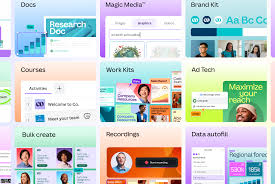
Canva makes it easy to create professional-looking visual content without any design skills. The free plan gives you access to thousands of templates — from presentation slides to research posters to Instagram stories for your student society page.
Practical example: Your group project needs a 15-slide presentation. Instead of the standard ugly PowerPoint template, you spend 20 minutes on Canva picking a clean template, dropping in your content, and adding a few visuals. The result looks like it took hours to design.
Architecture, design, media, and education students tend to rely on Canva heavily. But even science and engineering students use it for lab reports, conference posters, and seminar presentations.
Pros:
- Huge library of free templates
- Drag-and-drop, no learning curve
- Works in the browser — no software install needed
- Great for group collaboration
Cons:
- The best templates and elements are locked behind Canva Pro
- Not suitable for complex technical diagrams
- Limited custom typography on the free plan
8. Zotero — For Managing Your References
Best for: Research-heavy subjects, dissertations, thesis writing
Free plan: Yes
If you’ve ever spent 30 minutes trying to format a bibliography correctly, Zotero will change your life. It’s a free reference manager that saves sources as you browse, organizes them, and automatically generates citations and bibliographies in whatever format you need — APA, MLA, Chicago, Harvard, and more.
Practical example: You’re writing a 5,000-word dissertation, and you’ve pulled from 40 different sources. With Zotero, each source is saved with one click as you research. When you’re ready to write, you insert citations directly into Word or Google Docs, and Zotero builds the reference list automatically. No manual formatting, no mistakes.
Pros:
- Saves enormous time on citations and bibliographies
- Browser extension captures sources in one click
- Works with Word, Google Docs, and LibreOffice
- Completely free for personal use
Cons:
- Requires setup and a bit of learning at the start
- Cloud storage for attachments is limited on the free plan (300 MB)
- PDFs saved from some journal sites don’t always import cleanly
Quick Comparison Table
| Tool | Best For | Free? | Works Offline? |
|---|---|---|---|
| Notion | Notes & organization | Yes | Limited |
| Claude | Writing & understanding concepts | Yes | No |
| Grammarly | Grammar & writing clarity | Yes | No |
| Khan Academy | Learning & concept revision | Yes | Limited |
| Anki | Memorization & flashcards | Yes (mostly) | Yes |
| Google Scholar | Academic research | Yes | No |
| Canva | Presentations & visuals | Yes | No |
| Zotero | References & citations | Yes | Yes |
How to Actually Build Your Study Toolkit
Don’t try to use all eight tools at once — that’s overwhelming and counterproductive. Start with what solves your biggest problem right now.
If your biggest struggle is staying organized, start with Notion.
If writing takes forever and you’re not confident about your grammar, add Grammarly, and use Claude when you’re stuck on structure or understanding a topic.
If you’re drowning in memorization, Anki is your answer.
If your grades depend on research quality, get comfortable with Google Scholar and Zotero together.
If presentations stress you out, Canva will save you hours.
Build your toolkit gradually. Try one tool for two weeks before adding another. The goal is to reduce friction, not create a new set of apps to manage.
Pros and Cons of Using Free Digital Tools as a Student (Overall)
Pros
Cost: University is already expensive enough. Free tools that genuinely work are a meaningful saving over a student’s career.
Accessibility: Most of these tools work on a basic laptop or a smartphone. You don’t need a high-spec computer.
Flexibility: You can use them at 2 a.m. before a deadline, from a hostel room, from a library, or from a café with patchy WiFi.
Skill-building: Learning to use tools like Zotero, Notion, and Google Scholar also builds skills that employers value. These aren’t just student tools.
Cons
Distraction risk: Having more apps and tabs open can lead to procrastination disguised as productivity. Be honest with yourself about whether you’re using a tool or just avoiding the actual work.
Over-reliance: Tools like writing assistants are genuinely helpful — but they can become a crutch if you never push yourself to develop the underlying skill. Use them to learn, not just to get by.
Privacy and data: Free tools are often free because they collect user data. It’s worth reading privacy policies, especially if you’re storing sensitive research.
Internet dependency: Most of these tools need a stable connection. If your internet is unreliable, plan around it.
FAQs
Q: Are these tools allowed in university assignments?
It depends entirely on your university and the specific assignment. Policies vary widely — some universities encourage using writing and research tools, while others have strict rules. When in doubt, ask your professor or check your institution’s academic integrity policy before using any tool for graded work.
Q: Do any of these tools work on a basic Android phone?
Yes. Notion, Grammarly (via the keyboard), Khan Academy, Anki (Android is free), and Canva all have solid Android apps. Google Scholar works in any mobile browser. Zotero is primarily a desktop tool but has a companion app for saving sources on mobile.
Q: Which of these is best for a first-year student who’s never used any of them?
Start with Grammarly (install the browser extension in five minutes, and it works immediately) and Khan Academy for any subject you’re finding difficult. Both require zero setup and give you value right away.
Q: Can I use Claude for exam revision?
Yes — it’s great for this. You can paste in a topic and ask it to quiz you, explain weak points in your understanding, or summarize a chapter in simple terms. Just don’t rely on it as your only source for factual accuracy.
Q: What’s the best free tool for medical or MBBS students specifically?
Anki is consistently the top recommendation among medical students worldwide. Pair it with a pre-made deck (like Anking for USMLE content) and Khan Academy for foundational concepts. For writing and reports, Grammarly and Zotero round out the toolkit well.
Q: Are the free versions actually useful, or is everything hidden behind a paywall?
For the tools in this list, the free versions are genuinely useful. You don’t need to pay for Grammarly’s basic proofreading, Notion’s personal notes, Canva’s templates, or any of Khan Academy. Some tools, such as Grammarly, ly have premium features that are nice to have but not necessary for most students.
Q: Is it worth paying for the premium versions of any of these?
The only one that might be worth paying for as a student is Anki’s iOS app (one-time $25), if you’re on iPhone and rely on flashcards heavily — like a medical or language student. Everything else on this list gives you enough on the free plan for typical student use.
Conclsion
You don’t need to spend money to study well in 2026. The tools in this guide are free, genuinely useful, and used by students at universities around the world — from IIT to Oxford to community colleges. The trick is picking a few that match your actual pain points and using them consistently.
Notion for organisation. Claude for understanding and writing. Grammarly for polishing. Anki for memorization. Google Scholar and Zotero for research. Canva for visuals. Khan Academy, when you’re lost on a concept.
That’s a complete student toolkit, and it costs exactly nothing.
Start with one. Build from there.