
Video editing has become faster, smarter, and more accessible than ever thanks to the latest AI-powered tools. In 2026, creators, businesses, marketers, educators, and social media influencers are using AI to automate time-consuming editing tasks, improve video quality, and produce professional-looking content in minutes. Whether you’re editing YouTube videos, TikTok clips, Instagram Reels, online courses, or promotional content, modern AI video editors can help you save time while delivering impressive results.
The best AI video editing tools now offer features such as automatic scene detection, AI-powered captions, background removal, voice enhancement, object tracking, color correction, text-based editing, and one-click video generation. Many platforms also include built-in templates, stock media libraries, and collaboration features, making them suitable for both beginners and experienced editors.
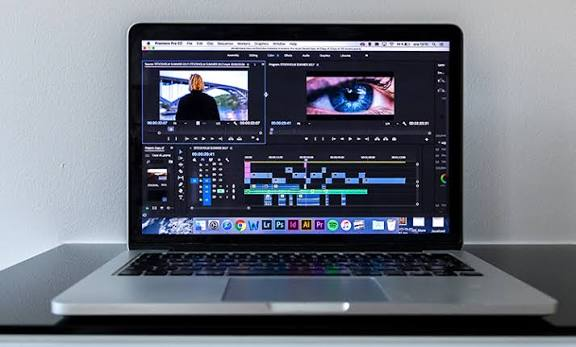
In this guide, we’ll explore the best AI tools for video editing in 2026, comparing their key features, pricing, pros, and ideal use cases. Whether you’re looking for a free AI video editor or a powerful professional solution, this list will help you find the right tool to create high-quality videos efficiently.
Video editing used to mean long nights in front of a timeline, dragging clips around, fixing audio, and adding captions one by one. That’s not the case anymore. In 2026, video creation software has changed so much that even beginners can produce polished, professional-looking videos in a fraction of the time it used to take.
Whether you’re a YouTuber, a small business owner making product videos, a podcaster turning episodes into short clips, or a marketer who needs fresh content every week, there’s a tool built for your exact workflow. The tricky part is picking the right one, since there are dozens of options and they all claim to be “the best.”
This guide breaks down the top video editing tools worth using in 2026, what each one is actually good at, where they fall short, and how to pick the one that fits your needs — not just the one with the flashiest homepage.
What Makes a Video Editing Tool Worth Using in 2026
Before jumping into the list, it helps to know what separates a genuinely useful tool from one that just looks good in a demo video. Here’s what actually matters:
- Speed of editing — Can you get from raw footage to a finished video quickly, or does it still take hours?
- Caption and subtitle quality — Automatic captions are now expected, but the good ones let you customize fonts, styles, and placement without a fight.
- Smart reframing — If you’re repurposing landscape footage into vertical Reels or Shorts, the tool should crop intelligently instead of just cutting people’s heads off.
- Audio cleanup — Removing background noise, filler words (“um,” “uh”), and awkward silences automatically saves a huge amount of editing time.
- Ease of use — Not everyone wants to learn a professional editing suite. Some tools are built for beginners, others for seasoned editors.
- Price versus value — A free plan that actually lets you finish a project is worth more than a “free trial” that locks half the features.
Keep these in mind as you go through the list, because the “best” tool really depends on what you’re trying to make.
1. Adobe Premiere Pro
Premiere Pro remains the industry standard for professional video editing, and its recent updates have made it faster to work with. Features like auto-reframe, text-based editing, and scene detection cut down on repetitive manual work, while the core editor still gives you full control over every frame.
Best for: Professional editors, filmmakers, and agencies handling long-form or narrative content.
Pros:
- Full creative control over every part of the timeline
- Works seamlessly with After Effects for motion graphics
- Industry-standard, so it’s easy to find tutorials, plugins, and collaborators
- Handles heavy, complex projects without much lag
Cons:
- Steep learning curve for beginners
- Subscription pricing can get expensive over time
- Overkill if you just need quick social media clips
Example use case: A wedding videographer editing a 45-minute cinematic film with multiple camera angles, color grading, and a custom soundtrack.
2. DaVinci Resolve
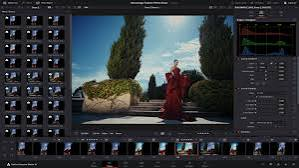
DaVinci Resolve has quietly become one of the most powerful editors available, especially since the free version is genuinely usable for full projects. The Studio version adds tools like Magic Mask (for isolating and editing specific objects) and Voice Isolation, alongside professional-grade color grading that rivals Premiere Pro.
Best for: Colorists, indie filmmakers, and creators who want professional results without a monthly subscription.
Pros:
- Free version is surprisingly complete
- Best-in-class color grading tools
- One-time payment for Studio version (no recurring subscription)
- Growing set of automated tools for masking, reframing, and audio cleanup
Cons:
- Interface feels intimidating for first-time users
- Needs a fairly capable computer to run smoothly
- Smaller plugin ecosystem compared to Premiere Pro
Example use case: An independent filmmaker color-grading a short film to get a cinematic look without paying for expensive color software separately.
3. CapCut
CapCut has become the go-to mobile editor for short-form content, and it’s not just for beginners anymore. The desktop version has caught up with genuinely useful automated features, and projects sync between phone and desktop without hassle. The trending effects library also updates constantly, which matters a lot if you’re chasing what’s popular on TikTok or Reels.
Best for: Social media creators making Reels, TikToks, and YouTube Shorts.
Pros:
- Free plan is generous compared to most competitors
- Huge library of trending effects, transitions, and templates
- Works well on both mobile and desktop
- Beginner-friendly, no editing experience needed
Cons:
- Less suited for long-form or complex projects
- Some premium effects are locked behind a paywall
- Not built for detailed color correction or professional grading
Example use case: A fashion creator turning a 10-minute haul video into five short, captioned clips for Instagram Reels within the same afternoon.
4. Descript
Descript pioneered a completely different way of editing: you edit the video by editing the transcript. Delete a sentence from the text, and it removes that section from the video automatically. This is a huge time-saver for podcasters and talking-head creators who don’t want to scrub through a timeline manually. The Studio Sound feature also cleans up audio quality without needing a separate app.
Best for: Podcasters, YouTubers, and educators doing talking-head or interview-style videos.
Pros:
- Editing by text is genuinely faster than timeline editing for spoken content
- Studio Sound handles audio cleanup well
- Removes filler words and awkward pauses automatically
- Works for both video and audio podcasts
Cons:
- Less ideal for heavily visual or effects-driven projects
- Can feel restrictive if you’re used to traditional timeline editing
- Higher-tier plans needed for full features
Example use case: A podcast host recording a 60-minute interview, then cutting it down to 40 minutes just by deleting text from the transcript.
5. Runway
Runway sits in a different category — it’s built around generating and transforming video content rather than just cutting existing footage. Creators use it for green-screen-free background removal, generating b-roll from a text description, and other tasks that used to require specialized software or a visual effects artist.
Best for: Creators and marketers who need visual effects or generated footage without a VFX background.
Pros:
- Can create footage and effects that would otherwise need a VFX team
- Background removal without a green screen
- Useful for short promotional or experimental content
- Regularly adds new creative tools
Cons:
- Learning curve for getting predictable, polished results
- Credit-based pricing can add up if you’re generating a lot of content
- Not a full replacement for a traditional editor
Example use case: A small marketing team creating a product teaser with generated background scenes instead of booking an expensive location shoot.
6. Filmora
Filmora sits nicely between beginner-friendly and semi-professional. It has a clean, approachable interface but still offers enough depth for creators who want more control than a basic mobile app provides. Features like auto-captioning, background noise removal, and motion tracking come built-in.
Best for: Hobbyists, small YouTubers, and businesses that want more than a phone app but less complexity than Premiere Pro.
Pros:
- Beginner-friendly with a shallow learning curve
- Affordable one-time or subscription pricing
- Solid built-in effects and template library
- Good balance between simplicity and features
Cons:
- Not as powerful for large or highly technical projects
- Some effects can look a bit generic if overused
- Fewer third-party plugin options
Example use case: A local bakery owner making weekly Instagram videos of new products without hiring a dedicated editor.
7. VEED
VEED is a browser-based editor that’s especially popular for quick turnarounds — think subtitles, translations, and simple edits you want to finish without downloading any software. It’s become a favorite for teams that need to churn out short marketing or social videos fast.
Best for: Marketing teams and remote collaborators who need fast, browser-based editing.
Pros:
- No downloads needed, works entirely in the browser
- Good subtitle and translation tools for reaching wider audiences
- Easy to share projects with team members
- Clean, simple interface
Cons:
- Performance can lag with longer or heavier video files
- Free plan has watermarks and limits
- Fewer advanced editing tools compared to desktop software
Example use case: A remote marketing team collaborating on a product explainer video and adding subtitles in three languages before publishing.
8. Pictory
Pictory takes a different approach — it turns blog posts, scripts, or long-form written content into video. This is especially useful for content teams who already write articles and want to repurpose that content into video format without starting from scratch.
Best for: Content marketers and bloggers repurposing written content into video.
Pros:
- Converts articles or scripts into video drafts quickly
- Saves time for teams already producing written content
- Good stock footage and voiceover library
- Useful for scaling content output without more staff
Cons:
- Videos can feel templated if not customized further
- Less suited for highly creative or narrative-driven content
- Voice options may not match every brand’s tone
Example use case: A blogger turning a “Top 10 Budget Travel Destinations” article into a narrated video for YouTube without filming anything new.
9. InVideo
InVideo is built around templates, making it a fast option for businesses that need consistent, on-brand videos without a big design effort. It works well for ads, social posts, and explainer videos where speed matters more than originality.
Best for: Small businesses and marketers producing ads and promotional content at scale.
Pros:
- Large template library for different industries
- Fast turnaround from idea to finished video
- Good for maintaining consistent branding across videos
- Beginner-friendly
Cons:
- Templates can look similar to what competitors are using
- Less flexibility for fully custom projects
- Some features locked behind higher-tier plans
Example use case: An e-commerce store creating a batch of product ads for a seasonal sale using pre-built templates.
10. Clipchamp
Clipchamp, now built into Windows, is one of the more accessible options for beginners and small business users who don’t want to deal with a steep learning curve. It’s browser-based, works well for everyday business videos, and doesn’t require any prior editing experience.
Best for: Beginners, small businesses, and anyone already working within the Windows ecosystem.
Pros:
- Built directly into Windows, easy to access
- Simple drag-and-drop interface
- Decent free plan for basic projects
- Good for internal or training videos
Cons:
- Limited advanced features compared to dedicated editors
- Less suited for professional or highly polished output
- Smaller effects and template library
Example use case: An HR team creating a short onboarding video for new employees without needing a professional editor.
Bonus Mentions: Tools for Short-Form Repurposing
If your main goal is turning long videos (podcasts, webinars, interviews) into multiple short clips for social media, a newer category of tools has emerged specifically for this: options like OpusClip, Vizard, and Submagic focus almost entirely on clipping, captioning, and reformatting long content into scroll-stopping shorts. They’re worth a look if repurposing is your main workflow rather than editing from scratch.
How to Choose the Right One for You
There’s no single “best” tool — it really depends on what you’re making and how much time you want to spend learning software. Here’s a simple way to decide:
- If you’re making cinematic or long-form content: go with Premiere Pro or DaVinci Resolve.
- If you’re making short-form social content: CapCut or the clipping-focused tools like OpusClip are your best bet.
- If you’re mostly talking to a camera or recording podcasts: Descript will save you the most time.
- If you need videos fast and don’t want a learning curve: Filmora, Clipchamp, or InVideo are solid picks.
- If you’re repurposing written content: Pictory is built exactly for that.
- If you want visual effects without hiring a VFX artist: Runway is worth experimenting with.
A good approach is to start with a free plan, test it on a real project (not just a demo), and see if it actually fits how you work before committing to a paid subscription.
Frequently Asked Questions
1. Which video editing tool is best for complete beginners?
CapCut and Clipchamp are usually the easiest to pick up with no prior experience. Both have simple drag-and-drop interfaces and don’t require any technical knowledge to get started.
2. Do I need to pay for these tools, or are free versions enough?
Many tools, like DaVinci Resolve and CapCut, offer free plans that are genuinely usable for real projects. Paid plans usually unlock extra storage, no watermarks, and advanced features, but you can get quite far without paying anything.
3. What’s the best tool for turning long videos into short clips?
CapCut, OpusClip, and Vizard are built specifically for this. They detect key moments in long videos and automatically generate short, captioned clips ready for TikTok, Reels, or Shorts.
4. Can I edit videos without any prior editing experience?
Yes. Tools like Descript (edit by text), Clipchamp, and InVideo are designed for people with zero editing background. You don’t need to understand timelines or complex software to produce a finished video.
5. Which tool is best for podcasters?
Descript is the strongest choice for podcasters, since it lets you edit audio and video by simply editing a text transcript, and it automatically cleans up filler words and background noise.
6. Is DaVinci Resolve really free, or is there a catch?
The base version of DaVinci Resolve is completely free and includes most editing and color grading tools. The paid Studio version adds extra features like advanced noise reduction and object masking, but it’s a one-time purchase, not a subscription.
7. What tool works best for repurposing blog content into video?
Pictory is built exactly for this. You paste in a script or article, and it generates a video draft with stock footage, voiceover, and captions, saving you from filming anything new.
Conclsion
The video editing space in 2026 has genuinely made life easier for creators, marketers, and small businesses. You no longer need years of training or expensive software just to produce a decent video. The key is matching the tool to your actual workflow instead of chasing whatever tool is trending that week.
Start small, test a couple of options with real footage, and stick with the one that saves you the most time without getting in the way of your creativity. That’s really the whole point of using these tools in the first place.

