
Video editing used to be something only professionals could do well. You needed a powerful computer, expensive software, and hours of learning just to put together a decent cut. That’s no longer the case. In 2026, a handful of smart editing tools have completely changed how people create videos — from YouTube creators and Instagram reels makers to corporate teams and freelance editors.
This guide covers the best video editing tools you can download right now. Whether you’re a beginner working on your first travel vlog or a professional editor handling client projects, there’s something here for you. Video Editing
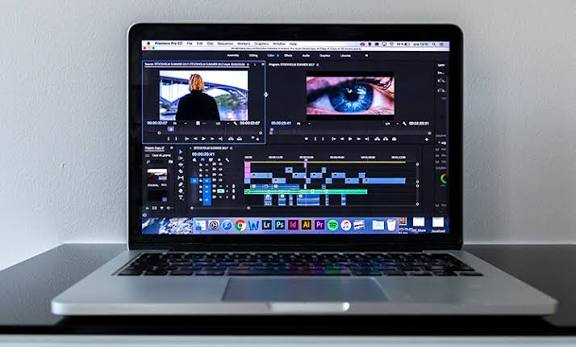
Video editing has become faster, smarter, and more accessible thanks to the latest generation of AI-powered tools. In 2026, content creators, YouTubers, marketers, and businesses can download powerful AI video editing software that automates time-consuming tasks such as cutting clips, generating captions, removing backgrounds, enhancing audio, and creating professional effects in minutes. Whether you’re editing videos for social media, YouTube, online courses, or marketing campaigns, AI tools can significantly improve your workflow while reducing editing time.
The best AI video editing tools available for download in 2026 combine advanced machine learning with user-friendly interfaces, making professional-quality editing accessible to beginners and experts alike. From automatic scene detection and AI-powered color correction to text-based editing and instant video generation, these tools help creators produce high-quality content without requiring extensive technical skills.
In this guide, we’ll explore the best AI tools for video editing download in 2026, comparing their features, benefits, pricing, and ideal use cases. Whether you’re looking for a free solution or a premium editing suite, you’ll find the perfect AI-powered video editor to enhance your content creation process.
Why These Tools Are Worth Your Time
Before diving in, here’s what makes a modern video editing tool genuinely useful:
- It saves real time on repetitive tasks (cutting silences, syncing audio, captioning)
- It works on regular hardware — not just expensive workstations
- The output quality is high enough for YouTube, Instagram, or client delivery
- There’s a free version or an affordable plan worth starting with
Let’s get into it.
Best AI Tools for Video Editing Download in 2026:-
1. CapCut (Desktop) — Best for Short-Form Content Creators
Free | Windows & Mac | Download available
CapCut has quietly become one of the most downloaded video editors worldwide, and for good reason. The desktop version is surprisingly capable compared to the mobile app most people know.

You get automatic captions, background removal, noise cancellation, and a script-to-video feature that helps you build rough cuts from a written outline. For anyone making Reels, Shorts, or TikToks, this is probably the fastest tool to get from idea to export.
CapCut Desktop has become one of the most popular AI-powered video editing tools for creators in 2026, especially those producing content for TikTok, YouTube Shorts, Instagram Reels, and other short-form video platforms. Developed by ByteDance, CapCut combines professional editing features with an intuitive interface, making it an excellent choice for beginners and experienced creators alike.
One of CapCut’s biggest strengths is its AI-powered automation. The software can automatically generate subtitles, remove backgrounds without a green screen, enhance audio quality, and create engaging captions with customizable styles. These features help creators save hours of manual editing while improving the overall quality of their videos.
CapCut Desktop also includes advanced AI tools such as text-to-speech, AI voice generation, automatic scene detection, motion tracking, and intelligent video resizing for multiple social media platforms. Creators can edit a single video and quickly adapt it for TikTok, Instagram, YouTube Shorts, and Facebook without starting from scratch.
The platform offers a vast library of royalty-free music, sound effects, transitions, filters, stickers, and visual effects. Its drag-and-drop timeline editor is easy to learn, allowing users to create professional-looking content even without prior editing experience. More advanced users can take advantage of keyframe animation, chroma key editing, speed ramping, and multi-layer editing capabilities.
Another major advantage is performance. CapCut Desktop runs smoothly on most modern Windows and Mac computers while supporting high-resolution exports up to 4K. The software balances ease of use with powerful editing features, making it suitable for influencers, content marketers, educators, and small business owners. Video Editing
For creators focused on short-form video content, CapCut Desktop remains one of the best AI video editing downloads in 2026. Its combination of AI automation, social-media-focused tools, extensive creative assets, and beginner-friendly design makes it an outstanding solution for producing engaging videos quickly and efficiently. Video Editing
Practical example: You recorded a 10-minute talking head video. CapCut can auto-remove silences, add subtitles, and suggest a 60-second highlight cut — all in about 15 minutes.
Pros:
- Completely free for most features
- Very beginner-friendly interface
- Strong mobile-to-desktop workflow if you already use the app
- Automatic captions are accurate and easy to style
Cons:
- Some advanced features are locked behind a Pro subscription
- Not suited for long-form cinematic editing
- CapCut’s brand watermark appears on exports unless you upgrade
2. DaVinci Resolve (with DaVinci Neural Engine) — Best for Professional Editors
Free (paid Studio version available) | Windows, Mac, Linux
DaVinci Resolve is already an industry-standard editing suite, but its built-in Neural Engine features are what make it stand out in 2026. These include automatic scene detection, noise reduction that genuinely works, facial recognition for organizing footage, and smart color grading tools that can match the look of one clip to an entire timeline.
The free version is extremely capable — most editors will never need to pay for the Studio version unless they’re working on feature films.
DaVinci Resolve is widely regarded as one of the most powerful professional video editing applications available in 2026. Developed by Blackmagic Design, the software combines video editing, color grading, visual effects, motion graphics, and audio post-production into a single platform. With the integration of the DaVinci Neural Engine, editors can leverage advanced AI capabilities to accelerate complex workflows and achieve cinematic-quality results.
The DaVinci Neural Engine uses artificial intelligence and machine learning to automate many time-consuming editing tasks. Features such as facial recognition, object tracking, scene cut detection, smart reframing, audio classification, and speech-to-text transcription help editors work more efficiently while maintaining professional standards. The AI-powered Magic Mask tool can isolate people or objects within a scene without requiring detailed manual rotoscoping, saving significant editing time.
One of DaVinci Resolve’s greatest strengths is its industry-leading color grading system. Professional filmmakers, production studios, and content creators rely on its advanced color correction tools to create visually stunning projects. The software supports HDR workflows, RAW video formats, and high-resolution editing up to 8K, making it suitable for everything from YouTube productions to feature films.
The integrated Fairlight audio suite provides powerful sound editing capabilities, while the Fusion page offers professional visual effects and motion graphics tools. This all-in-one approach eliminates the need to switch between multiple applications during post-production, streamlining the editing process.
DaVinci Resolve also includes collaborative editing features that allow teams to work on the same project simultaneously. Combined with GPU acceleration and optimized performance for modern hardware, the software delivers exceptional speed even when handling complex projects.
For professional editors, filmmakers, and advanced content creators, DaVinci Resolve with the DaVinci Neural Engine remains one of the best AI video editing tools to download in 2026. Its blend of cutting-edge AI features, world-class color grading, advanced visual effects, and professional post-production tools makes it a top choice for creating high-quality video content.
Practical example: You shot a short documentary with footage across 6 different cameras in varying lighting. DaVinci can analyze and match the color grade across all clips within minutes, saving hours of manual correction.
Pros:
- Industry-grade color grading tools
- Excellent audio editing suite built in (Fairlight)
- Free version covers almost everything a professional needs
- Works on Windows, Mac, and Linux
Cons:
- Steep learning curve for beginners
- Requires a decent GPU for smooth performance
- Some neural features (like magic mask) require the paid Studio version (~$295 one-time)
3. Adobe Premiere Pro — Best for Teams and Collaborative Workflows
Paid (from ~$55/month) | Windows & Mac
Premiere Pro remains the go-to for professional video production houses. Its recent updates bring auto-reframe (which resizes footage for different aspect ratios automatically), enhanced speech-to-text, and remix — a tool that intelligently edits a music track to fit the exact length of your video.

If you’re working with a team that uses After Effects, Photoshop, or Illustrator, the integration with Creative Cloud makes everything much smoother.
Practical example: A marketing team producing a 3-minute product video needs to also export versions for Instagram (square), YouTube (16:9), and a vertical ad. Auto-reframe handles all three versions in a single click instead of three separate edits.
Pros:
- Best-in-class integration with other Adobe tools
- Auto-reframe and remix save enormous amounts of time
- Solid collaboration features for teams
- Excellent plugin ecosystem
Cons:
- A monthly subscription is expensive for solo creators
- Heavier on system resources than most tools
- Some features still feel incomplete or buggy after major updates
4. Runway ML — Best for Visual Effects and Scene Generation
Free tier available; paid from ~$15/month | Web-based + downloadable projects
Runway has become one of the most talked-about tools in video production circles. It lets you do things that were either impossible or would require a VFX team just a few years ago. Green screen removal without a green screen, object removal from footage, slow motion generation from standard frame rates, and video inpainting (filling in areas of a video that you’ve removed).
The Gen-3 model also lets you generate short video clips from text descriptions, which is genuinely useful for B-roll or concept visualization.
Practical example: You filmed an interview on a busy street and want a clean background. Runway can remove the background from the footage frame-by-frame, something that would have required a professional studio or hours of rotoscoping.
Pros:
- Remarkably good background removal without green screen
- Regular feature updates keep it ahead of competitors
- Text-to-video and image-to-video features for concept work
- Easy to use without deep technical knowledge
Cons:
- The free plan gives limited credits that run out fast
- Video generation quality is still inconsistent for complex scenes
- Not a full editing suite — works best alongside another editor
5. Descript — Best for Podcast and Interview Editing
Free tier; paid from ~$24/month | Windows & Mac
Descript takes a completely different approach to video editing: it lets you edit video by editing a transcript. Delete a sentence from the text, and it removes that clip from the video. It’s a simple concept that saves an enormous amount of time for anyone working with talking-head content, interviews, or podcasts.
It also has overdub, which can recreate your voice to fix mispronounced words or re-record sections without sitting down in front of a camera again.
Practical example: You have a 45-minute interview recording. Instead of scrubbing through the timeline, you read the auto-generated transcript, delete the rambling sections, and your video edit is done. What might take 3 hours in a traditional editor takes 30 minutes.
Pros:
- Transcript-based editing is genuinely faster for spoken content
- Filler word removal (um, uh, like) works with one click
- The overdub feature is useful for minor corrections
- Good screen recording features built in
Cons:
- Not ideal for music videos, vlogs, or footage-heavy edits
- Overdub voice cloning can sound slightly synthetic on longer passages
- Export options are more limited than full editing suites
6. Topaz Video AI — Best for Upscaling and Enhancing Old Footage
Paid (~$299 one-time or subscription) | Windows & Mac
If your goal isn’t to create new content but to restore or improve existing footage, Topaz Video AI is in a category of its own. It specializes in upscaling video from 1080p to 4K (or even 8K), deinterlacing old broadcast footage, recovering detail from grainy recordings, and stabilizing shaky handheld footage.
Filmmakers working with archival material, wedding videographers, and anyone digitizing old VHS tapes will find this tool essential.
Practical example: A client hands you a wedding video shot in 2008 on a consumer camcorder. Topaz can upscale it from 480p to 1080p with recovered detail that makes it look far better than the original recording.
Pros:
- Best upscaling quality of any desktop tool
- Handles grain, noise, and motion blur better than competitors
- The one-time purchase option is a good value for regular users
- Batch processing for multiple files
Cons:
- Very GPU-intensive — slow on older hardware
- Not a full editing suite; purely for enhancement
- Processing time can be long for high-resolution exports
7. Pictory — Best for Repurposing Written Content into Videos
Paid from ~$23/month | Web-based
Pictory is designed for one specific job: turning blog posts, scripts, or written content into videos. You paste in a URL or paste text, and it automatically pulls relevant stock footage, adds captions, and builds a video you can publish directly.
For content marketers and bloggers who want to add video without learning to edit, this is the most practical shortcut available.
Practical example: You have 50 blog posts sitting on your website. Pictory can convert each one into a 2–3 minute video with minimal manual work, giving your existing content a second life on YouTube.
Pros:
- Very fast for repurposing written content
- Good stock footage library built in
- Easy caption and brand customization
- No download required — runs in the browser
Cons:
- Output can feel generic if you don’t customize it
- Limited control over how footage matches your script
- Best for informational content, not storytelling or narrative work
Quick Comparison Table
| Tool | Best For | Price | Platform |
|---|---|---|---|
| CapCut Desktop | Short-form creators | Free | Win/Mac |
| DaVinci Resolve | Professional editing | Free / $295 | Win/Mac/Linux |
| Adobe Premiere Pro | Teams & agencies | ~$55/month | Win/Mac |
| Runway ML | VFX & scene generation | Free / from $15/mo | Web |
| Descript | Podcast & interview editing | Free / from $24/mo | Win/Mac |
| Topaz Video AI | Upscaling & restoration | ~$299 | Win/Mac |
| Pictory | Blog-to-video repurposing | From $23/mo | Web |
How to Choose the Right Tool
Here’s a simple way to narrow it down:
You’re just starting and making social videos → Start with CapCut. It’s free, fast, and handles everything you need for short-form content.
You’re a serious editor or filmmaker → DaVinci Resolve is the answer. The free version is more capable than most people will ever need.
You work in a team or agency → Adobe Premiere Pro makes collaboration much easier, especially if the team is already in the Adobe ecosystem.
You need to remove backgrounds or create visual effects → Runway ML is worth the monthly cost for what it can do.
Most of your content is spoken word, interviews, or podcasts → Descript will cut your editing time in half.
You have old or low-quality footage to fix → Topaz Video AI is the industry standard for enhancement and upscaling.
You want to turn your existing articles into videos → Pictory handles this better than anything else.
FAQs
Q: Which of these tools is completely free to download?
CapCut Desktop and DaVinci Resolve both offer fully usable free versions. DaVinci Resolve’s free tier is particularly generous — most professional editors work entirely within it.
Q: Do I need a powerful computer to use these tools?
It depends. CapCut, Descript, and Pictory run well on average hardware. DaVinci Resolve, Topaz Video AI, and Premiere Pro benefit significantly from a dedicated GPU. If you’re on an older machine, web-based tools like Runway and Pictory are the safer bet.
Q: Can I use multiple tools together?
Absolutely — and many professionals do. A common workflow is to use Descript for the rough cut, export to DaVinci Resolve for color grading, and use Runway for any background removal or effects work.
Q: Are these tools safe to download?
Yes, all the tools listed here are from established companies. Always download from the official website (not third-party sites) to avoid counterfeit installers.
Q: Which tool is best for making YouTube videos?
For most YouTube creators, CapCut or DaVinci Resolve covers everything. CapCut is faster for Shorts and quick uploads; DaVinci is better for longer, polished videos where you want more control over color, audio, and effects.
Q: Do any of these tools work on Linux?
DaVinci Resolve is the only major video editor in this list with a native Linux version. Topaz Video AI and most others are Windows/Mac only.
Q: Is Runway ML good enough for professional work?
For specific tasks like background removal and footage enhancement, yes. It’s already being used in professional productions. As a standalone editing suite, it’s not there yet — pair it with DaVinci or Premiere for complete workflows.
Conclsion
There’s no single best tool here — the right pick depends entirely on what you’re making and how you work. If you’re unsure, start with CapCut or DaVinci Resolve since both are free and cover an enormous range of use cases.
The bigger picture is that video editing has genuinely become more accessible. Tasks that used to take hours — cutting silences, matching color grades, removing backgrounds, captioning — can now be done in minutes. That time saving compounds across every project you work on.
Pick one tool, get comfortable with it, and build from there.

