
Turning a single image into a full video used to take expensive software, a professional editor, and hours of work. In 2026, that’s completely changed. There are now tools that let you upload a photo — any photo — and get a smooth, moving video out of it in minutes.
Whether you’re a content creator, a small business owner, a social media manager, or just someone who wants to make cool videos without learning editing, these tools are worth knowing about. This guide covers the best options available right now, what each one does well, and which one suits your specific needs.
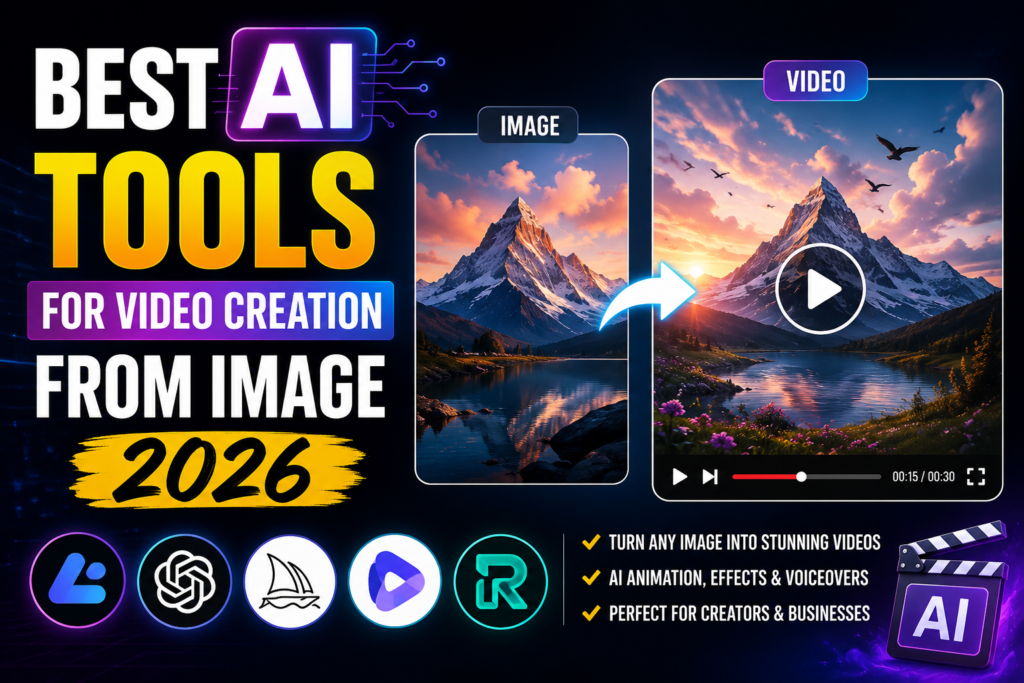
Creating professional videos from a single image has become easier than ever thanks to the latest AI-powered video generation tools. In 2026, these platforms can transform static photos into dynamic videos with realistic motion, cinematic camera effects, animations, lip-sync, and even AI-generated voiceovers. Whether you’re a content creator, marketer, educator, or social media influencer, image-to-video AI tools can help you produce engaging videos in minutes without advanced editing skills.
The best AI tools for video creation from images offer features such as automatic scene animation, text-to-video generation, background music, visual effects, and support for high-resolution exports. Some tools specialize in creating lifelike character animations, while others focus on turning product images, artwork, or landscapes into eye-catching promotional videos. In this guide, we’ll explore the best AI tools for video creation from image in 2026, comparing their features, pricing, advantages, and ideal use cases to help you choose the right platform for your creative projects.
Why Turn Images Into Videos?
Before jumping into the tools, it helps to understand why this is even useful.
- Social media content — Platforms like Instagram Reels, YouTube Shorts, and TikTok all favor video over static images. Turning your photos into short videos means more visibility.
- Product showcases — E-commerce stores can bring product photos to life with subtle motion, making listings more engaging.
- Presentations and pitches — A moving visual makes a stronger impression than a static slide.
- Faceless YouTube channels — Many creators now run channels using only visuals and voiceover. Image-to-video tools make this workflow much faster.
- Real estate and travel content — A property photo or landscape shot becomes far more compelling when it pans, zooms, or animates.
The demand for this kind of content has exploded — and the tools have caught up fast.
Best AI Tools for Video Creation From Image in 2026
1. Runway Gen-3 Alpha — Best for Cinematic Quality
Runway has been one of the most talked-about tools in the creative space, and Gen-3 Alpha is their most capable release yet. You upload an image, describe what you want to happen in it, and the tool generates a short video clip — usually 5 to 10 seconds — with smooth, realistic motion.
The results look genuinely cinematic. Ocean waves move naturally. A portrait photo comes alive with subtle wind in the hair. Fire flickers. It’s the kind of output that would have taken a motion graphics team weeks to produce just a few years ago.
Runway Gen-3 Alpha is one of the most advanced AI video generation tools available in 2026, making it an excellent choice for creators who want cinematic, high-quality videos from a single image. Using cutting-edge generative AI, it transforms static photos into realistic videos with smooth camera movements, lifelike motion, detailed environments, and professional visual effects. Whether you’re producing short films, advertisements, social media content, or concept art animations, Runway Gen-3 Alpha delivers impressive results with minimal effort.
The platform features an intuitive web-based interface that allows users to upload an image, enter a text prompt describing the desired motion, and generate a polished video within minutes. It also supports advanced controls for camera angles, motion intensity, lighting, and style consistency, giving creators greater creative freedom than many competing tools.
Runway Gen-3 Alpha is especially popular among filmmakers, digital artists, marketers, and YouTube creators because it produces cinematic visuals that closely resemble professionally edited footage. The platform also integrates AI-powered editing tools, including background removal, object replacement, motion tracking, and video enhancement.
Practical example: A travel blogger uploads a photo of a mountain lake at sunset. They type “slow camera push forward, mist rising from the water.” Runway generates a 10-second clip that looks like it was shot with a drone. They use it as a YouTube Shorts intro.
Pros:
- Very high-quality video output
- Detailed motion control through text prompts
- Supports image + text input
- Good for professional-looking content
Cons:
- Free plan has very limited credits
- Video length capped at 10 seconds per generation
- Can be slow during peak hours
- Requires some prompt-writing skill to get the best results
2. Kling AI — Best for Longer Clips and Realistic Motion
Kling AI, developed by Kuaishou, has quickly become one of the top picks for image-to-video generation in 2026. It supports video generation up to 2 minutes long — far beyond what most competitors offer. The motion it produces feels natural, and it handles human faces and body movement better than many tools in this space.
Kling also offers a “camera control” feature that lets you define how the virtual camera moves — zoom in, pan left, orbit — giving you much more creative control over the final output.
Practical example: A fitness brand uploads a product photo of their new running shoe. Using Kling’s camera control, they orbit the shoe 360 degrees for a 15-second clip. It goes straight onto their product page and Instagram without any additional editing.
Pros:
- Supports video up to 2 minutes
- Excellent motion quality, especially for people and objects
- Camera control feature for creative direction
- Generous free credits for new users
Cons:
- Interface is still being refined (occasional rough edges)
- Processing can take a few minutes for longer clips
- Prompt interpretation sometimes misses subtle details
3. Pika Labs — Best for Quick Social Media Content
Pika Labs is built for speed and ease of use. You drag in an image, add a short text prompt describing the motion you want, and get a video within seconds. It’s not the most cinematic output, but for Instagram Reels, TikTok clips, or product teasers, it gets the job done fast.

Pika also has a built-in aspect ratio selector, so you can generate directly in 9:16 (vertical), 16:9 (horizontal), or 1:1 (square) — no cropping needed after the fact.
Practical example: A food blogger takes a photo of a bowl of ramen and uploads it to Pika. They prompt “steam rising from the bowl, slow zoom in.” Within 30 seconds, they have a 3-second clip ready to post. Add a trending audio track,k and it’s a complete Reel.
Pros:
- Very fast generation times
- Easy to use — no learning curve
- Multiple aspect ratios built in
- Good Discord community with tutorials
Cons:
- Video quality is lower compared to Runway or Kling
- Short clip length (3–5 seconds)
- Less control over detailed motion
- Free credits run out quickly
4. Luma Dream Machine — Best Free Option
Luma Dream Machine gained popularity fast because it gives genuinely good results — and offers a usable free tier. You can generate up to 30 videos per month for free, which is more generous than most competitors.
The output quality is impressive for a free tool. Luma does particularly well with landscapes, nature shots, and abstract visuals. It handles motion smoothly, ly and the colors look great without any post-processing.
Practical example: A travel page on Instagram uses Luma to animate landscape photos from their archives. A still shot of a Himalayan valley gets light clouds moving across it and a gentle camera drift. The entire workflow — upload, prompt, download — takes under 5 minutes.
Pros:
- 30 free generations per month
- Strong quality for landscapes and nature content
- Simple, clean interface
- Fast processing times
Cons:
- Less reliable with complex human motion
- Limited control over camera movement
- No audio features built in
- Watermark on free plan downloads
5. Stable Video Diffusion (SVD) via ComfyUI — Best for Full Control
If you want maximum control and don’t mind a technical setup, Stable Video Diffusion is worth exploring. It’s an open-source model that you can run locally on your own computer (with a decent GPU) or access through various web interfaces.
The advantage here is that there are no credit limits, no subscription fees, and no data being sent to a third-party server. For creators who work with sensitive content or who generate videos at high volume, this makes a real difference.
Practical example: A digital product creator generates dozens of animated backgrounds per week using SVD through a local ComfyUI setup. They can run as many generations as they want without worrying about credits, and the images never leave their computer.
Pros:
- Free and open-source
- No usage limits once set up
- Privacy — images stay on your machine
- Highly customizable with the right setup
Cons:
- Requires a powerful GPU (at least 8GB VRAM recommended)
- Technical setup is not beginner-friendly
- No customer support
- Results vary more than managed services
6. Haiper — Best for Beginners
Haiper is one of the most accessible image-to-video tools available right now. The interface is clean, the prompts are simple, and the output is consistently decent. It’s a great starting point for anyone who has never used this kind of tool before.
The free plan is fairly generous — around 20 credits per week — and videos are generated in good quality without watermarks. Haiper also has a “restyle” feature that lets you change the visual style of your video after generation, which is a useful creative touch.
Practical example: A small bakery owner uploads a photo of their new cake design. They use Haiper to animate it with a slow zoom and sparkle effect. The resulting 4-second video gets used in a WhatsApp Business catalogue update and a Facebook post — no designer needed.
Pros:
- Very beginner-friendly interface
- No watermark on free plan
- Weekly credit refresh
- Restyle feature for post-generation editing
Cons:
- Not suitable for professional-grade output
- Limited camera motion options
- Shorter clip lengths
- Less community support compared to bigger platforms
7. PixVerse — Best for Stylized and Creative Videos
PixVerse leans into stylized, creative output. If you want your image to become something visually dramatic — a painting coming to life, a photo taking on an anime style, a portrait going cinematic — PixVerse handles that kind of transformation well.
It’s particularly popular among content creators who work in fantasy, art, or entertainment niches where over-the-top visuals are the point.
Practical example: A manga-style artist uploads one of their illustrations and uses PixVerse to animate it. The character’s hair moves, the background shimmers, and the whole piece looks like an animated promotional video for their art account — without spending hours in After Effects.
Pros:
- Great for stylized, artistic, and dramatic content
- Handles illustrated or non-photographic images well
- Free credits available
- Fast generation
Cons:
- Not ideal for realistic or photographic output
- Less control over specific motion details
- Some outputs feel over-processed
Quick Comparison Table
| Tool | Best For | Free Plan | Video Length | Ease of Use |
|---|---|---|---|---|
| Runway Gen-3 | Cinematic quality | Limited credits | Up to 10 sec | Moderate |
| Kling AI | Long clips, realistic motion | Yes (generous) | Up to 2 min | Moderate |
| Pika Labs | Fast social media content | Yes | 3–5 sec | Easy |
| Luma Dream Machine | Free tier, landscapes | 30/month | Up to 5 sec | Easy |
| Stable Video Diffusion | Full control, no limits | Free (local) | Variable | Advanced |
| Haiper | Beginners | Yes (weekly) | 4–6 sec | Very Easy |
| PixVerse | Stylized/artistic content | Yes | Up to 8 sec | Easy |
How to Get the Best Results From Image-to-Video Tools
Even the best tool won’t save a bad input. Here are a few things that consistently improve results:
1. Use high-resolution ima. ge.s Blurry or low-resolution photos produce blurry, low-quality videos. Start with the sharpest image you have.
2. Write clear motion prompts. Don’t just say “make it move.” Say things like “slow zoom into the center,” “clouds moving left to right,” or “hair blowing in a gentle breeze.” The more specific, the better.
3. Keep the subject centered.d Most tools perform better when the main subject is in the center or slightly above center of the frame. Off-center subjects can get distorted during animation.
4. Avoid overly complex backgrounds.ds Busy, detailed backgrounds can create visual noise when animated. Simple or slightly blurred backgrounds work better.
5. Experiment with prompts. If the first result isn’t right, tweak your prompt slightly. Changing one or two words can completely change the output. Most free plans give you enough credits to try a few versions.
FAQs — Video Creation From Image Tools in 2026
Q: Can these tools create full-length videos from a single image?
Not exactly. Most tools generate short clips of 5–15 seconds. For longer videos, you’d combine multiple clips in a video editor like CapCut, DaVinci Resolve, or Adobe Premiere. Kling AI is the exception, supporting clips up to 2 minutes.
Q: Do I need design skills to use these tools?
No. Most of the tools on this list are designed to be simple. If you can upload a photo and type a short description, you can use them. Haiper and Pika are especially beginner-friendly.
Q: Are these tools free?
Most offer a free tier with limited credits. Luma Dream Machine gives 30 free generations per month, Haiper refreshes weekly, and PixVerse offers daily free credits. Stable Video Diffusion is completely free if you run it locally.
Q: What’s the best tool for making YouTube Shorts from photos?
Kling AI and Pika Labs are the most popular choices for YouTube Shorts. Kling handles longer clips better, while Pika is faster for quick turnaround.
Q: Can I use these videos commercially?
It depends on the platform. Runway, Pika, and Luma allow commercial use on their paid plans. On free plans, always check the terms of service before using generated videos in ads or monetized content.
Q: Will my uploaded images be used to train these tools?
This varies by platform. Some tools use uploaded content for model training by default — you’d need to opt out in settings. If privacy is a concern, Stable Video Diffusion running locally is the safest option since nothing leaves your device.
Q: What image format works best?
JPG and PNG are universally supported. For best results, use images that are at least 1080px wide. Avoid images with text, logos, or heavy filters — these tend to produce unstable animations.
Q: Can I add audio to the generated videos?
Most tools only handle visuals. For audio, you’d add music, voiceover, or sound effects in a separate editor. CapCut and DaVinci Resolve are both free and work well for this.
Conclsion
Image-to-video tools have come a long way in a short time. What used to require a full production setup can now be done from your browser in minutes.
If you want the best quality, go with Runway Gen-3 or Kling AI. If you’re just starting and want something simple, Haiper or Pika Labs will get you going without any friction. If you’re on a tight budget and shoot lots of landscape or travel content, Luma Dream Machine’s free plan is hard to beat.
The key is to pick one tool, spend a day experimenting with it, and get familiar with how prompts affect the output. Once you understand that relationship, creating polished video content from your photos becomes a repeatable, fast part of your workflow.

