Microsoft Excel remains the world’s most widely used data analysis tool in 2026 — and artificial intelligence has transformed what’s possible within the familiar spreadsheet interface. Advanced Excel users who leverage AI are writing complex formulas in seconds, automating repetitive tasks with AI-generated VBA macros, performing sophisticated data analysis without manual query building, and producing professional dashboards faster than ever.
For Indian Excel users — financial analysts at banks and NBFCs, data analysts at tech companies, MIS executives at manufacturing firms, chartered accountants, and business intelligence professionals — AI tools for Excel address the core challenges: complex formula errors, time-consuming data cleaning, manual reporting cycles, and the steep learning curve of advanced Excel features.
This guide covers the best AI tools for advanced Excel in 2026 — from Microsoft’s own AI integration to third-party formula generators and automation tools.
Excel is much more than a tool for entering numbers and creating simple tables. For advanced users, it can be used for financial modeling, data analysis, forecasting, reporting, dashboards, automation, and complex formulas. However, working with large spreadsheets can still take hours when you need to clean data, write formulas, find errors, build reports, or identify important trends.
This is where AI tools for advanced Excel can make a major difference. Modern Excel-focused AI tools can help generate and explain formulas, analyze large datasets, create summaries, identify trends and outliers, build charts and PivotTables, and automate repetitive spreadsheet tasks. Microsoft’s Copilot in Excel, for example, can work with formulas, tables, charts, PivotTables, data analysis, and workbook editing.
For users who work with more complex datasets, AI can also go beyond traditional spreadsheet functions. Python in Excel allows users to perform advanced data analysis and visualization directly inside Excel, while newer Copilot capabilities can combine AI assistance with Python for tasks such as statistical analysis, simulations, data transformation, and advanced visualizations.
How AI Has Changed Advanced Excel in 2026
Formula generation: Describe what you need → AI writes complex nested formulas — no more hours debugging VLOOKUP vs.INDEX/MATCH.
VBA automation: Describe a repetitive task → AI writes complete VBA macro — automate without programming knowledge.
Data analysis: Natural language queries on Excel data → AI generates pivot tables, charts, and insights automatically.
Error debugging: Paste broken formula → AI identifies error and provides corrected version with explanation.
Data cleaning: Messy data → AI suggests Power Query transformations → clean dataset automatically.
Dashboard creation: Data → AI designs dashboard layout → professional visualization in minutes.
Best AI Tools for Advanced Excel in 2026
Microsoft Native AI for Excel
1. Microsoft Copilot for Excel — Best AI for Advanced Excel

Microsoft Copilot is the most powerful AI for Excel — directly integrated into Microsoft 365 Excel, understanding your specific data context.
Advanced Excel AI capabilities:
Natural language data analysis:
“Show me the top 5 products by revenue this quarter and compare to last quarter”
→ Copilot reads your Excel data → generates a pivot table → creates a comparison chart → provides written insight.
Complex formula generation:
“Create a formula that calculates the weighted average of sales figures in column B, weighted by units sold in column C, only for rows where region in column D is ‘South'”
→ Copilot generates:
excel
=SUMPRODUCT((D2:D100="South")*B2:B100*C2:C100)/SUMPRODUCT((D2:D100="South")*C2:C100)Data insights:
Select data range → Copilot → “Analyze this data” → AI identifies:
- Key trends
- Outliers
- Patterns
- Anomalies
Conditional formatting:
“Highlight all cells in column B where the value is more than 20% above the average” → Copilot applies conditional formatting automatically.
VBA generation:
“Write a macro that loops through all sheets, finds cells containing ‘ERROR’, highlights them red, and creates a summary list on a new sheet called ‘Error Log'”
→ Complete VBA macro generated → paste in VBA editor → run.
Power Query assistance:
“Transform this data: remove duplicates, split the name column into first and last name, convert date format from DD/MM/YYYY to MM/DD/YYYY”
→ Power Query M code generated → apply to data automatically.
Indian Excel use cases:
GST calculation formula:
“Create a formula calculating GST amount where rate in B2 can be 5%, 12%, 18%, or 28%, and base amount in A2”
→ Copilot generates a nested IF or IFS formula → handles all GST rates.
Financial year analysis:
“Group my sales data by Indian financial year (April to March) and calculate quarterly totals”
→ Copilot writes a formula accounting for the Indian FY structure.
Pricing: Microsoft 365 Copilot from $30/user/month. Microsoft 365 subscription required.
Best for: Corporate Excel users on Microsoft 365 — Copilot’s direct integration and data-context awareness deliver the most powerful Excel AI experience.
2. Excel Ideas (Analyze Data) — Best Free Microsoft Excel AI
Microsoft’s built-in “Analyze Data” feature provides AI-powered insights without an additional subscription.
Built-in Excel AI capabilities:
Automatic insights:
Select data → Home → Analyze Data → Excel AI generates:
- Top insights about data patterns
- Suggested pivot tables
- Relevant charts
- Interesting statistics
Natural language questions:
Type a question in the Analyze Data panel:
“What is the average sales by region?”
“Which product had the highest growth?”
“Show me outliers in the revenue column”
→ Excel generates an answer with a visualization.
Suggested pivot tables:
Excel AI suggests the most relevant pivot table configurations → one-click creation.
Availability: Built into Excel 365 → free with subscription → no additional cost.
Best for: Excel 365 users wanting free AI insights — Analyze Data provides meaningful AI capability without a Copilot subscription.
AI Formula Generators
3. Excel Formula Bot — Best Dedicated Formula AI

Excel Formula Bot converts plain English to Excel formulas — the most specialized formula generation tool.
Formula generation capabilities:
Complex formula requests:
“Give me a formula to find the second largest value in a range that meets multiple criteria”
→ Excel Formula Bot generates:
excel
=LARGE(IF((A2:A100="Criteria1")*(B2:B100="Criteria2"),C2:C100),2)With an explanation of each component.
Formula debugging:
Paste broken formula + error message → Formula Bot identifies:
- Exact error cause
- Corrected formula
- Explanation of fix
Formula explanation:
Paste complex formula → “Explain what this does in plain English” → step-by-step breakdown.
Formula variations:
“Give me 3 different ways to do VLOOKUP that handle errors”
→ IFERROR/VLOOKUP, XLOOKUP, INDEX/MATCH variations generated.
Indian accounting formulas:
“Formula for TDS calculation: 10% on amount above ₹30,000, with different rates for different payment types”
→ Complex nested IFS formula generated.
Pricing: Free (limited). Pro from $6.99/month.
Best for: Excel users struggling with complex formulas — Formula Bot’s specialized training produces the most accurate formula generation.
4. Claude/ChatGPT — Best Free Excel Formula AI
AI assistants generate Excel formulas, explain errors, and write VBA at no cost — the most accessible free Excel AI.
Excel formula prompts:
XLOOKUP with multiple conditions:
Write an Excel formula that:
- Looks up employee ID in column A
- Returns their salary from column D
- Only if their department (column B) is "Sales"
- AND their performance rating (column C) is above 3
- Return "Not Found" if no match
Dynamic array formulas:
Create an Excel formula using FILTER function that:
- Returns all rows from A1:E100
- Where date in column A is in current month
- Where value in column C > 10000
- Sorted by column C descending
Power Query M code:
Write Power Query M code to:
- Remove all rows where column "Status" = "Cancelled"
- Add new column calculating profit margin (Revenue-Cost)/Revenue
- Format date column as DD-MMM-YYYY
- Round all numeric columns to 2 decimal places
VBA macro generation:
Write VBA macro for Excel that:
- Opens each Excel file in a specified folder
- Copies the data from Sheet1
- Pastes into master workbook
- Adds filename as first column
- Saves and closes each file
- Shows progress in status bar
Error debugging:
This Excel formula returns #VALUE! error:
=SUMPRODUCT(--(A2:A100>DATE(2026,1,1)),B2:B100)

What's wrong and how to fix it?
Free plan: Claude free and ChatGPT free handle virtually all Excel formula and VBA requests effectively.
Best for: Every Excel user — free AI formula generation covers most advanced Excel needs at zero cost.
AI for Excel VBA and Automation
5. GitHub Copilot — Best AI for Excel VBA Development

GitHub Copilot in VS Code with the VBA extension provides the most powerful VBA code generation for advanced automation.
Excel VBA capabilities:
Complete macro generation:
vb
' Generate macro to:
' - Loop through all pivot tables in workbook
' - Refresh each pivot table
' - Handle any refresh errors
' - Log refresh time to hidden sheet
' - Show completion message
Sub RefreshAllPivots()
Copilot generates a complete Sub with error handling, logging, and user feedback.
Event-driven VBA:
vb
' Generate worksheet change event that:
' - Triggers when column B changes
' - Validates entry is numeric
' - Calculates tax (18% GST) in column C
' - Highlights invalid entries red
Private Sub Worksheet_Change(ByVal Target As Range)
UserForm automation:
Describe required data entry form → Copilot generates complete UserForm VBA → professional Excel application.
API integration:
vb
' Write VBA to call REST API
' Parse JSON response
' Insert data into Excel range
' Handle authentication headers
Complete VBA HTTP request code generated.
Pricing: $10/month. Free for students.
Best for: Advanced Excel developers building VBA applications — Copilot dramatically accelerates VBA development.
AI for Excel Data Analysis
6. Power BI with AI — Best for Excel Data Analysts at Scale
Power BI’s AI features extend Excel analysis to larger datasets and more sophisticated visualizations.
Data analysis capabilities:
Q&A natural language:
“Show sales by region as a percentage of the total for the last 12 months”
→ Power BI generates a visualization → export back to Excel.
AI insights:
Automatic anomaly detection → “Sales in Maharashtra dropped 23% in March — significantly below trend”
Key influencers:
“What factors most influence customer churn?”
→ AI analyzes all variables → identifies key drivers.
Smart narrative:
AI writes narrative explanation of charts → paste into Excel reports.
Decomposition tree:
Break down any metric by multiple dimensions → AI suggests relevant breakdowns.
Excel integration:
Analyze in Power BI → export findings to Excel → complete analysis pipeline.
Pricing: Power BI Pro from $10/user/month. Free (limited) available.
Best for: Advanced analysts needing more power than Excel alone — Power BI AI handles datasets too large for Excel efficiently.
7. Julius AI — Best for Natural Language Excel Analysis
Julius AI allows uploading Excel files and asking questions in natural language — the most accessible data analysis AI.
Excel analysis capabilities:
File upload + query:
Upload Excel file → ask questions:
“What are the top 10 customers by revenue in Q4?”
“Calculate month-over-month growth rate for each product”
“Identify which salesperson has the highest average deal size”
→ Julius analyzes Excel data → returns answer + visualization.
Automatic chart generation:
“Create a chart showing revenue trend by month with forecast for next 3 months”
→ Julius generates chart → download for Excel.
Statistical analysis:
“Run correlation analysis between marketing spend and sales revenue”
→ Correlation coefficient + statistical significance + visualization.
Python code generation:
Julius generates Python/pandas code → use for automation → scale beyond Excel.
Pricing: Free (limited). Basic from $20/month.
Best for: Analysts wanting to query Excel data conversationally — Julius eliminates the need for complex pivot table building.
AI for Excel Dashboard Creation
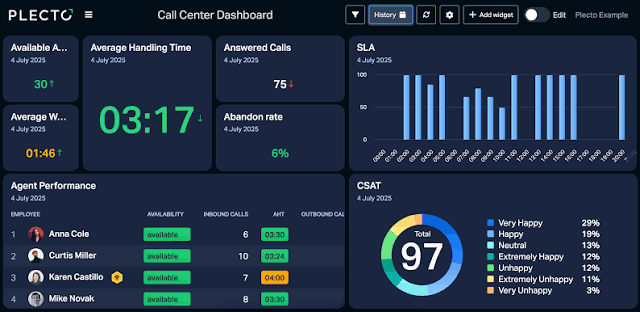
8. Beautiful.ai / Gamma — AI Dashboard Templates
While not Excel-native, these tools help design Excel dashboards by generating layout concepts.
Dashboard AI process:
Step 1 — Layout planning with Claude:
Design an executive dashboard layout for:
- Monthly sales performance
- Regional breakdown
- Product category analysis
- YTD vs target comparison

Excel dashboard: what charts, where placed,
what KPI cards, color scheme recommendations
Step 2 — Chart configuration:
Claude generates specific Excel chart recommendations:
- Chart types for each data set
- Axis labels and formatting
- Color codes for Indian brand palette
Step 3 — Formula architecture:
Claude generates all formulas for dashboard calculations:
- Dynamic chart ranges (OFFSET/INDEX)
- KPI calculations
- Conditional formatting rules
Excel-Specific AI Prompts Library
Advanced Formula Prompts
Dynamic named ranges:
Write Excel formula creating dynamic named range
that automatically expands as data added
to column A, starting from A2
Array formula for matrix calculations:
Create Excel array formula calculating
correlation matrix for 5 variables in
columns B through F, rows 2 to 100
Date and time calculations:
Formula calculating working days between
two dates in Excel, excluding Indian public
holidays listed in range H2:H20
VBA Automation Prompts
Email automation:
Write Excel VBA sending email via Outlook:
- To addresses from column A
- Subject from column B
- Body from column C
- Attach PDF from path in column D
- Log sent status in column E
PDF generation:
VBA macro exporting each worksheet as
separate PDF named after sheet tab,
saved to user-specified folder
Data validation:
VBA validating entire sheet data:
- Column A: date format DD/MM/YYYY
- Column B: positive numbers only
- Column C: values from dropdown list
- Highlight invalid cells yellow
- Generate validation report
Free Excel AI Stack
| Tool | Function | Cost |
|---|---|---|
| Excel Analyze Data | Built-in insights | Free (Excel 365) |
| Claude free | Formulas + VBA + analysis | Free |
| ChatGPT free | Formula generation | Free |
| Excel Formula Bot free | Specialized formulas | Free (limited) |
| Julius AI free | Data analysis queries | Free (limited) |
Free stack covers: 90%+ of advanced Excel AI needs — formula generation, VBA automation, data analysis, debugging.
Indian Excel Use Cases with AI
Banking and NBFC
NPA provisioning formula:
Claude generates complex provisioning calculation formulas per RBI guidelines.
EMI calculation:
PMT function variations for Indian loan products — flat rate vs reducing balance.
CIBIL score analysis:
VBA automation processing bulk credit data.
CA and Finance Professionals
GST reconciliation:
AI generates VLOOKUP/XLOOKUP formulas matching GSTR-2A with the purchase register.
TDS calculations:
Nested IF formulas handling multiple TDS rates and thresholds.
Financial statement automation:
VBA macros generating P&L and Balance Sheet from trial balance data.
MIS and Reporting
Automated MIS reports:
VBA macro pulling data from multiple sources → formatting → emailing → complete automation.
Dashboard refresh:
One-click dashboard update with latest data → AI-generated macro handles entire pipeline.
Frequently Asked Questions
Which AI tool is best for advanced Excel in 2026?
Microsoft Copilot for Excel is best for Microsoft 365 users — direct integration, data-context awareness, most powerful formula and analysis AI. Claude Free is the best free option — generates complex formulas, VBA macros, Power Query code, and debugs errors at zero cost. Excel Formula Bot is the best specialized tool for formula generation. For data analysis: Julius AI for natural language queries on Excel data.
Can AI write VBA macros for Excel?
Yes — Claude, ChatGPT, and GitHub Copilot all generate complete VBA macros from plain English descriptions. Describe the automation task → AI writes complete Sub/Function → paste into VBA editor (Alt+F11) → run. AI-generated VBA handles loops, error handling, file operations, Outlook integration, and UserForms. Always test AI VBA on sample data before running on production files.
Which free AI tool is best for Excel formulas?
Claude free generates the most accurate complex Excel formulas — handles nested functions, array formulas, dynamic arrays (FILTER, SORT, UNIQUE, XLOOKUP), and Power Query M code. ChatGPT free is equally capable for most formula requests. Excel Formula Bot free tier provides specialized formula training — useful when Claude/ChatGPT suggestions need verification. Combined: Claude for complex formulas, Formula Bot for quick lookups.
Can AI help with Excel data cleaning?
Yes — Claude and ChatGPT generate Power Query M code for data cleaning: removing duplicates, splitting columns, changing data types, handling errors, merging tables. Julius AI allows uploading a messy Excel file → describing cleaning requirements → AI generates a clean dataset. Microsoft Copilot for Excel (365) handles data cleaning through natural language directly in Excel.
How does AI help with Excel pivot tables?
Microsoft’s built-in Analyze Data feature suggests relevant pivot tables automatically. Claude/ChatGPT describe optimal pivot table structure for your analysis needss and write VBA to create pivot tables programmatically. Copilot for Excel creates pivot tables from natural language requests. Julius AI creates equivalent pivot analysis by querying Excel data directly without manual pivot table building.
Conclusion
AI has transformed advanced Excel from a skill requiring years of formula memorization to an accessible productivity tool where natural language describes the requirement, and AI handles the implementation.
Highest-impact AI tools for advanced Excel:
For Microsoft 365 users: Copilot for Excel — most powerful direct integration, natural language data analysis, formula and VBA generation with data context.
Free formula generation: Claude free — generates complex formulas, VBA macros, Power Query code. Covers 90% of advanced Excel AI needs at zero cost.
Specialized formulas: Excel Formula Bot — most focused training on Excel formula syntax.
Data analysis: Julius AI — natural language queries on uploaded Excel files → instant analysis without pivot table building.
VBA development: GitHub Copilot — most powerful VBA automation development for complex Excel applications.
Free Excel AI stack: Excel Analyze Data (built-in) + Claude free + ChatGPT free + Julius AI free = comprehensive advanced Excel AI at zero cost. Upgrade to Copilot for Excel ($30/month) when daily Excel work volume justifies it — the most impactful productivity investment for Excel-heavy Indian finance and data professionals.