Windows has built-in VPN support that most users never use — instead relying entirely on third-party VPN apps. Understanding how to configure VPN settings in Windows directly gives you more control, better performance options, and the ability to connect to any VPN service without installing additional software.
In 2026, Windows 11 and Windows 10 both support multiple VPN protocols natively — IKEv2, L2TP/IPSec, PPTP, and SSTP — alongside WireGuard through the official WireGuard Windows app. This guide covers every VPN configuration method available in Windows, from one-click app setup to manual protocol configuration, with troubleshooting for the most common Windows VPN problems.
How Do You Access VPN Settings for Windows 11?
To access VPN settings in Windows 11, open Settings > Network & internet > VPN, or right-click the network icon in the taskbar and select Network and internet settings. An older Control Panel route still works, but the Settings app is Microsoft’s preferred interface as we advance.
- Settings app (recommended): Start > Settings > Network & internet > VPN
- Quick access: right-click the Wi-Fi/network icon in the taskbar > Network and internet settings > VPN
- Legacy Control Panel route: press Windows + R, type
control, press Enter, then go to Network and Sharing Center > Set up a new connection or network > Connect to a workplace > Use my Internet connection (VPN) - All three methods create the same underlying VPN profile — the Settings app is simply the modern interface Microsoft actively maintains.
How Do You Set Up a VPN Manually in Windows 11?

To set up a VPN manually in Windows 11, go to Settings > Network & internet > VPN > Add VPN, select Windows (built-in) as the provider, then enter the connection name, server address, VPN type, and sign-in info your VPN provider or IT administrator supplied.
- Open Settings > Network & internet > VPN.
- Click Add VPN.
- Set the VPN provider to Windows (built-in).
- Enter a Connection name — any label you’ll recognize later.
- Enter the Server name or address exactly as provided.
- Choose the VPN type: Automatic, PPTP, L2TP/IPsec with certificate, L2TP/IPsec with pre-shared key, SSTP, or IKEv2.
- Select the sign-in type: username and password, smart card, one-time password, or certificate.
- Enter your username and password if applicable, and optionally save them.
- Click Save, then select the new connection and click Connect.
- Confirm the status shows Connected before relying on it for sensitive traffic.
This manual method only works with Windows’ native protocols — it doesn’t import .ovpn configuration files or WireGuard configs directly. For OpenVPN or WireGuard, you’ll need your provider’s dedicated app.
Which VPN Protocol Should You Choose in Windows Settings?
IKEv2 is the best VPN protocol to choose in Windows Settings for most users in 2026, offering fast speeds and automatic reconnection when switching networks. SSTP is a solid alternative on restrictive networks since it runs over HTTPS port 443, while PPTP should be avoided entirely due to known security weaknesses.
Protocol Comparison Table
| Protocol | Built into Windows? | Speed | Security | Best For |
|---|---|---|---|---|
| IKEv2 | Yes | Fast | Strong | Most users, laptops switching networks |
| L2TP/IPsec | Yes | Moderate | Moderate | Legacy business VPNs, wide compatibility |
| SSTP | Yes | Moderate | Strong | Restrictive firewalls (uses port 443) |
| PPTP | Yes (legacy) | Fast | Weak, outdated | Avoid for sensitive traffic |
| OpenVPN | No (needs app) | Moderate | Strong | Commercial VPN apps, configurable |
| WireGuard | No (needs app) | Fastest | Strong | Modern commercial VPN apps |
- IKEv2 reconnects automatically after a dropped connection or network switch, making it the best fit for laptops moving between Wi-Fi and mobile hotspots.
- SSTP tunnels over standard HTTPS traffic, which helps it pass through firewalls that block other VPN ports.
- PPTP is decades old with publicly documented vulnerabilities — avoid it for anything beyond legacy compatibility testing.
- OpenVPN and WireGuard aren’t available as native Windows connection types; you’ll need your VPN provider’s app, or a compatible third-party client, to use them.
What Advanced VPN Settings Should You Configure in Windows 11?
Beyond the basic connection, Windows 11 lets you control whether the VPN connects over metered networks or while roaming, set proxy behavior for the VPN adapter, and, for advanced users, enable split tunneling through the network adapter’s IPv4 properties.
- Allow VPN over metered networks — toggle this off if you want to avoid VPN traffic counting against a limited mobile data plan.
- Allow VPN while roaming — relevant mainly for cellular-equipped devices; toggle off to avoid unexpected data charges abroad.
- Proxy settings — accessible from the VPN connection’s Advanced options; choose Automatic or Manual proxy setup if your organization requires a specific proxy alongside the VPN.
- Split tunneling — Windows’ built-in client doesn’t expose a simple toggle for this in Settings. Enable it via Control Panel > Network Connections, right-click the VPN adapter, open Properties > Networking > Internet Protocol Version 4 > Properties > Advanced, and uncheck “Use default gateway on remote network.”
- No built-in kill switch — Windows’ native client has no feature to automatically block internet traffic if the VPN drops; that protection requires a third-party VPN app.
How Do You Check for VPN Leaks After Connecting in Windows?
After connecting a VPN in Windows, check for DNS, IP, and WebRTC leaks using a browser-based leak-test tool, since a VPN that’s technically “Connected” can still expose your real location or ISP-assigned DNS servers if it’s misconfigured.
- Note your public IP address and ISP before connecting, using any IP-lookup site.
- Connect your VPN, then check the same site again — it should now show the VPN server’s location and IP, not your own.
- Run a dedicated DNS leak test to confirm queries are routing through the VPN’s servers, not your ISP’s.
- If browsing, check for WebRTC leaks separately, since WebRTC can expose your real IP even through an active VPN tunnel.
- If any test reveals your real IP, ISP, or location, the connection or your network adapter’s DNS settings need adjustment — a common issue with Windows’ native client on IKEv2 or L2TP connections that don’t override DNS automatically.
Windows Built-In VPN — What It Supports
Windows native VPN protocols:
| Protocol | Windows Support | Speed | Security | Recommended |
|---|---|---|---|---|
| IKEv2 | ✅ Native | Fast | Excellent | ✅ Yes |
| L2TP/IPSec | ✅ Native | Moderate | Good | ⚠️ Acceptable |
| PPTP | ✅ Native | Fast | ❌ Weak | ❌ No |
| SSTP | ✅ Native | Moderate | Good | ⚠️ Acceptable |
| WireGuard | Via app | ✅ Fastest | Excellent | ✅ Best |
| OpenVPN | Via app | Moderate | Good | ✅ Good |
Recommendation: IKEv2 for built-in Windows VPN. WireGuard (via the free WireGuard app) for best performance.
Method 1 — Windows Built-In VPN Settings (IKEv2)
Step-by-Step IKEv2 Setup on Windows 11
Step 1 — Open VPN Settings:
Settings → Network & Internet → VPN → Add VPN
Step 2 — Configure VPN Connection:
Fill in the following fields:
- VPN Provider: Windows (built-in)
- Connection name: Any name (e.g., “Work VPN” or “ProtonVPN IKEv2”)
- Server name or address: Your VPN server address (from provider)
- VPN type: IKEv2
- Type of sign-in info: Username and password
- Username: From VPN provider
- Password: From VPN provider (optional — can enter each time)
Click Save
Step 3 — Connect:
Settings → Network & Internet → VPN → click connection name → Connect
Or: Taskbar Wi-Fi icon → VPN connection → Connect
Step-by-Step IKEv2 Setup on Windows 10
Settings → Network & Internet → VPN → Add a VPN connection → same fields as above → Save
Method 2 — WireGuard on Windows (Recommended)
WireGuard delivers the fastest VPN speeds on Windows — significantly outperforming all native Windows protocols.
Installing WireGuard on Windows
- Visit wireguard.com/install → download the Windows installer
- Run the installer → WireGuard installs in 30 seconds
- WireGuard icon appears in system tray
Getting a Free WireGuard Config
From Proton VPN (free account):
- Create a free account at proton.me
- protonvpn.com → Downloads → WireGuard configuration
- Select server → Download .conf file
From Windscribe (free account):
- windscribe.com → My Account → Config Generators
- WireGuard → select server → Download config
Importing WireGuard Config on Windows
- Open WireGuard app
- Click Import tunnel(s) from file
- Select downloaded .conf file
- Tunnel appears in WireGuard list
- Click Activate to connect
Manual WireGuard Config (Advanced)
Click Add Tunnel → Add empty tunnel → paste config:
ini
[Interface]
PrivateKey = [your private key]
Address = 10.2.0.2/32
DNS = 1.1.1.1

[Peer]
PublicKey = [server public key]
AllowedIPs = 0.0.0.0/0
Endpoint = [server IP]:[port]
PersistentKeepalive = 25
Click Save → Activate
Method 3 — OpenVPN on Windows
OpenVPN is the most widely supported VPN protocol — available on virtually every VPN service.
Installing OpenVPN on Windows
- Visit openvpn.net/community-downloads
- Download OpenVPN Connect for Windows
- Install → restart if prompted
Getting Free OpenVPN Config
From Proton VPN:
protonvpn.com → Downloads → OpenVPN configuration → download .ovpn file
From VPNBook (free):
vpnbook.com → OpenVPN → download .ovpn files (password changes weekly — check site)
Importing OpenVPN Config
- Open OpenVPN Connect
- Click File → Import Profile → Browse
- Select .ovpn file
- Enter username and password from provider
- Click Connect
Method 4 — L2TP/IPSec Setup on Windows
L2TP/IPSec is supported natively — useful for business VPN connections and some free VPN services.
L2TP/IPSec Configuration on Windows 11
Settings → Network & Internet → VPN → Add VPN:
- VPN type: L2TP/IPSec with pre-shared key
- Pre-shared key: From VPN provider
- Server address: VPN server IP or hostname
- Username/Password: From provider
- Save
Registry fix for L2TP behind NAT (common Windows issue):
Many Windows users cannot connect to an L2TP VPN behind a home router due to a NAT traversal issue. Fix:
- Press Win + R → type regedit → Enter
- Navigate to:
HKEY_LOCAL_MACHINE\SYSTEM\CurrentControlSet\Services\PolicyAgent - Right-click → New → DWORD (32-bit) Value
- Name: AssumeUDPEncapsulationContextOnSendRule
- Value: 2
- Restart Windows
- Try the L2TP connection again
Method 5 — SSTP Setup on Windows
SSTP (Secure Socket Tunneling Protocol) is Microsoft’s own VPN protocol — uses HTTPS port 443, bypasses most firewalls.
SSTP Configuration
Settings → Network & Internet → VPN → Add VPN:
- VPN type: SSTP
- Server address: VPN server supporting SSTP
- Username/Password: From provider
- Save and connect
Best use case: Corporate or restricted networks where other VPN protocols are blocked — SSTP’s use of port 443 (HTTPS) makes it difficult to block without breaking all web traffic.
Windows VPN Advanced Settings
Split Tunneling on Windows
Split tunneling routes only specific traffic through the VPN — other traffic uses the direct connection.
Method 1 — Windows built-in (IKEv2):
After creating a VPN connection:
- Settings → Network & Internet → VPN → VPN connection → Advanced options
- Click Edit
- Scroll to additional settings
- Uncheck Use default gateway on remote network (routes only remote traffic through VPN)
Method 2 — PowerShell (full control):
powershell
# Enable split tunneling for VPN connection named "MyVPN"
Set-VpnConnection -Name "MyVPN" -SplitTunneling $True

# Add specific routes through VPN
Add-VpnConnectionRoute -ConnectionName "MyVPN" -DestinationPrefix "192.168.1.0/24"
Method 3 — Third-party VPN app:
Most VPN apps (NordVPN, ExpressVPN, Surfshark) include split tunneling UI:
VPN app → Settings → Split Tunneling → select apps to include/exclude
DNS Settings for VPN on Windows
Correct DNS settings prevent leaks even when the VPN is active:
Check current DNS:
Open Command Prompt → type: nslookup google.com
The result should show the VPN provider’s DNS, not your ISP’s DNS.
Set DNS manually (if leaking):
Settings → Network & Internet → Wi-Fi or Ethernet → DNS server assignment → Manual:
- Primary DNS: 1.1.1.1 (Cloudflare)
- Secondary DNS: 1.0.0.1
Or for privacy:
- Primary: 9.9.9.9 (Quad9)
- Secondary: 149.112.112.112
DNS leak test: Visit dnsleaktest.com while the VPN is connected — it should show the VPN provider’s DNS only.
Kill Switch on Windows
Windows does not have a built-in VPN kill switch — use these methods:
Method 1 — Windows Firewall rules (manual):
Open PowerShell as Administrator:
powershell
# Block all traffic except VPN interface
# First, identify VPN adapter name
Get-NetAdapter

# Create firewall rules (replace "VPN_ADAPTER_NAME" with actual name)
New-NetFirewallRule -DisplayName "Block Non-VPN" -Direction Outbound -Action Block -InterfaceAlias "Ethernet", "Wi-Fi" -Enabled True

New-NetFirewallRule -DisplayName "Allow VPN" -Direction Outbound -Action Allow -InterfaceAlias "VPN_ADAPTER_NAME" -Enabled True
Method 2 — Use a VPN app with a built-in kill switch:
NordVPN, ExpressVPN, Surfshark, and Proton VPN all include a Windows kill switch — enable it in the app settings.
Method 3 — Windows Firewall GUI:
Windows Security → Firewall & Network Protection → Advanced Settings → Outbound Rules → block non-VPN adapters
Windows VPN Quick Settings
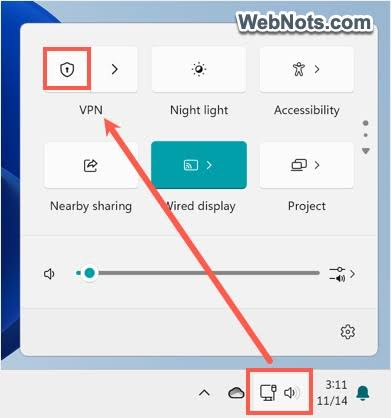
Adding VPN to Taskbar Quick Settings (Windows 11)
- Click the Quick Settings panel (Wi-Fi icon bottom right)
- Click the pencil icon (Edit)
- Click Add → find VPN
- VPN toggle is now in Quick Settings
VPN Status Check Methods
Command Prompt:
cmd
ipconfig /allLook for the VPN adapter with an IP address — if present, the VPN is connected.
PowerShell:
powershell
Get-VpnConnection
Get-NetAdapter | Where-Object {$_.InterfaceDescription -like "*VPN*"}
Check IP address:
Open a browser → visit whatismyip.com → it should show the VPN server IP, not your real IP.
Windows VPN for Different Use Cases
Work/Corporate VPN on Windows
Most corporate VPNs use Cisco AnyConnect, GlobalProtect, or Pulse Secure:
Cisco AnyConnect:
- Download from company IT portal or cisco.com
- Install → enter company VPN server address
- Log in with corporate credentials + 2FA
Microsoft Always On VPN:
Enterprise Windows feature — automatically connectto the s to the VPN when Windows starts, before user login.
Configuration requires an IT administrator — contact corporate IT for setup.
Remote Desktop + VPN on Windows
VPN required before Remote Desktop to corporate network:
- Connect VPN first
- Win + R → mstsc
- Enter the internal IP of the remote computer
- Connect with domain credentials
Gaming VPN on Windows
For gaming performance with VPN on Windows:
- Install NordVPN or ExpressVPN
- Protocol: WireGuard or NordLynx
- Split tunneling: add game client to VPN-only list
- Server: nearest to game server location
- Connect → launch game
Streaming VPN on Windows
For Netflix, BBC iPlayer, or geo-restricted streaming:
- VPN app → connect to target country server
- Open browser → visit streaming site
- If blocked: disconnect → reconnect (gets new IP)
Windows VPN Troubleshooting
Error 691 — Authentication Failed
Cause: Wrong username/password
Fix:
- Verify credentials from VPN provider
- Check CAPS LOCK status
- Reset VPN account password
- Try a different authentication method (certificate vs. password)
Error 619 — Connection to Remote Computer Could Not Be Established
Cause: Server unreachable or port blocked
Fix 1: Try a different VPN server
Fix 2: Check Windows Firewall — may be blocking VPN port
Fix 3: Temporarily disable antivirus — may interfere with VPN
Fix 4: For L2TP: apply registry fix above
Error 789 — L2TP Connection Failed
Cause: IPSec negotiation failure, often a NAT issue
Fix: Apply registry DWORD fix above (AssumeUDPEncapsulationContextOnSendRule = 2) → restart
Error 809 — Network Connection Could Not Be Established
Cause: Firewall blocking VPN traffic
Fix 1: Windows Defender Firewall → Allow an app → add VPN executable
Fix 2: Check if ISP blocks VPN protocols (common in some countries)
Fix 3: Try SSTP — uses port 443, harder to block
VPN Connected but No Internet
Cause: DNS not resolving, routing issue
Fix 1: Flush DNS: Open Command Prompt as Admin →
cmd
ipconfig /flushdns
ipconfig /release
ipconfig /renew
Fix 2: Reset network stack:
cmd
netsh winsock reset
netsh int ip reset
Restart Windows after these commands.
Fix 3: Disable split tunneling if enabled — route all traffic through VPN temporarily to test.
VPN Slow on Windows
Fix 1: Switch protocol to WireGuard (fastest on Windows)
Fix 2: Change VPN server to nearest/lowest load server
Fix 3: Disable Windows Defender real-time protection temporarily — confirms if security software is causing slowdown
Fix 4: Update VPN app — outdated apps have performance issues
Fix 5: Check if background Windows updates are consuming bandwidth:
Task Manager → Network tab → identify bandwidth consumers
VPN Disconnects Randomly on Windows
Fix 1: Power settings — prevent Windows from sleeping the network adapter:
Device Manager → Network Adapters → right-click adapter → Properties → Power Management → uncheck Allow the computer to turn off this device to save power
Fix 2: Keep-alive settings:
WireGuard config: PersistentKeepalive = 25
IKEv2: Registry key for keepalive intervals
Fix 3: Disable Windows Automatic Maintenance during gaming/work hours:
Task Scheduler → find maintenance tasks → modify schedule
Best Free VPN Apps for Windows in 2026
For users who want an app-based VPN rather than manual configuration:
Proton VPN (Free) — Best Free Windows VPN App

- Unlimited data
- WireGuard protocol
- Kill switch
- Split tunneling
- Download: protonvpn.com
Windscribe (Free) — Best Server Variety
- 15GB/month
- 10+ server locations
- Windows app + browser extension
- Download: windscribe.com
TunnelBear (Free) — Easiest Setup
- 2GB/month
- Simple one-click interface
- GhostBear for restricted networks
- Download: tunnelbear.com
Windows VPN Settings Checklist
Before considering Windows VPN setup complete:
✅ Protocol selected (WireGuard recommended)
✅ Kill switch enabled
✅ DNS leak protection active
✅ Split tunneling configured (if needed)
✅ Auto-connect on startup enabled (if desired)
✅ VPN connection tested at ipleak.net
✅ DNS test passed at dnsleaktest.com
✅ Speed test completed at fast.com
Frequently Asked Questions
How do I set up a VPN on Windows without an app?
Settings → Network & Internet → VPN → Add VPN → select Windows (built-in) → choose IKEv2 → enter server address and credentials from your VPN provider → Save → Connect. No additional software required.
Which VPN protocol is best for Windows in 2026?
WireGuard (via the free WireGuard Windows app) delivers the fastest speeds. IKEv2 is the best native Windows protocol — built-in, fast, and stable. Avoid PPTP — outdated security.
How do I fix VPN not connecting on Windows?
Most common fixes: check username/password, try a different server, apply the L2TP registry fix if using L2TP, reset the network stack (netsh winsock reset), or switch to the WireGuard/OpenVPN protocol.
Does Windows 11 have built-in VPN?
Yes — Windows 11 supports IKEv2, L2TP/IPSec, PPTP, and SSTP natively through Settings → Network & Internet → VPN. WireGuard requires the free WireGuard Windows app from wireguard.com.
How do I check if VPN is working on Windows?
Open a browser → visit ipleak.net — the IP address shown should be the VPN server location, not your real IP. Also visit dnsleaktest.com — the DNS servers shown should be the VPN provider’s, not your ISP’s.
Can I use a VPN on Windows without administrator rights?
Third-party VPN apps (Proton VPN, Windscribe) can be installed and used without administrator access. Manual Windows VPN configuration requires administrator rights for some settings.
Conclusion
Windows VPN configuration in 2026 offers multiple approaches — from zero-install built-in IKEv2 to WireGuard for maximum speed to full third-party app with advanced features.
For the simplest setup: Proton VPN free app — download, install, click Quick Connect. Done in 3 minutes.
For manual setup without an app: Settings → VPN → Add VPN → IKEv2 → enter server details from any VPN provider.
For maximum performance: WireGuard app (wireguard.com) + free config from Proton VPN or Windscribe — fastest Windows VPN available.
For corporate/work VPN: Contact the IT department — they provide a specific app and configuration for your organization’s VPN infrastructure.
The built-in Windows VPN supports all standard protocols — for most users, the combination of Windows IKEv2 or the WireGuard app with a free VPN provider covers all everyday VPN needs without any paid subscription.