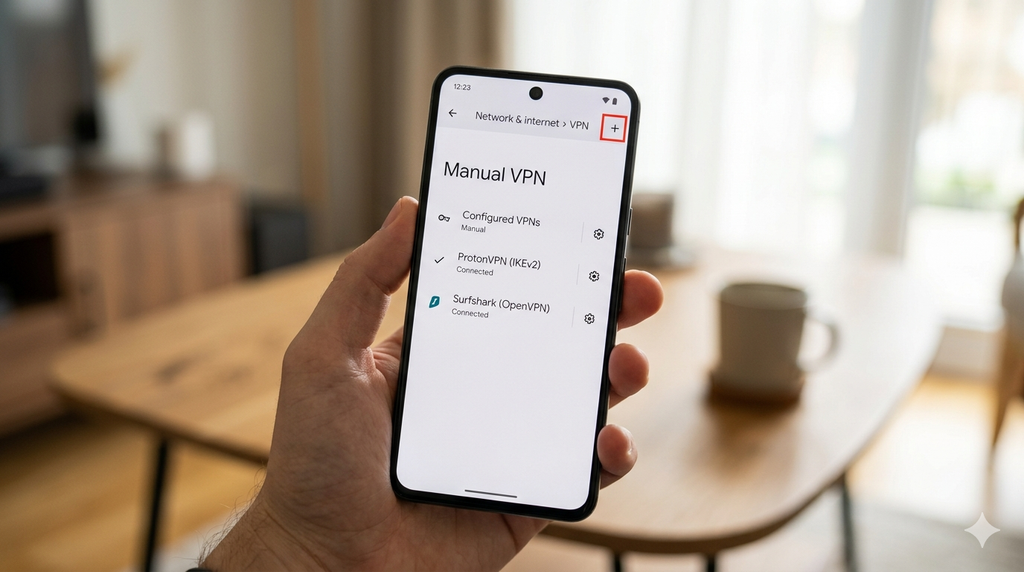
Manual VPN configuration on Android gives you complete control over your connection — no third-party app running in the background, no subscription required, and no trust placed in a commercial VPN provider’s software. You connect directly to a VPN server using Android’s built-in network settings or a single open-source client.
Manual VPN Settings: Manual VPN setup on Android is more accessible than ever. Free VPN server lists, open configuration files, and Android’s improved native VPN support make it possible to set up a working VPN in under 10 minutes — completely free, with no ongoing cost.
This guide covers every manual VPN method available on Android in 2026 — from native protocol setup to OpenVPN and WireGuard manual configuration — with free server sources and step-by-step instructions.
Why Choose Manual VPN Over an App?
No app required — Some devices restrict app installation. Manual setup bypasses this entirely.
No background processes — VPN apps run constantly and consume RAM and battery. Manual connections use Android’s native VPN stack, which is more efficient.
More control — Choose exactly which server, protocol, and encryption settings you use.
Privacy — No third-party app has access to your traffic. Android’s native client handles everything at the OS level.
Free forever — Manual VPN configurations using public servers cost nothing. No trial periods, no data caps on many servers, no credit card.
Works on any Android device — Including older phones, custom ROMs, and devices where VPN apps are unavailable or restricted.
Android Native VPN Protocols — What Is Supported
Android supports these VPN protocols natively without installing any app:
| Protocol | Security | Speed | Setup Difficulty | Recommended |
|---|---|---|---|---|
| PPTP | ❌ Weak | Fast | Easy | ❌ Avoid |
| L2TP/IPSec PSK | ⚠️ Moderate | Moderate | Easy | ⚠️ Basic use only |
| L2TP/IPSec RSA | ✅ Good | Moderate | Medium | ✅ Yes |
| IPSec Xauth PSK | ✅ Good | Good | Medium | ✅ Yes |
| IPSec Xauth RSA | ✅ Strong | Good | Medium | ✅ Yes |
| IPSec Hybrid RSA | ✅ Strong | Good | Hard | ✅ Enterprise |
For protocols not natively supported — WireGuard and OpenVPN — you install a single open-source client app (not a VPN provider app) and manually import configuration files.
Where to Get Free VPN Server Configurations
Before setting up any manual VPN, you need server details. Here are the best free sources:
1. VPN Gate (vpngate.net)

VPN Gate is an academic project from the University of Tsukuba, Japan. It publishes a daily-updated list of free VPN servers run by volunteers worldwide.
- Protocols available: OpenVPN, L2TP/IPSec, SSTP
- Server locations: 20+ countries including Japan, USA, South Korea, India
- Data limit: None on most servers
- Speed: Varies — typically 5–50 Mbps
- How to access: Visit vpngate.net → download OpenVPN config (.ovpn) or note L2TP details.
2. FreeOpenVPN.net
Publishes free OpenVPN configuration files updated regularly.
- Protocols: OpenVPN only
- Locations: Multiple countries
- Free config files: Direct .ovpn download
3. PrivadoVPN Free (Manual Config)

PrivadoVPN provides WireGuard and OpenVPN manual configuration files for free account users.
- Protocol: WireGuard and OpenVPN
- Data limit: 10GB/month on free account
- Speed: Fast — among the best free manual configs available
4. Proton VPN Free (Manual Config)
Proton VPN free accounts can download OpenVPN and WireGuard configuration files directly from their account panel.
- Protocol: OpenVPN and WireGuard
- Data limit: Unlimited
- Speed: Moderate on free servers
5. Windscribe Free (Manual Config)
Windscribe free accounts (15GB/month) provide manual OpenVPN, WireGuard, and IKEv2 configuration files.
- Protocol: OpenVPN, WireGuard, IKEv2
- Data limit: 15GB/month
- Speed: Good
Method 1: L2TP/IPSec Manual Setup on Android (No App Required) /Manual VPN Settings
L2TP/IPSec is the most widely supported manual VPN protocol on Android — built directly into the OS and requiring zero additional software.
What You Need
- VPN server address
- Pre-shared key (PSK) or certificate
- Username and password
Get these from VPN Gate (vpngate.net → select server → note L2TP details) or from a free VPN provider’s manual config page.
Step-by-Step Setup
Step 1 — Open VPN Settings
- Go to Settings
- Tap Network & Internet (stock Android) or Connections (Samsung)
- Tap VPN
- Tap + or Add VPN
Step 2 — Enter Server Details
- Name: Give it any name (e.g., “VPNGate Japan”)
- Type: Select L2TP/IPSec PSK
- Server address: Enter the server IP or hostname from your source
- L2TP secret: Leave blank (unless your server requires it)
- IPSec identifier: Leave blank
- IPSec pre-shared key: Enter the PSK from your server details
Step 3 — Save and Connect
- Tap Save
- Tap the VPN profile you just created
- Enter username and password
- Check Save account information
- Tap Connect
Step 4 — Verify Connection
- VPN icon appears in status bar
- Visit ipleak.net to confirm your IP has changed
VPN Gate L2TP Details (Example Format)
From vpngate.net, each server listing shows:
- Hostname: e.g., vpn123456789.opengw.net
- IP Address: e.g., 203.xxx.xxx.xxx
- L2TP/IPSec PSK: vpn
- Username: vpn
- Password: vpn
These credentials are standard across VPN Gate servers — username, password, and PSK are all “vpn” for most servers.
Method 2: IKEv2/IPSec Manual Setup on Android
IKEv2 is faster and more stable than L2TP — particularly good on Android when switching between Wi-Fi and mobile data. It is natively supported on Android 11 and above.
What You Need
- Server address
- Username and password
- Server certificate (sometimes required)
Step-by-Step Setup
Step 1 — Open VPN Settings
- Settings → Network & Internet → VPN → Add VPN (+)
Step 2 — Enter IKEv2 Details
- Name: Any name (e.g., “IKEv2 Free”)
- Type: Select IKEv2/IPSec MSCHAPv2 or IKEv2/IPSec PSK
- Server: Enter server address
- IPSec identifier: Usually your username or email
- Username: Your account username
- Password: Your account password
Step 3 — Connect
- Save the profile
- Tap to connect
- Enter credentials if prompted
Free IKEv2 Servers
Windscribe provides IKEv2 manual config details for free accounts:
- Sign up for free at windscribe.com
- Go to My Account → Config Generators → IKEv2
- Download certificate and note server details
- Enter in Android VPN settings as above
Method 3: OpenVPN Manual Setup on Android
OpenVPN is the most widely used open-source VPN protocol. It is not natively supported on Android — you install the OpenVPN for Android app (open-source, free, no subscription) and import configuration files manually.
Install OpenVPN Client (One-Time)
- Open Google Play Store
- Search “OpenVPN for Android” by Arne Schwabe
- Install — it is completely free and open source
- This is not a VPN provider — it is just the protocol client
Get Free OpenVPN Config Files
From VPN Gate:
- Visit vpngate.net on your Android phone
- Browse server list — filter by country or speed
- Tap a server → tap OpenVPN Config file
- Download the .ovpn file (saves to Downloads folder)
From Proton VPN Free:
- Log into proton.me on a browser
- Go to Downloads → OpenVPN configuration files
- Select Android → Free servers
- Download .ovpn files for available free servers
From Windscribe Free:
- Log into windscribe.com
- Go to My Account → Config Generators → OpenVPN
- Select a server and download the .ovpn config
Import and Connect
Step 1 — Import Config File
- Open the OpenVPN for Android app
- Tap the + button (top right)
- Tap Import → Import Profile from SD card
- Navigate to Downloads → select your .ovpn file
- Tap Import
Step 2 — Connect
- Tap the imported profile
- Enter username and password if prompted
- Tap Connect
- Accept the Android VPN permission dialog
Step 3 — Verify
- VPN icon appears in status bar
- Visit ipleak.net to confirm protection
Recommended OpenVPN Settings Inside the App
After importing, tap the pencil icon next to your profile to edit:
- Protocol: UDP (faster) — switch to TCP if UDP is blocked on your network
- Use LZO Compression: Disabled (modern servers do not need it)
- DNS: Set custom DNS — use 1.1.1.1 (Cloudflare) or 9.9.9.9 (Quad9)
Method 4: WireGuard Manual Setup on Android (Recommended — Best Performance)
WireGuard is the fastest and most modern VPN protocol available in 2026. Manual WireGuard setup on Android requires the official WireGuard app (free, open-source) and a configuration file.
Install WireGuard Client (One-Time)
- Open Google Play Store
- Search “WireGuard” — official app by WireGuard Development Team
- Install — completely free and open source
Get Free WireGuard Config Files
Option 1 — PrivadoVPN Free
- Sign up for free at privadovpn.com
- Go to Account → Manual Setup → WireGuard
- Generate and download WireGuard config file
- 10GB free data per month
Option 2 — Proton VPN Free
- Log into proton.me
- Go to Downloads → WireGuard configuration
- Select Android → Free servers
- Download .conf file
- Unlimited free data
Option 3 — Windscribe Free
- Log into windscribe.com
- Go to My Account → Config Generators → WireGuard
- Select server → Generate → Download .conf file
- 15GB free data per month
Option 4 — Generate Your Own (Advanced)
If you have access to a VPS or server, you can run WireGuard server software and generate your own completely free, unlimited configuration:
- Use wg-easy (Docker-based WireGuard server) on any VPS
- Generate client configs for your Android device
- Full control, zero dependency on any provider
Import WireGuard Config on Android
Method A — QR Code (Easiest)
Some providers show a QR code for WireGuard config:
- Open WireGuard app
- Tap + → Scan from QR code
- Scan the QR code shown on the provider website
- Name the tunnel → Create Tunnel
Method B — Import File
- Download .conf file to Android (via browser or file transfer)
- Open WireGuard app
- Tap + → Import from file or archive
- Navigate to downloaded .conf file
- Tap to import → Create Tunnel
Method C — Manual Entry
- Open WireGuard app
- Tap + → Create from scratch
- Enter all details manually:
[Interface]
PrivateKey = [your private key]
Address = [your assigned IP]
DNS = 1.1.1.1

[Peer]
PublicKey = [server public key]
AllowedIPs = 0.0.0.0/0
Endpoint = [server IP]:[port]- Tap Save
Connect via WireGuard
- Tap the toggle next to your tunnel name
- Grant VPN permission when Android prompts
- Green indicator confirms active connection
- Visit ipleak.net to verify
Method 5: Always-On Manual VPN on Android
Android supports Always-On VPN for manually configured connections — keeping your VPN active at all times without an app managing it.
For native L2TP/IKEv2 profiles:
- Settings → Network & Internet → VPN
- Tap the gear icon next to your VPN profile
- Enable Always-on VPN
- Enable Block connections without VPN for maximum security
For WireGuard:
- Open the WireGuard app
- Tap your tunnel → Edit
- Enable Exclude Private IPs if needed
- In Android Settings → VPN → select WireGuard → gear icon → Always-on VPN
For OpenVPN:
- OpenVPN for Android → select profile → edit
- Enable Persistent Tun in Advanced settings
- Set Android Always-On VPN to the OpenVPN app
Manual VPN Split Tunneling on Android
Split tunneling routes only selected apps through the VPN — useful for keeping banking apps on direct connection while routing browsers through VPN.
Native Android split tunneling (Android 11+):
- Settings → Network & Internet → VPN
- Tap gear icon next to VPN profile
- Tap Apps (some devices show this option)
- Select apps to exclude or include
WireGuard split tunneling:
In the WireGuard config, modify AllowedIPs:
- Route all traffic:
AllowedIPs = 0.0.0.0/0, ::/0 - Exclude specific IPs: Use split tunneling calculator at wireguard.net/AllowedIPs
OpenVPN split tunneling:
In OpenVPN for Android app → profile edit → Routing tab:
- Disable Use default route to route only specific traffic through VPN
- Add specific IP ranges manually
DNS Settings for Manual VPN on Android
Correct DNS settings prevent leaks and improve privacy. Configure these regardless of which manual VPN method you use:
Best free DNS servers for Indian Android users:
| DNS Provider | Primary | Secondary | Features |
|---|---|---|---|
| Cloudflare | 1.1.1.1 | 1.0.0.1 | Fastest, privacy-focused |
| 8.8.8.8 | 8.8.4.4 | Most reliable globally | |
| Quad9 | 9.9.9.9 | 149.112.112.112 | Malware blocking |
| Cloudflare Malware | 1.1.1.2 | 1.0.0.2 | Blocks malware domains |
Set custom DNS in WireGuard config:
DNS = 1.1.1.1, 9.9.9.9Set custom DNS in OpenVPN for Android:
Profile edit → DNS tab → enter custom DNS servers
Set custom DNS for native L2TP/IKEv2:
Settings → Network & Internet → Private DNS → enter 1dot1dot1dot1.cloudflare-dns.com
Free Server Performance — What to Expect
Manual VPN using free public servers has real-world limitations:
| Source | Typical Speed | Data Limit | Reliability | Best For |
|---|---|---|---|---|
| VPN Gate | 5–30 Mbps | Unlimited | Variable | General browsing |
| Proton VPN Free | 10–40 Mbps | Unlimited | Good | Daily use |
| Windscribe Free | 15–50 Mbps | 15GB/month | Good | Regular browsing |
| PrivadoVPN Free | 20–60 Mbps | 10GB/month | Good | Speed priority |
| Self-hosted VPS | 50–200 Mbps | VPS dependent | Excellent | Power users |
Peak hour tip: VPN Gate servers are slowest between 8–11 PM IST when Indian and Asian users are most active. Connect in the morning or afternoon for best speeds.
Troubleshooting Manual VPN on Android
VPN connects but no internet access
Fix: Check DNS settings. Manually set DNS to 8.8.8.8 in your VPN config. For L2TP, add DNS servers in Android’s VPN profile settings.
Authentication failed on L2TP.
Fix: Double-check PSK, username, and password. VPN Gate servers use “vpn” for all three. Ensure no extra spaces in entered credentials.
OpenVPN stuck on “Connecting”
Fix: Switch from UDP to TCP in OpenVPN for Android settings. TCP works on networks that block UDP (common on college and office networks).
WireGuard shows connected but IP unchanged.
Fix: Verify AllowedIPs is set to 0.0.0.0/0 in your config. If using split tunneling settings, ensure they are not routing traffic outside the tunnel.
VPN disconnects when screen turns off
Fix: Settings → Battery → Background usage limits → set OpenVPN or WireGuard app to No restrictions. Also disable battery optimization for the VPN app.
Cannot find VPN Gate servers in India
Fix: VPN Gate server list changes daily. Refresh vpngate.net and download fresh config files. Sort by ping or speed to find currently active servers near India.
Security Considerations for Manual VPN
Verify server sources — Only use config files from trusted sources: Proton VPN, Windscribe, PrivadoVPN, or VPN Gate. Never import .ovpn or .conf files from unknown websites or social media.
Check for DNS leaks — After connecting, visit ipleak.net and dnsleaktest.com. If your ISP’s DNS servers appear, enable DNS leak protection in your client or set custom DNS in the config.
Avoid PPTP completely — PPTP encryption is broken. Anyone on your network can potentially decrypt PPTP traffic. Use L2TP/IPSec minimum — WireGuard or OpenVPN preferred.
VPN Gate privacy note — VPN Gate servers are run by volunteers. While the project is academic, volunteer server operators can theoretically see your unencrypted traffic after the VPN endpoint. Do not use VPN Gate for sensitive transactions.
Certificate validation — For IKEv2 connections using certificates, always verify the certificate fingerprint matches what your provider publishes. Skip verification only if the provider explicitly states it is safe.
Manual VPN vs VPN App — Which Should You Use?
| Factor | Manual VPN | VPN App |
|---|---|---|
| Setup time | 5–15 minutes | 2–3 minutes |
| Technical knowledge | Medium | None |
| Battery impact | Lower | Higher |
| Privacy | Higher | Depends on provider |
| Features | Basic | Full (kill switch, split tunneling built-in) |
| Free data | Unlimited (VPN Gate) | Capped (most free apps) |
| Updates required | No | Yes |
| Works without app store | ✅ Yes | ❌ No |
Use manual VPN if: You want maximum privacy, work on restricted devices, or want unlimited free data via VPN Gate.
Use a VPN app if: You want the easiest setup, built-in kill switch, automatic protocol switching, and don’t mind the background process.
Frequently Asked Questions
Can I set up a VPN on Android without installing any app?
Yes. Android natively supports L2TP/IPSec and IKEv2 protocols under Settings → Network & Internet → VPN. No app installation required. For WireGuard and OpenVPN, you need the respective open-source client apps — but these are protocol clients, not VPN provider apps.
Is VPN Gate safe to use in India?
VPN Gate is run by an academic institution in Japan and is generally safe for general browsing. However, volunteer server operators can see your traffic. Do not use it for banking, sensitive logins, or confidential business data.
Which manual VPN protocol is fastest on Android?
WireGuard is consistently the fastest manual VPN protocol on Android in 2026 — significantly faster than OpenVPN and L2TP, with lower battery consumption.
Can I use manual VPN on Android without root?
Yes. All methods in this guide work on non-rooted Android devices. Root is not required for any manual VPN configuration.
How do I get unlimited free VPN data manually?
VPN Gate provides effectively unlimited data on most servers. Proton VPN free accounts also provide unlimited data with manual OpenVPN or WireGuard configuration.
Will manual VPN work on Jio and Airtel networks in India?
Yes. WireGuard and OpenVPN (TCP mode) work on Jio and Airtel networks. If OpenVPN UDP is blocked, switch to TCP in the OpenVPN for Android settings. IKEv2 also works reliably on Indian mobile networks.
Conclusion
Manual VPN configuration on Android in 2026 is more accessible than it has ever been — and for users who want maximum control, better privacy, and genuinely free unlimited data, it is the better approach compared to installing a commercial VPN app.
WireGuard with Proton VPN free config is the recommended starting point — fastest protocol, unlimited free data, and a 10-minute setup that any Android user can complete. For truly unlimited data from any server without an account, VPN Gate with OpenVPN covers all everyday browsing needs.
Download WireGuard from Google Play, get your free config from proton.me, import it, and connect. Your Android traffic is encrypted — no subscription, no app tracking, no ongoing cost.