
Short answer: DaVinci Resolve is the best free video editing software for Windows 10 if you want professional quality. CapCut is the best if you make social media content. Kdenlive or Shotcut are the best if your Windows 10 PC is older or low-spec.
One important note before we start: Windows 10 reached end of support on October 14, 2025. This means Microsoft no longer releases security updates for Windows 10. If you are still on Windows 10, your system is potentially vulnerable — consider upgrading to Windows 11 if your hardware supports it. That said, all software in this guide works on Windows 10 for the foreseeable future.
Best free video editing software for Windows 10 in 2026? Whether you’re creating YouTube videos, Instagram Reels, TikTok Shorts, business presentations, online courses, or professional marketing content, choosing the right editor can dramatically improve both your workflow and video quality—without spending any money.
Windows 10 continues to be one of the world’s most widely used operating systems, and many creators, students, freelancers, and small businesses still rely on it for content production. The good news is that today’s free video editing software offers advanced features such as 4K editing, AI-powered tools, motion graphics, color correction, audio enhancement, screen recording, and social media export, making it possible to create professional-quality videos without purchasing expensive software.
In this comprehensive guide, we’ve researched and compared the best free video editing software for Windows 10 based on performance, ease of use, editing features, export quality, system requirements, watermark policies, and overall value. Whether you’re a complete beginner or an experienced editor, you’ll find software that matches your editing style and hardware capabilities.
We’ll also explain the pros and cons of each editor, who it’s best for, supported export formats, and how to choose the right video editing software based on your specific needs. By the end of this guide, you’ll know exactly which free Windows 10 video editor is the best option for YouTube creators, gamers, educators, businesses, filmmakers, and social media content creators.
If you’re searching for a reliable, feature-rich, and completely free video editor for Windows 10 in 2026, this guide provides everything you need to make an informed decision.
Windows 10 Video Editing: What Is Different from Windows 11
A few things are different about video editing on Windows 10 compared to Windows 11:
Clipchamp availability: Clipchamp (Microsoft’s built-in video editor) was added as a default app in Windows 11. On Windows 10, it is available through the Microsoft Store or as a browser app — but it is not pre-installed. You need to download it manually.
Hardware tends to be older: Many Windows 10 users are on older machines that were not eligible for the Windows 11 upgrade. This affects which editors run smoothly — DaVinci Resolve requires more powerful hardware than Kdenlive or Shotcut.
DirectX and driver compatibility: Older Windows 10 hardware may have older GPU drivers. DaVinci Resolve specifically benefits from up-to-date GPU drivers — update these before installing.
Best Free Video Editing Software for Windows 10 :-
1. DaVinci Resolve — Best Free Video Editor for Windows 10 Overall
DaVinci Resolve is the most capable free video editing software for Windows 10. It is professional-grade, exports 4K without a watermark, and is used by professional filmmakers and YouTubers worldwide.
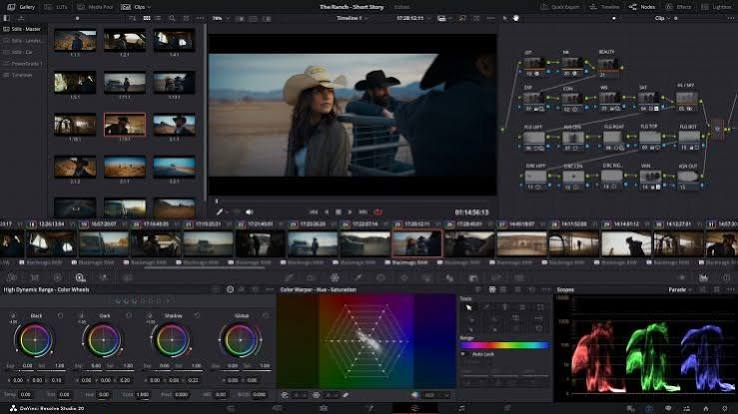
Windows 10 compatibility: Full support. Requires Windows 10 64-bit, version 1903 or later.
System requirements for Windows 10:
- Windows 10 64-bit (version 1903+)
- 16GB RAM recommended (8GB minimum — expect lag with 8GB)
- Dedicated GPU with 2GB VRAM (4GB+ strongly recommended)
- Intel or AMD CPU (8th gen Intel Core or Ryzen 2000 series and above for smooth performance)
Free version includes:
- Full professional multi-track timeline
- Fairlight audio mixing suite (built in)
- Fusion visual effects and motion graphics (built in)
- Professional color grading tools
- AI tools: Magic Mask, Speed Warp, noise reduction
- 4K export — no watermark
- No project or time limits
What it does well on Windows 10: DaVinci Resolve runs on Windows 10 just as well as Windows 11 — Microsoft’s OS version makes no difference to its performance. The color grading tools, Fairlight audio, and Fusion VFX are all available on Windows 10 at zero cost.
Windows 10-specific tip: Before installing DaVinci Resolve on Windows 10, update your GPU drivers (NVIDIA GeForce Experience or AMD Adrenalin) and install the latest Microsoft Visual C++ Redistributables. Outdated drivers cause crashes on Windows 10.
Limitations: Requires a reasonably powerful PC. On older Windows 10 machines with 8GB RAM and integrated graphics, DaVinci Resolve will lag significantly with high-resolution footage.
Best for: Serious YouTube creators, film students, anyone who wants professional results from free Windows 10 software.
Download: blackmagicdesign.com → Products → DaVinci Resolve → Download Free Version
2. CapCut for Windows 10 — Best Free Editor for Social Media
CapCut’s Windows desktop app runs on Windows 10 and is the strongest free option for social media content — Reels, Shorts, TikTok, and fast-turnaround marketing videos.
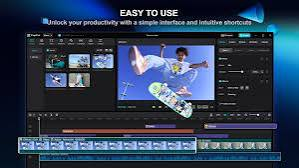
Windows 10 compatibility: Full support. Requires Windows 10 64-bit, version 1903 or later.
System requirements:
- Windows 10 64-bit
- 4GB RAM minimum (8GB recommended)
- 2GB free storage
- Runs on integrated graphics — no dedicated GPU required
Free version includes:
- Multi-track timeline
- Auto-captions (supports Hindi and regional Indian languages)
- AI background removal
- Beat sync and speed ramping
- Text-to-speech in multiple voices
- Trending templates for Reels, Shorts, TikTok
- AI video enhancer
- Green screen (chroma key)
- 4K export — no watermark on standard exports
What it does well on Windows 10: CapCut runs well on Windows 10 machines with moderate specs — 4GB RAM and integrated graphics are sufficient for most editing tasks. Auto-captions work on Windows 10 without any additional configuration.
Windows 10-specific tip: CapCut updates frequently. Enable auto-update in CapCut settings or check for updates manually — newer versions sometimes fix Windows 10 compatibility issues that appear after major CapCut updates.
Limitations: ByteDance (TikTok’s parent company) ownership raises data privacy concerns for some users. Not ideal for long-form professional content.
Best for: Social media creators, Indian YouTubers needing Hindi captions, faceless content channels on Windows 10.
Download: capcut.com → Download for PC → install on Windows 10
3. Clipchamp — Free Microsoft Editor Available on Windows 10
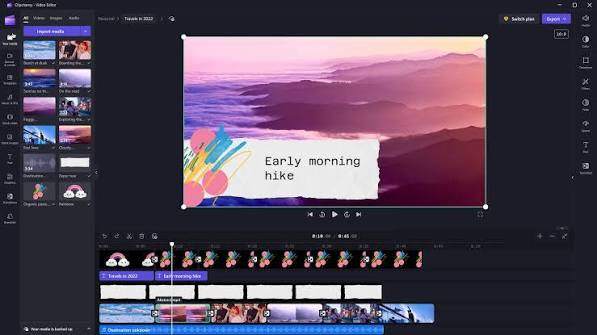
While Clipchamp comes pre-installed on Windows 11, it is available on Windows 10 through the Microsoft Store and as a browser-based app.
Windows 10 availability:
- Microsoft Store: Search “Clipchamp” in the Microsoft Store on Windows 10 → install
- Browser: Go to clipchamp.com in Chrome, Edge, or any modern browser — the full editor works without installation
System requirements:
- Windows 10 version 1903 or later
- 4GB RAM
- Works on integrated graphics
- Internet connection required (browser version)
Free version includes:
- Multi-track timeline
- AI auto-compose
- Text-to-speech with natural voices
- Stock footage and music library
- Auto-captions
- Green screen support
- 1080p export — no watermark
- Templates for social media
What it does well on Windows 10: Clipchamp’s browser version works on any Windows 10 PC with a modern browser — no installation needed, no hardware requirements beyond a working internet connection. The 1080p watermark-free export is the best free deal on Windows 10 for clean output.
Windows 10-specific tip: Use Clipchamp in Microsoft Edge on Windows 10 for the best performance — Edge is optimized for Microsoft web apps. Chrome works well too. Avoid Firefox — occasional rendering issues with Clipchamp on Windows 10.
Limitations: Maximum 1080p export (no 4K). Less powerful than DaVinci Resolve. Stock library smaller than paid alternatives. Internet connection required for browser version.
Best for: Windows 10 users who want clean 1080p exports without watermarks and minimal setup.
Download: Microsoft Store (search “Clipchamp”) or clipchamp.com
4. Kdenlive — Best Free Open-Source Editor for Windows 10
Kdenlive is a mature open-source video editor that runs well on Windows 10, including older hardware — and collects no user data.
Windows 10 compatibility: Full support. Works on Windows 10 32-bit and 64-bit.
System requirements:
- Windows 10 (32-bit or 64-bit)
- 4GB RAM minimum
- No dedicated GPU required — proxy editing handles older hardware
- Works on integrated graphics
Free version includes:
- Multi-track timeline with unlimited tracks
- Keyframe animation and transitions
- Color correction with scopes
- Audio mixing and filters
- Proxy editing — generates lower-resolution previews for smooth playback on older hardware
- Hundreds of built-in effects
- 4K export — no watermark
- No account, no data collection, no cloud dependency
What it does well on Windows 10: Kdenlive’s proxy editing feature is particularly valuable on older Windows 10 machines. Instead of playing back full-resolution footage (which causes lag on older CPUs), Kdenlive generates proxy files — lower-resolution previews that play smoothly. Final export uses the original high-resolution files. This makes Kdenlive usable on hardware that cannot handle DaVinci Resolve.
Windows 10-specific tip: Enable proxy clips immediately after installation: Settings > Configure Kdenlive > Proxy Clips > enable. Set proxy resolution to 540p or 720p depending on your hardware. This single setting transforms performance on older Windows 10 machines.
Limitations: Interface less polished than commercial alternatives. Occasional stability issues — save frequently (Ctrl+S habit). Fewer AI features than CapCut.
Best for: Privacy-conscious creators, Windows 10 users with older hardware, open-source advocates.
Download: kdenlive.org → Download for Windows.
5. Shotcut — Best Free Editor for Old Windows 10 PCs
Shotcut is a lightweight open-source video editor that runs on almost any Windows 10 PC — including very old machines with low RAM and no dedicated GPU.
Windows 10 compatibility: Full support. Works on Windows 7, 8, 10, and 11.
System requirements:
- Windows 10 (32-bit or 64-bit supported)
- 2 GBGBB RAM minimum — lightest of all editors reviewed
- No dedicated GPU required
- Works on very old Intel Atom and Celeron processors
- Portable version runs from USB drive without installation
Free version includes:
- Multi-track timeline
- Extremely wide format support (imports almost any video format natively)
- Audio filters and mixing
- Color grading
- Keyframe animation
- 4K export — no watermark
- Portable version — run directly from USB without installing on Windows 10
What it does well on Windows 10: Shotcut is the most compatible free editor with old Windows 10 hardware. 2GB RAM requirement means it runs on budget laptops and old desktops that other editors cannot handle. The portable version is particularly useful on restricted Windows 10 PCs (office computers, school machines) where you cannot install software.
Windows 10-specific tip: Download the portable .zip version from shotcut.org instead of the installer if your Windows 10 PC has restricted admin access. Unzip to a folder and run shotcut.exe directly — no installation required.
Limitations: Interface is functional but dated. Fewer AI features than CapCut. Learning curve for beginners. Rendering can be slow on very old hardware.
Best for: Very old or low-spec Windows 10 PCs, creators working with mixed camera formats, anyone needing a portable USB editor.
Download: shotcut.org → Download → Windows → installer or portable .zip
6. VSDC Free Video Editor — Best Windows 10-Only Advanced Editor
VSDC is built exclusively for Windows and offers advanced features — motion tracking, video stabilization, masking — at no cost.
Windows 10 compatibility: Full support. Windows-only (no Mac or Linux version).
System requirements:
- Windows 7 / 8 / 10 / 11
- 2 GB RAM minimum
- Works on old and budget Windows 10 hardware
- No dedicated GPU required for basic editing
Free version includes:
- Non-linear timeline editor
- Motion tracking
- Video stabilization
- Masking and blending modes
- Color correction and LUT support
- Audio mixing
- Green screen (chroma key)
- Wide format support
- 4K export — no watermark
What it does well on Windows 10: VSDC is Windows-native software designed specifically for the Windows ecosystem. Motion tracking and video stabilization on the free plan are features that usually cost money on other platforms. For Windows 10 users who want advanced capabilities without DaVinci Resolve’s hardware requirements, VSDC is the strongest option.
Windows 10-specific tip: VSDC’s hardware acceleration works with older NVIDIA and AMD GPUs that are common in Windows 10 machines. Enable it in Export settings > Use hardware acceleration for faster rendering on older GPUs.
Limitations: Windows only. Interface design is dated. Some export optimizations (advanced hardware acceleration) are in the paid VSDC Pro version ($19.99 one-time).
Best for: Windows 10 users who want motion tracking and stabilization for free, creators who need advanced features on modest hardware.
Download: videosoftdev.com → Download Free Video Editor
7. OpenShot — Best Free Editor for Windows 10 Beginners
OpenShot is the simplest timeline-based free video editor on Windows 10 — designed for people who have never edited video before.
Windows 10 compatibility: Full support. Works on Windows 7, 8, 10, and 11.
System requirements:
- Windows 10 (32-bit and 64-bit)
- 4GB RAM recommended
- Works on integrated graphics
Free version includes:
- Simple drag-and-drop timeline
- Built-in transitions and effects
- Titles and text overlays
- Animated titles
- Basic color adjustments
- 4K export — no watermark
- No account, no data collection
What it does well on Windows 10: OpenShot’s interface is the most beginner-friendly of all editors on this list. Drag a clip in, trim it, add a title, add music, export. The learning curve is minimal — most new users produce their first video within an hour of installation.
Windows 10-specific tip: OpenShot can be slow to render on older Windows 10 hardware. Render at a lower resolution first (720p) to preview, then render final output at full quality. This saves significant time during the editing process.
Limitations: Rendering is slow on complex projects. Feature set is less advanced than DaVinci Resolve or CapCut. Not suitable for professional production.
Best for: Windows 10 users editing their first video, students, casual personal projects.
Download: openshot.org → Download for Windows
Windows 10 Free Video Editor Comparison Table
| Software | Min RAM | GPU Needed | Watermark | Max Quality | Best For |
|---|---|---|---|---|---|
| DaVinci Resolve | 8GB (16GB ideal) | Yes (dedicated) | None | 4K | Professional quality |
| CapCut | 4GB | No | None (standard) | 4K | Social media |
| Clipchamp | 4GB | No | None | 1080p | Clean quick exports |
| Kdenlive | 4GB | No (proxy helps) | None | 4K | Privacy, older PCs |
| Shotcut | 2GB | No | None | 4K | Very old PCs |
| VSDC Free | 2GB | No | None | 4K | Advanced Windows features |
| OpenShot | 4GB | No | None | 4K | Absolute beginners |
Which Editor Should You Choose on Windows 10?
You have a modern Windows 10 PC (16GB RAM, dedicated GPU): → DaVinci Resolve. No other free software comes close to the quality.
You make YouTube Shorts or Instagram Reels: → CapCut. Best AI features, fastest workflow for social content.
You want clean 1080p with no watermark and minimal setup: → Clipchamp (browser version — works on any Windows 10 PC).
Your Windows 10 PC is older (8GB RAM, no dedicated GPU): → Kdenlive with proxy editing enabled. Best balance of features and performance on modest hardware.
Your PC is very old (2–4GB RAM): → Shotcut. Runs on almost anything.
You want motion tracking and stabilization for free on Windows 10: → VSDC Free. Advanced features, low hardware requirements.
You have never edited video before: → OpenShot. Simplest possible learning curve.
Windows 10 End of Support: Should You Upgrade?
Windows 10 reached end of support on October 14, 2025. This means:
- No more security updates from Microsoft
- Vulnerabilities will no longer be patched
- Third-party software will gradually drop Windows 10 support
For video editing: All software reviewed here continues to work on Windows 10 in 2026. No immediate need to upgrade just for video editing.
For security: Without security updates, your Windows 10 PC is increasingly vulnerable. If your hardware supports Windows 11, upgrading is recommended for security reasons — not video editing reasons.
Check Windows 11 compatibility: Start > Settings > Windows Update > Check for updates. If your PC is compatible, it will offer the Windows 11 upgrade.
FAQs
Q: Is DaVinci Resolve free on Windows 10?
Yes. DaVinci Resolve’s free version works fully on Windows 10 64-bit. All features, including color grading, Fairlight audio, and Fusion VFX, are available at no cost.
Q: Which free Windows 10 video editor has no watermark?
All seven editors in this guide export without watermarks — DaVinci Resolve, CapCut, Clipchamp, Kdenlive, Shotcut, VSDC Free, and OpenShot.
Q: Can I run DaVinci Resolve on a Windows 10 laptop with 8GB RAM?
Yes, but expect lag with high-resolution footage. 8GB is the minimum — DaVinci Resolve recommends 16GB. With 8GB, use proxy media (lower resolution previews) for smoother playback.
Q: Is Clipchamp available for Windows 10?
Yes — through the Microsoft Store or at clipchamp.com in your browser. It is not pre-installed on Windows 10 (unlike Windows 11), but it is freely downloadable.
Q: Which free video editor runs on a very old Windows 10 laptop?
Shotcut runs on Windows 10 with as little as 2GB RAM and works on very old processors. VSDC Free also runs on old Windows 10 hardware with minimal RAM requirements.
Q: Is CapCut free on Windows 10?
Yes. CapCut for PC is free to download and use on Windows 10. Standard exports have no watermark. Some premium effects and templates require CapCut Pro.
Q: Which free editor is best for Hindi content creators on Windows 10?
CapCut supports Hindi auto-captions on Windows 10. InVideo AI (browser-based) has Hindi voiceover options. Both are widely used by Indian YouTube and Instagram creators on Windows 10.
Conclsion
For Windows 10 users in 2026, the best free video editing software depends almost entirely on your hardware and your content type.
DaVinci Resolve is the answer if your PC can handle it — professional quality at zero cost, works perfectly on Windows 10. CapCut is the answer for social media content — fastest workflow, best AI features, runs on modest hardware. Clipchamp in the browser is the answer if you want zero setup and clean 1080p output.
If your Windows 10 PC is older, Kdenlive with proxy editing or Shotcut are the most reliable options — open-source, lightweight, and capable of producing quality video without demanding hardware.
The Windows 10 end-of-support date should not stop you from making great videos right now. Every editor on this list works today and will continue to work for the foreseeable future on Windows 10.

