
Editing a video used to mean hours of dragging clips around, fixing audio levels, and wondering why your export looks nothing like what you imagined. That’s changed a lot. Today, a bunch of free tools can trim your footage, clean up your audio, add captions, and even suggest cuts, without you needing any editing background at all.
If you’re a content creator, a small business owner, or just someone trying to make a decent reel for Instagram, this guide walks you through the best free video editing tools available in 2026, what they’re good at, where they fall short, and which one actually fits your needs.

Creating professional-quality videos no longer requires expensive software or years of editing experience. In 2026, free AI-powered video editing tools have become smarter, faster, and easier to use, helping creators edit videos with features like automatic captions, background removal, scene detection, voice enhancement, and one-click effects. Whether you’re a YouTuber, TikTok creator, Instagram Reels publisher, student, marketer, or small business owner, these tools can significantly reduce editing time while improving video quality.
Video Editing Free 2026 The best free AI video editors offer generous free plans that let you trim clips, generate subtitles, remove noise, create transitions, and even produce social media-ready videos without paying upfront. While some advanced features may require a premium subscription, the free versions are often powerful enough for everyday content creation.
In this guide, we’ve rounded up the best free AI tools for video editing in 2026, comparing their features, strengths, limitations, and ideal use cases. Whether you’re looking for a browser-based editor, a desktop application, or a mobile-friendly solution, you’ll find an option that fits your workflow and budget.
Why Free Video Editing Tools Have Gotten So Good
A few years back, “free” usually meant limited, watermarked, or clunky. That’s no longer the case. Competition among editing platforms has pushed even the free tiers to include features that used to be locked behind paywalls, things like automatic scene detection, background removal, and one-click captioning.
The catch? Most free plans still cap your export resolution, watermark your videos, or limit how many projects you can save. So while these tools are genuinely useful, you’ll want to know the limits before you build your whole workflow around one.
What to Look For Before Picking a Tool
Before jumping into the list, here’s what actually matters when you’re choosing an editor:
- Export quality – Does the free plan let you export in HD or even 4K, or does it cap you at low resolution?
- Watermarks – Some tools stamp their logo on your final video unless you upgrade.
- Learning curve – A tool with a hundred features is useless if you can’t figure out the timeline.
- Platform – Some editors only work on desktop, others are mobile-first, and a few work right in your browser.
- Storage and project limits – Free plans often cap how many projects you can keep active at once.
Keep these in mind as you go through the list below.
Video Editing Free 2026:-
1. CapCut
CapCut remains one of the most popular free editors, especially for short-form content creators making Reels, Shorts, and TikToks. It has a smart auto-caption feature that transcribes your speech accurately, templates that match trending formats, and a background remover that works surprisingly well without a green screen.
CapCut remains one of the most popular free AI video editing tools in 2026 thanks to its easy-to-use interface and powerful automation features. Available on Windows, macOS, Android, iPhone, and the web, CapCut helps creators produce professional-looking videos without requiring advanced editing skills.
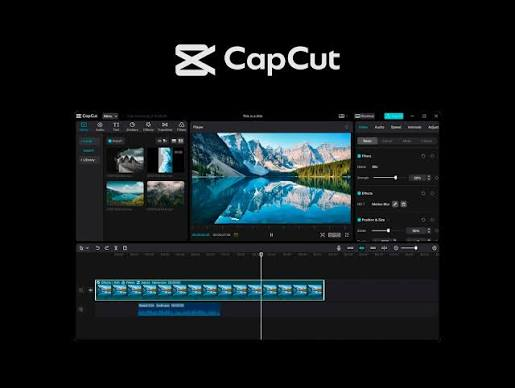
Its AI-powered tools can automatically generate captions, remove backgrounds, enhance video quality, track subjects, create smooth transitions, and convert long videos into short clips for social media. The editor also includes thousands of templates, royalty-free music tracks, text animations, stickers, filters, and effects, making it ideal for YouTube Shorts, TikTok, Instagram Reels, and other short-form content.
The free version provides access to many core editing features, allowing users to trim, split, merge, crop, resize, and export videos in high quality. While some premium AI effects, templates, and cloud storage features require a paid subscription, the free plan is more than capable for everyday creators, students, educators, freelancers, and small businesses.
Key Features:
- AI auto captions with multiple language support
- AI background removal and object cutout
- AI voice enhancement and noise reduction
- One-click video templates and effects
- Auto reframe for different social media platforms
- Text-to-speech and AI voice generation
- Cloud-based editing with cross-device syncing
Best for: Short-form vertical videos, quick turnarounds, beginners.
Pros:
- Free auto-captions with solid accuracy across multiple languages, including Hindi and Hinglish
- Huge template library that updates with trends
- Works on desktop, mobile, and web
- No watermark on exports (a rare thing for a free tool)
Cons:
- Interface can feel cluttered with too many pop-up prompts pushing paid features
- Advanced color grading tools are locked behind the paid plan
- Occasional lag on lower-end phones when handling long clips
Practical example: If you’re a small business in India posting product demos on Instagram, CapCut’s templates plus auto-captions can turn a 2-minute raw phone recording into a polished 30-second reel in under 15 minutes.
2. DaVinci Resolve (Free Version)
DaVinci Resolve is the heavyweight here. It’s used in actual film and television production, and the free version gives you almost everything except a handful of advanced color and noise-reduction tools. If you want your videos to actually look cinematic, this is where you go.
DaVinci Resolve continues to be one of the most powerful free video editing applications available in 2026. Designed for professional filmmakers, YouTubers, and content creators, it combines video editing, color correction, visual effects, motion graphics, and audio post-production into a single application. Unlike many free editors, the free version offers an extensive set of tools without adding watermarks to exported videos.
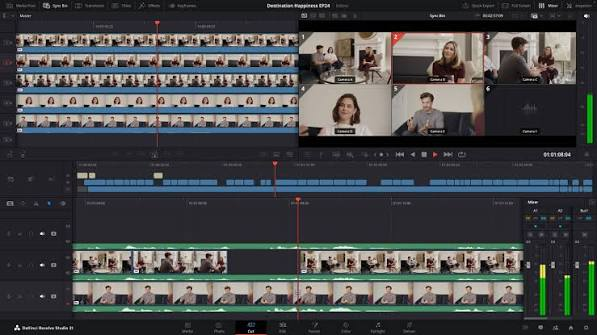
The software includes AI-powered features through the DaVinci Neural Engine, which helps automate time-consuming editing tasks. Depending on the feature, some AI capabilities are available in the free version, while the most advanced Neural Engine tools are reserved for the Studio edition. Users can still take advantage of professional editing tools such as multi-track timeline editing, advanced color grading, Fairlight audio editing, Fusion visual effects, and high-quality video exports.
DaVinci Resolve supports editing in HD, 4K, and higher resolutions, making it suitable for everything from YouTube videos and documentaries to short films and commercial projects. Although the interface has a steeper learning curve than beginner-friendly editors, it rewards users with professional-level control and outstanding output quality.
Key Features:
- Professional multi-track video editing
- Advanced color correction and color grading tools
- Fusion visual effects and motion graphics
- Fairlight audio editing and sound mixing
- High-resolution exports without watermarks
- GPU acceleration for faster editing performance
- Support for Windows, macOS, and Linux
Best for: YouTubers, long-form content, anyone who cares about color grading.
Pros:
- Professional-grade color correction, completely free
- No watermark, no export limit
- Multi-track timeline editing that rivals paid software
- Built-in audio mixing panel
Cons:
- Steep learning curve for beginners
- Needs a decent computer; it can lag on older laptops
- No mobile app, desktop only
Practical example: A YouTuber reviewing gadgets or explaining tutorials can use Resolve’s color tools to make footage shot on a basic phone camera look far more professional, something that’s genuinely hard to fake with lighter tools.
3. CapWizard-style Web Editors (Browser-Based Tools)
Browser-based editors have improved a lot. You upload your footage, get automatic scene splitting, background music suggestions, and export directly without installing anything. These are great if you’re working from a shared or low-storage computer.
CapWizard-style web editors represent a new generation of browser-based AI video editing tools that let users create and edit videos without installing any software. These platforms are designed for speed, simplicity, and collaboration, making them ideal for creators who want to edit videos directly from a web browser. Most offer AI-powered features such as automatic subtitles, background removal, silence detection, scene cutting, text animations, and one-click video resizing for different social media platforms.
Because everything runs in the cloud, you can start a project on one device and continue editing on another with an internet connection. This makes browser-based editors especially useful for remote teams, freelancers, educators, marketers, and social media creators who need flexibility and easy file sharing.
Many CapWizard-style editors include drag-and-drop timelines, ready-made templates, stock media libraries, AI voiceovers, and automatic caption generation. Their free plans usually provide enough features for basic editing, while premium subscriptions unlock higher export resolutions, additional AI tools, larger cloud storage, and premium templates.
Key Features:
- No software installation required
- AI-generated subtitles and captions
- Browser-based editing with cloud storage
- One-click resizing for YouTube, TikTok, Instagram, and Facebook
- AI background removal and smart scene detection
- Built-in stock videos, music, and graphics
- Easy collaboration and project sharing
Best for: Quick edits without downloads, working across multiple devices.
Pros:
- Zero installation, works from any browser
- Cloud storage means you can start editing on one device and finish on another
- Usually has a generous free tier for short clips
Cons:
- Needs a stable internet connection throughout the session
- Rendering can be slower than desktop software
- Free tiers often cap video length to 5–10 minutes
4. Clipchamp
Clipchamp comes built into Windows now, which makes it an easy starting point if you’re already on a Windows machine. It’s straightforward, has decent templates, and includes basic automated tools like silence trimming and text-to-speech.
Clipchamp is one of the best free AI-powered video editing tools in 2026, offering an intuitive editing experience for beginners, students, educators, and content creators. Available as a web application and integrated into Windows, Clipchamp allows users to create professional-looking videos without needing advanced editing skills or expensive software.
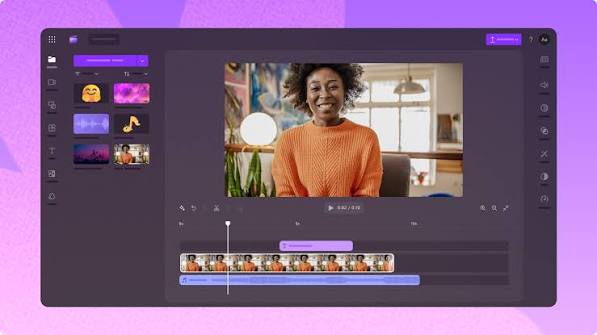
The editor includes a variety of AI-powered features that simplify the editing process. Users can automatically generate subtitles, remove long pauses from recordings, convert text into realistic voiceovers, and use AI-powered speaker coaching to improve presentation videos. Clipchamp also offers drag-and-drop editing, customizable templates, transitions, filters, stock videos, royalty-free music, and animated text effects, making it suitable for YouTube videos, business presentations, tutorials, and social media content.
The free version provides access to essential editing tools and allows users to export videos in up to 1080p resolution without a watermark for most personal projects. Since projects are stored online, users can easily access and continue editing across compatible devices using the same account.
Key Features:
- AI-generated subtitles with editable captions
- AI text-to-speech voiceovers
- Automatic silence removal for cleaner videos
- Built-in screen and webcam recorder
- Drag-and-drop timeline editing
- Large library of stock videos, images, music, and sound effects
- Ready-made templates for YouTube, TikTok, Instagram, and business videos
- Export videos in up to Full HD (1080p)
Best for: Windows users who want something built-in and simple.
Pros:
- Already installed on most Windows 11 systems
- Clean, beginner-friendly interface
- Decent stock footage and music library included free
Cons:
- Export resolution capped at 1080p on the free plan
- Limited advanced effects compared to CapCut or Resolve
- Occasional watermark depending on account type
Practical example: If you’re creating a quick explainer video for a client presentation and don’t want to install anything new, Clipchamp gets the job done without a learning curve.
5. InShot
InShot has been a mobile favorite for years, and it’s stayed relevant by adding smarter trimming and auto-adjust tools. It’s built specifically for phone editing, so the interface feels natural if you’re used to swiping and tapping rather than dragging a mouse.
InShot is one of the most popular free video editing apps in 2026, especially for creators who produce content on smartphones. Available for both Android and iPhone, InShot combines a simple interface with AI-powered editing tools, making it easy to create professional-looking videos for YouTube Shorts, TikTok, Instagram Reels, Facebook, and other social media platforms.
The app offers a wide range of editing features, including video trimming, splitting, merging, speed control, transitions, filters, text overlays, stickers, and background music. Its AI-powered tools help users generate automatic captions, remove backgrounds, enhance video quality, and reduce background noise, allowing creators to edit videos faster with minimal manual work. InShot also includes ready-made templates and one-tap effects that make creating engaging short-form videos quick and straightforward.
The free version includes most essential editing tools for everyday content creation. While some premium filters, effects, and AI features require a subscription, the free plan is more than sufficient for beginners, influencers, students, and small business owners who want to produce high-quality videos on the go.
Key Features:
- AI-generated subtitles and captions
- AI background removal and video enhancement
- Video trimming, cutting, splitting, and merging
- Speed control, transitions, and animation effects
- Text, stickers, emojis, and customizable fonts
- Built-in music library and sound effects
- Easy export in multiple resolutions for social media
Best for: Mobile-only creators, quick social posts.
Pros:
- Genuinely easy to use, even for first-time editors
- Good music and sound effect library
- Fast export times even on mid-range phones
Cons:
- Watermark appears unless you pay for the pro version
- Limited timeline complexity for longer projects
- Some effects require a subscription
Comparison Table: Free Video Editing Tools 2026
| Tool | Platform | Watermark (Free) | Best For | Export Limit |
|---|---|---|---|---|
| CapCut | Desktop, Mobile, Web | No | Short-form, Reels | HD/4K depending on device |
| DaVinci Resolve | Desktop only | No | Color grading, long-form | No limit |
| Browser Editors | Web only | Varies | Quick multi-device edits | Usually capped at 5–10 min |
| Clipchamp | Desktop (Windows) | Sometimes | Beginners, Windows users | 1080p cap |
| InShot | Mobile only | Yes | Fast mobile edits | 1080p, watermark unless paid |
How to Pick the Right One for You
If you’re making Reels or Shorts and want speed, go with CapCut. If you’re building a YouTube channel and care about how your footage actually looks, DaVinci Resolve is worth the learning curve. If you’re stuck on a shared computer or just need something quick without installing software, a browser-based editor will save you time. And if you’re purely on mobile with no desktop access, InShot or CapCut’s mobile app are your best bets.
A lot of creators actually end up using two tools together, one for quick mobile edits and one for polishing longer content on desktop. There’s no rule that says you have to pick just one.
Common Mistakes People Make With Free Editors
- Ignoring the watermark until export. Always check this before you spend an hour editing.
- Not checking storage limits. Some tools delete your projects after a set number of days on the free plan.
- Skipping audio cleanup. Background noise is one of the biggest reasons videos look unprofessional, and most free tools now include a basic noise reduction feature that people forget to use.
- Overusing templates. Templates are great for speed, but if every video looks the same, your audience will notice.
Frequently Asked Questions
Are these free tools actually free, or is there a hidden catch?
Most are genuinely free to use, but they make money by upselling premium features like higher export resolution, no watermark, or extra effects. You can create complete videos without ever paying, but you’ll hit some limits depending on which tool you pick.
Which free tool is best for beginners?
CapCut and InShot are the easiest to pick up since both are built around simple drag-and-tap actions. DaVinci Resolve is powerful but takes longer to learn.
Can I edit YouTube-length videos with free tools?
Yes. DaVinci Resolve has no real length limit on the free version, making it the strongest choice for anyone doing long-form content like tutorials or vlogs.
Do free video editors work well on low-end phones or laptops?
Browser-based editors and InShot tend to run lighter, so they’re a safer bet on older devices. DaVinci Resolve needs a reasonably modern computer to run smoothly.
Will my videos have a watermark if I don’t pay?
It depends on the tool. CapCut and DaVinci Resolve don’t add watermarks on their free plans, while InShot and some browser tools do unless you upgrade.
Is it worth upgrading to a paid plan eventually?
If you’re creating content regularly and need higher resolution exports or no watermark, a paid plan usually pays for itself quickly, especially if you’re monetizing your videos. For casual or occasional editing, the free tiers are more than enough.
Conclsion
You genuinely don’t need expensive software to make good videos anymore. The free tools available in 2026 cover everything from quick social clips to full YouTube productions, the trick is matching the tool to what you’re actually trying to make. Start with something simple like CapCut if you’re new to editing, and if you find yourself wanting more control over color and detail down the line, DaVinci Resolve is there waiting for you, still free.

