
Making videos has never been more competitive. Whether you’re running a YouTube channel, posting on TikTok, or producing content for clients, the pressure to publish more — and publish better — is real.
The good news is that 2026 has brought a wave of tools that genuinely cut down production time without sacrificing quality. We’re talking about tools that help with scripting, editing, voiceovers, thumbnails, captions, and even full video generation from a text prompt.
This guide covers the best tools available right now for video creators — what they do, who they’re for, and whether the free or paid version is actually worth it.
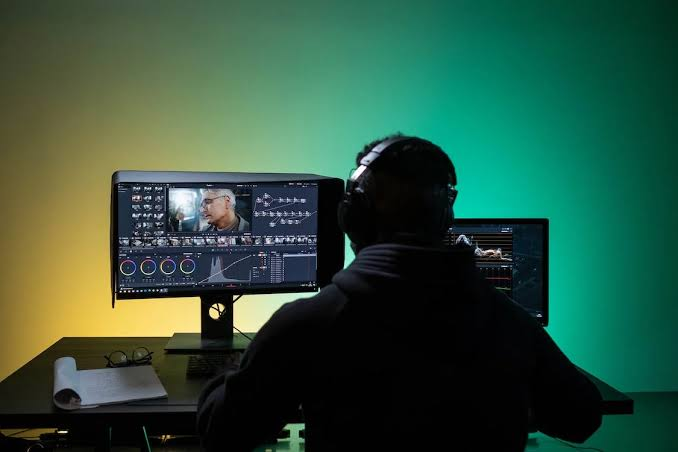
For video content creators, AI has evolved from a helpful assistant into a complete production partner. In 2026, the best AI tools can generate scripts, edit videos automatically, create realistic voiceovers, remove backgrounds, generate B-roll footage, and even optimize content for platforms like YouTube, TikTok, and Instagram. These tools help creators save hours of work while improving video quality and audience engagement.
Whether you’re a YouTuber, social media influencer, marketer, educator, or business owner, AI-powered video tools can streamline every stage of content creation—from planning and production to editing and publishing. Many platforms now offer advanced features such as AI avatars, automatic captions, multilingual dubbing, and intelligent scene detection, making professional-quality video production accessible to creators of all skill levels.
In this guide, we’ll explore the best AI tools for video content creators in 2026, comparing their features, pricing, strengths, and ideal use cases. Whether you need an all-in-one video editor or a specialized AI tool for scripting, voice generation, or content repurposing, you’ll find the right solution to grow your audience and create better videos faster.
What Kind of Creator Are You?

Before jumping into the list, it helps to know which part of your workflow is the biggest bottleneck. Most creators struggle with one of these:
- Scripting and ideation — Coming up with ideas and writing scripts takes hours
- Editing — Cutting footage, adding B-roll, syncing audio
- Voiceovers — Recording clean audio or finding the right voice
- Captions and subtitles — Manually transcribing is painfully slow
- Thumbnails — Designing click-worthy visuals without being a designer
- Short-form repurposing — Turning long videos into Reels, Shorts, or TikToks
The tools below are organized by what problem they solve, so you can skip straight to what matters most for your setup.
Best AI Tools for Video Content Creators in 2026:-
Best Tools for Scripting and Ideation
1. Jasper
Jasper has become a go-to for creators who need scripting help at scale. You give it a topic, a target audience, and a tone — it gives you a full video script with hooks, talking points, and a call to action.
Best for: YouTubers, educators, faceless content channels
Practical example: A creator running a finance YouTube channel uses Jasper to generate weekly script drafts. Instead of spending 3 hours writing, they spend 30 minutes editing and personalizing the draft. Output stays consistent, and publishing frequency doubled.
Pros:
- Produces structured scripts with intro hooks built in
- Supports multiple tones — conversational, professional, storytelling
- Templates specifically for video content
- Team collaboration features
Cons:
- Monthly cost adds up if you’re a solo creator on a tight budget
- Output sometimes needs heavy editing to sound natural
- Not great for highly technical or niche topics without extra prompting
Pricing: Starts around $39/month. No meaningful free tier.
2. Writesonic
Writesonic is a more budget-friendly alternative to Jasper with a solid free tier. It works well for short-form scripts — YouTube Shorts, TikTok, Instagram Reels.
Best for: Short-form creators, beginners
Practical example: A travel creator uses Writesonic to draft 30-second scripts for Instagram Reels. Each script takes about 2 minutes to generate and usually needs minor tweaks before recording.
Pros:
- Generous free plan for testing
- Good at punchy, short-form content
- Fast output
Cons:
- Long-form scripts can feel generic
- Less control over structure compared to Jasper
- Quality varies by topic
Pricing: Free plan available. Paid starts at $16/month.
Best Tools for Video Editing
3. Descript
Descript changed how a lot of creators think about editing. Instead of working on a timeline, you edit the transcript — delete a word from the text, and that section gets cut from the video. It also has an overdub feature that lets you fix audio mistakes by typing.
Best for: Podcasters turning content into video, talking-head creators, interview-style content
Practical example: A business coach records a 45-minute interview. In Descript, they highlight all the filler words — “um,” “uh,” “like” — and remove them in one click. What used to take two hours of manual editing takes 20 minutes.
Pros:
- Text-based editing is a huge time saver
- Auto-removes filler words
- Screen recording built in
- Captions generated automatically
- Overdub voice cloning for fixing mistakes
Cons:
- Not ideal for heavily visual, b-roll-heavy content
- Can feel limiting for advanced editors used to Premiere or Final Cut
- Overdub accuracy depends on training quality
Pricing: Free plan (1 hour of transcription/month). Creator plan costs around $24/month.
4. CapCut (Desktop + Web)
CapCut started as a mobile app and has grown into a powerful desktop editor with some genuinely useful automated features. It’s free, which makes it hard to ignore.
Best for: Short-form creators, beginners, TikTok, and Reels content
Practical example: A lifestyle creator films a 10-minute video on their phone. They upload to CapCut, use the auto-caption feature, apply a trending template, and export — all in under 30 minutes with no prior editing experience.
Pros:
- Free with no watermark on most exports
- Auto-captions work well across multiple languages
- Huge template library updated regularly
- Beat sync for music
- Available on mobile, desktop, and browser
Cons:
- Not suitable for long-form or complex projects
- Limited color grading tools
- Some features require a Pro subscription
- Data privacy concerns for some users (owned by ByteDance)
Pricing: Free. CapCut Pro available for advanced features.
5. Runway ML
Runway is for creators who want to go beyond standard editing. It offers generative video features — you can remove backgrounds without a green screen, generate short video clips from text, and apply cinematic effects that would otherwise require expensive post-production.
Best for: Creative directors, visual storytellers, brand content creators
Practical example: A music video creator uses Runway’s background removal tool to composite a singer onto a generated abstract background — no studio required. The result looks like it costs 10x more to produce.
Pros:
- Background removal works with a green screen
- Text-to-video generation for creative B-roll
- Motion tracking and inpainting tools
- Growing feature set with regular updates
Cons:
- Steep learning curve
- Expensive for heavy use
- Generated video quality still has limitations for realistic scenes
- Requires good hardware for smooth use
Pricing: Free plan (limited credits). The standard plan starts around $15/month.
Best Tools for Voiceovers
6. ElevenLabs
ElevenLabs produces some of the most realistic synthetic voices available in 2026. If you’re running a faceless YouTube channel or need voiceovers at scale, it’s the most used tool in this category.

Best for: Faceless YouTube channels, documentary-style content, narration
Practical example: A creator running a history channel uses ElevenLabs to narrate all videos in a consistent, deep male voice. No recording setup needed — they paste the script, generate the audio, and drop it into their editor.
Pros:
- Extremely natural-sounding voices
- Voice cloning available (use your own voice)
- 30+ languages supported
- Emotional tone control
- Fast generation even for long scripts
Cons:
- The free plan is very limited (10,000 characters/month)
- Voice cloning requires clean audio samples
- Some voices sound slightly robotic on certain letter combinations
- Ethical concerns around misuse (voice cloning)
Pricing: Free plan available. Starter plan around $5/month. Creator plan around $22/month.
7. Murf
Murf is a solid alternative to ElevenLabs, especially for teams or creators who need a variety of voices across different projects — explainer videos, ads, e-learning content.
Best for: Explainer videos, commercial content, teams
Practical example: A marketing team uses Murf to produce product explainer videos in English, Spanish, and French — all using the same script, different voice profiles. No hiring voice actors for each language.
Pros:
- Large voice library across many languages
- Easy-to-use studio interface
- Sync voiceover with slides or video directly in the tool
- Team features and collaboration
Cons:
- Voices don’t quite match ElevenLabs in realism
- Pricier for multi-user plans
- Export options limited on lower plans
Pricing: Free plan (limited). Pro starts around $26/month.
Best Tools for Captions and Subtitles
8. Submagic
Submagic is built specifically for short-form video captions. It generates styled, animated captions that match the viral aesthetic you see on TikTok and Reels — word-by-word highlights, bold fonts, emojis placed automatically.
Best for: TikTok, Instagram Reels, YouTube Shorts creators
Practical example: A motivational content creator uploads a 60-second clip. Submagic auto-transcribes it, adds animated word-by-word captions with emoji, and exports in under 5 minutes. The engagement on captioned videos goes up noticeably.
Pros:
- Designed specifically for short-form viral captions
- Automatic emoji placement
- Multiple caption styles and fonts
- Fast turnaround
Cons:
- Only useful for short-form content
- Accuracy drops with heavy accents
- Limited editing control on captions after generation
Pricing: Free trial. Paid plans start around $20/month.
9. Kapwing
Kapwing is a browser-based video editor with strong caption tools. It’s more versatile than Submagic — you can use it for full videos, not just short clips.
Best for: All-around creators who want captions plus basic editing in one place
Practical example: A podcast creator uploads their weekly episode to Kapwing, gets auto-captions, trims the video, adds an intro graphic, and exports — all in the browser without installing anything.
Pros:
- Works entirely in browser — no install needed
- Auto-subtitles in 70+ languages
- Subtitle editing is clean and straightforward
- Includes basic video editing tools, too
Cons:
- Watermark on free exports
- Slower than desktop apps for large files
- The free plan has limited export resolution
Pricing: Free (with watermark). Pro around $24/month.
Best Tools for Thumbnails
10. Adobe Firefly (via Adobe Express)
Adobe Firefly is Adobe’s generative image tool, and when used through Adobe Express, it’s one of the best options for thumbnail creation. You can generate background images, remove subjects from photos, and create text effects — all in one place.
Best for: Creators who want polished, branded thumbnails fast
Practical example: A tech reviewer needs a thumbnail with a dramatic background behind their product shot. They use Firefly to generate a dark tech-themed backdrop, drop in their product photo with background removed, and finish in Express. Total time: 15 minutes.
Pros:
- High-quality image generation
- Trained on licensed content (fewer copyright concerns)
- Integrates naturally with Adobe Express for finishing
- Text effect generation is excellent
Cons:
- Requires an Adobe account
- Full features need a Creative Cloud subscription
- Firefly credits are limited on the free plan
Pricing: Free plan available. Full access with a Creative Cloud subscription.
11. Canva (with Magic Studio)
Canva remains the most accessible design tool for non-designers. Its Magic Studio features — background remover, image generator, Magic Write — make thumbnail creation fast, even if you have zero design experience.
Best for: Beginners, solo creators, anyone without a design background
Practical example: A cooking channel creator uses Canva’s thumbnail templates, swaps in their own food photos, generates a background with Magic Studio, and adds bold title text. The whole thing takes under 10 minutes.
Pros:
- Extremely beginner-friendly
- Thousands of thumbnail templates
- Background remover works well
- The free plan is genuinely usable
Cons:
- Designs can look templated if not customized
- Magic image generation is limited compared to dedicated tools
- Free plan lacks some key features
Pricing: Free plan available. Pro around $15/month.
Best Tool for Repurposing Long Videos
12. Opus Clip
Opus Clip takes a long video — a podcast, webinar, YouTube video — and automatically finds the most engaging moments, cuts them into short clips, adds captions, and reformats for vertical video. It’s one of the most genuinely time-saving tools on this list.
Best for: Podcasters, long-form YouTubers, and course creators wanting short-form clips
Practical example: A business podcast host uploads a 60-minute episode. Opus Clip analyzes it and outputs 8–12 short clips with captions and a “virality score” for each. The host posts the top 3 clips to LinkedIn and TikTok the same day — no manual editing.
Pros:
- Fully automated clipping from long videos
- Vertical reformatting is built in
- Captions auto-added
- Virality scoring helps prioritize which clips to post
- Saves hours of manual work weekly
Cons:
- The quality of the clips depends on how the original video was structured
- Clips are sometimes cut mid-sentence awkwardly
- Free plan limits monthly usage
- Not suitable as a replacement for intentional, manual editing
Pricing: Free plan (limited clips/month). Pro around $19/month.
Quick Comparison Table
| Tool | Best For | Free Plan | Starting Paid Price |
|---|---|---|---|
| Jasper | Scripting | ❌ | ~$39/month |
| Writesonic | Short scripts | ✅ | ~$16/month |
| Descript | Editing / Transcription | ✅ | ~$24/month |
| CapCut | Short-form editing | ✅ | Free / Pro |
| Runway ML | Creative / Generative video | ✅ | ~$15/month |
| ElevenLabs | Voiceovers | ✅ | ~$5/month |
| Murf | Voiceovers / Teams | ✅ | ~$26/month |
| Submagic | Short-form captions | ✅ | ~$20/month |
| Kapwing | Captions + editing | ✅ | ~$24/month |
| Adobe Firefly | Thumbnails | ✅ | CC subscription |
| Canva | Thumbnails / Design | ✅ | ~$15/month |
| Opus Clip | Long-to-short repurposing | ✅ | ~$19/month |
FAQs
Which tool is best for a complete beginner with no editing experience?
CapCut for editing and Canva for thumbnails. Both are free, beginner-friendly, and have enough features to get you publishing quickly without a learning curve.
Can I run a full YouTube channel using only free plans?
Yes, with limitations. CapCut (editing), Writesonic free tier (scripting), ElevenLabs free plan (voiceovers), and Canva free (thumbnails) can cover most of your workflow. You’ll hit usage caps quickly, but it’s a good way to test before paying.
Is ElevenLabs good enough for a faceless YouTube channel?
Yes — it’s currently the best option for realistic narration. Most viewers cannot tell the difference in standard YouTube listening conditions, especially with good background music underneath.
What’s the best tool for turning podcasts into short clips?
Opus Clip. Upload the episode, let it run, and you’ll have a week’s worth of social content without touching an editor.
Do any of these tools work on older computers?
Most browser-based tools — Kapwing, Canva, Writesonic — work on any computer with a decent browser. Desktop apps like Descript and CapCut have moderate system requirements but generally run fine on machines from 2018 onwards.
Which tools support languages other than English?
Kapwing supports subtitles in 70+ languages. Murf has multi-language voiceovers. ElevenLabs supports 30+ languages. Canva and CapCut both work in multiple languages for the interface and captions.
Is Runway ML worth the price for small creators?
If you’re creating cinematic or branded content, yes. If you’re just editing talking-head videos or vlogs, it’s probably overkill. Descript or CapCut will serve you better at a lower cost.
How do I avoid my videos looking like they were made with a template?
Customize templates rather than using them out of the box. Change colors, fonts, and layouts to match your brand. The more you personalize, the less generic it looks — even if you started from a Canva template.
Conclsion
The tools listed here cover every major part of a video creator’s workflow. You don’t need all of them — in fact, trying to use every tool at once will slow you down more than help.
A practical starter stack for most creators would look like this:
- Script: Writesonic (free) or Jasper
- Edit: CapCut or Descript
- Voiceover: ElevenLabs
- Captions: Submagic (short-form) or Kapwing (long-form)
- Thumbnail: Canva
- Repurposing: Opus Clip
Pick one tool per category, get comfortable with it, then add the next. That’s how you actually save time instead of spending it learning new software.

