
Video editing used to require expensive software, a powerful computer, and hours of learning. That’s not really the case anymore. In 2026, there are browser-based tools that can cut, enhance, subtitle, and even generate entire video sequences — all without downloading anything.
Whether you’re a content creator, a small business owner, a teacher, or someone who just wants to make decent-looking videos without a steep learning curve, this guide is for you. Here’s a practical look at the best online video editing tools available right now, what they’re actually good at, and where each one falls short.
Video editing online has become faster, smarter, and more accessible than ever before. In 2026, online AI-powered video editing tools will help creators, marketers, educators, and businesses produce professional-quality videos directly from a web browser without needing advanced editing skills. These tools can automatically cut unwanted footage, generate subtitles, remove background noise, create transitions, enhance video quality, and even turn text into complete videos within minutes.
Whether you’re creating YouTube videos, social media reels, marketing content, online courses, or product demonstrations, modern AI video editors can significantly reduce editing time while improving content quality. Many platforms offer drag-and-drop interfaces, cloud-based collaboration, and automation features that make video production easier for beginners and professionals alike.
In this guide, we’ll explore the best AI tools for online video editing in 2026, comparing their features, strengths, pricing, and ideal use cases to help you find the perfect solution for your content creation needs.
Why Online Video Editing Tools Have Taken Over
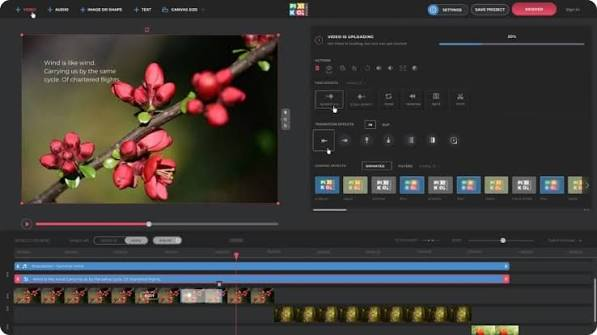
A few years ago, if you wanted to edit video seriously, you needed Premiere Pro or Final Cut. Both are still excellent — but they’re expensive, heavy on system resources, and take time to learn properly.
Online tools have changed the equation. You open a browser, upload your footage, make your edits, and export — sometimes in under ten minutes. For most YouTube videos, social media reels, product demos, and explainer videos, that’s more than enough.
The newer generation of these tools goes further. They can automatically remove silences, generate captions, enhance audio, change backgrounds, and even suggest edits based on the content of your video. Some can turn a script into a finished video with a presenter on screen.
That’s a significant shift in how video production works, especially for solo creators and small teams.
Best Online Video Editing Tools in 2026: Video Editing online
1. CapCut (Web Version) — Best for Social Media Creators
CapCut started as a mobile app, but its web version has become genuinely powerful. It’s free to use for most features, and it works well for short-form content — Reels, Shorts, TikToks, and similar formats.
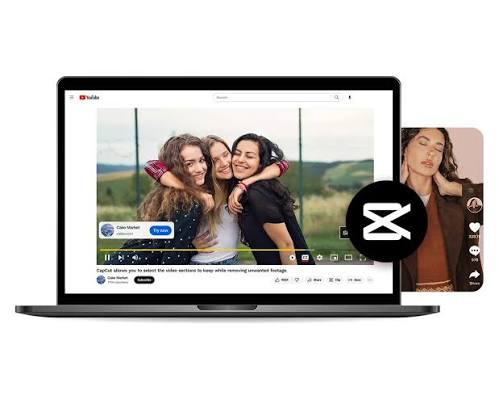
The interface is easy to pick up. You get a timeline editor, text overlays, transitions, filters, and a growing library of templates. The auto-caption feature is one of the best in this price range — it transcribes your audio and places subtitles automatically, saving a lot of manual work.
Practical example: You record a 60-second product walkthrough and upload it to CapCut. In about five minutes, you’ve added captions, a background track, trimmed the pauses, and exported it in 1080p — ready to post.
Pros:
- Free for most features
- Excellent auto-caption tool
- Large template library for social media formats
- No watermark on most exports
- Works on any browser, no install needed
Cons:
- Less suitable for long-form content
- Some advanced features locked behind a paid plan
- Storage limits on the free tier
- Not ideal for professional-grade color grading
2. Runway ML — Best for Advanced Editing Features
Runway is one of the more impressive tools available online right now. It goes well beyond basic trimming and titles. You can remove backgrounds from video (not just images), clean up background noise, and use a feature called Inpainting that lets you erase unwanted objects from video frames.

The Gen-2 model lets you generate short video clips from a text description or an image, which is useful for B-roll, intros, or creative sequences when you don’t have footage.
It’s not the cheapest option — the free plan is limited — but for creators who want cinematic output without a production crew, it’s hard to beat.
Practical example: You’re making a brand video and need a few seconds of abstract visuals for your intro. Instead of licensing stock footage, you describe the scene in a text box, and Runway generates it in seconds.
Pros:
- Background removal from video
- Object removal from frames
- Text-to-video generation for B-roll
- Professional-quality audio cleanup
- Regular feature updates
Cons:
- The free plan has limited credits
- Learning curve for advanced features
- Slower export times for complex projects
- Not great for straightforward, fast edits
3. Descript — Best for Podcast and Interview Videos
Descript works differently from most video editors. Instead of working on a timeline, you edit a transcript. Delete a sentence from the transcript, and that part of the video gets removed. It sounds unusual, but once you try it, it makes a lot of sense for interview-style content, podcasts, and talking-head videos.
The overdub feature lets you fix audio mistakes by typing — it generates a voice that sounds like you. The filler word remover automatically cuts out every “um”, “uh”, and “you know” from your recording. Both features save serious time.
Practical example: You record a 20-minute interview, and there are several moments where the guest stumbles, says “uh” repeatedly, or goes off-topic. In Descript, you clean all of that up by editing the text, not scrubbing through a timeline.
Pros:
- Edit video by editing text
- Automatic filler word removal
- Overdub for fixing audio without re-recording
- Great for podcasts, interviews, tutorials
- Clean and intuitive interface
Cons:
- Not suitable for action or music videos
- Overdub requires a voice training setup
- Free plan limits export quality
- Transcript accuracy drops with heavy accents or background noise
4. Pictory — Best for Turning Articles into Videos
Pictory is built for one specific job: converting written content into video. You paste in a blog post, script, or article, and Pictory breaks it into scenes, matches each one with relevant stock footage or images, and adds captions automatically.
For content marketers who already produce a lot of written content, this is a huge time-saver. You can repurpose a 1,500-word article into a two-minute video in under half an hour.
Practical example: You’ve written a blog post about the best budgeting apps. You paste it into Pictory, choose a visual style, and it generates a video ready for YouTube or social media — complete with subtitles and background music.
Pros:
- Turn blog posts into videos quickly
- Large stock footage and image library
- Auto-captioning included
- Good for content repurposing at scale
- Voiceover options built in
Cons:
- Output can feel template-heavy if not customized
- Stock footage quality varies
- Less control over individual clip timing
- Not designed for original footage editing
5. Veed.io — Best All-Around Browser Editor
Veed.io sits in a comfortable middle ground. It’s not as advanced as Runway, not as niche as Descript or Pictory, but it handles a wide range of tasks reliably. Trimming, merging, subtitling, resizing for different platforms, and adding audio — it does all of this cleanly in a browser.
The subtitle tool is one of its strongest features. It supports over 100 languages, handles translation, and lets you customize the look of your captions with different fonts, colors, and animations.
Practical example: You have a 10-minute tutorial video in English and want to add Spanish subtitles for a broader audience. Upload to Veed.io, auto-transcribe, translate to Spanish, customize the caption style, and export — done in minutes.
Pros:
- Clean, beginner-friendly interface
- Subtitle generation in 100+ languages
- Translation feature built in
- Resize video for any platform in one click
- Supports team collaboration
Cons:
- Free plan adds a watermark to exports
- Slower with large files
- Advanced features cost extra
- Limited timeline control for complex edits
6. InVideo — Best for Marketing and Business Videos
InVideo is designed with businesses and marketers in mind. It has thousands of templates organized by use case — product promos, YouTube intros, ads, announcements, tutorials — and you can customize any of them quickly.
The text-to-video feature works well here. You write a script, pick a template, and InVideo builds the video around your words using stock clips and music. It’s not as flexible as a full editor, but for producing polished marketing content fast, it delivers.
Practical example: You run an online store and need a 30-second promotional video for a sale. You type your script into InVideo, pick a promo template, adjust the colors to match your brand, and you have a finished video in 20 minutes.
Pros:
- Thousands of templates for every use case
- Fast video creation from scripts
- Good stock media library
- Easy brand customization
- Suitable for non-editors
Cons:
- Free plan includes watermarks
- Customization has limits within templates
- Not ideal for complex, multi-clip projects
- Some templates look dated
7. Clipchamp — Best Free Option for Windows Users
Clipchamp is built into Windows 11 and also available as a browser tool. It’s Microsoft’s answer to entry-level video editing, and it works well for basic tasks. You can trim, cut, add text, combine clips, use transitions, and export in 1080p for free.
It’s not packed with features, but everything it does, it does reliably. For someone who just needs a simple editor without paying for anything, Clipchamp is a solid starting point.
Clipchamp is one of the best free online video editing tools for Windows users in 2026. Integrated with Microsoft’s ecosystem, it offers a simple yet powerful editing experience that works directly in your web browser. Whether you’re creating YouTube videos, Instagram Reels, TikTok clips, presentations, or business content, Clipchamp provides the essential tools needed to produce professional-looking videos without a steep learning curve.
One of Clipchamp’s biggest strengths is its beginner-friendly interface. Users can easily trim clips, split footage, add transitions, insert text overlays, apply filters, and include background music using a drag-and-drop editor. The platform also includes a large collection of stock videos, images, sound effects, and templates that help speed up content creation.
AI-powered features make editing even easier. Clipchamp can automatically generate subtitles, convert text to realistic voiceovers, remove silence from recordings, and assist with video enhancement. These tools save significant editing time, especially for content creators who regularly publish videos on social media or YouTube.
Because projects are processed in the cloud and synced with Microsoft accounts, users can access and edit videos from multiple devices. The free plan offers enough features for most casual creators, while premium plans unlock additional stock assets, higher-quality exports, and advanced editing capabilities.
Practical example: You record a screen tutorial, open Clipchamp in your browser, trim the awkward start and end, add a title card, and export it. Five minutes total.
Pros:
- Completely free for core features
- No watermark on exports
- Built into Windows 11
- Simple enough for total beginners
- Supports 1080p export
Cons:
- Limited effects and transitions
- Not suitable for advanced editing
- The stock library is smaller than the competitors
- No collaboration features
How to Choose the Right Tool for Your Needs
With so many options, it helps to match the tool to your specific use case:
For social media content (Reels, Shorts, TikTok) → CapCut Web
For podcast or interview editing → Descript
For marketing videos and ads → InVideo or Veed.io
For repurposing blog content into video → Pictory
For cinematic effects and B-roll generation → Runway ML
For simple everyday editing at no cost → Clipchamp
Free vs. Paid Plans: What You Actually Get
Most of these tools offer free tiers, but there are real limitations:
Watermarks — Veed.io and InVideo add watermarks on free exports. This is fine for drafts but not for publishing.
Export quality — Some free plans cap at 720p. If you want 1080p or 4K, you’ll usually need to pay.
Storage — Free accounts often limit how much footage you can store on the platform.
Credits — Tools like Runway use a credit system for their advanced features. Free users get a small monthly allowance.
For casual creators, free plans are workable. For anyone publishing regularly or building a brand, a paid plan in the ₹500–₹1,500/month range usually removes the biggest friction points.
Tips for Getting the Most Out of Online Video Tools
Keep your source footage clean. These tools are good at enhancing video, but they work much better with decent-quality raw footage. Shoot in good lighting and use a stable setup.
Use templates as a starting point, not a final product. Templates save time, but viewers notice when a video looks exactly like the default. Change the fonts, colors, and music to make it your own.
Export at the highest quality your plan allows. Even if you’re posting to Instagram or YouTube, starting with a higher quality export gives the platform more to work with during compression.
Batch similar tasks. If you’re captioning multiple videos, do them all in one session. You’ll get faster, and your style will stay consistent.
Back up your footage locally. Cloud storage is convenient, but don’t rely on it exclusively. Keep original files on your own device or an external drive.
FAQs
Are these tools safe to use for client work?
Yes, the established tools on this list (Runway, Descript, Veed.io, etc.) are used by professional creators and agencies. Just review their terms of service regarding content ownership and storage before uploading sensitive client footage.
Can I edit 4K footage online?
Some tools support 4K uploads and exports, but browser-based editing of 4K footage can be slow depending on your internet connection. Runway and Veed.io both support 4K on paid plans.
Do these tools work on mobile browsers?
Most are designed for desktop browsers. CapCut is the exception — its mobile app is actually better than the web version in many ways.
Which tool is best for subtitles in Indian languages?
Veed.io supports Hindi, Tamil, Telugu, Bengali, and several other Indian languages for both transcription and translation. Descript also handles Hindi reasonably well,l but accuracy varies.
Is my video data private when I upload it to these platforms?
Each platform has its own data policy. Most state that they don’t use your content for advertising, but do store it on their servers temporarily. For sensitive footage, check the privacy policy before uploading.
Can I use these tools on a low-speed internet connection?
It depends on the file size. For short clips under 500MB, most tools work fine even on moderate connections. Large files over 1GB can be slow to upload and process. Compress your footage beforehand if your internet speed is limited.
Which is the best free option with no watermark?
Clipchamp and CapCut both offer watermark-free exports on their free plans for most formats. Proton VPN Free — wait, wrong article. For watermark-free video, Clipchamp is the most reliable free option.
Conclsion
Online video editing has moved well past basic trimming and title cards. The tools available in 2026 let solo creators do things that used to require a full post-production setup — background removal, noise cleanup, text-to-video, multilingual subtitles, voice correction, and more.
The best approach is to start with one tool, get comfortable with it, and then layer in others for specific tasks. Descript for interviews. Pictory for content repurposing. Runway for creative visuals. Veed.io for everyday editing and subtitles.
You don’t need all of them. Pick what fits your workflow and budget, and you’ll be producing better videos faster than you think.

