
The world of video production is changing rapidly, and AI-powered 3D video editing tools are leading the transformation. In 2026, creators, filmmakers, YouTubers, marketers, and businesses can produce high-quality 3D animations, visual effects, virtual environments, and cinematic videos faster than ever before. AI automation reduces the need for complex manual work, allowing both beginners and professionals to create stunning 3D content with minimal effort.
Modern 3D video editing AI tools can generate realistic characters, automate motion tracking, create visual effects, convert text into 3D scenes, enhance video quality, and even generate complete animations from simple prompts. These technologies save time, lower production costs, and improve creative possibilities.
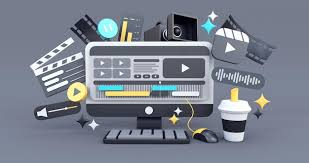
Whether you’re creating YouTube videos, game cinematics, product demonstrations, social media content, architectural visualizations, or professional advertisements, the latest AI-powered 3D editing software offers powerful features that were once available only to large studios.
In this guide, we’ll explore the best 3D video editing AI tools in 2026, their features, benefits, pricing, and how they can help creators produce professional-quality 3D videos more efficiently.
Whether you’re putting together a product demo, a YouTube short, or a full cinematic project, 3D video editing has become far more accessible than it used to be. A few years ago, creating 3D visuals meant expensive software, a powerful workstation, and months of learning. Today, you can get professional-looking results without any of that.
This guide covers the best 3D video editing tools available in 2026, what each one is actually good for, and how to pick the right one based on what you’re trying to do.
Why 3D Video Editing Matters Right Now

The demand for 3D content has shot up across almost every industry. Marketing teams want product animations. YouTubers want eye-catching intros. Indie game developers need cinematic cutscenes. Architects and real estate agents use 3D walkthroughs to sell properties before they’re even built.
The tools that power this have caught up with the demand. Even mid-range laptops can now handle real-time 3D rendering that would have required a render farm five years ago. And the software? It’s faster, smarter, and in many cases, much easier to use.
If you’ve been putting off learning 3D video editing because it felt too complicated or too expensive, 2026 is a good time to reconsider.
Top 3D Video Editing Tools in 2026:-3D Video Editing AI Tool
1. Blender (Free, Open Source)
Blender remains the most powerful free 3D tool available anywhere. It covers modeling, animation, compositing, and video editing all in one place. The latest versions have dramatically improved the real-time viewport, which means you see changes as you make them rather than waiting for renders to complete.
Blender is one of the most powerful and popular free 3D creation tools available in 2026. It is an open-source software used for 3D modeling, animation, visual effects, motion graphics, rendering, video editing, and game asset creation. Blender has become a favorite among content creators, filmmakers, game developers, and YouTubers because it offers professional-grade features without any subscription cost.
Blender includes advanced AI-assisted workflows, real-time rendering through the Eevee engine, realistic rendering with Cycles, motion tracking, character rigging, sculpting, and simulation tools. Creators can build detailed 3D environments, animate characters, create cinematic visual effects, and edit videos within a single platform. Its large community, extensive plugin ecosystem, and regular updates make Blender one of the best choices for beginners and professionals looking to create high-quality 3D video content in 2026. 3D Video
Best for: Creators who want full control over their 3D scenes, indie filmmakers, and anyone building complex animations from scratch.
Practical example: A freelance motion designer uses Blender to create a product explainer video for a tech startup. She models the product, sets up a simple animation showing how the parts fit together, and composites the final render directly inside Blender without ever leaving the app.
Pros:
- Completely free, no subscription
- Covers the entire 3D-to-video pipeline
- Large community with thousands of free tutorials
- Regular updates with meaningful improvements
- Works on Windows, Mac, and Linux
Cons:
- Steep learning curve for beginners
- The interface can feel overwhelming at first
- Some specialized tasks (like certain VFX work) require add-ons or workarounds
- Render times can be long on older hardware without GPU acceleration
2. DaVinci Resolve with Fusion (Free / Paid)
DaVinci Resolve is primarily known as a professional color grading and video editing suite. But its built-in node-based compositor, Fusion, is a full 3D compositing environment. You can add 3D text, particle systems, motion graphics, and advanced visual effects directly inside the same app you’re cutting your footage in.
Best for: Video editors who want to add 3D elements to real footage without switching to a separate 3D application.
Practical example: A YouTube creator shoots a product review video, then uses Fusion to add a 3D rotating logo at the beginning, floating callout labels on specific product parts, and a 3D lower-third with their channel name.
Pros:
- Industry-standard color grading included
- Fusion handles complex 3D compositing well
- The free version covers most professional needs
- Excellent for combining live footage with 3D elements
Cons:
- Fusion has a steeper learning curve than regular timeline editing
- Some advanced 3D features require the paid Studio version ($295 one-time)
- Not a full 3D modeling tool — you import 3D objects rather than building them
- Can be heavy on system resources when working with high-resolution footage and 3D layers simultaneously
3. Cinema 4D (Paid, Subscription)
Cinema 4D has long been the go-to for motion graphics professionals, especially those working in broadcast and advertising. It integrates tightly with After Effects, making it a natural choice for anyone already in the Adobe ecosystem. In 2026, Cinema 4D’s real-time rendering and intuitive MoGraph tools still put it ahead of many competitors for fast-turnaround commercial work. 3D Video

Best for: Motion graphics designers, broadcast studios, and marketing agencies producing polished commercial content on tight deadlines.
Practical example: An advertising agency needs a 3D product animation for a TV commercial with a three-day turnaround. The team uses Cinema 4D’s MoGraph toolset to animate hundreds of product copies flying into formation, then pipes the render directly into After Effects for final color and sound.
Pros:
- Extremely beginner-friendly compared to other professional 3D appsThe The The
- MoGraph system is unmatched for motion graphics
- Tight After Effects integration
- Stable and reliable for professional production environments
Cons:
- Subscription pricing is expensive (roughly $95/month)
- Not as strong for character animation as other tools
- Less relevant outside the motion graphics/broadcast space
- The perpetual license option has been removed, which frustrates many professionals
4. Adobe After Effects with Element 3D (Paid, Subscription)
After Effects isn’t a 3D modeling app, but with the Element 3D plugin from Video Copilot, it becomes a surprisingly capable tool for adding 3D objects and animations to video projects. You import 3D models and manipulate them directly inside After Effects using familiar layer-based controls.
Best for: Video editors and motion designers who live in Adobe’s ecosystem and want to add 3D elements without learning a full 3D application.
Practical example: A social media manager creates Instagram ad videos using product models exported from a 3D designer. She drops those models into After Effects via Element 3D, animates them rotating and zooming in front of a branded background, and exports directly to the right format for each platform.
Pros:
- Familiar interface for anyone already using After Effects
- No need to learn a separate 3D app
- Fast workflow for simple 3D product animations and title sequences
- Wide library of pre-made 3D models available online
Cons:
- Element 3D is an additional cost on top of the Creative Cloud subscription
- Not suitable for complex 3D scenes or organic shapes
- Limited physics and particle interactions compared to full 3D apps
- The 3D rendering quality doesn’t match dedicated tools like Cinema 4D or Blender
5. Runway (Subscription, Browser-Based)
Runway has become one of the most talked-about creative tools of the past couple of years. While it started as a video editing platform, it now includes tools that generate and edit 3D-influenced video content directly in your browser. Its video-to-video and motion brush features let you apply stylistic 3D-like transformations to existing footage in ways that used to require a full VFX team.
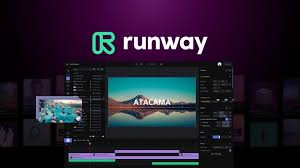
Best for: Content creators, social media teams, and digital marketers who need impressive visuals quickly without deep technical knowledge.
Practical example: A travel blogger wants to add a cinematic 3D depth effect to her drone footage. She uploads the clip to Runway, uses the depth warp tool to push the background further away and pop the foreground subject, and downloads a polished result in under ten minutes.
Pros:
- No installation required — fully browser-based
- Minimal technical knowledge needed
- Fast results for content creators
- Regularly updated with new creative tools
Cons:
- Not a true 3D editing environment — more of a stylistic tool
- Quality can be inconsistent on complex footage
- Subscription required for most useful features
- Not suitable for precise, technical 3D work
- Output quality doesn’t match traditional 3D rendering for professional productions
6. Unreal Engine (Free to Use, Revenue Share for Games)
Unreal Engine crossed over from game development into film and video production in a major way following the success of virtual production workflows used on major Hollywood projects. Its real-time rendering is now fast enough to use on set as a live backdrop, and its video sequencer lets you create fully animated 3D scenes that look like high-budget CGI.

Best for: Virtual production, high-budget short films, game studios creating cinematic content, and any creator wanting photorealistic 3D rendering.
Practical example: A small film studio creates an entire space battle sequence using Unreal Engine’s Sequencer tool. Instead of rendering each frame overnight, the team uses the real-time viewport to make adjustments on the fly and exports the final sequence directly as video.
Pros:
- Free to use for most video content creators
- Photorealistic real-time rendering
- Widely used in professional film and TV production
- Massive asset marketplace with ready-to-use 3D content
Cons:
- Significant learning curve, especially for those without a game development background
- Requires a powerful computer (high-end GPU recommended)
- Overkill for simple 3D video projects
- The documentation, while extensive, can be hard to navigate for newcomers
How to Choose the Right Tool
The right 3D video editing tool depends on three things: your skill level, your budget, and the type of content you’re making.
If you’re just starting and want to learn properly, start with Blender. It’s free, it’s powerful, and the skills you build there transfer to almost any other 3D application.
If you’re a video editor who just wants to add 3D elements to existing footage, DaVinci Resolve with Fusion or After Effects with Element 3D will slot into your current workflow without a steep adjustment.
If you’re in marketing or social media and need quick, polished results without technical complexity, Runway is worth trying. Just understand its limitations before relying on it for high-stakes work.
If you’re doing professional motion graphics for advertising or broadcast, Cinema 4D is still the industry standard, though the subscription cost is hard to justify for occasional use.
If you’re serious about film or virtual production, Unreal Engine is in a class of its own for quality and real-time performance.
Tips for Getting Better Results from 3D Video Editing
Keep your render settings reasonable. One of the most common beginner mistakes is rendering at 4K with maximum quality settings on every project. Start at 1080p and use lower sample counts while you’re still working out the composition. Final renders at full quality can come at the end.
Use pre-made assets. Sites like Sketchfab, TurboSquid, and the Unreal Engine Marketplace have thousands of free and paid 3D models. There’s almost no need to build every object from scratch.
Match your lighting to the footage. If you’re compositing 3D objects into real video, spend most of your time getting the lighting right. The viewer’s eye forgives a lot — but mismatched shadows and highlights immediately signal “fake.”
Optimize before you render. Reduce polygon counts on models that are far from the camera. Use lower-resolution textures on background objects. Small optimizations can cut render times in half.
Pros and Cons of 3D Video Editing in 2026
Pros:
- More accessible than ever — even free tools produce professional results
- Real-time rendering has eliminated long overnight render waits for most projects
- A huge library of pre-made assets reduces the time spent building from scratch
- Strong demand for 3D video content means good earning potential for skilled creators
Cons:
- Still requires a reasonably powerful computer for serious work
- Learning curve is real — expect weeks of practice before producing polished results
- Render times for complex, photorealistic scenes can still be significant
- Software subscriptions add up quickly if you’re using multiple tools
Frequently Asked Questions
What is the best free 3D video editing tool in 2026?
Blender is the best free option by a significant margin. It covers modeling, animation, rendering, and compositing in one application and produces results that compete with paid software when used by a skilled creator.
Can I do 3D video editing on a laptop?
Yes, though a dedicated GPU makes a major difference. For tools like Blender or DaVinci Resolve with Fusion, a mid-range gaming laptop (with an NVIDIA RTX 3060 or equivalent) handles most projects comfortably. Unreal Engine benefits from higher-end hardware.
Do I need to learn 3D modeling to edit 3D video?
Not necessarily. Tools like DaVinci Resolve with Fusion, After Effects with Element 3D, and Runway let you work with 3D elements without building them yourself. You can import pre-made models or use built-in 3D tools for text and simple shapes.
How long does it take to learn 3D video editing?
For basic 3D text and simple object animations, you can get results within a week of consistent practice. For complex scenes, character animation, or photorealistic rendering, expect three to six months of regular learning before your work looks polished.
Which 3D video editing tool do professionals use most?
It depends on the industry. Motion graphics designers lean on Cinema 4D. Film and VFX studios use Blender, Houdini, and Unreal Engine. Advertising agencies often work in Cinema 4D or After Effects with 3D plugins.
Is Runway good for 3D video editing?
Runway is good for quick, stylistic 3D effects on existing footage. It’s not a true 3D environment — you can’t build or animate 3D objects in it. For content creators who need speed over precision, it’s a useful addition to the toolkit, but it doesn’t replace dedicated 3D software.
What computer specs do I need for 3D video editing?
At minimum: a modern multi-core processor (Intel Core i7 or AMD Ryzen 7), 16GB of RAM (32GB recommended for complex projects), a dedicated GPU with at least 8GB VRAM, and fast SSD storage. Blender and DaVinci Resolve can work on less, but render times will be longer.
Conclsion
3D video editing in 2026 is genuinely within reach for solo creators, small teams, and professionals alike. The tools are better, faster, and in several cases, completely free. Whether you’re building a simple branded intro, a product walkthrough, or a full cinematic sequence, there’s a tool in this list that fits your workflow and budget.
Start with what matches your current skill level, spend time on tutorials, and don’t try to produce Hollywood-quality work in your first month. The people producing impressive 3D content today got there by working consistently on progressively harder projects — not by finding a shortcut.
Pick a tool, start a project, and build from there.

