
Best Video Editing AI Tool Free: Top Picks That Actually Work in 2026
If you’ve been spending hours trimming clips, syncing audio, and adding captions manually, there’s a better way. Free video editing tools with smart automation have come a long way, and the best ones now handle tasks that used to take professionals hours.
Whether you’re a content creator, a small business owner, or someone who just wants to put together a clean reel without a steep learning curve, this list covers the tools worth your time.
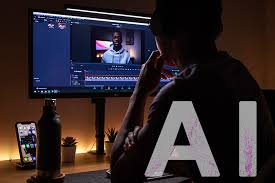
One of the best video editing AI tools in 2026 is Adobe Premiere Pro because it offers advanced features like automatic scene detection, AI audio cleanup, background removal, auto captions, and smart color correction. It is widely used by YouTubers, filmmakers, and content creators for professional-quality editing.
Another popular option is CapCut, known for its easy interface, viral video templates, AI effects, and quick editing tools for short-form content. Descript is also highly recommended because users can edit videos simply by editing text transcripts, making podcast and interview editing much faster. For beginners, Canva provides simple drag-and-drop video editing with AI-powered design tools. These platforms help creators save time, improve video quality, and produce engaging content for YouTube, Instagram, TikTok, and business marketing.
What to Look for in a Free Video Editing Tool
Before jumping into the list, here’s what separates a genuinely useful tool from one that just looks good on paper:
- Auto-captioning accuracy — Does it get your words right without heavy editing?
- Export quality — Can you download in HD without paying?
- Ease of use — Can a beginner figure it out in under 10 minutes?
- Platform support — Does it work on browser, desktop, or mobile?
- Free plan limitations — Watermarks, export limits, or feature locks?
Keep these in mind as you read through the picks below.
1. CapCut — Best Overall Free Video Editor
Platforms: Web, iOS, Android, Desktop (Windows/Mac)
CapCut has become the go-to tool for short-form creators, and for good reason. The free plan is genuinely generous — no watermark on most exports, a clean timeline editor, and a growing set of automation features that handle everything from background removal to auto-subtitles.
- CapCut is one of the most popular free video editors for beginners and professional creators.
- It offers an easy drag-and-drop interface that works well for short videos, YouTube content, and social media reels.
- The software includes AI-powered tools like auto captions, background removal, voice enhancement, and smart effects.
- Users can access thousands of free templates, transitions, filters, stickers, and music tracks.
- CapCut supports high-quality video exports, including HD and 4K resolution.
- It works on Windows, Mac, Android, iPhone, and web browsers, making editing flexible across devices.
- The platform is especially popular among TikTok, Instagram Reels, and YouTube Shorts creators because of its fast editing workflow.
- Cloud syncing allows users to continue editing projects from different devices.
- Many features are free to use, making it a strong choice for creators who want professional-looking videos without expensive software.
What It Does Well
The auto-caption feature is accurate enough for most creators using clear speech. You paste in your footage, and within seconds, subtitles are generated and placed on screen. From there, you can edit individual words, change the font style, adjust timing, and pick from animated text presets.
The background removal works on both video and images without any extra setup. If you’re recording at home and want a clean look, this alone saves you a green screen purchase.
CapCut also has a “smart cut” feature that detects silence or low-activity moments in your footage and trims them automatically. For long talking-head videos, this cuts editing time significantly.
Practical Example
A freelance cooking creator records a 15-minute walkthrough video. Using CapCut’s auto-cut, the silence gaps get trimmed automatically. Auto-captions are applied, adjusted for accuracy, and then a branded lower-third is dropped in using one of the text templates. Total editing time: under 20 minutes.
Pros
- No watermark on standard exports
- Auto-captions work well in English and multiple other languages
- Runs smoothly in browser — no install needed
- Regular feature updates
Cons
- Some templates and effects are behind a Pro paywall
- The mobile app can feel cluttered on smaller screens
- Export resolution is capped at 1080p on the free plan
2. Descript — Best for Podcast and Talking-Head Videos
Platforms: Web, Desktop (Windows/Mac)
Descript takes a completely different approach to video editing. Instead of working on a timeline, you edit a transcript. Delete a word from the transcript, and it disappears from your video. It’s genuinely one of the more clever editing experiences available right now.
Descript is one of the best tools for podcast editing and talking-head videos because it allows users to edit audio and video by simply editing text transcripts. This makes the editing process much faster and easier, especially for interviews, podcasts, tutorials, and YouTube commentary videos. The software includes powerful features like automatic transcription, filler-word removal, studio-quality voice enhancement, screen recording, and AI voice cloning. Creators can quickly cut mistakes, improve audio clarity, and add captions without advanced editing skills.
Descript also supports multi-track editing, remote recording, and collaborative team projects, making it useful for content creators, educators, marketers, and businesses. Its simple interface and smart automation tools help save time while producing professional-quality talking-head and podcast videos.
What It Does Well
The transcription is fast and surprisingly accurate. Once your video is transcribed, cleaning up filler words like “um,” “uh,” and “you know” takes about 30 seconds — you just select “remove filler words,” and it handles the rest.
The Overdub feature lets you correct audio mistakes by typing the correction — it matches your voice based on a sample you record. This is available in limited form on the free plan.
Descript also handles multi-track editing for podcasts, so if you have a guest and a host recorded on separate tracks, the tool manages them cleanly.
Practical Example
A business podcast editor receives two separate audio tracks from a remote interview. After uploading both into Descript, she removes all filler words in one click, cuts a 45-minute session down to 28 minutes by deleting transcript sections, and exports the final video with captions baked in — all without touching a traditional timeline.
Pros
- Transcript-based editing is faster for interview content
- Filler word removal is accurate and saves real time
- Clean, minimal interface
- Good for repurposing long content into short clips
Cons
- Free plan limits you to 1 hour of transcription per month
- Watermark on exports in the free tier
- Not ideal for heavily visual content like travel or product videos
- Learning curve for users used to traditional editors
3. Runway ML — Best for Visual Effects and B-Roll
Platforms: Web
Runway is where things get visually impressive. It’s built for creators who want effects that look expensive — background removal, motion tracking, color grading, and video generation from text prompts.

Runway is one of the best tools for creating visual effects and cinematic B-roll videos. It offers advanced AI-powered features like background removal, motion tracking, object erasing, text-to-video generation, and automatic video enhancement. Content creators, filmmakers, and marketers use Runway to create professional-quality effects without needing complex editing skills.
The platform is especially useful for generating creative B-roll footage, adding cinematic transitions, and producing visually engaging social media or YouTube content. Its cloud-based editing system allows users to work directly from a browser without high-end hardware. Runway also supports collaborative workflows, making it a popular choice for modern video production teams and independent creators looking to speed up editing while improving visual quality.
What It Does Well
The background removal on Runway is frame-accurate, which is rare in free tools. Most free background removers leave ghosting or rough edges on hair and movement. Runway handles it cleanly.
The inpainting tool lets you remove unwanted objects from a video — a logo in the background, a person walking into frame, a mic stand that you didn’t notice until editing. You paint over the area, and it fills in the background intelligently.
Gen-2 (their video generation feature) lets you create short video clips from a text description or an image. On the free plan, you get a limited number of credits each month for this.
Practical Example
A product photographer wants to create a short background-free loop of a skincare bottle rotating on screen. She uploads the footage into Runway, removes the studio background, and drops in a clean gradient. The final clip goes straight into a brand reel.
Pros
- Best-in-class background removal for video
- Object removal (inpainting) is a rare free feature
- Video generation gives you unique B-roll without a camera
- Outputs are high quality
Cons
- Free plan has a credit system — heavy users will hit limits fast
- Slower processing compared to desktop tools
- Not suitable for full video projects; better for specific effects
- Requires a reliable internet connection
4. Clipchamp — Best for Beginners on Windows
Platforms: Web, Windows (built into Windows 11)
Microsoft’s Clipchamp comes pre-installed on Windows 11 and is a solid starting point for anyone who just needs to put together a clean video without installing anything.
Clipchamp is a user-friendly video editing platform designed for beginners, students, businesses, and content creators who want fast and simple editing tools. Owned by Microsoft, Clipchamp provides drag-and-drop editing, ready-made templates, screen recording, text animations, transitions, and royalty-free stock media.
It also includes AI-powered features such as automatic captions, voiceovers, background noise reduction, and text-to-speech tools. The software works directly in a web browser and is also integrated into Windows devices, making it easy to edit videos without installing heavy software. Clipchamp is widely used for creating YouTube videos, presentations, tutorials, marketing content, and social media clips. Its simple interface and cloud-based workflow help users produce professional-looking videos quickly, even without advanced editing experience.
What It Does Well
The interface is drag-and-drop simple. You get a basic timeline, text overlays, transitions, and stock footage access through a Pexels and Giphy integration. For someone creating a short promotional video or a family event recap, Clipchamp covers the basics without any confusion.
Auto-captions are available and work well for English content. The export quality goes up to 1080p on the free plan with no watermark for personal use.
Practical Example
A small gym owner wants to create a 60-second “What to expect on your first day” video for new members. He records it on his phone, uploads it to Clipchamp, adds text overlays for each section, drops in a background music track from the free audio library, and exports it for Instagram in under 30 minutes.
Pros
- No download needed on Windows 11
- Clean, beginner-friendly interface
- No watermark on personal use exports
- Free stock video and music library included
Cons
- Limited advanced features — no real effects or motion graphics
- Not available natively on Mac (browser version works)
- Some stock templates require a paid Microsoft 365 subscription
- Not suitable for complex projects
5. Veed.io — Best for Social Media Repurposing
Platforms: Web
Veed is built with social media creators in mind. The tool focuses on quick edits — adding subtitles, resizing for different platforms, adding progress bars, and basic trimming. If your workflow involves repurposing a long video into multiple platform-specific cuts, Veed makes that process fast.
What It Does Well
The subtitle editor is one of the cleaner ones available. Accuracy is good, and the visual customisation options (font, size, colour, animation style) are far more detailed than most free tools offer.
The resize tool lets you switch between aspect ratios instantly — 16:9 for YouTube, 9:16 for Reels/TikTok, 1:1 for LinkedIn — while keeping the subject centered using auto-reframe.
Practical Example
A fitness coach records a 10-minute workout tutorial for YouTube. Using Veed, he exports the full 16:9 version for YouTube, creates a 60-second 9:16 highlight cut for Instagram Reels, adds burnt-in captions to both, and schedules the exports — all within a single project.
Pros
- Auto-reframe for different aspect ratios
- One of the better subtitle editors in this category
- Simple, fast workflow for social content
- Progress bar and engagement features built in
Cons
- Free plan adds a watermark on exports
- Limited to 250MB file upload on the free tier
- No offline version
- More expensive than alternatives if you upgrade
Comparison Table
| Tool | Best For | Watermark (Free) | Export Quality | Offline Use |
|---|---|---|---|---|
| CapCut | Short-form content | No (most exports) | 1080p | Yes (desktop) |
| Descript | Podcasts / interviews | Yes | 1080p | Yes |
| Runway ML | Visual effects | No | Up to 4K | No |
| Clipchamp | Beginners / Windows | No (personal) | 1080p | Yes (Windows) |
| Veed.io | Social repurposing | Yes | 1080p | No |
Which One Should You Pick?
Here’s a quick guide based on use case:
You’re a short-form content creator (Reels, TikTok, Shorts): Start with CapCut. The free plan covers everything you need, and the auto-caption and smart cut features save real time.
You record interviews, podcasts, or long talking-head videos: Descript is purpose-built for this. Editing by transcript is faster than any timeline-based approach for spoken content.
You want cinematic effects or need to remove objects from footage: Runway ML is the right choice, even with its credit limitations.
You’re a complete beginner on Windows and want zero setup: Clipchamp is already on your computer. Start there.
Your main job is repurposing content across platforms: Veed’s resize and subtitle tools make it the most efficient option for that workflow.
FAQs
Are these tools actually free, or is there a hidden cost?
All five tools have a genuinely usable free plan. CapCut and Clipchamp are the most generous — you can produce finished videos without paying. Descript and Veed add watermarks on free exports, and Runway operates on a monthly credit system. None of them requires a credit card to start.
Which free tool is best for YouTube videos?
CapCut or Descript, depending on your content type. CapCut works well for fast-paced, visual content. Descript is better if you’re recording yourself talking to a camera for longer videos.
Can I remove watermarks without paying?
On most platforms, upgrading to a paid plan is the only way to remove the watermark. CapCut and Clipchamp are exceptions — they don’t add watermarks on standard free exports.
Are these tools safe to use for client work?
CapCut, Descript, and Runway are used professionally by agencies and freelancers. That said, always check each platform’s terms of service regarding commercial use, especially on free plans. Some platforms limit commercial exports to paid tiers.
Do any of these work without an internet connection?
CapCut’s desktop app and Clipchamp on Windows 11 both work offline. Descript has a desktop version that works offline for editing, though transcription requires an internet connection. Runway and Veed are fully browser-based and require an internet connection.
What’s the best option for someone who has never edited a video before?
Clipchamp is the most beginner-friendly. The interface is minimal, the learning curve is low, and it comes pre-installed on Windows 11. If you’re on a Mac, CapCut on the browser is the next best starting point.
Can I use these on a smartphone?
CapCut has the strongest mobile experience of the group. The iOS and Android apps are polished and cover most of the same features as the desktop version. Veed also has a mobile-friendly browser experience, though it works better on a desktop.
Conclsion
Free video editing tools have genuinely improved to a point where you don’t need a paid subscription to produce professional-looking content. The tools listed here each have a clear strength — pick based on your actual workflow rather than trying to find one tool that does everything.
Start with CapCut if you’re unsure. It handles most use cases well, and the free plan doesn’t feel like a demo version. From there, layer in Runway or Descript when you hit the edges of what CapCut can do.
The best tool is always the one you’ll actually use consistently.

