PowerPoint remains the world’s most widely used presentation format in 2026. Despite the rise of browser-based alternatives, the .pptx file format is still what most offices, universities, clients, and conference organizers expect to receive. When someone asks for your presentation, they almost always mean a PowerPoint file.
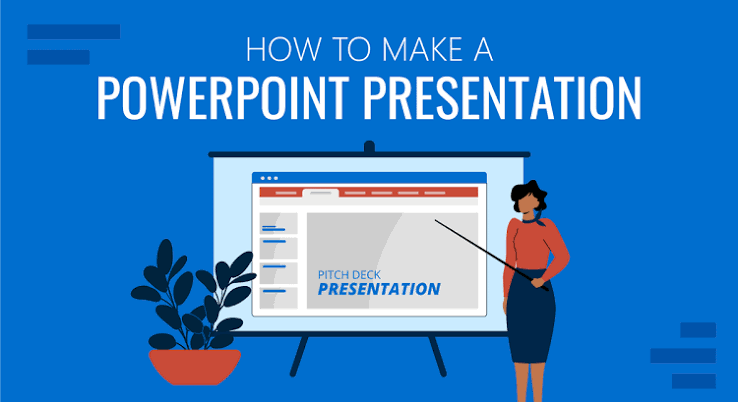
The challenge is that making a great PowerPoint takes time — designing slides, writing content, building charts, maintaining consistency across dozens of slides, and producing a file that actually looks professional rather than template-generic.
Presentation PPT AI tools have fundamentally changed what is possible with PowerPoint in 2026. Some work directly inside PowerPoint. Others generate complete .pptx files you can download and edit. All of them dramatically reduce the time from idea to finished presentation.
This guide covers the best AI tools specifically for PowerPoint presentations — tools that generate, design, edit, or export .pptx files with AI assistance.
Why PowerPoint Still Matters in 2026
Before diving into tools, it is worth understanding why PowerPoint remains dominant despite strong browser-based competitors:
Universal compatibility — .pptx files open on any device with PowerPoint, Google Slides, LibreOffice, or Keynote. No internet required after download.
Offline presentation — Conference venues, client offices, and boardrooms often have unreliable internet. A local .pptx file works regardless of connectivity.
Client and employer expectations — Most organizations expect PowerPoint deliverables. Sending a Gamma link or Canva URL to a corporate client can create friction.
Advanced features — PowerPoint’s animation engine, SmartArt, embedded Excel charts with live data, and macro support are unmatched by browser alternatives.
IT department compatibility — Corporate IT environments are built around Microsoft 365. PowerPoint integrates with SharePoint, Teams, and Outlook natively.
Best AI Tools for PowerPoint Presentations in 2026:-Presentation PPT
1. Microsoft Copilot in PowerPoint — Best Native PPT AI
Microsoft Copilot is the most powerful AI tool for PowerPoint because it works directly inside the application — no export, no conversion, no compatibility issues. What you see in Copilot is exactly what you get in your .pptx file.
What it does inside PowerPoint:
- Generate presentation from prompt — describe your topic and Copilot builds a complete deck with slides, layouts, and speaker notes
- Generate from Word document — upload a Word doc and Copilot converts it into a structured presentation automatically
- Designer suggestions — AI recommends professional layout options for each slide based on content
- Rewrite slide content — adjust tone, length, and complexity for different audiences
- Summarize presentations — condense long decks into executive summaries
- Speaker notes generation — AI writes speaker notes for every slide automatically
- Image suggestions — Copilot recommends relevant images from Microsoft’s licensed library
How to access:
- PowerPoint desktop (Microsoft 365): Copilot button in ribbon
- PowerPoint Online (office.com): Copilot panel on right side
- Requires Microsoft 365 subscription + Copilot add-on for full features
- PowerPoint Designer (layout suggestions) available free with Microsoft 365
Real use case: You have a 10-page Word report that needs to become a 15-slide executive presentation by end of day. Copilot converts the document into a structured deck in 90 seconds — you spend the remaining time refining rather than building from scratch.
Pricing: Microsoft 365 Personal from ₹4,899/year. Copilot add-on approximately $30/user/month for full AI generation.
Best for: Corporate professionals, office workers, and students already in the Microsoft ecosystem who want AI assistance without leaving PowerPoint.
2. Gamma — Best for Generating PPT Files
Gamma is the most popular AI presentation generator in 2026 — and it exports directly to PowerPoint (.pptx) format, making it the best tool for generating PPT files from scratch using AI.
Check now-Gamma full Tutorial
What it does for PPT:
- Generates complete presentations from a topic, outline, or pasted text in under 2 minutes
- Exports to .pptx format (paid plan) — fully editable in PowerPoint after download
- Professional design themes applied automatically
- Content, layout, and imagery all AI-generated
- Edit in Gamma before exporting to PPT
PPT export workflow:
- Go to gamma.app → New → Generate with AI
- Enter topic or paste outline
- Select theme → Generate
- Review and edit slides in Gamma
- Click Export → PowerPoint (.pptx)
- Download and open in PowerPoint for final editing
Limitation: .pptx export requires Gamma Plus plan ($10/month). Free plan exports to PDF only.
Design quality in PPT: Gamma’s exported .pptx files maintain design quality well — fonts, colors, and layouts transfer cleanly to PowerPoint. Some complex elements may simplify during export.
Best for: Users who want AI to generate a complete presentation and receive a proper .pptx file for editing in PowerPoint — particularly useful for first drafts that then get refined in PowerPoint.
3. SlidesAI — Best AI Add-on Directly Inside Google Slides/PPT
SlidesAI is a Google Slides add-on that generates AI presentations directly inside Google Slides — which can then be downloaded as .pptx files for use in PowerPoint.
What it does:
- Paste any text — article, notes, brief — and generates complete slides
- Works inside Google Slides (familiar interface)
- AI chooses layouts, designs, and content distribution automatically
- Export as .pptx from Google Slides → open directly in PowerPoint
PPT workflow via Google Slides:
- Install SlidesAI add-on in Google Slides
- Generate presentation from your content
- File → Download → Microsoft PowerPoint (.pptx)
- Open in PowerPoint — fully editable
Free plan: 3 presentations per month. Paid from $10/month.
Best for: Users comfortable in Google Slides who want AI generation and a clean .pptx export — particularly good for content-heavy presentations where you have existing text to convert.
4. Beautiful.ai — Smart PPT Design with Export
Beautiful.ai‘s Smart Slides technology produces some of the most professionally designed presentations available — and exports to .pptx for PowerPoint editing.
What it does:
- Smart Slides auto-format as you type — no manual layout adjustment
- AI suggests slide types based on content (timeline, comparison, list, chart)
- DesignerBot generates complete decks from prompts
- Exports to .pptx format
- Professional business templates optimized for PowerPoint compatibility
PPT export quality: Beautiful.ai’s .pptx exports are clean and well-structured — fonts and layouts generally transfer well to PowerPoint. Complex animations may not fully transfer.
Pricing: Pro at $12/month includes .pptx export.
Best for: Professionals who want consistently polished PPT design without manual layout work — particularly sales teams and consultants who produce frequent client presentations.
5. Canva — Best Free PPT Generator with Export
Canva generates complete presentations with AI assistance and exports to .pptx format — making it the strongest free option for AI-assisted PowerPoint creation.
What it does for PPT:
- Magic Design generates themed presentations from content
- Thousands of PPT-compatible templates
- AI image generation for custom slide visuals
- Export to PowerPoint (.pptx) — available on free plan
- Maintain brand colors and fonts in exported file
Free PPT export: Canva’s free plan includes .pptx export — unlike Gamma which requires paid plan for PowerPoint export.
PPT export quality: Canva to PowerPoint conversion is good for most elements. Custom fonts may not transfer if not installed on the recipient’s computer — stick to common fonts (Arial, Calibri, Georgia) for maximum compatibility.
How to export:
Share → Download → Microsoft PowerPoint (.pptx)
Best for: Users who want free AI-assisted PPT creation — Canva’s free .pptx export is the best zero-cost option for generating PowerPoint files with AI.
6. Tome — Modern PPT Alternative with Export
Tome creates web-native presentations but added PowerPoint export for users who need .pptx deliverables alongside the modern web format.
What it does:
- AI generates complete narrative presentations from prompts
- Modern scrollable format ideal for sharing digitally
- Export to .pptx for traditional PowerPoint delivery
- AI image generation built into every slide
PPT export note: Tome’s .pptx export converts its web format to traditional slides — some design elements simplify during conversion. Best used when you want Tome’s AI generation quality in a PPT-compatible format.
Pricing: Free plan (500 credits, limited export). Pro at $16/month for full .pptx export.
Best for: Users who want Tome’s strong AI narrative generation and need a PPT file as the final deliverable.
7. Pitch — Clean PPT Export for Business Presentations
Pitch is a business-focused presentation tool with high-quality templates and AI assistance — and it exports clean .pptx files suitable for corporate use.
What it does:
- Professional business templates (pitch decks, OKRs, sales presentations)
- AI generates slide content and layout suggestions
- Real-time collaboration before export
- Clean .pptx export maintaining design integrity
- Analytics on shared presentations
Free plan: Unlimited presentations with .pptx export available.
Best for: Business teams who collaborate on presentations and need clean .pptx deliverables for client or stakeholder distribution.
8. ChatGPT (with Code Interpreter) — Best for Custom PPT Generation
ChatGPT with Code Interpreter can generate PowerPoint files programmatically using Python’s python-pptx library — producing fully customized .pptx files from scratch.
What it does:
- Write Python code to generate complete .pptx files
- Custom slide layouts, fonts, colors, and content
- Data-driven presentations — insert charts and tables from data
- Batch generation — create multiple PPT variations automatically
- Full control over every element
How to use:
- Open ChatGPT (Plus subscription required for Code Interpreter)
- Prompt: “Create a PowerPoint presentation about [topic] with 10 slides. Include a title slide, agenda, 7 content slides, and conclusion. Use a professional blue color scheme. Generate the .pptx file.”
- ChatGPT writes Python code using python-pptx
- Code Interpreter executes the code
- Download the generated .pptx file directly
Limitation: Design quality depends on how well the AI codes the layout. Output is more functional than visually polished compared to Gamma or Beautiful.ai. Best for content-heavy presentations where structure matters more than design.
Pricing: ChatGPT Plus at $20/month.
Best for: Technical users who want programmatic PowerPoint generation — data analysts, developers, and power users who need customized or batch-generated PPT files.
9. Decktopus — Guided PPT Generation
Decktopus uses a questionnaire approach to PPT generation — answering questions about your audience, goal, and topic produces a more targeted presentation than generic prompt-based tools.
What it does:
- Questionnaire-driven generation — tailors content to your specific audience and goal
- AI generates slides with content, visuals, and speaker notes
- Export to PDF and PowerPoint (.pptx)
- Built-in presenter mode
Free plan: 1 presentation free. Basic plan from $9.99/month for PPT export.
Best for: Beginners who want the most guided AI PPT creation experience — the questionnaire format produces more relevant output than open-ended prompts for users new to AI presentation tools.
PPT Export Quality Comparison
Not all AI tools export .pptx files equally. Here is how they compare:
| Tool | PPT Export | Design Preserved | Fonts | Animations | Free Export |
|---|---|---|---|---|---|
| Copilot PowerPoint | ✅ Native | ✅ Perfect | ✅ Yes | ✅ Yes | ⚠️ Limited |
| Gamma | ✅ Yes | ✅ Good | ⚠️ Mostly | ⚠️ Some | ❌ Paid only |
| Canva | ✅ Yes | ✅ Good | ⚠️ Common fonts | ❌ No | ✅ Free |
| Beautiful.ai | ✅ Yes | ✅ Good | ✅ Yes | ⚠️ Some | ❌ Paid only |
| Pitch | ✅ Yes | ✅ Good | ✅ Yes | ❌ No | ✅ Free |
| Tome | ✅ Yes | ⚠️ Simplified | ⚠️ Mostly | ❌ No | ❌ Paid only |
| SlidesAI | ✅ Via Google | ✅ Good | ⚠️ Common fonts | ❌ No | ⚠️ 3/month |
| ChatGPT | ✅ Yes | ⚠️ Basic | ✅ Specified | ❌ No | ❌ Plus only |
| Decktopus | ✅ Yes | ✅ Good | ✅ Yes | ❌ No | ❌ Paid only |
How to Get the Best PPT Output from AI Tools
Prompt Tips for Better PPT Generation
Be specific about slide count:
“Create a 12-slide PowerPoint presentation” produces better results than “create a presentation.”
Specify audience and purpose:
“Create a PowerPoint for a 5-minute investor pitch to seed-stage VCs” is far more useful than “make a startup presentation.”
Include structure requirements:
“Include a title slide, problem slide, solution slide, market size, business model, traction, team, and ask slide.”
Specify design preferences:
“Use a dark blue and white color scheme with minimal text and one key point per slide.”
Request speaker notes:
“Include detailed speaker notes for each slide with talking points and timing guidance.”
Improving AI-Generated PPT Quality
Replace stock images with real photos — AI tools insert generic stock images. Replace with actual product screenshots, team photos, or relevant photography from Unsplash.
Reduce text on every slide — AI tools generate more text than slides should have. Cut AI-generated content by 50% and move detail to speaker notes.
Standardize fonts before sharing — Before sending a .pptx file, embed fonts (File → Options → Save → Embed fonts in the file) to ensure consistent display on any computer.
Check animations on target device — AI-generated animations may behave differently across PowerPoint versions. Test on the same PowerPoint version the presentation will be delivered on.
Replace placeholder charts with real data — AI generates representative charts. Replace with actual data before any client or stakeholder presentation.
Free AI PPT Tools — What You Can Actually Get for Free
For users who cannot pay for AI tools, here is exactly what is available free:
Canva free: Generate AI-assisted presentations → export as .pptx → edit in PowerPoint. Best free PPT generation option.
SlidesAI free: 3 presentations per month → export from Google Slides as .pptx. Good for occasional use.
Pitch free: Unlimited presentations with AI assistance → .pptx export. Best free option for business presentations.
PowerPoint Designer (free with Microsoft 365): Not full Copilot but includes AI layout suggestions for each slide. Available in Microsoft 365 Personal/Business without Copilot add-on.
ChatGPT free (limited): Basic GPT-3.5 can write presentation outlines and slide content — copy into PowerPoint manually. No direct .pptx generation without Plus subscription.
AI Tools for Specific PPT Tasks
AI for PPT Design Only (Existing Presentations)
Already have content but need better design?
- PowerPoint Designer — right-click any slide → Designer → AI layout suggestions
- Canva — import existing PPT → redesign with Canva AI → export back to PPT
AI for PPT Content Only (Have Design, Need Content)
Have a branded template but need content?
- ChatGPT or Claude — paste your slide structure → AI writes content for each slide → copy into PowerPoint manually
- Copilot in PowerPoint — existing slide → Copilot → rewrite or expand content
AI for PPT Speaker Notes
Need speaker notes quickly?
- Copilot in PowerPoint — select slides → Copilot → “Add speaker notes to all slides”
- ChatGPT — paste slide titles and bullet points → “Write 2-minute speaker notes for each slide”
AI for PPT Translation
Need presentation in another language?
- Copilot in PowerPoint — select all → Copilot → “Translate this presentation to Hindi”
- DeepL (browser) — paste content → translate → copy back into PowerPoint
PowerPoint AI Features Built Into Microsoft 365
Even without Copilot add-on, Microsoft 365 includes these AI features in PowerPoint:
Designer — AI layout suggestions appear automatically when you add content to a slide. Click any suggestion to apply instantly.
QuickStarter — Type a topic → PowerPoint generates a research-based outline with suggested slides and content directions.
Transcription — Real-time speech-to-text during presentations — creates automatic captions.
Presenter Coach — AI analyzes your presentation delivery during rehearsal — gives feedback on pacing, filler words, and repetitive language.
Accessibility Checker — AI identifies accessibility issues (missing alt text, poor contrast, reading order problems) automatically.
These features are available with Microsoft 365 Personal (₹4,899/year) — no additional Copilot subscription needed.
Frequently Asked Questions
Which AI tool generates the best PowerPoint files?
Microsoft Copilot generates the highest quality .pptx files because it works natively inside PowerPoint — no export conversion. For generating PPT files from outside PowerPoint, Gamma produces the best design quality in its .pptx export.
Can I get a free AI-generated PowerPoint file?
Yes. Canva’s free plan generates AI-assisted presentations and exports to .pptx at no cost. Pitch also offers free .pptx export. SlidesAI gives 3 free presentations per month via Google Slides export.
Which tool makes PowerPoint files compatible with older PowerPoint versions?
Canva and Pitch produce the most compatible .pptx files — avoiding advanced features that may not render in older PowerPoint versions. If compatibility with PowerPoint 2016 or earlier is important, test exports before distributing.
Can AI tools edit my existing PowerPoint file?
Microsoft Copilot can edit existing PowerPoint files directly. Canva allows importing existing .pptx files for redesign. Most other AI tools generate new presentations rather than editing existing ones.
Is there an AI tool that works directly inside PowerPoint for free?
PowerPoint Designer (AI layout suggestions) is free with Microsoft 365. Full Copilot generation requires the paid Copilot add-on. The free Microsoft 365 Personal plan includes Designer but not Copilot.
Which AI PPT tool works best for Indian language presentations?
Microsoft Copilot and Canva both support Hindi (Devanagari) in PowerPoint presentations. Google Slides via SlidesAI also handles Hindi well. Gamma and Beautiful.ai have limited Indic language support.
Conclusion
The best AI tool for PowerPoint presentations in 2026 depends on your starting point and budget.
Microsoft Copilot in PowerPoint is the definitive choice for anyone who needs to work natively in .pptx format — it generates, edits, and refines directly inside PowerPoint with zero export friction. Gamma is the best external AI generator that produces high-quality .pptx exports. Canva is the strongest free option — AI-assisted generation with free .pptx export that opens cleanly in PowerPoint.
For users who want zero cost: use Canva to generate, download as .pptx, and refine in PowerPoint. For users in the Microsoft ecosystem: activate PowerPoint Designer immediately (free) and consider Copilot add-on if you create presentations frequently.
The days of staring at a blank PowerPoint template are over — every tool on this list turns a topic into a structured, designed presentation in minutes.