
Most Android VPN guides tell you to download an app. This guide is different — it covers how to configure free VPN directly in your Android phone’s settings, without downloading any third-party app. Android has built-in VPN support that works with free VPN servers using IKEv2, L2TP/IPSec, and PPTP protocols — all configurable directly in Settings → Network & Internet → VPN.
Whether you want to avoid installing VPN apps on your phone, need to set up VPN on a company Android device that restricts app installations, or simply want to understand how Android VPN settings work — this guide covers everything.
- Check the link now: Top VPN in 2026: Best Fast, Secure & Reliable VPN Services
Why Configure VPN in Android Settings Instead of Using an App
No app installation required:
Android’s built-in VPN client works without any third-party app — configure server details in Settings and connect directly. No storage used for the VPN app, no background processes when disconnected.
Works on restricted devices:
Company-issued or school Android phones often restrict app installations via MDM (Mobile Device Management). Built-in VPN settings work even when Play Store app installation is blocked.
Lighter on resources:
Android’s native VPN implementation uses less RAM and battery than third-party VPN apps — particularly relevant on budget Android phones with 3–4GB RAM common in India.
No privacy concerns from VPN app:
Third-party VPN apps have their own privacy policies separate from the VPN server. Using Android’s built-in VPN client means one fewer app collecting data about your device.
Corporate and educational VPN:
Company and university VPNs are typically configured in Android Settings directly — using IKEv2 or L2TP with certificate or shared secret authentication.
Android VPN Settings — Where to Find Them
VPN settings location varies slightly by Android version and manufacturer:
Stock Android (Google Pixel, Android One)
Android 12 and later:
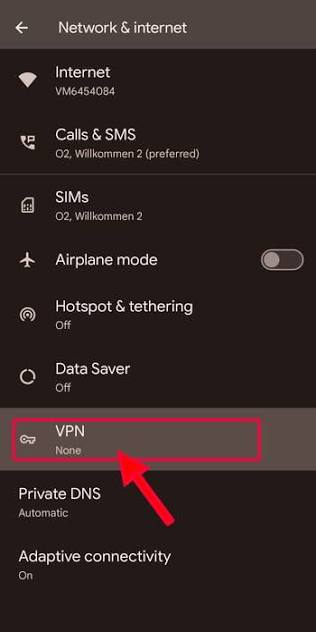
Settings → Network & Internet → VPN → + (Add VPN)
Android 10–11:
Settings → Network & Internet → Advanced → VPN → +
Samsung Galaxy (One UI)
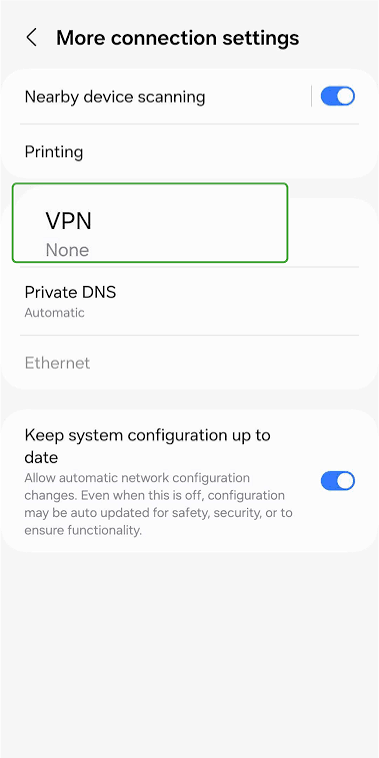
Settings → Connections → More Connection Settings → VPN → Add VPN
Xiaomi/Redmi (MIUI)
Settings → Connection & Sharing → VPN → Add VPN
OnePlus (OxygenOS)
Settings → Wi-Fi & Network → VPN → +
Realme/OPPO (ColorOS)
Settings → Other Wireless Connections → VPN → Add VPN
Vivo (FuntouchOS)
Settings → Network & Internet → VPN → +
VPN Protocols Supported in Android Settings
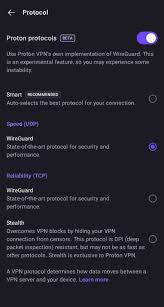
Android’s built-in VPN client supports three protocol types:
IKEv2/IPSec (Recommended)
The most modern and secure protocol supported natively in Android settings. Fast, stable, handles network switching well (Wi-Fi to 4G without dropping VPN).
Authentication methods:
- IKEv2/IPSec RSA (certificate-based)
- IKEv2/IPSec MSCHAPv2 (username/password)
- IKEv2/IPSec PSK (pre-shared key)
Best for: Daily use, corporate VPN, best security
L2TP/IPSec
Older but widely supported protocol. Works with a large number of free VPN servers. Slower than IKEv2 but compatible with more server configurations.
Authentication methods:
- L2TP/IPSec PSK (pre-shared key — most common for free servers)
- L2TP/IPSec RSA (certificate-based)
Best for: Compatibility with older servers, free public VPN servers
PPTP (Deprecated — Avoid)
Very old protocol with known security vulnerabilities. Many Android versions still support it for legacy compatibility but should be avoided for privacy or security use.
Only use if: Absolutely no other option available and security is not a concern
Free VPN Server Options for Android Built-in Settings
The built-in Android VPN client needs a free VPN server to connect to. Here are legitimate free options with server details:
Option 1: Proton VPN Free (IKEv2 Manual Setup)
Proton VPN’s free plan supports manual IKEv2 configuration on Android — using the same free servers available in their app, but configured through Android Settings.
Requirements:
- Free Proton VPN account (proton.me/vpn — no credit card)
- Proton VPN IKEv2 server addresses (from Proton VPN dashboard)
- Proton VPN certificate (download from account dashboard)
Step-by-step IKEv2 setup:
Step 1: Get server details from Proton VPN
- Create a free account at proton.me/vpn
- Log in → Downloads → Other Platforms → Android → IKEv2
- Note free server addresses:
- US: us-free-01.protonvpn.net
- Netherlands: nl-free-01.protonvpn.net
- Japan: jp-free-01.protonvpn.net
- Download IKEv2 certificate from dashboard
Step 2: Install certificate on Android
- Download certificate file (.p12 or .pem) to Android
- Settings → Security → Encryption & Credentials → Install Certificate
- Select the downloaded certificate file
- Name it: “Proton VPN” → Select VPN and apps usage
- Set credential storage password if prompted ✅
Step 3: Configure VPN in Android Settings
On Stock Android:
- Settings → Network & Internet → VPN → + (Add VPN)
Fill in:
- Name: Proton VPN Free US
- Type: IKEv2/IPSec RSA
- Server address: us-free-01.protonvpn.net
- IPSec identifier: (leave blank)
- IPSec user certificate: Select installed Proton certificate
- IPSec CA certificate: Select installed Proton certificate
- Username: Your Proton VPN username
- Password: Your Proton VPN password
Step 4: Save and Connect
- Tap Save
- Tap the VPN profile → Enter credentials if prompted
- Toggle Connect
- Key icon appears in Android status bar ✅
- Verify at whatismyip.com — shows Proton VPN server IP ✅
Option 2: Windscribe Free (IKEv2 Manual Setup)
Windscribe supports manual IKEv2 configuration on Android — 10GB/month free data with Australian, US, UK, and other server options.
Step 1: Get Windscribe IKEv2 details
- Create a free account at windscribe.com
- Log in → My Account → Config Generators → IKEv2
- Select server location (Australia, US, UK, etc.)
- Download configuration or note:
- Server hostname: [country].windscribe.com
- Username: Your Windscribe username
- Password: Your Windscribe password
Step 2: Configure in Android Settings
- Settings → Network & Internet → VPN → Add VPN
- Fill in:
- Name: Windscribe [Country]
- Type: IKEv2/IPSec MSCHAPv2
- Server address: au.windscribe.com (for Australia) or us.windscribe.com (for US)
- IPSec identifier: (leave blank)
- Username: Your Windscribe username
- Password: Your Windscribe password
- Save → Connect ✅
Option 3: VPNBook (L2TP/IPSec — Simplest Setup)
VPNBook provides free L2TP/IPSec servers with credentials available on their website — the simplest manual VPN configuration for Android settings with no certificate installation required.
Step 1: Get VPNBook credentials
- Go to vpnbook.com in Chrome
- Scroll to Free VPN → L2TP tab
- Note:
- Server: euro1.vpnbook.com, euro2.vpnbook.com, us1.vpnbook.com, us2.vpnbook.com, ca198.vpnbook.com, de233.vpnbook.com
- Username: vpnbook (shown on site)
- Password: [shown on site — changes weekly]
- Pre-shared key: vpnbook
Step 2: Configure in Android Settings
- Settings → Network & Internet → VPN → Add VPN
- Fill in:
- Name: VPNBook US
- Type: L2TP/IPSec PSK
- Server address: us1.vpnbook.com
- L2TP secret: (leave blank)
- IPSec identifier: (leave blank)
- IPSec pre-shared key: vpnbook
- Username: vpnbook
- Password: [current password from vpnbook.com]
- Save → Connect ✅
VPNBook weekly credential update:
VPNBook changes username and password weekly. If the connection fails — visit vpnbook.com for current credentials and update your Android VPN settings.
Option 4: WireGuard (Modern Protocol — Separate Free App Required)
WireGuard is the fastest modern VPN protocol but is NOT supported in Android’s built-in VPN Settings — it requires the official WireGuard app (free, open source, under 5MB).
Why include WireGuard here:
The official WireGuard app is so lightweight (5MB, minimal permissions, no background tracking) that it’s the closest thing to a “built-in settings” VPN experience while offering significantly better performance than IKEv2 or L2TP.
Free WireGuard server options:
Windscribe WireGuard (free account):
- windscribe.com → My Account → WireGuard Config Generator
- Select free server location
- Download .conf configuration file
Setting up WireGuard on Android:
- Play Store → Install “WireGuard” (official app by WireGuard Development Team, ~5MB)
- Open WireGuard → + → Import from file or archive
- Select downloaded .conf file
- Toggle tunnel On → WireGuard connected ✅
Speed advantage of WireGuard over Android built-in IKEv2:
- WireGuard: 30–50 Mbps typical on a good connection
- Android built-in IKEv2: 15–25 Mbps typical
- Android built-in L2TP: 10–20 Mbps typical
For Indian Android users on fast Jio or Airtel connections, WireGuard’s speed advantage is significant for data-heavy tasks.
Complete Android VPN Settings Configuration Guide — All Manufacturer Variants
Samsung Galaxy S-Series and A-Series (One UI)
Location: Settings → Connections → More Connection Settings → VPN
Step-by-step:
- Open the Settings app
- Tap Connections
- Tap More Connection Settings
- Tap VPN
- Tap Add VPN (+ icon top right)
- Fill in VPN details (see server options above)
- Tap Save
- Tap VPN name → Connect
- Enter username/password → Connect ✅
Samsung-specific setting:
Samsung One UI has an additional “Always-on VPN” option in VPN settings:
- VPN list screen → Three-dot menu → Advanced features
- Enable Always-on VPN → Select your VPN profile
- Enable Block connections without VPN (optional — prevents non-VPN traffic)
- VPN connects automatically on network connection ✅
Xiaomi/Redmi MIUI Android
Location: Settings → Connection & Sharing → VPN
Step-by-step:
- Open Settings
- Tap Connection & Sharing
- Tap VPN
- Tap Add VPN (+)
- Fill in configuration details
- Save → Connect ✅
MIUI-specific note:
MIUI’s aggressive battery optimization frequently kills VPN connections in the background. Fix:
- Settings → Apps → Manage apps → Find VPN/Settings
- Battery saver → No restrictions
- Also: Security app → Battery → No restrictions for VPN
Realme and OPPO (ColorOS)
Location: Settings → Other Wireless Connections → VPN
Step-by-step:
- Settings → Other Wireless Connections
- Tap VPN
- Tap + to add new VPN
- Enter configuration → Save → Connect ✅
ColorOS battery optimization:
ColorOS aggressively restricts background apps, including VPN. Fix:
- Settings → Battery → Background Freeze → Exclude VPN/Settings app
- This prevents VPN disconnection during inactivity
OnePlus (OxygenOS)
Location: Settings → Wi-Fi & Network → VPN
Step-by-step:
- Settings → Wi-Fi & Network
- Tap VPN
- Tap + (top right)
- Fill in VPN details
- Save → Connect ✅
Google Pixel (Stock Android)
Location: Settings → Network & Internet → VPN
Step-by-step:
- Settings → Network & Internet
- Tap VPN
- Tap + (top right)
- Fill in configuration
- Save → Toggle On ✅
Pixel-specific advantage:
Google Pixel’s VPN implementation is the most stable among Android variants — fewer background process interruptions and more reliable always-on VPN behavior.
Android VPN Settings — Advanced Configuration Options
Always-On VPN (Block All Traffic Without VPN)
Available on Android 7.0 and later — prevents any data from leaking outside the VPN tunnel:
Stock Android:
- Settings → Network & Internet → VPN
- Tap the gear icon next to your VPN profile
- Enable Always-on VPN
- Enable Block connections without VPN (strongest privacy)
- Phone only connects to the internet through VPN ✅
When to use: Maximum privacy — all Android traffic encrypted always
When to avoid: If your free VPN has data limits — always-on drains data cap quickly on background app sync
Per-App VPN (Split Tunneling via Work Profile)
Android’s built-in VPN settings don’t support split tunneling directly — but you can achieve per-app VPN using Android’s Work Profile feature:
- Set up Work Profile (Settings → Accounts → Work Profile)
- Configure VPN in Work Profile only
- Only Work Profile apps use VPN
- Personal profile apps use direct connection
More complex but achieves split tunneling without a third-party app.
VPN Lockdown (Android Enterprise)
For corporate Android devices managed via MDM — VPN Lockdown prevents any non-VPN traffic:
Configured via MDM policy → Blocks all internet access when VPN disconnects → Ideal for corporate security requirements.
Troubleshooting Android VPN Settings
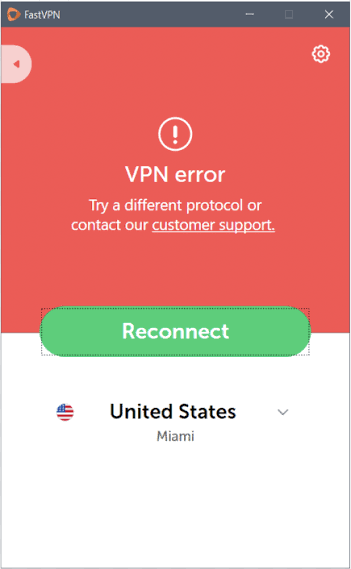
Problem: VPN Connection Fails with “Authentication Failed”
Common causes:
- Wrong username or password
- Expired credentials (VPNBook rotates weekly)
- Incorrect certificate installation
- Wrong authentication type selected
Fix:
- Verify credentials on VPN provider website
- Delete and recreate VPN profile
- For IKEv2 RSA — reinstall certificate
- Try IKEv2 MSCHAPv2 instead of RSA
Problem: VPN Connects But No Internet
Fix:
- Check DNS settings — VPN may not be routing DNS
- Try toggling Airplane Mode on/off while VPN connected
- Go to VPN profile → Edit → Check “Send all traffic through VPN”
- Try a different server from the same provider
Problem: VPN Keeps Disconnecting on Android
Most common cause: Android battery optimization killing VPN connection
Fix:
- Settings → Battery → Battery Optimization
- Find Settings or your VPN-related system app
- Select “Don’t optimize”
- For Samsung: Settings → Device Care → Battery → Background usage limits → Add Settings to unrestricted list
- For Xiaomi: Security app → Battery → No restrictions
Problem: VPN Icon Shows, But Internet Still Shows Indian IP
Fix:
- Clear Chrome/browser cache and cookies
- Trya different browser
- Wait 30 seconds after VPN connects before checking IP
- Verify at whatismyip.com — browser extensions or DNS may show a different IP
Problem: “VPN Not Supported” on Work/School Android
Situation: MDM-managed device restricts VPN configuration
Fix:
- Contact IT administrator — they may need to whitelist VPN usage
- Use personal Android profile instead of work profile
- Some MDM configurations allow VPN in personal profile even when restricted in work profile
Problem: L2TP VPN Not Connecting on Android 12+
Cause: Android 12 deprecated L2TP/PPTP support — connection may fail on newer Android versions
Fix:
- Switch to IKEv2 protocol — better supported on Android 12+
- If you must use L2TP — check the carrier allows L2TP traffic (some Indian ISPs block it)
- Use WireGuard app as alternative ✅
Free VPN Settings for Specific Indian Android Scenarios
Jio Users — VPN Settings for CapCut Access
Jio occasionally throttles ByteDance (CapCut) server traffic. Configure in Android Settings:
Recommended:
- Protocol: IKEv2 (more reliable through Jio throttling)
- Server: Windscribe US (unthrottled by Jio)
- Always-on: Disabled (preserve 10GB monthly cap)
APN check:
Jio’s standard APN (jionet) should work with VPN. If VPN fails to connect on Jio:
- Settings → Connections → Mobile Networks → Access Point Names
- Verify APN is set to jionet
- VPN types field: Leave blank (allows all VPN types)
Airtel Users — VPN Settings Optimization
Airtel’s network is generally VPN-friendly. For best performance:
Recommended settings:
- Protocol: IKEv2/IPSec MSCHAPv2 (best Airtel compatibility)
- Server: Netherlands or Singapore (lowest latency from India)
- MTU: 1400 (if connection is unstable — set in network settings)
BSNL Users — VPN Settings
BSNL’s network has specific characteristics affecting VPN:
Issues:
- BSNL occasionally blocks specific VPN server IPs
- Higher packet loss than Jio/Airtel
- L2TP more reliable than IKEv2 on some BSNL connections
Recommended:
- Protocol: L2TP/IPSec PSK with VPNBook servers
- If L2TP blocked: Try WireGuard app with Windscribe
- MTU setting: 1350 (reduce for better BSNL compatibility)
Complete Android VPN Settings, Reference Card
| Setting | IKEv2 (Proton/Windscribe) | L2TP (VPNBook) |
|---|---|---|
| Type | IKEv2/IPSec MSCHAPv2 | L2TP/IPSec PSK |
| Server | provider server address | vpnbook server |
| Username | your account username | vpnbook |
| Password | your account password | from vpnbook.com |
| Pre-shared key | N/A | vpnbook |
| Certificate | Install from provider | Not required |
| Always-on | Optional | Optional |
| Block without VPN | Optional | Optional |
Frequently Asked Questions
Q: Can I set up free VPN on Android without downloading any app?
Yes — Android has built-in VPN support in Settings → Network & Internet → VPN. Configure IKEv2 with free Proton VPN or Windscribe credentials, or L2TP with VPNBook — no app download required.
Q: Where is the VPN setting on an Android phone in 2026?
Stock Android: Settings → Network & Internet → VPN. Samsung: Settings → Connections → More Connection Settings → VPN. Xiaomi: Settings → Connection & Sharing → VPN. OnePlus: Settings → Wi-Fi & Network → VPN.
Q: Which VPN protocol is best for Android built-in settings?
IKEv2/IPSec is the best protocol for Android built-in VPN settings — fastest, most secure, and best at maintaining connection during network switches (Wi-Fi to 4G). WireGuard is faster but requires the separate WireGuard app.
Q: Why does my Android VPN keep disconnecting?
Android’s battery optimization kills background VPN connections. Fix: Settings → Battery → Battery Optimization → Find your VPN or Settings app → Select “Don’t optimize.” Also enable Always-on VPN in VPN settings to force reconnection.
Q: How do I configure Proton VPN on Android without the app?
Create a free Proton VPN account → Download IKEv2 certificate → Install certificate on Android → Settings → VPN → Add IKEv2/IPSec RSA VPN → Enter Proton server address and credentials → Save and connect.
Q: Does VPNBook work in Android Settings in India?
Yes — VPNBook L2TP/IPSec PSK works in Android built-in VPN settings in India. Add server address (us1.vpnbook.com), pre-shared key (vpnbook), and weekly credentials from vpnbook.com. Jio and Airtel both support L2TP connections.
Q: Is Android built-in VPN as good as VPN apps?
For basic privacy and server connection — yes. Missing features compared to apps: no kill switch (most phones), no split tunneling (native settings), no automatic server selection, no visual speed metrics. For complete features, VPN apps are better.
Q: How do I enable Always-on VPN in Android Settings?
Settings → Network & Internet → VPN → Gear icon next to VPN profile → Enable Always-on VPN. On Samsung: VPN list → three-dot menu → Advanced → Always-on VPN. This connects VPN automatically whenever internet is available.
Q: Can I use free VPN settings on Jio SIM in India?
Yes — Jio supports IKEv2 and L2TP VPN connections. Configure in Android Settings using Proton VPN IKEv2 or VPNBook L2TP credentials. If the connection fails on Jio, try changing the APN VPN types field or switch between IKEv2 and L2TP.
Q: What is the best free VPN server for Android settings in India?
Proton VPN free (IKEv2, unlimited data, US/Netherlands/Japan servers) is the best option for Android built-in VPN settings — audited no-logs policy and stable server infrastructure.
Conclsion
Configuring VPN directly in Android Settings is a legitimate, practical alternative to third-party VPN apps — particularly for restricted devices, budget phones with limited storage, or users who prefer minimal app installation.
The simplest starting point: VPNBook L2TP/IPSec PSK — no certificate installation, no account required, just server address, shared key, and weekly credentials from vpnbook.com. Works on every Android version and every manufacturer variant.
For better privacy and reliability: Proton VPN IKEv2 via Android Settings — free account, unlimited data on free tier, independently audited no-logs policy, and stable servers in the US, Netherlands, and Japan.
For best performance: WireGuard app with Windscribe free config — the 5MB WireGuard app is barely more intrusive than Android’s built-in VPN client but delivers significantly faster speeds and better stability.
Configure, connect, and verify your IP at whatismyip.com — your Android phone’s VPN settings are working when that site shows a non-Indian IP address.

