
Creating high-quality videos and images no longer requires expensive software, advanced editing skills, or a professional production team. In 2026, a growing number of free AI tools can help creators generate images, turn text or photos into videos, edit content, remove backgrounds, create visual effects, and produce social-media-ready content in minutes.
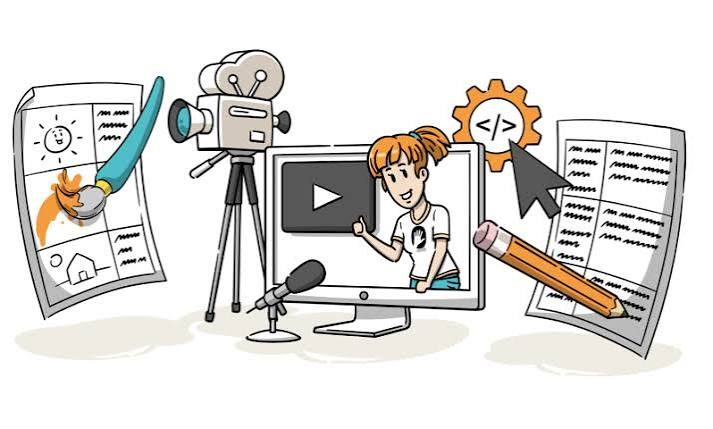
Whether you are a YouTuber, blogger, social media creator, student, marketer, or small business owner, these tools can significantly reduce the time and cost of content production. However, “free” does not always mean unlimited—many platforms use daily or monthly credits, lower resolutions, watermarks, or restricted features on their free plans.
Free AI Tools for video and image creation explore the best free AI tools for video and image creation in 2026, what each tool does best, its key limitations, and which option may be right for your creative needs.
A few years ago, making a decent video or a polished image from scratch required either expensive software or a lot of technical skill. That has changed completely.
In 2026, there are tools where you type what you want — a product photo, a short video clip, a social media graphic — and it appears in seconds. No design degree required. No Adobe subscription needed to get started.
But here’s the problem: nearly every tool markets itself as “free,” and most of them aren’t — not really. Some give you 5 uses and then lock everything. Some add watermarks. Some give you proper free access with daily limits you can actually work with.
This guide cuts through the noise. It covers the best genuinely useful free tools for creating videos and images in 2026, what their free plans actually include, and which one fits your situation.
What to Look For in a Free Creation Tool
Before diving into specific tools, here’s a quick checklist to judge any “free” plan honestly:
- Do free outputs have watermarks? Watermarked content looks unprofessional and can’t be used commercially.
- Do credits reset daily or monthly? Daily-reset credits are far more useful for regular creators.
- What resolution do you get for free? Some tools cap free users at low quality.
- Are there commercial rights on the free plan? If you’re creating content for a business, check this carefully.
Keep these in mind as you read through each tool below.
Free AI Tools for video and image creation 2026:-
1. Canva — Best for Beginners and Social Media Creators
Canva is the tool most people start with, and for good reason. It’s not just an image tool — it’s a complete design platform with templates, drag-and-drop editing, social media scheduling, and now a full suite of creative features under its “Magic Studio” label.
On the free plan, you get roughly 50 AI credits per month. These credits work across different features: text-to-image generation (called Magic Media), text writing, background removal requests, and more. A single image generation uses between 4 and 8 credits depending on style and quality. So realistically, a free user gets around 6 to 10 images per month before hitting the wall.
That sounds limited, but Canva’s real strength is the ecosystem around it. Once you generate an image, you can drop it straight into a social media post template, resize it for Instagram and Facebook simultaneously, add text overlays, and export it — all without leaving the app. No other tool makes that workflow as smooth.
Practical example: You run a food blog and need a banner image for a new recipe post. Open Canva, type “overhead shot of a rustic pasta dish on a wooden table, warm lighting,” generate an image, and within 5 minutes you’ve got a complete blog banner with your logo and headline added. Free, no watermark.
Canva also recently introduced Dream Lab — a more powerful image engine powered by Leonardo AI — though this is mainly available on paid plans (Canva Pro costs $15/month). Free users get a small allowance to try it.
Pros:
- Genuinely beginner-friendly — no learning curve
- Generated images go straight into design templates
- Available on Android, iOS, and web
- Covers images, basic video-style effects, and graphic design in one place
- Free images usable for personal projects without watermark
Cons:
- 50 free credits per month runs out fast if you generate a lot
- Free plan uses a single basic model — no style control or parameter adjustments
- Maximum resolution on free tier is 1024×1024, which is limited for print
- Commercial use on free plan has restrictions — read the terms before using for client work
Best for: Bloggers, small business owners, social media managers, and anyone who needs quick, clean visuals without a steep learning curve.
2. Adobe Firefly — Best for Commercially Safe Images
create content for clients, run a business, or sell products online, commercial rights matter. Adobe Firefly is one of the few tools in 2026 that was trained exclusively on licensed content and Adobe Stock images — meaning its outputs are commercially safe by design.
The free plan gives you 25 generative credits per month, which covers basic text-to-image generation, generative fill (removing or replacing parts of a photo using a text prompt), and text effects. No credit card needed to sign up — just an Adobe ID.

What makes Firefly genuinely useful even on the free plan is the quality of the editing tools. Generative Fill, for example, lets you open a photo, paint over an area you want changed, type what you want instead, and the tool fills it in. Remove an unwanted object from the background of a product photo, change the colour of a wall in a room photo, or extend an image beyond its original borders — all from text instructions.
In 2026, Firefly also supports short video generation (around 5-second clips), but this eats through credits quickly — about 100 credits per clip. On the free tier, that means you can’t really make videos without upgrading. For images, though, the free plan is a reasonable starting point.
If you already use any Adobe Creative Cloud app (Photoshop, Illustrator, Premiere), Firefly credits are included in your subscription — no extra charge.
Practical example: You’re editing a product photo for an e-commerce listing. The background is cluttered. In Firefly, you select the background, type “clean white studio background,” and it rebuilds it cleanly. The result is commercial-safe and ready to publish.
Pros:
- Commercially safe outputs — trained on licensed and public domain content
- Generative Fill is genuinely impressive for photo editing
- No credit card required for free plan
- Integrates directly into Photoshop and Illustrator for Creative Cloud users
- Outputs include Content Credentials (metadata showing it was generated, useful for transparency)
Cons:
- Only 25 free credits per month — one of the lower free allowances
- Free plan outputs may have restricted commercial use compared to paid plans
- Video generation costs about 100 credits per 5-second clip — effectively not available on free
- Native image quality sometimes requires multiple tries to get a usable result
Best for: Designers, marketers, and e-commerce sellers who need commercially safe images and are already in the Adobe ecosystem.
3. Kling AI — Best Free Video Generator Right Now
Kling AI, built by Kuaishou (the company behind a major Chinese short-video platform), has quietly become one of the most-used video generation tools in the world. By 2026, it has over 22 million users — and its free plan is one of the most generous available.
The free plan gives you 66 credits every 24 hours, which resets daily. Realistically, that’s enough for about 6 five-second video clips or 3 ten-second clips per day, which is genuinely workable for a regular creator.
You can generate videos two ways: type a text description of a scene, or upload an image and tell the tool how to animate it. The image-to-video feature is where Kling really stands out. Upload a photo of a person, describe how they should move, and the output is a smooth, realistic short video. The latest Kling 3.0 model (released early 2026) handles human movement, facial expressions, and even lip sync better than most competing tools.
One important note: free-tier videos come with a watermark, and you won’t get access to the highest resolution (4K) or all model versions on the free plan. If you’re making content for personal use, testing ideas, or building social media content where watermarks are acceptable, the free plan covers a lot. For client or commercial work, you’d need to upgrade (paid plans start at $6.99/month).
Practical example: You have a still product photo — a bottle of perfume on a marble surface. In Kling, you upload the image and type “slow zoom in, soft light particles floating around the bottle.” Within 10 minutes, you have a 5-second video clip that looks like a professional product ad. No video editing skills required.
Pros:
- 66 free credits per day — one of the most generous daily free allowances
- Both text-to-video and image-to-video on the free plan
- Excellent human realism and motion quality, especially with Kling 3.0
- Native audio generation (sound effects and ambient audio built into videos)
- Ranked #1 on independent video model benchmarks in 2026
Cons:
- Free outputs carry a watermark — not suitable for commercial or client use
- Free-tier generation takes 7 to 12 minutes per clip (paid users get faster queue)
- Chinese data jurisdiction — some users have privacy concerns
- Content moderation is strict due to Chinese regulations — political or sensitive topics are blocked
- Credits don’t roll over — unused daily credits are lost
Best for: Social media creators, reels makers, and anyone testing video creation who needs regular free access without committing to a monthly plan.
4. Google Veo 3 (via Google Flow / AI Studio) — Best for Video Quality
Google’s Veo 3 is arguably the most technically impressive video generator available in 2026. It produces cinematic-looking output — realistic physics, accurate lighting, coherent motion across frames — and it’s the only major tool that generates native audio (ambient sounds, effects, even dialogue) alongside the video automatically.
Accessing it for free works through a few routes. Google Flow (Google’s filmmaking interface for Veo) offers a free tier with limited monthly credits — typically enough for 10 to 20 video generations. Google AI Studio (aistudio.google.com) also provides access, though free availability there can vary by region and account. New accounts during promotional periods sometimes receive bonus credits.
The free tier produces real, downloadable videos without watermarks, at 720p resolution. Free generations are limited to around 8 seconds per clip. Generation time on the free tier runs 2 to 4 minutes per clip — slower than paid, but manageable.
The quality difference compared to other free tools is visible. A prompt like “rain-soaked city street at night, neon reflections on wet pavement, slow camera pan” returns footage that looks genuinely cinematic — not like a generated clip with obvious visual glitches.
Practical example: You’re creating a YouTube intro and need a few seconds of dramatic cityscape footage you don’t have. Write a detailed scene description in Google Flow, generate a clip, download it, and edit it into your video. Total cost: $0. Total time: under 15 minutes.
Pros:
- Best raw video quality of any free tool in 2026
- Native audio generation — no need to add sound effects separately
- No watermarks on free tier output
- No video editing skills needed
- Backed by Google’s infrastructure — consistent performance
Cons:
- Free access limits can be inconsistent — availability varies by region and account type
- Paid access (Google One AI Premium) costs $19.99/month for proper ongoing use
- Generation time is slower (2–4 minutes per clip) compared to paid plans
- Free daily/monthly limits are not clearly documented — quotas can change without notice
- Works best with detailed, well-written prompts — vague inputs give average results
Best for: Creators who need the highest possible video quality and are willing to work within daily free limits.
5. Pika — Best for Beginners Making Short Video Clips
video using one of these tools before, Pika is the easiest starting point. It’s built specifically for short-form content — think Instagram Reels, TikTok clips, and YouTube Shorts — and the interface doesn’t require you to know anything about prompts or video production.
You can upload a photo and animate it, generate a clip from a text description, or use one of Pika’s template-style starting points. The motion prompts are guided — the tool gives you suggestions on how to describe movement, which helps beginners get good results faster.
The free plan gives a limited number of monthly generations, and outputs may include a watermark depending on the generation type. Pika Labs updates its free plan terms fairly regularly, so check the current limits on their site before building a workflow around it.
What stands out about Pika is the simplicity. You don’t need to think about models, resolution settings, or credit systems. You describe what you want, you get a clip.
Pros:
- Easiest tool to get started with — guided prompt suggestions
- Good for short-form social media content
- Fast generation times compared to some competitors
- Clean, simple interface with no technical setup
Cons:
- Free plan has relatively low generation limits
- Watermarks on free outputs
- Less control over output style compared to Kling or Veo 3
- Not suitable for longer or more complex video projects
Best for: Complete beginners who want to try video generation for social media content with minimal friction.
Quick Comparison: Free Plans at a Glance
| Tool | Best For | Free Limit | Watermark? | Video Support? |
|---|---|---|---|---|
| Canva | Social media graphics + design | ~50 credits/month | No | Basic effects only |
| Adobe Firefly | Commercial-safe images | 25 credits/month | No (personal use) | Very limited |
| Kling AI | Video generation | 66 credits/day | Yes | Yes — strong |
| Google Veo 3 | High-quality video | ~10–20/month | No | Yes — cinematic |
| Pika | Beginner video clips | Limited | Yes | Yes — short clips |
Tips to Get More Out of Free Plans
Stack tools together. Use Canva’s free plan for images, then upload those images into Kling’s free tier to animate them into short video clips. You get the best of both without paying for either.
Write better prompts. The difference between a mediocre output and a great one usually comes down to how specific your description is. Instead of “a cup of coffee,” try “a ceramic espresso cup on a dark wooden table, steam rising, warm morning light from the left, shallow depth of field.” More detail = better results.
Use daily-reset tools strategically. Kling’s 66 daily credits reset every 24 hours. If you batch your video work on specific days rather than generating one-off clips randomly, you can build up a content library over a week without spending anything.
Test on free, then upgrade only if needed. Most paid plans offer a free trial. Use the free plan to figure out which tool fits your workflow, then decide if the paid upgrade makes sense for your volume.
Frequently Asked Questions
Are these tools really free, or will I hit a paywall?
All the tools listed have genuinely usable free plans — but with real limits. Canva gives ~50 credits/month, Kling gives 66 daily credits, and Firefly gives 25 credits/month. You can create real content on all of them for free; you’ll just hit limits if you generate a lot. Veo 3’s free access is the most variable — availability depends on your region and account.
Can I use free-plan images or videos for commercial projects?
It depends on the tool. Adobe Firefly is the safest choice for commercial use, as it’s trained on licensed content and its paid plan explicitly includes commercial rights. Canva’s free plan has restrictions on commercial use for generated content. Kling’s free tier includes a watermark and does not allow commercial use. Always read the terms before publishing generated content for business purposes.
Which tool is best for making Instagram Reels or YouTube Shorts?
For short video clips, Kling AI offers the best combination of free daily access and output quality. Google Veo 3 produces higher quality but has stricter limits. Pika is the easiest to get started with. For thumbnails and static graphics to go with your videos, Canva is the most practical choice.
Do I need a powerful phone or computer to use these tools?
No. All of these tools run in the cloud — meaning the processing happens on their servers, not on your device. You need a stable internet connection and a browser. Even a mid-range Android phone can use Canva, Kling, and Firefly without any issues.
Which tool is best for someone in India?
All five tools are accessible in India. Canva is the most popular choice among Indian creators and small businesses due to its template library, Indian-language support, and ease of use. Kling AI is widely used for Reels and short-form video. Adobe Firefly requires a free Adobe account (no payment needed for the free plan). Google Veo 3 access via Google Flow or AI Studio is available in India, though free limits may vary.
How do I get better results from these tools?
Be specific. Describe the subject, setting, lighting, mood, and any specific style you want. For video prompts, also describe camera movement (“slow zoom,” “tracking shot”) and what action is happening. For images, add details like lens type, time of day, and colour palette. Detailed prompts consistently outperform vague ones across all tools.
What’s the catch with Kling’s daily free credits?
The main catches are: outputs carry a watermark, free-tier generation is slower (7–12 minutes per clip), and credits don’t roll over — unused credits are gone at the end of each day. For personal or experimental use, these are manageable. For commercial content, you’d need their paid plan.
Which Tool Should You Start With?
- You’re new to this and want quick results → Start with Canva.
- You need images you can use commercially → Adobe Firefly.
- You want to make short videos for Reels or Shorts → Kling AI.
- You want the best video quality available for free → Google Veo 3 via Google Flow.
- You’ve never made a video and want the simplest possible start → Pika.
None of these tools require any design experience. You don’t need to know video editing, image composition, or prompt engineering to get started. The best approach is to pick one, try it with a real project — even something small — and see if the output matches what you need. Most people are surprised by how much is possible before you spend a single rupee.
Conclusion
Free AI tools for video and image creation in 2026 have made professional-looking content more accessible than ever. From generating images and graphics to creating, editing, and enhancing videos, these tools can help creators save time, reduce production costs, and experiment with new ideas without requiring advanced technical skills.
The best tool depends on your specific needs. Some are better for image generation, while others focus on text-to-video, AI editing, social media content, or creative effects. Since free plans often include limits such as credits, watermarks, or restricted export options, it is worth testing several tools before choosing your regular workflow.
For beginners and content creators, starting with a few reliable free tools and combining them can be an effective way to produce high-quality videos and images in 2026 without a large budget.

