
Creating videos used to mean expensive software, a studio setup, and hours of editing. In 2026, AI has changed all of that. You can now generate professional-looking videos from a text prompt, turn blog posts into reels, add voiceovers without recording anything, and edit footage automatically — all with free tools.
This guide covers the best free AI video creation tools available in 2026, what each one actually does well, where the free plan limits you, and which tool fits which use case.
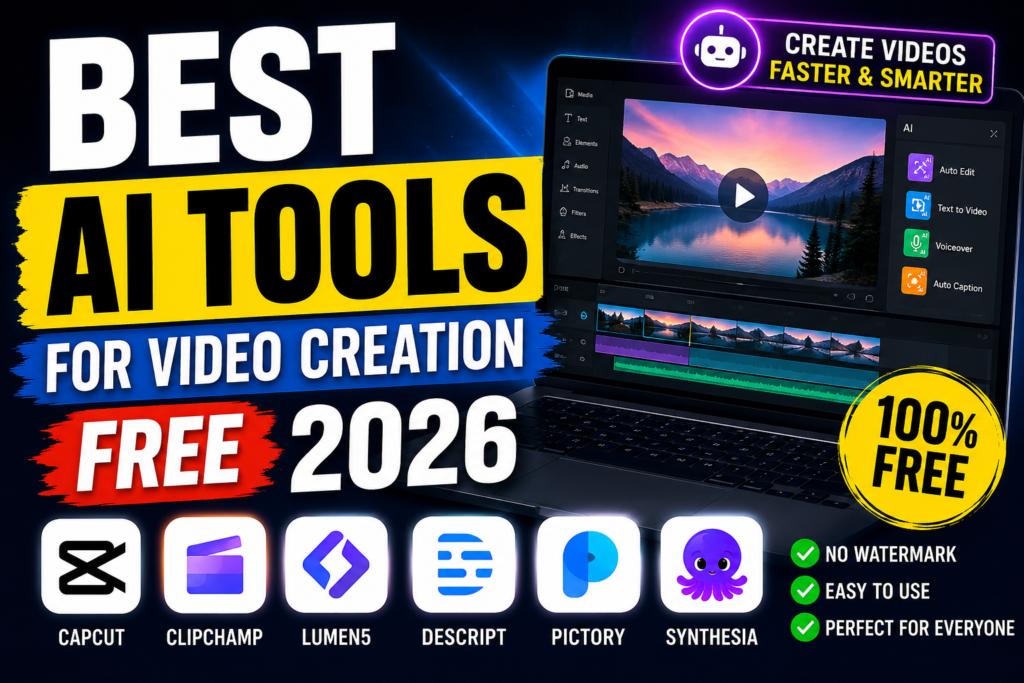
Best free AI video generators in 2026? The short answer: Google Veo 3 (via AI Studio or Flow) leads on raw visual quality, HeyGen offers the most complete free plan for avatar and voiceover videos, Kling 3.0 and Seedance 2.0 dominate motion and character consistency, and Wireflow lets you chain multiple models into one workflow. Each has different limits on credits, resolution, and watermarks — so “free” doesn’t mean the same thing everywhere.
Video Creation: Free AI video generation has moved fast in the last year. What used to be a novelty for tech demos is now a real production tool, and by early 2026 several platforms offer free tiers genuinely usable for short-form social content, concept testing, or creative prototyping — without paying a cent. The market itself reflects that shift: AI video generation hit $847 million in 2026, growing at nearly 19% annually. WaveSpeedAIAtlas Cloud
But “free” comes with trade-offs. Some tools give daily credit refreshes, others hand out one-time trial credits that never renew, and most add watermarks or cap resolution unless you upgrade. Most “Forever Free” tiers in 2026, including well-known names like HeyGen and Pika, use watermarks to separate free trials from professional-grade output. Atlas Cloud
Below, we break down the best free AI video tools of 2026 — what each one is actually good for, where the free tier falls short, and which model fits your specific use case, whether that’s cinematic B-roll, talking-head avatars, or fast social clips.
Why AI Video Tools Matter in 2026
Short-form video is now the highest-performing content format across YouTube, Instagram, and LinkedIn. The problem is that producing quality video consistently is time-consuming and expensive.
AI video tools solve three main bottlenecks:
Script to video — You write or paste text, and the tool generates a complete video with visuals, voiceover, and captions.
Editing automation — Tools that cut silences, add subtitles, resize for different platforms, and generate B-roll automatically.
Faceless video creation — You never appear on camera. AI avatars, stock footage, and voiceovers handle everything.
For content creators, affiliate marketers, educators, and small business owners, these tools dramatically reduce the time and cost of video production.
Best AI Tools for Video Creation Free 2026:-
1. Canva Video (Free Plan)
Best for: Beginners, social media videos, presentations turned into videos
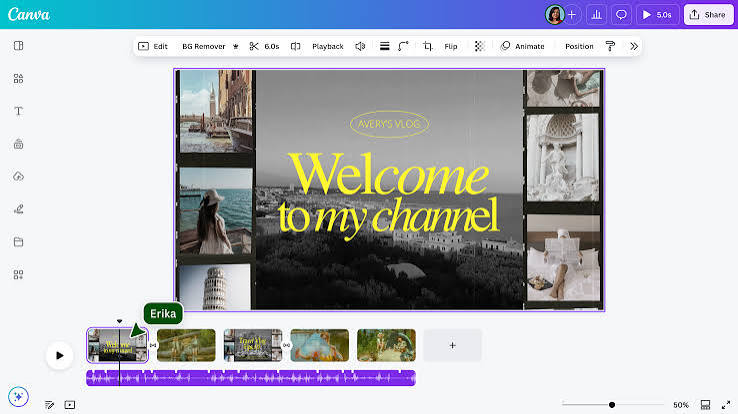
Canva‘s video editor has grown into one of the most capable free tools in 2026. The free plan includes:
- AI text-to-video using stock footage and templates
- Magic Studio features including background removal and AI image generation for thumbnails
- Built-in animation and transition effects
- 5GB cloud storage
- Export up to 1080p
What it does well: The drag-and-drop interface is genuinely beginner-friendly. You can turn a blog post or script into a short video in under 20 minutes using pre-built templates. The stock footage and music library available on the free plan is large enough to produce decent content.
Free plan limitations: The most powerful AI features (like Magic Media video generation) require Canva Pro. Free exports include a Canva watermark on some premium templates. Heavy users hit the storage limit quickly.
Best use case: YouTube shorts, Instagram reels, educational content, product showcases.
2. CapCut (Free)
Best for: Short-form video editing, viral content, mobile-first creators
CapCut, developed by ByteDance (the company behind TikTok), remains one of the most feature-rich free video editors in 2026. Available on desktop and mobile.
Free features include:
- Auto-captions with high accuracy (supports Hindi and regional Indian languages)
- AI background removal
- Auto-cut and beat sync
- Text-to-speech in multiple voices
- Speed ramping and keyframe animation
- Templates pulled directly from trending TikTok and Reel formats
What it does well: CapCut is built for short-form viral content. The auto-caption feature alone saves hours of manual subtitle work. Templates are updated constantly to match trending video formats, which matters a lot for social media reach.
Free plan limitations: Some premium effects and templates are locked behind CapCut Pro. The desktop version is more powerful than the mobile app for complex edits.
Best use case: YouTube Shorts, Instagram Reels, TikTok content, faceless video channels.
3. Runway ML (Free Tier)
Best for: AI video generation, creative and artistic video content
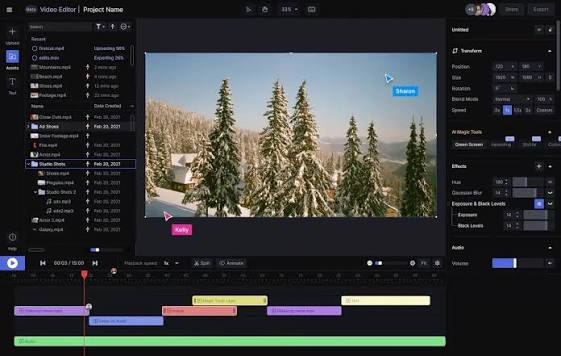
Runway is one of the most powerful AI video generation platforms available. The free tier gives you a taste of what’s possible with generative AI video.
Free plan includes:
- 125 credits to start (enough for several short video generations)
- Gen-3 Alpha Turbo access (text-to-video and image-to-video)
- Basic video editing tools
- Green screen removal
- Motion tracking
What it does well: Runway’s video generation quality is among the best available. You can generate 5–10 second clips from a text prompt, animate a still image, or remove backgrounds with precision. For creative projects, product visualizations, or social media content that needs a cinematic look, Runway produces impressive results.
Free plan limitations: 125 credits go fast. Text-to-video generation uses around 5 credits per second of footage. Once credits are exhausted, you need a paid plan. The free plan also has a Runway watermark on generated videos.
Best use case: Social media ads, YouTube intros, creative visuals, animated product demos.
4. InVideo AI (Free Plan)
Best for: Script-to-video automation, faceless YouTube channels, explainer videos
InVideo AI is one of the most complete script-to-video tools available with a functional free tier.
Free plan includes:
- 10 video exports per week
- AI script generation from a topic or URL
- Automatic matching of stock footage to script
- AI voiceover in multiple languages
- Auto-captions
- 1080p export (with watermark on free plan)
What it does well: The entire workflow is automated. You paste a topic or script, choose a voice and style, and InVideo generates a complete video with footage, voiceover, and captions. It pulls from a large stock library (iStock integration on paid plans, royalty-free library on free) and the timing sync is generally accurate.
Free plan limitations: The InVideo watermark appears on exports. Free exports are capped at 10 per week. Stock footage quality on the free plan is more limited than on paid tiers.
Best use case: Faceless YouTube channels, how-to videos, listicle videos, news-style content.
5. Pictory AI (Free Trial)
Best for: Turning blog posts and long-form content into short videos
Pictory specializes in converting existing written content into video. Paste a blog post URL or script, and Pictory pulls relevant stock footage and generates a video automatically.
Free trial includes:
- 3 video projects (no ongoing free plan)
- Up to 10 minutes of video per project
- Auto-highlight extraction from long videos
- AI-generated captions
What it does well: For content repurposing — turning articles into video summaries or extracting highlights from webinars — Pictory is one of the best tools available. The article-to-video conversion is accurate at matching footage to content context.
Free plan limitations: Only 3 projects on the trial before payment is required. This is more of a trial than a true free plan. Pictory is best evaluated as a paid tool with a free trial.
Best use case: Blog-to-video content repurposing, social media clips from long videos, summary videos.
6. Kapwing (Free Plan)
Best for: Collaborative video editing, subtitle generation, meme-style content
Kapwing is a browser-based video editor with strong AI features on its free plan.
Free plan includes:
- Auto-subtitles with AI transcription (supports multiple languages)
- Smart background removal
- AI script writing
- Resize and reformat for different platforms
- Collaboration features (multiple editors)
- Exports up to 720p (watermark on exports)
What it does well: Kapwing is the strongest free option for teams or creators who need to collaborate on video. The subtitle generation is accurate and easy to style. The platform runs entirely in the browser, so no software installation is needed.
Free plan limitations: Exports are limited to 720p and include a Kapwing watermark. Storage is capped at 250MB on the free plan.
Best use case: Faceless video editing, educational content, podcast clips, team projects.
7. DID (Free Tier)
Best for: AI avatar videos, talking head presentations, faceless spokesperson content
DID (formerly D-ID) lets you create videos of a realistic AI avatar reading your script. You don’t need to appear on camera.
Free plan includes:
- 5 minutes of video creation per month
- Access to multiple AI avatar options
- Text-to-speech in multiple languages
- Upload your own image to create a custom avatar
What it does well: For faceless video channels, corporate training, or explainer videos where you want a human face without filming, DID produces the most realistic avatar videos among free tools. The lip-sync quality is noticeably better than most competitors.
Free plan limitations: Only 5 minutes of video per month on the free plan. This is enough to test the tool but not for serious production. The DID watermark appears on free exports.
Best use case: Faceless YouTube channels, corporate explainer videos, product demos, multilingual content (avatar speaks in different languages from the same script).
8. Lumen5 (Free Plan)
Best for: Marketing videos, social media posts, text-to-video
Lumen5 converts text into video using AI to match stock footage with your script. It’s optimized for marketing content.
Free plan includes:
- Unlimited video projects
- 720p export
- Access to free stock media library
- Basic templates
- AI scene matching
What it does well: Lumen5’s unlimited project count on the free plan is unusual and makes it genuinely useful for regular content production. The AI does a reasonable job matching footage to script topics. The interface is simple and fast.
Free plan limitations: 720p export only. The free stock library is smaller than paid alternatives. Lumen5 branding appears on free exports. Customization options are limited on the free tier.
Best use case: LinkedIn video posts, promotional content, quick news-style videos.
9. Clipchamp (Free — Microsoft)
Best for: Windows users, basic video editing with AI features
Clipchamp is Microsoft’s built-in video editor, available free to all Windows 10/11 users and through a Microsoft account.
Free plan includes:
- AI auto-compose (creates video from clips automatically)
- Text-to-speech with multiple voice options
- Built-in stock footage and music library
- Auto-captions
- Export up to 1080p with no watermark
What it does well: Clipchamp is the only major free AI video tool that exports 1080p without a watermark. For Windows users who want a clean, watermark-free output without paying for anything, this is the strongest option. The stock library is decent, and the text-to-speech voices are natural-sounding.
Free plan limitations: More limited AI features compared to dedicated tools. Stock library isn’t as large as InVideo or Canva. Not available on Mac (though the web version works cross-platform).
Best use case: General-purpose video editing, YouTube content, presentations, quick business videos.
10. Pika Labs (Free Tier)
Best for: AI text-to-video generation, short creative clips
Pika is one of the newer AI video generation tools that has rapidly improved in quality. The free tier is accessible via the web app.
Free plan includes:
- Daily free credits for video generation
- Text-to-video and image-to-video
- Aspect ratio control (9:16, 16:9, 1:1)
- Motion control settings
- Short clip generation (3–4 seconds)
What it does well: Pika’s generation quality rivals Runway for creative and stylized content. The daily free credits refresh, making it one of the more sustainable free options for generative video. Good for creating eye-catching social media clips and visual content.
Free plan limitations: Clips are short (3–4 seconds). Free tier watermark on exports. Daily credit limits restrict production volume.
Best use case: Social media visuals, animated product shots, YouTube intros, creative B-roll.
Comparison Table: Free AI Video Tools 2026
| Tool | Watermark | Export Quality | Best For | Truly Free? |
|---|---|---|---|---|
| Canva | Some templates | 1080p | Social media, beginners | Yes |
| CapCut | No | 1080p | Short-form, editing | Yes |
| Runway ML | Yes | HD | AI generation, creative | Credits-based |
| InVideo AI | Yes | 1080p | Script-to-video, faceless | Yes (10/week) |
| Pictory | Yes | HD | Blog-to-video | Trial only |
| Kapwing | Yes | 720p | Teams, subtitles | Yes |
| D-ID | Yes | HD | AI avatars, faceless | 5 min/month |
| Lumen5 | Yes | 720p | Marketing videos | Yes |
| Clipchamp | No | 1080p | General editing, Windows | Yes |
| Pika Labs | Yes | HD | AI generation, clips | Credits-based |
Which Tool Should You Use?
If you’re a complete beginner: Start with CapCut or Canva. Both are free, easy to learn, and produce good results for social media content.
If you run a faceless YouTube channel: InVideo AI for script-to-video automation, or D-ID if you want an avatar presenter.
If you’re repurposing written content: Pictory (free trial) or InVideo AI.
If you need no watermark for free: Clipchamp (Windows) or CapCut.
If you want AI-generated visuals: Runway ML or Pika Labs for short clips.
If you need subtitles and captions: CapCut (best accuracy), Kapwing (best for teams), or Clipchamp.
Tips for Getting the Most From Free AI Video Tools
Batch your work — Many free tools have weekly or monthly export limits. Plan your content calendar and create videos in batches to stay within limits.
Combine tools — Use InVideo for script-to-video, then import into CapCut for captions and effects. Different tools have different strengths.
Use Clipchamp for clean exports — If watermarks bother you, Clipchamp is the best watermark-free free option for polished content.
Keep videos short — Most free plan limits are based on minutes of output. Shorter videos (60–90 seconds for social, 5–8 minutes for YouTube) stretch your free credits further.
Download before upgrading — When you’re testing tools on a free trial, download all your projects before the trial ends. You often lose access to exports when you downgrade.
FAQs
Q: Which free AI video tool has no watermark?
CapCut (no watermark on standard exports) and Clipchamp (Microsoft’s free editor) are the main options that don’t add watermarks on free exports.
Q: Can I make YouTube videos completely free with AI tools?
Yes. A practical free stack: InVideo AI for script-to-video (10 exports/week), CapCut for captions and editing, and Canva for thumbnails.
Q: Which AI video tool works best in India?
CapCut supports Hindi auto-captions, making it particularly useful for Indian creators. InVideo AI also has Hindi voiceover options. Both work well on Indian internet connections.
Q: Can I monetize YouTube videos made with free AI tools?
Yes, as long as you’re using royalty-free music and stock footage (which most AI tools include). Check each platform’s terms of service — some require attribution for free-tier content.
Q: Is CapCut safe to use in 2026?
CapCut has faced scrutiny in some countries due to its ByteDance ownership. As of 2026, it remains available in India and most markets. For sensitive business content, consider alternatives like Kapwing or Clipchamp.
Q: How long does AI video generation take?
Short clips (5–15 seconds) on tools like Runway or Pika generate in 30–90 seconds. Full script-to-video on InVideo or Canva typically takes 2–5 minutes depending on video length.
Q: Do these tools require any technical skill?
Most are designed for non-technical users. CapCut and Canva are the easiest to learn. Runway requires a bit more understanding of prompting to get good results from text-to-video generation.
Conclsion
The best AI video tool depends on what you’re making and how much you’re making. For most content creators in 2026, a combination of two or three free tools covers everything:
CapCut handles editing and captions. InVideo AI handles script-to-video automation. Canva covers thumbnails and simple promotional videos. That entire stack costs nothing.
The tools that charge — Runway Pro, InVideo paid, Synthesia — are worth it once you’re producing content at scale and the free limits become the bottleneck. But for most creators starting out testing a new content strategy, the free options in 2026 are genuinely capable enough to produce professional-quality results.
Start with CapCut, learn the basics, then add tools as your needs grow.

