
Video content is everywhere right now. YouTube, Instagram Reels, TikTok, LinkedIn — every platform is pushing video hard. And the good news? You no longer need a professional studio or a team of editors to make videos that look great.
The latest generation of smart video tools in 2026 has made it genuinely easy for solo creators, small businesses, and marketing teams to produce polished content fast. Whether you want to turn a blog post into a short clip, edit a talking-head video without touching a timeline, or generate a full faceless explainer from a script — there’s a tool built for that.

This guide walks you through the best tools available right now, what they’re actually good for, and which ones are worth paying for.
Creating professional-quality videos has never been easier. In 2026, AI-powered video creation and editing tools help creators, businesses, marketers, educators, and social media influencers produce engaging content in a fraction of the time. Whether you’re making YouTube videos, TikTok clips, Instagram Reels, product demos, training videos, or promotional advertisements, the latest AI tools can automate tasks like script generation, video editing, subtitles, voiceovers, background removal, and visual effects.
The best AI video tools combine speed, ease of use, and powerful editing features, making them suitable for both beginners and experienced professionals. Many platforms also offer text-to-video generation, AI avatars, automatic scene detection, smart transitions, and one-click social media optimization, allowing you to create high-quality videos without advanced editing skills.
In this guide, we’ve selected the best AI tools for video creation and editing in 2026 based on their features, ease of use, pricing, and overall performance. Whether you need a free AI video editor or a premium solution for professional production, you’ll find the right tool to streamline your workflow and create stunning videos with minimal effort.
Why Smart Video Tools Are a Big Deal in 2026
A few years ago, making a quality video meant hiring an editor or spending hours in software like Premiere Pro. Most people either gave up or posted low-quality content.
Today, the tools do a lot of the heavy lifting for you. They can:
- Auto-remove filler words and silences from your recordings
- Add captions without you typing a single word
- Generate B-roll footage based on your script
- Create voiceovers in dozens of languages
- Turn a plain text prompt into a finished video with visuals and music
That means a one-person content team can now output what used to require a full production crew.
Best AI Tools for Video Creation and Editing in 2026
1. Runway ML — Best for Creative Video Generation
Runway has become one of the most talked-about video tools for creators who want something that looks genuinely cinematic. It lets you generate short video clips from a text prompt or an image, and the output quality in 2026 is significantly better than it was even a year ago.
Runway ML is one of the most advanced AI-powered platforms for creative video generation and editing in 2026. It is widely used by filmmakers, content creators, designers, marketers, and social media professionals who want to produce high-quality videos without spending hours on manual editing. The platform’s intuitive interface makes it accessible to beginners while offering powerful tools for experienced creators.
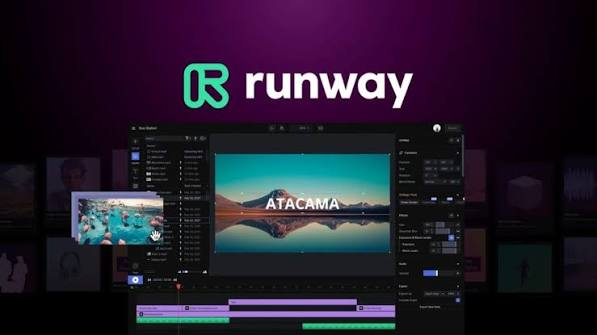
One of Runway ML’s standout features is its text-to-video generation, which allows users to create short video clips from simple text prompts. It also supports image-to-video generation, enabling you to animate static images into realistic motion. The AI-powered video editor includes features such as background removal without a green screen, object removal, motion tracking, automatic masking, frame interpolation, and AI-powered visual effects. These tools significantly reduce editing time while maintaining professional-quality results.
Runway ML also integrates well into modern content workflows, making it ideal for creating YouTube videos, short-form social media content, advertisements, promotional videos, concept animations, and cinematic projects. Cloud-based processing means users can work from almost any device without requiring high-end hardware.
Although the free plan has limited credits and export options, the paid plans unlock higher-quality video generation, faster rendering, and additional AI features. Overall, Runway ML is an excellent choice for anyone looking to create visually impressive videos quickly, making it one of the best AI tools for video creation and editing in 2026.
Practical example: You’re a travel blogger and need a clip of a sunset over a mountain range, but you don’t have footage. Type that into Runway’s Gen-3 model, and it produces a usable clip in under a minute.
Key features:
- Text-to-video and image-to-video generation
- Video inpainting (remove or change objects in a scene)
- Motion brush (animate specific parts of an image)
- Green screen removal without an actual green screen
Pros:
- Stunning visual output for short clips
- Great for creative and cinematic work
- Constantly updated with new models
- Works directly in the browser
Cons:
- Expensive for heavy users — credits run out fast
- Videos are typically limited to 10–15 seconds per generation
- Not ideal for long-form content or talking-head videos
Pricing: Free plan available with limited credits. Pro plan starts at around $15/month.
Best for: Content creators, filmmakers, and social media teams who need short, visually impressive clips.
2. Descript — Best for Podcast and Talking-Head Video Editing
Descript is the tool that changed how a lot of podcasters and YouTubers work. The core idea is simple but powerful: it transcribes your video, and then you edit the video by editing the text. Delete a sentence from the transcript, and that section disappears from the video.

It also has a feature called Overdub, which lets you fix small recording mistakes by typing the correction — and it uses your own cloned voice to fill it in.
Practical example: You record a 30-minute interview but say “um” and “you know” roughly 200 times. Descript‘s filler word remover cleans all of that up in one click.
Key features:
- Edit video by editing the transcript
- Auto-remove filler words and silences
- Screen recording built-in
- Multi-track timeline for podcast-style editing
- Eye contact correction (makes it look like you’re looking at the camera)
Pros:
- Dramatically speeds up editing for talking-head content
- Great for creators who aren’t comfortable with traditional editing software
- Collaboration features make it easy for teams to work together
- Accurate transcription in multiple languages
Cons:
- Voice cloning (Overdub) works best with a large sample of your voice
- Not great for complex video effects or cinematic editing
- The interface can feel slow on older machines with large files
Pricing: Free plan with limited features. Creator plan starts around $24/month.
Best for: YouTubers, podcasters, and corporate video teams who record a lot of talking-head or interview content.
3. Pictory — Best for Turning Text Into Video
If you have blog posts, newsletters, or scripts you want to turn into videos quickly, Pictory is the tool to know. You paste in your text, and it automatically picks relevant stock footage, adds captions, and generates a video with background music.

Practical example: You’ve written a 1,500-word blog post on “5 Ways to Save Money on Groceries.” Paste it into Pictory, and within five minutes you have a 3-minute video ready to post on YouTube or Instagram.
Key features:
- Text-to-video using stock footage library
- Auto-captions and caption styles
- Highlight reels from long videos
- Voiceover in multiple accents and languages
- Brand kit for consistent styling
Pros:
- One of the fastest ways to repurpose written content into video
- Large stock footage and music library included
- Good caption customization
- Easy enough for beginners with no editing experience
Cons:
- Stock footage can feel generic if you don’t choose carefully
- Less creative control than traditional editing software
- Voiceovers can sound slightly robotic on complex scripts
Pricing: Plans start at around $19/month for the Starter tier.
Best for: Bloggers, content marketers, and businesses that want to repurpose written content into short-form videos.
4. HeyGen — Best for Faceless Videos with Custom Avatars
HeyGen is the go-to tool for faceless video creators who want a realistic on-screen presenter without ever appearing on camera themselves. You choose an avatar (or create one from your own likeness), type your script, and it generates a video of the avatar speaking your words.
Practical example: You run an e-learning course and want to record 20 lessons but don’t want to be on camera for every single one. HeyGen lets you create one avatar and generate all 20 lessons by just changing the script each time.
Key features:
- Realistic video avatars (custom and stock)
- Lip-sync in 40+ languages
- Video translation — upload a video in English and get it dubbed in Spanish, Hindi, German, etc.
- Custom background and branding
Pros:
- Highly realistic avatars compared to older tools
- Excellent for multilingual content at scale
- Great for corporate training, course creators, and explainer videos
- No camera or studio needed
Cons:
- Custom avatar creation requires quality source footage
- Pricing can get steep if you’re producing a lot of videos monthly
- Doesn’t replace authentic creator-to-audience content where personal connection matters
Pricing: Free plan with limited credits. Pro plan starts around $29/month.
Best for: Course creators, corporate trainers, and marketers who need multilingual or faceless presenter videos.
5. CapCut (Web/Desktop) — Best Free All-in-One Tool
CapCut started as a mobile app but now has a fully capable web and desktop version that’s become a serious editing option even for professional creators. For the price (free), it offers a remarkable feature set including auto-captions, background removal, text-to-speech, green screen, and a growing library of templates.
Practical example: You shoot a 60-second Reel on your phone. Open CapCut, drag the clip in, click “Auto Captions,” pick a font style, remove the background, add music from the library — done in under 10 minutes.
Key features:
- Auto-captions with animated styles
- Background removal without green screen
- Text-to-speech and audio tools
- Template library (trending formats, auto-cut)
- Multi-track timeline editor
Pros:
- Free with no major watermarks on most features
- Very easy for beginners
- Excellent for short-form content (Reels, TikToks, Shorts)
- Regular feature updates
Cons:
- Less suited for long-form or documentary-style videos
- Some advanced features require a paid plan
- Data privacy concerns have been raised due to its ByteDance ownership — worth knowing if you’re handling sensitive content.
Pricing: Mostly free. CapCut Pro is available for additional features.
Best for: Individual creators, social media managers, and anyone making short-form content on a budget.
6. Synthesia — Best for Professional Corporate Videos
Synthesia is what many businesses use when they need clean, professional-looking training videos or product explainers without filming anything. It’s similar to HeyGen but targets corporate users more specifically, with a cleaner interface and enterprise features.
Practical example: An HR team needs to create an onboarding video for new employees. They write the script in Synthesia, choose a professional-looking avatar, and get a polished video ready to embed in their LMS — no camera crew, no editing software.
Key features:
- 230+ stock avatars in 140+ languages
- Custom avatar creation
- Built-in screen recording for tutorial videos
- Slide-style video layout for training content
- SCORM export for LMS platforms
Pros:
- Professional, polished output
- Best-in-class for training and onboarding videos
- Excellent language and localization support
- Team collaboration features
Cons:
- More expensive than other tools on this list
- Less creative flexibility for entertainment or social media content
- Avatars, while realistic, can still feel slightly stiff in longer clips
Pricing: Starter plan begins around $29/month. Enterprise pricing available.
Best for: HR teams, training departments, SaaS companies, and enterprises producing educational or onboarding videos.
7. Topaz Video AI — Best for Enhancing Existing Footage
This one is different from the others — it doesn’t create videos from scratch. Instead, it enhances footage you already have. If you’ve got old video recordings that are blurry, low-resolution, or shaky, Topaz Video AI can upscale and restore them.
Practical example: You have 720p footage from a company event three years ago that you want to use in a promotional video. Topaz can upscale it to 4K and reduce noise, making it look usable alongside newer footage.
Key features:
- Video upscaling up to 4K and 8K
- Noise and grain removal
- Frame interpolation (increase frame rate smoothly)
- Motion deblur
- Works entirely offline on your machine
Pros:
- Genuinely impressive quality improvements on old or low-res footage
- No subscription — one-time purchase option available
- Processes locally, so no cloud privacy concerns
- Good for filmmakers and archivists
Cons:
- Requires a capable computer (GPU-intensive)
- Slow on older machines
- Not a creation tool — you still need footage to start
Pricing: One-time purchase around $299, or an annual plan.
Best for: Filmmakers, video archivists, and content creators who need to restore or upscale older footage.
Quick Comparison Table
| Tool | Best For | Starting Price | Free Plan |
|---|---|---|---|
| Runway ML | Short creative clips | ~$15/month | Yes |
| Descript | Talking-head editing | ~$24/month | Yes |
| Pictory | Text-to-video | ~$19/month | No |
| HeyGen | Avatar/faceless video | ~$29/month | Yes |
| CapCut | Short-form social content | Free | Yes |
| Synthesia | Corporate/training video | ~$29/month | No |
| Topaz Video AI | Upscaling/restoration | ~$299 one-time | No |
How to Pick the Right Tool for You
Before you commit to a subscription, ask yourself these three questions:
1. What type of video are you making? Talking-head content → Descript. Faceless explainers → HeyGen or Synthesia. Short social clips → CapCut. Creative generative content → Runway.
2. How much editing experience do you have? If you’re a beginner, start with CapCut or Pictory. If you’re comfortable with timelines, Descript or Runway will give you more control.
3. What’s your budget? CapCut is the strongest free option. If you need professional output and have a budget, Descript or HeyGen deliver strong ROI for regular creators.
FAQs
Q: Can I use these tools without any video editing experience?
Yes. Most of these tools are designed for people who aren’t professional editors. Descript, CapCut, and Pictory all have gentle learning curves and work well for beginners.
Q: Which tool is best for making YouTube Shorts and Instagram Reels?
CapCut is the most popular choice for short-form social content. It has trending templates, auto-captions, and vertical video support built in. Descript is a good second option if you want more editing control.
Q: Can I create videos in Hindi or other Indian languages?
Yes. HeyGen and Synthesia both support Hindi, and many other regional languages for voiceovers and avatar lip-sync. Pictory also offers multilingual voiceover options.
Q: Are these tools good for YouTube channel growth?
They help with output volume and quality, which both contribute to growth. But the content itself — your angle, script, and value — still matters most. These tools just help you produce faster.
Q: What’s the best free tool for video editing in 2026?
CapCut (web/desktop version) is currently the strongest free option. It covers most needs for short-form content without requiring a subscription.
Q: Is my video data safe with these cloud-based tools?
Most reputable platforms have clear privacy policies and don’t train on your content by default. However, if you’re working with sensitive corporate or client footage, check each platform’s data handling policy before uploading.
Q: Do I need a powerful computer to use these tools?
Most cloud-based tools (Runway, Descript, HeyGen, Pictory, Synthesia) run in the browser and don’t require a powerful machine. Topaz Video AI is the exception — it processes locally and needs a decent GPU.
Conclsion
2026 is genuinely a great time to start creating video content, even if you’ve never opened a video editor before. The tools have come a long way — and the gap between “creator without a budget” and “creator with a full production team” is narrower than it’s ever been.
If you’re just starting, go with CapCut and get comfortable with the basics. Once you’re producing regularly, layer in Descript if you do talking-head content, or HeyGen if you prefer faceless videos.
The best tool is always the one you’ll actually use consistently. Start simple, build the habit, and upgrade your stack as your needs grow.

