
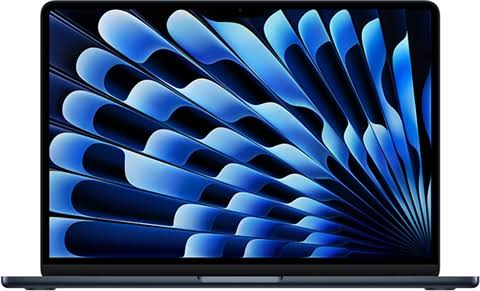
The MacBook Air M4 is a genuinely impressive machine. Fast, quiet, runs cool, and gets through a full day on a single charge with no drama. But all of that hardware quality doesn’t automatically make your internet connection private or secure. When you’re on public Wi-Fi — or just don’t want your ISP tracking everything you browse — a VPN fills that gap.
The good news is you don’t have to spend money to get started. There are free VPNs that work properly on the M4 chip, run natively on macOS, and don’t quietly sell your data to cover their server costs. The bad news is that most free VPNs out there are either too limited to be useful or come with privacy trade-offs that defeat the whole point.
Best Free VPN for MacBook Air M4. This guide cuts through that. Here’s what actually works on the MacBook Air M4, what each option gives you, and how to choose the right one for your situation.
Does Your MacBook Air M4 Need a VPN?
Short answer: It depends on how you use it.
If you mostly work from home on your own router, you’re reasonably safe without one. But if any of these apply to you, a VPN makes sense:
You use public Wi-Fi regularly. Coffee shops, airports, co-working spaces, and hotel lobbies — any of these networks can expose your traffic to others on the same connection. A VPN encrypts everything, so even if someone intercepts your data, they can’t read it.
You travel internationally. Some countries restrict access to websites and services you use every day. A VPN lets you connect to a server back home and access things normally.
You don’t want your ISP building a profile on you. Internet providers can log and sell your browsing data depending on where you live. A VPN prevents that by hiding your activity behind an encrypted tunnel.
You want to access region-locked content. Some streaming services, news sites, and tools are only available in certain countries. A VPN changes your apparent location.
The MacBook Air M4 runs macOS Sequoia (or whatever version you’re on), and all the reputable VPN providers have native Apple Silicon apps. No Rosetta emulation, no performance hit — they run clean on the M4.
What Makes a Free VPN Worth Using on MacBook Air M4
Before the list, here’s what to actually evaluate:
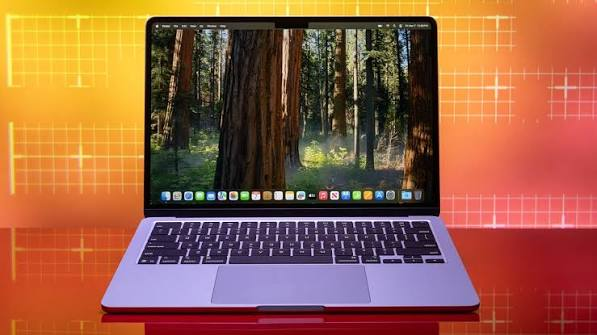
Native M4/Apple Silicon support. You want a proper macOS app built for Apple Silicon, not an Intel app running through compatibility mode. All the options below have this covered.
System-wide protection. A browser extension only protects your browser traffic. A full VPN app protects everything — your browser, apps, email client, cloud sync tools, everything running on your Mac.
Honest privacy policy. This is the big one. Some free VPNs make money by logging and selling your browsing data. If the VPN isn’t transparent about how it funds itself, assume the worst.
Reasonable speed and data. Free plans always have some limitations — either slower speeds, a monthly data cap, or both. Knowing the limit upfront helps you plan.
Kill switch (bonus). A kill switch cuts your internet if the VPN drops unexpectedly, so your real IP never leaks. Not all free plans include this, but it’s worth noting when they do.
Best Free VPN for MacBook Air M4
1. Proton VPN Free — Best Overall, No Data Cap
Proton VPN sits at the top of this list for one reason that’s hard to argue with: the free plan has no data limit. You can browse all day, every day, without hitting a wall. That’s genuinely rare among free VPNs.
The company behind it is Proton AG, based in Switzerland, which runs ProtonMail. Switzerland has strong privacy laws and sits outside the jurisdiction of US and EU data-sharing agreements. The no-logs policy has been independently audited, which means a third party has actually verified the claims — not just taken the company’s word for it.
On the MacBook Air M4, the Proton VPN app is snappy and well-designed. It uses the WireGuard protocol by default, which is currently the fastest and most efficient VPN protocol available. It integrates cleanly with macOS — you’ll find it sitting quietly in your menu bar, and connecting takes one click.
The free plan gives you servers in three countries: the United States, the Netherlands, and Japan. You get one simultaneous connection, and speeds are a step below the paid tier because free users are given lower server priority. In practice, for web browsing, video calls, and light work tasks, you’ll barely notice.
Practical example: You’re working remotely from a hotel in Singapore, and your company’s internal tools are hosted in the US. You connect to Proton VPN’s US server, access everything as if you’re stateside, and the connection stays stable through a two-hour work session.
Pros:
- No data cap — unlimited browsing
- Audited no-logs policy
- Native Apple Silicon app — runs perfectly on M4
- WireGuard protocol for efficient performance
- Based in Switzerland with strong legal privacy protections
- Open-source apps — code is publicly verifiable
- No ads, no tracking
Cons:
- Only 3 server countries are on the free plan
- Slower than the paid tier during peak hours
- Streaming services like Netflix are blocked on free servers
- One device at a time
Best for: Anyone who wants a trustworthy, unlimited free VPN for everyday use on their MacBook Air M4.
2. Windscribe Free — Best for Server Variety
Windscribe gives you 10GB of free data per month when you sign up with an email address. If you skip the email, you get 2GB. For casual daily browsing — checking emails, reading articles, video calls — 10GB stretches reasonably far. Streaming eats through it fast, but for general use, it works.
What separates Windscribe from most free VPNs is the number of server locations available on the free plan. You get access to servers in over 10 countries, including the US, Canada, UK, France, Germany, Netherlands, Norway, Romania, Hong Kong, and more. That’s a meaningfully wider selection than most free competitors, and it matters if you need to connect to a specific region regularly.
Windscribe also includes a built-in feature called ROBERT — a DNS-level blocker that filters out ads, trackers, and malware domains at the VPN layer. This means your browsing is cleaner without needing a separate ad blocker installed.
The macOS app runs well on Apple Silicon and has a clean, minimal interface. One distinctive feature: Windscribe allows unlimited simultaneous connections even on the free plan. So if you also want to cover your iPhone or iPad with the same account at no extra cost, you can.
Practical example: You’re a freelancer who switches between your MacBook Air M4 at home and your iPad on the go. You set up Windscribe on both devices with the same free account, and both are protected simultaneously without any extra cost or configuration.
Pros:
- 10GB/month free data (generous for a free plan)
- 10+ server locations available at no cost
- Unlimited simultaneous device connections
- Built-in ad and tracker blocking
- Clean macOS app with Apple Silicon support
- No activity logs
Cons: The
- 10GB cap runs out quickly if you stream video
- Some of the better server locations require a paid plan
- Speeds can vary depending on server load
- Customer support is limited on the free tier
Best for: Users who want variety in server locations and appreciate built-in privacy features like ad blocking.
3. TunnelBear Free — Best for Beginners
If you’ve never used a VPN before, TunnelBear is the easiest place to start. The Mac app is genuinely enjoyable to use — it shows a world map with animated bears tunneling to different countries when you connect. It sounds gimmicky, but it makes an unfamiliar technology feel approachable.
The free plan gives you 500MB of data per month. That’s the biggest drawback, and it’s a real one. 500MB is barely enough for a few hours of light browsing, let alone anything data-heavy. It’s more of a trial than a usable long-term option. That said, TunnelBear has been independently security audited every year since 2017, which makes it one of the most transparently vetted free VPNs available.
On the M4, the app runs natively and connects fast. You get access to servers in 47+ countries,s even on the free plan, which is the widest server selection of any free VPN on this list. If all you need is occasional privacy protection — say, connecting to a public Wi-Fi network a few times a month — 500MB might actually be enough.
Practical example: You’re at an airport lounge waiting for a flight and want to check your banking app over the airport’s public Wi-Fi. You connect to TunnelBear, verify your account balance, and disconnect. The whole session uses maybe 20MB. For this kind of occasional use, the 500MB limit is fine.
Pros:
- Most beginner-friendly VPN interface available
- Independently audited security — annually
- 47+ server countries, even on the free plan
- Native Apple Silicon support
- No IP or DNS leaks reported
- Good for occasional use
Cons: The
- 500MB/month data limit is very restrictive
- Not viable for daily use or anything data-heavy
- Speeds are average
- No streaming on the free plan
Best for: First-time VPN users who want to understand how it works before committing to a paid plan.
4. hide.me Free — Best for Speed
hide.me is run by a Malaysian company with a clean privacy track record. The free plan gives you 10GB of data per month across five server locations: Germany, the Netherlands, US East, US West, and Canada. The selection is focused rather than wide, but the quality of those servers is solid.
Speed is where hide.me earns its spot on this list. In independent tests, free-tier hide.me users consistently get faster connections than comparable free VPN services. For a MacBook Air M4 user doing video calls, uploading files, or just wanting a responsive browsing experience, that matters.
The macOS app is functional and clean. It supports the IKEv2 and WireGuard protocols, both of which work efficiently on Apple Silicon. There are no ads on the free plan, and the privacy policy is clear about what’s logged (almost nothing) and what isn’t.
Practical example: You’re a remote worker who needs a VPN for daily use on your MacBook Air M4 but can’t justify a paid subscription yet. You use hide. My 10GB free plan for your morning work sessions — checking emails, video calls, and accessing work tools — and consistently get fast, stable connections without noticeable slowdowns.
Pros:
- 10GB/month free data
- Consistently fast speeds for a free VPN
- Supports WireGuard on macOS
- No ads on the free plan
- Clear and honest privacy policy
- Works well for remote work use cases
Cons:
- Only 5 server locations
- One device at a time on the free plan
- No streaming access on free servers
- Interface feels slightly utilitarian compared to competitors
Best for: Remote workers and productivity-focused users who prioritize connection speed over server variety.
5. Hotspot Shield Free — Best for US-Based Users
Hotspot Shield’s free plan is essentially a US-only VPN with a daily data allowance of 500MB, which works out to roughly 15GB per month. For users who primarily need a US server — to access US-based content, work tools, or services — it’s a practical option.
The connection speeds are among the best in the free VPN category. Hotspot Shield has invested heavily in its proprietary Hydra protocol, which is engineered for speed. On the MacBook Air M4, connections establish quickly and stay stable.
The trade-off is that the free plan displays ads, and Hotspot Shield’s past privacy policy has attracted some scrutiny. They’ve made improvements, but if privacy is your primary motivation for using a VPN, Proton VPN or hide.me are cleaner choices. If you just want fast, reliable US server access and don’t mind ads, Hotspot Shield delivers.
Practical example: You’re an international student in Canada who needs regular access to US streaming platforms and US-hosted academic tools for your coursework. Hotspot Shield’s free US server handles this reliably, and the daily 500MB limit is enough for academic tool access even if it won’t support extended streaming sessions.
Pros:
- Fast speeds — one of the quickest free VPNs available
- ~15GB effective monthly data via 500MB daily cap
- Clean and simple macOS app
- Reliable US server access
- Easy setup
Cons:
- US server only on the free plan
- Ads displayed in the free version
- Past privacy policy concerns worth researching
- Not suitable for users needing multiple server locations
Best for: US-based users or those who specifically need a US server connection with fast speeds.
Quick Comparison: Free VPN Plans for MacBook Air M4
| VPN | Data Limit | Free Servers | Speed | No-Logs Audit | Devices |
|---|---|---|---|---|---|
| Proton VPN | Unlimited | 3 countries | Medium | Yes | 1 |
| Windscribe | 10GB/month | 10+ countries | Medium | Partial | Unlimited |
| TunnelBear | 500MB/month | 47+ countries | Good | Yes (annual) | Unlimited |
| hide.me | 10GB/month | 5 locations | Fast | Yes | 1 |
| Hotspot Shield | ~15GB/month | 1 (US only) | Fast | Partial | 1 |
Setting Up a Free VPN on MacBook Air M4

Using Proton VPN as the example — the steps are similar for all options:
- Open Safari or Chrome and go to protonvpn.com
- Click “Get Proton VPN Free” and create a free account
- Download the macOS app — it’s a universal binary that runs natively on Apple Silicon
- Open the downloaded file and drag Proton VPN to your Applications folder
- Launch it, sign in, and click “Quick Connect.”
The VPN will now encrypt all traffic leaving your MacBook Air M4 — not just your browser, but every app that connects to the internet. You’ll see the connection status in your menu bar. To disconnect, open the app and click the power button.
For the other VPNs on this list, the process is essentially identical: download from their official site, install, sign in, and connect.
Free VPNs to Avoid on MacBook Air M4
A few worth steering clear of:
Hola VPN — Routes your traffic through other users’ devices. You’re not just using their network; you’re also being used as an exit node for others. That’s a significant privacy and legal risk.
SuperVPN has had documented data breaches with user information exposed. Avoid entirely.
Unknown App Store VPNs — There are dozens of VPN apps in the Mac App Store with names you’ve never heard of. Many have opaque ownership structures and vague privacy policies. Stick to providers with verifiable company information and audited privacy claims.
The general rule: if you can’t find clear information about who owns the VPN, where they’re based, and how they fund their free service, don’t install it.
FAQs
Do free VPNs work properly on Apple Silicon / M4 Macs?
Yes, all the VPNs listed above have native Apple Silicon apps. They don’t run through Rosetta and don’t cause the battery drain or performance issues that poorly optimized apps can create. The M4’s efficiency cores handle VPN encryption without any noticeable impact on battery life.
Will a free VPN slow down my MacBook Air M4?
There will be some slowdown because your traffic is being encrypted and routed through an extra server. On a fast home connection, you probably won’t notice. On a slower public Wi-Fi, the difference is minimal since the network itself is the bottleneck. Hide. Hotspot Shield and I are the fastest free options if speed is a priority.
Can I use a free VPN to watch Netflix on my MacBook Air M4?
Generally no. Netflix aggressively blocks VPN IP addresses, and free VPN providers don’t have the resources to keep rotating server IPs to stay ahead of those blocks. Paid VPNs like NordVPN and ExpressVPN do this reliably. If streaming is your main goal, a paid plan is more practical.
Is it safe to use a free VPN for banking on public Wi-Fi?
Yes, with a reputable VPN from this list. The encrypted tunnel protects your connection from being intercepted. That said, make sure you’re visiting your bank’s official website (look for HTTPS in the address bar) and using the official banking app rather than a browser. The VPN adds a layer of protection, but basic safe browsing habits still matter.
How do I know if my VPN is actually working on my Mac?
Go to whatismyip.com before and after connecting. If the IP address and location change after you connect to the VPN, it’s working. You can also use ipleak.net to check for DNS leaks — that page shows whether your real DNS server is visible despite the VPN being active.
Can I use a free VPN on my MacBook Air M4 and iPhone at the same time?
It depends on the VPN. Windscribe allows unlimited simultaneous connections on its free plan. Proton VPN and hide.me limit you to one device at a time on free plans. TunnelBear allows unlimited devices. Check the specific plan details before setting up multiple devices.
Does using a VPN drain the MacBook Air M4’s battery faster?
Slightly, because there’s extra processing involved in encryption. In practice, the M4 chip handles this so efficiently that the impact is minimal — we’re talking about a small percentage difference, not a dramatic drain. Proton VPN uses WireGuard by default, which is the most battery-efficient protocol available.
Are free VPNs legal to use in India?
VPNs are legal to use in India. However, the Indian government introduced VPN logging requirements in 2022, which means VPN providers with servers in India are required to keep user logs. All the VPNs on this list responded by either removing Indian servers or offering virtual Indian IP addresses via servers hosted outside the country. Check the specific provider’s current India server policy before use.
Conclsion
For most MacBook Air M4 users, Proton VPN Free is the right answer. Unlimited data, a verified no-logs policy, native Apple Silicon support, and a clean macOS app. It doesn’t do everything — you won’t be streaming Netflix on it — but for private browsing, public Wi-Fi protection, and everyday use, it covers the bases without costing anything.
If you need more server locations, go with Windscribe. If you’re brand new to VPNs and want the easiest experience, start with TunnelBear. And if speed matters most to you, hide.me is worth trying.
Whatever you pick, use the official download from the provider’s website — not a third-party app store — and you’ll be set up in under five minutes.

