
Creating YouTube videos in 2026 is faster and easier than ever, thanks to AI-powered video editing tools. Whether you are a beginner, content creator, business owner, or professional editor, modern AI software can automatically cut footage, remove mistakes, generate captions, create transitions, enhance audio, and even produce complete videos from text prompts.
The biggest advantage of AI video editing is time savings. Tasks that once took hours can now be completed in minutes. AI tools can identify important moments in a video, add subtitles automatically, remove background noise, generate B-roll footage, and optimize content for YouTube Shorts, Instagram Reels, and TikTok.

Popular AI video editing platforms such as CapCut, Descript, Runway, Pictory, and Opus Clip offer powerful features for creators of all skill levels. These tools help users produce professional-quality videos without requiring advanced editing experience.
As competition on YouTube continues to grow, AI editing tools have become essential for increasing productivity, improving video quality, and publishing content consistently. In this guide, you’ll discover the best YouTube video editing AI tools in 2026, their key features, benefits, pricing, and how they can help grow your channel faster.
If you’re a YouTuber in 2026, you already know that uploading a raw, unedited video is basically a death sentence for your channel. Viewers expect clean cuts, good pacing, captions, and smooth transitions — and they expect it fast. The problem? Editing used to take hours. Now, with the right tools, you can cut that time down significantly.
This guide covers the best YouTube video editing tools in 2026 that use smart automation to do the heavy lifting. Whether you’re a solo creator, a small team, or someone who just started their channel last month, there’s something here for you.
Why Your Editing Workflow Matters More Than Ever

YouTube’s algorithm rewards watch time and engagement. If your video drags, people leave. If captions are missing, you lose viewers who watch on mute. If the pacing is off, even good content feels boring.
The tools below help you fix all of that — faster than traditional editing software ever could.
YouTube Video Editing AI Tool in 2026:-
1. Descript
Best for: Creators who edit by reading, not scrubbing timelines
Descript is one of the most creator-friendly tools out there right now. Instead of working with a traditional video timeline, you edit your video like a Google Doc. Delete a sentence from the transcript, and the video clip disappears with it.
Descript is one of the most popular AI-powered video editing tools in 2026, especially for YouTubers, podcasters, educators, and content creators. Its unique text-based editing system allows users to edit videos and audio simply by editing the transcript. When you delete words from the text, the corresponding video and audio sections are automatically removed, making the editing process much faster than traditional timeline-based editors.

Descript includes powerful AI features such as automatic transcription, filler-word removal, background noise reduction, screen recording, and AI voice cloning. The platform’s Overdub feature can generate realistic voice corrections without requiring users to re-record audio. It also offers automatic captions, multi-track editing, and collaboration tools for teams working on content projects.
For YouTube creators, Descript helps speed up workflow by simplifying podcast editing, talking-head videos, tutorials, interviews, and educational content. Its beginner-friendly interface and cloud-based collaboration features make it an excellent choice for creators who want professional-quality results without a steep learning curve. Whether you’re creating long-form YouTube videos or short clips for social media, Descript provides an efficient AI-driven editing experience.
How it works in practice: Say you recorded a 20-minute walkthrough video and stumbled over your words five times. In Descript, you highlight the bad takes in the transcript and delete them. Done. No scrubbing back and forth through footage.
It also removes filler words — “um,” “uh,” “like,” and long pauses — with a single click. For talking-head YouTube videos, this alone saves 30 to 40 minutes per edit.
What’s new in 2026: Descript now generates chapters and timestamps automatically, which you can paste directly into your YouTube description. It also supports multi-speaker identification, which is a big deal for podcast-style YouTube channels.
Pros:
- Transcript-based editing is genuinely faster for spoken content
- Filler word removal works well out of the box
- Automatic captions with good accuracy
- Great for screen recordings and tutorials
Cons:
- Not ideal for cinematic or B-roll-heavy content
- The learning curve feels weird if you’re used to Premiere or DaVinci
- Pricing jumps significantly on the higher tiers
2. CapCut for Desktop
Best for: Short-form creators crossing over to YouTube
CapCut started as a mobile app for Reels and TikTok creators, but the desktop version has become surprisingly capable for YouTube work in 2026. It’s free to start, which makes it the go-to recommendation for new creators.
CapCut for Desktop is a powerful AI-powered video editing software designed for content creators, YouTubers, marketers, and social media users. Available for both Windows and macOS, it offers professional editing features with a beginner-friendly interface. The desktop version provides more advanced tools and better performance than the mobile app, making it ideal for creating high-quality YouTube videos, Shorts, tutorials, and promotional content.
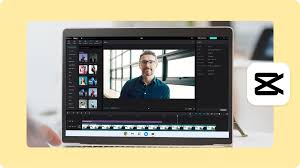
One of CapCut’s biggest strengths is its AI features. Users can automatically generate captions, remove backgrounds without a green screen, enhance video quality, convert text to speech, remove unwanted objects, and create AI-powered effects with just a few clicks. The software also includes transitions, filters, motion graphics, keyframe animation, and audio enhancement tools.
For YouTube creators, CapCut for Desktop helps streamline the editing process and reduce production time. It supports high-resolution exports, including 4K video, and offers templates that make content creation faster. Whether you’re editing vlogs, gaming videos, educational tutorials, or short-form content, CapCut provides a balance of simplicity and advanced functionality, making it one of the most popular video editing solutions in 2026.
How it works in practice: You upload your raw footage, and CapCut’s auto-cut feature detects natural breaks in speech and suggests cuts. It also pulls in trending audio and can generate subtitle overlays in minutes.
For YouTube Shorts specifically, CapCut’s auto-reframe feature resizes horizontal footage to vertical automatically — and it tracks the subject, so you’re not just cropping blindly.
What’s new in 2026: CapCut Desktop added a “YouTube mode” that exports in formats optimized for YouTube compression. This means less quality loss after upload — something that used to require manual export settings in Premiere.
Pros:
- Free tier is genuinely useful (not crippled)
- Great for Shorts and horizontal video
- Auto-subtitle generation in 50+ languages
- Simple enough for beginners
Cons:
- Less control over color grading
- Not the best for long-form content over 30 minutes
- Some features require a paid subscription to unlock
3. Runway
Best for: Creators who want cinematic quality without a film crew
Runway is where things get impressive — and expensive. It’s built for creators who want high-production-value visuals without hiring a motion graphics designer or a cinematographer.
Runway is one of the most advanced AI video creation and editing platforms available in 2026. It is widely used by YouTubers, filmmakers, marketers, and digital creators who want to produce professional-quality videos with the help of artificial intelligence. Unlike traditional video editors, Runway combines video editing, visual effects, and AI-generated content creation in a single platform.

For YouTube creators, Runway is particularly useful for producing cinematic content, explainer videos, product demonstrations, and creative storytelling projects. Its cloud-based workflow allows users to edit from almost any device without requiring high-end hardware. Whether you are a beginner experimenting with AI-generated videos or a professional looking for advanced visual effects, Runway provides powerful tools that make video production faster, more creative, and more efficient.
One of Runway’s standout features is its ability to generate videos from text prompts and images. Users can create unique scenes, animations, and B-roll footage without using a camera. The platform also offers AI-powered background removal, object tracking, motion brushes, image-to-video generation, video upscaling, and automatic subtitle creation. These tools help creators save time while achieving high-quality results.
How it works in practice: Imagine you recorded a YouTube video in your bedroom, but you want the background to look like a professional studio. Runway’s background removal and replacement tool handles this in real time. You can also remove objects from footage — a water bottle on your desk, a cable dangling in the shot — without reshooting.
Its slow-motion tool is particularly good. Feed it standard 30fps footage, and it generates smooth, cinema-quality slow motion that would normally require a high-speed camera.
What’s new in 2026: Runway now has a storyboard-to-video feature that lets you plan your YouTube video visually before shooting. For scripted content, this is a game-changer for pre-production.
Pros:
- Background removal and replacement are excellent
- Object removal from footage saves reshoots
- Slow-motion generation from standard footage
- Constantly adding new features
Cons:
- Expensive — the plans that matter are not cheap
- Steeper learning curve than CapCut or Descript
- Render times can be slow on complex projects
4. Pictory
Best for: Repurposing blog posts, articles, or scripts into YouTube videos
If you already have written content — blog posts, newsletters, scripts — Pictory turns it into a video automatically. You paste your text, it matches relevant visuals from a stock library, and you get a ready-to-edit video in minutes.
Pictory is a popular AI-powered video creation and editing platform that helps users turn text, blog posts, scripts, and long-form content into engaging videos within minutes. It is widely used by YouTubers, marketers, educators, and businesses that want to create professional videos without needing advanced editing skills or expensive equipment.

One of Pictory’s key features is its ability to automatically convert written content into videos by selecting relevant visuals, adding transitions, generating subtitles, and incorporating background music. The platform also offers AI-powered video summarization, making it easy to transform webinars, podcasts, and lengthy videos into shorter clips suitable for YouTube Shorts, Instagram Reels, and TikTok.
For YouTube creators, Pictory can significantly reduce production time by automating many editing tasks. It includes automatic caption generation, voiceover support, stock media integration, and branding tools for consistent content creation. Since it operates in the cloud, users can create and edit videos from virtually anywhere without requiring powerful hardware.
Whether you are creating educational videos, marketing content, product reviews, or social media clips, Pictory provides an efficient and user-friendly solution for producing high-quality videos with the assistance of artificial intelligence.
How it works in practice: Let’s say you run a finance YouTube channel and you’ve been writing weekly newsletters for two years. Pictory lets you drop those newsletters in and get a video out. It adds voiceovers, matches stock footage to your keywords, and builds captions automatically.
It’s not going to replace high-quality talking-head or tutorial content. But for informational YouTube videos, it speeds up production dramatically.
What’s new in 2026: Pictory added a “brand kit” feature where you set your fonts, colors, and logo on,ce and it applies to every video automatically. For channels trying to maintaa in consistent visual identity, this is a real time saver.
Pros:
- Excellent for repurposing written content
- Large stock footage library built in
- Auto-voiceover with multiple voice options
- Brand kit keeps visual consistency
Cons:
- Stock footage can feel generic if you don’t curate carefully
- Not suitable for original filmed content editing
- Voiceovers sound decent but not natural for all niches
5. Adobe Premiere Pro (with Firefly integration)
Best for: Professional creators who need full control plus automation
Adobe Premiere Pro has been the industry standard for years. In 2026, its integration with Adobe Firefly has added automation features that close the gap between traditional editing and the newer smart tools.
Adobe Premiere Pro is one of the most powerful and widely used professional video editing applications in 2026. Trusted by YouTubers, filmmakers, content creators, and media companies worldwide, it offers advanced editing tools for producing high-quality videos. The software supports everything from simple social media clips to feature-length films and commercial projects.

A major advantage of Premiere Pro is its integration of AI-powered features through Adobe’s AI technology. These tools can automatically generate captions, enhance speech quality, remove background noise, reframe videos for different social media platforms, and speed up repetitive editing tasks. The software also provides multi-camera editing, color grading, motion graphics integration, visual effects, and support for high-resolution formats, including 4K and 8K video.
For YouTube creators, Premiere Pro delivers professional-level control over every aspect of video production. It integrates seamlessly with other Adobe applications such as Adobe After Effects, Adobe Photoshop, and Adobe Audition, creating a complete content creation workflow. Whether you’re editing vlogs, documentaries, tutorials, gaming videos, or business content, Adobe Premiere Pro provides the flexibility, performance, and advanced features needed to create polished and engaging videos.
How it works in practice: The Auto Reframe tool detects your subject and recuts for different aspect ratios — vertical, square, horizontal — automatically. The text-based editing feature (similar to Descript) lets you edit your video by editing a transcript.
For creators who shoot B-roll, interviews, or documentary-style content, Premiere remains the most complete tool. You have full control over color, audio mixing, effects, and export — plus the smart features now built in.
What’s new in 2026: Firefly integration lets you generate motion graphics and title cards directly inside Premiere using text prompts. Type “bold red title card with animated underline,” and Premiere builds it. This used to require After Effects knowledge.
Pros:
- Industry-standard with full creative control
- Auto Reframe and text-based editing are solid
- Firefly integration for motion graphics
- Works with the entire Adobe ecosystem
Cons:
- Subscription cost adds up
- Heavy on system resources
- Overkill for simple YouTube content
- Learning curve is real for new editors
6. OpusClip
Best for: Repurposing long YouTube videos into Shorts
OpusClip does one thing very well: it takes a long video and finds the best moments to turn into short clips. For YouTubers who want to post Shorts alongside their main content, this is probably the fastest way to do it.
Opus Clip is a leading AI-powered video repurposing tool that helps creators transform long-form videos into short, engaging clips for platforms such as YouTube Shorts, TikTok, Instagram Reels, and Facebook Reels. In 2026, it became a popular choice among YouTubers, podcasters, marketers, coaches, and businesses looking to maximize the reach of their content without spending hours editing manually.

The platform uses artificial intelligence to analyze videos, identify key moments, and automatically generate short clips with high engagement potential. Opus Clip can create captions, highlight important speakers, adjust layouts for vertical viewing, and add dynamic elements that make videos more suitable for social media audiences. Its AI also helps detect viral-worthy segments from interviews, podcasts, webinars, and educational videos.
For YouTube creators, Opus Clip significantly reduces the time required to create promotional content from longer videos. Instead of manually reviewing hours of footage, users can upload a video and receive multiple ready-to-publish clips within minutes. Its user-friendly interface and automation features make it an excellent tool for increasing content output, reaching new audiences, and improving overall video marketing efficiency.
How it works in practice: Upload a 45-minute podcast episode or a long tutorial. OpusClip analyzes the content, scores different moments by how engaging they are, and clips them into 30-to-90-second Shorts. It adds captions, resizes vertically, and even highlights the speaker’s face.
A lot of creators use this to cross-post on TikTok, Instagram Reels, and YouTube Shorts simultaneously — all from one long-form video.
What’s new in 2026: OpusClip now includes a “virality score” for each clip it generates, so you have a rough sense of which one to post first. It’s not perfect, but it gives you a starting point instead of guessing.
Pros:
- Saves hours of manual clipping
- Captions and resizing are included automatically
- Good for multi-platform repurposing
- Free plan available
Cons:
- Output quality varies — you still need to review clips
- Best for talking content, not action or cinematic footage
- Virality scores are a guide, not a guarantee
How to Choose the Right Tool for Your Channel
Here’s a simple breakdown by creator type:
| Creator Type | Recommended Tool |
|---|---|
| Solo talking-head / vlog | Descript or CapCut |
| Tutorial / screen recording | Descript or Premiere |
| Shorts-focused | CapCut or OpusClip |
| Cinematic / travel | Runway + Premiere |
| Blog/article repurposing | Pictory |
| Professional production | Adobe Premiere Pro |
Most serious creators end up using two tools — one for smart automation (like Descript or OpusClip) and one for finishing and polishing (like Premiere or DaVinci Resolve). That combination gives you speed without sacrificing quality.
Tips to Get the Most Out of These Tools
Record cleaner audio first. No editing tool fixes bad audio as well as a decent mic and a quiet room. Cleaner audio means better transcript accuracy in Descript, better auto-captions in CapCut, and better overall output everywhere.
Always review auto-generated captions. They’re accurate, but not perfect. A wrong word in a caption can confuse viewers or, worse, misrepresent what you said. Give captions a quick pass before publishing.
Export at the right settings. YouTube recommends H.264 encoding at 1080p minimum, with a bitrate between 8–12 Mbps for standard content. Most tools handle this automatically now, but it’s worth double-checking.
Use chapters. YouTube’s chapter feature improves watch time because people can jump to what they need. Descript generates these for you, or you can add them manually in your video description using timestamps.
Frequently Asked Questions
Which YouTube editing tool is best for beginners in 2026?
CapCut Desktop is the easiest starting point. It’s free, handles basic cuts and captions well, and doesn’t require any editing background. Once you’re comfortable, move to Descript for more control over spoken content.
Can I use these tools if I edit on a budget?
Yes. CapCut and OpusClip both have free plans that are actually usable — not just trials. Descript has a free tier, too, though it limits your transcription hours. For most new creators, the free versions cover the basics until your channel starts generating revenue.
Do these tools work for non-English YouTube channels?
Most of them do. CapCut supports auto-captions in 50+ languages. Descript supports multiple languages for transcription. Pictory has multilingual voiceover options. Check the specific language support before committing to a paid plan.
How much time can these tools realistically save?
A realistic estimate for a 10-minute talking-head YouTube video: traditional editing takes 3–5 hours. With Descript, that same video takes 45 minutes to an hour. The time savings are real, but you still need to review, add music, fine-tune pacing, and export properly.
Are the exports from these tools YouTube-ready?
Generally yes. Most tools export in MP4/H.264 by default, which is what YouTube prefers. Just make sure you’re exporting at 1080p or higher and check the bitrate settings to avoid compression artifacts after upload.
Is Premiere Pro still worth it in 2026 when cheaper tools exist?
If you’re producing high-volume content with complex edits, interviews, B-roll, and motion graphics — yes, Premiere is still worth it. If you’re doing simple talking-head or short-form content, the cheaper or free tools will serve you just fine.
Conclsion
The best editing tool is the one you’ll actually use consistently. For most YouTube creators in 2026, that means finding something that cuts down on the boring parts — clipping silences, generating captions, resizing for Shorts — so you can spend more time on the creative work.
Start with CapCut or Descript if you’re new to this. Graduate to Premiere or Runway when your content demands it. Use OpusClip if you want to squeeze more reach out of content you’ve already made.
The tools are better than ever. The only thing left is to hit record.

